View AI Exporter Hub in the Obsidian Community directory
## Why AI Exporter Hub? Research, code, writing, decisions, and project knowledge are increasingly scattered across separate AI services. AI Exporter Hub brings exported conversations together in one local library so they can remain useful after the original chat is over. The plugin works on top of ordinary Markdown files. It does not require a particular AI provider, proprietary database, cloud account, or Dataview. ## Screenshots ### Home dashboard 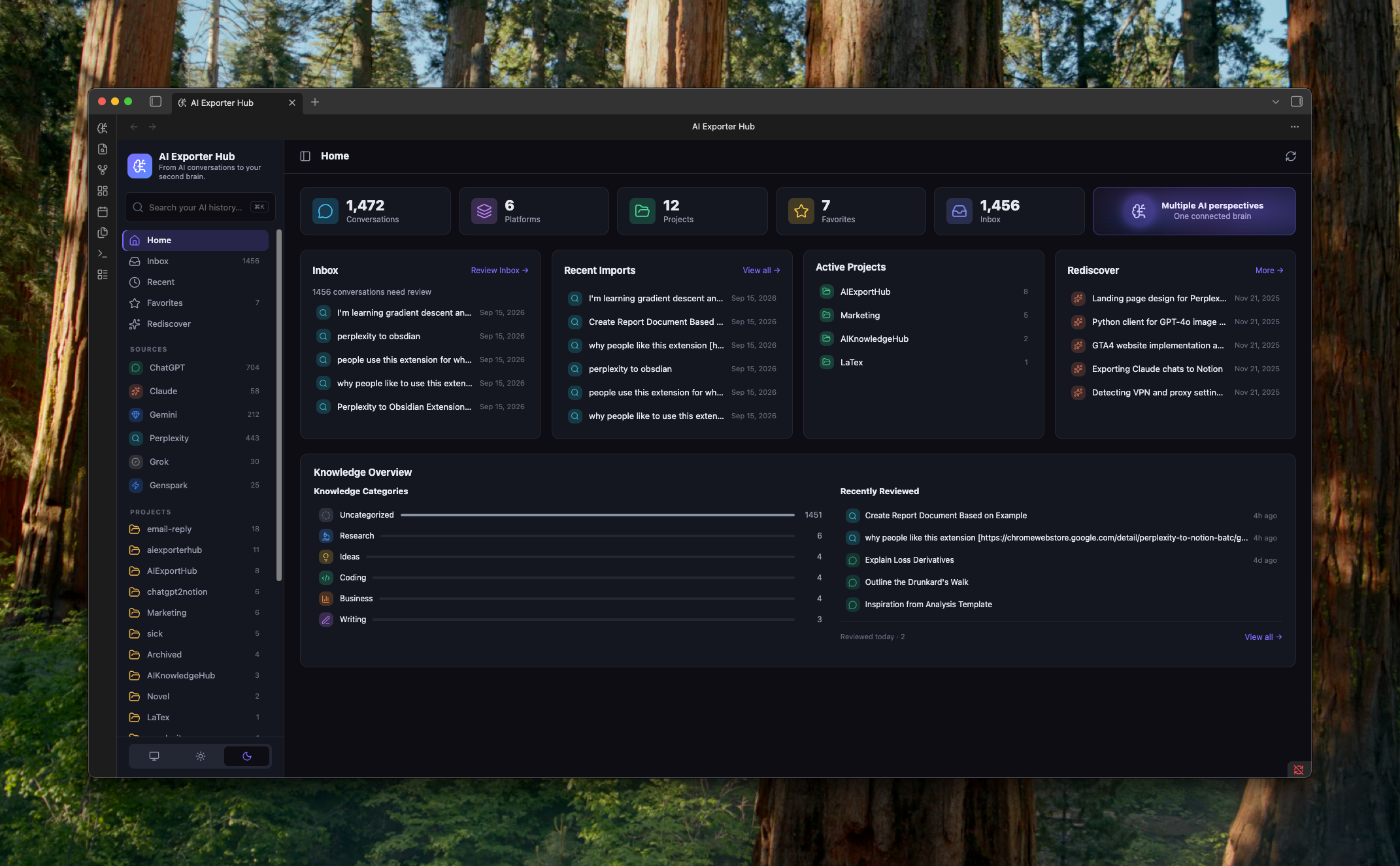 ### Conversation reader and knowledge panel 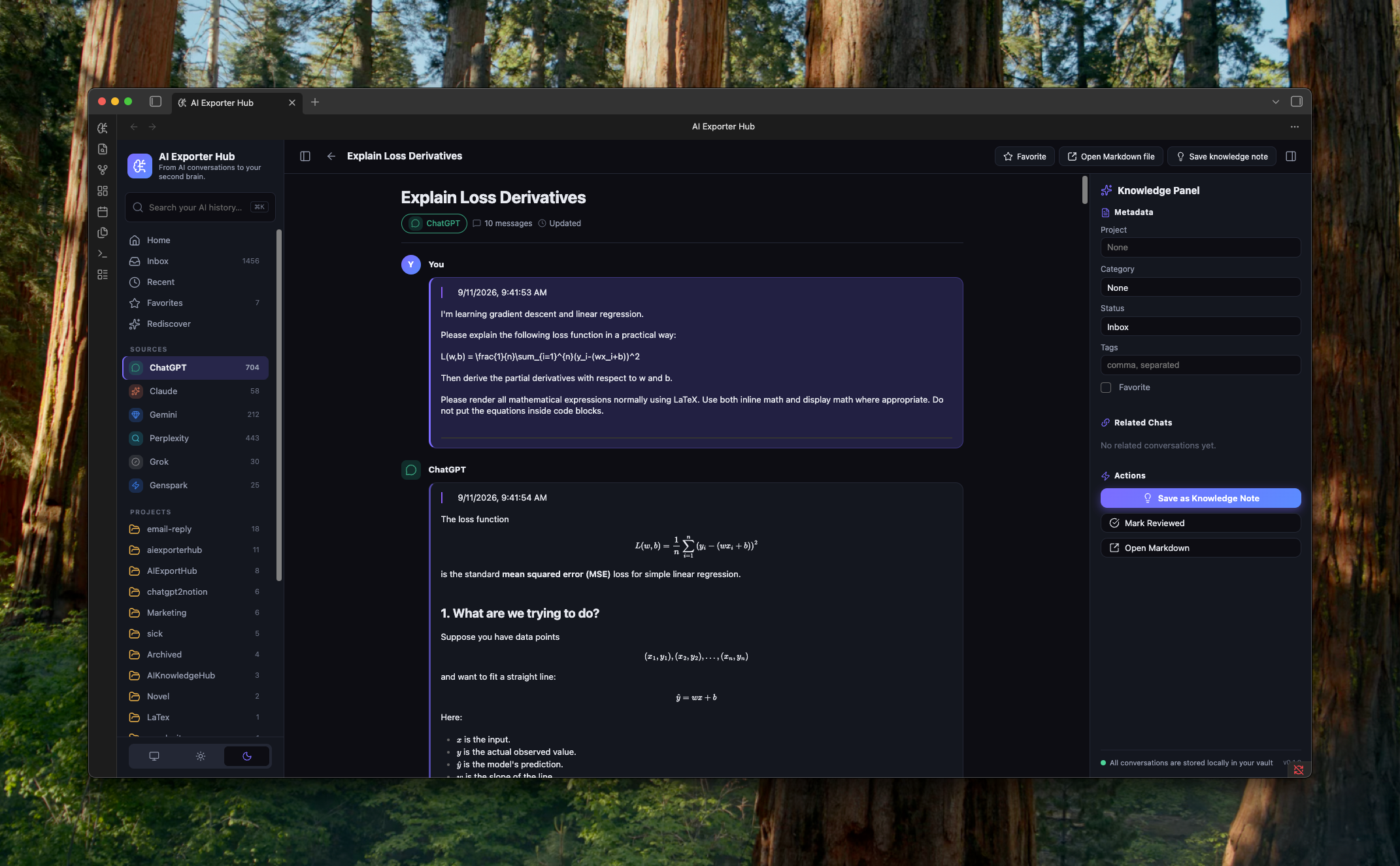 ## Features - Browse conversations from multiple AI platforms in one dashboard. - Organize conversations by source, project, category, tags, favorite status, and review status. - Review new conversations in an inbox and revisit recent imports. - Search titles, metadata, tags, and optionally full conversation content. - Read long conversations in a dedicated reader powered by Obsidian's Markdown renderer. - Update project, category, status, tags, and favorites through YAML frontmatter. - Create normal Markdown knowledge notes linked to source conversations. - Find related conversations using shared projects, categories, and tags. - Rediscover older favorites and reviewed conversations using local metadata. - Rebuild the in-memory index from Markdown at any time. No AI service is required for any current feature. ## Local-first by design AI Exporter Hub treats your vault as the database: - No account is required. - No telemetry or analytics are collected. - No conversation content is uploaded. - No background network service is used. - No proprietary storage format is introduced. - Uninstalling the plugin does not remove or alter your notes. - The clipboard is never read. Message text is written only when you click **Copy**. The plugin keeps only a disposable in-memory search index. When you edit organizational fields, it writes them to the note's YAML frontmatter through Obsidian's file APIs. The optional **Open original** action opens the `source_url` from a note only after you click it. Only HTTP and HTTPS links are accepted. As with Obsidian's normal reading view, remote resources referenced inside Markdown may be loaded when the note is rendered. ## Supported conversations The recommended format uses `type: ai-conversation` in YAML frontmatter: ```yaml --- type: ai-conversation schema_version: 1 title: "Product research notes" platform: ChatGPT conversation_id: abc123 source_url: https://chatgpt.com/c/abc123 created_at: 2026-09-01T10:00:00Z updated_at: 2026-09-01T11:00:00Z exported_at: 2026-09-01T11:05:00Z project: Product Development category: Research tags: - product - ai-research favorite: false status: inbox message_count: 24 word_count: 6200 --- ``` A minimal file can be as simple as: ```yaml --- type: ai-conversation title: Example conversation platform: Claude --- ``` The rest of the file remains standard Markdown. Headings such as `## User` and `## Assistant` provide the best reader experience, but they are not required. AI Exporter Hub also recognizes legacy exports when their frontmatter contains both a supported platform signal and conversation metadata such as a source URL, date, conversation ID, or message count. ### Recognized platforms - ChatGPT - Claude - Gemini - Perplexity - Grok - Genspark - Other compatible Markdown exports The plugin does not scrape or download conversations from AI websites. You can create compatible files yourself, import them from another tool, or use an optional conversation exporter. ## Installation ### Obsidian Community plugins AI Exporter Hub is available in the [Obsidian Community directory](https://community.obsidian.md/plugins/ai-exporter-hub): 1. Open **Settings → Community plugins** in Obsidian. 2. Select **Browse**. 3. Search for **AI Exporter Hub**. 4. Install and enable the plugin. ### BRAT For beta testing before the official listing: 1. Install [BRAT](https://obsidian.md/plugins?id=obsidian42-brat). 2. In BRAT settings, select **Add beta plugin**. 3. Enter `https://github.com/joysey/ai-exporter-hub-obsidian`. 4. Enable **AI Exporter Hub** in Obsidian. BRAT installation requires a published GitHub release containing the plugin assets. ### Manual installation Download `main.js`, `manifest.json`, and `styles.css` from the latest GitHub release. Place them in: ```text