中文 | English
# Dayline Journal
Dayline turns a folder of Markdown daily notes into a visual journal inside Obsidian. Browse a monthly calendar, search a timeline, track mood and weather, and return to past days without moving or rewriting your notes.
It runs on Obsidian desktop and mobile, and is built for vaults that already use [Daily Notes](https://help.obsidian.md/plugins/daily-notes).
## See the journal, not just the files
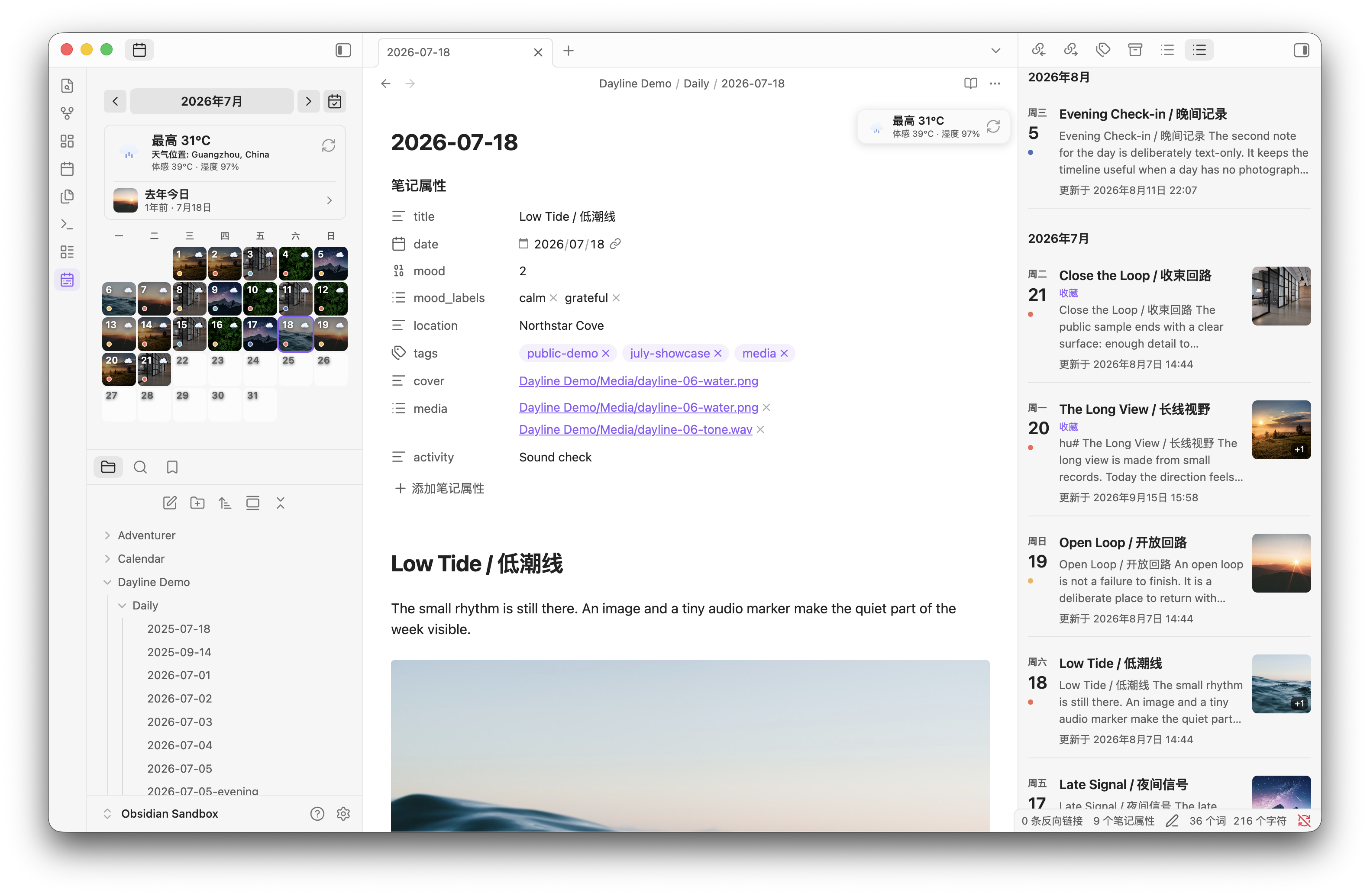
The calendar can show photo covers, mood markers, weather, and multiple-entry badges. Click a date to open its note, or confirm once and create the missing note from your Daily Notes template (Templater supported).
The journal timeline turns the same notes into a browsable record. Full-text search and filters cover date range, source, mood, favorite, location, tag, and media type.
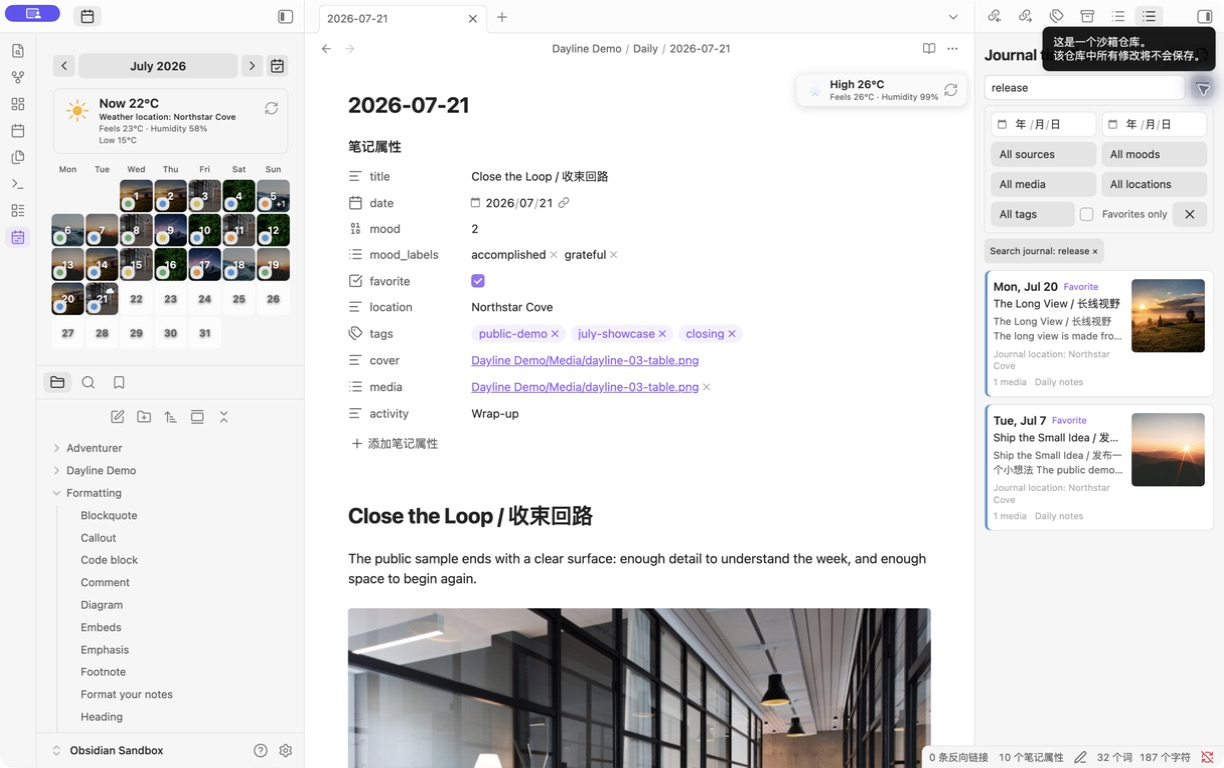
The screenshots come from the synthetic, privacy-safe vault in [`showcase/`](showcase/README.md). The sample contains no real journal entries, locations, EXIF data, or downloaded personal media. Media sources are listed in [`showcase/MEDIA_ATTRIBUTIONS.md`](showcase/MEDIA_ATTRIBUTIONS.md).
## What you get
- **A calendar that reads your journal.** Daily note images become date-cell covers; mood colors, optional weather, today, browsing date, and multiple-entry states are visible at a glance.
- **A timeline built for recall.** Search the full text of your journal and narrow it with date, source, mood, favorite, location, tag, and media filters.
- **Mood with context.** Use five color levels with notes and labels, then review trends and reports. Recovery, backup, integrity checks, and JSON/CSV export are included.
- **Memories and media.** On This Day brings back summaries and a photo wall, and its entry can be turned off, merged into the weather card, or placed in the header. Image, video, and audio entries support covers, metadata, EXIF tooltips, and desktop HEIC/HEIF thumbnails.
- **Customizable mood markers.** Mark a date with a corner dot or a bottom color bar that keeps the date centered. In narrow sidebars, date, weather, and mood pin to the cell corners.
- **Desktop and mobile.** The phone view includes calendar and timeline switching, touch-friendly controls, keyboard-aware mood editing, and quick entry from a Markdown note.
- **Your vault remains the source.** Journal bodies stay Markdown. Dayline indexes the folders you choose and keeps its visual metadata separate, so the notes remain readable and portable.
## How it works
1. Point Dayline at your daily notes folder.
2. The plugin resolves dates and indexes the Markdown notes in that folder. You can add external import folders as ordinary journal sources.
3. Browse the result in the calendar or timeline, record mood and context, then open any date directly in Obsidian.
By default, mood metadata is stored in `Calendar/journal-metadata.json`, while weather snapshots live in the plugin's `data.json`. Frontmatter mood mirroring is optional. Dayline never needs remote media: attachment links stay in your vault, and EXIF GPS reverse geocoding is off until you explicitly enable it.
## Install
**From Obsidian**
1. Open **Settings → Community plugins**.
2. Browse and install **Dayline Journal**.
3. Enable the plugin, then run the command `Open Dayline`.
**Using BRAT**
1. Install and enable [BRAT](https://github.com/TfTHacker/obsidian42-brat).
2. Add `Haoo-7/Obsidian-Dayline` as a beta plugin.
3. Enable **Dayline Journal**, then run the command `Open Dayline`.
**Manual installation**
1. Download `dayline.zip` from [Releases](https://github.com/Haoo-7/Obsidian-Dayline/releases).
2. Extract it to `.obsidian/plugins/dayline-journal/` in your vault.
3. Reload Obsidian, enable **Dayline Journal**, then run `Open Dayline`.
When the new plugin folder has no `data.json`, Dayline migrates settings from an earlier `dayline` installation or Calendar Sidebar 1.x. Vault notes and mood metadata are not rewritten by the migration.
Settings reference (grouped as they appear in the settings tab)
**General**
| Setting | What it controls |
| --- | --- |
| **Display language** | Controls plugin views, notices, labels, and accessible text. Choose System, Simplified Chinese, Traditional Chinese, English, Japanese, Korean, French, German, Spanish, or Russian. Defaults to Chinese. |
| **Week starts on** | Choose the first weekday shown in the calendar. Defaults to System. |
**Calendar and journal**
| Setting | What it controls |
| --- | --- |
| **Journal source directories** | Configure the daily-notes directory (the `Default daily-note folder` field, default `Calendar/Daily`; use `/` when the notes sit directly in the vault root, which reads top-level files only) and optional external import directories. Legacy standalone entry sources are no longer enabled by default. |
| **Thumbnail filter** | Which embedded images to show as date thumbnails: `All embedded images` (default) or `Only date-prefixed (YYYY-MM-DD_*)`. |
| **Journal tools** | Open the timeline or inspect external import directories. |
| **Show timeline mood trend** | Show the recent seven-day mood trajectory at the top of the journal timeline. On by default. |
| **Show timeline journal titles** | Show journal titles and title-editing controls in the timeline. On by default. |
| **Show mood markers on calendar** | Show mood colors on date cells without deleting mood records when disabled. On by default. |
| **Calendar mood style** | `Color dot` sits in the cell corner (default). `Color bar` sits at the bottom and keeps the date centered. Shown only while the markers above are on. |
| **Show same-day entry count** | Show additional entries for a date; clicking it opens the primary daily note. On by default. |
| **Show the calendar weather card** | Show the weather card above the calendar; date-cell icons are unaffected. On by default. |
| **Show weather location** | Show the configured location in the weather card. Off by default; shown only while the weather card is on. |
| **Show date weather icons** | Show weather icons in the top-right of date cells; the weather card is unaffected. On by default. |
**Mood**
| Setting | What it controls |
| --- | --- |
| **Mirror mood to frontmatter** | When enabled, saving a mood writes `mood` and `mood_labels` to Markdown. Off by default. |
| **Daily reminder** | Show a local reminder when today has no note. Off by default. |
**Weather** (requires `Enable weather`, otherwise these settings stay hidden)
| Setting | What it controls |
| --- | --- |
| **Enable weather** | Show weather info for dates in Dayline. Off by default. |
| **Latitude** / **Longitude** | Your coordinates, which determine the weather data source. They save on blur or after about 0.8 s without typing; invalid or out-of-range input is reported inline and never saved. |
| **Use current location** | Reads the device location once, only when you tap the button, and fills in the coordinates rounded to about 1 km. Shown on Obsidian mobile only, because desktop Electron usually has no location service. |
| **Location name** | Display name (optional, shown in tooltip). |
| **Temperature units** | `Celsius (°C)` (default) or `Fahrenheit (°F)`. |
| **Weather fields** | Choose weather card fields. Feels-like and humidity are enabled by default; wind, precipitation, sunrise, sunset, and location are optional. |
| **Weather timezone** | IANA timezone used for diary dates and Open-Meteo. `auto` uses the system timezone. |
| **Auto-fetch weather** | Automatically fetch weather when opening a daily note. On by default. |
| **Cache TTL (hours)** | How long to keep cached weather before re-fetching. Defaults to 2 hours. |
**Media metadata and privacy**
| Setting | What it controls |
| --- | --- |
| **Show image EXIF metadata** | Display camera settings and capture info when hovering over images. On by default. |
| **Resolve GPS locations** | Send EXIF GPS coordinates to OpenStreetMap Nominatim to show place names. **Off by default**; no coordinates leave your device until you enable it. |
| **HEIC thumbnail cache folder** | Vault folder where the desktop writes the HEIC thumbnails it converted (default: the hidden `.dayline/thumbs`), so phones and tablets display the same thumbnails without decoding. Leave empty to disable. Hidden folders (starting with a dot) are not synced by Obsidian Sync — pick a visible folder if you use Sync. The folder can be deleted at any time. |
| **Generate all thumbnails now** | Convert every HEIC the journal references in one run, with progress shown under the button. The automatic pre-warm stops at 300 per session; this button has no cap. Desktop only. |
**On This Day**
| Setting | What it controls |
| --- | --- |
| **Sidebar entry** | `Off`, `Merged into weather card` (default), or `Header icon`. The merged strip shows a past-year thumbnail and date; the header icon sits beside the month controls. |
| **Excerpt mode** | How to generate text previews for past entries: `Auto-extract from note body` (default), `From frontmatter field`, `Custom template`, or `No excerpt`. |
| **Frontmatter field name** | Which frontmatter key to read. Defaults to `excerpt`; shown only in `From frontmatter field` mode. |
| **Template** | Template string for custom excerpt mode, supporting `{body}`, `{year}`, `{date}`, or any frontmatter key. Defaults to `{body}`; shown only in `Custom template` mode. |
**Data and maintenance**
| Setting | What it controls |
| --- | --- |
| **Mood metadata path** | Vault-relative JSON path. Defaults to `Calendar/journal-metadata.json`; JSON is the primary mood store. |
| **Mood export** | Export mood records as CSV or JSON. |
| **Metadata backup** | Export or restore the mood metadata backup. |
| **Data maintenance** | Check data integrity or import frontmatter records. |
| **Recover mood records** | Inspect deleted or moved mood records and restore them to their original file path. Appears only when orphans are detected. |
| **Bulk backfill weather** | Fetch historical weather for all past diary dates (may take several minutes). Appears only after `Enable weather` is on. |
Weather, imports, and date matching
Weather is optional and uses [Open-Meteo](https://open-meteo.com/) without an API key. The weather card can show current conditions, while historical dates use the archive endpoint when coverage is available.
**Device location:** the weather setting's `Locate` button reads the device location once, only when you tap it, and stores the coordinates rounded to about 1 km (2 decimals). Dayline never tracks your position, never reads it in the background, and uses it for nothing else. Desktop Electron builds usually have no location service, so the button appears on Obsidian mobile (iOS/Android) only and desktop users enter coordinates manually. The stored coordinates are sent to [Open-Meteo](https://open-meteo.com/) with the weather request.
For Day One or Apple Journal imports, first use [Day One Importer](https://github.com/MarcDonald/obsidian-day-one-importer) or [Obsidian Importer](https://github.com/obsidianmd/obsidian-importer), then add the output folder as a Journal source. Dayline does not parse JSON/ZIP exports or rewrite the imported files.
Dates are matched from the configured date field, then `date`, `creationDate`, and finally a valid date-prefixed filename. Modification time is never used as a date fallback. Files without a resolvable date appear in diagnostics rather than being guessed into the timeline.
## Compatibility and limits
- **Obsidian v1.5.0+**, on desktop and mobile.
- Daily notes default to `YYYY-MM-DD.md`, but the folder, source, and date field are configurable.
- HEIC/HEIF thumbnail conversion runs on desktop only. Converted thumbnails are written to the **HEIC thumbnail cache folder** (default: the hidden `.dayline/thumbs`), and phones and tablets read that cache directly, so no device has to decode HEIC. The folder can be deleted at any time; the desktop rebuilds it as needed. Video covers, audio artwork, and unsupported or oversized media still fall back to metadata or the original attachment depending on the device.
- Historical weather is best-effort because it depends on archive coverage. When refresh fails, compatible cached data can remain visible as stale or offline.
- The timeline opens notes from the folders you configure. It does not replace Obsidian's file browser, Markdown editor, or sync system.
## Development
```bash
npm install
npm run typecheck
npm test
npm run build
```
The tracked `main.js` is generated by the build. Run `npm run verify:release` before packaging a release, and see [CHANGELOG.md](CHANGELOG.md) for released changes.
## Support
If Dayline has helped you keep journaling, feel free to buy the author (and the cat) a coffee ☕

Donations are accepted via WeChat only.
## License
[MIT](LICENSE)