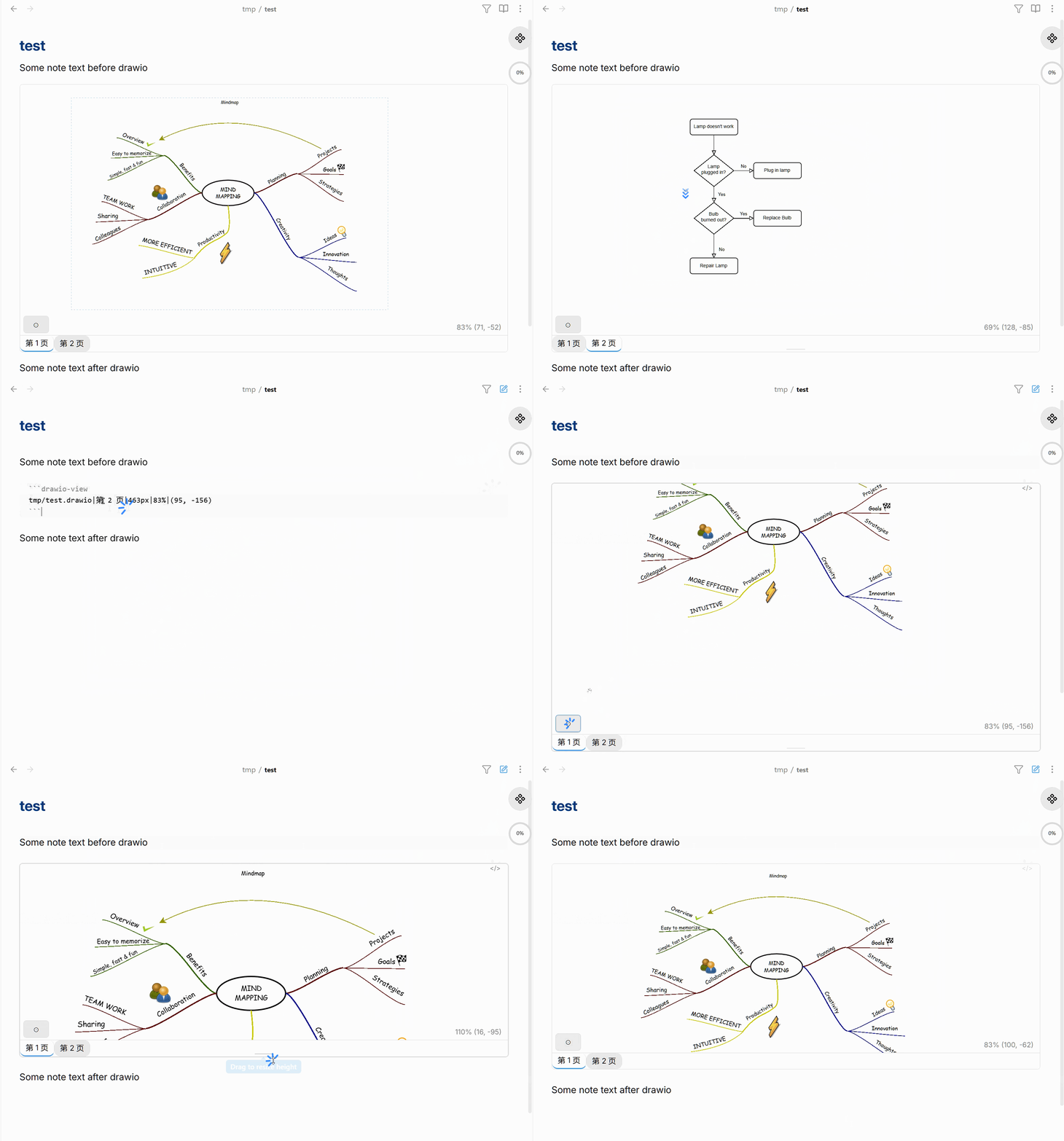
Render rich file formats inline inside your Obsidian notes — with smooth zoom, pan, multi-page tabs, shape links, and full support for third-party shape libraries. Today that means [draw.io](https://www.drawio.com/) `.drawio`, Visio `.vsdx` and PowerPoint `.pptx` files; more formats (Word, CAD, ...) are planned.
---
## Usage
Place your file anywhere in the vault, then embed it with a fenced `rich-view` code block. The easiest way: insert an **empty** `rich-view` block and click **Import file** to pick a `.drawio`, `.vsdx` or `.pptx` from your vault — the code block is filled in for you.
Or write it by hand:
````markdown
```rich-view
file=my-diagram.drawio
```
````
Every other field is an explicit `key=value` pair, separated by `|`, in any order:
````markdown
```rich-view
file=my-diagram.drawio|page=my_page|height=600|zoom=80|offset=190,34
```
````
| Key | Format | Example | Description |
|-----|--------|---------|-------------|
| `file` | `key=value` | `file=my-diagram.drawio` | Required. Vault-relative path or bare name (`.drawio`, `.vsdx` or `.pptx`). |
| `page` | `key=value` | `page=my_page` | Which page to display, by exact name (diagrams only). Default: first page. |
| `page-index` | `key=value` | `page-index=2` | Which page or slide to display, by 1-based position. Ignored if `page=` is also set. |
| `height` | `key=value` | `height=600` | Viewer height in pixels. Default: 400. |
| `zoom` | `key=value` | `zoom=80` | Initial zoom level (%). Default: auto-fit. |
| `offset` | `key=value` | `offset=190,34` | Initial pan position (diagrams only). Default: centred. |
Only `file=` is required; the rest can appear in any order.
---
## Shape Libraries
If your diagram uses extended shape libraries (AWS, Azure, GCP, Cisco, Electrical, IBM, and many more), the plugin will detect this automatically and show a **download banner** the first time you open it.
Click **Download** — the missing libraries are fetched from draw.io's official repository, saved locally, and reused for all future diagrams. The banner also has a **Settings** shortcut if you prefer to manage libraries manually.
Go to **Settings → Rich View → Shape Libraries** to:
- Browse and download official libraries by category
- Use **Auto-detect from vault** to find all libraries needed by your existing diagrams
- Set a **custom folder** for your own shape files
---
## Controls
Every viewer has the same **status bar** under the content: page tabs on the left (scrolling sideways when there are many), the current zoom, then a row of icon buttons on the right. The common buttons come first, then a divider, then any buttons specific to that file type.
| Button | Action |
|--------|--------|
| 🔍 **Magnifier** | Toggle the magnifier (diagrams) |
| **Fit** | Auto-fit the whole page to the viewer's current size |
| 📌 **Pin view** | Save the current page, zoom and position into the code block |
| 📂 **Switch file** | Pick another file from the vault for this code block |
| ↗ **Open externally** | Open the file in the system default app |
| ⤢ **Fullscreen** | Expand the viewer to the whole screen (Esc to exit) |
| **Drag the bottom edge** | Resize the viewer height; the handle turns blue while you drag |
| Gesture | Diagrams | Slides |
|---------|----------|--------|
| **Scroll wheel** | Zoom (or Ctrl+scroll, see Settings) | Scroll |
| **Ctrl + scroll** | Zoom | Zoom |
| **Drag** | Pan | — (scroll bars when zoomed in) |
| **Two-finger pinch** | Pinch-zoom (touch / mobile) | — |
| **Double-click** | Reset to the initial view | — |
**Tip:** get the view you want, then click **Pin view**. The code block updates in place and that view is restored every time you open the note. Once a specific zoom/offset is pinned, double-click restores *that* view rather than auto-fitting — click **Fit** to get back to a fresh auto-fit (e.g. after resizing), then pin again.
### Slides (.pptx)
PowerPoint decks open one slide at a time with numbered tabs. The slide always fits the viewer completely — shrink the height and it re-fits, so nothing is cropped. Ctrl+scroll to zoom in, then use the scroll bars to move around. Animations and transitions are not played.
### Shape links
Hover any shape to see a **✎** button. Click it to attach a link to a vault note or external URL. To follow the link, click the shape (exact key depends on the *Click behavior* setting).
### Magnifier
Click **🔍** to inspect fine detail without changing your zoom/pan. A circular loupe follows the cursor at a fixed magnification; **+ / -** change its size. Scroll wheel still zooms the main view as usual. Press **Esc** or click anywhere else to exit.
---
## Dark mode
The viewer automatically adapts to Obsidian's dark theme — no configuration needed.
---
## Settings
| Setting | Description |
|---------|-------------|
| **Zoom modifier key** | Plain scroll or Ctrl+scroll to zoom. |
| **Click behavior** | Whether a plain click or Ctrl+click follows a shape link. |
| **Custom library folder** | A vault folder for your own shape files. |
| **Shape Libraries** | Download official libraries; auto-detect from vault. |
---
## Installation
### Community plugin marketplace (recommended)
1. **Settings → Community plugins → Browse**
2. Search **Rich View** → Install → Enable
### Manual
Download `main.js`, `manifest.json`, and `styles.css` from the [latest release](https://github.com/SdKay/obsidian-rich-view/releases/latest) and copy them to `