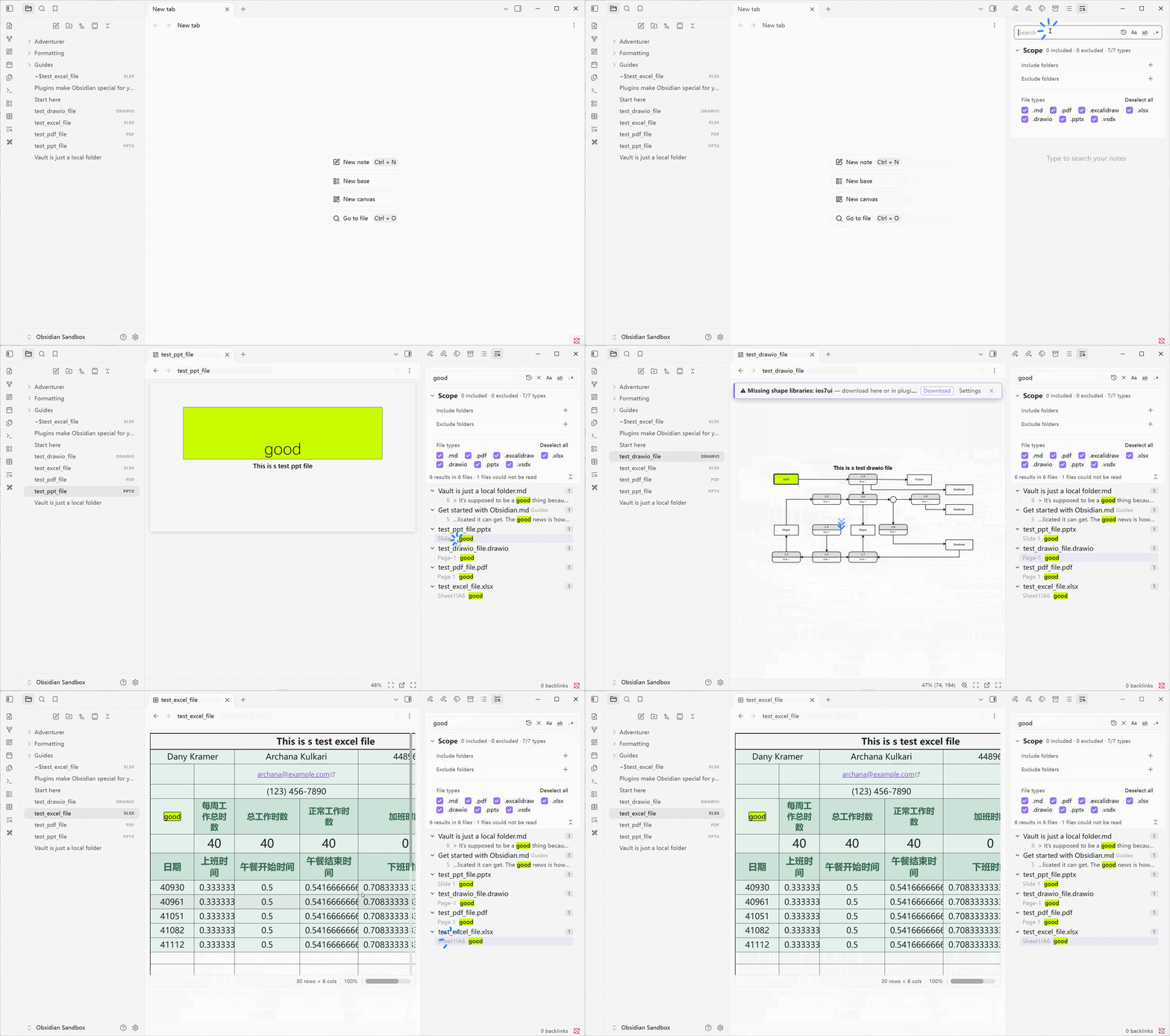
A powerful cross-file search tool for Obsidian. It matches whole words and regular expressions, limits the search to the folders and file types you choose, and searches the text inside PDF, Excalidraw, Excel, PowerPoint, draw.io and Visio files as well as Markdown files. Results are listed grouped by file; click one, or step through them with the arrow keys, to jump to the match, which is marked in the original.
---
## Features
- **A search panel** in the sidebar (ribbon icon or the *Open search* command): drag it to either side. The query box and options stay fixed while only the results scroll.
- **Whole-word matching** that also works in Chinese, Japanese and Korean text
- **Regular expressions**, with a clear message instead of an error while you are still typing the pattern
- **Case sensitivity** toggle
- **Searching starts as you type**, and Enter searches at once. A new query cancels the one still running.
- **Scope**: include folders and exclude folders (an exclusion inside an included folder carves it out), and tick the file types to search. Skipped files are never read.
- **Open a result** in the main area (Ctrl/Cmd+click for a new tab). A note opens with the matching line in the middle of the window, in reading view and in the editor alike.
- **Move through the results with the keyboard**: ↑ / ↓ select the previous or next result and open it without taking the focus away from the list. The selected result is shown with a background, as in VS Code.
- **Matches stay highlighted** in every open note, as in VS Code, for as long as the search panel is open and the query is not empty. Clicking, typing in the note and pressing Escape do not clear them. The match you opened is drawn brighter, with an outline, and the others dimmer. This works in the editor, in reading view and in Markdown tables. Only notes the search covers are marked: a note outside the folders and file types of the search is left alone, and the marks follow the scope when you change it.
- **Choose the highlight colour** in the settings. Every view that shows a match uses it.
- **Search history**: press ↑ / ↓ in the query box to step back and forth through earlier searches; each one restores the text, the three options and the scope. A button in the box lists them, newest first: click one to restore it, click the × after it to forget just that one, or choose *Clear history*.
- **Search in a folder**: right-click a folder in the file explorer and choose *Search in folder*. The include list becomes that folder, the exclude list is cleared, and the query already in the box is searched again.
- **Excalidraw drawings** are searched by the words in them, and clicking a result opens the drawing and zooms to the element (needs the Excalidraw plugin).
- **PDF files** are searched by the text on each page. Clicking a result opens the page in Obsidian's viewer, and the matches on the pages you scroll through are marked. A scanned PDF with no text layer cannot be searched and is counted among the files that could not be read. The first search of a large PDF takes a while; its text is kept in memory afterwards.
- **Excel, PowerPoint, draw.io and Visio files** are searched through the Rich Table and Rich View plugins, and clicking a result opens the file at the sheet and cell, the slide, or the shape (see [below](#cross-format-search)).
- **Many results**: the first 2,000 are shown with the true total above them, and a button shows more. Results appear as they are found, notes first.
---
## Cross-format search
Notes are not the only place your text lives. Rich Search reads the text a person would actually see in other files and lists it next to your notes. It does not read raw bytes, and it does not carry its own parsers: for formats Obsidian cannot show, it asks the plugin that already renders them.
| Format | Needs | What is searched | State |
|---|---|---|:---:|
| PDF (`.pdf`) | Obsidian's built-in PDF viewer | The text of each page | 🟢 |
| Excalidraw (`.excalidraw`) | [Excalidraw](https://github.com/zsviczian/obsidian-excalidraw-plugin) | The words in the drawing, not the compressed drawing data | 🟢 |
| Rich Table tables | [Rich Table](https://github.com/SdKay/obsidian-rich-table) | What the table shows, not its source | 🟢 |
| Excel (`.xlsx`) | [Rich Table](https://github.com/SdKay/obsidian-rich-table) | Cell values, per sheet. A result opens at its sheet and cell. | 🟢 |
| PowerPoint (`.pptx`) | [Rich View](https://github.com/SdKay/obsidian-rich-view) | Slide text. A result opens at its slide. | 🟢 |
| draw.io, Visio (`.vsdx`) | [Rich View](https://github.com/SdKay/obsidian-rich-view) | Shape and label text. A result opens at its page and shape. | 🟢 |
---
## Installation
**Community plugin browser (recommended):**
1. Open **Settings → Community plugins → Browse**
2. Search for **Rich Search** and install
3. Enable the plugin
**Manual:** copy `main.js`, `manifest.json`, `styles.css` to `






 |
 |
Thank you for your support! 🙏
---
## Feedback
Issues and feature requests: [GitHub Issues](https://github.com/SdKay/obsidian-rich-search/issues)
---
[](https://star-history.com/#SdKay/obsidian-rich-search&Date)