# Task Manage
English · 简体中文
[](https://github.com/heart-freely/obsidian-task-manage/releases)
[](https://obsidian.md/plugins?id=obsidian-task-manage)
3-level task management (file/heading/list), 19 views (kanban/matrix/calendar/Gantt/task tree/statistics), batch edit task marks, supports multiple task management methods.
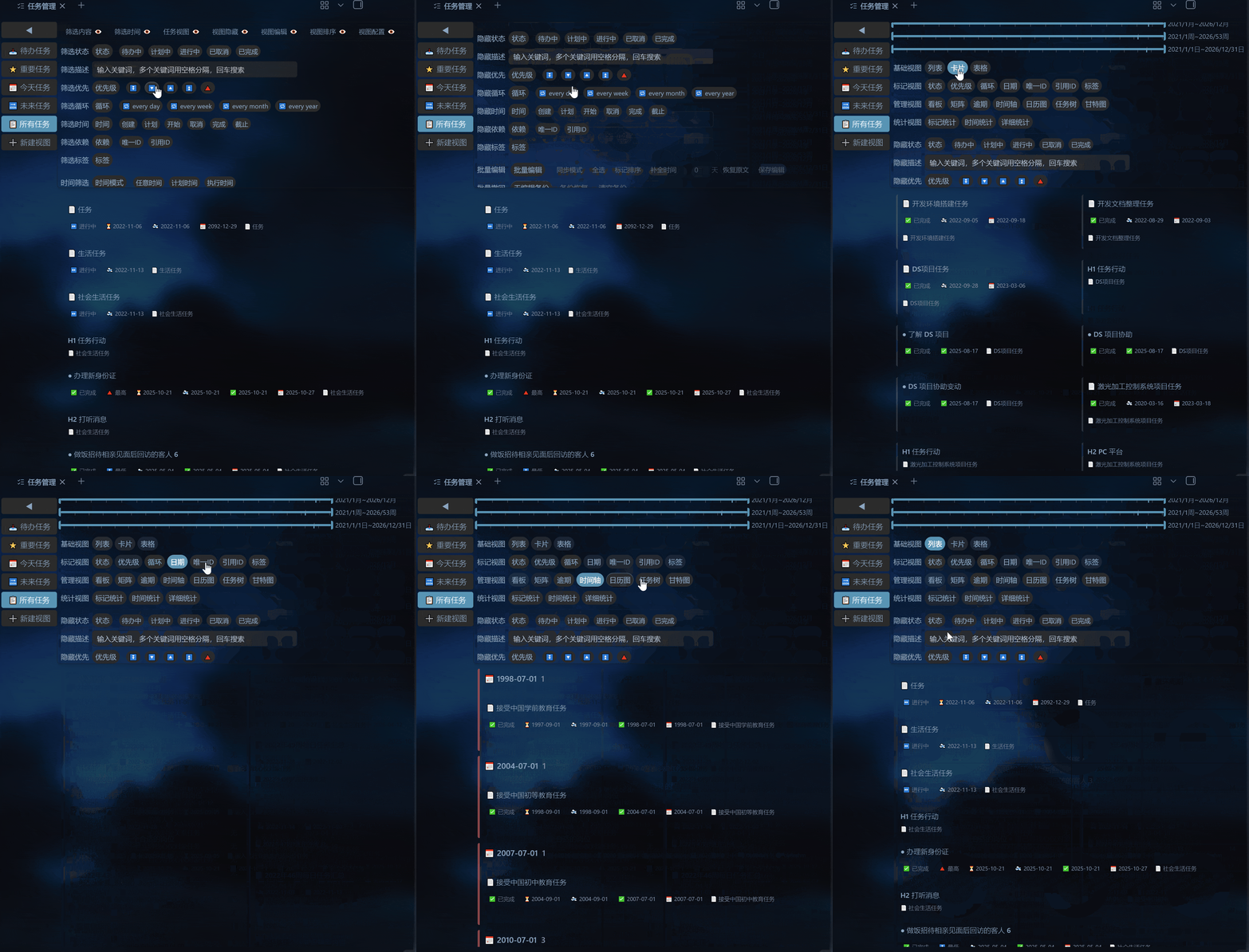
## Why Choose Task Manage
- **19 Views**: From simple lists to advanced Gantt charts, meeting diverse scenario needs
- **Global Filtering**: Configure once, apply to all views simultaneously
- **Solution-Driven**: Save multiple view configurations, switch work scenarios with one click
- **Batch Editing**: Batch modify task marks with snapshot rollback for safety
- **Calendar & Gantt Chart**: Visualize time dimensions to intuitively grasp task distribution and dependencies
## Dependencies
This plugin requires the following plugin for data support:
- [Tasks](https://obsidian.md/plugins?id=obsidian-tasks-plugin) — Task mark parsing and editing
> Please install and enable this plugin in Obsidian first.
## Installation
### Community Plugin Marketplace (Recommended)
1. Open Obsidian **Settings → Community Plugins**
2. Click **Browse**, search for **Task Manage**
3. Install and enable
### Manual Installation
1. Download `main.js`, `manifest.json`, `styles.css` from [Releases](https://github.com/heart-freely/obsidian-task-manage/releases)
2. Place them in `/.obsidian/plugins/obsidian-task-manage/`
3. Restart Obsidian and enable the plugin
## Quick Start
### 1. Configure Task Paths
After installation, open **Settings → Task Manage**, add folders containing tasks in the "Task Path" field. The plugin will automatically scan Markdown files within them.
### 2. Open Main Panel
Click the  icon in the left ribbon, or search for "Task Manage" in the command palette.
### 3. Choose a View
The left sidebar provides preset views:
| View | Description | Use Case |
| --------------- | ------------------------------------------------- | ----------------------------- |
| Todo Tasks | Tasks that are Todo + Planned | Daily todo review |
| Important Tasks | High-priority (🔺⏫🔼) tasks that are In Progress | Focus on high-priority tasks |
| Today Tasks | Tasks due today | Handle tasks due today |
| Future Tasks | Tasks due within the next 15 days | Plan ahead for near-term work |
| All Tasks | All tasks, no filter | Global browsing or batch ops |
Click **➕ New View** to create custom solutions.
### 4. Filter & Sort
The top view configuration panel provides 7 toolbars:
| Panel | Function |
| ----------- | ------------------------------------------------------------------------------------------------------------- |
| Filter | Status (Todo/Planned/In Progress/Done/Cancelled) + keyword search (space-separated "AND" logic) + marks (Priority/Recurrence/Dates/Unique ID/Reference ID/Tag) |
| Time | Dynamic slider (Day/Week/Month/Quarter/Year) + Static slider, with "Use Dynamic" linkage support |
| Task View | 4 groups of 19 view styles (Basic/Mark/Manage/Statistics) |
| View Hide | Hide Recurring/Done/Cancelled/Specific Status/Priority/Description/Marked tasks |
| View Sort | Original order + 14 sort fields, with ascending/descending support |
| View Edit | Batch edit/Complete time/Mark sort/Save changes/Snapshot rollback |
| View Config | View name & icon/Import & Export JSON/Restore default/Delete view |
All filter conditions are automatically saved and restored on restart.
## View Introduction
### Basic Views (List / Card / Table)
- **List**: Detailed mode displays full mark information, concise mode displays only descriptions
- **Card**: Grid layout with left color bar indicating status
- **Table**: Sortable table with empty columns automatically hidden
### Mark Views (Status / Priority / Recurrence / Date / Tag / Unique ID / Reference ID)
Group tasks by the selected mark type (e.g., "Priority"), each group identified by an independent color bar. For example, selecting the "Priority" view groups all tasks into 5 categories: 🔺/⏫/🔼/🔽/⏬.
### Management Views
#### Kanban
Three columns arranged horizontally: Todo / Planned / In Progress.
#### Matrix
Four-quadrant classification: 🔺 Urgent & Important / ⏫ Not Urgent but Important / 🔼 Urgent but Not Important / 🔽⏬ Not Urgent & Not Important.
#### Overdue
Grouped by overdue days (Due Today / Overdue 1 day / Overdue N days).
#### Timeline
Grouped by due date, displaying task distribution along a timeline.
#### Calendar View
Five views: Year / Quarter / Month / Week / Day:
- **Year View**: Heatmap, color intensity indicates task density
- **Quarter View**: 7 columns, task bars
- **Month View**: 7 columns, task bars
- **Week View**: 7 columns, task bars
- **Day View**: Card list
Interactions: Click date header to jump to Day View, double-click task bar to jump to source file, hover to show full information.
#### Gantt Chart
- Left task tree + right timeline
- Task bars colored by execution status
- Dependency arrows (⛔ mark) automatically drawn
- Hold `Alt` and scroll mouse wheel to zoom timeline, drag blank area to pan
- Click ➤ button to automatically locate task bar
- Click task bar to jump to corresponding task tree node in the left panel
#### Task Tree
Three-level display: File → Heading → List Task:
- Collapse/expand nodes
- Progress bar showing subtask completion status
- Supports parent-child relationships between tasks (YAML `父任务` + Wiki link)
### Statistics Views
- **Mark Statistics**: 6 pie charts, counting Status/Priority/Recurrence/Date/Dependency/Tag
- **Detailed Statistics**: Stacked bar chart showing task count changes by date across statuses
- **Time Statistics**: Under development
## Task Mark Format
The plugin parses Emoji marks in task lines:
```text
- [ ] Task description 🔺 🔁 every week ➕ 2025-09-06 ⏳ 2025-09-06 🛫 2025-09-06 📅 2026-04-06 🆔 dcf64c ⛔ dcf64c 🏁 keep
```
| Mark | Meaning | Example |
| --------------- | ----------------- | -------------------------------- |
| `- [ ]` | Todo | Execution status (space/?/>/x/-) |
| `🔺⏫🔼🔽⏬` | Priority | 🔺 (Highest) → ⏬ (Lowest) |
| `🔁 every ...` | Recurrence | 🔁 every week |
| `➕ YYYY-MM-DD` | Created Date | ➕ 2025-09-06 |
| `⏳ YYYY-MM-DD` | Planned Date | ⏳ 2025-09-06 |
| `🛫 YYYY-MM-DD` | Start Date | 🛫 2025-09-06 |
| `❌ YYYY-MM-DD` | Cancelled Date | ❌ 2023-04-18 |
| `✅ YYYY-MM-DD` | Done Date | ✅ 2023-04-17 |
| `📅 YYYY-MM-DD` | Due Date | 📅 2026-04-06 |
| `🆔 id` | Unique ID | 🆔 dcf64c |
| `⛔ id1,id2` | Task Dependencies | ⛔ dcf64c,h17ye |
| `🏁 keyword` | Custom Tag | 🏁 keep |
> Mark order is not sensitive; the plugin will automatically sort them according to specification.
## Editing Features
In List/Card view, **click a task card** to enter edit mode:
### Single Edit
- Click mark buttons (Status/Priority/Recurrence/Date/Tag/ID, etc.) to modify corresponding marks
- Description can be edited directly by clicking
- Preview shows changes in real-time
- Click "Save" to write to file
### Batch Edit
1. Click the "Batch Edit" button in the panel
2. Check tasks to edit (supports Select All/Deselect All)
3. Click edit buttons to sync modifications to all checked tasks
4. Supports completing time and mark sorting
5. Can be restored via "Batch Rollback" after saving
## Cross-File Task Relationships
The plugin supports establishing parent-child relationships between tasks across files through:
- **YAML Meta Property**: Set `父任务: 父文件名` in the frontmatter of subtask files
- **Wiki Link**: Use `[[子文件名]]` in the parent file
When both methods exist, the YAML declaration takes precedence.
### Plugin Settings
**Settings → Task Manage** provides:
| Setting | Description |
| ------------- | ------------------------------------------------------------------ |
| Task Path | Folders containing task files (supports multiple, comma-separated) |
| Match Tasks | Four-level filter: Folder/File/Heading/Task Item |
| Import/Export | JSON import/export of plugin configuration |
## FAQ
**Q: Why are no tasks displayed after opening the panel?**
A: Please check the following:
1. The task file folder path is correctly configured in **Settings → Task Manage**
2. Task files contain valid task marks (at least `- [ ]` at the beginning)
3. The [Tasks](https://obsidian.md/plugins?id=obsidian-tasks-plugin) plugin is installed and enabled
**Q: Why does the Gantt chart show only a few tasks?**
A: The Gantt chart requires tasks to have date marks to display time bars. Ensure tasks contain at least one of: Planned Date `⏳`, Start Date `🛫`, or Due Date `📅`.
**Q: Why aren't dependency arrows displayed?**
A: Dependency arrows require two conditions:
1. The depended task has a `🆔` Unique ID
2. The dependent task references that ID via `⛔`
3. Both tasks have date ranges and are visible in the current filter results
**Q: How do I back up and restore view configurations?**
A: Click **📤 Export Config** in the view configuration panel to save as a JSON file, and click **📥 Import Config** when needed to restore. Plugin configurations can be imported/exported in settings.
**Q: Does the plugin modify my original task files?**
A: Yes. All editing operations (single edit/batch edit) directly modify Markdown files. It is recommended to back up or commit with Git before batch operations. The plugin's built-in "Snapshot Rollback" feature can undo the most recent batch edit.
**Q: Does the plugin support mobile?**
A: The current version is tested only on desktop. Mobile compatibility will be improved in future releases.
## Feedback & Contributions
- Found an issue? Submit it on [GitHub Issues](https://github.com/heart-freely/obsidian-task-manage/issues)
- Pull requests are welcome!
- Like this plugin? Give it a ⭐!
## License
[MIT](LICENSE)