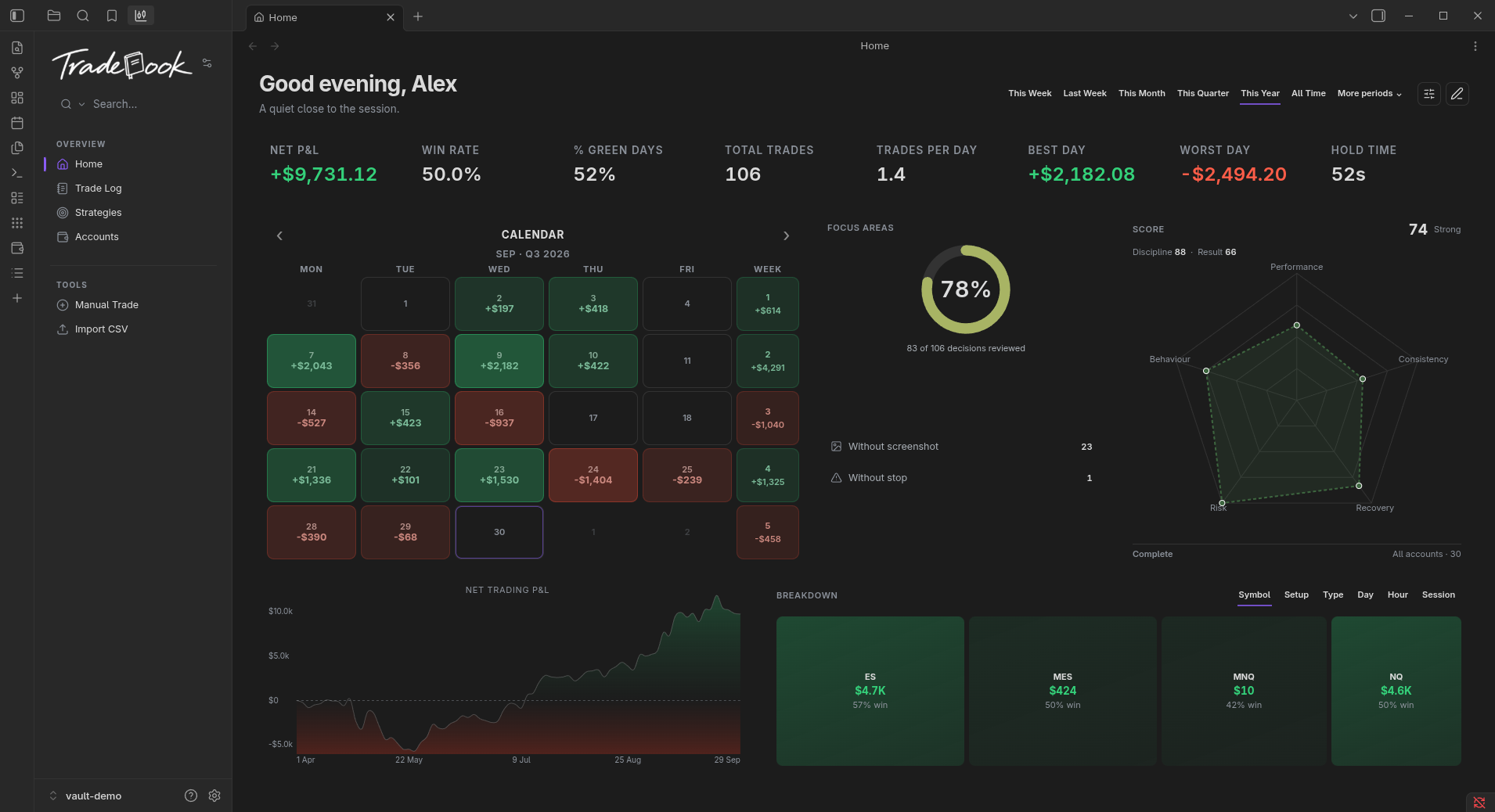
**Tradebook** is a local-first futures trading journal for Obsidian. It keeps a record of
your trading as Markdown notes in your vault and helps you review the results. No
Tradebook account, no cloud service, no telemetry.
## Key features
- **A local Markdown journal.** Trades, notes and screenshots are Markdown files
in your vault, and the plugin makes no network requests.
- **Trade Log and review.** Browse every trade, open the details, add setups,
notes and screenshots, and mark a trade Reviewed.
- **Accounts, evals, funded accounts and payouts.** Track evaluation, funded and
demo accounts with their rules and limits, and record deposits, payouts and
corrections separately from trading results.
- **Tradovate imports.** Import Orders, Fills and Cash History, preview the
result, and reimport without creating duplicates.
- **Home overview.** Period filters, Net Trading P&L, an equity curve based on
your recorded trading data, a performance calendar, breakdowns by setup, session,
symbol and day, and a Trading Score.
- **Copy Trading.** Define a leader and its copiers with a ratio and start date,
and match a follower's real fills against the generated records.
## Installation
Tradebook requires **Obsidian 1.7.2 or newer**. If you do not use Obsidian yet, download it
from [obsidian.md](https://obsidian.md) and open a vault — a new, empty vault is fine. If you
already use Obsidian, continue below.
1. Open Obsidian Settings.
2. Go to Community plugins and select Browse.
3. Search for Tradebook.
4. Select Install, then Enable.
Tradebook's menu opens in Obsidian's left sidebar. Use it to move between **Home**,
**Accounts** and **Trade Log**, or to add and import trades.
Obsidian checks for Community plugin updates. To update manually, use
*Settings → Community plugins → Check for updates*. A manual update replaces only
`main.js`, `manifest.json` and `styles.css`; keep your existing `data.json`.
## Getting started
1. **Add an account.** Choose **Accounts** in the Tradebook sidebar, then **Add account**.
Select its type, firm, rules and limits.
2. **Bring in your trades.** Choose **Import CSV** for Tradovate Orders/Fills and, when
available, Cash History. Check the preview before importing. You can also choose
**Manual Trade** to add a trade yourself.
3. **Review a trade.** Open it from the **Trade Log**, add your notes and mark it **Reviewed**.
4. **Visit Home.** Review your results and explore the trades behind them.
## Your data and backups
Tradebook works locally and makes no network requests. Your trade notes remain in your
vault when you disable or uninstall the plugin.
Settings and account configuration are stored in the plugin's `data.json`. Disabling
the plugin preserves that file; uninstalling removes the plugin folder, including it.
Before uninstalling, export a settings backup from *Settings → Tradebook → Advanced → Export*.
Use **Import backup** in the same section to restore it. Keep a separate backup of your
vault for the trade notes and attachments.
## Known limitations
Generated copy trades are models, and reported costs cannot always be assigned to an
individual trade with certainty. Other export formats are not currently supported.
Tradebook can run on mobile, but phone and tablet layouts still need work.
[Known limitations](KNOWN-LIMITATIONS.md) explains how these cases, missing data and
import formats are handled.
If Tradebook is missing from the list, check that Restricted mode is off and search for
it again. If it does not load, check that Obsidian is 1.7.2 or newer, Restricted mode is
off and Tradebook is enabled. If the sidebar is hidden, expand Obsidian's left sidebar
and select the Tradebook tab.
If something is not working as expected, [open an issue](https://github.com/yamihugo/Tradebook/issues)
with what happened and the steps to reproduce it. Please remove personal and account
information from screenshots or sample files.
## Roadmap
Current priorities are everyday reliability, navigation, light mode, help and polish, with
phone and tablet layouts still to improve. Later work covers strategy review and the
analysis built around it. There are no dates and the order is not fixed.
See [ROADMAP.md](ROADMAP.md) for the full list, and [CHANGELOG.md](CHANGELOG.md) for what
has already shipped.
## License

MIT — see [LICENSE](LICENSE).
Prop-firm and broker names and logos belong to their owners and are used to identify
accounts. Their inclusion does not imply affiliation or endorsement.