# Weekly Schedule
Plan and review your week inside Obsidian. One board per week, every day split into
four priority quadrants, and a whole year you can scan at a glance.
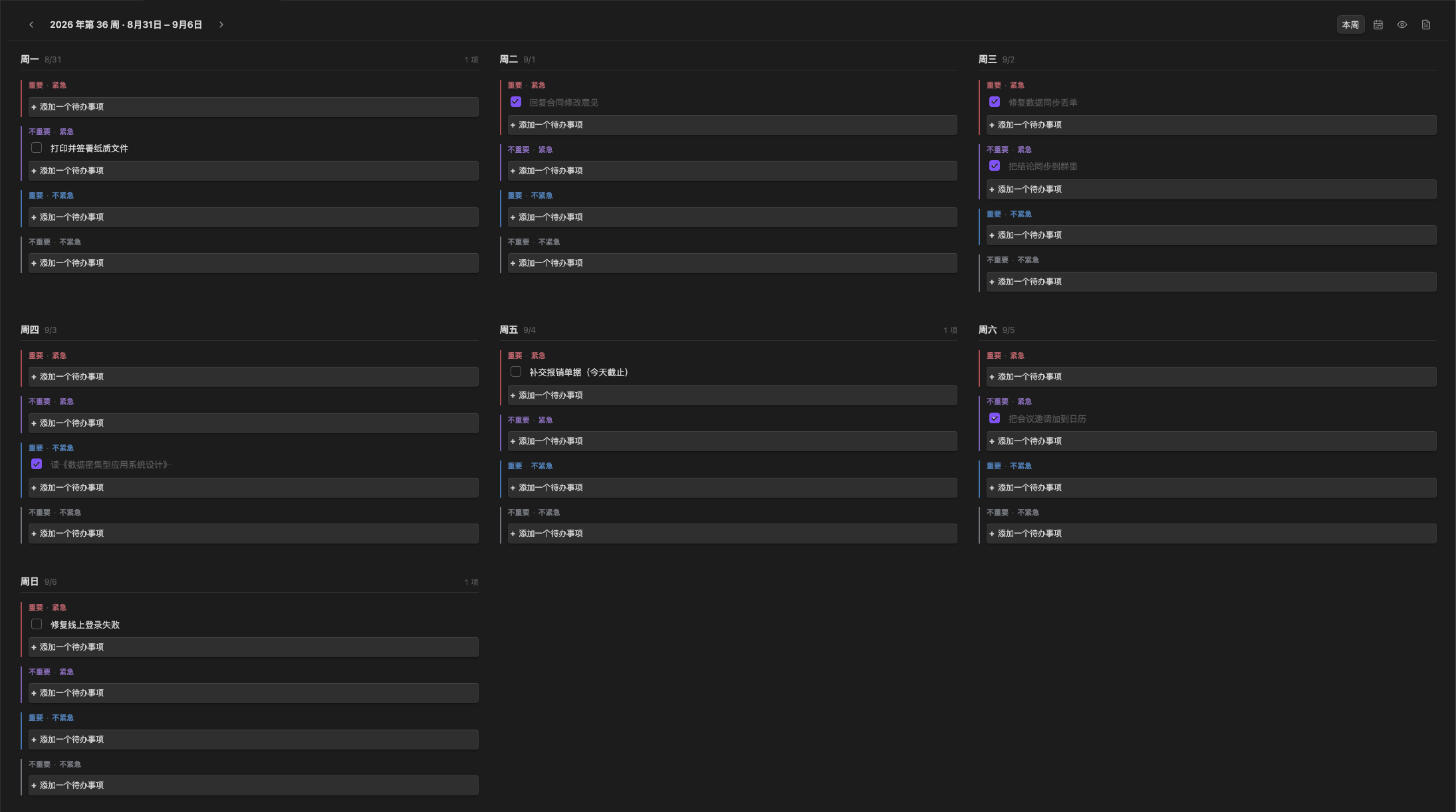
Each day holds four cells — important and urgent, not important but urgent,
important but not urgent, and neither. An empty cell offers an **Add a task**
(**添加一个待办事项** in Chinese) button that gives it its first task and puts the
cursor in it. Once the cell shows a task the button is gone: the way to the next
one is `Enter` at the end of the one you are writing, and the new task appears
underneath it. `Esc` discards the edit, and a task left empty is never written to
the file.
A task may run over several lines, so `Shift+Enter` starts one instead. Which of
the two keystrokes commits is yours to choose in **Settings → Weekly schedule**.
Committing opens the next task, and `Cmd`/`Ctrl`+`Enter` commits and stops there
— whichever way round the setting is set.
Below the board, a status strip keeps the week's own totals in sight — **12 tasks
this week · 5 done · 42% complete** — counted from the board as you edit it, and
pinned to the bottom of the pane so a week long enough to scroll does not take its
own summary with it. A week with nothing in it says so instead.
The day you are in carries an accent rule under its heading, and the mark follows
the calendar on its own: a board or year overview left open past midnight moves it
to the new day, with nothing to reload.
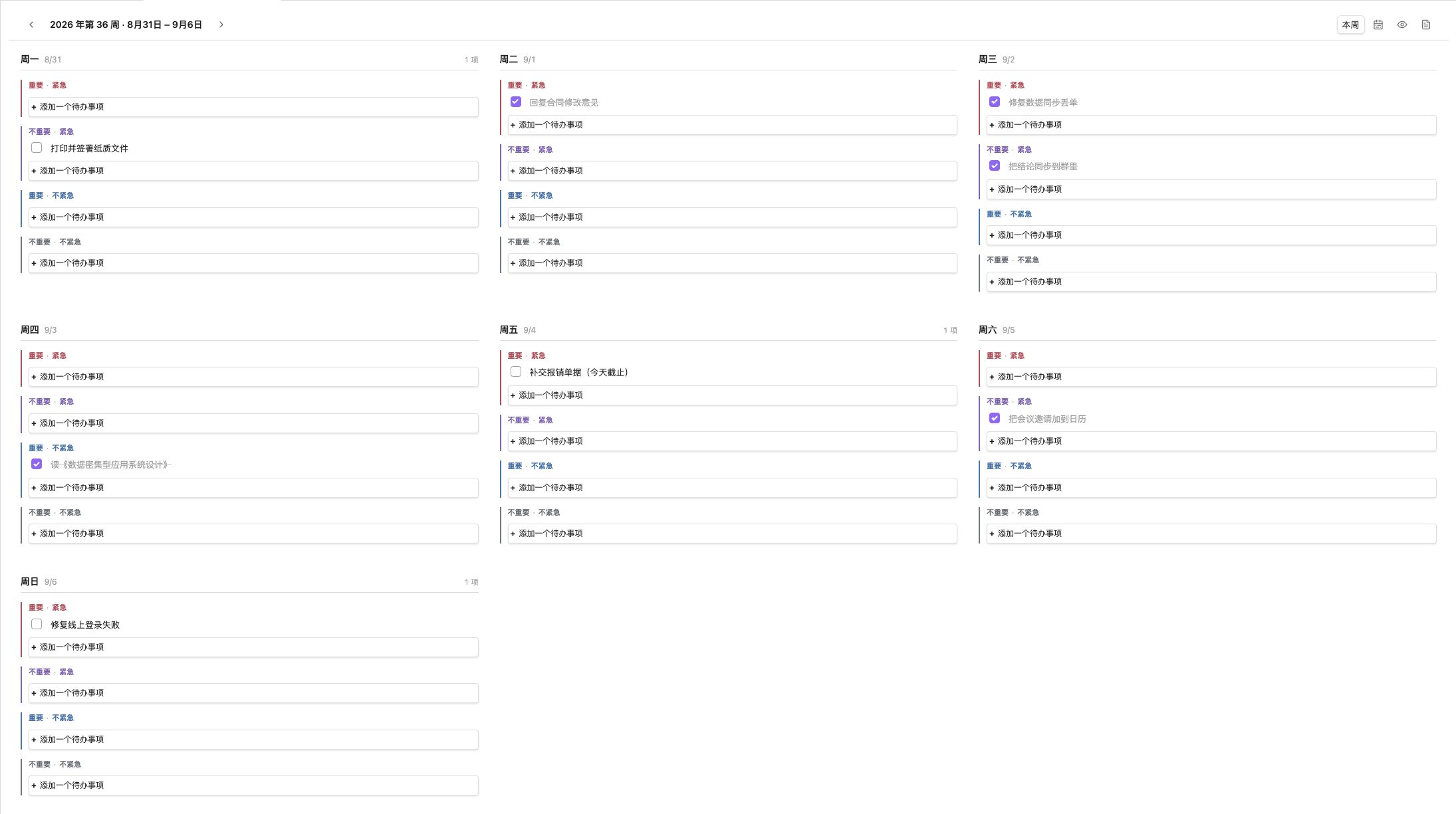
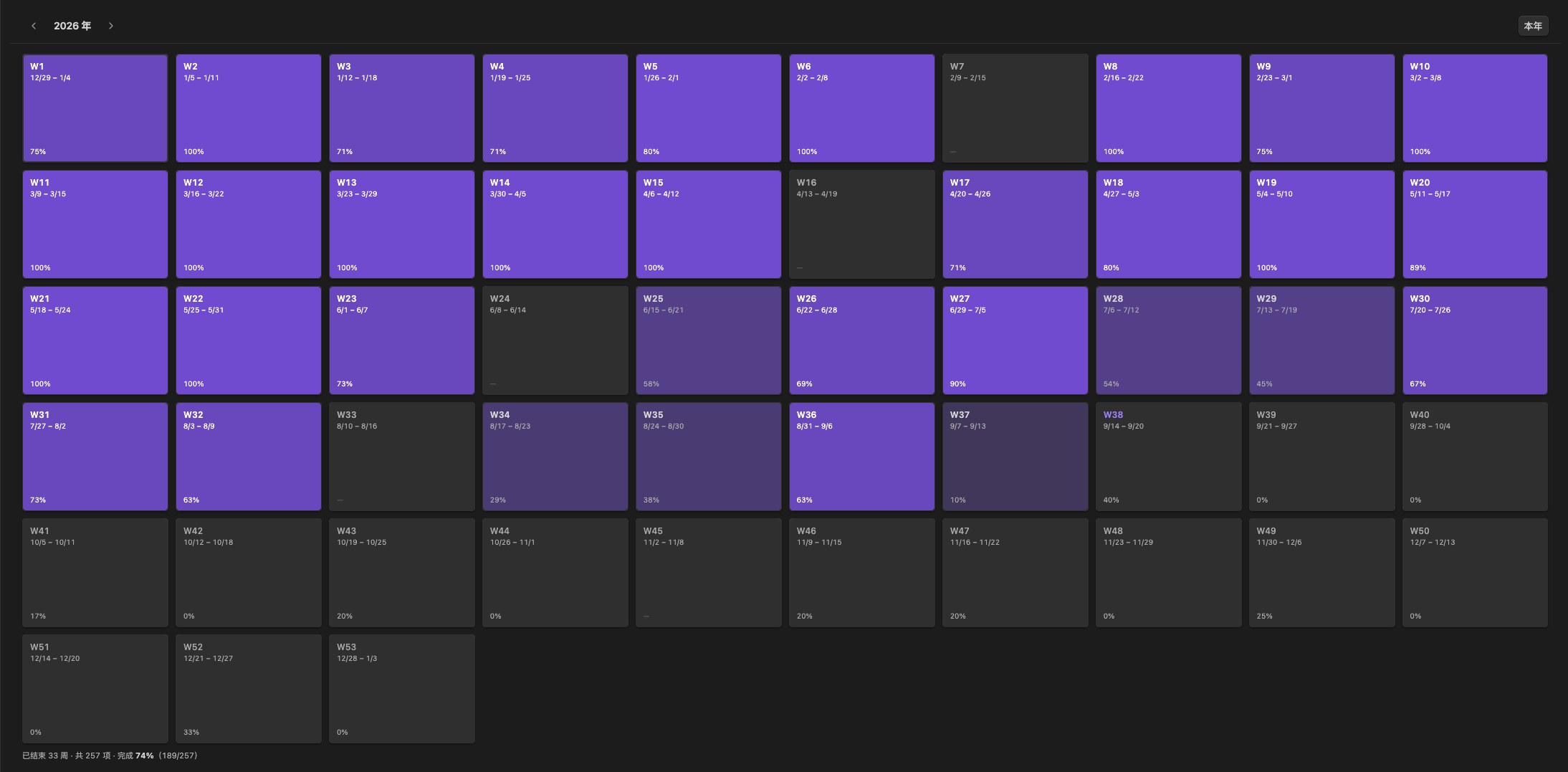
Both views follow your Obsidian theme; the screenshots above and below are dark
and light respectively. Expand for the board in light mode and the year overview
in dark mode:
Both views in the other theme
## Jump to any week
Stepping a week at a time is fine for a week or two, and useless for reaching a
distant one. **Open year overview** shows the whole year: one tile per ISO week,
each with its week number, date range and completion rate. Select a tile to open
that week; `←` `→` `↑` `↓` move between tiles and `Enter` opens one.
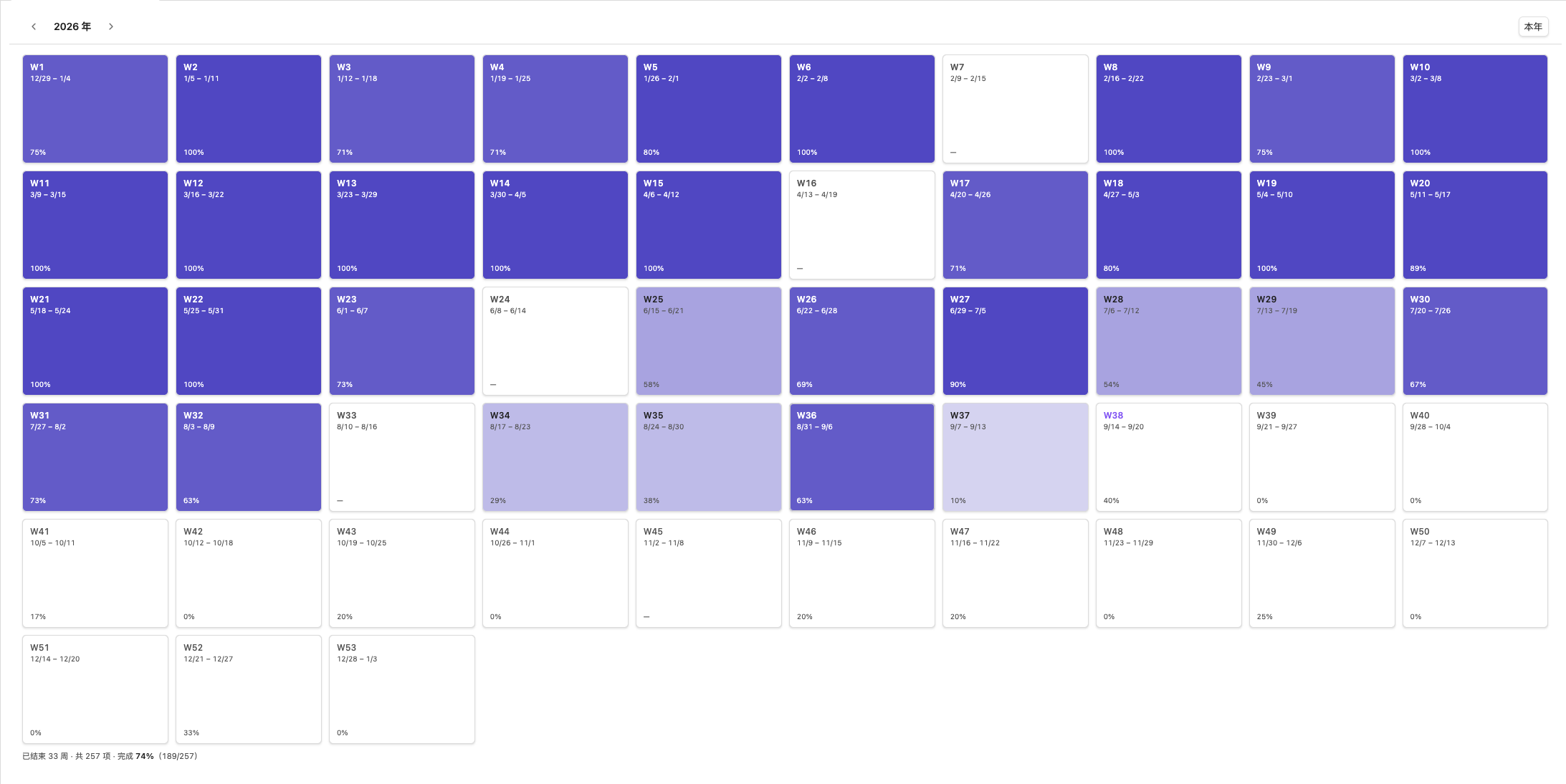
Fill depth is the completion rate, in six steps. Finished weeks are filled, weeks
still to come are not, and weeks with no tasks show a dash. The year overview is a
separate pane, so it can stay open beside the board while you work.
## Starting from last week
Last week rarely ends empty. **Bring unfinished tasks from the previous week into
this week** gathers what is left in one step — from the command palette, or from
the arrow button in the board's toolbar.
It asks first. A dialog lists everything the previous week left unfinished, one
row per task, each with the day and the priority cell it would land in. Everything
is selected and the button follows the boxes, so a whole week moves over in one
click and a single task drops out of the list just as easily. A task the target
week already holds is shown with **already in this week** rather than hidden, and
is not added twice.
A task keeps the day and the priority cell it was planned in, so the shape of the
week survives the move instead of collapsing into one pile, and only unfinished
tasks move. Nothing is taken out of the week they came from: this copies, it does
not cut, so a past week stays an honest record of what was planned then. What was
carried is marked there, in that file's own language:
```markdown
- [ ] Fix the crash (carried over to 2026-W40)
```
The mark names the week the task went to rather than saying "next week", because a
file read months later cannot tell which week that would have been. It is taken off
before a task is compared or copied, so a mark never travels into the next week,
and confirming the same week twice changes nothing. A notice reports how many tasks
were brought over and how many were already there. The week carried into is the one
on screen, so open the week you want to plan.
## Starting from yesterday
A week is planned week by week; a day is worked day by day. **Bring yesterday's
unfinished tasks into today** does the same thing one day down — from the command
palette, or from the arrow today's column shows while the pointer is over it. The
move lands on one particular day, so its button belongs to that day's heading
rather than to the week's toolbar.
It does not ask. A single day's leftovers are a short list, and the move is the
whole of the decision, so this one just does it. Each task keeps the priority cell
it was planned in.
It moves rather than copies, which is the one place it differs from the weekly
move: yesterday keeps nothing, so a day that is over shows only what is still open
on it. A wording today already holds is left where it is rather than doubled, and a
notice reports how many moved and how many were already there.
Both days live in one week's file, so this reaches only as far as the week the day
is in: on a Monday, yesterday is the previous week's Sunday, and nothing happens
but a notice saying so — use the weekly move for that. The week moved within is the
one today falls in, whatever week the board is showing.
## How tasks are stored
Standard Markdown checkboxes, one file per week, grouped in a folder per ISO year:
```
weekly-schedule/
2025/
2025-W52.md
2026/
2026-W01.md
2026-W12.md
```
```markdown
# 2026-W12
## 周一
### 重要 · 紧急
- [ ] 交周报
- [x] 修线上 bug
- [ ] 评审季度预算
先看上个季度的偏差
再确认明年的增长假设
### 不重要 · 不紧急
- [ ] 整理书签
```
Cells with no tasks are omitted, so the file stays short. Because it is ordinary
Markdown, these tasks are searchable, readable by other task plugins, editable by
hand, and safe to sync or version. The plugin keeps the file and the board in step:
editing the file outside the board reloads it, and an unsaved edit in the board
wins over the file rather than being discarded.
A task that runs over several lines is the checkbox line followed by the rest,
indented two spaces — its own plain text, with no markup added. A blank line ends
a task, in the file and in the board alike, so a task cannot hold one: the
keystroke that starts a line, pressed twice, leaves a single break, not an empty
line the file would drop on the next read.
The folder is the week's **ISO** year, not its calendar year, so the week of
2025-12-29 — week 1 of 2026 — lives in `2026/`, matching how the year overview
presents it.
### Files written before year folders
Files used to sit directly in the schedule folder (`weekly-schedule/2026-W12.md`).
The plugin still reads them from there, so an existing vault does not look empty
after updating. Run the **Move week files into year folders** command (or use the
button in settings) to move them. Only files in the schedule folder named like
`YYYY-Www.md` are touched, so notes you keep there are left alone.
## Language
The plugin reads in the language Obsidian is set to (**Settings → General →
Language**), and follows a change to it straight away — no reload, and nothing to
configure.
English and Simplified Chinese are built in. Any other language falls back to the
closest one available: `zh-TW` to Simplified Chinese, everything else to English.
The sample file above shows the Chinese wording; in an English vault the same week
is written as:
```markdown
# 2026-W12
## Monday
### Important · urgent
- [ ] Send the weekly report
- [x] Fix the production bug
### Unimportant · not urgent
- [ ] Tidy the bookmarks
```
Day and priority headings are the only translated part of a file, and one rule
follows from that: **a file keeps the language it was written in.** Switching
Obsidian's language relabels the board, the year overview, the commands and the
settings tab, but it never rewrites files you already have — opening an old week
after the switch shows an English board over a Chinese file. A week with no file
yet is created in the current language, so a vault can hold both without either
failing to load: the plugin recognizes every heading in every language it ships,
and a file written before the plugin was translated keeps parsing too.
To convert an existing file, edit its headings — the language of the week's first
recognized heading decides the language the whole file is written back in.
## Privacy
The plugin runs entirely offline. It makes no network requests, collects no
telemetry, and reads and writes only its own files inside your vault.
## Installation
Once listed in the community catalog, install it from **Settings → Community
plugins → Browse**.
To install a release by hand, download `main.js`, `manifest.json` and
`styles.css` from the latest release and put them in:
```
/.obsidian/plugins/weekly-schedule/
```
Then enable **Weekly Schedule** in **Settings → Community plugins**.
Requires Obsidian **1.5.7** or later.
## Development
Requires Node.js 18+.
```bash
npm install
npm run dev # rebuild main.js on change
npm run build # type check + production build
npm run lint # ESLint with Obsidian-specific rules
npm run check:i18n # verify the localization and file-heading rules
npm run check:carry # verify the rules for carrying last week's work over
npm run deploy -- "" # build output into a vault, with verification
```
`npm run deploy` copies the three release files into the vault, then compares them
byte for byte and checks that the stylesheet still carries the current design's
markers. A half-finished copy is a real failure mode: an old `styles.css` next to a
new `main.js` renders the previous design with no error anywhere.
`npm run check:i18n` bundles the localization and Markdown modules against a
stand-in for Obsidian's runtime and asserts the rules a type cannot express: a
saved file keeps its own heading language, a new one follows the interface
language, every language's headings still parse, and the dates, plurals and
notices read correctly in both languages.
`npm run check:carry` does the same for carrying unfinished work into the next
week: only unfinished tasks are offered and each keeps its day and its quadrant,
the tasks that were carried are marked in the week they came from and nothing is
taken out of it, a mark is never part of a task's words — so it neither travels
into the next week nor turns one task into two — a task the target cell already
holds is not added again, and the week before a target is located the way the board
locates weeks, including across the ISO year boundary, where the source week can
live in the previous year's folder. The same checks cover the move from one day to
the next: the tasks leave the day that hands them over rather than being copied,
they keep their quadrant, a finished or blank task is not moved, and the day before
a Monday is known to be out of reach.
Reload the plugin after any change — Obsidian reads `main.js` only when a plugin
loads.
### Layout
```
src/
main.ts # Lifecycle, view registration, commands, vault events
settings.ts # Settings interface, defaults, settings tab
store.ts # Reading/writing week files, caching, debounced saves
markdown.ts # Markdown <-> board conversion
migrate.ts # Moving week files into year folders
carry-over.ts # Carrying unfinished work over: last week's, and yesterday's
constants.ts # View types, quadrants, days, defaults
types.ts # Data model
i18n/
index.ts # Language detection, t()/tp(), day and quadrant wording
format.ts # Locale-aware dates and week labels
locales/
en.ts # English strings; the source of truth for the keys
zh.ts # Simplified Chinese
ui/
weekly-schedule-view.ts # The board
weekly-schedule-year-view.ts # Year overview
carry-over-modal.ts # The dialog that picks what to carry over
inline-editor.ts # Inline plain-text editing for task rows
utils/
date.ts # Week arithmetic and file naming
day-watch.ts # Noticing the calendar date roll over
helpers.ts # Shared helpers, including grid fitting
scripts/
deploy.mjs # The npm run deploy helper
i18n-check/ # The npm run check:i18n helper
carry-check/ # The npm run check:carry helper
diagnose-year-view.js # Console snippet for troubleshooting layout
```
Both views size their grid from the pane they are in rather than from the window,
because an Obsidian pane is often a sidebar or half a split. Both also remove the
padding Obsidian gives a view's content — 12px on the sides and 32px at the
bottom — because a sticky child cannot leave its containing block: with that
padding in place the toolbar stops 12px short of the pane's top and the totals
strip 32px short of its bottom, and the board shows through both gaps as it
scrolls behind them.
### Adding a language
Every user-facing string goes through `t()` or `tp()`, keyed by an entry in
`src/i18n/locales/en.ts`, so the type system rejects a key that does not exist and
a translation that misses one. To add a language:
1. Copy `en.ts` to a new file and translate the values. A value may split its
singular and plural forms with `|`; use one string for both in a language that
does not distinguish them.
2. Add the locale to `SUPPORTED_LOCALES` and `DICTIONARIES` in `src/i18n/index.ts`,
and map it to a BCP-47 tag in `INTL_LOCALES` in `src/i18n/format.ts`, so its
dates read the way the language writes them.
3. Revisit the expectations in `scripts/i18n-check/checks.ts` — the fallback cases
change as soon as a language is added — and run `npm run check:i18n`.
Day and priority headings are composed from those same strings, which is why a
translated file is written correctly without any extra work: `dayLabel()` and
`quadrantParts()` produce both the cell header and the Markdown heading.
### Releasing
```bash
# 1. Bump the version. This rewrites manifest.json and versions.json for you, and
# npm rewrites the version in package-lock.json along with package.json.
npm version 0.1.2 --no-git-tag-version
git add manifest.json versions.json package.json package-lock.json
git commit -m "release: 0.1.2"
# 2. Tag with the exact manifest version, no leading "v".
git tag 0.1.2
# 3. Push the branch and the tag, naming the tag explicitly. Do not reach for
# --follow-tags here: it carries annotated tags only, so it skips a
# lightweight tag like this one without any error or warning, the branch
# lands, and no release is ever created.
git push origin main 0.1.2
```
Pushing the tag runs `.github/workflows/release.yml`, which builds the plugin and
creates a **draft** release with `main.js`, `manifest.json` and `styles.css`
attached. Review the draft, then publish it — the tag and `manifest.json`'s
`version` must match exactly, and `versions.json` must map that version to
`minAppVersion`.
### Getting listed in the community catalog
1. Release at least one version and confirm the three release assets exist.
2. Confirm `id`, `name`, `description` and `author` in `manifest.json` are what you
want shown publicly — the catalog entry is built from them, plus `repo`.
3. Open a pull request against
[obsidianmd/obsidian-releases](https://github.com/obsidianmd/obsidian-releases)
that appends one entry to `community-plugins.json`:
```json
{
"id": "weekly-schedule",
"name": "Weekly Schedule",
"author": "xwtaidev",
"description": "Plan and review your week inside Obsidian.",
"repo": "xwtaidev/obsidian-weekly-schedule-plugin"
}
```
4. Keep `id` stable forever: it is the key Obsidian uses to update installed
plugins. Changing it later breaks every existing installation.
Before submitting, check that `LICENSE` and `README.md` are present, that there are
no network calls or telemetry, and that `minAppVersion` is honest. The
`obsidianmd/no-unsupported-api` lint rule enforces that last one against
`manifest.json`, so lowering it without checking will fail `npm run lint`.
### Why the settings tab is not declarative
The declarative settings API added in Obsidian 1.13 would put these options into
Obsidian's settings search, but it would raise `minAppVersion` to 1.13 and shut out
everyone on an older release. Two dropdowns do not justify that, so the tab uses
the imperative `Setting` API and the lint rule asking for the declarative one
reports a warning that is accepted on purpose.
## API documentation
See .