# BrainCore LifeOS
> **付费 · 48 小时试用 · ¥49.9 永久激活**
知识库侧边栏控制台(LifeOS)——捕捉、待办、周工作、习惯、统计与知识内化。
当前公开版本:**4.1.24 · 48 小时试用**
## 界面预览
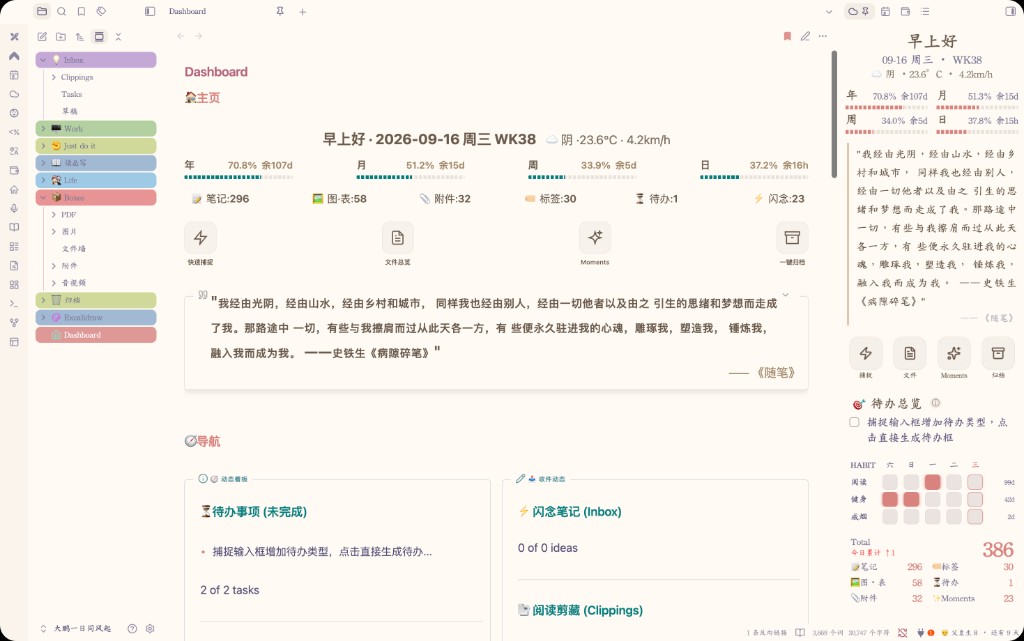
**控制台** — 捕捉、待办、周工作与习惯一屏看清
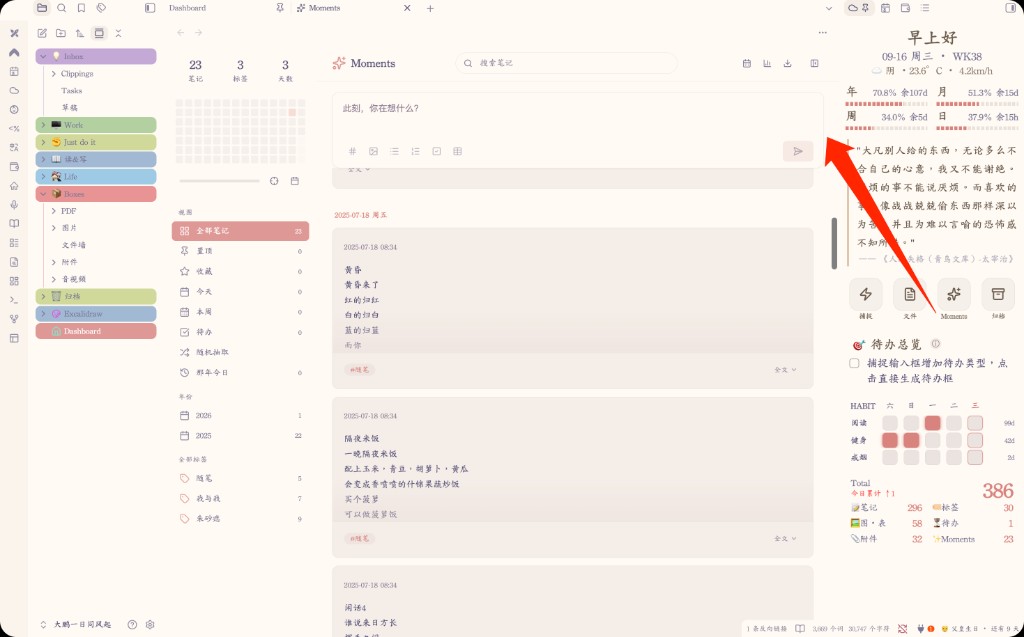
**Moments** — 速记、筛选与分享图
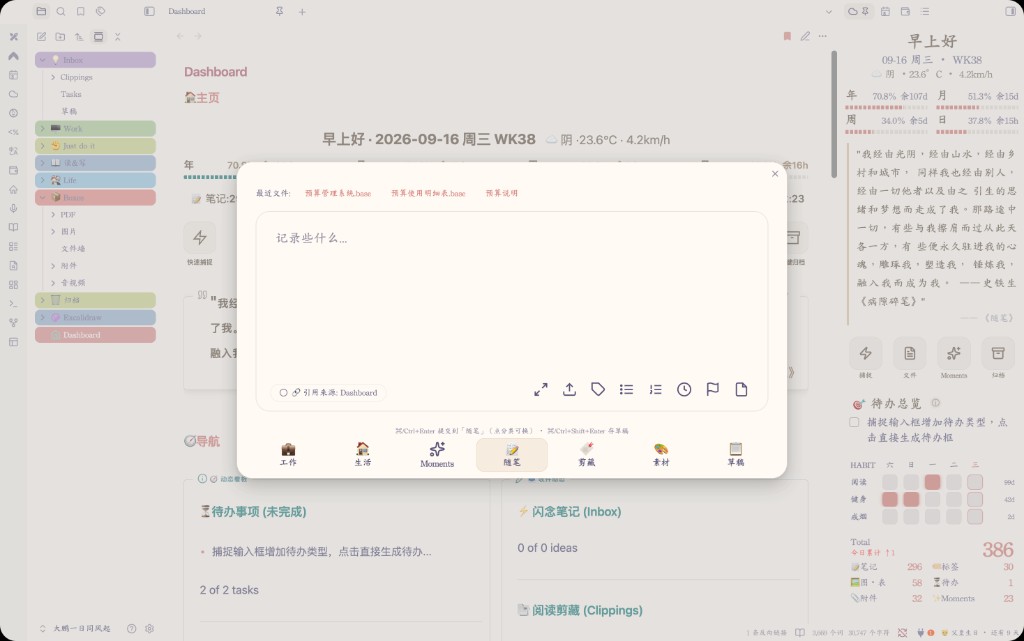
**捕捉** — 快速收集想法与待办
## 定价与购买
| 项目 | 说明 |
| --- | --- |
| **试用** | 插件内开启后 48 小时全功能 |
| **付费** | ¥49.9 一次付费,按设备指纹永久激活 |
| **购买** | 小红书联系作者下单 → 复制设备指纹 → 粘贴激活码 |
作者:[github.com/xileshuo](https://github.com/xileshuo) · 小红书:[下单入口](https://xhslink.com/m/3uOoUHv2rI1)
## LifeOS 三插件互跳
同一作者的 LifeOS 系列,可在社区插件里互相打开,或前往 GitHub:
| 插件 | 社区插件(已上架后) | GitHub |
| --- | --- | --- |
| **BrainCore LifeOS** | [打开插件页](obsidian://show-plugin?id=braincore-lifeos) · 搜索 `BrainCore LifeOS` | [BrainCore LifeOS](https://github.com/xileshuo/BrainCore-LifeOS) |
| **PlainLedger** | [打开插件页](obsidian://show-plugin?id=plain-ledger) · 搜索 `PlainLedger` | [PlainLedger](https://github.com/xileshuo/plain-ledger-obsidian) |
| **jinianri** | [打开插件页](obsidian://show-plugin?id=jinianri) · 搜索 `jinianri` | [jinianri](https://github.com/xileshuo/jinianri) |
## 安装与上手
1. 设置 → 第三方插件 → 浏览 → 搜索 **BrainCore LifeOS** → 安装并启用
2. 点侧栏云图标,开启 48 小时试用
3. 试用满意后:复制指纹 → 小红书下单 → 粘贴激活码
### 其他安装方式
**BRAT**:添加仓库
```text
https://github.com/xileshuo/BrainCore-LifeOS
```
**手动**:下载 [Latest Release](https://github.com/xileshuo/BrainCore-LifeOS/releases/latest) 的 `main.js`、`manifest.json`、`styles.css` 到 `.obsidian/plugins/braincore-lifeos/`
## 使用说明(精简)
完整说明可在启用后打开插件内「使用说明」;下面是社区页够用的上手版。
### 打开控制台
启用后点左侧边栏 **☁️ 云朵图标**,进入 BrainCore 控制台。
### 七大模块
1. **问候语与天气** — 日期、问候、天气
2. **时间进度** — 今日 / 本周 / 本月 / 本年进度
3. **快捷工具** — 捕捉 · 文件 · Moments · 归档
4. **待办总览** — 聚合日常待办与本周工作事项
5. **习惯打卡** — 长期坚持项(与一次性待办分开)
6. **每日金句** — 从读书笔记与随笔抽取
7. **数据统计** — 笔记 / 标签 / 待办 / Moments 等概览
顶部 Hero(问候 + 时间进度 + 金句)一眼看清今天;下方推进待办与习惯。模块可在设置里开关与排序。
### 捕捉
点「捕捉」打开面板,分类一次展开:
| 分类 | 写入 |
| --- | --- |
| 工作 | 本周 Work →「本周待办」 |
| 生活 | 生活待办文件 |
| Moments | `读&写/Moments` 年文件 |
| 随笔 / 剪藏 / 素材 / 草稿 | 对应路径(可在设置修改) |
`⌘/Ctrl + Enter` 发送;空内容不会静默提交。
### Moments
- 记录写入 `读&写/Moments/年份.md`(按年汇总)
- 支持搜索、筛选、置顶、收藏、那年今日、分享图与年度报告
- 图片统一进 `Boxes/图片`,年文件只存引用
### 待办与周工作
- 待办用标准勾选语法:`- [ ] 任务`
- 打开控制台时会生成本周 Work;跨周尽量迁未完成项
- 待办总览会聚合周工作与日常待办,方便当天推进
### 习惯打卡
适合「每天都要做」的事项。项目可在设置 → 打卡里增删、改图标,并支持导入 / 导出。
### 推荐日常流程
1. **早上**:☁️ 打开控制台 → 看 Hero → 扫待办
2. **白天**:有事就捕捉;该推进的从待办总览点进去
3. **晚上**:习惯打卡;需要时归档已完成项
4. **每周**:在 Work 文件里复盘本周、安排下周
### 建议与注意
- **Dataview** 可选:没有也能用捕捉 / 待办 / 习惯 / Moments;装了统计更完整(建议开 DataviewJS)
- 不要随意删核心目录(Work、读&写、Boxes 等)或改插件文件夹名
- 手机与电脑共用同一库时:两端各用本机指纹各激活一次
## 更新日志
### 4.1.24(当前)
- 捕捉:保存成功会写明写入哪篇笔记,并可点「打开」
- 捕捉:随笔、待办、草稿、Moments、剪藏等目标不存在时自动建好,并回填设置
- 随笔:每条时间改为年月日加时刻(如 2026.09.28 13:24:55),年 / 月 / 周层级不变
- 周工作:编辑和实时预览按区块标题上色,去掉加粗或斜体也不会丢色;笔记属性栏不再显示
4.1.23
- 修复:更新弹窗关掉也会记版本,重启不再反复弹出
- 修复:版本升级不再自动强开使用说明 MD(仅首次安装)
- 外观:侧栏四键去掉灰底;捕捉分类/输入框压过主题默认按钮样式
4.1.22
- 审核:首启卡改回浏览器 localStorage,去掉高于 minApp 的 App 存储 API
4.1.21
- 审核:天气仅 open-meteo;自动定位改系统定位,去掉 IP 库 / wttr Disclosure
- 审核:去掉设置页 inline !important;CSS 去 !important;manifest 英文 description
4.1.20
- 体验:首启 / 套装提示可点「去了解」打开套装说明
- 外观:手机设置顶距与 PlainLedger / 纪念日对齐(不再额外顶 spacer)
- 设置:关于页套装入口与 LifeOS 三插件文案统一
4.1.19
- 外观:设置页无痕滚动(隐藏滚动条,保留滑动)
4.1.18
- 恢复:天气保留 IP 库定位(第三方 IP 定位)与 备用天气源 降级
4.1.17
- 审核:天气仅 open-meteo;自动定位改系统定位,去掉 IP 库 / wttr Disclosure
4.1.16
- 审核:manifest.description 改以英文句号结尾(Scorecard 不认中文 。)
4.1.15
- 设置:体验包激活后标题显示「公版」,不再写「体验版/48小时体验版」
下方为英文说明(社区审核)。
---
# BrainCore LifeOS
> **Paid · 48-hour trial · ¥49.9 permanent unlock**
LifeOS sidebar console for capture, tasks, weekly work, habits, Moments, stats, and knowledge review.
Latest: [Release](https://github.com/xileshuo/BrainCore-LifeOS/releases/latest) · tag **Paid** (includes free trial)
## LifeOS family
Companion plugins by the same author — open each other in Community Plugins, or on GitHub:
| Plugin | Community (after listed) | GitHub |
| --- | --- | --- |
| **BrainCore LifeOS** | [Open plugin page](obsidian://show-plugin?id=braincore-lifeos) · search `BrainCore LifeOS` | [BrainCore LifeOS](https://github.com/xileshuo/BrainCore-LifeOS) |
| **PlainLedger** | [Open plugin page](obsidian://show-plugin?id=plain-ledger) · search `PlainLedger` | [PlainLedger](https://github.com/xileshuo/plain-ledger-obsidian) |
| **jinianri** | [Open plugin page](obsidian://show-plugin?id=jinianri) · search `jinianri` | [jinianri](https://github.com/xileshuo/jinianri) |
## Installation
1. Prefer Community Plugins: Settings → Community plugins → Browse → search **BrainCore LifeOS** → Install → Enable
2. Or install with **BRAT** using this repository:
```text
https://github.com/xileshuo/BrainCore-LifeOS
```
3. Or download [Latest Release](https://github.com/xileshuo/BrainCore-LifeOS/releases/latest) and place `main.js`, `manifest.json`, and `styles.css` in `.obsidian/plugins/braincore-lifeos/`
4. Click the cloud ribbon icon, then start the 48-hour trial
5. After the trial, unlock with an activation code from Xiaohongshu
## Usage
1. **Morning:** open the cloud icon → check greeting / progress / quote → scan tasks
2. **Daytime:** capture ideas as they appear; push work from the task overview
3. **Evening:** complete habit check-ins; archive finished items when needed
4. **Weekly:** review the current Work note and plan the next week
BrainCore LifeOS is a **paid** LifeOS sidebar console for Obsidian vaults.
It brings capture, tasks, weekly work, habits, Moments notes, daily quotes, weather, time progress, and vault stats into one sidebar.
| Item | Details |
| --- | --- |
| Trial | Start a **48-hour full trial** inside the plugin |
| Unlock | **¥49.9** one-time payment, permanent activation per device fingerprint |
| Purchase | Contact the author on **Xiaohongshu**, send your device fingerprint, then paste the activation code |
Moments notes live under `读&写/Moments/YYYY.md`. Images go to `Boxes/图片`.
Dataview is optional. Do not delete core folders (Work, Boxes, 读&写).
Full help is also inside the plugin Usage Guide. Author: https://github.com/xileshuo