## 🚀 Quick start
1. **Create**: run **Create new mind map** (command palette or ribbon) — name it (default = prefix + date); the `MindMap2026-10-13.md` file (frontmatter `Type: Mindmap`) is created and opens as a mind map. Existing notes work too.
2. **Edit**: the file is ordinary Markdown, so its outline becomes the map — add/edit/delete nodes, drag to rearrange, attach images or links.
3. **Back & save**: use **Switch to Markdown** to return anytime; edits are written back to the file (layout & viewport live in the plugin's `data.json`). That button rewrites the property to `Type: Markdown`, so the note **stops opening as a mind map**.
4. **Embed**: write a fenced code block with the `mindmap` language in **any note** and the reading view / live preview renders it as a **read-only mind map** — shaped like the built-in Mermaid, sized to its content, not draggable, and it never writes the file. The block body is the very same outline syntax as a mind map file.
---
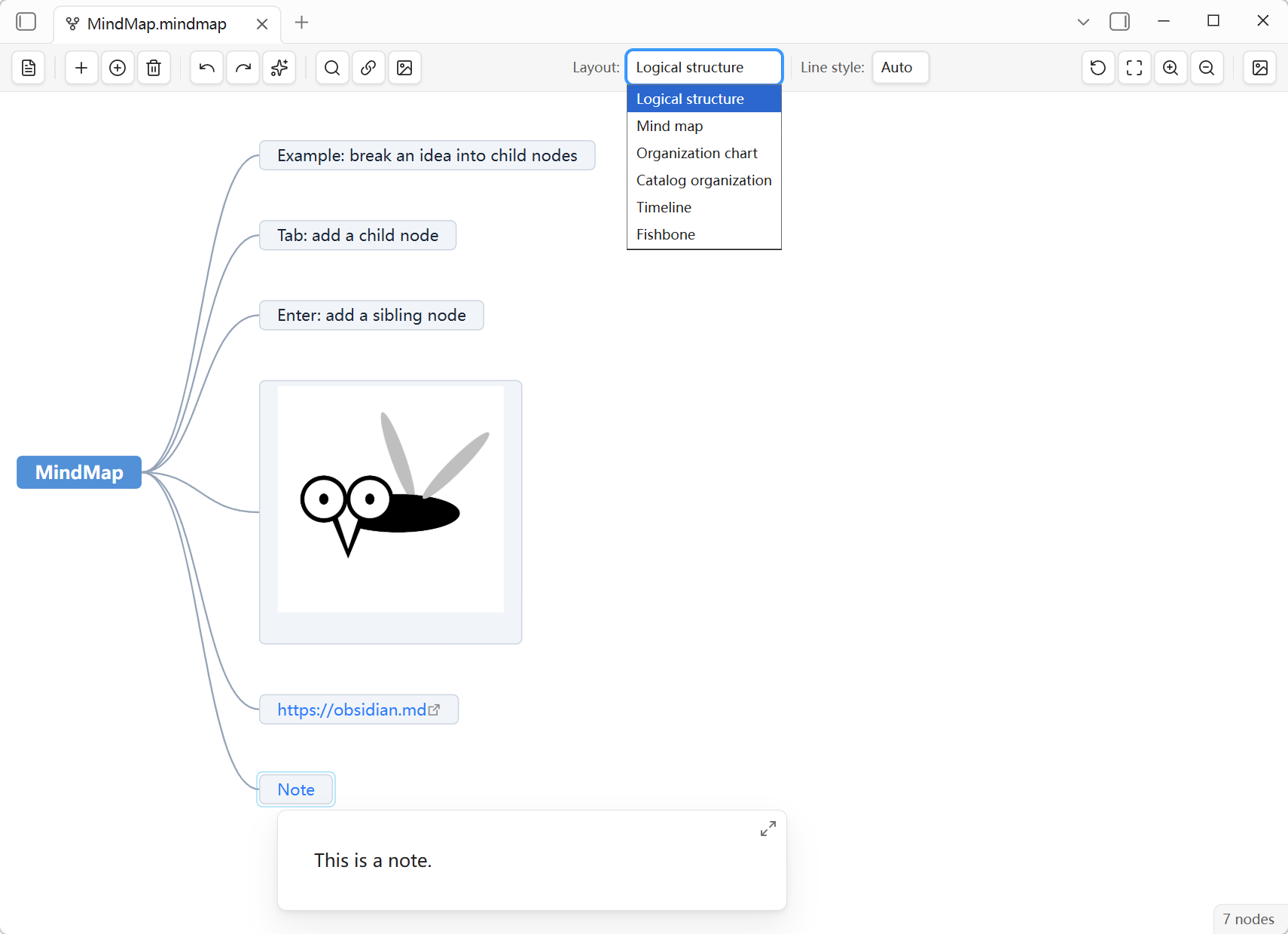
## ✨ Why MindMap Studio
The plugin is a **rendering layer**, not a file-format converter. A note declared as a mind map is 100% standard Markdown — your notes, links, backlinks, search and Git all work as usual. A Markdown outline is parsed into a mind map; when you edit the map, the changes are written back as Markdown.
## 🚀 Features
- **Markdown-native**: a mind map is ordinary Markdown (a frontmatter declaration + headings + lists). No proprietary format, no special extension.
- **Round-trip fidelity**: unedited lines are written back verbatim (frontmatter preserved; blank lines between paragraphs and standalone `---` separators are normalised); headings `#`–`######` map to node levels 1–6, nested lists to deeper levels.
- **Obsidian-native wikilinks**: `[[note]]` shows as its link text, with hover preview and graded modifier clicks (matching Obsidian).
- **Modifier clicks**: plain click = current tab, `Ctrl`/`Command`+click = new tab, `+Alt` = new tab group, plus `Shift` = new window
- **What the add-link dialog searches**: notes and other documents (`.canvas` / `.base`) plus non-image vault files (attachments); images go through **Add image**
- **Links whose target does not exist yet** render in a **muted colour** (like Obsidian's reading view), resolved by the plugin from Obsidian's metadata cache; hover/click is left to Obsidian core (no pre-check on that path)
- **New document links** follow Obsidian's own settings: with **Use \[\[Wikilinks\]\]** on (the official default) they are written as `[[wikilinks]]` (rendered as clickable link text — no engine icon); with it off they are written as `[label](path.md)`, and the path form follows **New link format**. **Attachments and images** always keep the wikilink embed form (`![[report.pdf]]` / `[[archive.zip]]`)
- **A node shows the alias** (the note name when there is none); editing the text of a pure wikilink node edits that alias and writes back `[[note|new alias]]`
- **Dropping a vault file onto a node** (notes / images / attachments, **any type**), or picking one in the add-link dialog: a **completely empty node** is turned into a pure wikilink by writing the link's display name as its text; a node that already has **any content** (text, an image or an existing link — a pure-wikilink node included) keeps it, and the new link becomes a **child node**. A URL **on its own node** stays icon-only (no text)
- **Rich node content (clickable links + inline syntax)**: links inside a node render as **clickable text** — click to open, `Ctrl`/`Command`+click for a new tab (`+Alt` for a new tab group, plus `Shift` for a new window); **every link on a line is clickable** (no longer only the first one).
- **Hover preview has two levels**: hovering **a specific link text** previews that link (important for multi-link lines and when the first link is an external URL); hovering **anywhere else on the node** previews the link the node carries (vault targets only)
- **A URL mixed with other content is shown as a clickable address** instead of a bare icon
- **Inline syntax** renders inside nodes the way Obsidian's reading view shows it: `**bold**` / `__bold__`, `*italic*` / `_italic_`, `` `inline code` `` (including double-backtick spans), `~~strikethrough~~`, `==highlight==`, `***bold italic***`; inline math `$…$` renders via MathJax and a **single-line** `$$…$$` renders as a block (centred) formula (falls back to the literal text until loaded; **multi-line** block math stays literal); `\*escaped\*` / `\$` consume the backslash and show the literal character, and `%%comments%%` are hidden inside the node (kept in the file; a line that is nothing but a comment stays literal)
- The raw text stays verbatim in the file; **links inside paragraph (multi-line) nodes are clickable too**
- **Very long nodes** (> 2000 chars) show the beginning plus `…` (with a hover explanation) — the full text stays in the file, which also keeps oversized text from slowing the canvas down. Double-clicking such a node edits **the actual line from the file** (wikilink, URL and inline syntax stay visible and editable)
- **Embedded read-only mind maps**: a fenced code block with the `mindmap` language renders in place as a read-only map (the block body uses the very same outline syntax as a mind map file). It behaves like Obsidian's built-in Mermaid: the container **fits the content** (scaled down to the note width, **never up**), **not draggable / zoomable / resizable**, and the wheel keeps scrolling the note. The preview writes neither the file nor plugin state; links inside nodes stay clickable and in-node code blocks stay copyable; above 500 nodes it degrades to a **read-only outline** with an in-block notice (see the [embedding section](#embedding-a-read-only-mind-map-in-a-note)).
- **Images**: vault image suggestions, uniform sizing, `![[path]]` round-trip; drag the corner handle to resize a node image — the size is written back as Obsidian's official embed syntax (`![[img.png|300]]` width-only, `|300x150` explicit, `` for external images); clear a node's text and the node becomes image-exclusive — an image-exclusive node has no text, so node search never matches it. Inline images also render in **text/paragraph nodes** (its first line; links inside a paragraph are clickable too, see above). **With nothing selected**, pasting or dropping an image no longer asks you to select a node — each image becomes its own node under the central node.
- **Opens at 100%** with the whole map centred; **Fit to canvas** zooms out for an overview and **Reset zoom** returns to 100% while keeping the visible content in place (auto-arrange ends with fit-to-canvas); **six layouts** (switching a layout auto-arranges and fits the map) with per-file connector styles (**Auto** follows the layout; curve / direct / elbow — switchable for Logical structure / Mind map / Organization chart; the other three are fixed-straight and show *Auto*), node search, auto-arrange, **performance mode kicks in automatically on large maps** (500+ nodes draws only the nodes in view — no setting), **fast text node rendering** (every text node is rendered by the plugin — large maps open several times faster; double-click then opens the edit dialog), **image export** (PNG or SVG, per the *Export format* setting); **drag reparenting** — drop a node onto another node to nest it as its child, or between two siblings to insert it in between (native engine hit-testing).
- **Persistence**: layout and viewport are kept per file (in plugin data), surviving reopen, rename and view switching. Whether a file *is* a mind map lives in the file's **own frontmatter**, so there is no second source of truth.
- **Central node ↔ filename**: editing the central node renames the file (Obsidian updates links/backlinks) — for **declared** mind maps only; a note temporarily opened as a mind map is never renamed.
## 📖 Usage
### 1) Create & open a mind map
- Run **Create new mind map** (command palette or ribbon) → a naming dialog appears (default = prefix + date; duplicates get a numeric suffix) → the `MindMap2026-10-13.md` file is created and opens in the mind-map view.
- **Turn any note into a mind map**: add `Type: Mindmap` to its frontmatter (Chinese vaults may write `类型: Mindmap`) — **both keys are recognised**, the value is case-insensitive, and the note opens as a mind map as soon as it is opened. Set it to `Markdown` (or remove the property) to stop. **No renaming, no new file, no format conversion.**
- **Any note becomes a mind map**: any `.md` file opens from its **context menu → Open as mind map** (or the same command), can be edited and saved back; the **first open writes `Type: Mindmap`** (Chinese vaults `类型: Mindmap`) into the frontmatter, so the note is now officially a mind map and opens as one on its own next time (a note already declared is left untouched). A *declared* file instead shows **Open as Markdown** (which rewrites the property to `Markdown`, permanently).
- The command palette also lists **Create mind map in current folder**, **Search nodes**, **Fit to canvas**, **Arrange mind map** and **Export image** — the same actions as the toolbar.
### 2) How Markdown becomes a map
A mind map file is 100% standard Markdown — the plugin renders it as a mind map and writes your edits back. **The central node *is* the file name** (a virtual document root that corresponds to no line in the file); `#` headings start at **level 1**:
```markdown
---
Type: Mindmap ← the declaration (Chinese vaults write 类型: Mindmap)
---
# Project plan ← level-1 node (#)
## Goals ← level-2 node (##)
- Milestone 1 ← child node (list)
- Milestone 2
###### Details ← level-6 heading
- Seventh-level item ← list nested under a heading → level 7
```
> `#`–`######` → node levels 1–6 · nested lists go deeper · `[[note]]` / `[[note|alias]]` → clickable link (the node shows the alias) · bare URLs → clickable address · inline syntax renders inside nodes (`**bold**` / `__bold__`, `*italic*` / `_italic_`, `` `inline code` ``, `~~strikethrough~~`, `==highlight==`, `***bold italic***`; `$…$` inline math and single-line `$$…$$` block formulas render via MathJax; `\*escaped\*` / `\$` show literally and `%%comments%%` are hidden — a comment-only line stays literal) · `![[img]]` → image (`|300` sets the size) · paragraphs & fenced code stay as text (**links inside paragraphs are clickable too**).
>
> Non-image embeds such as `![[report.pdf]]` render as **clickable text** (the file name) — alone on a node or mixed with other descriptive text alike: click the text to open it (PDF, audio, video), `Ctrl`/`Command`+click for a new tab; hovering the text triggers Obsidian's native preview as well. Neither is rendered inline — a mind-map node cannot host Obsidian's inline media view.
>
> **Files dragged in from your system** (images / PDFs / audio & video / notes / any other file): **images** work with or without a selected node — with one they become that node's image, with nothing selected each image gets its own node under the central node; **other files need a selected node first** (a notice appears otherwise) and are copied into the "default location for new attachments" and attached to that node (embeddable types are written as embeds `![[report.pdf]]`, everything else as links `[[archive.zip]]`); holding **`Ctrl` (Windows/Linux) / `Option` (macOS)** instead **skips the copy** and inserts an absolute link to the original location `[file name](file:///…)` (wrapped in `<…>` only when the path contains spaces or brackets; clicking opens it in your system's default app) — the same behaviour as Obsidian's drag & drop.
#### Embedding a read-only mind map in a note
The same outline can live **inside a note**: write a fenced code block with the `mindmap` language and the reading view / live preview renders the block body as a **read-only mind map**.
````md
```mindmap
# Project plan
## Goals
- Milestone 1
- Milestone 2
```
````
- **One syntax**: the block body is identical to a mind map file's body (headings + lists, one parser) — no second format, no new setting
- **Shaped like the built-in Mermaid**: the container **grows with its content** — scaled down to the note width (**never up**), so nothing is clipped and a small map leaves no empty frame; **not draggable, zoomable or resizable**; **the wheel still scrolls the note** (even with the pointer over the map)
- **Read-only, no side effects**: it writes neither the file nor the plugin's `data.json`; links inside nodes **stay clickable** (handled by Obsidian itself, so nothing opens twice) and in-node code blocks stay copyable
- **Fallbacks are always visible**: above **500** nodes the block shows a read-only outline with an in-block notice; an empty block body or a render failure gets its own one-line notice — never silent
- The language key stays `mindmap` from 0.0.1, so **existing notes work again with no edits**; which plugin wins when two register the same key is undocumented upstream
### 3) Everyday actions (in the mind-map view)
| Want to | Do |
|---|---|
| Edit a node's text | Double-click the node (or press **F2**; text inputs keep F2; with **no node selected F2 belongs to Obsidian** = rename the file). Every text node is plugin-rendered (**fast text node rendering** is always on, no setting), so double-click opens a plugin dialog: a **pure wikilink** node edits its **alias** (saving writes `[[note\|new alias]]`); any other node edits **the actual line from the file** — `[[wikilink]]`, URL and `**bold**` syntax stay visible and editable, with a live "**the node will show**" preview — and saving writes that line back verbatim |
| Follow a link in a node | Click the link text (current tab); `Ctrl`/`Command`+click (new tab — anywhere on the node works, falling back to the node's own link), add `Alt` for a new tab group, add `Shift` for a new window; hover **that** link for Obsidian's native preview (unresolved targets are not previewed) |
| Add a child / sibling | Right-click the node → **Add child node** / **Add sibling node** (siblings also via Enter) |
| Delete a node | Right-click → **Delete node** |
| Add a link | Select a node → toolbar/menu **Add link** (pick a vault note or paste a URL). A wikilink fills a **completely empty** node (text = display name); a node with any existing content (text, image or link) gets a linked child node; a URL on its own node stays icon-only |
| Add an image | Select a node → **Add image** (from vault, clipboard, or a file) |
| Paste an image | `Ctrl`/`Cmd`+`V` on the canvas: with a **selected node** it becomes that node's image; with **nothing selected** a new image node is created under the central node |
| Attach by drag & drop | Drag **any vault file** from the file explorer onto a selected node — it becomes the node's link (completely empty node: text becomes the display name; a node with any existing content: a linked child node is created); dragging an image sets the node image. With nothing selected, each file gets its own node under the central node — **images included** (a dropped image becomes its own image node) |
| Drag files in from your system | **Images** can be dropped with or without a selected node: with one, they become that node's image; with nothing selected, each image gets its own node under the central node. **Other files** need a selected node first (otherwise a notice asks you to) — they are copied into the vault and attached by type (notes → wikilink, everything else → attachment; embeddable types are written as `![[report.pdf]]`). Hold **`Ctrl` (Win/Linux) / `Option` (mac)** to **skip the copy** and insert an absolute link `[file name](file:///…)` instead (wrapped in `<…>` only when the path contains spaces or brackets) |
| Rearrange | Drag onto another node (pointer inside it) to nest it as its child; drag between two siblings to insert in between (native engine hit-testing) |
| Resize a node image | Hover the image, drag its bottom-right handle (aspect ratio preserved) |
| Make a node image-only | Clear the node's text: double-click → empty, or right-click → **Remove text** |
| Clean the layout | Toolbar: **Auto arrange**, **Reset zoom (100%)**, **Fit to canvas**, zoom in/out |
| Find a node | Toolbar search box |
| Split a node's links | **Auto-split mixed links is off by default**; once enabled, editing such a node **splits automatically** — document/attachment links mixed with text move into child nodes (the node keeps its text; images and external URLs stay). Command **Split all mixed links in document** batch-processes the whole file, including untouched notes — the whole batch counts as one step, so **one `Ctrl`/`Command`+`Z` undoes it** |
| Export | Toolbar **Export image** — PNG or SVG, per the *Export format* setting |
| Back to Markdown | **Switch to Markdown** (restores source/preview mode) |
**Keyboard shortcuts (in the mind-map view)**
| Keys | Action | When it is *not* intercepted |
|---|---|---|
| `Ctrl`/`Cmd`+`F` | Open the search box | — |
| `Ctrl`/`Cmd`+`Z` | Undo | — |
| `Ctrl`/`Cmd`+`Shift`+`Z` | Redo | — |
| `Ctrl`+`Y` | Redo | Windows/Linux only — macOS leaves `Cmd`+`Y` alone |
| `F2` | Edit the selected node | With **no node selected** F2 belongs to Obsidian (rename the file); inside a text input F2 is left alone |
| `Delete` / `Backspace` | Delete the selected node | Inside a text input, while a node is being edited, or with no node selected |
| `Shift`+`1` | Fit to canvas | Inside a text input |
| `Shift`+`2` | Zoom to the selection (falls back to fit-to-canvas when nothing is selected) | Inside a text input |
| `Tab` / `Enter` | Add a child / sibling node | Handled by the engine, not by the plugin |
Undo/redo go through the engine's own history. Very large maps keep fewer undo steps, because the history is capped by a fixed memory budget rather than a fixed step count.
### 4) Saving & persistence
- Unedited lines are written back **verbatim** (frontmatter preserved; blank lines between paragraphs and standalone `---` separators are normalised); editing a **pure wikilink** node (the whole line is one wikilink) edits its **alias**, written back as `[[note|new alias]]` (clearing the text drops the alias and keeps the link; nodes that mix text and a link still round-trip as "text + link").
- Layout and viewport are kept per file in the plugin `data.json`; whether a file **is** a mind map lives in the file's own property (`Type` / `类型`), so there is no second source of truth. Node image sizes go into the note itself as official embed syntax (`![[img|300]]`).
- Editing the **central node** renames the file (Obsidian updates links/backlinks); declared mind maps only.
- Only **one** mind-map editing instance per mind map (Obsidian itself lets you open the same file in as many tabs as you want): opening it in a second tab shows a notice and hands the view back, so two copies can never overwrite each other's saves. The note's reading view can still be open next to the mind map.
- If the file is changed **outside** Obsidian (sync folder, another window), auto-save skips that round with a one-time notice instead of overwriting the other change; after repeated write failures auto-save is suspended with a notice (manual save still works).
- Config is local; no telemetry, and the plugin makes **no network requests** — nothing is sent anywhere.
- **Files outside the vault** are only ever touched when *you* ask for it: an absolute `file:///` link (created by holding `Ctrl`/`Option` while dropping a file) is handed to your system's default app when you click it. The plugin does not read, copy or upload those files.
### 5) Deliberate differences from Obsidian
The mind-map view is a **third kind of view** (neither reading nor editing view), so a few interactions follow this view's semantics. All of them are registered (see `AGENTS.md` K56 ⑤; the second-tab and side-button rows are K102 / K111):
| Item | Obsidian | This plugin |
|---|---|---|
| `F2` | Renames the current file | Same: with **no node selected** F2 goes to Obsidian (rename the file); with a node selected it edits that node (selecting the central node amounts to renaming the file, since its text *is* the file name) |
| Auto-update links on rename | Setting "Automatically update internal links" (on by default) | **Follows Obsidian's setting** (the plugin has no toggle of its own): with it off, links are left untouched (they become unresolved) and deleting no longer clears references; Obsidian itself already asks whether to update links after a rename, so the plugin no longer repeats that prompt (it only logs to the console) |
| Link syntax for new links | Follows the "Use \[\[Wikilinks\]\]" / "New link format" settings | Same, for **document links only**: with Wikilinks on (the official default) it writes `[[wikilinks]]`; with Wikilinks off it writes `[label](path.md)`; rewrites keep your existing path prefix. Attachments and images always keep the wikilink embed form (`![[report.pdf]]` / `[[archive.zip]]`) |
| `[[` suggestions | Inline suggestions in the editor | The source-line dialog is a plain textarea (no inline suggestions) → use the vault-file suggestions in the **Add link** dialog |
| Backlinks / Outgoing links / Unlinked mentions panes | Core plugins | Not duplicated — Obsidian's own panes act on the current file and work while the mind-map view is open |
| Clicking a non-renderable vault file (zip / docx / …) | Opens in the default system app | Same |
| Same file in a second tab | Allowed — "open as many tabs as you want"; `Ctrl`+clicking a link to a file that is already open makes a new tab | A notice appears and the view is handed back to the existing tab: one mind-map editing instance per mind map (two instances = two engines + two save pipelines, whose interleaved saves lose edits). The note's reading view can still be open alongside |
| Mouse side-button back / forward | Follows the navigation history | Same: side buttons follow Obsidian's navigation history in the mind-map view; switching views is **not** a navigation point — back goes straight to the previous navigation point (usually the previous note). Use **Switch to Markdown** (toolbar button or command palette), or **Open as Markdown** from the file context menu, to return to the note's Markdown view |
The full Markdown ↔ mind-map mapping rules live in [`docs/markdown-mindmap-standard.md`](docs/markdown-mindmap-standard.md).
## ⚙️ Settings
Everything lives in **Settings → MindMap Studio** (stored locally in the plugin's `data.json`):
| Setting | Default | Notes |
|---|---|---|
| Default layout / line style / theme | Logical structure / Auto / Default | Used when creating a new mind map |
| Auto-save | On | Writes edits to the note while you work |
| Enable node dragging | On | Drag nodes to change hierarchy and order |
| Auto-split mixed links | Off | When enabled, an edited node that mixes links with description text moves document/attachment links into child nodes (images and external URLs stay) — it rewrites the file structure, so it only happens once you opt in; use the command "Split all mixed links in document" for a whole file |
| Export image scale | 2 | PNG export resolution multiplier (SVG export is vector and unaffected by it) |
| Export format | PNG | Format used by the **Export image** command and toolbar button: PNG raster or SVG vector (SVG output is vector, so the scale above does not apply) |
| Language | 中文 | UI language — switching it also rewrites mind-map property keys vault-wide (`类型` ⇄ `Type`) |
> **The following are now always on and no longer exposed as settings**: performance mode (500+ nodes draws only the nodes in view) and fast text node rendering (every text node is plugin-rendered; double-click opens the dialog) — i.e. the previous "best default", so any earlier toggle choice is ignored. Reference updating (rename / delete) also lost its own toggle and now **follows Obsidian's "Automatically update internal links"** (on by default).
## 📦 Install
- **Community plugins**: **Settings → Community plugins** → search *MindMap Studio*.
- **From GitHub releases (recommended)**: download the latest release assets (`main.js`, `manifest.json`, `styles.css`) from the repo [Releases](https://github.com/WinterMosquito/Obsidian-Mindmap-Studio/releases) page, copy them into `


