# SimpleDraw
轻量级流程图绘制插件,在 Obsidian 中直接创建和编辑 `.simpledraw` 文件。
A lightweight flowchart drawing plugin. Create and edit `.simpledraw` files directly in Obsidian.

> 🖥️ **桌面版已发布!** 无需 Obsidian,独立运行。支持窗口分离、系统托盘、原生文件保存。
> 🖥️ **Desktop version now available!** Standalone app — no Obsidian needed. Multi-window, system tray, native file save.
> 🔗 https://github.com/whiteandgrey/SimpleDraw
---
## 绘制样例
## Drawing Example
## 使用教程
## Usage Guide
### 画板操作
### Canvas
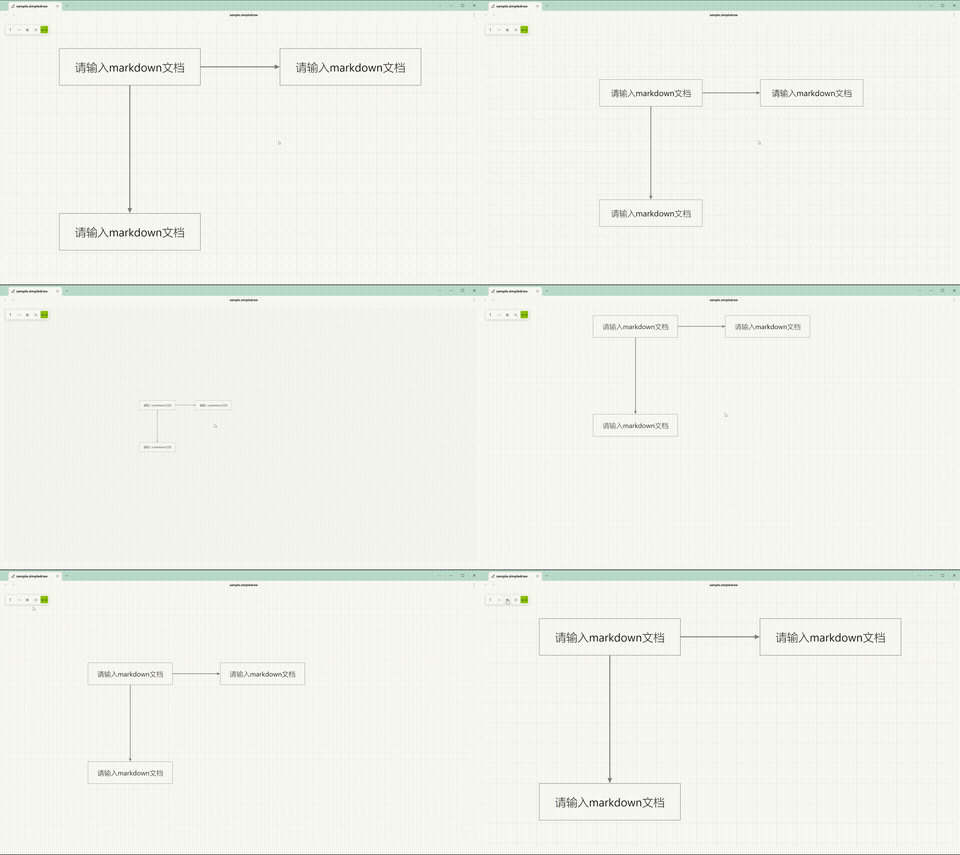
**移动**:鼠标中键拖拽
**Pan**: Middle-click drag
**缩放**:Ctrl + 鼠标滚轮
**Zoom**: Ctrl + scroll wheel
### 文本框
### Textbox
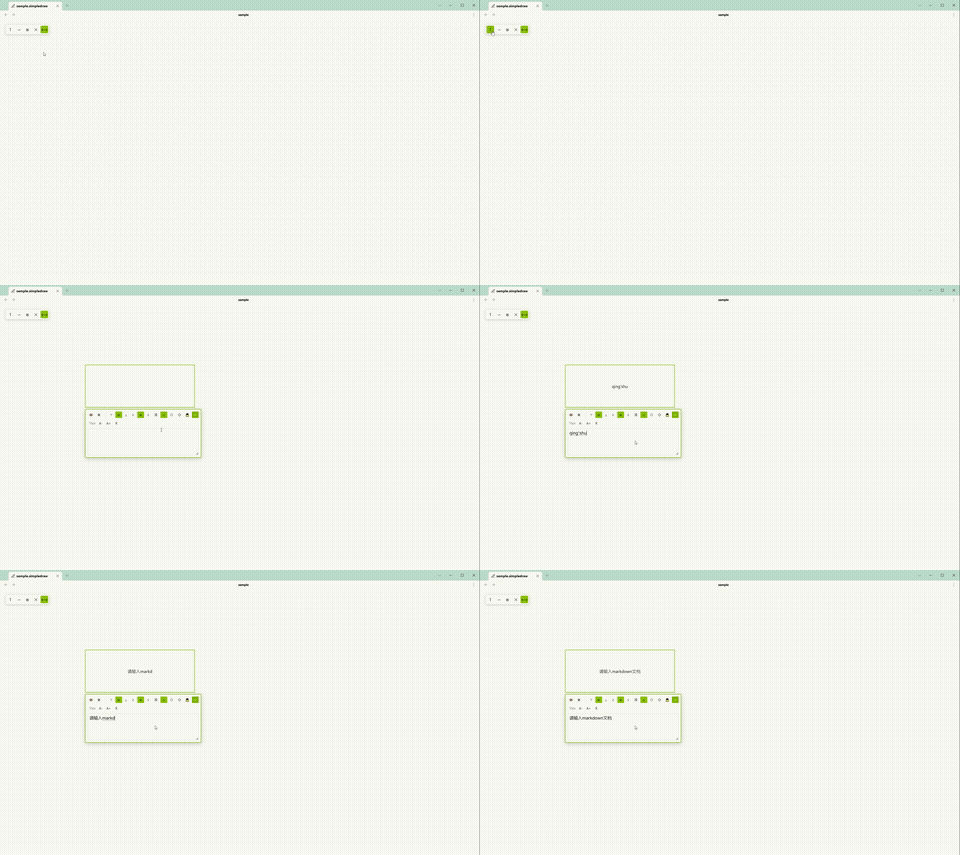
1. 点击左上角 **T** 按钮,在画板点击两次确定位置。
Click the **T** button, then click twice on the canvas to place a textbox.
2. 双击文本框打开编辑器。
Double-click a textbox to open its editor.
3. 拖拽四角调整大小。
Drag the corners to resize.
4. **锁定**:编辑器菜单点击 🔒。**解锁**:右键文本框 →「解锁」。
**Lock**: Click 🔒 in the editor. **Unlock**: Right-click → "Unlock".
### 箭头
### Arrow
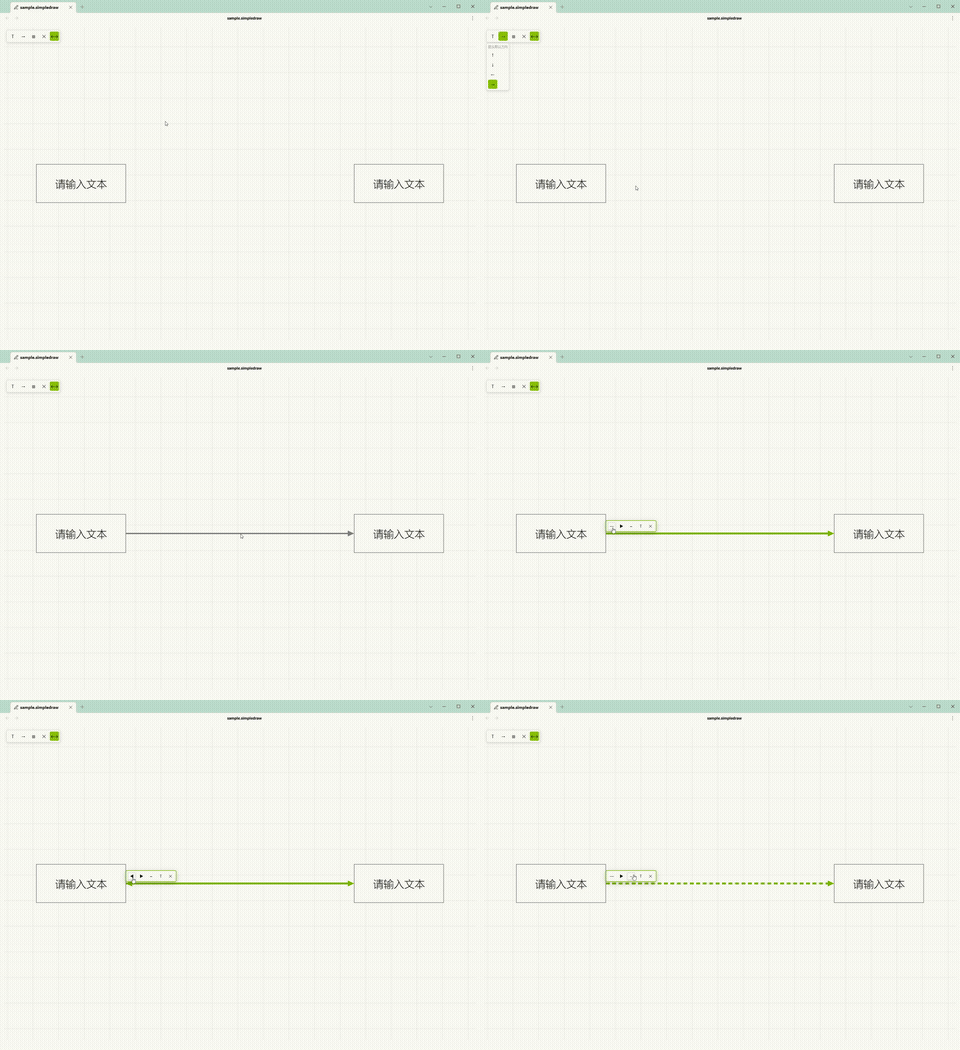
1. 点击左上角 **→** 按钮,在画板点击起点和终点。
Click the **→** button, then click start and end points on the canvas.
2. 端点可自动吸附文本框锚点,也可自由放置。
Endpoints auto-snap to anchors or remain free.
3. 吸附箭头自动跟随锚点移动。
Snapped arrows automatically follow anchor movement.
4. **双击箭头**弹出菜单:
**Double-click an arrow** to open its menu:
- 首尾箭头显隐切换
- Start & End arrow toggle
- 实线/虚线切换
- Solid & Dashed toggle
- **T** 文字标签开关
- Label toggle
- 删除
- Delete
5. 方向可通过菜单选择或键盘方向键 **←↑↓→** 切换。
Direction can be set via the menu or arrow keys.
### 文字标签
### Arrow Label
双击箭头 → 点击 **T** 按钮 → 箭头中点出现可编辑文字,支持 Markdown,自动跟随箭头移动。
Double-click an arrow → click **T** → an editable label appears at the midpoint. Supports Markdown and auto-follows the arrow.
开关隐藏/显示(保留内容)。空内容时画布显示灰色提示「请输入 markdown 文本」。
Toggle to hide/show (content is preserved). Shows a placeholder when empty.
### 选择与编辑
### Selection & Editing
**选择**:单击 / Ctrl+单击多选 / 拖拽框选。
**Select**: Click / Ctrl+click / drag box select.
**复制粘贴**:Ctrl+C / Ctrl+V,支持跨文件。
**Copy/Paste**: Ctrl+C / Ctrl+V, cross-file support.
**外部文本**:复制文字后到画板 Ctrl+V 自动创建文本框。
**External Text**: Paste external text on canvas to create a textbox.
**删除**:选中后按 Delete。
**Delete**: Select and press Delete.
**撤销**:Ctrl+Z。
**Undo**: Ctrl+Z.
**重做**:Ctrl+Shift+Z。
**Redo**: Ctrl+Shift+Z.
### 锚点方案
### Anchor Scheme
在设置面板「吸附功能」中切换:
Switch in Settings → Snap:
- **方案一 Scheme 1(默认)**:8 锚点(4 角点 + 4 边中点)。8 anchors (4 corners + 4 midpoints).
- **方案二 Scheme 2**:12 锚点(4 边中点 + 8 四分点),仅被箭头连接的四分点参与吸附。12 anchors (4 midpoints + 8 quarter points), only connected quarter points participate in snap.
---
## 功能
## Features
### 文本框
### Textbox
| 功能 Feature | 说明 Description |
|-------------|-----------------|
| 形状 Shape | 矩形 / 椭圆 / 菱形 Rectangle / Ellipse / Diamond |
| 内容 Content | Markdown 渲染(支持数学公式、高亮等)Markdown rendering (math, highlight) |
| 填充 Fill | 开关切换,线框模式 Toggle, wireframe mode |
| 显隐 Visibility | 开关隐藏边框和填充 Hide border & fill |
| 文字方向 Writing Mode | 横排 / 竖排 Horizontal / Vertical |
| 文字对齐 Text Align | 水平(左/中/右)+ 垂直(上/中/下)Horizontal + Vertical |
| 字号 Font Size | A+ / A- / R 实时调整 Real-time adjustment |
| Markdown 快捷键 | Ctrl+B 加粗 / Ctrl+I 斜体 / Ctrl+U 删除线 / Ctrl+Shift+C 代码 / Ctrl+Shift+K 链接 / Ctrl+Shift+H 高亮 / Ctrl+Shift+M 行内公式 / Ctrl+Shift+Alt+M 行外公式 |
| 锁定 Lock | 🔒 锁定后不可编辑、移动、缩放、删除、选择、吸附 Prevents edit, move, resize, delete, select, snap |
### 箭头
### Arrow
| 功能 Feature | 说明 Description |
|-------------|-----------------|
| 路由 Routing | 正交避让(自动绕开文本框)Orthogonal obstacle avoidance |
| 吸附 Snap | 支持边中点 / 四分点锚点 Edge midpoint / quarter-point anchor |
| 形状 Shape | 实心三角 / 空心三角 / V 型 / 圆点 Triangle / Open Triangle / V-Shape / Circle |
| 端点控制 Endpoints | 首尾箭头独立显隐 Start/End arrow toggle |
| 线型 Line Style | 实线 / 虚线 Solid / Dashed |
| 方向 Direction | 菜单选择或键盘 ←↑↓→ Menu or arrow keys |
| 文字标签 Label | 箭头中点 Markdown 文字标签,自动跟随 Markdown label at path midpoint, auto-follows |
### 交互
### Interaction
| 功能 Feature | 说明 Description |
|-------------|-----------------|
| 画板 Canvas | 中键平移,Ctrl+滚轮缩放 Middle-click pan, Ctrl+scroll zoom |
| 选取 Selection | 单击 / Ctrl+单击多选 / 拖拽框选 Click / Ctrl+click multi / drag box select |
| 移动 Move | 拖拽文本框 Drag textbox |
| 缩放 Resize | 拖拽四角 Drag corners |
| 吸附对齐 Alignment Snap | 拖拽时对齐边线(多优先级系统)Snap to edges with priority system |
| 调整大小吸附 Resize Snap | 角点拖拽时对齐边线 Corner drag snap to edges |
| 锚点方案 Anchor Scheme | 8 锚点 / 12 锚点 8 anchors / 12 anchors |
| 撤销/重做 Undo/Redo | Ctrl+Z / Ctrl+Shift+Z,最多 100 步 Up to 100 steps |
| 复制/粘贴 Copy/Paste | Ctrl+C/V 跨文件,外部纯文本自动创建文本框 Cross-file, external text → textbox |
### 右键菜单
### Context Menu
文本框置顶 / 置底。解锁文本框。
Bring to Front / Send to Back. Unlock textbox.
### 导出
### Export
**PNG 导出** — DOM 截图,所见即所得,保留数学公式和代码块。
DOM screenshot, WYSIWYG, preserves math & code blocks.
选项:网格 / 透明背景。
Options: Grid / Transparent background.
### 多语言
### i18n
中文 / English — 设置面板一键切换。
One-click switch in settings.
---
## 安装
## Installation
1. 下载 `main.js`、`manifest.json`、`styles.css`。
Download `main.js`, `manifest.json`, `styles.css`.
2. 复制到 `.obsidian/plugins/simple-draw/`。
Copy to `.obsidian/plugins/simple-draw/`.
3. 在 Obsidian 设置中启用插件。
Enable the plugin in Obsidian settings.
4. 在文件夹上右键 →「插入 SimpleDraw」新建 `.simpledraw` 文件。
Right-click a folder → "Insert SimpleDraw" to create a `.simpledraw` file.
---
## 设置
## Settings
| 设置项 Setting | 说明 Description |
|--------------|-----------------|
| 语言 Language | 中文 / English |
| 显示画板纹路 Show Grid | 网格背景 Grid background |
| 箭头线粗细 Arrow Stroke Width | 1-5px |
| 箭头大小 Arrow Head Size | 6-20px |
| 箭头形状 Arrow Shape | 实心三角 / 空心三角 / V 型 / 圆点 Triangle / Open Triangle / V-Shape / Circle |
| 显示箭头连接点 Show Anchor Dots | 箭头端点小圆点标记 Dot markers at arrow endpoints |
| 默认字号 Default Font Size | 新文本框默认字号 8-72px |
| 锚点方案 Anchor Scheme | 8 锚点 / 12 锚点 8 anchors / 12 anchors |
| 吸附预览圆圈大小 Snap Preview Radius | 箭头插入模式吸附预览圆圈 4-20px |
| 吸附对齐 Snap Enabled | 开启/关闭 On/Off |
| 快捷键 Shortcuts | 自定义 Markdown 格式快捷键 Custom Markdown shortcuts |
---
## 技术架构
## Architecture
```
src/
├── main.ts 入口 — 注册视图、命令、功能区、文件菜单、设置选项卡
Plugin entry: register view, commands, ribbon, file menu, settings tab
├── view.ts 视图层 — DOM、事件、渲染循环、编辑器、PNG 导出
View layer: DOM, events, render loop, editors, PNG export
├── engine.ts 核心引擎 — 选择、历史记录、坐标变换、吸附、箭头路由
Core engine: selection, history, transforms, snap, arrow routing
├── types.ts 数据类型 — 枚举、常量
Data types: enums, constants
├── settings.ts 设置接口 — 默认值
Settings interface: defaults
├── settingsTab.ts 设置选项卡 UI
Settings tab UI
└── locale.ts 国际化 — 中文 / English
i18n: Chinese / English
```
---
## 许可
## License
MIT