# Glass Shelf Companion
**English** · [한국어](README.ko.md)
Companion plugin for the [Glass Shelf theme](https://github.com/ummbition/glass-shelf-theme). It adds button layout, motion and refraction on top of the glass surfaces drawn by the theme.
> [!IMPORTANT]
> ### Requires the Glass Shelf theme
> This plugin only runs while Glass Shelf is the active theme. With any other theme it changes nothing.
## Features
### Layout
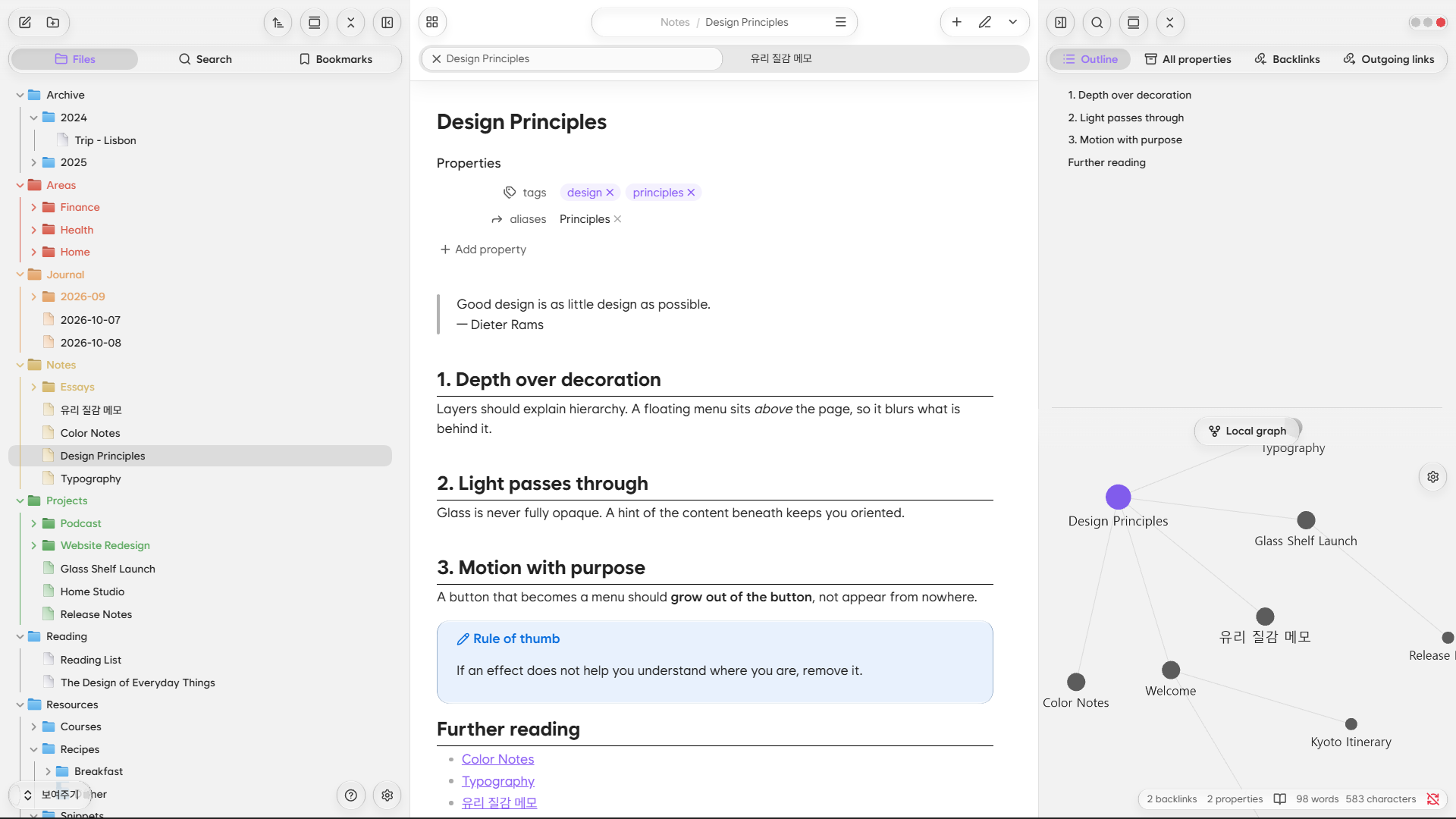
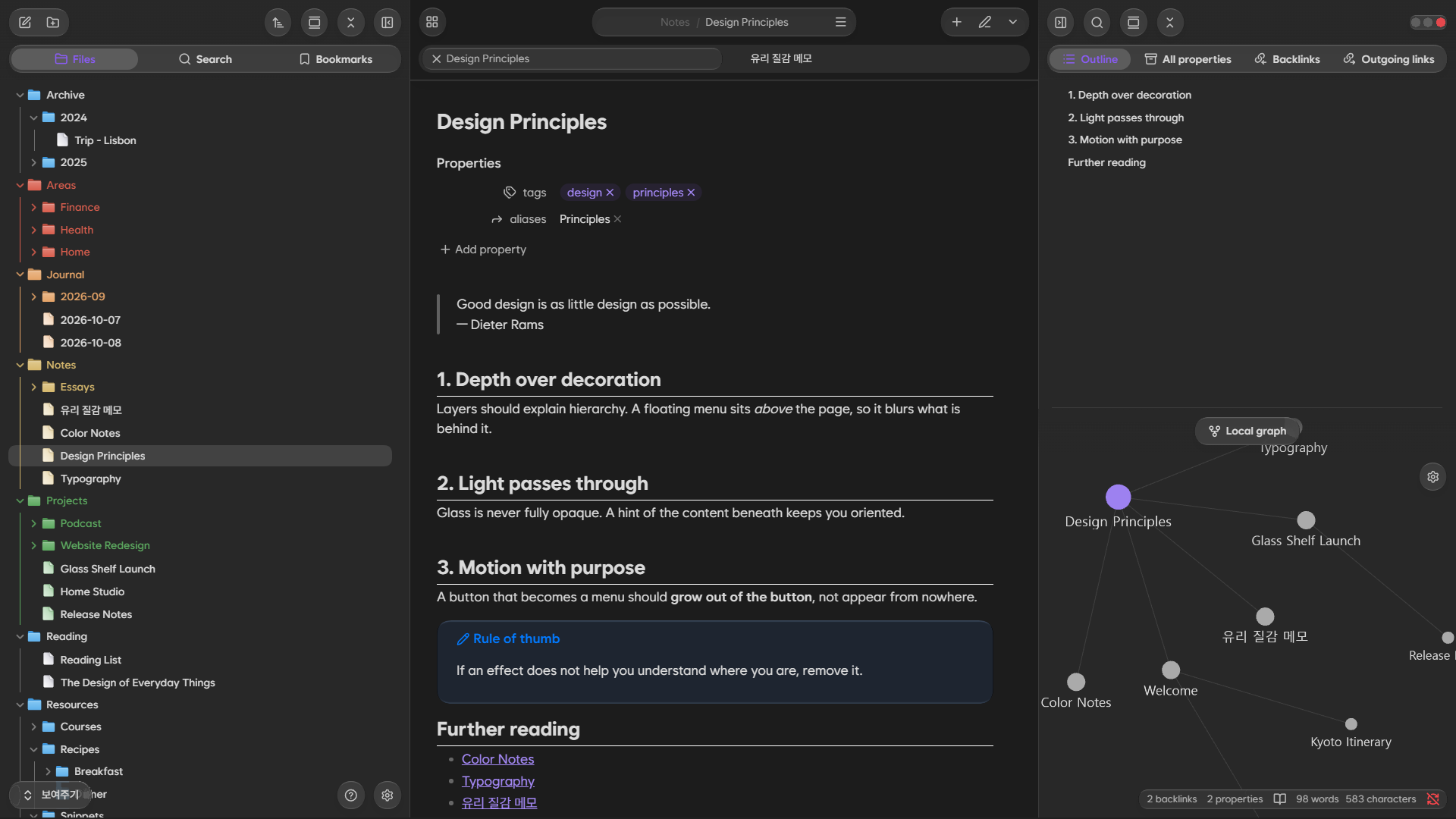
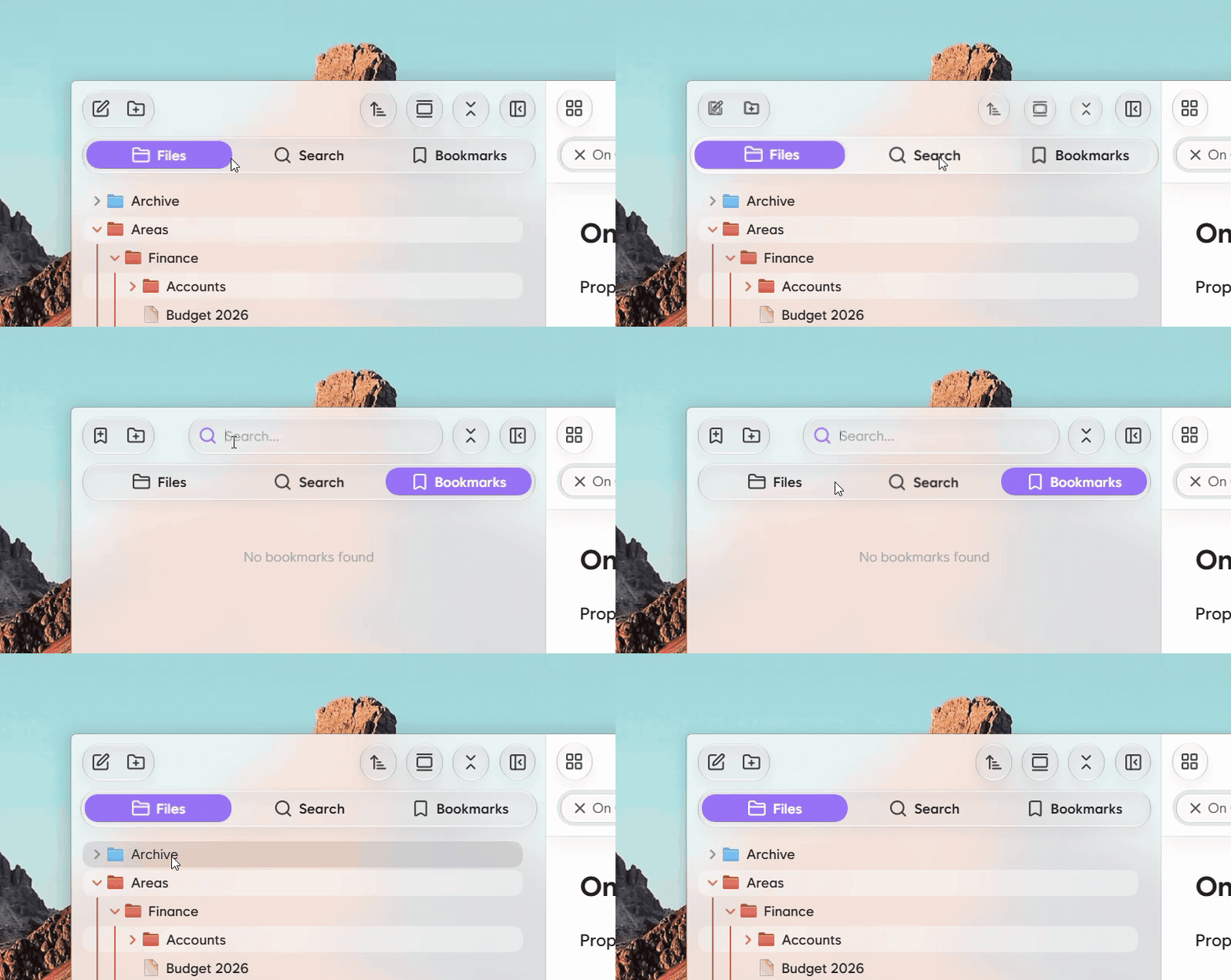
- Sidebar more-options menus, back/forward and reading-mode buttons in the tab bar, and in-tab menu buttons, rearranged into pills
- Shows the current note's "folder / file" path above the tab bar
- Moves the web viewer's address bar, reload and reading-mode buttons into the tab bar
- Collapses the tab bar to the note title when you scroll down (Safari style)
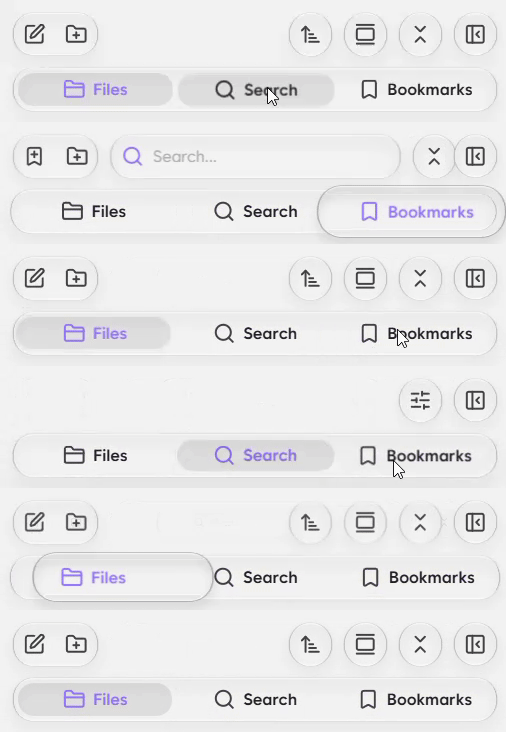
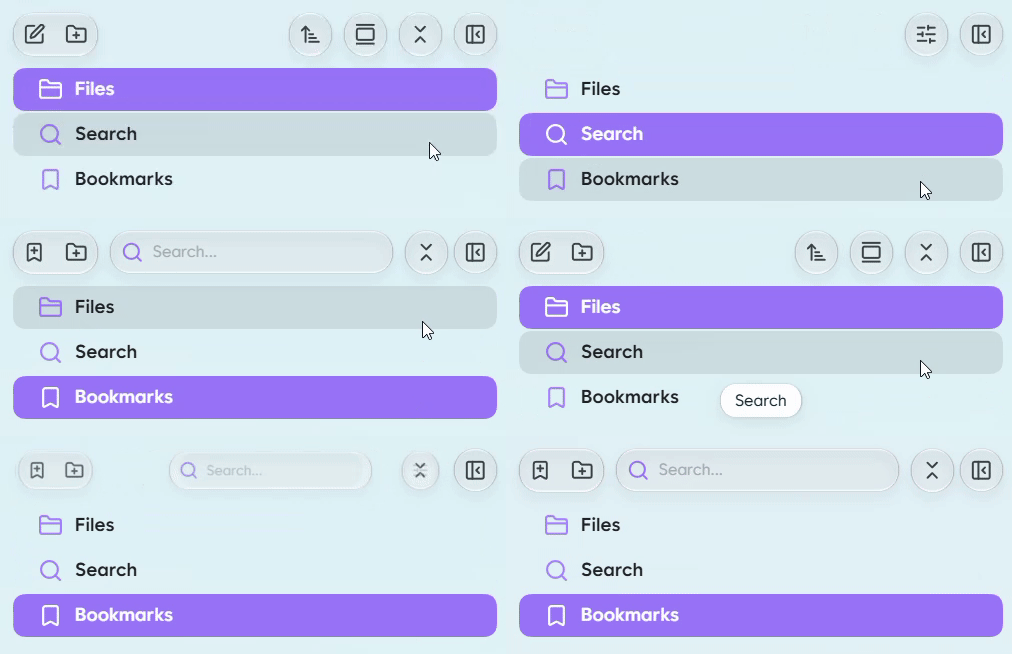
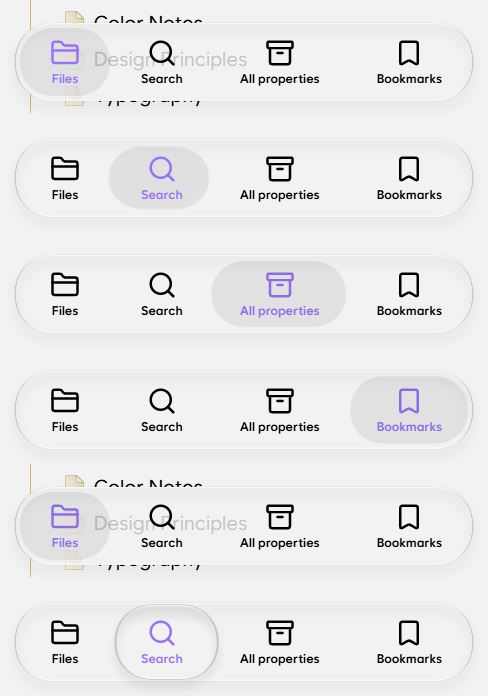
- Lens or list layout for panel tabs, wide tab bar, tab names
- Shrinks the Windows and Linux window controls into small dots
### Glass
- Glass opacity in 11 steps (0–10)
- Tint: none, accent color, Obsidian purple, or a custom color, with 10 strength steps
- Refraction that bends the background along glass edges
- Popups that match menu translucency, or opaque popups
- Morphing animation where a button grows into its menu, plus press effects
- See-through side panels: your desktop and other windows show through the left and right panels, blurred. Works on Windows 11 22H2 or later with transparency effects turned on in Windows settings. When on, the tab switch effect is shown as Simple instead of Lens.
### Details
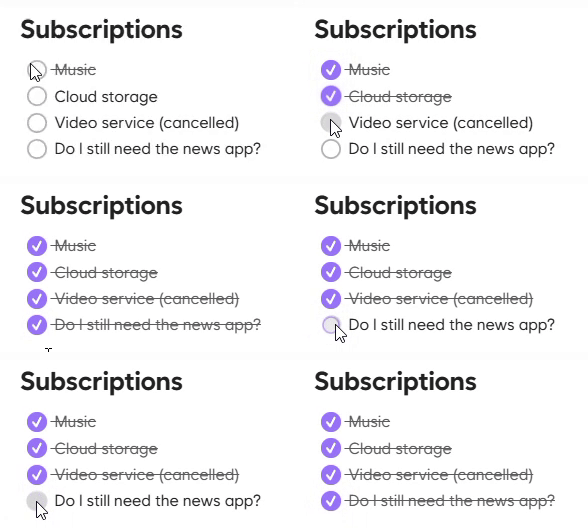
- Task checkbox style and color
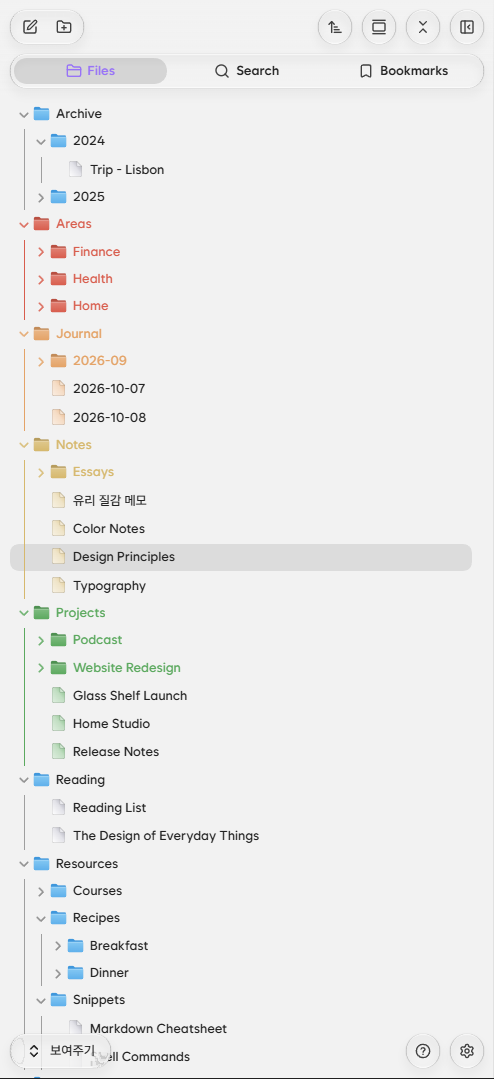
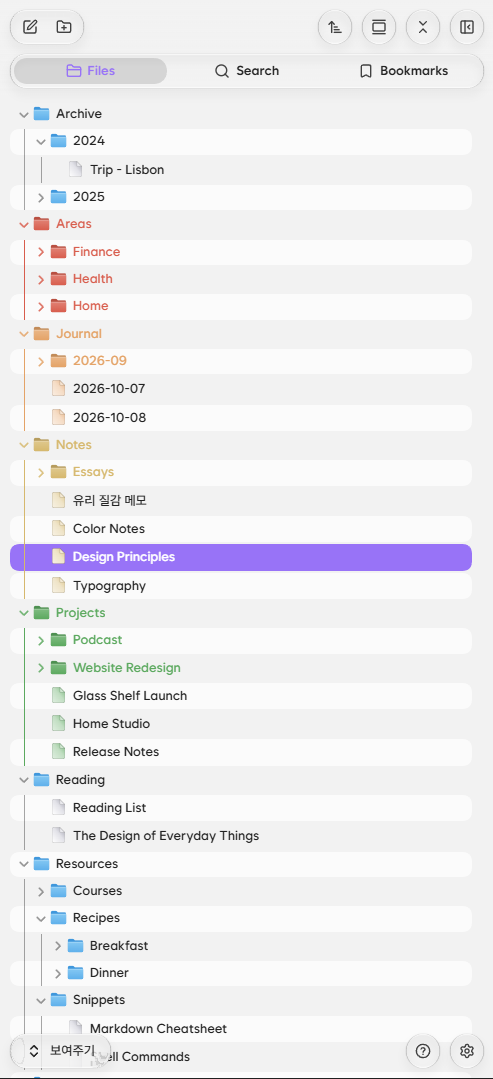
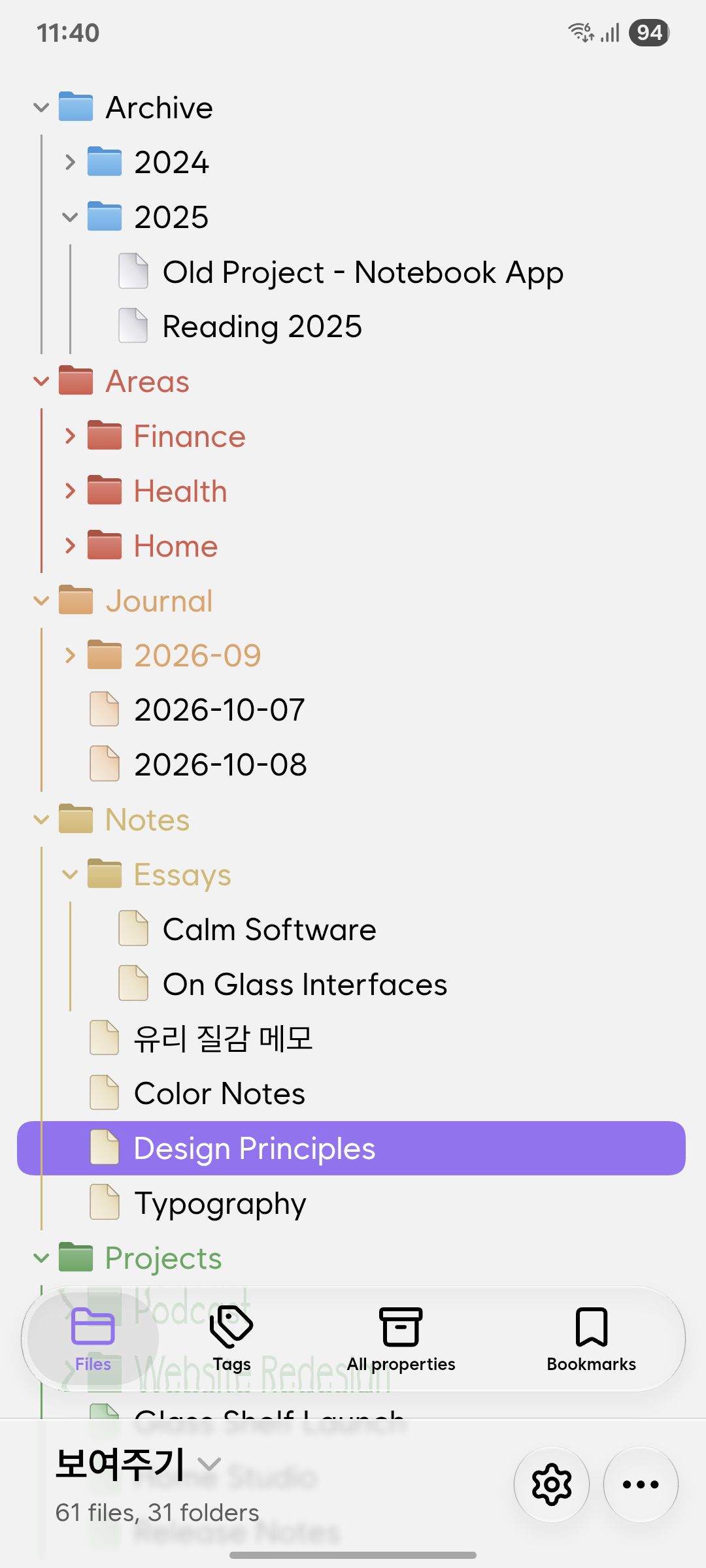
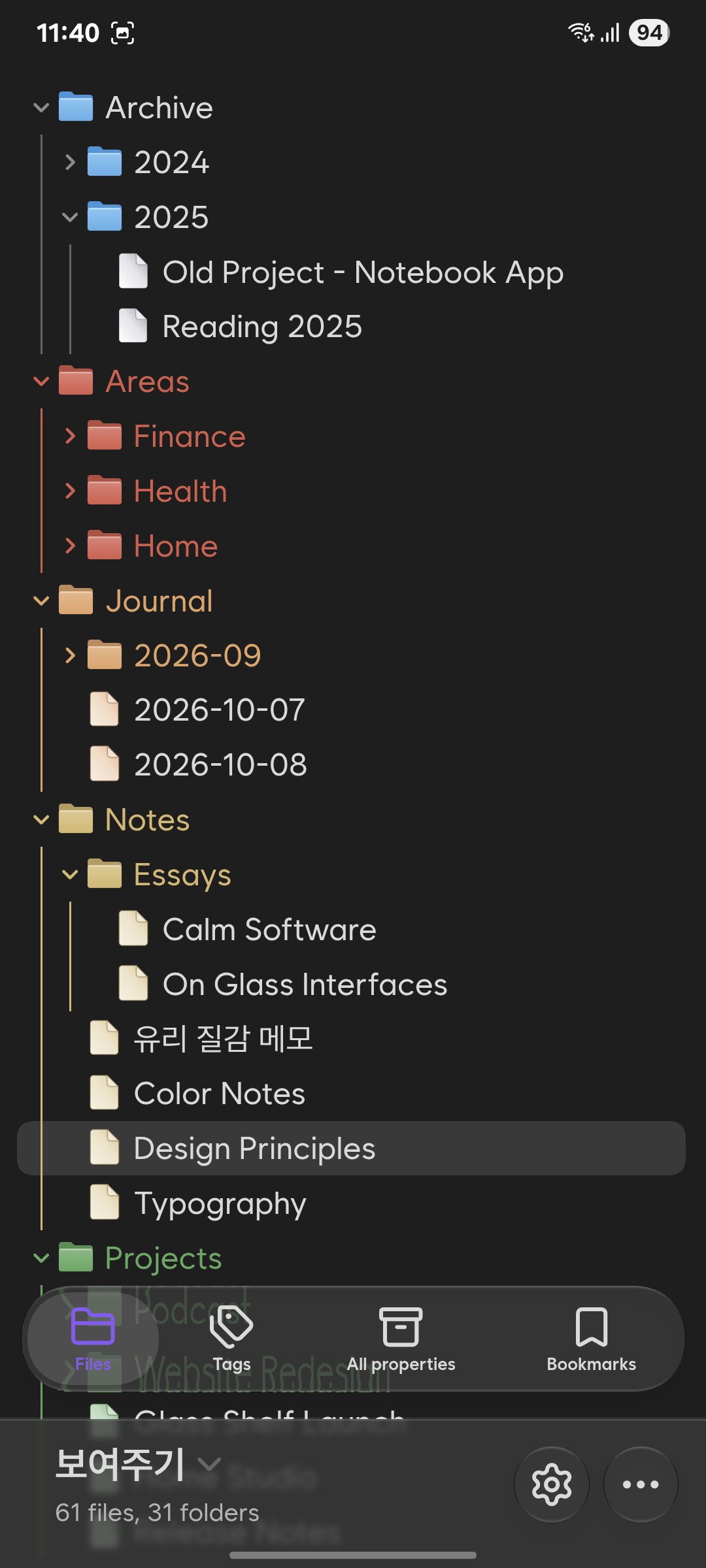
- File explorer icon style (Finder-like default, none, or simple folder-only icons), folder icon color and a per-folder color palette
- Striped rows in the file explorer, line under headings
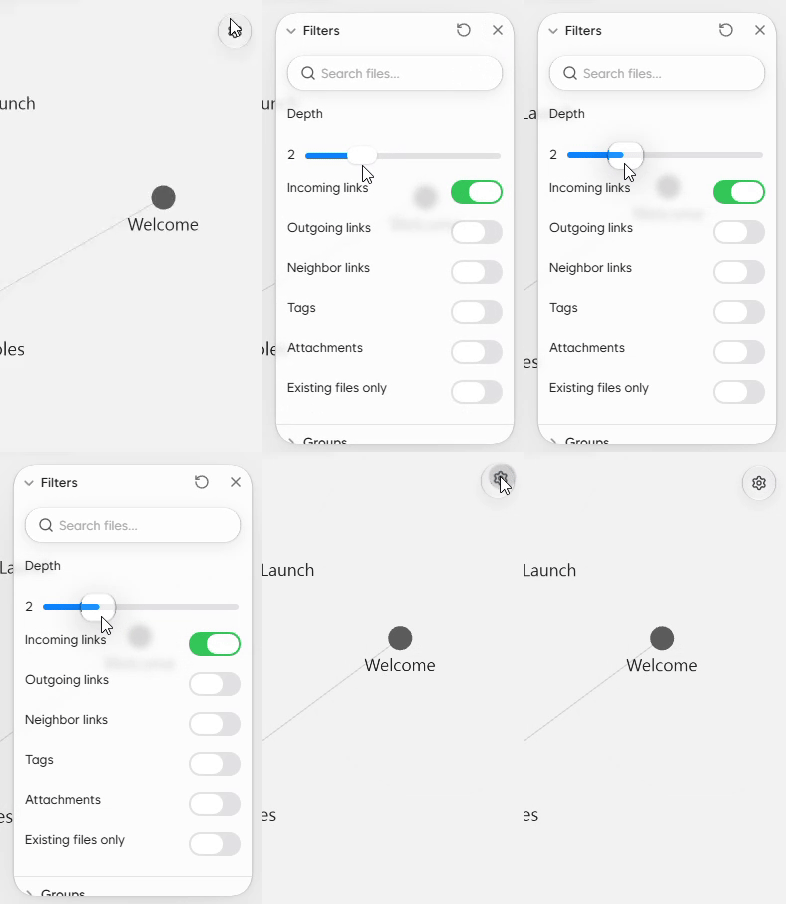
- iOS-style colors for toggles and sliders
### Plugin integration
- Kanban: restyled to match Glass Shelf
## What moves where
With the plugin on, a few buttons move. They work the same; only their place changes.

Turn off **Wide tab bar** and **Show tab names** in the settings for a more compact tab bar.

### Ribbon menu
- The vertical ribbon on the left is hidden, and its buttons are gathered into **the grid button (Ribbon menu) at the far left of the editor tab bar**, just left of back/forward.
- The buttons shown and their order follow **Settings → Appearance → Ribbon menu**.
- When the left sidebar is closed, the button that opens it also appears at the far left of the tab bar.
- On tablets, the vault, help and settings buttons are added to the end of the ribbon menu. Phones are unchanged.
### Sidebar panels
- Panel buttons such as New note, Sort and Collapse all in the file explorer move into **the more-options (···) button in the panel tab bar**.
- With the wide tab bar setting on, those buttons are laid out in a row instead of the ··· button.
### Editor tab bar
- **Back / forward**: left side of the tab bar
- **New tab (+), reading mode and tab list**: one pill on the right side of the tab bar. In tabs that have no reading mode, that button folds away and the pill gets narrower. The tab list button still opens the tab list and the tab stacking menu.
- **More options (≡)**: inside each tab. With the path display on, it moves into the path pill above the tab bar.
- **Web viewer**: with the path display on, the address bar sits in the path pill and the pill widens while you edit. With it off, the tab shows only the domain; click it and that tab pill grows into an address bar in the middle of the tab bar. History suggestions appear right below the pill. Reload sits to the right of the path pill (left of the in-tab ≡ when the path is off), and the note's reading-mode button switches its icon to handle reading mode. (Desktop, tablet)
### Tab settings
Change them in **Settings → Community plugins → Glass Shelf Companion**.
| Setting | What it does |
|---|---|
| Tab switch effect | Lens: a lens slides between tabs / Simple: a plain accent-colored pill / List (desktop, tablet): one tab per row |
| Panels using the list | With the list, choose the left panel, the right panel, or both |
| Wide tab bar | Stretches the panel tab pill from edge to edge |
| Show tab names | Puts the name next to each panel tab icon |
| Show path | "Folder / file" path above the editor tab bar |
| Collapse tab bar on scroll | Folds the tab bar when you scroll down |
| Immersive web view | In the web viewer, the page runs behind the tab bar, and the tab bar and buttons follow the page's background color |
## Installation
1. Install and enable the **Glass Shelf** theme in **Settings → Appearance → Themes**.
2. Install and enable the **Glass Shelf Companion** plugin in **Settings → Community plugins**.
## Supported platforms
- **Built mainly for desktop (Windows) and Android.**
- On iPhone and iPad, refraction does not work, so only blur is applied.
- On macOS, we recommend leaving Obsidian's Translucent window setting (Settings → Appearance → Advanced) off. With it on, translucent areas get painted over again each time they redraw and gradually turn darker. This is a limit on the Obsidian and Electron side that the theme and plugin cannot fix.
## Privacy
This plugin makes no network requests and only changes the Obsidian interface. It does not read or send your notes.
In web viewer tabs it injects a small script into the open page to read the position and background color of bars fixed to the top of the page and align them with the tab bar. It does not store or send page content.
## Support
If you enjoy Glass Shelf, you can support it with a coffee.
[](https://ko-fi.com/ummbition)
## License
[MIT](LICENSE)