# Oriko
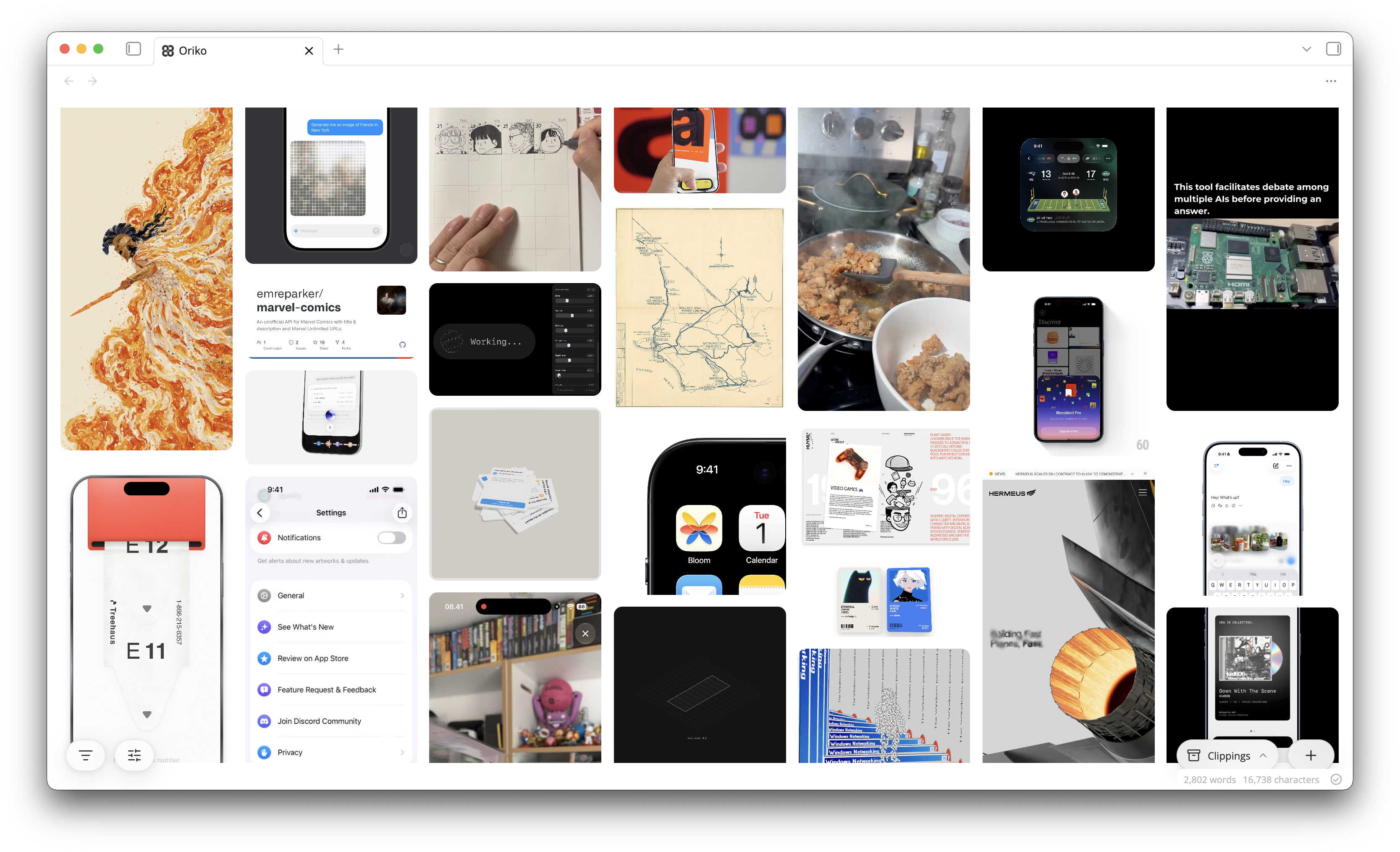
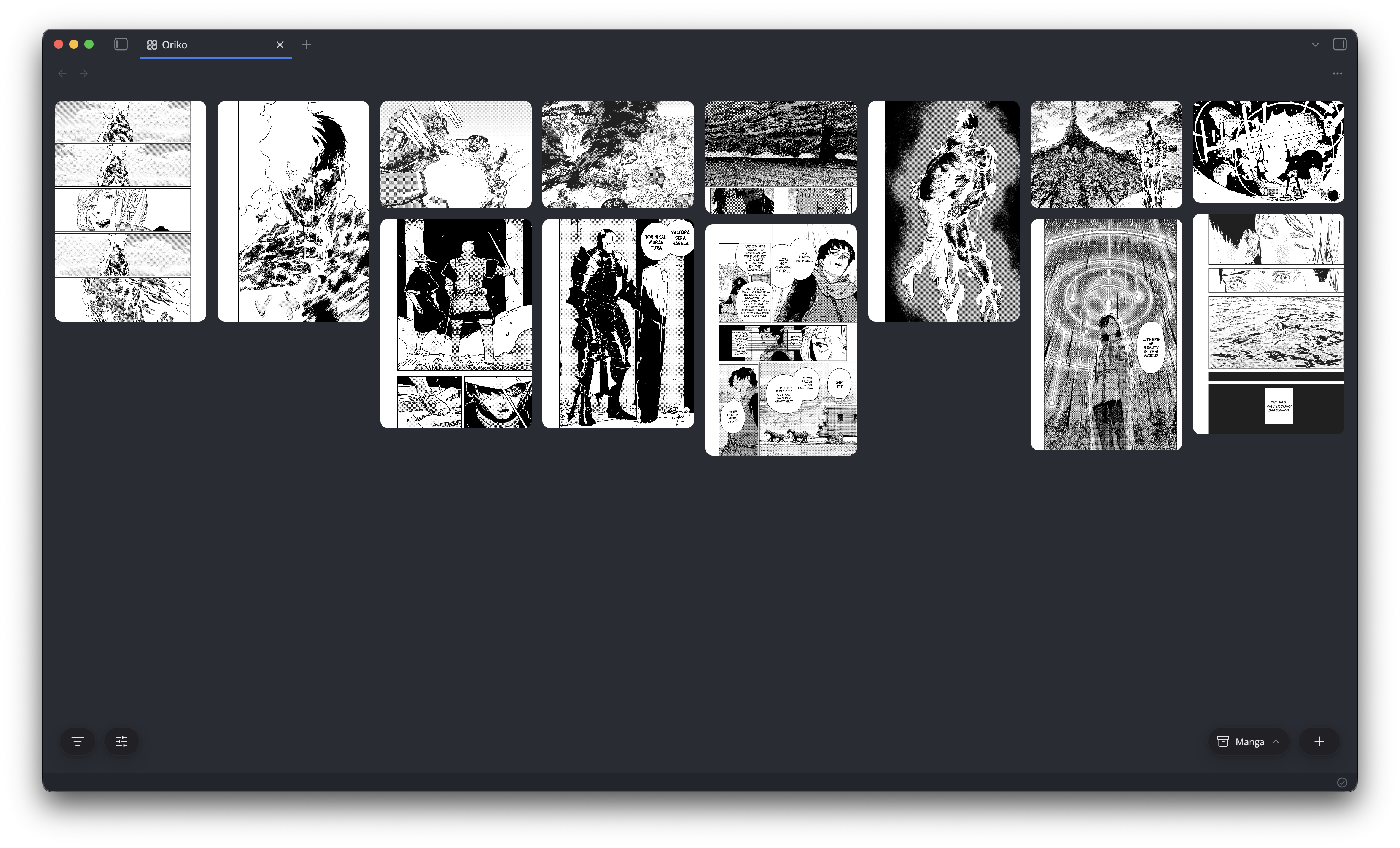
Turn your web clippings into a wall of pictures. Oriko lays out every clipping in your folder as a pannable, zoomable masonry wall and downloads a local copy of each clipping's media, so clippings keep their images and videos even if the source page is deleted. Clippings are plain markdown notes and stay readable without the plugin.
*The name is Japanese: an oriko (織り子) is a weaver, someone who turns loose threads into one cloth. Weaving scattered inspiration into a single wall is the whole idea.*
Oriko is free, and built in my spare time.
If it earns a place in your vault, sponsoring it on GitHub keeps it going.
## Clipping
Paste a link anywhere on the wall, or run **Clip from clipboard** from the command palette. Oriko reads the page, downloads its images and video into your attachment folder, and writes a markdown note into your clippings folder. Pasting or dropping a picture or video saves it as a clipping of its own, and pasting a link you already clipped opens the existing note.
| Source | What you get |
| --- | --- |
| An article or product page | The page's own preview image, title, author and date |
| A direct image or video URL | The file itself, saved as its own clipping |
| An X or Instagram post | The post's media, via optional community resolvers |
| A Threads post | The video, found by loading the post itself (desktop) |
| Notes from the [Obsidian Web Clipper](https://obsidian.md/clipper) | They appear on the wall, and their remote media is downloaded in the background |
| A page whose media cannot be scraped | The page itself is scanned as a fallback, so the clipping still gets a picture |
On iOS you can clip straight from any app's share sheet with the **[Clip to Oriko Shortcut](https://www.icloud.com/shortcuts/191427deda394d21a3f5c647b436c085)**. Sharing a post to it opens the wall and clips it, no copy and paste involved. To build it yourself: receive URLs and text from the share sheet, run **Get URLs from Input**, URL-encode the result, and open `obsidian://oriko?url=` followed by the encoded text.
## The Wall
Every clipping is a tile: pan and pinch on a phone, scroll and zoom on a desktop, and click or tap a tile to open it full screen with its properties and actions. Videos can autoplay muted while they are in view, respecting Reduce Motion, and a video you open starts muted too until you unmute it (**Open videos muted** in settings). Select many at once with a drag on desktop or a long press on mobile, then move, export or delete them together.
The full-screen view zooms and pans the original, shows the picture's own color palette, and shows the clipping's details beside it. Its Source row links out to the original page (so do **Open in browser** in the tile's context menu and in the view's bar), its bar opens the note, exports, edits properties and deletes, and each button shows its key: ⏎ for the note, B for the browser, P for properties, ⌫ to delete.
## The Palette
⌘K, or **Search this grid** from the command palette, opens one input over the dimmed wall. It lists the things you can do, grouped under Selection, Describe, Grids, Filters, Edit and Capture, and once you start typing it also finds filter values and every clipping in the vault by name, each with a preview. A command that needs an argument opens a second stage in place, so moving four clippings to another grid is one gesture.
Beyond the palette, ⌘Z undoes the last move, edit, or folder and grid change and ⌘⇧Z redoes it, ⌘1 through ⌘9 switch grids in their stored order, ⌘N clips whatever is on the clipboard, ⌘E exports the selection, and the arrow keys move between tiles.
## Grids
Grids are boards. A clipping belongs to a grid through a single `grid` property in its frontmatter, home shows everything, and smart views collect clippings by rule (nothing is filed into a view: it shows whatever matches). The set of grids is shared across your devices through one small note in the clippings folder, so a board made on your desktop is on your phone after a sync.
## Folders
Folders are piles inside a grid. Select some tiles and choose **Move to folder** to gather them into one card on the wall, a collage of what is inside with a name and a count. Click the card to open the folder as a wall of its own, and drag any corner of the card to make it one, two or three columns wide. A clipping belongs to a folder through a `folder` property beside `grid`, and the folders themselves travel between devices with the grids.
## Filters
Any frontmatter property can become a filter. Enable properties under **Settings → Filter properties**, then slice the wall from the filter button: categories, status, domain, dates, whatever your clippings carry.
**Color** is always there too. Pick a color from the filter button's Color list, or type one into ⌘K: an everyday word like red or blue, a shade like maroon or sky blue, another name for one (burgundy finds maroon), or a hex code like `#800000`. Nearby shades count, and the clippings with the most of that color come first. **Search colors…** at the top of that list opens the same search from the filter button. Each device works out the colors from the pictures it already has, in the background, so nothing is written into your notes.
## Describe
A pasted screenshot or a reel with no caption is hard to find again. **Describe** looks at the picture, or a few frames of a video, along with the note's text, and writes categories, a one-line `caption` and any text in the picture (`media_text`) into the frontmatter, so the palette finds the clip by what is in it. Turn it on under **Settings → Oriko → Describe clippings** on desktop, then run **Describe uncategorized** from ⌘K, or select tiles and choose **Describe** from the palette, the selection bar or the right-click menu. Turn on **Describe new clippings** too and describing becomes the last step of clipping, while the wall is open; clips from your phone get described once they sync in with their pictures. Categories it suggests that are not on your wall yet wait in **Review suggestions** until you approve them.
You pick how Describe runs:
- **Claude Code on this computer.** Describe runs the Claude Code you installed and signed into. Anthropic may count it as third-party app usage. Oriko never sees your login.
- **Anthropic API key.** Describe calls Claude Haiku with a key from the [Claude Console](https://platform.claude.com). Paste the key in settings; it is kept in Obsidian's keychain, never in Oriko's settings file.
- **Oriko Plus.** A subscription that runs Describe on Oriko's own server, with no Claude Code or API key to set up. It covers 1,000 clippings a month on up to five devices, and clippings Claude couldn't label don't count. See [what's included](https://trevware.com/oriko/), then paste the license key from your receipt under **Settings → Oriko → License key**. Questions go to [hello@trevware.com](mailto:hello@trevware.com).
Oriko is independent of Anthropic.
## Revisit
Clip enough things and most of them sink out of sight. **Revisit** brings them back a few at a time: choose it from ⌘K and up to 20 clips, picked at random from the wall you're on, come up one by one beside the palette. Press → to keep a clip or ← to forget it, Tab to skip one, Shift-Tab to go back, and **Finish** when you're done. Revisit follows whatever filter is on, and a clip you've seen in the last month waits its turn while there are others to show.
Nothing is forgotten until you finish. Forgotten clips then go to Obsidian's trash after you confirm, along with any media only they used. To keep them instead, set **Settings → Oriko → Revisit → Forgotten clips** to **Mark as archived**: they stay on the wall with their status set to archived, and later passes leave them out. Revisit is desktop only for now.
## Downloads
Remote media is copied into your attachment folder under a name derived from its URL, so the same asset shared by several clippings is stored once. Posters and thumbnails are generated for videos and GIFs, and downloads above a size cap are skipped.
**Optional tools.** [yt-dlp](https://github.com/yt-dlp/yt-dlp) fetches the full video of a clipped post, and [ffmpeg](https://ffmpeg.org) renders previews for formats the app cannot play. Install them with your package manager: `brew install yt-dlp ffmpeg` on macOS, winget or scoop on Windows, apt on Linux. Oriko finds them on PATH and in common install locations, and **Settings → Downloads** takes an explicit path if yours is installed elsewhere.
**Phones get videos through a desktop.** Some videos can only be fetched on desktop, through the community resolvers or yt-dlp. A clip made on your phone gets its poster right away; the next time a desktop opens the vault, it downloads the full video. Once that file syncs back, the phone adopts it automatically and the tile plays. The video has to be within your sync service's file size limit.
**Cleanup.** **Remove orphaned media** lists files no clipping references and moves them to the trash after a confirmation.
**The note body is never touched.** Oriko writes a note's content once, when it creates it. After that it edits only frontmatter, through Obsidian's own frontmatter API: the `grid` key when you move a clipping, the labels Describe writes, and the properties you edit yourself from the wall.
## Privacy
Oriko fetches only what you clip: the page you pasted and the media it references. The optional community resolvers send X and Instagram URLs to public mirrors (fxtwitter, kkinstagram) to reach video those sites hide; turn them off in settings to stay first party. When you run Describe, the clipping's picture or video frames and its note text go to Anthropic, through your own Claude Code or your own API key, and nowhere else. With Oriko Plus they go to Oriko's server (`oriko-plus.trevware.com`) and on to Anthropic, and are not stored; see its [privacy policy](https://oriko-plus.trevware.com/privacy). There are no analytics and nothing is reported anywhere.
## Installation
Install from **Settings → Community plugins** by searching for Oriko, or grab `main.js`, `manifest.json` and `styles.css` from the [latest release](https://github.com/trevware/oriko/releases) into `.obsidian/plugins/oriko/`.