# Visual Line Numbers
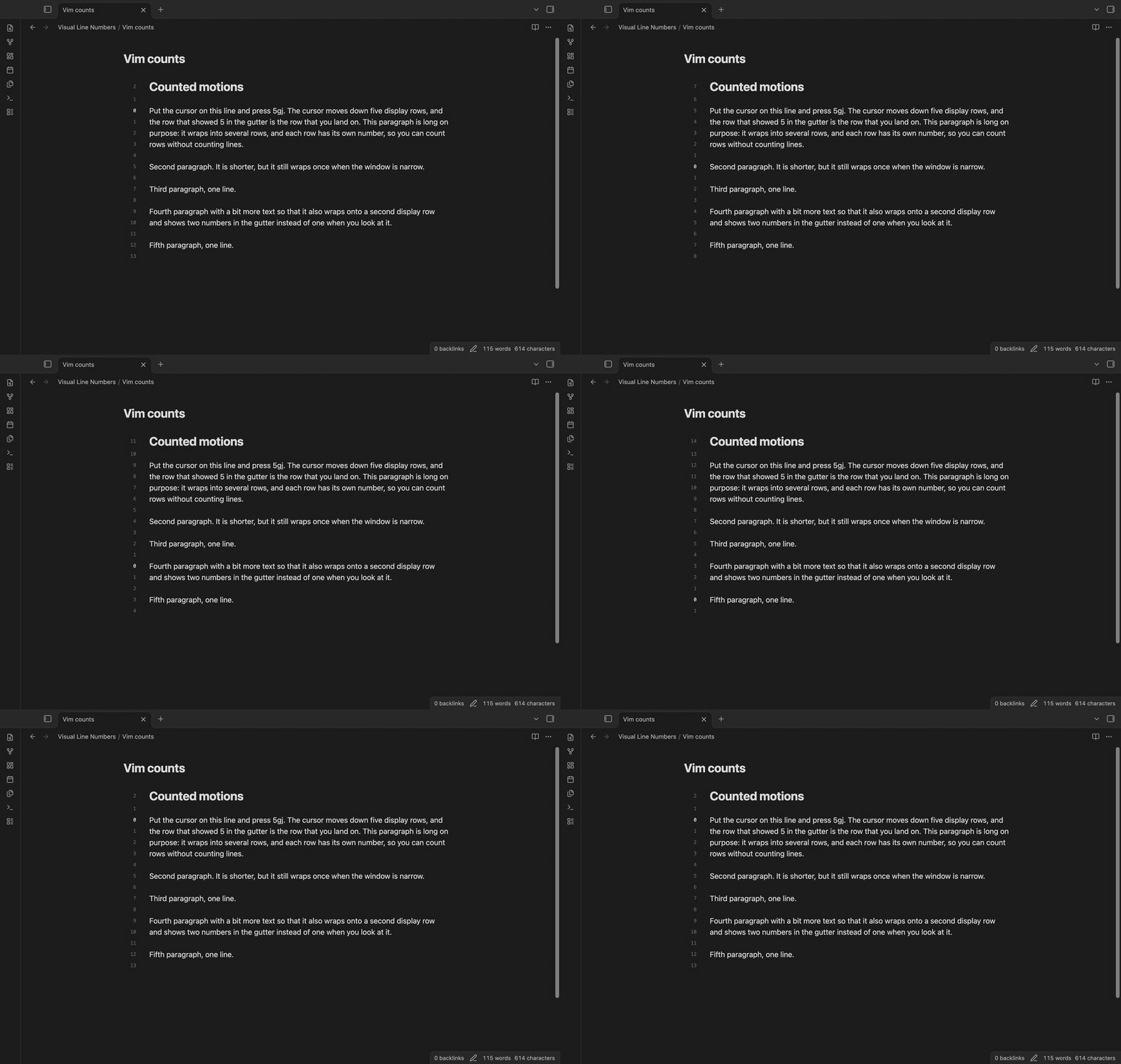
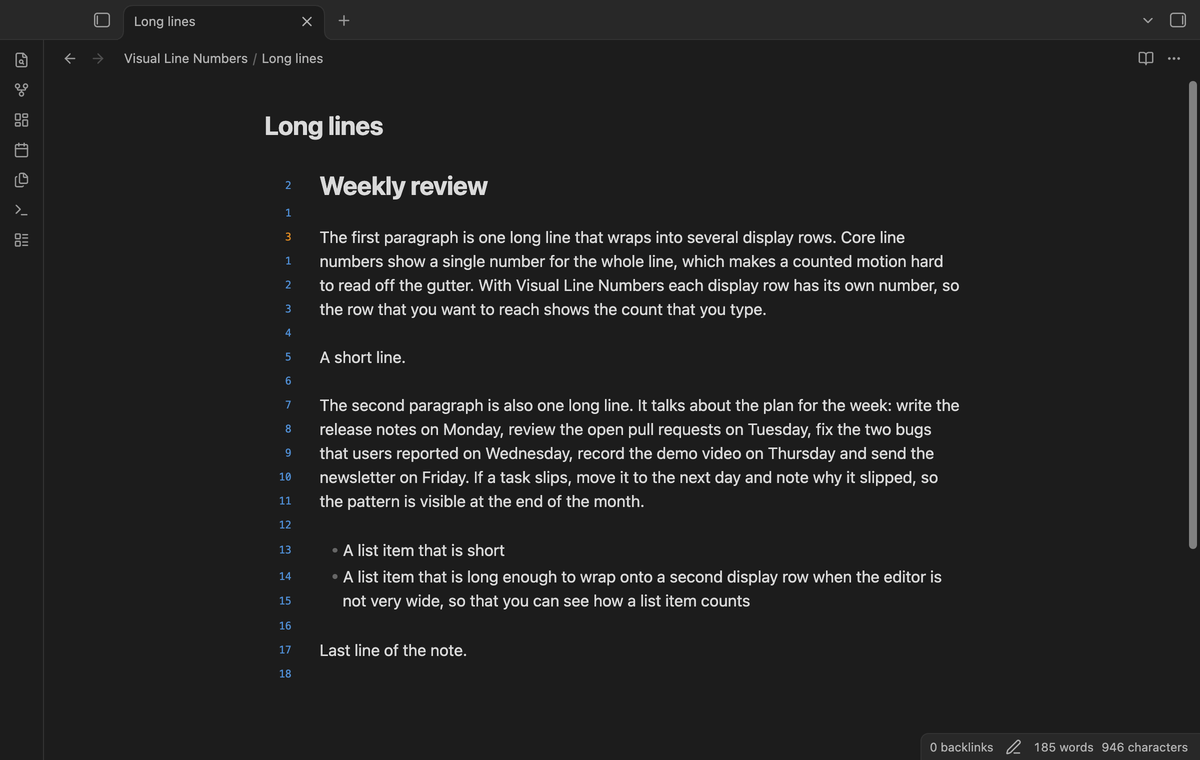
In relative, hybrid and dual mode, Visual Line Numbers puts a number on each display row in the editor gutter. A long paragraph that wraps onto five rows gets five numbers, not one. In relative and hybrid mode the numbers count rows from the cursor, so a counted Vim motion such as 5gj lands on the row that shows 5.
 ## Features
### A number on each wrapped row
Relative mode is the default. The row with the cursor shows 0. At a wrap boundary, the count follows the side on which the editor places the cursor. The rows above and below show how many rows away they are. A paragraph with four display rows shows four numbers.
## Features
### A number on each wrapped row
Relative mode is the default. The row with the cursor shows 0. At a wrap boundary, the count follows the side on which the editor places the cursor. The rows above and below show how many rows away they are. A paragraph with four display rows shows four numbers.
 ### Hybrid mode
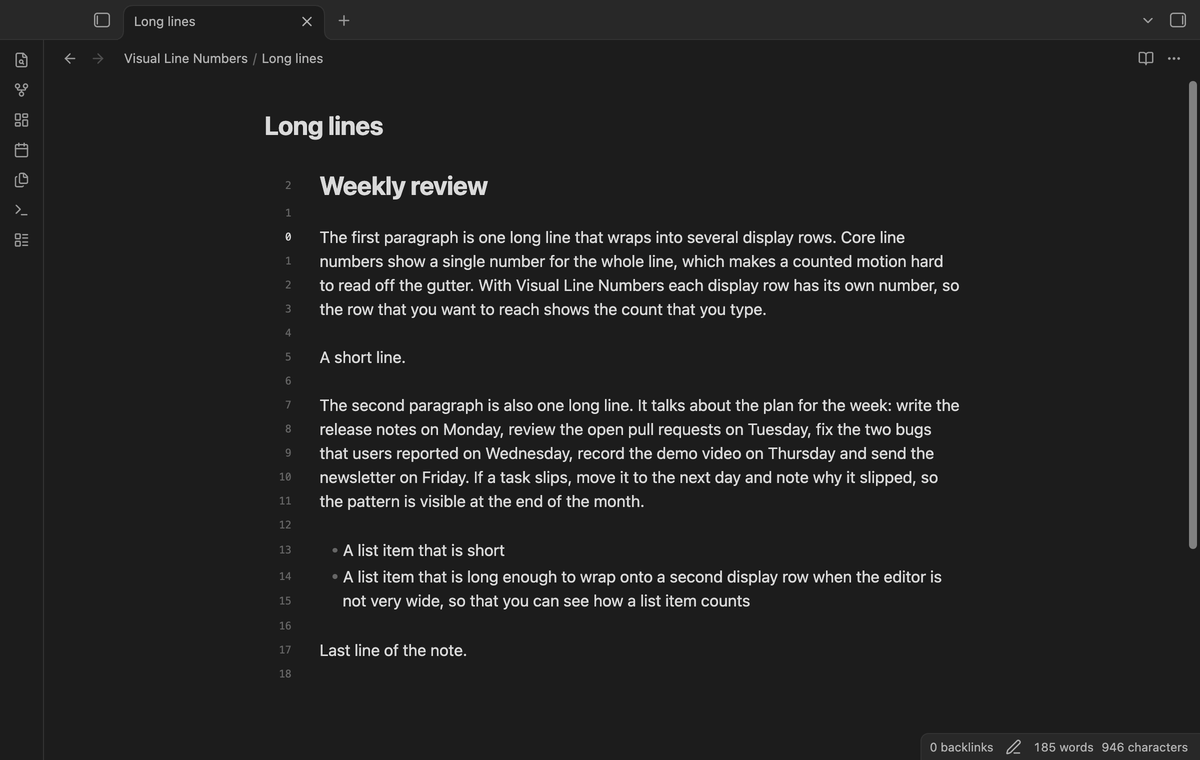
Hybrid mode shows the document line number on the cursor row and distances on the other rows.
### Hybrid mode
Hybrid mode shows the document line number on the cursor row and distances on the other rows.
 ### Absolute mode
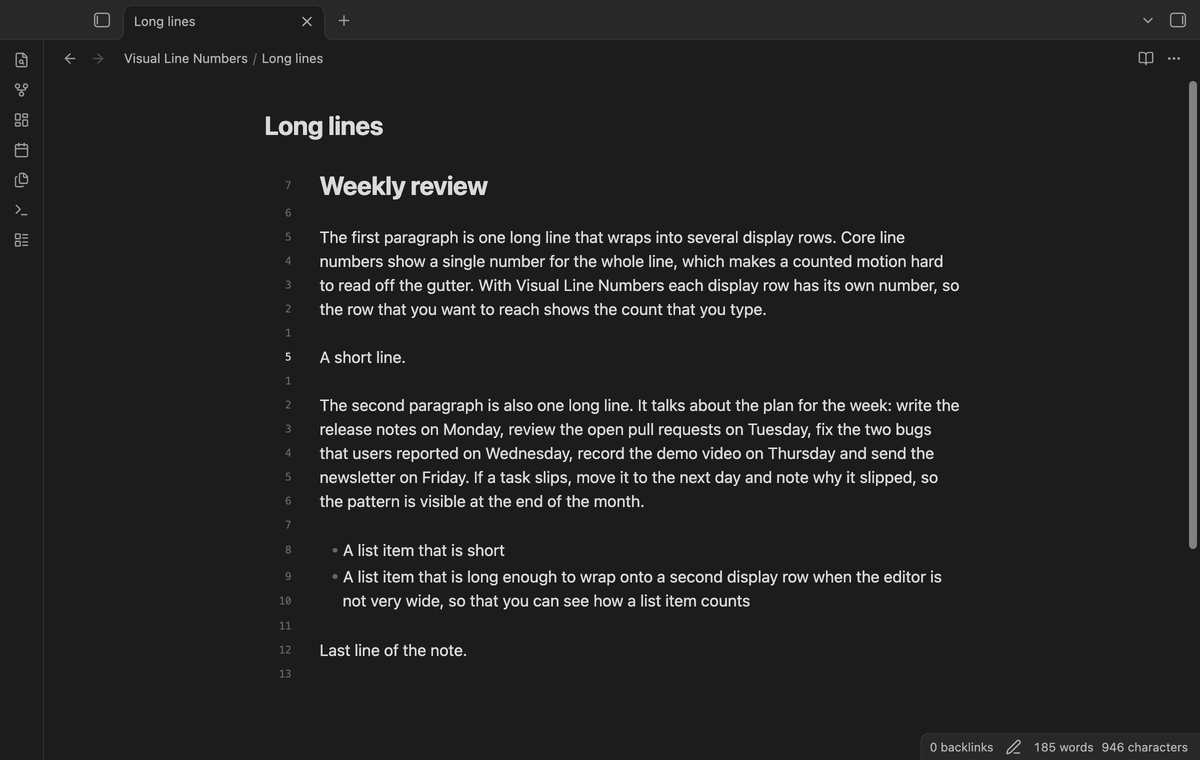
Absolute mode shows each document line number on its first row. Continuation rows have no number.
### Absolute mode
Absolute mode shows each document line number on its first row. Continuation rows have no number.
 ### Both number columns
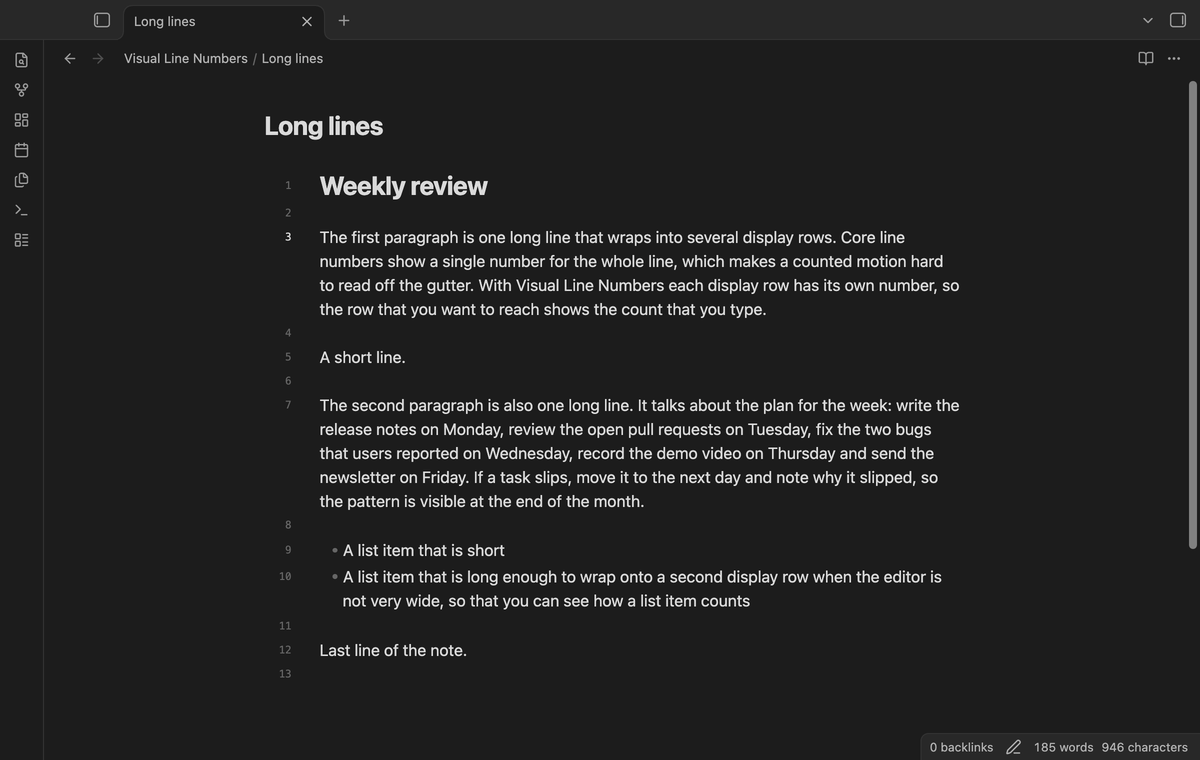
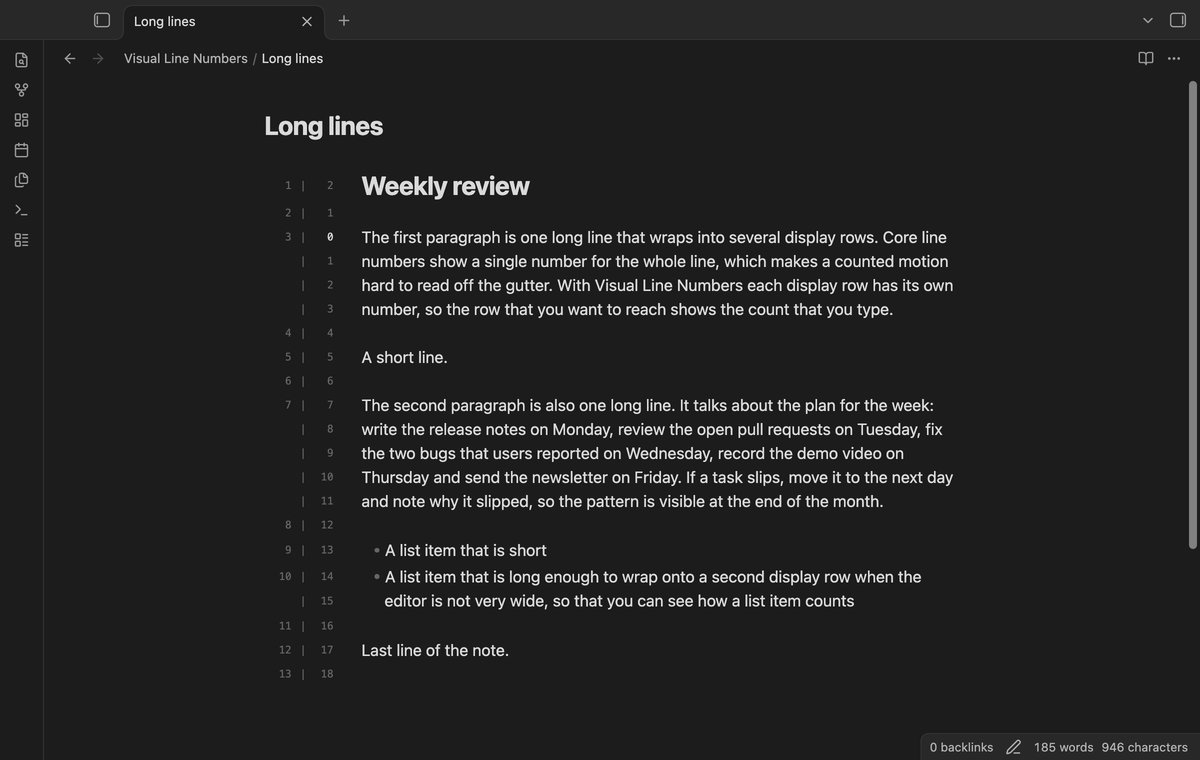
Dual mode shows document line numbers on the left and row distances on the right. The left column numbers the first row of each line. The right column counts each wrapped row, with 0 on the cursor row.
### Both number columns
Dual mode shows document line numbers on the left and row distances on the right. The left column numbers the first row of each line. The right column counts each wrapped row, with 0 on the cursor row.
 ### Count folded lines (Pro)
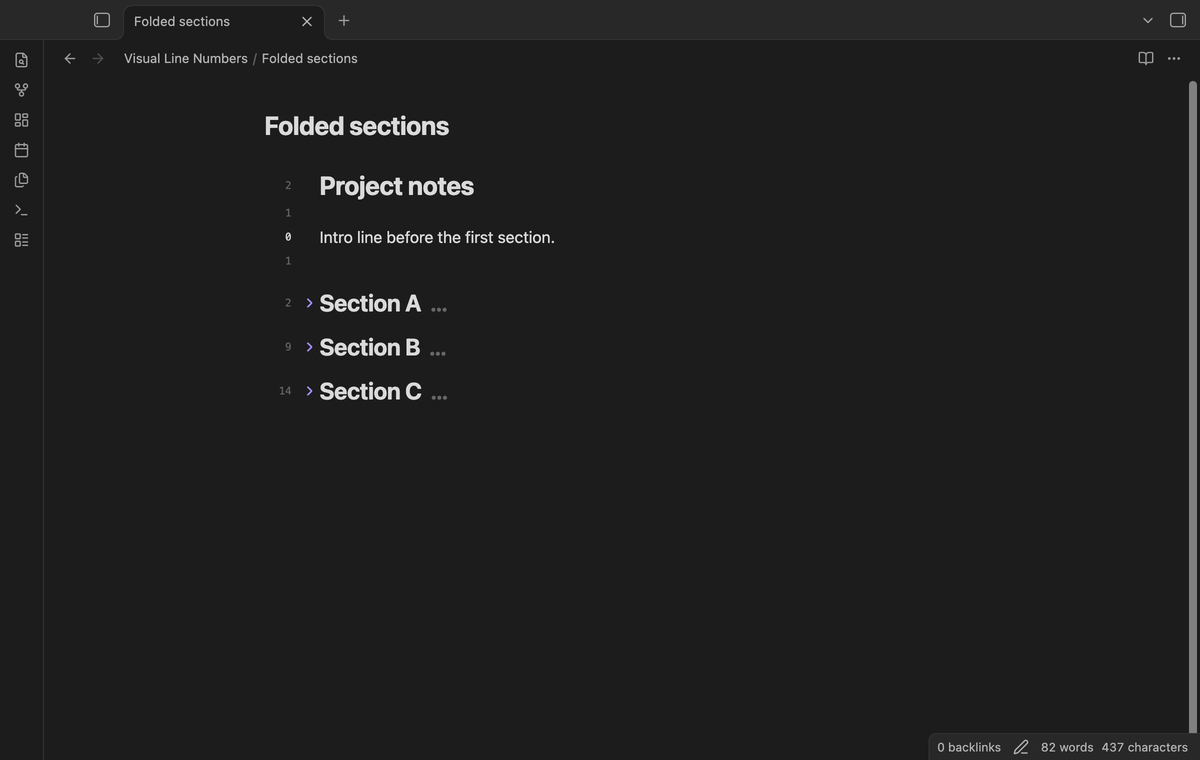
Turn on "Count folded lines" and each line that a fold hides takes one count. The number of the row below a fold then matches the document lines between it and the cursor. With the option off, a fold counts as the one row that you see.
### Count folded lines (Pro)
Turn on "Count folded lines" and each line that a fold hides takes one count. The number of the row below a fold then matches the document lines between it and the cursor. With the option off, a fold counts as the one row that you see.
 ### Highlight the current row (Pro)
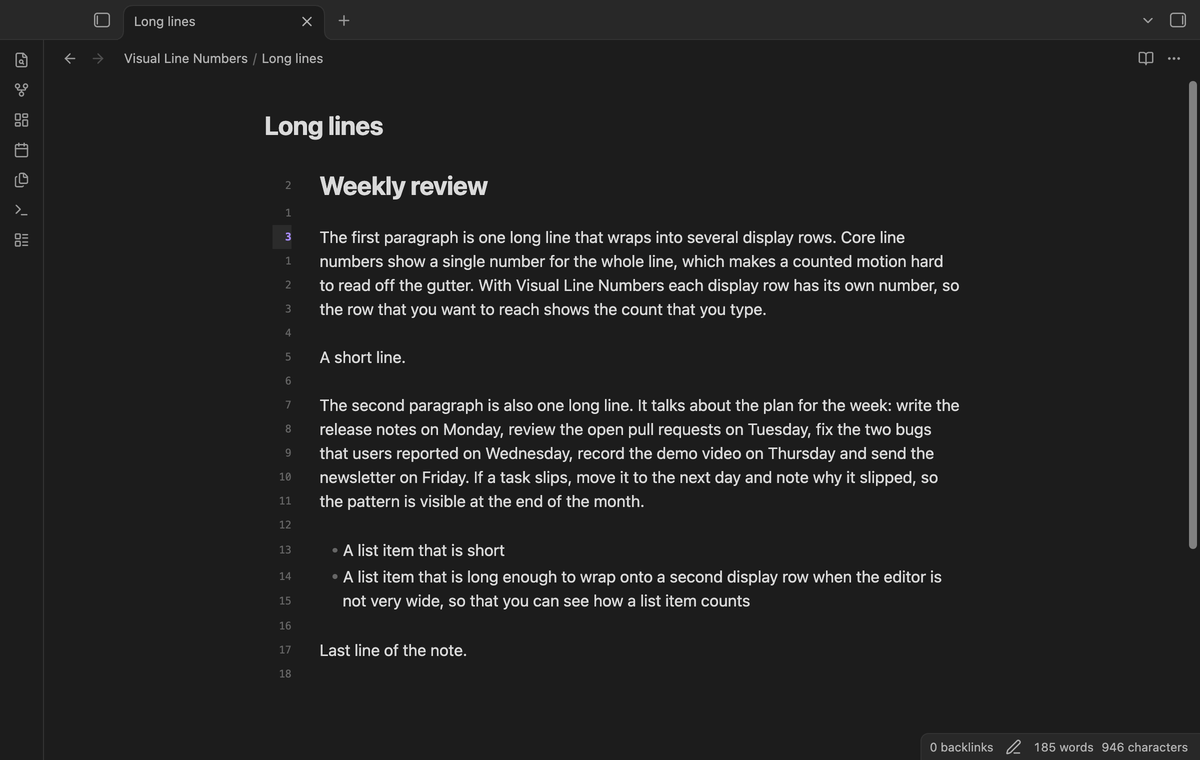
The number of the cursor row is shown in bold, with a tinted background. It uses the accent color, or the hybrid cursor color if you chose one.
### Highlight the current row (Pro)
The number of the cursor row is shown in bold, with a tinted background. It uses the accent color, or the hybrid cursor color if you chose one.
 ### Motion hint (Pro)
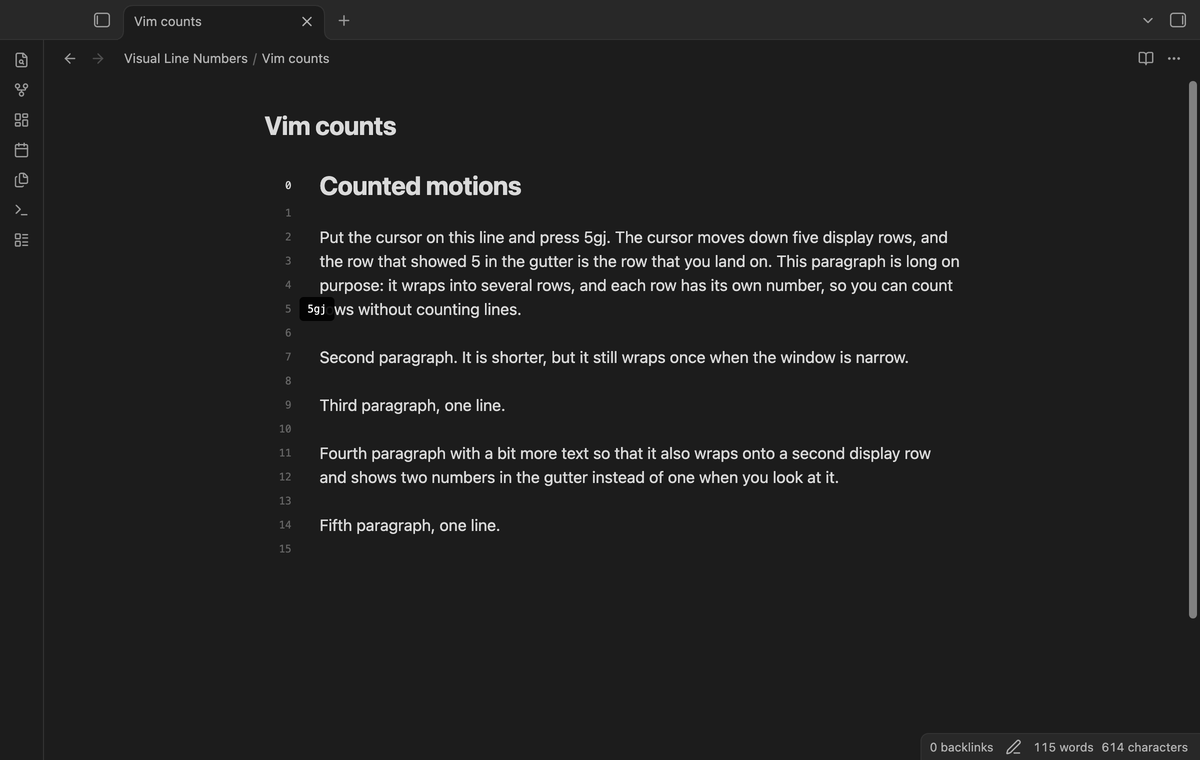
Hover over a number to see the Vim motion that reaches that row, such as 5gj for a row five rows below the cursor, or 3gk for a row three rows above. Absolute mode shows no hint.
### Motion hint (Pro)
Hover over a number to see the Vim motion that reaches that row, such as 5gj for a row five rows below the cursor, or 3gk for a row three rows above. Absolute mode shows no hint.
 ### Per-note property (Pro)
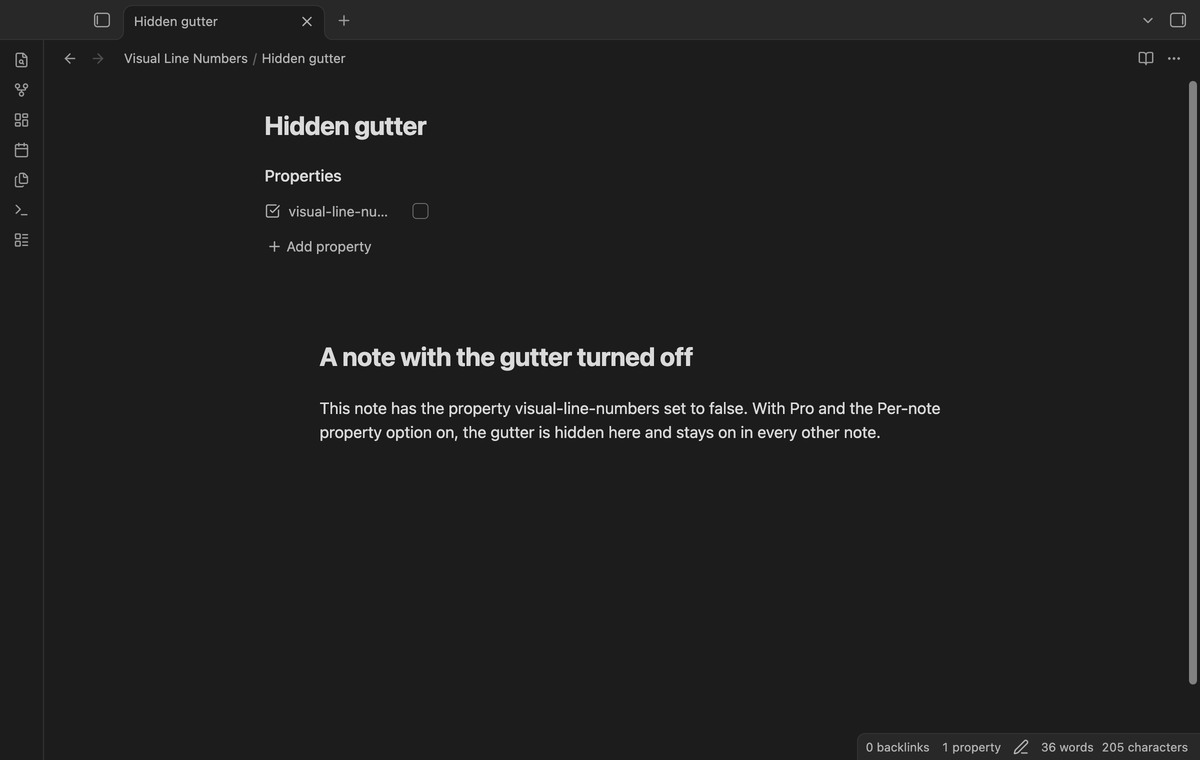
Add `visual-line-numbers: false` to the properties of a note to hide the gutter in that note. The other notes keep their gutter.
### Per-note property (Pro)
Add `visual-line-numbers: false` to the properties of a note to hide the gutter in that note. The other notes keep their gutter.
 ### A color for each mode (Pro)
Choose one color for absolute numbers, one for relative numbers, and one for the line number on the cursor row in hybrid mode. Without a chosen color, the numbers use the theme.
### A color for each mode (Pro)
Choose one color for absolute numbers, one for relative numbers, and one for the line number on the cursor row in hybrid mode. Without a chosen color, the numbers use the theme.
 ## Install
1. Open "Settings → Community plugins" and turn off restricted mode.
2. Select "Browse", search for "Visual Line Numbers", then select "Install" and "Enable".
3. Open "Settings → Editor" and turn off "Show line numbers". Two gutters of numbers would show together.
To install by hand, copy `main.js`, `manifest.json` and `styles.css` from the latest release into `/.obsidian/plugins/visual-line-numbers/`. Then enable the plugin. You need Obsidian 1.13.4 or later. The automated tests run on desktop only.
## Usage
Enable the plugin and open a note in Live Preview or Source mode. The gutter shows next to the text.
The plugin adds these commands to the command palette:
- Toggle the number gutter: turns the gutter on or off.
- Cycle number mode: goes from absolute to relative to hybrid to dual and back.
- Use absolute numbers, Use relative numbers, Use hybrid numbers, Use dual numbers: set one mode.
Turn on Vim key bindings in "Settings → Editor". With Vimrc Support, add `nmap j gj` and `nmap k gk` to your vimrc file. Then 5j moves five display rows to the row that shows the distance 5.
## Pro
The free version has the gutter, the four modes, the commands and the settings tab.
Pro adds counting of folded lines, the per-note property, the current row highlight, the motion hint and a color for each mode. To get it:
1. Sponsor [theluckystrike on GitHub Sponsors](https://github.com/sponsors/theluckystrike) with $5 a month, or $15 once.
2. In Obsidian, open the settings of Visual Line Numbers and select "Sign in with GitHub".
3. The plugin copies a code and opens github.com/login/device. Paste the code there and approve.
The status line then shows your GitHub login and the tier. If you sponsor after you sign in, select Refresh. See [Payment, account and network](#payment-account-and-network) for the check and offline limits.
## Settings
After a minor or major update, this plugin opens one What's new tab in the background. The tab and settings card suggest other NoteMods plugins and Zovo Chat and link to notemods.com for feedback ([privacy](https://notemods.com/privacy/)). The tab sends no data. Turn the tab off in Settings.
| Setting | What it does |
| --- | --- |
| Show the gutter | Turns the numbers on or off in the editor. |
| Number mode | Relative, hybrid, absolute or dual. |
| Count folded lines (Pro) | Each line hidden in a fold takes one count. |
| Per-note property (Pro) | Reads `visual-line-numbers: false` from the properties of a note. |
| Highlight the current row (Pro) | Bold number and tinted background on the cursor row. |
| Motion hint (Pro) | Hover text with the Vim motion that reaches a row. |
| Absolute, relative and hybrid cursor colors (Pro) | A color for each mode. Dual uses the absolute and relative colors, and the hybrid cursor color for the 0 on the cursor row. Reset colors goes back to the theme. |
Turn off a Pro setting and the plugin goes back to the free behavior at once. The settings tab also has the Pro section with sign in, status and Refresh.
## FAQ
### How does it count the rows?
When the editor draws a line, the plugin asks the editor where each display row of the line ends, with the public CodeMirror function `EditorView.moveToLineBoundary`. It does this only for the lines that the editor draws: the lines on screen and a margin around them. It measures again when the note, the scroll position or the window width changes. The plugin changes no Obsidian code and no internal object.
### Are the numbers exact?
On screen, yes: the counts come from the rows that the editor draws. The cursor can be off screen. The editor then has only estimated heights for lines that it has not drawn, so the relative numbers on screen are close but not exact until the cursor line is on screen again. Absolute mode and the cursor line number in hybrid mode are exact, because they come from the document.
A very long line is an exception. The plugin measures up to 400 display rows of one line, and the editor can skip parts of a line with more than 20,000 characters. In these cases, the numbers on that line and the distances past it can be wrong. A table or a callout that Live Preview draws as one block gets no number and counts as one row.
### Does it change my notes or sync data?
No. The settings are in `data.json` in the plugin folder.
## Payment, account and network
The core features are free. Pro features need a GitHub Sponsors sponsorship of theluckystrike: $5 a month or more, or $15 once. A total payment of $15 meets the payment requirement for Pro without further payment. Sign-in and the checks below still apply. Your notes stay readable and editable with or without Pro.
GitHub handles the payment. Sponsor at https://github.com/sponsors/theluckystrike. You need no account for the free features. Pro needs the GitHub account that sponsors.
Until you select "Sign in with GitHub" in the settings, Visual Line Numbers makes no network requests. Sign in uses the GitHub device flow. Visual Line Numbers sends its public client ID and the scope `read:user` to `https://github.com/login/device/code` and shows you a code. While you enter the code at https://github.com/login/device, it asks `https://github.com/login/oauth/access_token` every few seconds to check the sign-in status. The scope permits profile reads only. GitHub needs this access to show the sponsorship tier. It grants no repository scope and no write access.
After sign in, Visual Line Numbers sends one query to `https://api.github.com/graphql`. It checks if the signed-in account sponsors theluckystrike. It asks for the tier and the total payment to theluckystrike. The plugin reuses a successful check for 7 days. Failed checks can retry after 6 hours. Select Refresh to request an earlier check. It sends no note content, file names or other vault data, and it has no telemetry.
After a successful check, Pro can work offline for up to 14 days. Sign out or a negative sponsorship answer turns Pro off. The plugin stores the GitHub token through the secret storage API of Obsidian. It does not put the token in its saved settings or its local sponsorship data. The local storage of this device keeps your GitHub login, the tier and the time of the last check. Sign out clears the token. You can also revoke the access in your GitHub settings, under Applications.
## Support
Report bugs and ask for features in the GitHub issues of this repository. Add your Obsidian version, your number mode and a small sample note.
```
npm ci
npm run build
npm test
```
## License
MIT
## Community
Questions, bugs or plugin ideas? Talk to me and other Obsidian users in [Zovo Chat](https://t.me/+k2MM-BIc7SQ5OWM0) on Telegram. It has a topic for these plugins. You can also open an issue here.
## Install
1. Open "Settings → Community plugins" and turn off restricted mode.
2. Select "Browse", search for "Visual Line Numbers", then select "Install" and "Enable".
3. Open "Settings → Editor" and turn off "Show line numbers". Two gutters of numbers would show together.
To install by hand, copy `main.js`, `manifest.json` and `styles.css` from the latest release into `/.obsidian/plugins/visual-line-numbers/`. Then enable the plugin. You need Obsidian 1.13.4 or later. The automated tests run on desktop only.
## Usage
Enable the plugin and open a note in Live Preview or Source mode. The gutter shows next to the text.
The plugin adds these commands to the command palette:
- Toggle the number gutter: turns the gutter on or off.
- Cycle number mode: goes from absolute to relative to hybrid to dual and back.
- Use absolute numbers, Use relative numbers, Use hybrid numbers, Use dual numbers: set one mode.
Turn on Vim key bindings in "Settings → Editor". With Vimrc Support, add `nmap j gj` and `nmap k gk` to your vimrc file. Then 5j moves five display rows to the row that shows the distance 5.
## Pro
The free version has the gutter, the four modes, the commands and the settings tab.
Pro adds counting of folded lines, the per-note property, the current row highlight, the motion hint and a color for each mode. To get it:
1. Sponsor [theluckystrike on GitHub Sponsors](https://github.com/sponsors/theluckystrike) with $5 a month, or $15 once.
2. In Obsidian, open the settings of Visual Line Numbers and select "Sign in with GitHub".
3. The plugin copies a code and opens github.com/login/device. Paste the code there and approve.
The status line then shows your GitHub login and the tier. If you sponsor after you sign in, select Refresh. See [Payment, account and network](#payment-account-and-network) for the check and offline limits.
## Settings
After a minor or major update, this plugin opens one What's new tab in the background. The tab and settings card suggest other NoteMods plugins and Zovo Chat and link to notemods.com for feedback ([privacy](https://notemods.com/privacy/)). The tab sends no data. Turn the tab off in Settings.
| Setting | What it does |
| --- | --- |
| Show the gutter | Turns the numbers on or off in the editor. |
| Number mode | Relative, hybrid, absolute or dual. |
| Count folded lines (Pro) | Each line hidden in a fold takes one count. |
| Per-note property (Pro) | Reads `visual-line-numbers: false` from the properties of a note. |
| Highlight the current row (Pro) | Bold number and tinted background on the cursor row. |
| Motion hint (Pro) | Hover text with the Vim motion that reaches a row. |
| Absolute, relative and hybrid cursor colors (Pro) | A color for each mode. Dual uses the absolute and relative colors, and the hybrid cursor color for the 0 on the cursor row. Reset colors goes back to the theme. |
Turn off a Pro setting and the plugin goes back to the free behavior at once. The settings tab also has the Pro section with sign in, status and Refresh.
## FAQ
### How does it count the rows?
When the editor draws a line, the plugin asks the editor where each display row of the line ends, with the public CodeMirror function `EditorView.moveToLineBoundary`. It does this only for the lines that the editor draws: the lines on screen and a margin around them. It measures again when the note, the scroll position or the window width changes. The plugin changes no Obsidian code and no internal object.
### Are the numbers exact?
On screen, yes: the counts come from the rows that the editor draws. The cursor can be off screen. The editor then has only estimated heights for lines that it has not drawn, so the relative numbers on screen are close but not exact until the cursor line is on screen again. Absolute mode and the cursor line number in hybrid mode are exact, because they come from the document.
A very long line is an exception. The plugin measures up to 400 display rows of one line, and the editor can skip parts of a line with more than 20,000 characters. In these cases, the numbers on that line and the distances past it can be wrong. A table or a callout that Live Preview draws as one block gets no number and counts as one row.
### Does it change my notes or sync data?
No. The settings are in `data.json` in the plugin folder.
## Payment, account and network
The core features are free. Pro features need a GitHub Sponsors sponsorship of theluckystrike: $5 a month or more, or $15 once. A total payment of $15 meets the payment requirement for Pro without further payment. Sign-in and the checks below still apply. Your notes stay readable and editable with or without Pro.
GitHub handles the payment. Sponsor at https://github.com/sponsors/theluckystrike. You need no account for the free features. Pro needs the GitHub account that sponsors.
Until you select "Sign in with GitHub" in the settings, Visual Line Numbers makes no network requests. Sign in uses the GitHub device flow. Visual Line Numbers sends its public client ID and the scope `read:user` to `https://github.com/login/device/code` and shows you a code. While you enter the code at https://github.com/login/device, it asks `https://github.com/login/oauth/access_token` every few seconds to check the sign-in status. The scope permits profile reads only. GitHub needs this access to show the sponsorship tier. It grants no repository scope and no write access.
After sign in, Visual Line Numbers sends one query to `https://api.github.com/graphql`. It checks if the signed-in account sponsors theluckystrike. It asks for the tier and the total payment to theluckystrike. The plugin reuses a successful check for 7 days. Failed checks can retry after 6 hours. Select Refresh to request an earlier check. It sends no note content, file names or other vault data, and it has no telemetry.
After a successful check, Pro can work offline for up to 14 days. Sign out or a negative sponsorship answer turns Pro off. The plugin stores the GitHub token through the secret storage API of Obsidian. It does not put the token in its saved settings or its local sponsorship data. The local storage of this device keeps your GitHub login, the tier and the time of the last check. Sign out clears the token. You can also revoke the access in your GitHub settings, under Applications.
## Support
Report bugs and ask for features in the GitHub issues of this repository. Add your Obsidian version, your number mode and a small sample note.
```
npm ci
npm run build
npm test
```
## License
MIT
## Community
Questions, bugs or plugin ideas? Talk to me and other Obsidian users in [Zovo Chat](https://t.me/+k2MM-BIc7SQ5OWM0) on Telegram. It has a topic for these plugins. You can also open an issue here.