# Mobile Timer for Toggl Track
Start, stop and switch your Toggl Track timer from a note on phone, tablet or desktop. See the running timer and today's total. The plugin is made for the Toggl free plan: 30 requests an hour.
It is not affiliated with Toggl. You need your own Toggl Track account.
 ## Features
### Start, stop and switch a timer
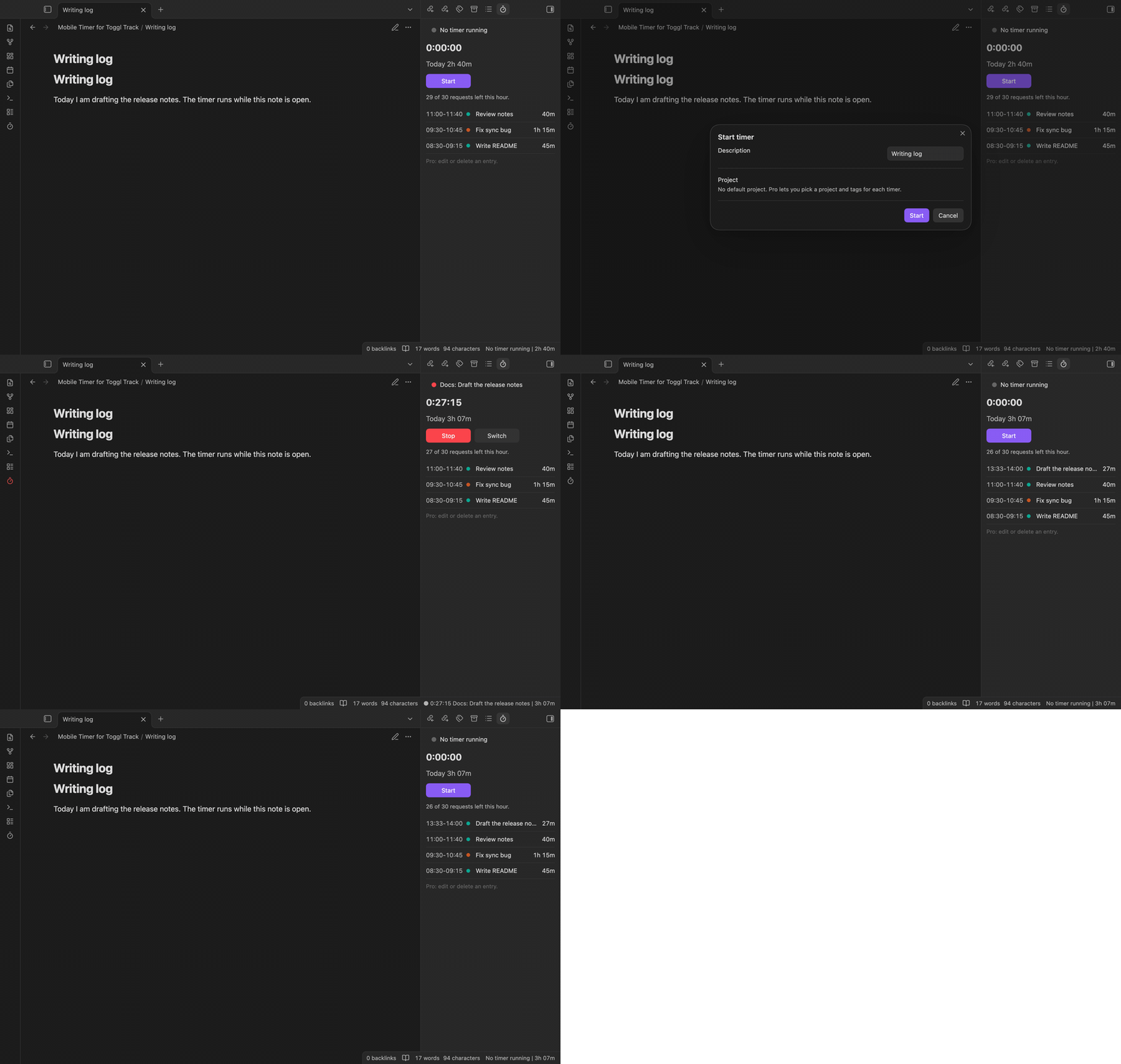
Run "Start timer", enter a description, then select Start or press Enter. "Stop timer" stops it. "Switch timer" stops it and starts another. The ribbon button starts or stops. "Start timer for this note" sends the note name to Toggl at once. The Start window also offers it. A setting turns that off.
Set one default project for free timers.
## Features
### Start, stop and switch a timer
Run "Start timer", enter a description, then select Start or press Enter. "Stop timer" stops it. "Switch timer" stops it and starts another. The ribbon button starts or stops. "Start timer for this note" sends the note name to Toggl at once. The Start window also offers it. A setting turns that off.
Set one default project for free timers.
 ### The timer panel and the ribbon button
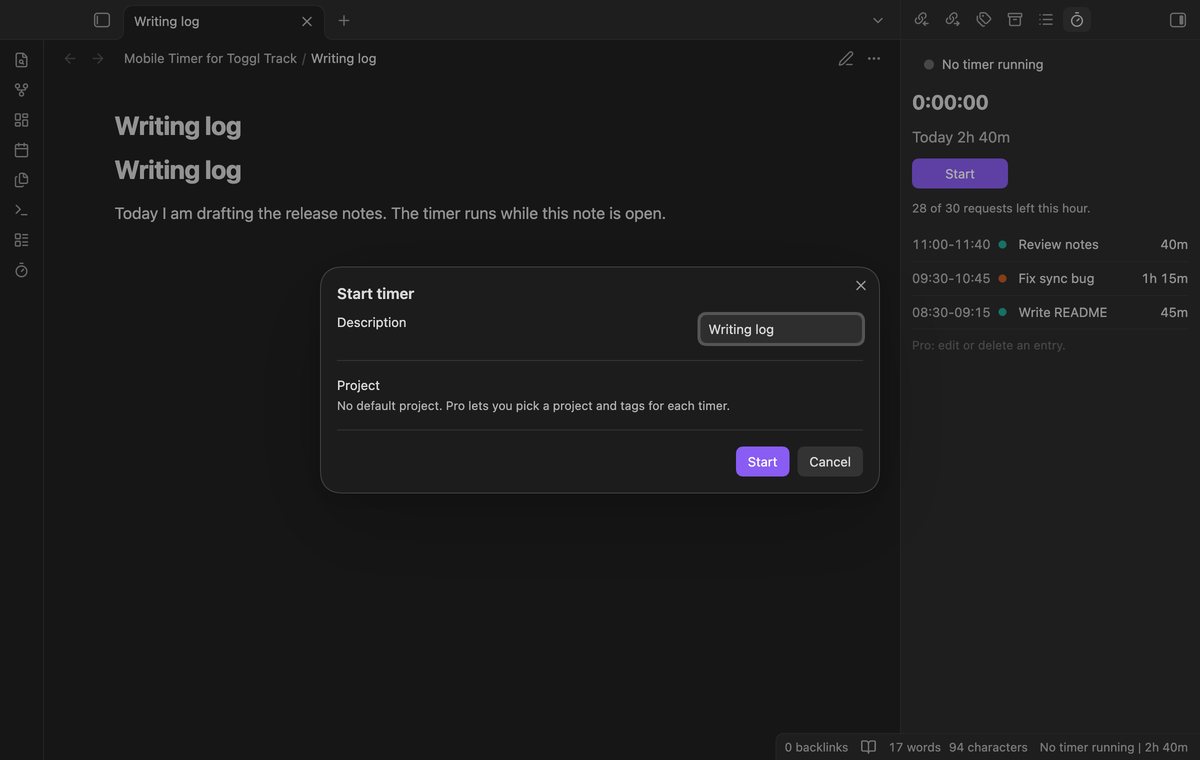
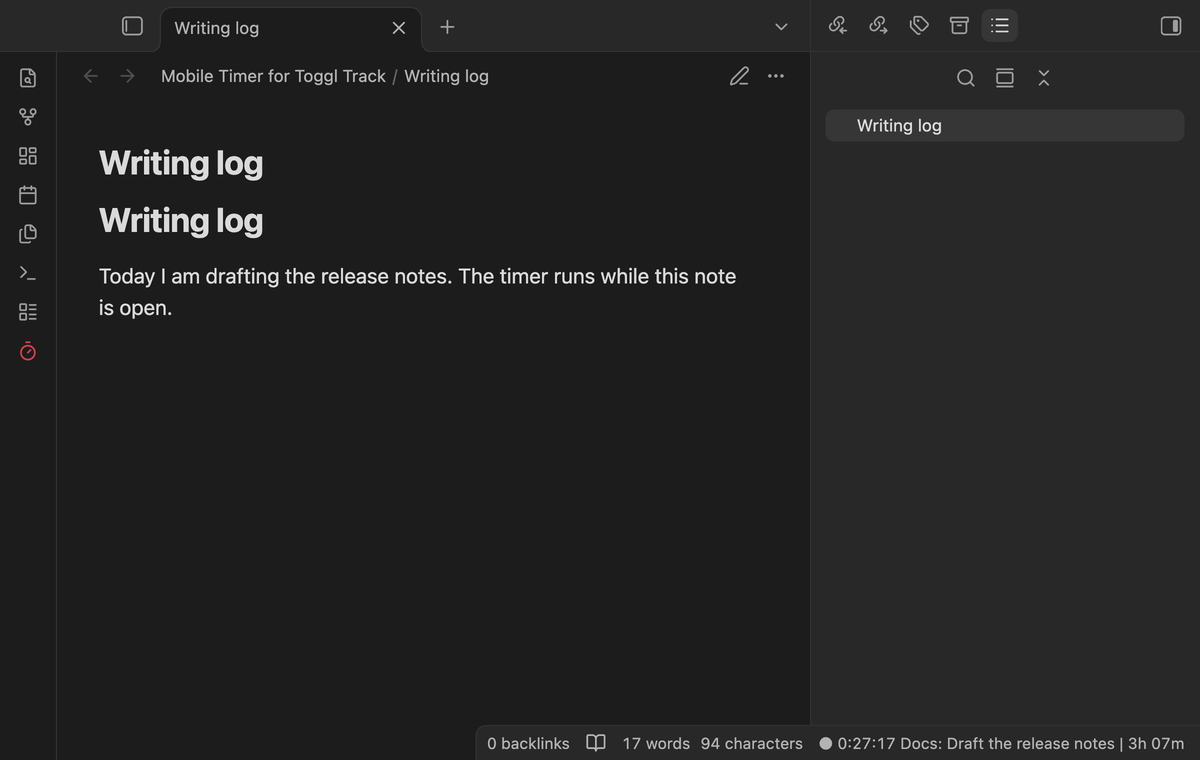
Run "Open timer panel" for the clock, today's total, timer buttons and finished entries. The ribbon turns red while a timer runs. The clock uses the start time on Toggl and needs no request after sleep.
### The timer panel and the ribbon button
Run "Open timer panel" for the clock, today's total, timer buttons and finished entries. The ribbon turns red while a timer runs. The clock uses the start time on Toggl and needs no request after sleep.
 ### Log finished entries in a note
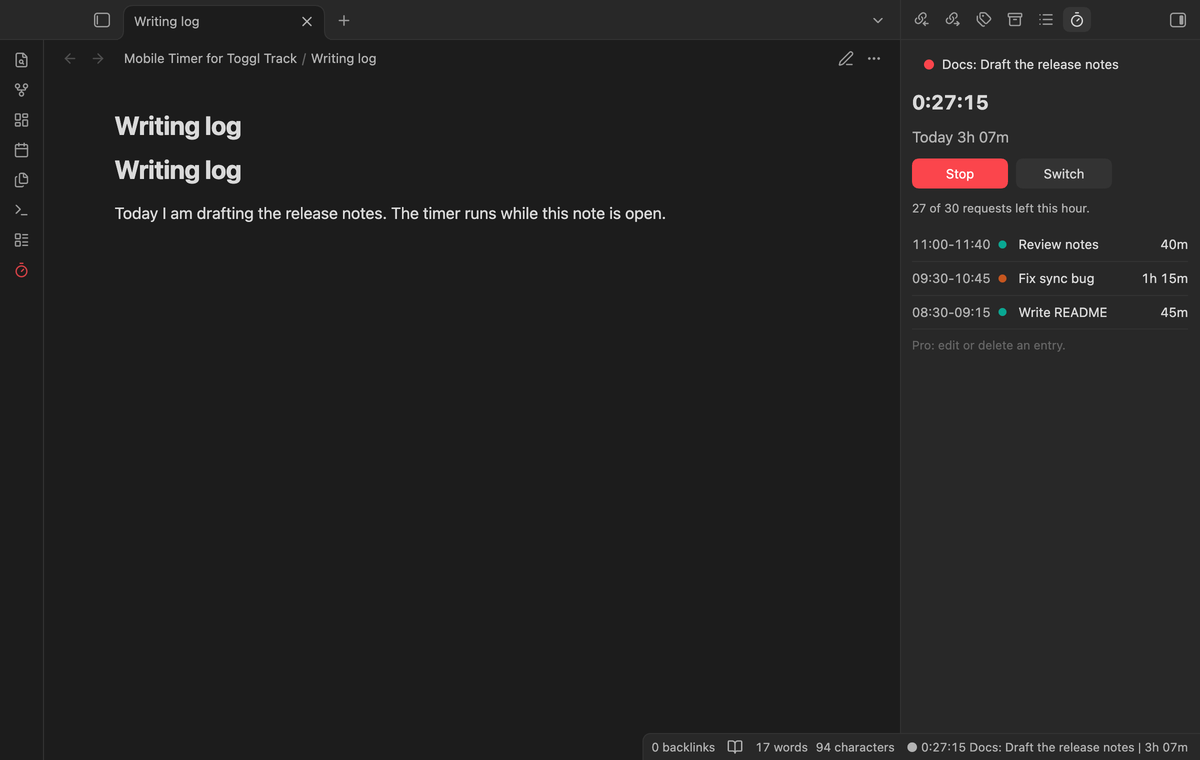
Open a daily note in edit mode. Run "Log today to this note" to add finished entries under "Time tracking". Each line has local times, description, project and duration. Set the heading text in settings. Use a `#` heading. The command adds a missing heading at the end.
This free command uses cached entries without a request. Refresh if entries are missing. It skips running and unsent entries. For an entry across midnight, only today's part is logged. A marker, hidden in reading view, stops a second copy. New entries are added on the next run. Undo removes the insertion.
### Log finished entries in a note
Open a daily note in edit mode. Run "Log today to this note" to add finished entries under "Time tracking". Each line has local times, description, project and duration. Set the heading text in settings. Use a `#` heading. The command adds a missing heading at the end.
This free command uses cached entries without a request. Refresh if entries are missing. It skips running and unsent entries. For an entry across midnight, only today's part is logged. A marker, hidden in reading view, stops a second copy. New entries are added on the next run. Undo removes the insertion.
 ### The status bar on desktop
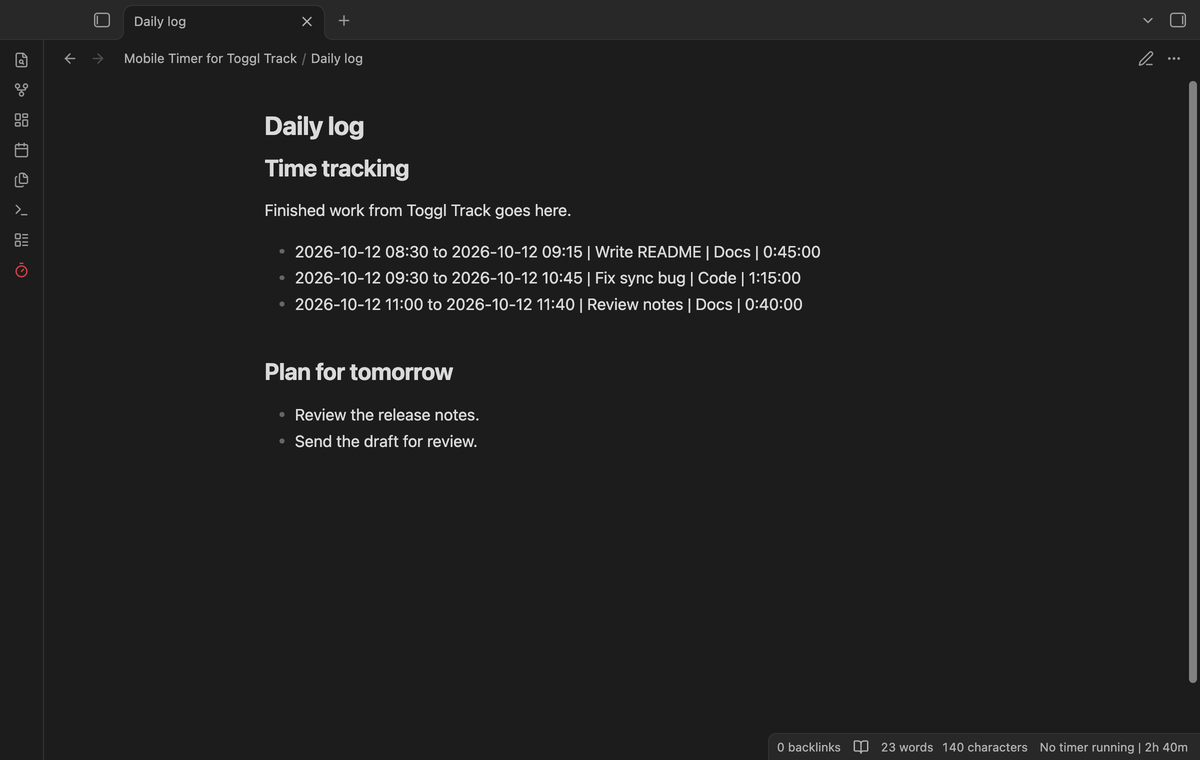
On desktop the status bar shows the timer and today's total. Select it to open the panel. Mobile has no status bar.
### The status bar on desktop
On desktop the status bar shows the timer and today's total. Select it to open the panel. Mobile has no status bar.
 ### Made for 30 requests an hour
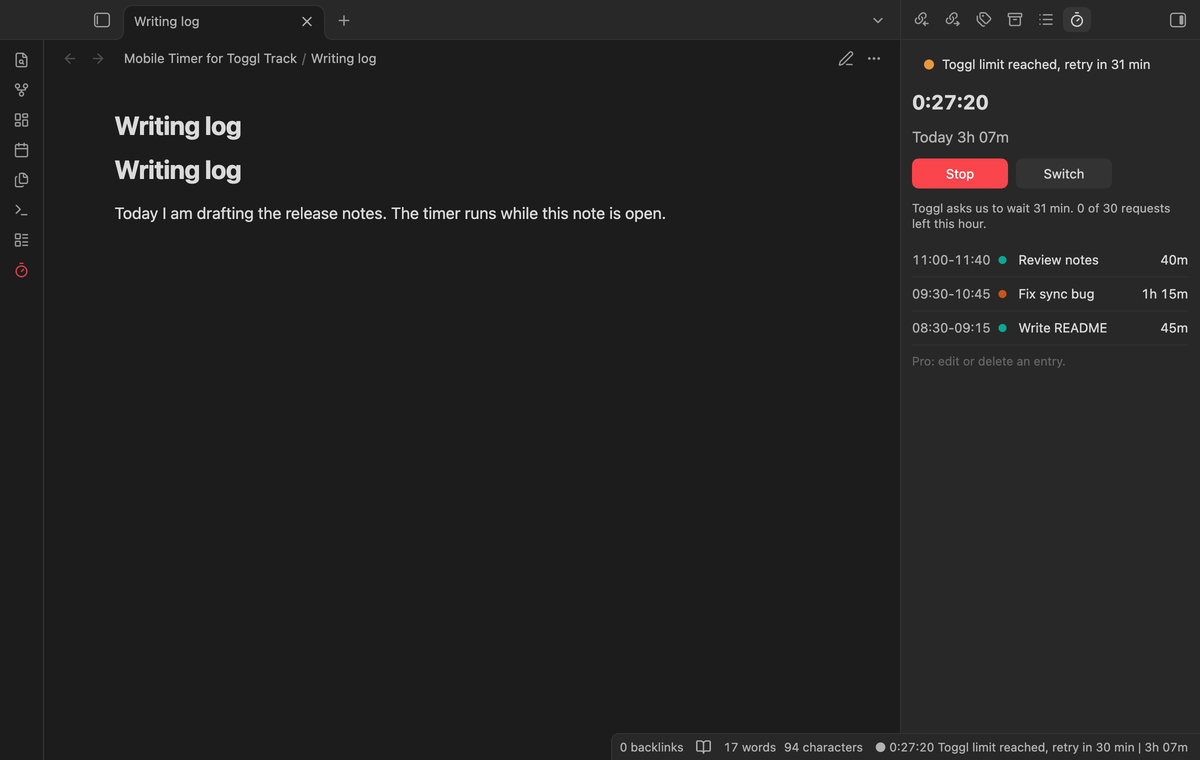
One request gets yesterday's and today's entries. "Refresh timer" also asks for the running timer, a second request. A fresh cache costs nothing (10 minutes by default). Start costs one request, plus one for your workspace the first time. Stop costs one and Switch costs two. Background refreshes stop with 8 requests left.
After HTTP 402 the plugin waits until the window that Toggl reports is over. After 429 it waits 2 minutes, then 4, up to 20. After a server error it waits 10 seconds, then doubles up to 5 minutes. The panel says how long.
### Made for 30 requests an hour
One request gets yesterday's and today's entries. "Refresh timer" also asks for the running timer, a second request. A fresh cache costs nothing (10 minutes by default). Start costs one request, plus one for your workspace the first time. Stop costs one and Switch costs two. Background refreshes stop with 8 requests left.
After HTTP 402 the plugin waits until the window that Toggl reports is over. After 429 it waits 2 minutes, then 4, up to 20. After a server error it waits 10 seconds, then doubles up to 5 minutes. The panel says how long.
 ### Project and tag pickers (Pro)
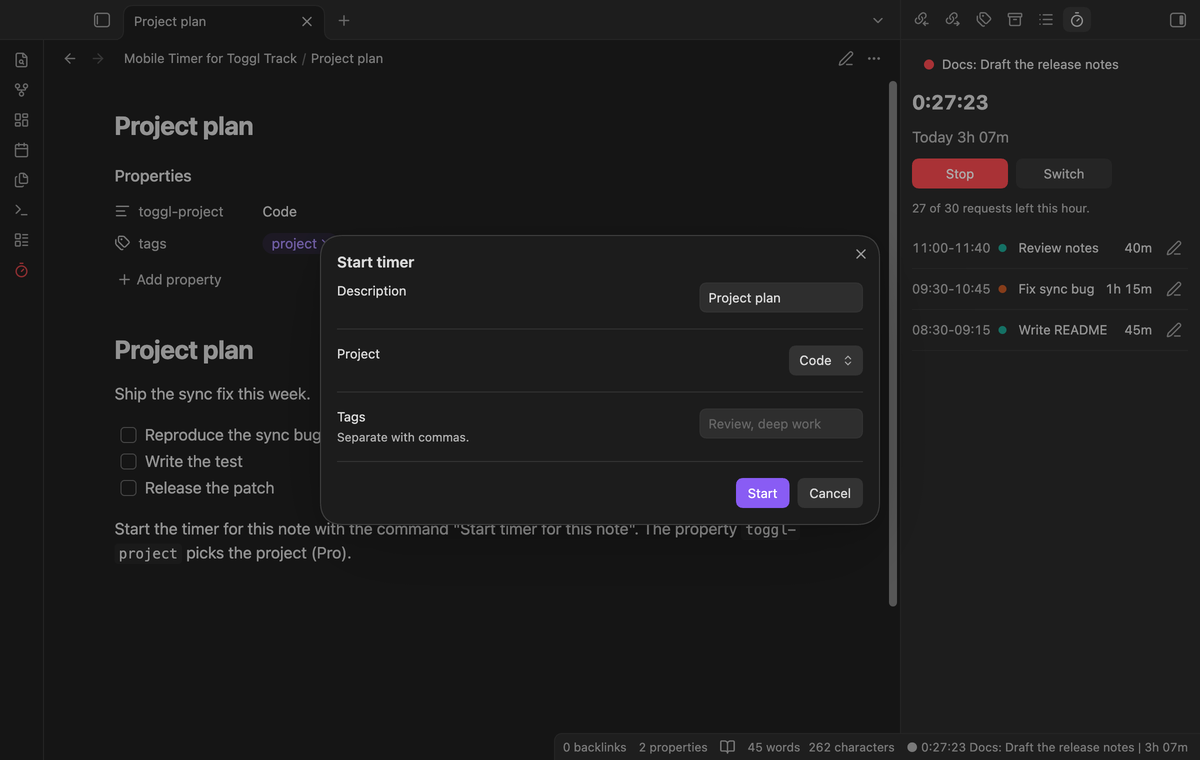
With Pro the Start window has a project list and a tags field. A note can set its own project: add a property named `toggl-project` with the name of a project, and "Start timer for this note" uses it.
### Project and tag pickers (Pro)
With Pro the Start window has a project list and a tags field. A note can set its own project: add a property named `toggl-project` with the name of a project, and "Start timer for this note" uses it.
 ### Reports by project or day (Pro)
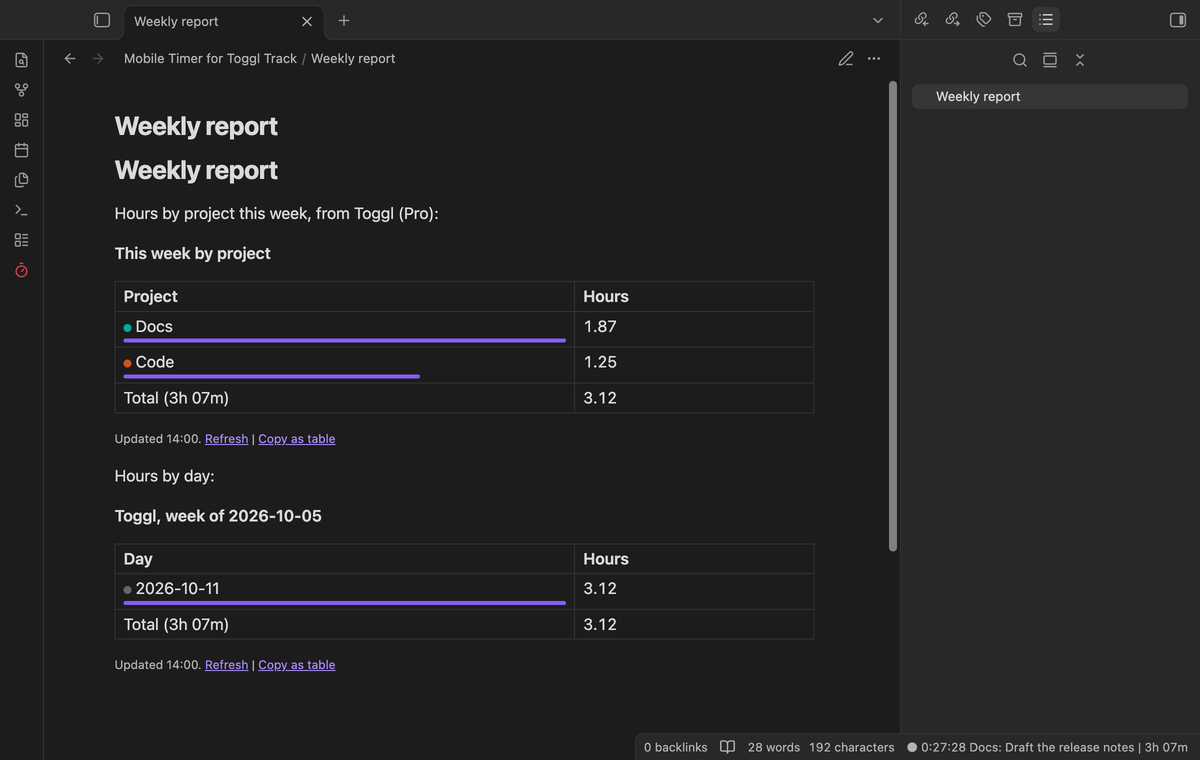
Add a `toggl-report` code block to a note. `range` is today, yesterday, last7, week, month, or two dates like `2026-10-01..2026-10-31`. `by` is project, day or description. One request fills the table, and the answer is kept for 15 minutes.
~~~
```toggl-report
range: week
by: project
```
~~~
### Reports by project or day (Pro)
Add a `toggl-report` code block to a note. `range` is today, yesterday, last7, week, month, or two dates like `2026-10-01..2026-10-31`. `by` is project, day or description. One request fills the table, and the answer is kept for 15 minutes.
~~~
```toggl-report
range: week
by: project
```
~~~
 ### Edit and delete past entries (Pro)
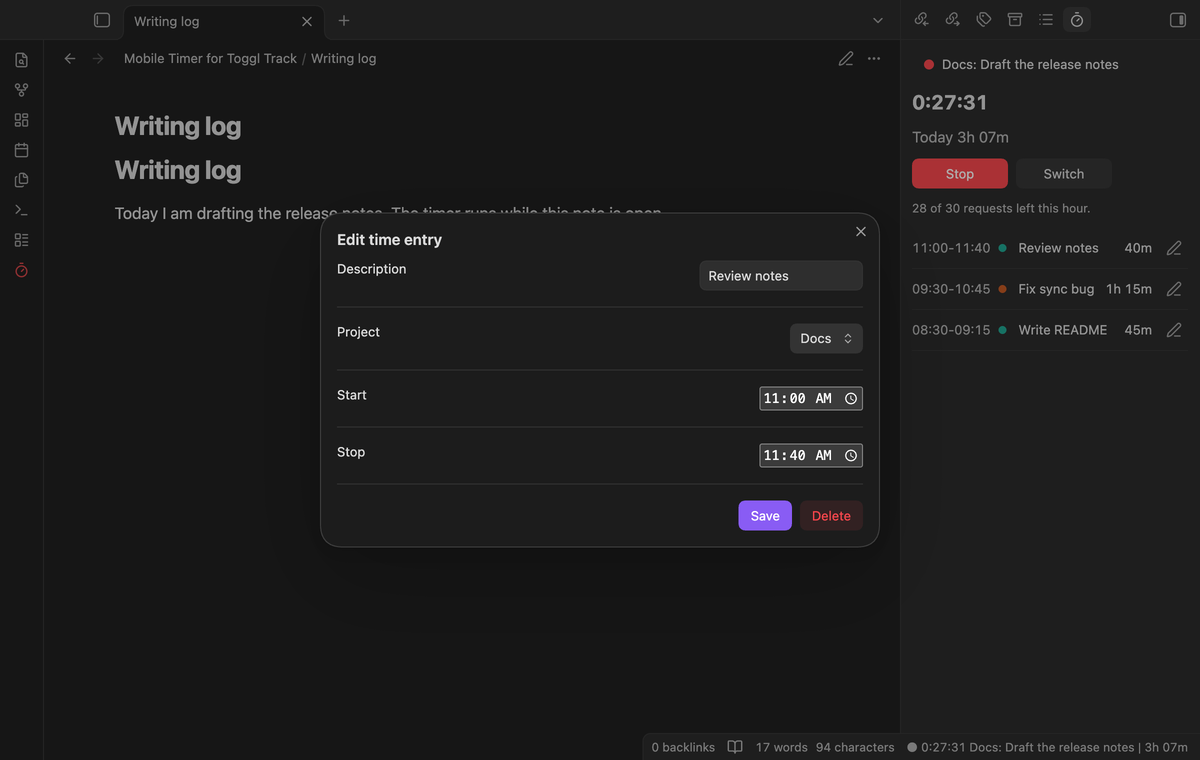
Each finished entry in the panel has an edit button. The window changes the description, project, start and stop time, or deletes the entry after a second selection.
### Edit and delete past entries (Pro)
Each finished entry in the panel has an edit button. The window changes the description, project, start and stop time, or deletes the entry after a second selection.
 ### Offline queue (Pro)
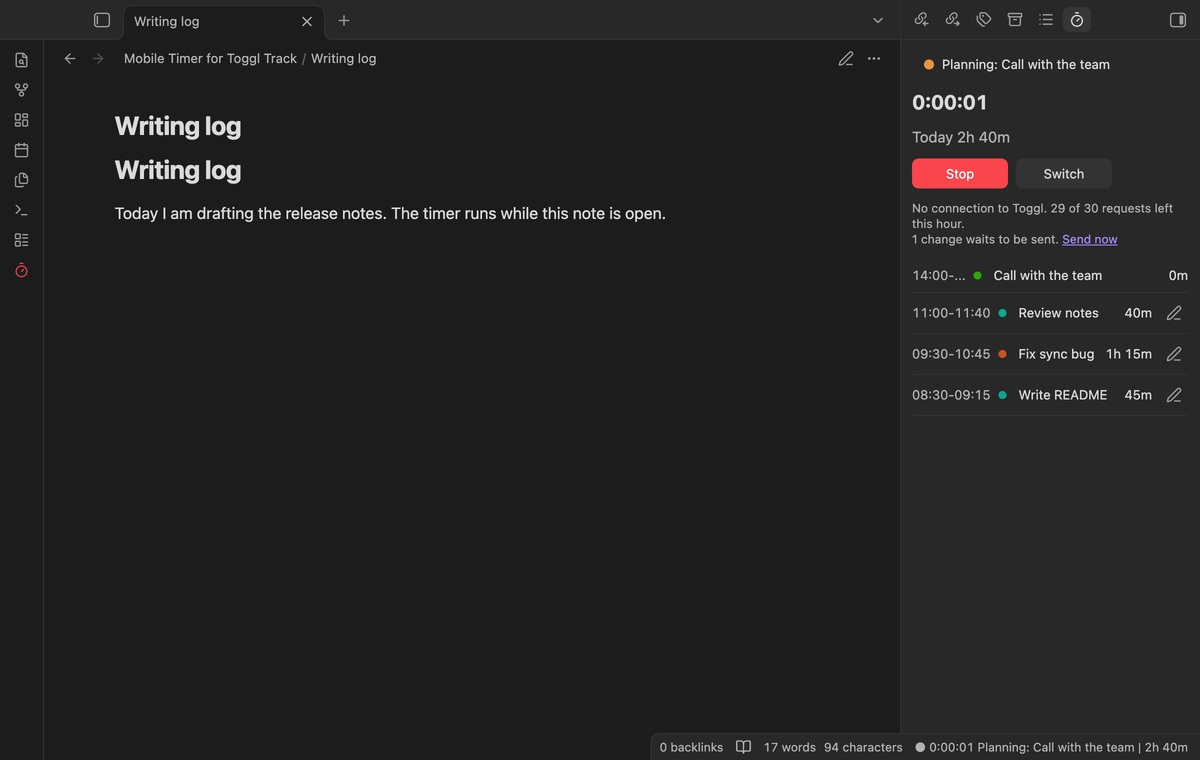
With no connection, or after a 402, Pro holds up to 40 changes and shows them at once. It sends them when Toggl is reachable. Without Pro, an offline action changes nothing.
### Offline queue (Pro)
With no connection, or after a 402, Pro holds up to 40 changes and shows them at once. It sends them when Toggl is reachable. Without Pro, an offline action changes nothing.
 ## Install
After listing, search for "Mobile Timer for Toggl Track" in Community plugins. Select Install, then Enable.
Copy `main.js`, `manifest.json` and `styles.css` from the latest release into `/.obsidian/plugins/toggl-mobile-timer/`. Enable the plugin.
## Usage
Copy your API token from your Toggl Track profile settings. In the plugin settings, select the token field, create a secret and paste the token. Select Check connection. Then open a note and run "Start timer".
The token stays in the secret storage of Obsidian, not in a note or in `data.json`. A timer that you start in the Toggl app shows after the next refresh.
## Settings
Check connection uses 1 request. Load projects, then set a Default project. Use the note title as the description controls the note name. Ask Toggl again after sets cache age from 5 to 60 minutes. Week starts on sets the report week. Note log heading sets the log section.
## FAQ
### Does it work on a phone?
Yes. It uses no Node module. On a phone the panel opens in a tab and no status bar item is added. Unit tests check both. The screenshots show desktop.
### Does the timer run when the app is closed?
The timer runs on Toggl, so yes. The plugin sends no reminders, because Obsidian cannot show one while it is closed.
### Which entries does the day total count?
Entries that start yesterday or today, up to 300, cut at midnight of your local time. A timer that started before yesterday shows after "Refresh timer". The plugin uses your default Toggl workspace.
### Do note logs change after I edit an entry in Toggl?
No. Delete the line with its marker, refresh, then log again. The command uses the open note. It does not create a daily note.
### Does the token sync to my other devices?
Obsidian's secret storage API holds the token. Plugin settings hold no token. Select or enter a token on each device.
## Limits
The plugin does not run in the background and does not edit projects or clients.
## Payment, account and network
The core features are free. Pro features need a GitHub Sponsors sponsorship of theluckystrike: $5 a month or more, or $15 once. A total payment of $15 meets the payment requirement for Pro without further payment. Sign-in and the checks below still apply. Your notes stay readable and editable with or without Pro.
GitHub handles the payment. Sponsor at https://github.com/sponsors/theluckystrike. You need a Toggl Track account for every feature, free or Pro. Pro also needs the GitHub account that sponsors.
Mobile Timer for Toggl Track talks to Toggl Track through its public API at `https://api.track.toggl.com/api/v9`, only after you save a Toggl API token in the settings. Each request carries the token as HTTP Basic authentication in the Authorization header. When you start, stop, edit or delete a timer, it sends the time entry: the description, the project number, the tags, the start and stop time, the workspace number and the plugin name. When you start a timer from a note, the title of the note becomes the description and is sent to Toggl. That happens when you run "Start timer for this note", and when you select Start in the Start window, which opens with the title in its box. The title is the file name without the folder and the extension, cut at 120 characters. Turn off "Use the note title as the description" in the settings to send no title. It sends no note content, no folder path and no other vault data, and it has no telemetry. It reads your name, workspace, projects, tags, running timer and time entries from Toggl when Obsidian opens, when you return to the app or go online, when you open the panel or, with Pro, the Start window, when you select Refresh, Check connection or Load projects, and when a report block draws. Mobile Timer for Toggl Track is not affiliated with, made by or approved by Toggl. Toggl and Toggl Track are marks of their owner.
Until you select "Sign in with GitHub" in the settings, Mobile Timer for Toggl Track sends nothing to GitHub. Sign in uses the GitHub device flow. Mobile Timer for Toggl Track sends its public client ID and the scope `read:user` to `https://github.com/login/device/code` and shows you a code. While you enter the code at https://github.com/login/device, it asks `https://github.com/login/oauth/access_token` every few seconds to check the sign-in status. The scope permits profile reads only. GitHub needs this access to show the sponsorship tier. It grants no repository scope and no write access.
After sign in, Mobile Timer for Toggl Track sends one query to `https://api.github.com/graphql`. It checks if the signed-in account sponsors theluckystrike. It asks for the tier and the total payment to theluckystrike. The plugin reuses a successful check for 7 days. Failed checks can retry after 6 hours. Select Refresh to request an earlier check. It sends no note content, file names or other vault data to GitHub, and it has no telemetry.
After a successful check, Pro can work offline for up to 14 days. Sign out or a negative sponsorship answer turns Pro off. The plugin stores the GitHub token through the secret storage API of Obsidian. It does not put the token in its saved settings or its local sponsorship data. The local storage of this device keeps your GitHub login, the tier and the time of the last check. Sign out clears the token. You can also revoke the access in your GitHub settings, under Applications.
## Support
Report bugs and feature requests in this repository's issue tracker. To support the work, use [GitHub Sponsors](https://github.com/sponsors/theluckystrike).
```
npm ci
npm run build
npm test
```
## License
MIT
## Community
Questions, bugs or plugin ideas? Talk to me and other Obsidian users in [Zovo Chat](https://t.me/+k2MM-BIc7SQ5OWM0) on Telegram. It has a topic for these plugins. You can also open an issue here.
## Install
After listing, search for "Mobile Timer for Toggl Track" in Community plugins. Select Install, then Enable.
Copy `main.js`, `manifest.json` and `styles.css` from the latest release into `/.obsidian/plugins/toggl-mobile-timer/`. Enable the plugin.
## Usage
Copy your API token from your Toggl Track profile settings. In the plugin settings, select the token field, create a secret and paste the token. Select Check connection. Then open a note and run "Start timer".
The token stays in the secret storage of Obsidian, not in a note or in `data.json`. A timer that you start in the Toggl app shows after the next refresh.
## Settings
Check connection uses 1 request. Load projects, then set a Default project. Use the note title as the description controls the note name. Ask Toggl again after sets cache age from 5 to 60 minutes. Week starts on sets the report week. Note log heading sets the log section.
## FAQ
### Does it work on a phone?
Yes. It uses no Node module. On a phone the panel opens in a tab and no status bar item is added. Unit tests check both. The screenshots show desktop.
### Does the timer run when the app is closed?
The timer runs on Toggl, so yes. The plugin sends no reminders, because Obsidian cannot show one while it is closed.
### Which entries does the day total count?
Entries that start yesterday or today, up to 300, cut at midnight of your local time. A timer that started before yesterday shows after "Refresh timer". The plugin uses your default Toggl workspace.
### Do note logs change after I edit an entry in Toggl?
No. Delete the line with its marker, refresh, then log again. The command uses the open note. It does not create a daily note.
### Does the token sync to my other devices?
Obsidian's secret storage API holds the token. Plugin settings hold no token. Select or enter a token on each device.
## Limits
The plugin does not run in the background and does not edit projects or clients.
## Payment, account and network
The core features are free. Pro features need a GitHub Sponsors sponsorship of theluckystrike: $5 a month or more, or $15 once. A total payment of $15 meets the payment requirement for Pro without further payment. Sign-in and the checks below still apply. Your notes stay readable and editable with or without Pro.
GitHub handles the payment. Sponsor at https://github.com/sponsors/theluckystrike. You need a Toggl Track account for every feature, free or Pro. Pro also needs the GitHub account that sponsors.
Mobile Timer for Toggl Track talks to Toggl Track through its public API at `https://api.track.toggl.com/api/v9`, only after you save a Toggl API token in the settings. Each request carries the token as HTTP Basic authentication in the Authorization header. When you start, stop, edit or delete a timer, it sends the time entry: the description, the project number, the tags, the start and stop time, the workspace number and the plugin name. When you start a timer from a note, the title of the note becomes the description and is sent to Toggl. That happens when you run "Start timer for this note", and when you select Start in the Start window, which opens with the title in its box. The title is the file name without the folder and the extension, cut at 120 characters. Turn off "Use the note title as the description" in the settings to send no title. It sends no note content, no folder path and no other vault data, and it has no telemetry. It reads your name, workspace, projects, tags, running timer and time entries from Toggl when Obsidian opens, when you return to the app or go online, when you open the panel or, with Pro, the Start window, when you select Refresh, Check connection or Load projects, and when a report block draws. Mobile Timer for Toggl Track is not affiliated with, made by or approved by Toggl. Toggl and Toggl Track are marks of their owner.
Until you select "Sign in with GitHub" in the settings, Mobile Timer for Toggl Track sends nothing to GitHub. Sign in uses the GitHub device flow. Mobile Timer for Toggl Track sends its public client ID and the scope `read:user` to `https://github.com/login/device/code` and shows you a code. While you enter the code at https://github.com/login/device, it asks `https://github.com/login/oauth/access_token` every few seconds to check the sign-in status. The scope permits profile reads only. GitHub needs this access to show the sponsorship tier. It grants no repository scope and no write access.
After sign in, Mobile Timer for Toggl Track sends one query to `https://api.github.com/graphql`. It checks if the signed-in account sponsors theluckystrike. It asks for the tier and the total payment to theluckystrike. The plugin reuses a successful check for 7 days. Failed checks can retry after 6 hours. Select Refresh to request an earlier check. It sends no note content, file names or other vault data to GitHub, and it has no telemetry.
After a successful check, Pro can work offline for up to 14 days. Sign out or a negative sponsorship answer turns Pro off. The plugin stores the GitHub token through the secret storage API of Obsidian. It does not put the token in its saved settings or its local sponsorship data. The local storage of this device keeps your GitHub login, the tier and the time of the last check. Sign out clears the token. You can also revoke the access in your GitHub settings, under Applications.
## Support
Report bugs and feature requests in this repository's issue tracker. To support the work, use [GitHub Sponsors](https://github.com/sponsors/theluckystrike).
```
npm ci
npm run build
npm test
```
## License
MIT
## Community
Questions, bugs or plugin ideas? Talk to me and other Obsidian users in [Zovo Chat](https://t.me/+k2MM-BIc7SQ5OWM0) on Telegram. It has a topic for these plugins. You can also open an issue here.