# Task Date Links
Adds a real daily note link to a task when you complete it, so backlinks show what you finished each day.
Tasks writes the done date as text, such as `✅ 2026-10-10`. Task Date Links adds the link for backlinks and the graph.
 ## Features
### A link when you complete a task
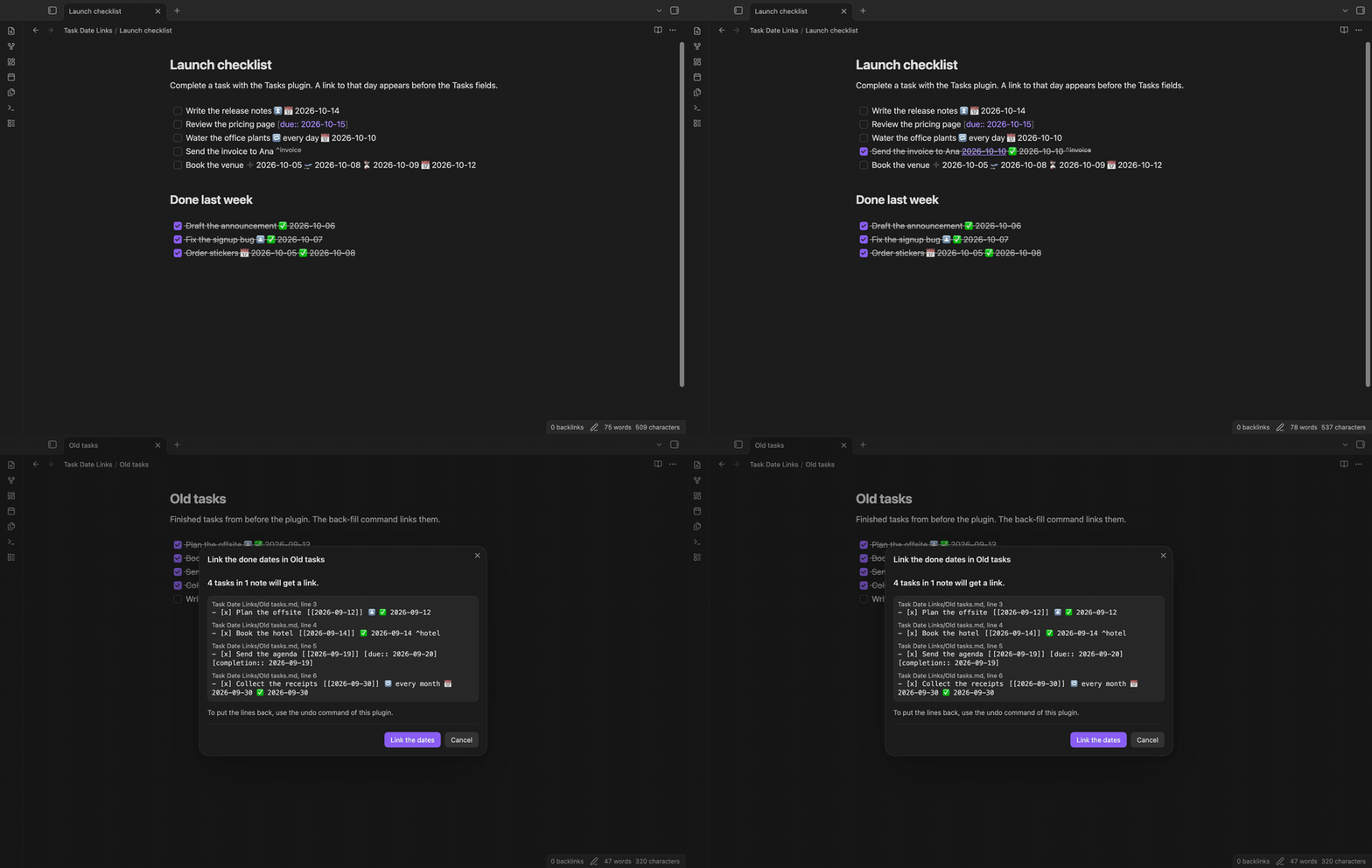
When the Tasks plugin writes a done date, Task Date Links adds a link to that day before the Tasks fields:
```markdown
- [x] Send the invoice to Ana [[2026-10-10]] ✅ 2026-10-10 ^invoice
```
The link goes before the fields because Tasks reads fields from the end. Dates, priority, recurrence and block ids stay readable by Tasks.
Emoji and Dataview fields work. Windows line endings stay. Code blocks, also in callouts and lists, and front matter are skipped.
## Features
### A link when you complete a task
When the Tasks plugin writes a done date, Task Date Links adds a link to that day before the Tasks fields:
```markdown
- [x] Send the invoice to Ana [[2026-10-10]] ✅ 2026-10-10 ^invoice
```
The link goes before the fields because Tasks reads fields from the end. Dates, priority, recurrence and block ids stay readable by Tasks.
Emoji and Dataview fields work. Windows line endings stay. Code blocks, also in callouts and lists, and front matter are skipped.
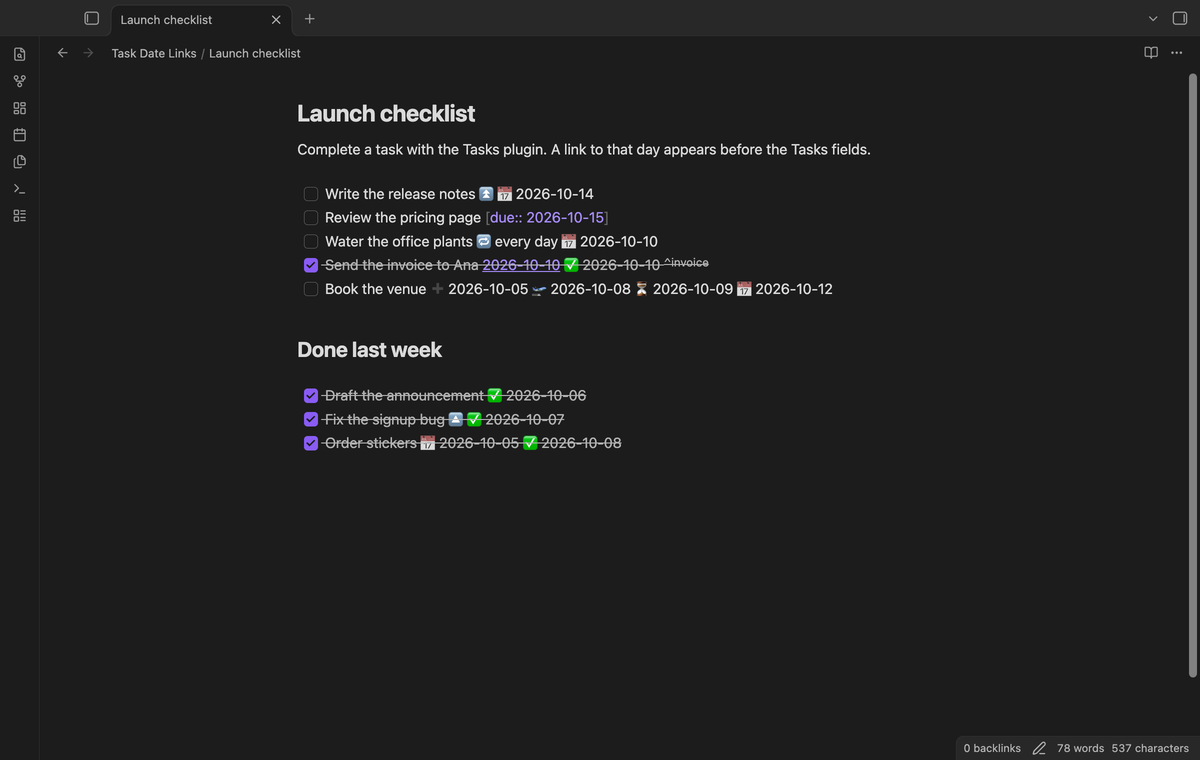 Only the finished copy of a recurring task gets a link. Uncheck removes links added on completion in the same session. After a setting change, note rename or back-fill, those links stay. Links you typed and back-filled links stay.
### The daily note shows what you finished
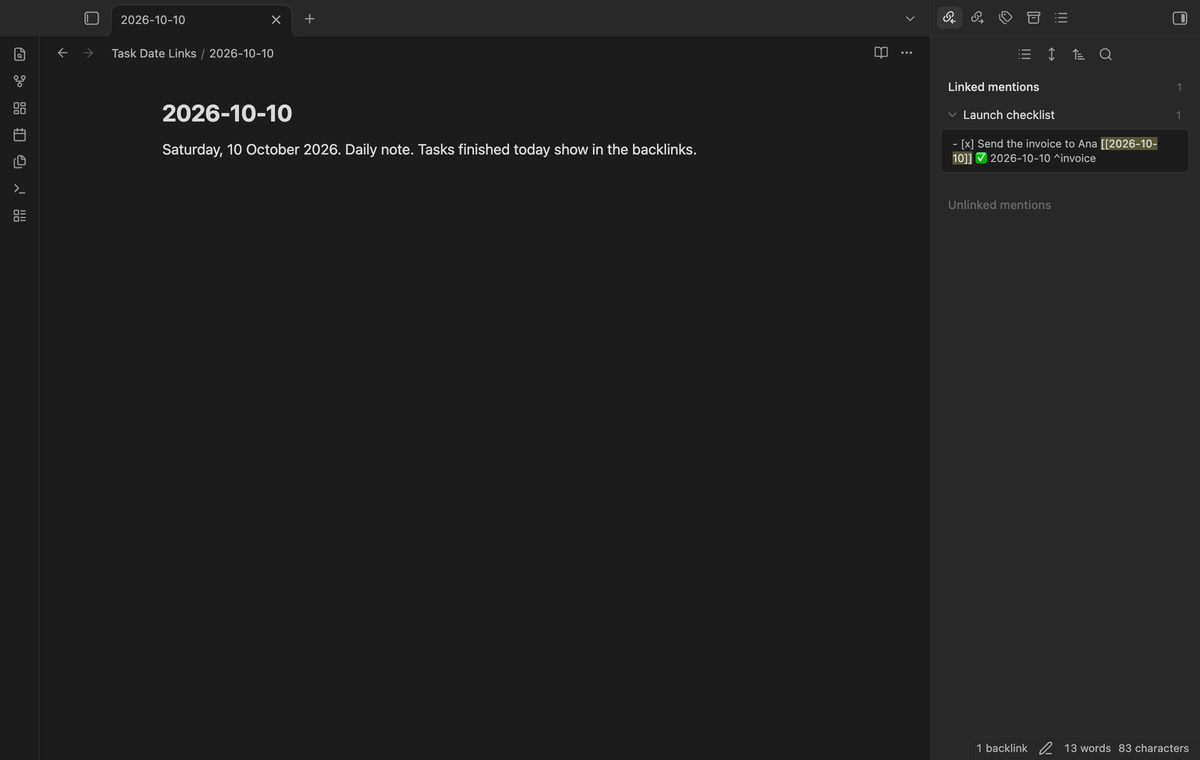
Open the daily note and look at the Backlinks pane. Each task that you completed that day is there, with its whole line. The graph view shows the same links.
Only the finished copy of a recurring task gets a link. Uncheck removes links added on completion in the same session. After a setting change, note rename or back-fill, those links stay. Links you typed and back-filled links stay.
### The daily note shows what you finished
Open the daily note and look at the Backlinks pane. Each task that you completed that day is there, with its whole line. The graph view shows the same links.
 ### Back-fill with a preview and one undo
For old done dates, run "Link the done dates in the current note". To change only some lines, select them and run "Link the done dates in the selection".
The preview shows up to 40 changed lines and counts the rest. Select "Link the dates" to apply it. "Undo the last back-fill" restores the lines, except those you edited since.
### Back-fill with a preview and one undo
For old done dates, run "Link the done dates in the current note". To change only some lines, select them and run "Link the done dates in the selection".
The preview shows up to 40 changed lines and counts the rest. Select "Link the dates" to apply it. "Undo the last back-fill" restores the lines, except those you edited since.
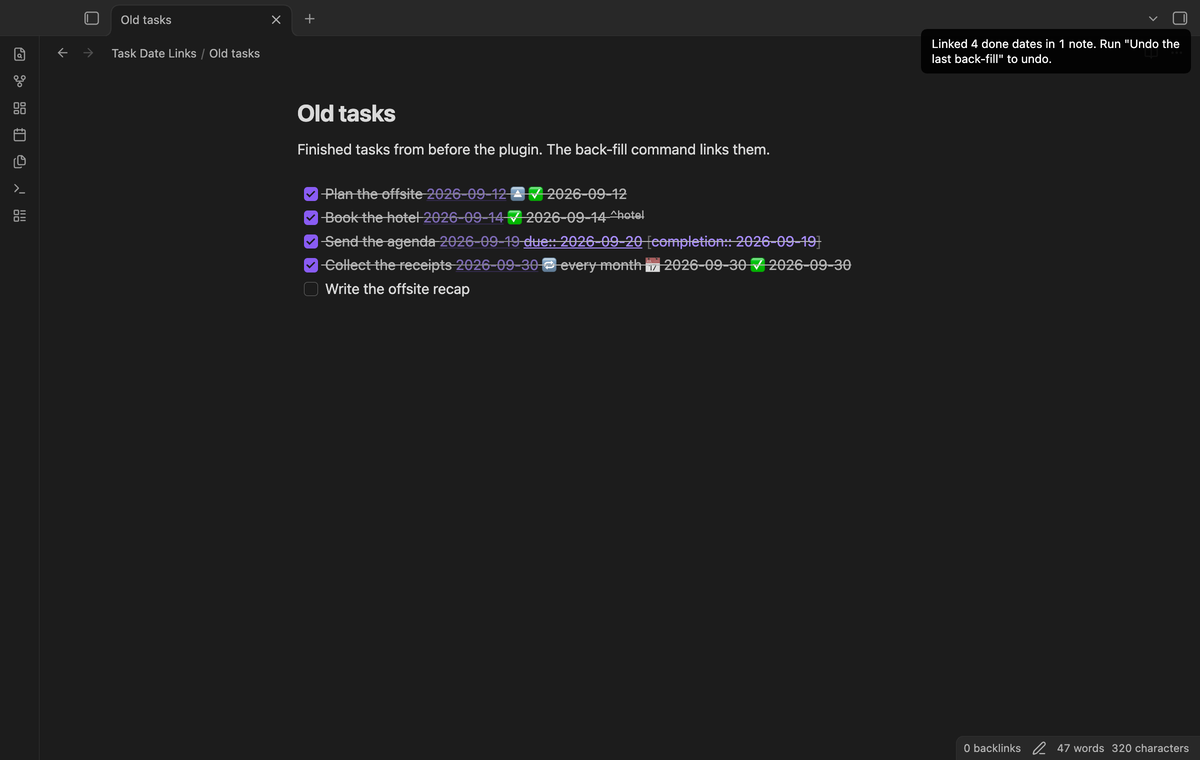
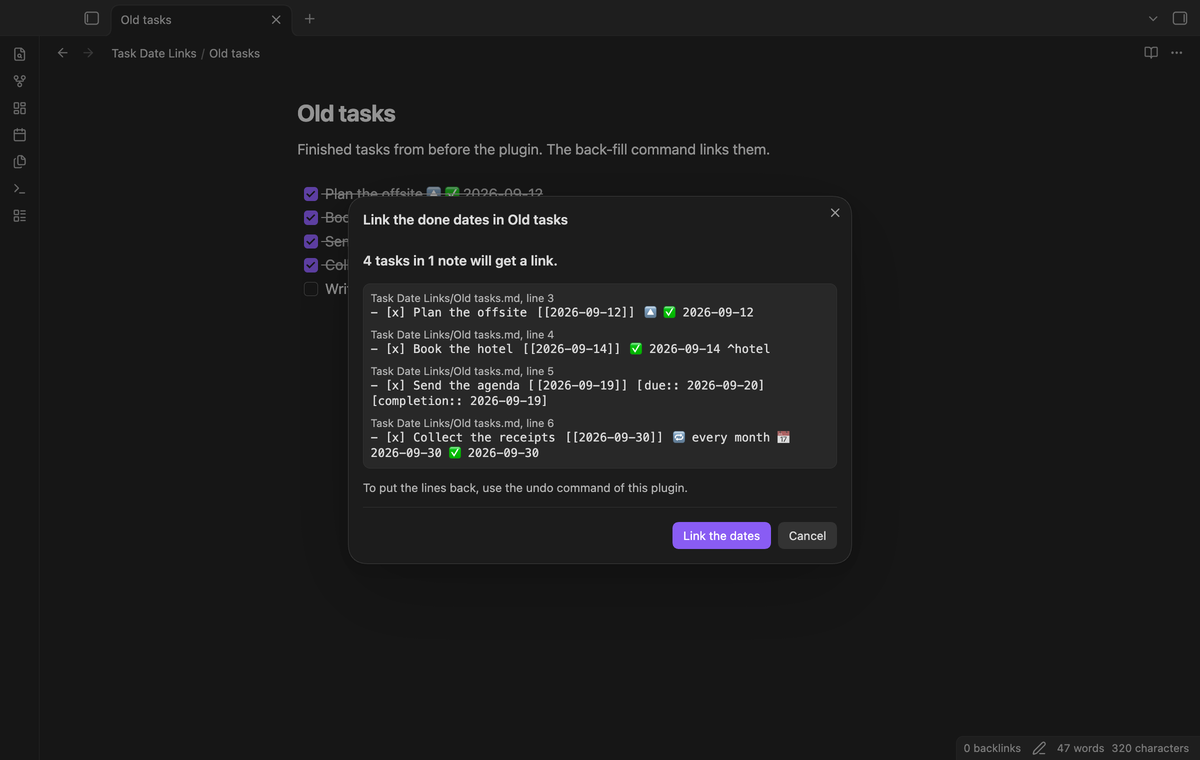 After you apply it, a notice tells you how many dates were linked.
 ### Your date format and link text
The plugin reads the date format of the core Daily notes plugin. You can set another moment format, such as `DD-MM-YYYY`. A format that would break a link, for example one with `#` or `|`, falls back to `YYYY-MM-DD`. A link text format such as `MMM D` gives `[[2026-10-10|Oct 10]]`.
### Your date format and link text
The plugin reads the date format of the core Daily notes plugin. You can set another moment format, such as `DD-MM-YYYY`. A format that would break a link, for example one with `#` or `|`, falls back to `YYYY-MM-DD`. A link text format such as `MMM D` gives `[[2026-10-10|Oct 10]]`.
 ### Daily notes in a folder
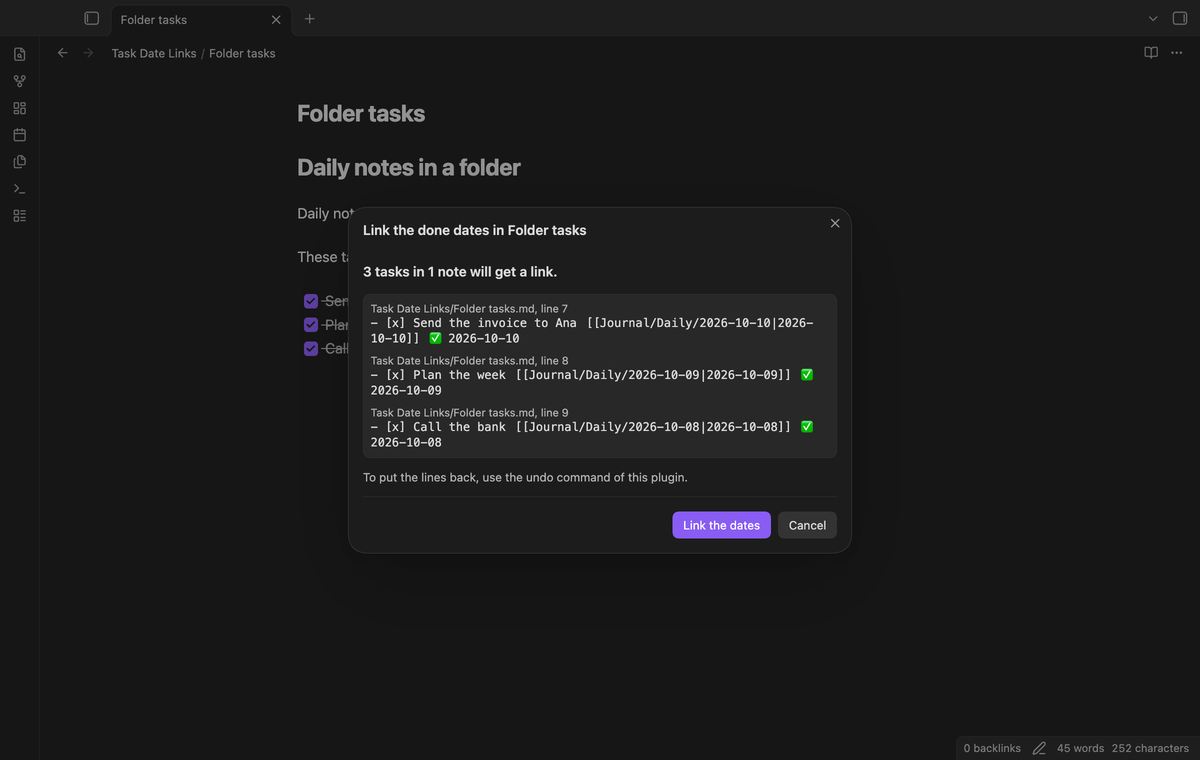
The plugin uses the core Daily notes folder. For `Journal/Daily`, it writes `[[Journal/Daily/2026-10-10|2026-10-10]]`. The date text links to that folder, even with duplicate note names.
Set "Daily note folder" to override the core folder. Empty uses the core folder; `/` uses the vault root. The date format gives the path inside it. The link text format sets the display text.
Completion and back-fill use this folder. A line that links the date with or without the folder gets no second link. Settings reject unsafe folders and `.` or `..` segments. Unsafe saved folders fall back to date links without a folder.
### Daily notes in a folder
The plugin uses the core Daily notes folder. For `Journal/Daily`, it writes `[[Journal/Daily/2026-10-10|2026-10-10]]`. The date text links to that folder, even with duplicate note names.
Set "Daily note folder" to override the core folder. Empty uses the core folder; `/` uses the vault root. The date format gives the path inside it. The link text format sets the display text.
Completion and back-fill use this folder. A line that links the date with or without the folder gets no second link. Settings reject unsafe folders and `.` or `..` segments. Unsafe saved folders fall back to date links without a folder.
 ### More dates and week and month notes (Pro)
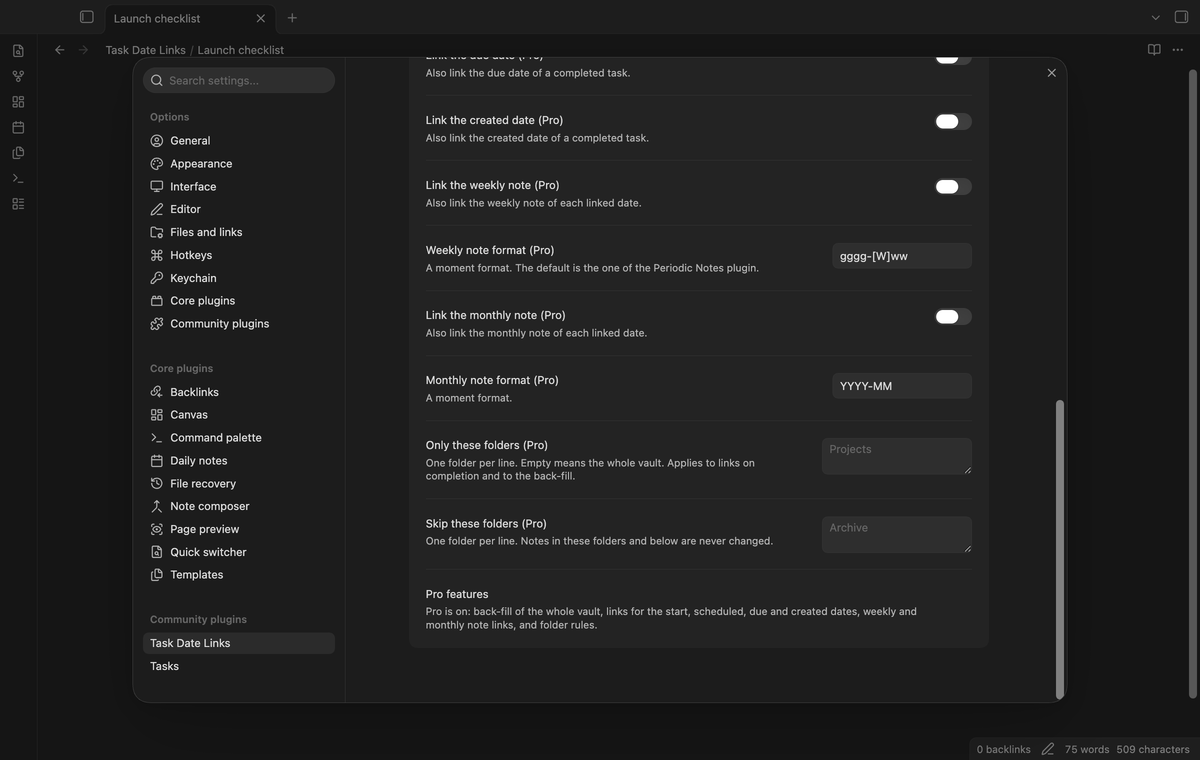
Turn on the start, scheduled, due or created date, and a completed task gets a link for each one. Turn on the weekly or monthly note, and each linked date also links its week or month, such as `[[2026-W41]]` and `[[2026-10]]`. Folder rules let you use the plugin in some folders only, or skip a folder such as `Archive`.
### More dates and week and month notes (Pro)
Turn on the start, scheduled, due or created date, and a completed task gets a link for each one. Turn on the weekly or monthly note, and each linked date also links its week or month, such as `[[2026-W41]]` and `[[2026-10]]`. Folder rules let you use the plugin in some folders only, or skip a folder such as `Archive`.
 ### Back-fill the whole vault (Pro)
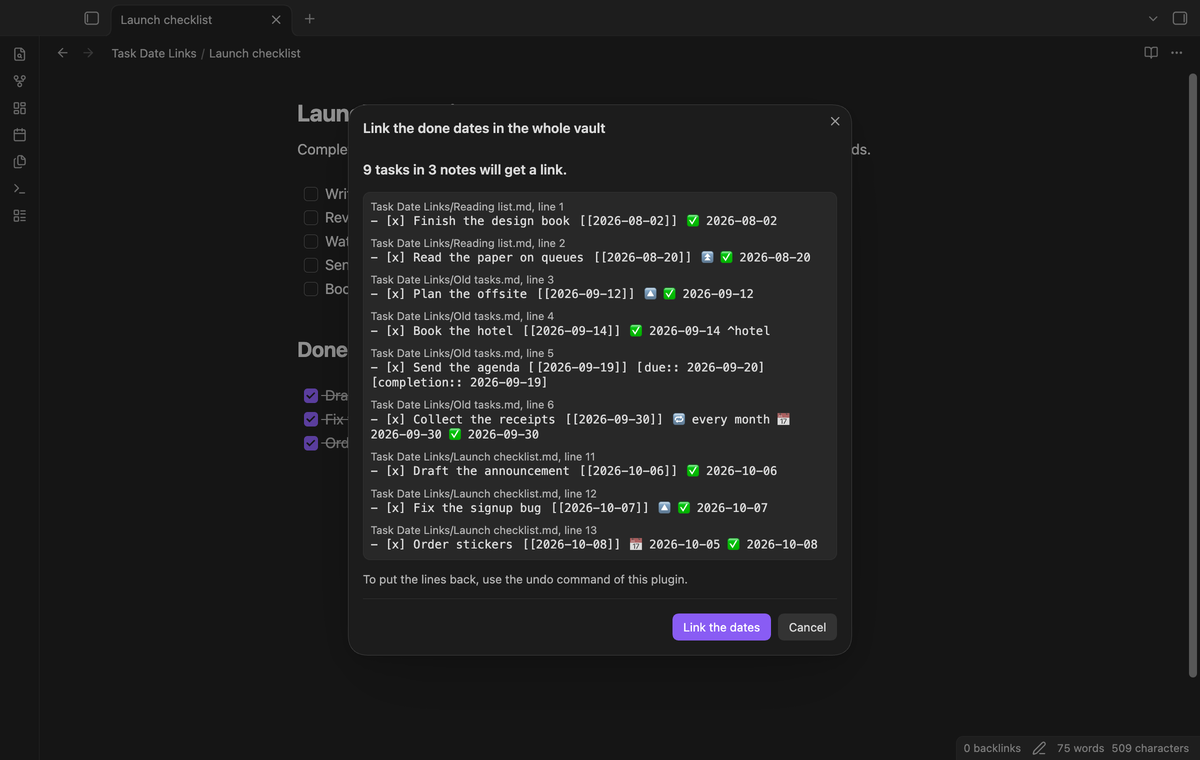
"Link the done dates in the whole vault" does the back-fill for the whole vault, after a preview. One undo puts back the changed lines, except lines you edited since.
### Back-fill the whole vault (Pro)
"Link the done dates in the whole vault" does the back-fill for the whole vault, after a preview. One undo puts back the changed lines, except lines you edited since.
 ## Install
Open Settings, then Community plugins, then Browse, and search for "Task Date Links". Select Install, then Enable.
To install by hand, download `main.js`, `manifest.json` and `styles.css` from the latest release. Put them in `/.obsidian/plugins/task-date-links/`. Reload the community plugins, then turn on Task Date Links.
## Usage
Complete a task as you do now, for example with the Tasks command "Toggle task done". When Obsidian has saved the note with the done date, the plugin adds the link.
Only a done date of today or yesterday gets a link on its own. Old tasks in a note that you edit stay as they are. Use the back-fill for those.
| Command | What it does |
| --- | --- |
| Link the done dates in the current note | Preview, then link the done dates of the note. |
| Link the done dates in the selection | The same for the selected lines only. |
| Link the done dates in the whole vault | The same for the whole vault. Pro. |
| Undo the last back-fill | Puts back the lines of the last back-fill. |
To keep one note out, add the property `task-date-links: false` to it. The plugin then adds no link on completion there. Each back-fill skips the note and counts it in the preview and the final notice. Only the boolean `false` counts, not the quoted text `"false"`.
A link that you delete by hand is not added again in the same session.
## Pro
The free version has no time or task limit.
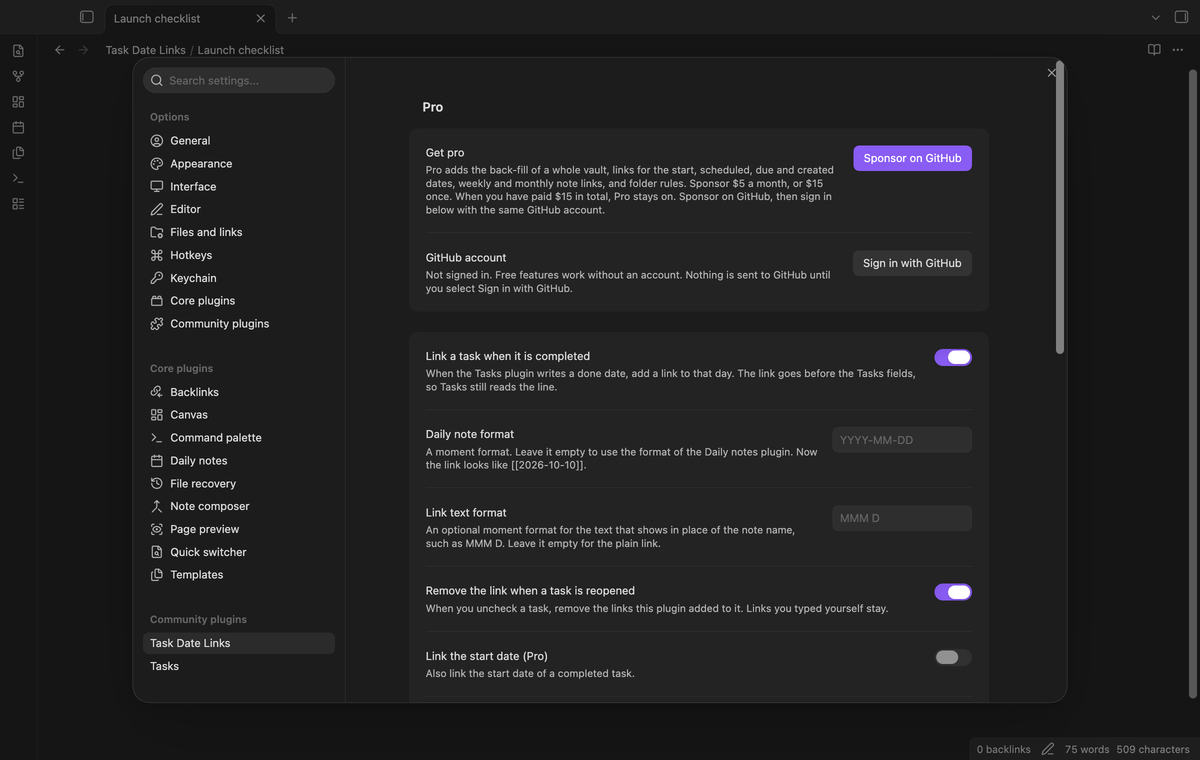
Pro adds the two features marked Pro above. To get it:
1. Sponsor [theluckystrike on GitHub Sponsors](https://github.com/sponsors/theluckystrike) with $5 a month, or $15 once. A total payment of $15 meets the payment requirement for Pro without further payment. Sign-in and the checks below still apply.
2. In Obsidian, open the settings of Task Date Links and select "Sign in with GitHub".
3. Paste the code the plugin shows at github.com/login/device and approve.
If you sponsor after you sign in, select Refresh. A negative sponsorship answer turns Pro off.
## Settings
| Setting | What it does |
| --- | --- |
| Pro | Sign in, status, Refresh and Sign out. |
| Link a task when it is completed | On by default. |
| Daily note format | A moment format. Empty means the format of the Daily notes plugin. |
| Daily note folder | Empty uses the core Daily notes folder. `/` uses the vault root. |
| Link text format | An optional moment format for the text after the pipe. |
| Remove the link when a task is reopened | On uncheck, removes a link that the plugin added in the same session. |
| Start, scheduled, due and created date | Pro. Link these dates of a completed task. |
| Weekly and monthly note | Pro. Link the week or month of each linked date, with a format for each. |
| Only these folders, Skip these folders | Pro. One folder for each line. |
## FAQ
### Do I need the Tasks plugin?
No. Task Date Links reads the done date in the note. Tasks is the usual source, and a date that you type by hand also works.
### Will it break my tasks?
The tests run with the real Tasks plugin. They check emoji fields, Dataview fields, recurrence rules, block ids and Windows line endings, and Tasks reads each line after the link is in it.
### Do my Tasks queries still work?
Queries on dates, status and priority work as before, because the fields do not change. The description of the task now holds the link text. A query such as `description includes 2026` sees it.
### What happens if I uninstall the plugin?
The links stay in your notes as normal links.
### Does it work on a phone or tablet?
It is not desktop only and uses no Node.js API. The tests run on desktop only.
## Payment, account and network
The core features are free. Pro features need a GitHub Sponsors sponsorship of theluckystrike: $5 a month or more, or $15 once. A total payment of $15 meets the payment requirement for Pro without further payment. Sign-in and the checks below still apply. Your notes stay readable and editable with or without Pro.
GitHub handles the payment. Sponsor at https://github.com/sponsors/theluckystrike. You need no account for the free features. Pro needs the GitHub account that sponsors.
Until you select "Sign in with GitHub" in the settings, Task Date Links makes no network requests. Sign in uses the GitHub device flow. Task Date Links sends its public client ID and the scope `read:user` to `https://github.com/login/device/code` and shows you a code. While you enter the code at https://github.com/login/device, it asks `https://github.com/login/oauth/access_token` every few seconds to check the sign-in status. The scope permits profile reads only. GitHub needs this access to show the sponsorship tier. It grants no repository scope and no write access.
After sign in, Task Date Links sends one query to `https://api.github.com/graphql`. It checks if the signed-in account sponsors theluckystrike. It asks for the tier and the total payment to theluckystrike. The plugin reuses a successful check for 7 days. Failed checks can retry after 6 hours. Select Refresh to request an earlier check. It sends no note content, file names or other vault data, and it has no telemetry.
After a successful check, Pro can work offline for up to 14 days. Sign out or a negative sponsorship answer turns Pro off. The plugin stores the GitHub token through the secret storage API of Obsidian. It does not put the token in its saved settings or its local sponsorship data. The local storage of this device keeps your GitHub login, the tier and the time of the last check. Sign out clears the token. You can also revoke the access in your GitHub settings, under Applications.
## Support
Report bugs and feature requests in this repository's issue tracker. To support the work, use [GitHub Sponsors](https://github.com/sponsors/theluckystrike).
```
npm ci
npm run build
npm test
```
## License
MIT
## Install
Open Settings, then Community plugins, then Browse, and search for "Task Date Links". Select Install, then Enable.
To install by hand, download `main.js`, `manifest.json` and `styles.css` from the latest release. Put them in `/.obsidian/plugins/task-date-links/`. Reload the community plugins, then turn on Task Date Links.
## Usage
Complete a task as you do now, for example with the Tasks command "Toggle task done". When Obsidian has saved the note with the done date, the plugin adds the link.
Only a done date of today or yesterday gets a link on its own. Old tasks in a note that you edit stay as they are. Use the back-fill for those.
| Command | What it does |
| --- | --- |
| Link the done dates in the current note | Preview, then link the done dates of the note. |
| Link the done dates in the selection | The same for the selected lines only. |
| Link the done dates in the whole vault | The same for the whole vault. Pro. |
| Undo the last back-fill | Puts back the lines of the last back-fill. |
To keep one note out, add the property `task-date-links: false` to it. The plugin then adds no link on completion there. Each back-fill skips the note and counts it in the preview and the final notice. Only the boolean `false` counts, not the quoted text `"false"`.
A link that you delete by hand is not added again in the same session.
## Pro
The free version has no time or task limit.
Pro adds the two features marked Pro above. To get it:
1. Sponsor [theluckystrike on GitHub Sponsors](https://github.com/sponsors/theluckystrike) with $5 a month, or $15 once. A total payment of $15 meets the payment requirement for Pro without further payment. Sign-in and the checks below still apply.
2. In Obsidian, open the settings of Task Date Links and select "Sign in with GitHub".
3. Paste the code the plugin shows at github.com/login/device and approve.
If you sponsor after you sign in, select Refresh. A negative sponsorship answer turns Pro off.
## Settings
| Setting | What it does |
| --- | --- |
| Pro | Sign in, status, Refresh and Sign out. |
| Link a task when it is completed | On by default. |
| Daily note format | A moment format. Empty means the format of the Daily notes plugin. |
| Daily note folder | Empty uses the core Daily notes folder. `/` uses the vault root. |
| Link text format | An optional moment format for the text after the pipe. |
| Remove the link when a task is reopened | On uncheck, removes a link that the plugin added in the same session. |
| Start, scheduled, due and created date | Pro. Link these dates of a completed task. |
| Weekly and monthly note | Pro. Link the week or month of each linked date, with a format for each. |
| Only these folders, Skip these folders | Pro. One folder for each line. |
## FAQ
### Do I need the Tasks plugin?
No. Task Date Links reads the done date in the note. Tasks is the usual source, and a date that you type by hand also works.
### Will it break my tasks?
The tests run with the real Tasks plugin. They check emoji fields, Dataview fields, recurrence rules, block ids and Windows line endings, and Tasks reads each line after the link is in it.
### Do my Tasks queries still work?
Queries on dates, status and priority work as before, because the fields do not change. The description of the task now holds the link text. A query such as `description includes 2026` sees it.
### What happens if I uninstall the plugin?
The links stay in your notes as normal links.
### Does it work on a phone or tablet?
It is not desktop only and uses no Node.js API. The tests run on desktop only.
## Payment, account and network
The core features are free. Pro features need a GitHub Sponsors sponsorship of theluckystrike: $5 a month or more, or $15 once. A total payment of $15 meets the payment requirement for Pro without further payment. Sign-in and the checks below still apply. Your notes stay readable and editable with or without Pro.
GitHub handles the payment. Sponsor at https://github.com/sponsors/theluckystrike. You need no account for the free features. Pro needs the GitHub account that sponsors.
Until you select "Sign in with GitHub" in the settings, Task Date Links makes no network requests. Sign in uses the GitHub device flow. Task Date Links sends its public client ID and the scope `read:user` to `https://github.com/login/device/code` and shows you a code. While you enter the code at https://github.com/login/device, it asks `https://github.com/login/oauth/access_token` every few seconds to check the sign-in status. The scope permits profile reads only. GitHub needs this access to show the sponsorship tier. It grants no repository scope and no write access.
After sign in, Task Date Links sends one query to `https://api.github.com/graphql`. It checks if the signed-in account sponsors theluckystrike. It asks for the tier and the total payment to theluckystrike. The plugin reuses a successful check for 7 days. Failed checks can retry after 6 hours. Select Refresh to request an earlier check. It sends no note content, file names or other vault data, and it has no telemetry.
After a successful check, Pro can work offline for up to 14 days. Sign out or a negative sponsorship answer turns Pro off. The plugin stores the GitHub token through the secret storage API of Obsidian. It does not put the token in its saved settings or its local sponsorship data. The local storage of this device keeps your GitHub login, the tier and the time of the last check. Sign out clears the token. You can also revoke the access in your GitHub settings, under Applications.
## Support
Report bugs and feature requests in this repository's issue tracker. To support the work, use [GitHub Sponsors](https://github.com/sponsors/theluckystrike).
```
npm ci
npm run build
npm test
```
## License
MIT