# Tag Pairings
After you type a tag, suggests the tags that occur most often with it in your vault.
## Features
### Suggestions after a tag
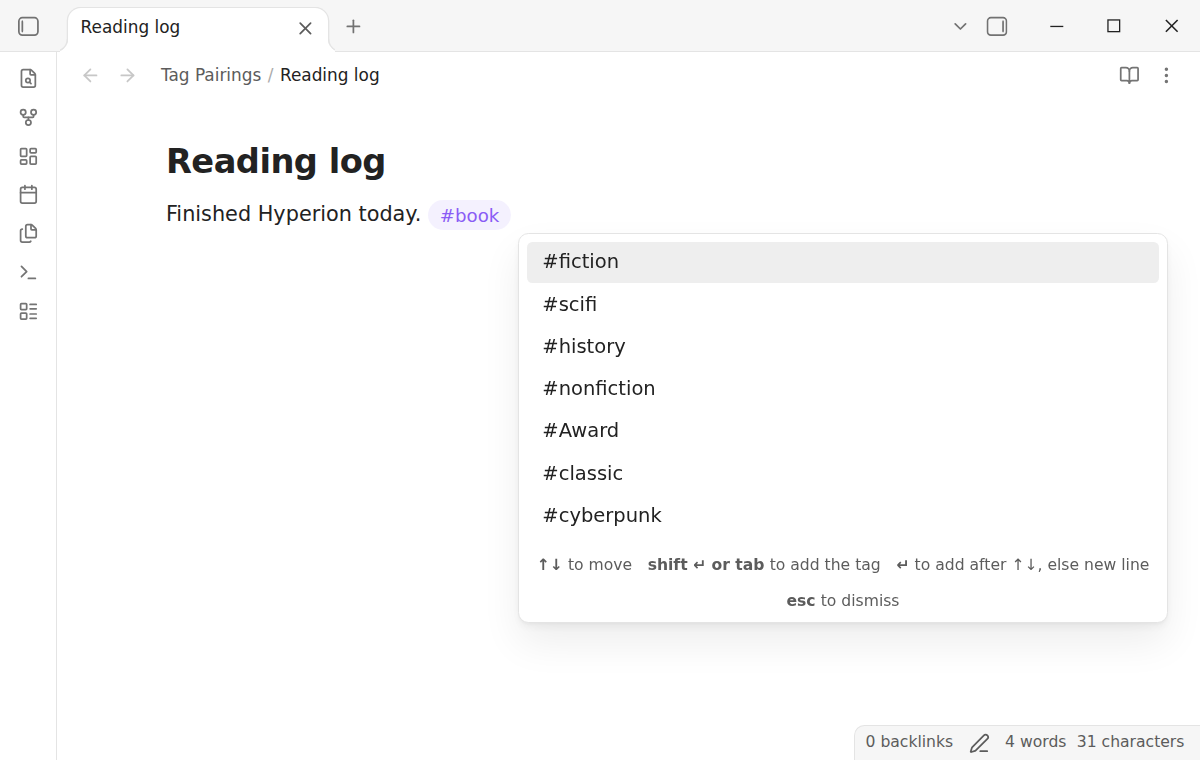
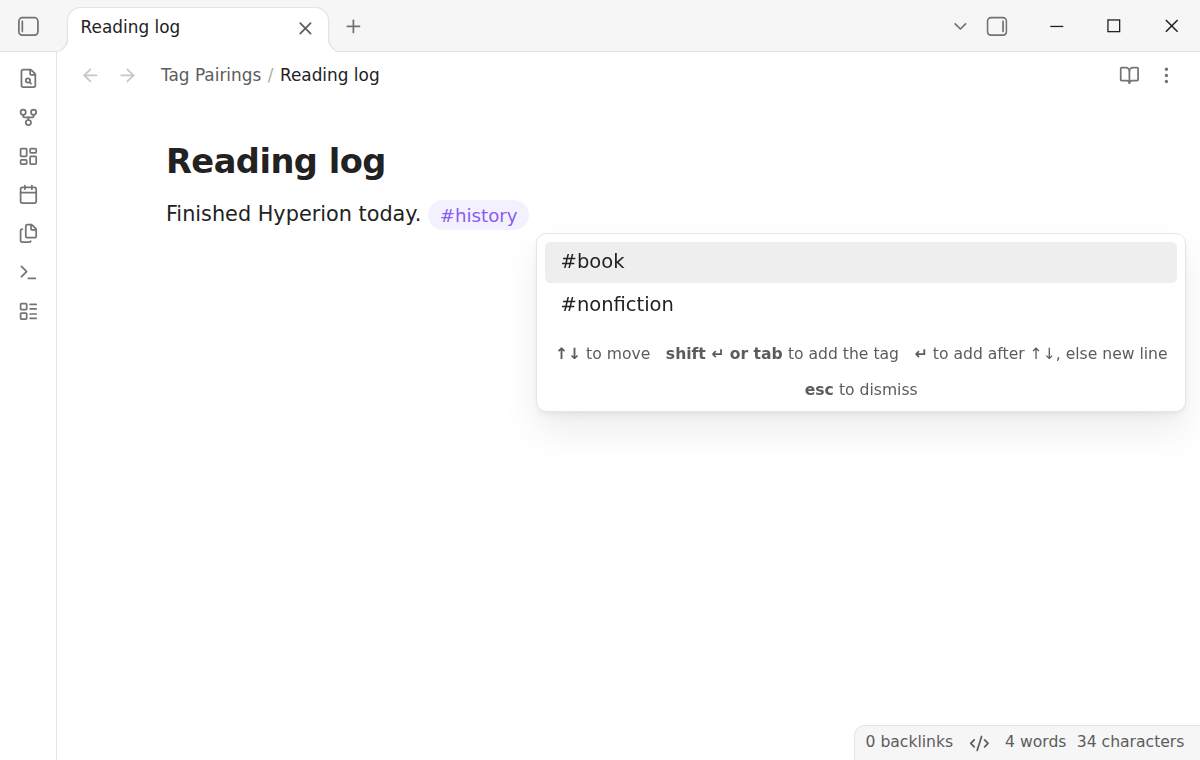
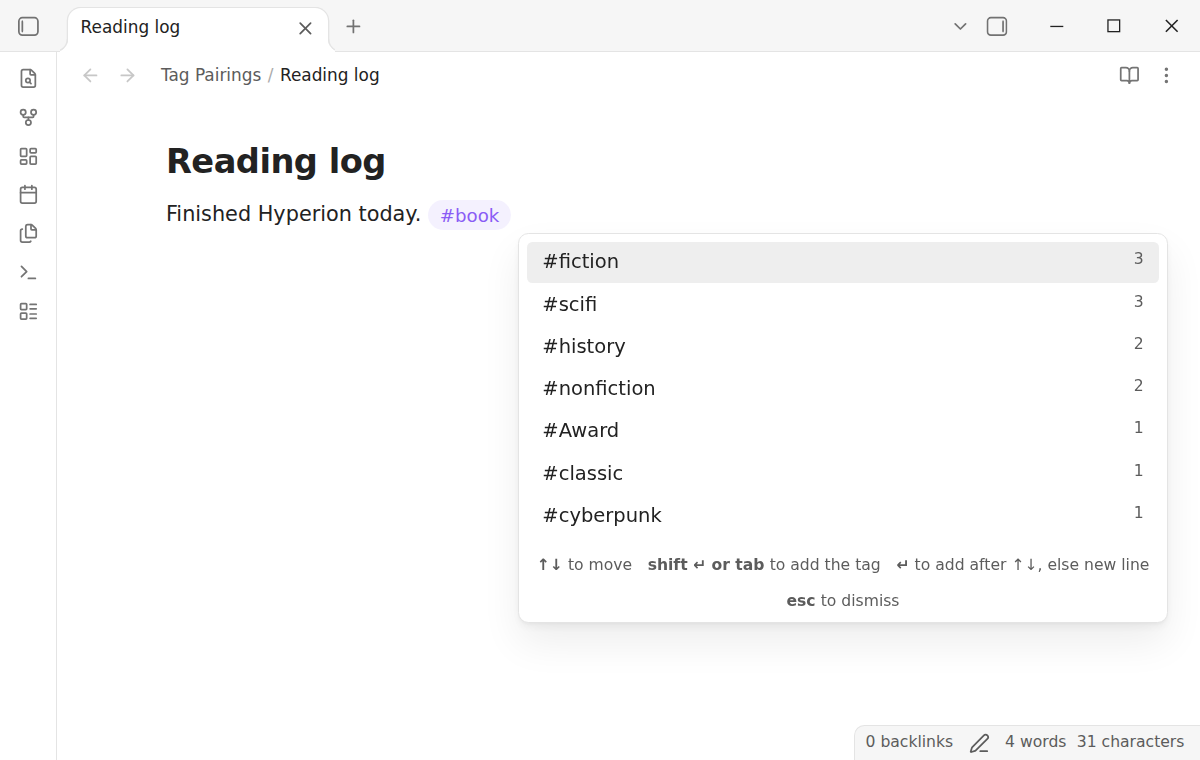
Type a tag and a space on any line, for example `#book `. A box opens at the cursor, like the link suggestion box. It lists the tags that occur most often in the same notes as `#book`. The tag that shares the most notes is first and has the highlight.
The order follows the number of notes that hold both tags. When two tags share the same number of notes, a tag from the notes that this note links to comes first. Next comes the tag that more notes in the vault use, and then the name.
The list leaves out the tags that the note already has, in the body and in the front matter. It also leaves out each tag on the current line. A tag that no other tag shares a note with opens no box.
 ### Add one tag after the other
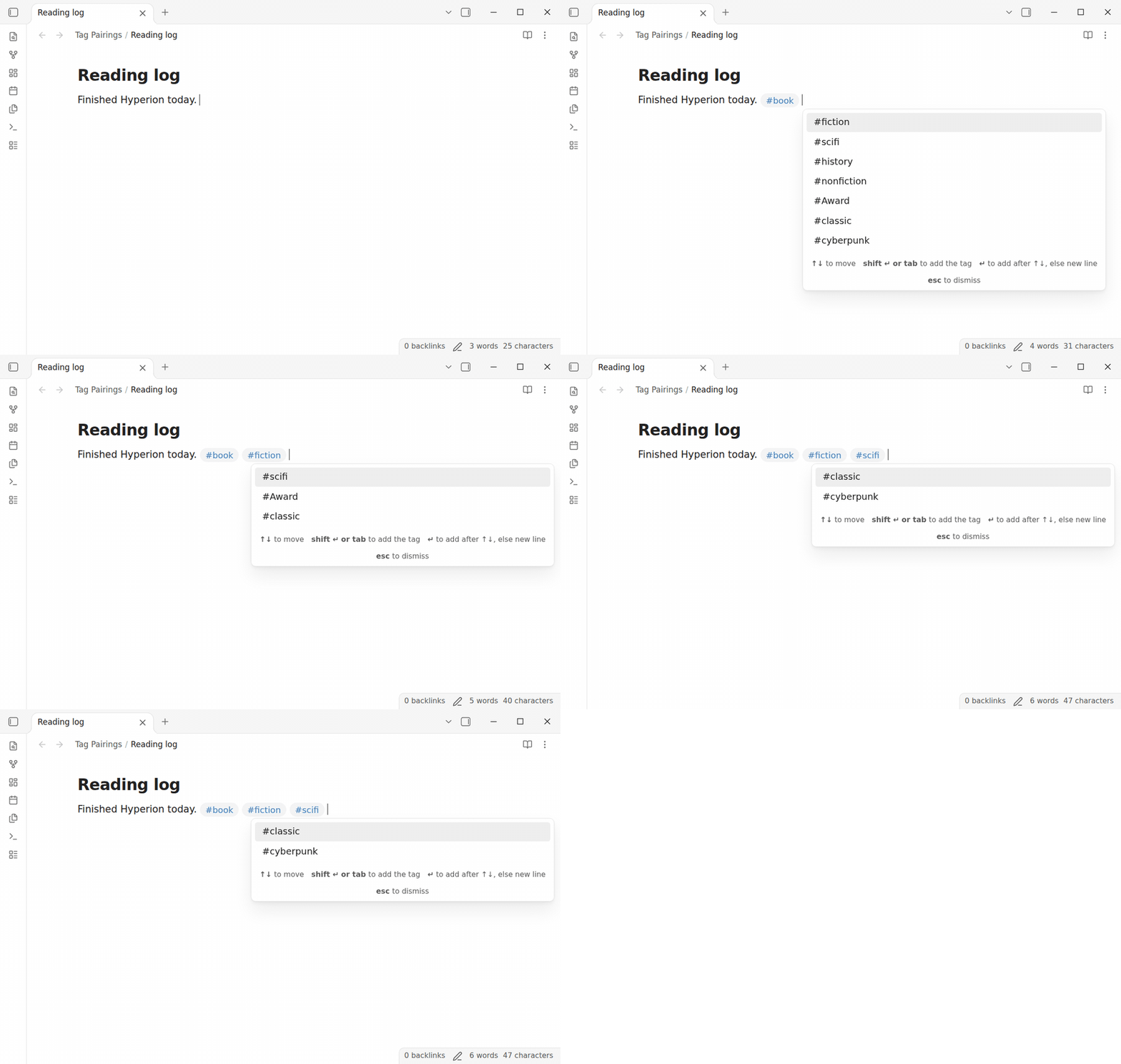
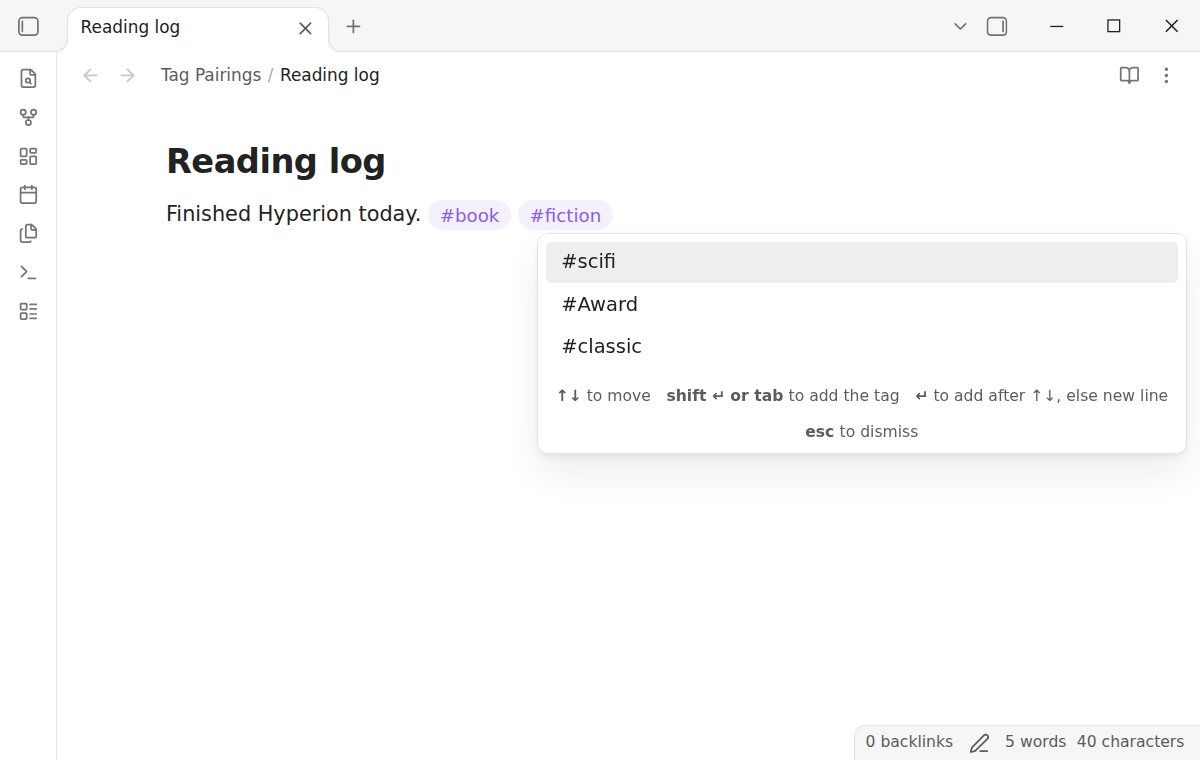
Press Shift+Enter or Tab, or click a tag, to add it. Enter adds the tag only after you move the highlight with Up or Down. On a list item line, Tab indents the item until you press Up or Down. The plugin inserts the tag and a space, for example `#fiction `. The box then opens again with the tags that occur with the tag that you just added. Press Shift+Enter again to add the next one.
 ### Nested tags and front matter
The plugin reads the tags from the metadata cache of Obsidian, the same source that the tag pane uses. Tags in the body and in the `tags` property of the front matter count the same.
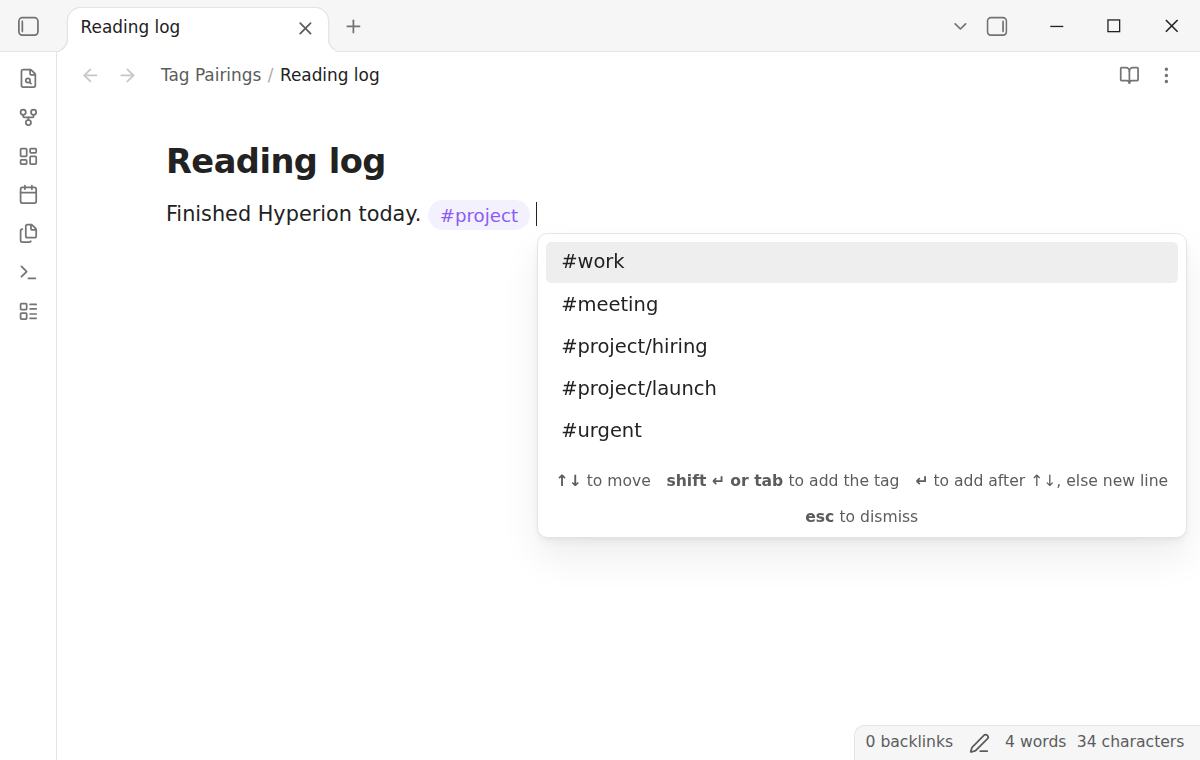
A nested tag counts for its parents too. After `#project `, the box lists the tags of notes with `#project`, `#project/launch` or `#project/hiring`. The box never suggests a parent of the tag that you typed.
 ### Live Preview and Source mode
The box works in Live Preview and in Source mode. It does not open in a code block, in inline code, in the front matter, or after a `#` that is part of a word or a link.
 ### Counts (Pro)
Pro shows the number of shared notes next to each tag. Pro can also count only the notes in the folder of the current note and its subfolders, and set the list length from 5 to 50 tags.
 ## Install
1. Open "Settings → Community plugins" and turn off restricted mode.
2. Select "Browse", search for "Tag Pairings", then select "Install" and "Enable".
To install by hand, copy `main.js`, `manifest.json` and `styles.css` from the latest release into `/.obsidian/plugins/tag-pairings/`. Then enable the plugin. You need Obsidian 1.13.4 or later.
## Usage
There is nothing to set up. The plugin learns the tag pairs from the notes that you already have.
1. Open a note in Live Preview or Source mode.
2. Type a tag, for example `#recipe`, then a space.
3. Press Shift+Enter or Tab to add the highlighted tag. On a list item line, Tab indents the item. Or move the highlight with Up or Down, then press Enter. Press Escape to close the box and keep typing.
If you keep typing text after the space, the box closes. It opens only right after a tag and one space.
When the vault opens, the plugin reads the tags of each note one time. After that, it updates one note at a time, when Obsidian indexes a change, a new note, a deleted note or a rename. Typing never makes it read the vault again. In a unit test on the CI machine, the index of 10,000 notes took 130 milliseconds to build. In a 10,000 line note, the check after a tag and a space took about 3 milliseconds.
The plugin never writes to your notes on its own. It inserts text only when you pick a tag in the box.
## Settings
After a minor or major update, this plugin opens one What's new tab in the background. The tab and settings card suggest other NoteMods plugins and Zovo Chat and link to notemods.com for feedback ([privacy](https://notemods.com/privacy/)). The tab sends no data. Turn the tab off in Settings.
| Setting | What it does |
| --- | --- |
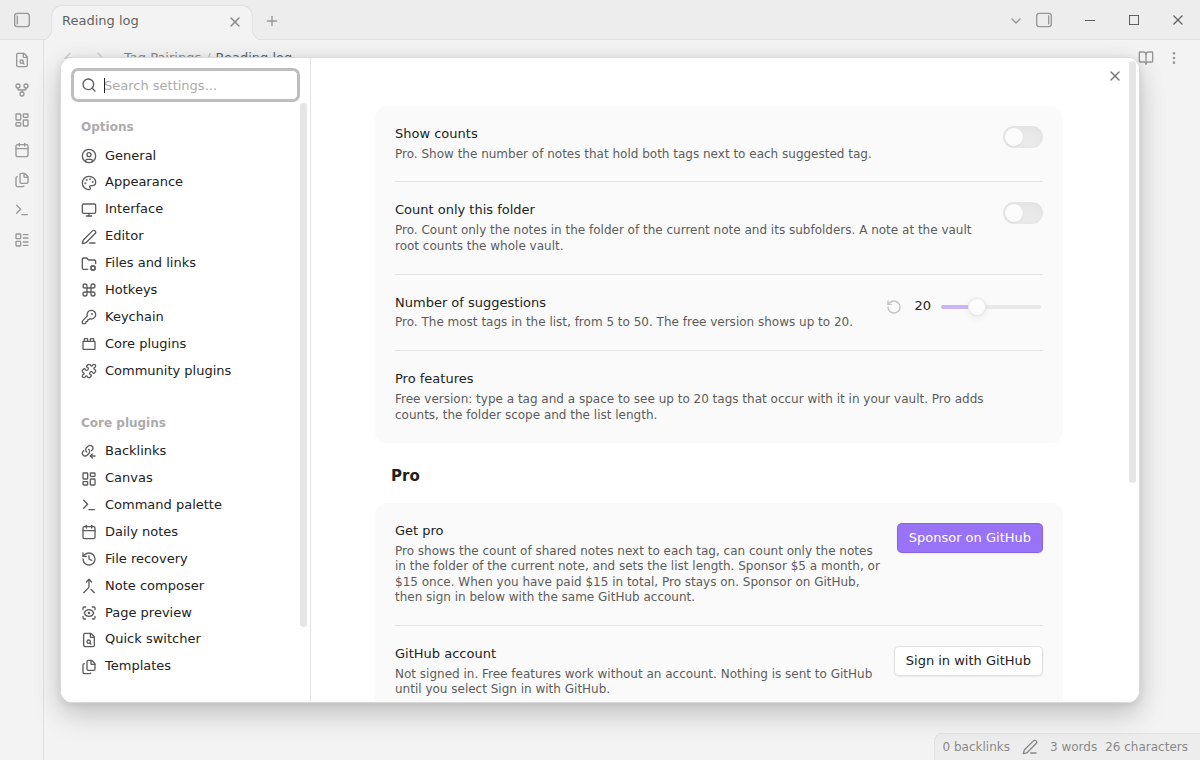
| Show counts | Pro. Shows the number of notes that hold both tags next to each tag. Off by default. |
| Count only this folder | Pro. Counts only the notes in the folder of the current note and its subfolders. A note at the vault root counts the whole vault. Off by default. |
| Number of suggestions | Pro. The most tags in the list, from 5 to 50. The free version shows up to 20. |
 ## Pro
To sign in and enable Pro:
1. Sponsor via [GitHub Sponsors](https://github.com/sponsors/theluckystrike?frequency=one-time&metadata_source=tag-pairings). A total payment of $15 meets the payment requirement for Pro without further payment. Sign-in and the checks below still apply.
2. In Obsidian, open the settings of Tag Pairings and select "Sign in with GitHub".
3. The plugin copies a code and opens github.com/login/device. Paste the code there and approve.
If you sponsor after you sign in, select Refresh. A negative sponsorship answer turns Pro off.
## FAQ
### Why does no box open after my tag?
No other tag shares a note with that tag yet, or each tag that does is already in the note or on the line. The box also stays closed in code, in the front matter and when the `#` follows a letter.
### Does Enter still make a new line?
Yes. Until you move the highlight with Up or Down, Enter closes the box and makes a new line, and a list or task list continues as usual. After Up or Down, Enter adds the highlighted tag. Shift+Enter always adds it.
This rule uses an internal key order of Obsidian. If a later version changes it, Enter adds the highlighted tag. Then press Escape before Enter.
### Does Tab still indent a list item?
Yes. On a list item line, Tab indents the item and adds no tag, until you move the highlight with Up or Down. After Up or Down, Tab adds the tag. After an indent, the box shows again for the same tag.
### Why do Up and Down not move the cursor?
While the box is open, Up and Down move the highlight, as in the link suggestion box. Press Escape first to move the cursor.
### Does it suggest tags inside the tags property?
No. It works on lines of text in the note body. Tags that you write in the front matter still count for the suggestions.
### Is the case of a tag kept?
Obsidian treats `#Book` and `#book` as one tag. The plugin does the same, and it inserts the spelling that most of your notes use.
### Does it use AI or send my tags anywhere?
No. It counts tags on your device. The free features make no network requests.
## Payment, account and network
The core features are free. Pro features need a GitHub Sponsors sponsorship of theluckystrike: $5 a month or more, or $15 once. A total payment of $15 meets the payment requirement for Pro without further payment. Sign-in and the checks below still apply. Your notes stay readable and editable with or without Pro.
GitHub handles the payment. Sponsor at https://github.com/sponsors/theluckystrike?frequency=one-time&metadata_source=tag-pairings. You need no account for the free features. Pro needs the GitHub account that sponsors.
Until you select "Sign in with GitHub" in the settings, Tag Pairings makes no network requests. Sign in uses the GitHub device flow. Tag Pairings sends its public client ID and the scope `read:user` to `https://github.com/login/device/code` and shows you a code. While you enter the code at https://github.com/login/device, it asks `https://github.com/login/oauth/access_token` every few seconds to check the sign-in status. The scope permits profile reads only. GitHub needs this access to show the sponsorship tier. It grants no repository scope and no write access.
After sign in, Tag Pairings sends one query to `https://api.github.com/graphql`. It checks if the signed-in account sponsors theluckystrike. It asks for the tier and the total payment to theluckystrike. The plugin reuses a successful check for 7 days. Failed checks can retry after 6 hours. Select Refresh to request an earlier check. It sends no note content, file names or other vault data, and it has no telemetry.
After a successful check, Pro can work offline for up to 14 days. Sign out or a negative sponsorship answer turns Pro off. The plugin stores the GitHub token through the secret storage API of Obsidian. It does not put the token in its saved settings or its local sponsorship data. The local storage of this device keeps your GitHub login, the tier and the time of the last check. Sign out clears the token. You can also revoke the access in your GitHub settings, under Applications.
## Support
Plugin page: [tag-pairings](https://notemods.com/plugins/tag-pairings/).
Report bugs and ask for features in the GitHub issues of this repository. Add your Obsidian version and a small sample note.
## Community
Questions, bugs or plugin ideas? Talk to me and other Obsidian users in [Zovo Chat](https://t.me/+k2MM-BIc7SQ5OWM0) on Telegram. It has a topic for these plugins. You can also open an issue here.