# Search Operators
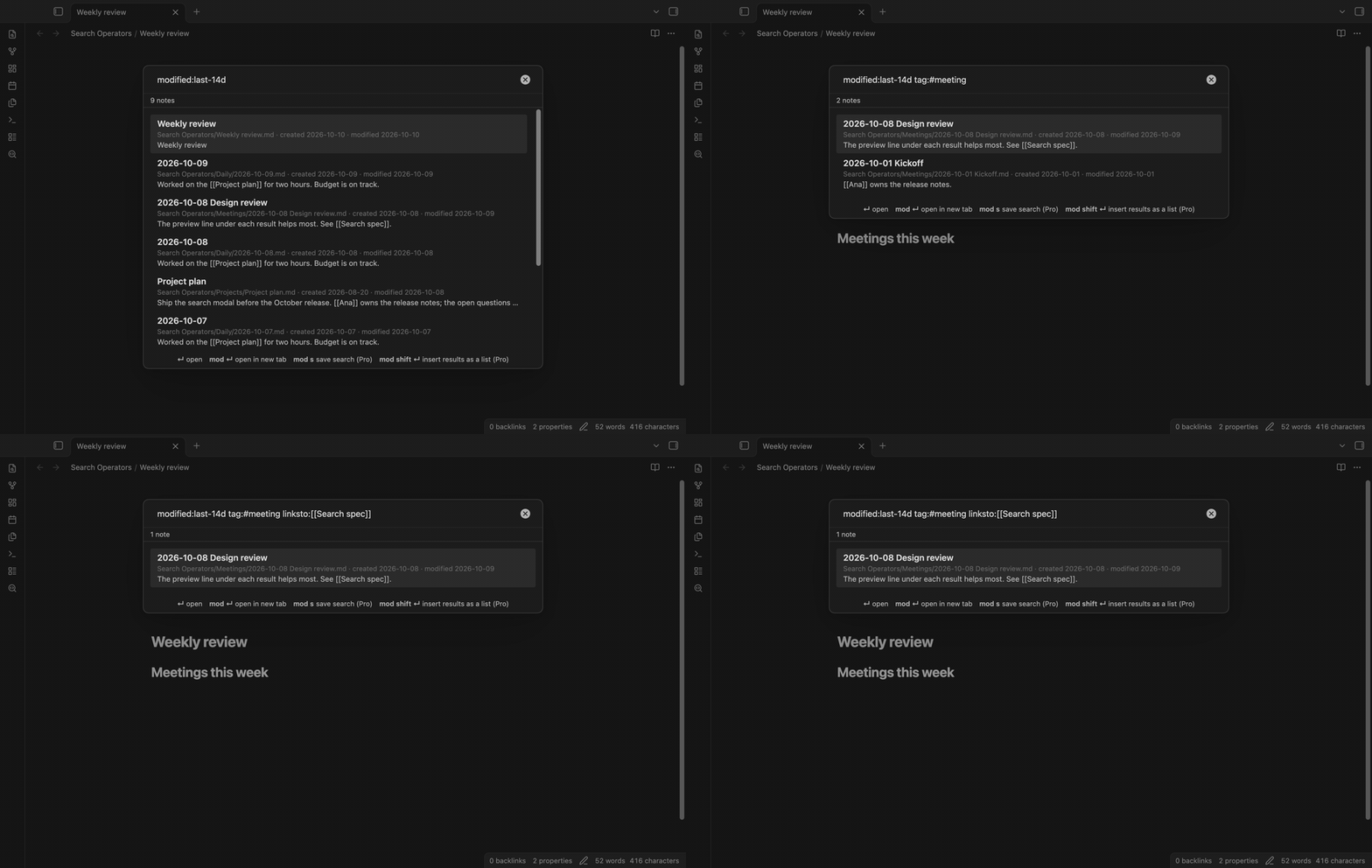
Search notes by created and modified date, links to and from a note, tag and path, in a search modal with a preview line for each result.
The core search of Obsidian 1.14 has `file:`, `path:`, `content:`, `tag:`, `line:`, `block:`, `section:`, the task operators and `[property:value]`. It has no operator for the date a note was made or changed, and none for links. Two forum requests ask for these: [Search operators for note creation/modification date](https://forum.obsidian.md/t/search-operators-for-note-creation-modification-date/5289) and [Search operators for links, backlinks, forwardlinks](https://forum.obsidian.md/t/search-operators-for-links-backlinks-forwardlinks/11567). Search Operators adds them in its own modal. It does not change the core search pane.
 ## Features
### Date ranges
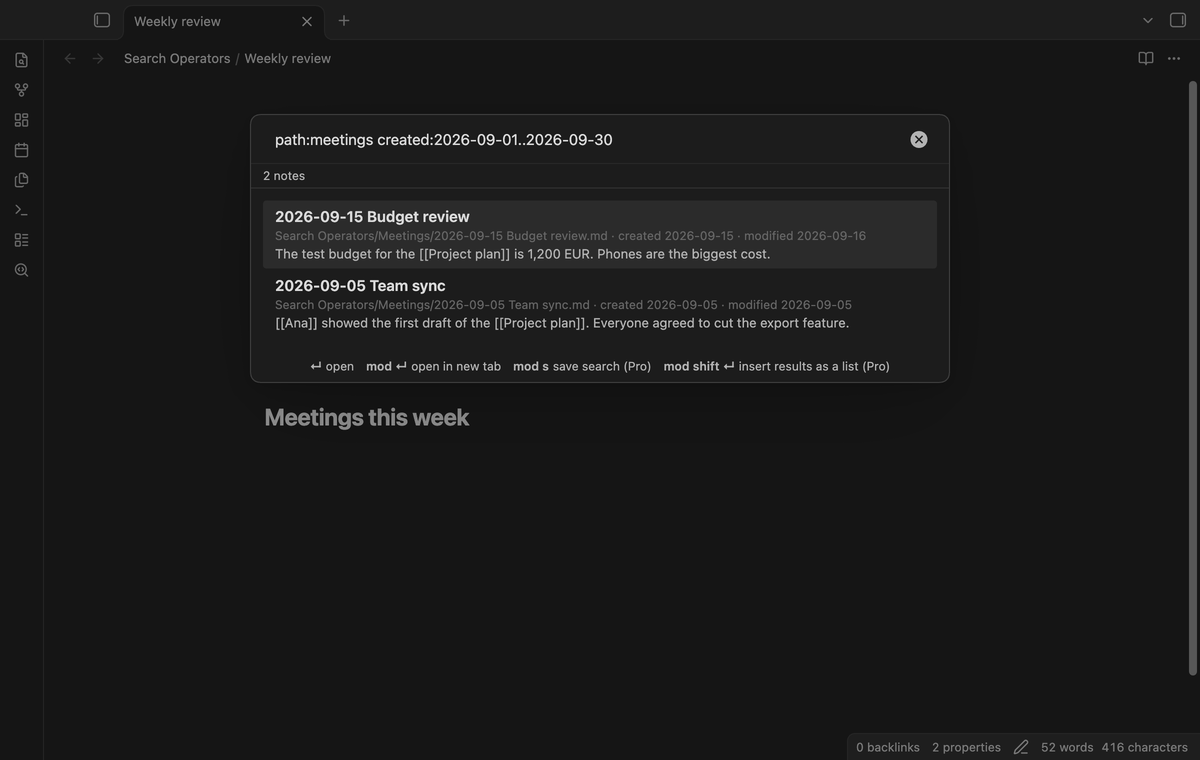
`created:` and `modified:` take a day, a month, a year or a range. `created:2026-09-01` finds the notes made on that day. `created:2026-09` finds the notes of that month. `created:2026-09-01..2026-09-30` includes both end days. Put `>`, `>=`, `<` or `<=` in front of a date: `modified:>2026-10-01` means after that day, and `created:<=2025` means in 2025 or before.
The dates are local time. By default they come from the file. If your notes keep the date in a property, such as `created: 2026-09-05`, set that property name in the settings.
## Features
### Date ranges
`created:` and `modified:` take a day, a month, a year or a range. `created:2026-09-01` finds the notes made on that day. `created:2026-09` finds the notes of that month. `created:2026-09-01..2026-09-30` includes both end days. Put `>`, `>=`, `<` or `<=` in front of a date: `modified:>2026-10-01` means after that day, and `created:<=2025` means in 2025 or before.
The dates are local time. By default they come from the file. If your notes keep the date in a property, such as `created: 2026-09-05`, set that property name in the settings.
 ### Recent notes
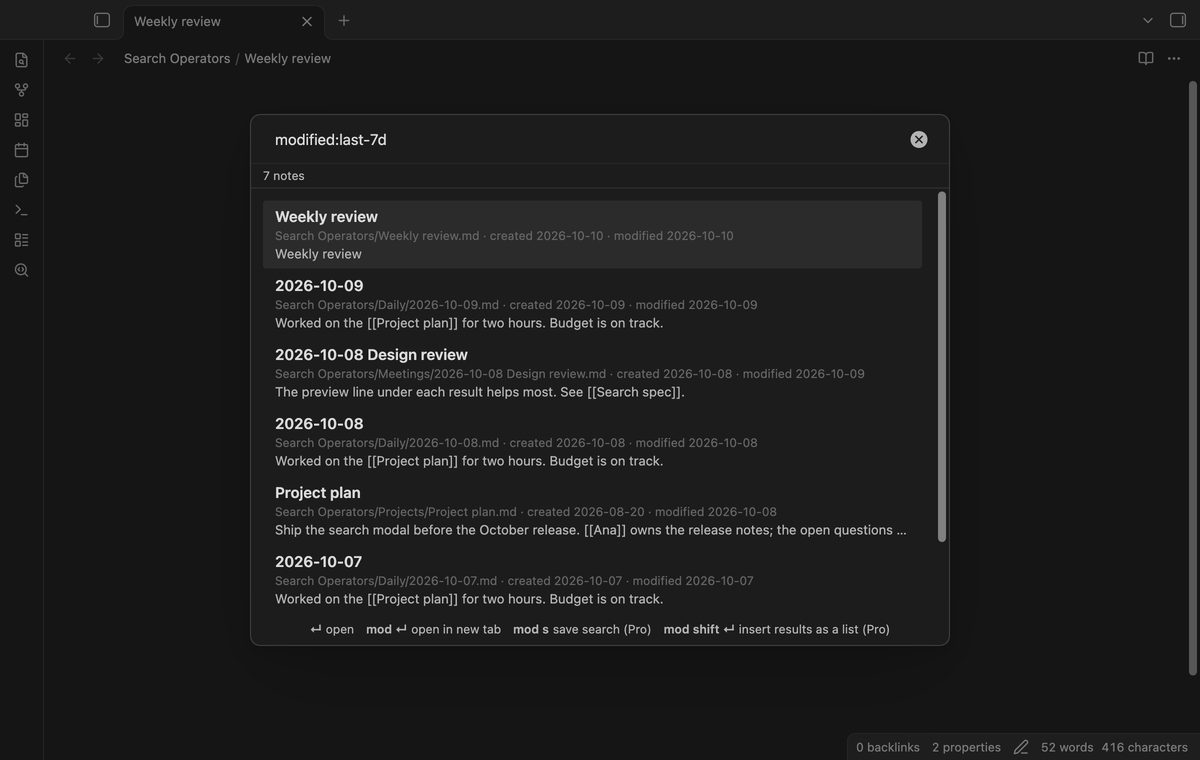
`last-7d`, `last-2w`, `last-3m` and `last-1y` count back from now. `today` and `yesterday` work too. `modified:last-7d` lists the notes you changed this week, newest first.
### Recent notes
`last-7d`, `last-2w`, `last-3m` and `last-1y` count back from now. `today` and `yesterday` work too. `modified:last-7d` lists the notes you changed this week, newest first.
 ### Links to a note
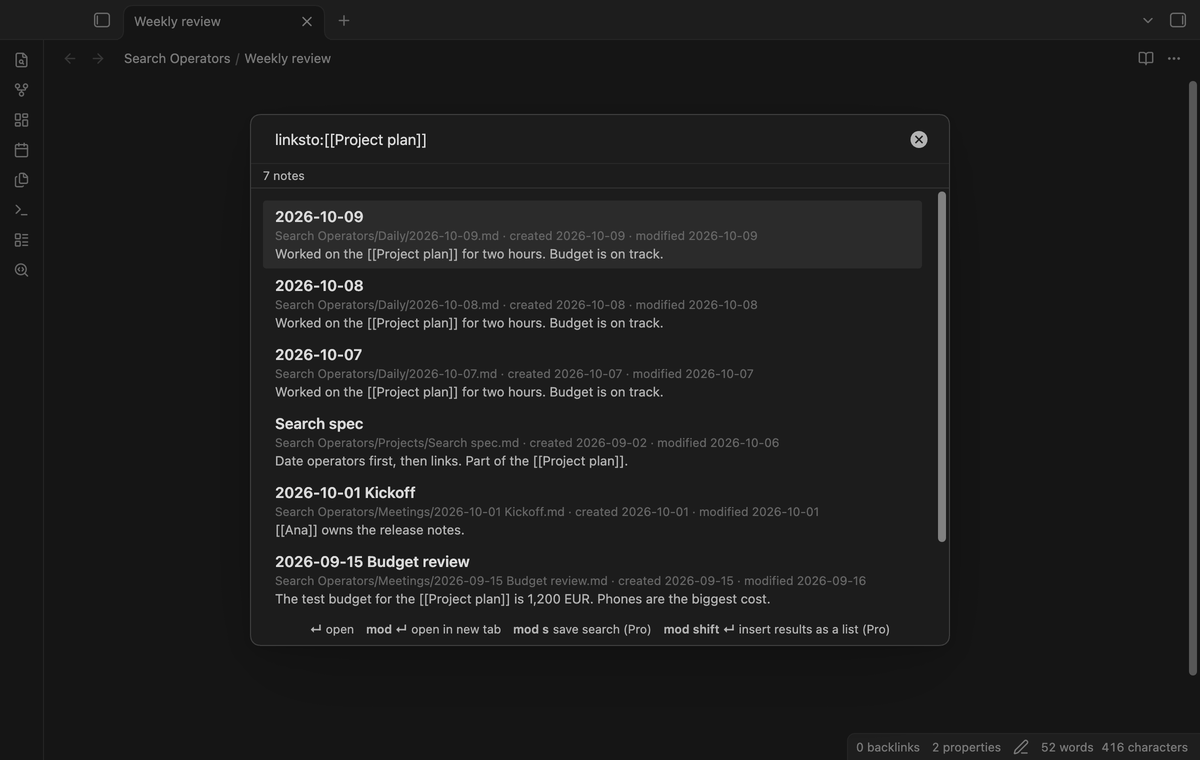
`linksto:[[Project plan]]` lists the notes that link to Project plan, which is the same list as its backlinks. You can type the name with or without brackets, with a folder, with an alias or with a heading: `linksto:Ana`, `linksto:[[People/Ana|our editor]]`. The plugin finds the note the same way Obsidian resolves a link. If no note has that name, the status line says so.
The command "Find notes that link to the current note" opens the modal with this operator filled in.
### Links to a note
`linksto:[[Project plan]]` lists the notes that link to Project plan, which is the same list as its backlinks. You can type the name with or without brackets, with a folder, with an alias or with a heading: `linksto:Ana`, `linksto:[[People/Ana|our editor]]`. The plugin finds the note the same way Obsidian resolves a link. If no note has that name, the status line says so.
The command "Find notes that link to the current note" opens the modal with this operator filled in.
 ### Links from a note
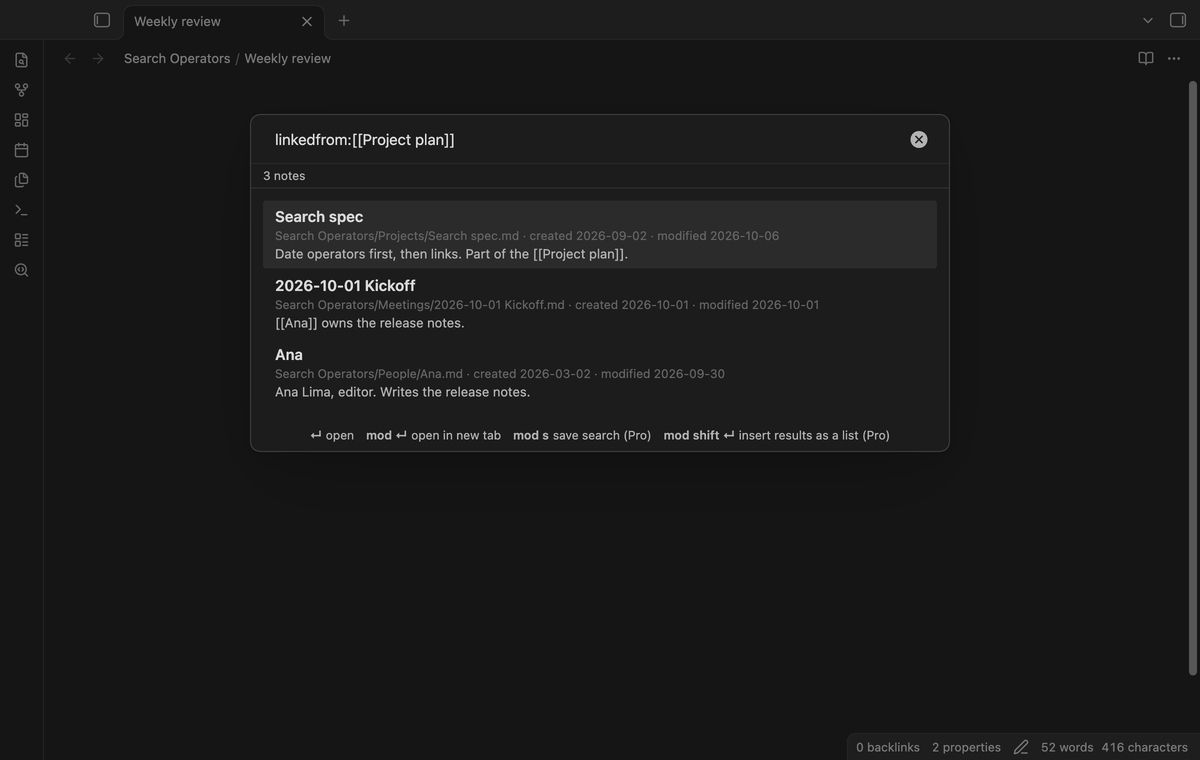
`linkedfrom:[[Project plan]]` lists the notes that Project plan links to. Add more operators to narrow the list: `linkedfrom:[[Project plan]] tag:#person`. The command "Find notes the current note links to" opens the modal with the current note.
### Links from a note
`linkedfrom:[[Project plan]]` lists the notes that Project plan links to. Add more operators to narrow the list: `linkedfrom:[[Project plan]] tag:#person`. The command "Find notes the current note links to" opens the modal with the current note.
 ### Link patterns
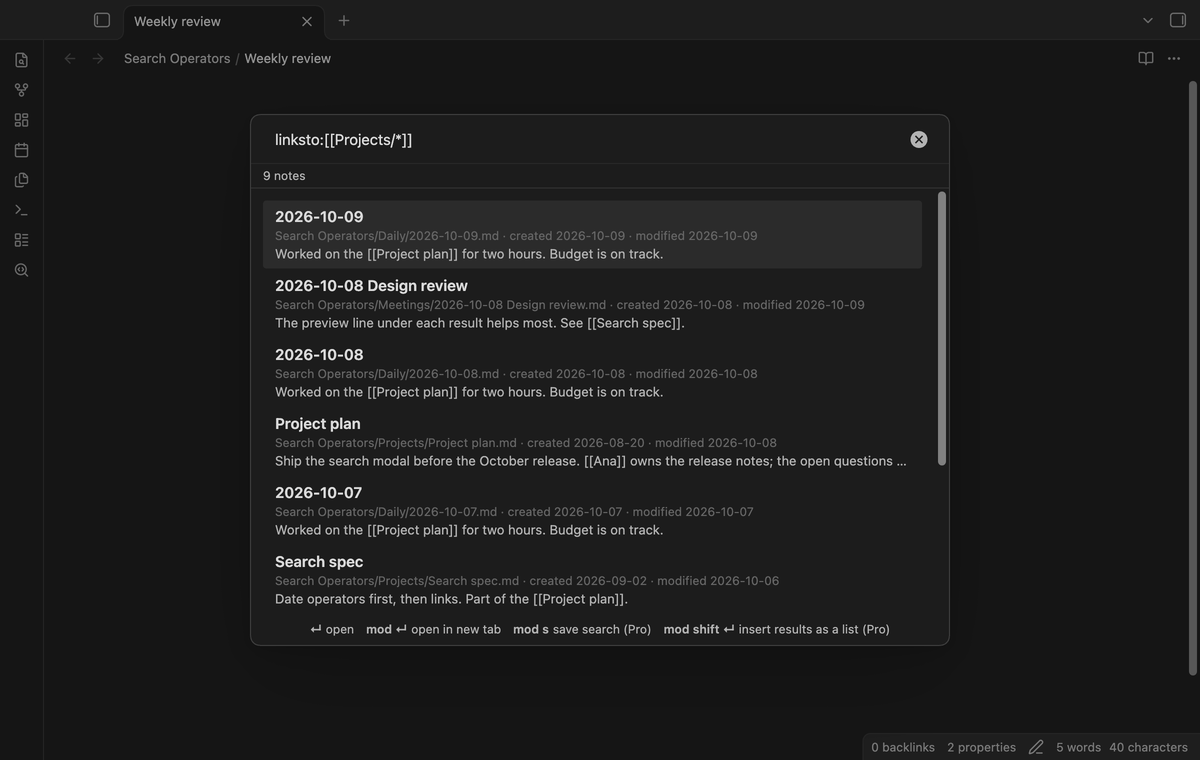 Put `*` or `?` in a link target to match a group of notes at once. `linksto:[[Projects/*]]` lists the notes that link to any note in a Projects folder, and `linkedfrom:[[Projects/*]]` lists the notes that the notes in a Projects folder link to. The `*` takes the place of any text and the `?` takes the place of one character. Case does not matter. A pattern matches the path of a note, the end of that path, or the file name, as a link does, so `Projects/*` also finds `Work/Projects/`. For `linksto`, a pattern also matches the link text as written, so a link to a note that does not exist yet still counts, and the search shows no error when no note has the name. This answers forum requests to see what links to a whole folder of notes, not one note at a time.
### Words, tags and paths with a preview line
Each plain word must appear in the title, the path or the text of the note. Put a phrase in quotes: `"search modal"`. For one word, a note with the word in its title ranks above a note with the word only in its text. Each result shows the path, the created and modified dates, and one line of the note. When you search for words, the line is the first one with a match, and the words are marked.
`tag:project` also finds nested tags such as `#project/search`. `path:meetings` matches any part of the path, and `file:kickoff` matches the file name. `sort:modified`, `sort:created`, `sort:name` and `sort:relevance` change the order.
Put `*` or `?` in a link target to match a group of notes at once. `linksto:[[Projects/*]]` lists the notes that link to any note in a Projects folder, and `linkedfrom:[[Projects/*]]` lists the notes that the notes in a Projects folder link to. The `*` takes the place of any text and the `?` takes the place of one character. Case does not matter. A pattern matches the path of a note, the end of that path, or the file name, as a link does, so `Projects/*` also finds `Work/Projects/`. For `linksto`, a pattern also matches the link text as written, so a link to a note that does not exist yet still counts, and the search shows no error when no note has the name. This answers forum requests to see what links to a whole folder of notes, not one note at a time.
### Words, tags and paths with a preview line
Each plain word must appear in the title, the path or the text of the note. Put a phrase in quotes: `"search modal"`. For one word, a note with the word in its title ranks above a note with the word only in its text. Each result shows the path, the created and modified dates, and one line of the note. When you search for words, the line is the first one with a match, and the words are marked.
`tag:project` also finds nested tags such as `#project/search`. `path:meetings` matches any part of the path, and `file:kickoff` matches the file name. `sort:modified`, `sort:created`, `sort:name` and `sort:relevance` change the order.
 ### OR, NOT and property operators (Pro)
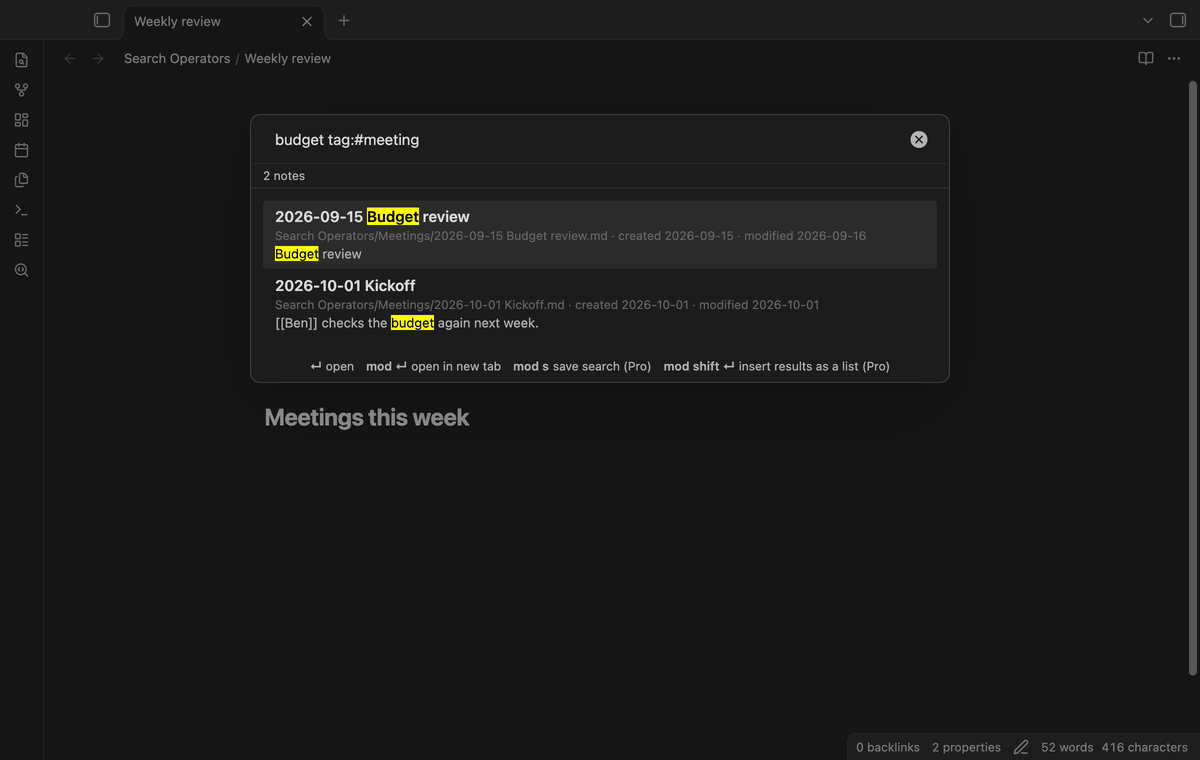
Put `OR` between two groups to get notes that match either group. Put `-` in front of any operator or word to exclude it: `path:meetings -tag:finance`. Property operators test frontmatter: `[status]` means the property has a value, `[status:done]` means it holds done, and `[priority:>5]` or `[due:<2026-11-01]` compare numbers or dates. Lists work: `[attendees:Ben]` finds a link to Ben in the attendees list.
Without Pro, a query with these parts lists nothing and the status line names the Pro part. So the list does not ignore the Pro part of your query.
### OR, NOT and property operators (Pro)
Put `OR` between two groups to get notes that match either group. Put `-` in front of any operator or word to exclude it: `path:meetings -tag:finance`. Property operators test frontmatter: `[status]` means the property has a value, `[status:done]` means it holds done, and `[priority:>5]` or `[due:<2026-11-01]` compare numbers or dates. Lists work: `[attendees:Ben]` finds a link to Ben in the attendees list.
Without Pro, a query with these parts lists nothing and the status line names the Pro part. So the list does not ignore the Pro part of your query.
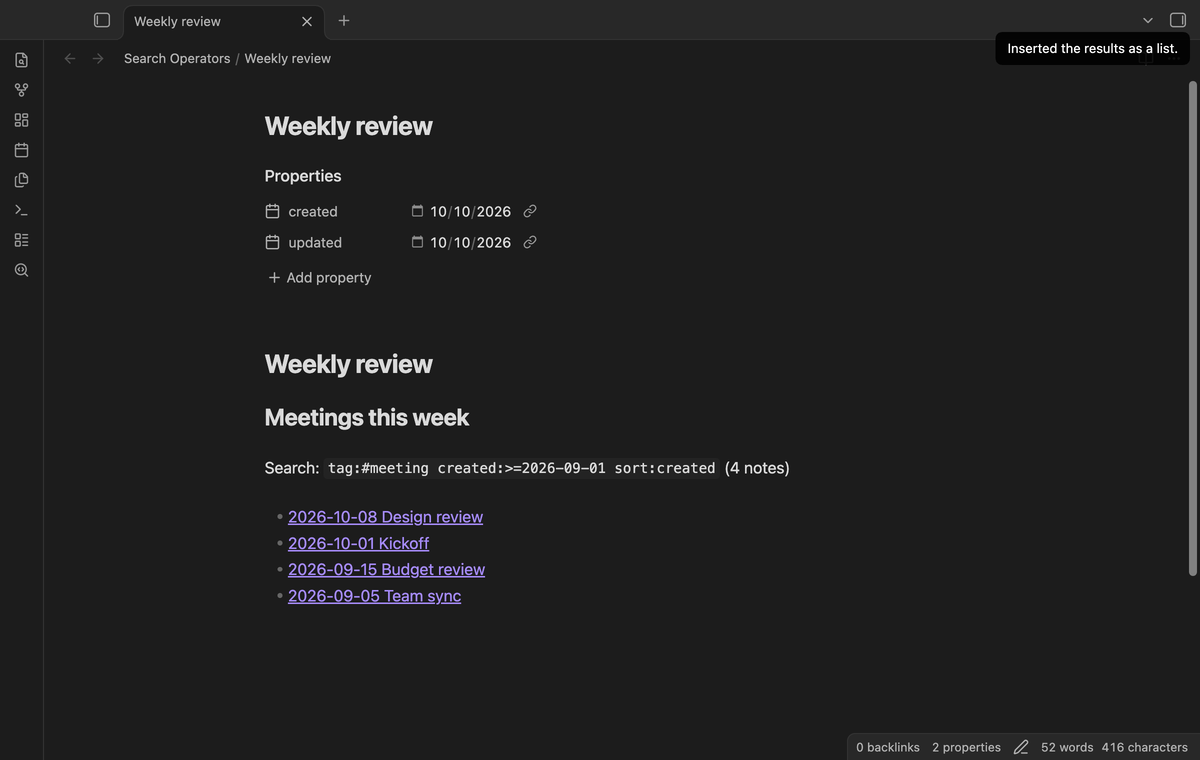
 ### Results as a Markdown list (Pro)
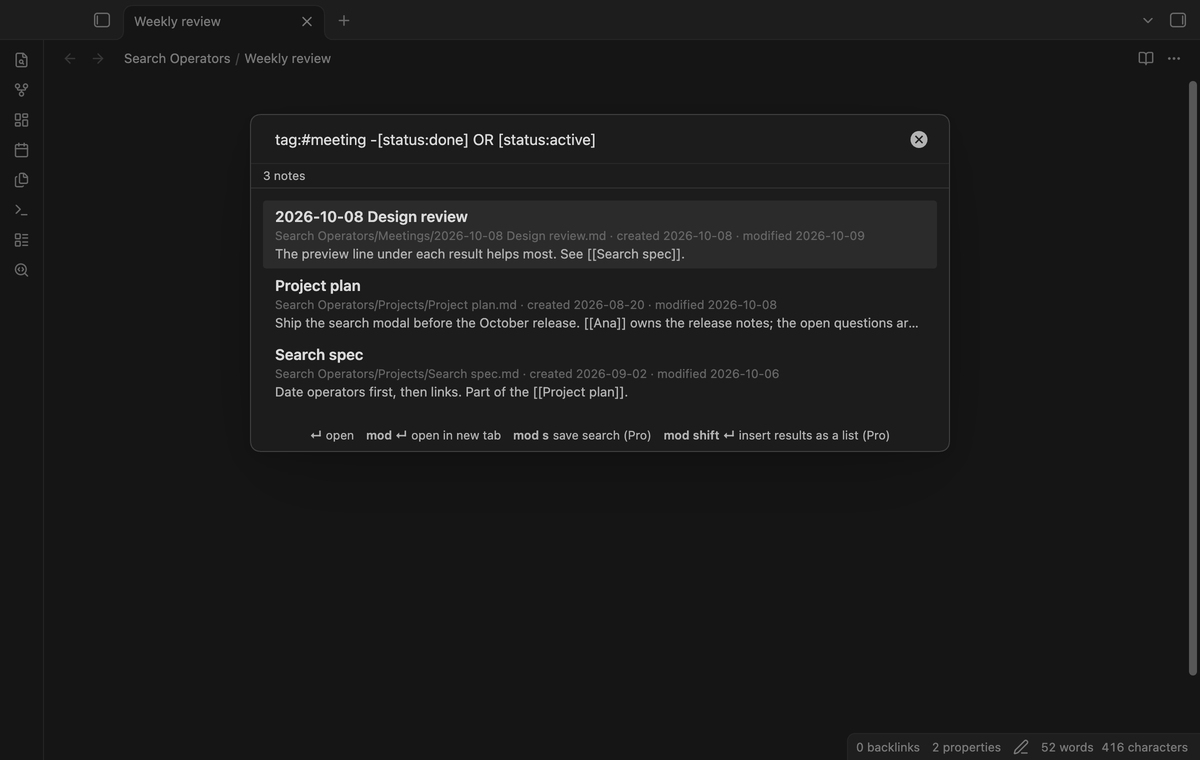
Press Ctrl or Cmd + Shift + Enter in the modal. The plugin writes the results into the active note at the cursor, after the selected text if there is a selection, as a list of wiki links with the query above it. If no note is in edit mode, the list goes to the clipboard.
### Results as a Markdown list (Pro)
Press Ctrl or Cmd + Shift + Enter in the modal. The plugin writes the results into the active note at the cursor, after the selected text if there is a selection, as a list of wiki links with the query above it. If no note is in edit mode, the list goes to the clipboard.
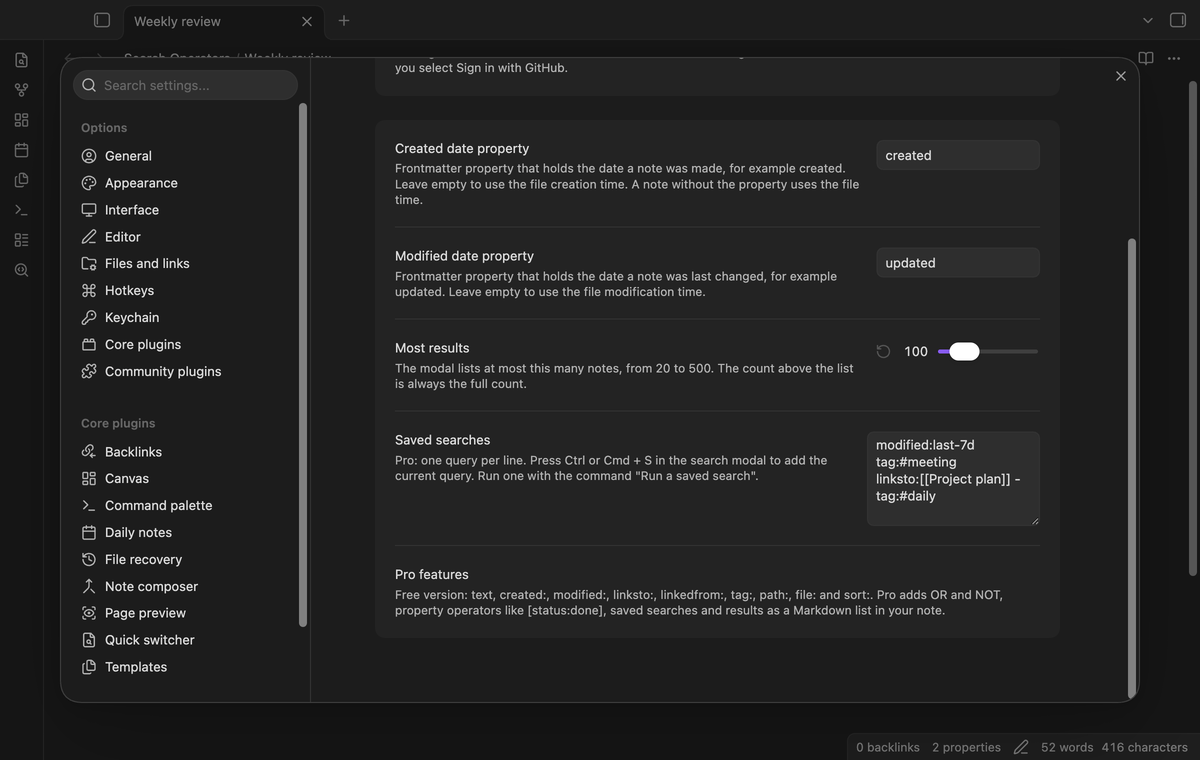
 ### Saved searches (Pro)
Press Ctrl or Cmd + S in the modal to save the query. The command "Run a saved search" lists them, and the modal opens with the one you pick. The saved searches are plain text in the settings, one per line, so you can edit them there.
### Saved searches (Pro)
Press Ctrl or Cmd + S in the modal to save the query. The command "Run a saved search" lists them, and the modal opens with the one you pick. The saved searches are plain text in the settings, one per line, so you can edit them there.
 ## Install
When Search Operators is listed in the community directory, open Settings, then Community plugins, then Browse, and search for "Search Operators". Select Install, then Enable.
To install by hand, download `main.js`, `manifest.json` and `styles.css` from the latest release. Put the three files in `/.obsidian/plugins/search-operators/`. Restart Obsidian or reload the list of community plugins, then turn on Search Operators.
## Usage
1. Open the command palette and run "Search notes with operators", or select the search icon in the ribbon.
2. Type words and operators. Spaces separate them, and each part must match. With Pro, `OR` between two groups matches either group.
3. Use the arrow keys to pick a note. Enter opens it. Ctrl or Cmd + Enter opens it in a new tab.
The line above the results shows the count, or a message when an operator has a problem. A bad date shows the date forms that work. An empty query shows a short list of examples.
Some queries to start with:
- `modified:last-7d tag:#project`: project notes you changed this week.
- `created:2026-10 path:Daily`: daily notes of October.
- `linksto:[[Ana]] created:>2026-09-01`: notes made after 1 September that link to Ana.
- `linkedfrom:[[Reading list]] sort:name`: the notes your reading list links to, by name.
When you open the modal, the plugin reads the notes that changed since the last search and keeps their text in memory. It does not read an unchanged note again. Links come from the link index of Obsidian. It writes nothing to your notes, except when you use the Pro list command.
## Settings
| Setting | What it does |
| --- | --- |
| Created date property | The frontmatter property with the date a note was made, for example `created`. Empty means the file creation time. A note without the property uses the file time. File creation times change when you copy or sync a vault, so a property is more reliable. |
| Modified date property | The same for the last change, for example `updated`. |
| Most results | The modal lists at most this many notes, from 20 to 500. The count above the list is the full count. |
| Saved searches (Pro) | One query per line. |
## FAQ
### Does this change the core search?
No. Core search keeps its own syntax. Search Operators is a separate modal with its own commands.
### Why do my created dates look wrong?
Sync tools and copies can reset the file creation time. Put the date in a property and set its name in the settings.
### Can I search inside PDFs or canvas files?
No. Only Markdown notes are searched.
### Does `tag:work` match `#job/work`?
No. It matches `#work` and tags below it, such as `#work/admin`.
### Is there a limit in the free version?
No. Words and the date, link, tag, path, file and sort operators search the full vault. The modal lists up to the number in the "Most results" setting (20 to 500), and the count above the list is the full count.
### How is this different from Omnisearch?
Omnisearch ranks notes by how well their words match, and it has filters for the file type and the path. It has no filter for dates or links. Use Omnisearch to find a note by its words, and Search Operators when you know when you wrote it or what it links to.
### How is this different from Dataview?
Dataview can list notes by date and by link, but you write each query in a code block in a note and it shows the list there. Search Operators is a quick search: you type, you see the list, and you open a note. Nothing goes into your notes.
### Does it work on a phone?
The plugin is not marked desktop only, and the modal uses the same suggestion list as the quick switcher. We test it on the desktop app only, not on a phone. Please report a problem on a phone in the issue tracker.
### How are the date ranges counted?
A day starts at midnight in the time zone of your device. A range such as `created:2026-09-01..2026-09-30` starts at the first midnight and ends at the midnight after the last day. A relative range such as `modified:last-7d` starts exactly seven days before the moment you type, and has no end, so a note you change while the modal is open still counts.
## Payment, account and network
The core features are free. Pro features need a GitHub Sponsors sponsorship of theluckystrike: $5 a month or more, or $15 once. A total payment of $15 meets the payment requirement for Pro without further payment. Sign-in and the checks below still apply. Your notes stay readable and editable with or without Pro.
GitHub handles the payment. Sponsor at https://github.com/sponsors/theluckystrike. You need no account for the free features. Pro needs the GitHub account that sponsors.
Until you select "Sign in with GitHub" in the settings, Search Operators makes no network requests. Sign in uses the GitHub device flow. Search Operators sends its public client ID and the scope `read:user` to `https://github.com/login/device/code` and shows you a code. While you enter the code at https://github.com/login/device, it asks `https://github.com/login/oauth/access_token` every few seconds to check the sign-in status. The scope permits profile reads only. GitHub needs this access to show the sponsorship tier. It grants no repository scope and no write access.
After sign in, Search Operators sends one query to `https://api.github.com/graphql`. It checks if the signed-in account sponsors theluckystrike. It asks for the tier and the total payment to theluckystrike. The plugin reuses a successful check for 7 days. Failed checks can retry after 6 hours. Select Refresh to request an earlier check. It sends no note content, file names or other vault data, and it has no telemetry.
After a successful check, Pro can work offline for up to 14 days. Sign out or a negative sponsorship answer turns Pro off. The plugin stores the GitHub token through the secret storage API of Obsidian. It does not put the token in its saved settings or its local sponsorship data. The local storage of this device keeps your GitHub login, the tier and the time of the last check. Sign out clears the token. You can also revoke the access in your GitHub settings, under Applications.
## Support
Report a bug or ask for a feature in the issue tracker of this repository. To support the work, use [GitHub Sponsors](https://github.com/sponsors/theluckystrike).
```
npm ci
npm run build
npm test
```
## License
MIT
## Install
When Search Operators is listed in the community directory, open Settings, then Community plugins, then Browse, and search for "Search Operators". Select Install, then Enable.
To install by hand, download `main.js`, `manifest.json` and `styles.css` from the latest release. Put the three files in `/.obsidian/plugins/search-operators/`. Restart Obsidian or reload the list of community plugins, then turn on Search Operators.
## Usage
1. Open the command palette and run "Search notes with operators", or select the search icon in the ribbon.
2. Type words and operators. Spaces separate them, and each part must match. With Pro, `OR` between two groups matches either group.
3. Use the arrow keys to pick a note. Enter opens it. Ctrl or Cmd + Enter opens it in a new tab.
The line above the results shows the count, or a message when an operator has a problem. A bad date shows the date forms that work. An empty query shows a short list of examples.
Some queries to start with:
- `modified:last-7d tag:#project`: project notes you changed this week.
- `created:2026-10 path:Daily`: daily notes of October.
- `linksto:[[Ana]] created:>2026-09-01`: notes made after 1 September that link to Ana.
- `linkedfrom:[[Reading list]] sort:name`: the notes your reading list links to, by name.
When you open the modal, the plugin reads the notes that changed since the last search and keeps their text in memory. It does not read an unchanged note again. Links come from the link index of Obsidian. It writes nothing to your notes, except when you use the Pro list command.
## Settings
| Setting | What it does |
| --- | --- |
| Created date property | The frontmatter property with the date a note was made, for example `created`. Empty means the file creation time. A note without the property uses the file time. File creation times change when you copy or sync a vault, so a property is more reliable. |
| Modified date property | The same for the last change, for example `updated`. |
| Most results | The modal lists at most this many notes, from 20 to 500. The count above the list is the full count. |
| Saved searches (Pro) | One query per line. |
## FAQ
### Does this change the core search?
No. Core search keeps its own syntax. Search Operators is a separate modal with its own commands.
### Why do my created dates look wrong?
Sync tools and copies can reset the file creation time. Put the date in a property and set its name in the settings.
### Can I search inside PDFs or canvas files?
No. Only Markdown notes are searched.
### Does `tag:work` match `#job/work`?
No. It matches `#work` and tags below it, such as `#work/admin`.
### Is there a limit in the free version?
No. Words and the date, link, tag, path, file and sort operators search the full vault. The modal lists up to the number in the "Most results" setting (20 to 500), and the count above the list is the full count.
### How is this different from Omnisearch?
Omnisearch ranks notes by how well their words match, and it has filters for the file type and the path. It has no filter for dates or links. Use Omnisearch to find a note by its words, and Search Operators when you know when you wrote it or what it links to.
### How is this different from Dataview?
Dataview can list notes by date and by link, but you write each query in a code block in a note and it shows the list there. Search Operators is a quick search: you type, you see the list, and you open a note. Nothing goes into your notes.
### Does it work on a phone?
The plugin is not marked desktop only, and the modal uses the same suggestion list as the quick switcher. We test it on the desktop app only, not on a phone. Please report a problem on a phone in the issue tracker.
### How are the date ranges counted?
A day starts at midnight in the time zone of your device. A range such as `created:2026-09-01..2026-09-30` starts at the first midnight and ends at the midnight after the last day. A relative range such as `modified:last-7d` starts exactly seven days before the moment you type, and has no end, so a note you change while the modal is open still counts.
## Payment, account and network
The core features are free. Pro features need a GitHub Sponsors sponsorship of theluckystrike: $5 a month or more, or $15 once. A total payment of $15 meets the payment requirement for Pro without further payment. Sign-in and the checks below still apply. Your notes stay readable and editable with or without Pro.
GitHub handles the payment. Sponsor at https://github.com/sponsors/theluckystrike. You need no account for the free features. Pro needs the GitHub account that sponsors.
Until you select "Sign in with GitHub" in the settings, Search Operators makes no network requests. Sign in uses the GitHub device flow. Search Operators sends its public client ID and the scope `read:user` to `https://github.com/login/device/code` and shows you a code. While you enter the code at https://github.com/login/device, it asks `https://github.com/login/oauth/access_token` every few seconds to check the sign-in status. The scope permits profile reads only. GitHub needs this access to show the sponsorship tier. It grants no repository scope and no write access.
After sign in, Search Operators sends one query to `https://api.github.com/graphql`. It checks if the signed-in account sponsors theluckystrike. It asks for the tier and the total payment to theluckystrike. The plugin reuses a successful check for 7 days. Failed checks can retry after 6 hours. Select Refresh to request an earlier check. It sends no note content, file names or other vault data, and it has no telemetry.
After a successful check, Pro can work offline for up to 14 days. Sign out or a negative sponsorship answer turns Pro off. The plugin stores the GitHub token through the secret storage API of Obsidian. It does not put the token in its saved settings or its local sponsorship data. The local storage of this device keeps your GitHub login, the tier and the time of the last check. Sign out clears the token. You can also revoke the access in your GitHub settings, under Applications.
## Support
Report a bug or ask for a feature in the issue tracker of this repository. To support the work, use [GitHub Sponsors](https://github.com/sponsors/theluckystrike).
```
npm ci
npm run build
npm test
```
## License
MIT