# PDF Cover Cards
PDF Cover Cards shows a PDF page on a Bases card. Keep one note for each document, with a PDF link. The plugin draws page 1 as its cover. Pick another page with `#page=N`.
This layout uses core Bases to select, filter and sort notes. It draws PDF pages with the reader included in Obsidian.
 ## Features
### Page 1 of the linked PDF on each card
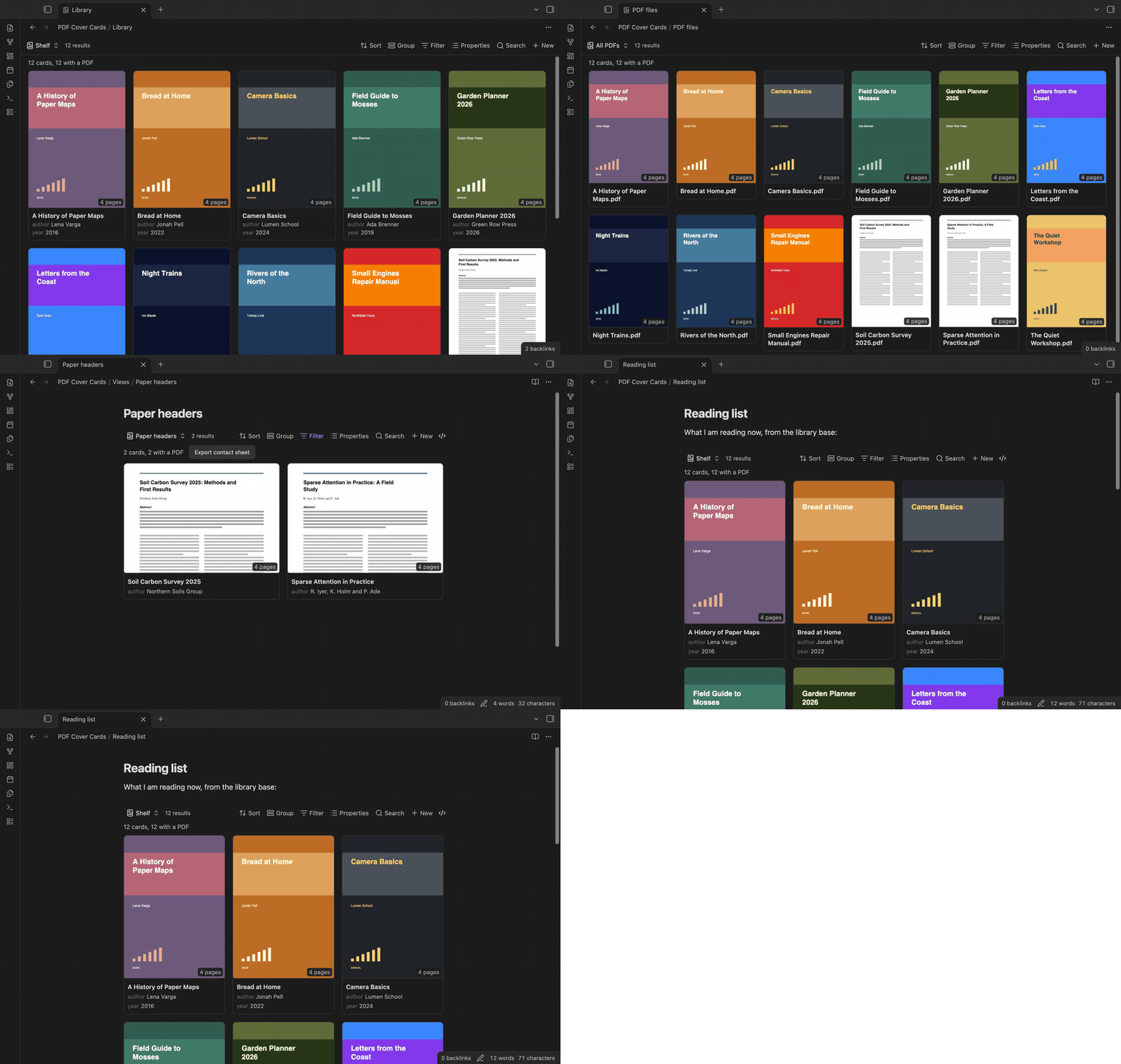
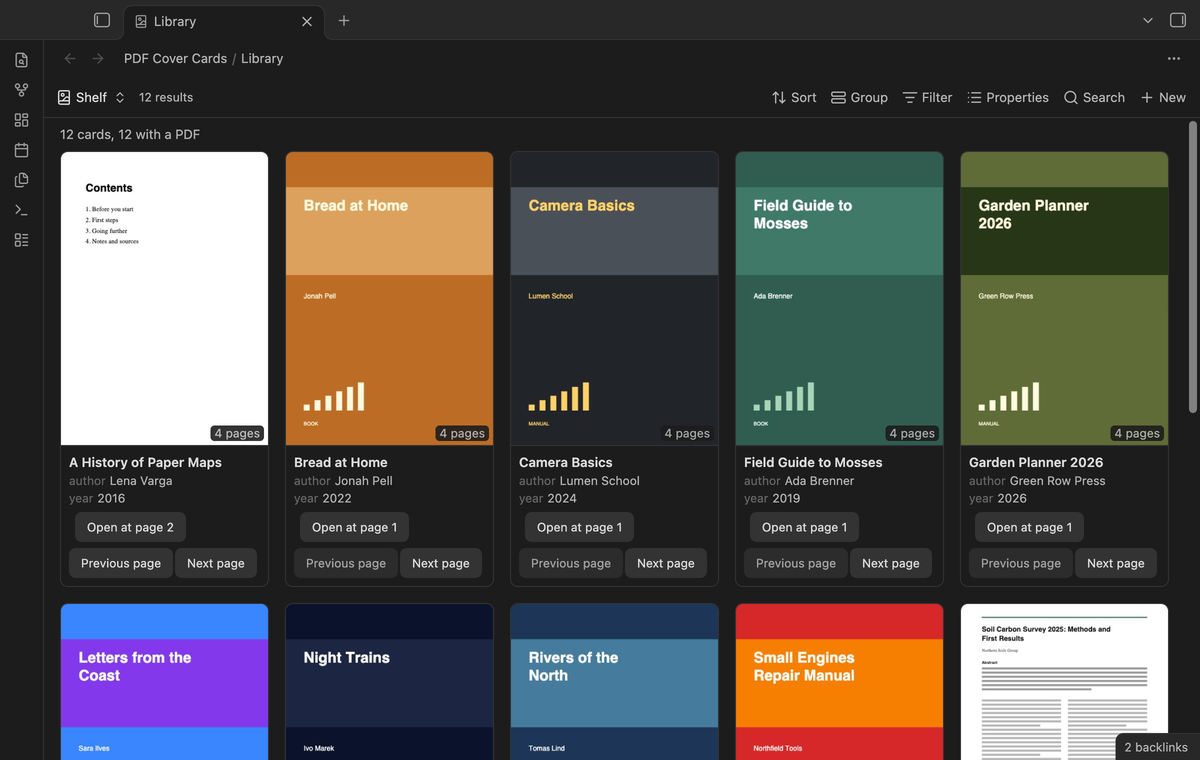
Choose a property that links to the PDF, for example `pdf: "[[Field Guide to Mosses.pdf]]"`. Each card shows page 1 of that file, the note name, the properties of the view and the page count. Click a card to open the note. Ctrl-click (Cmd-click on macOS) opens it in a new tab. The plugin can also use the first PDF that a note links to or embeds.
## Features
### Page 1 of the linked PDF on each card
Choose a property that links to the PDF, for example `pdf: "[[Field Guide to Mosses.pdf]]"`. Each card shows page 1 of that file, the note name, the properties of the view and the page count. Click a card to open the note. Ctrl-click (Cmd-click on macOS) opens it in a new tab. The plugin can also use the first PDF that a note links to or embeds.
How the plugin finds the PDF and the page
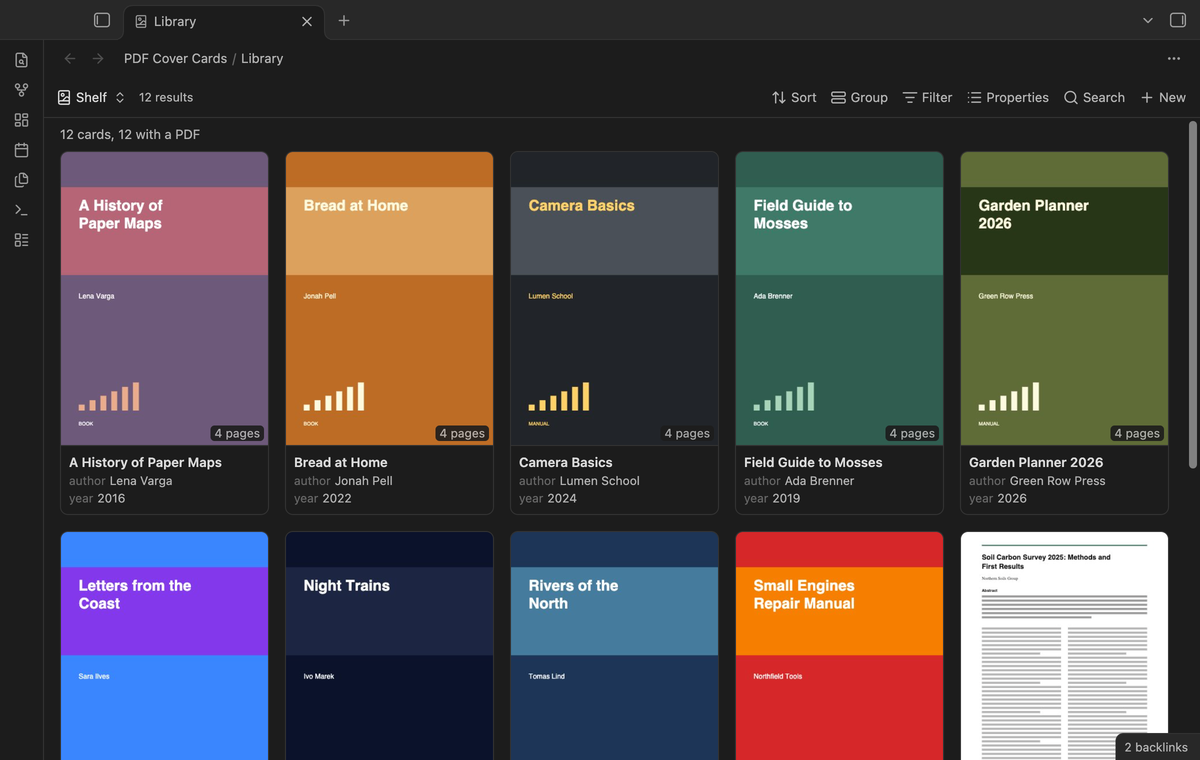
The plugin looks for the PDF in this order. A PDF file in the base is its own cover. Next comes the PDF property of the view, which can hold one link or a list. Last comes the first PDF that the note links to or embeds.
Add `#page=N` to a link to show another page, for example `[[Manual.pdf#page=3]]`.
 ### Open the PDF at the cover page
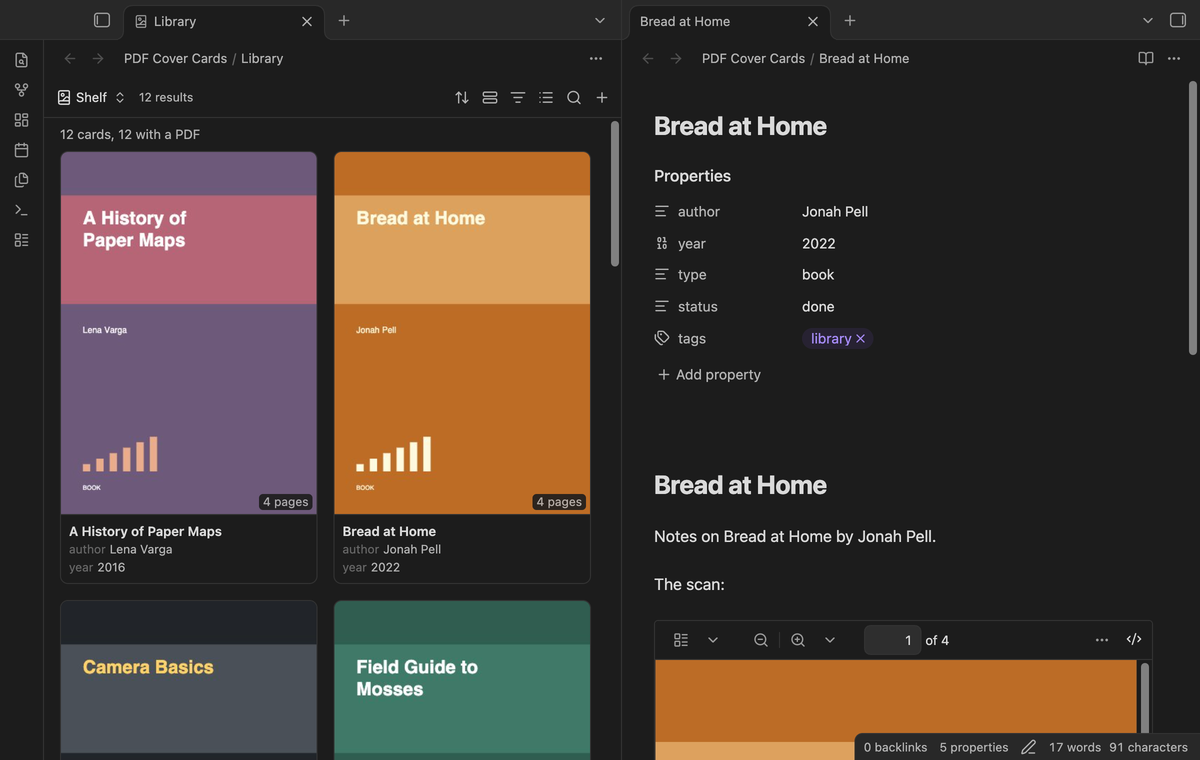
Each card with a PDF has an "Open at page N" button. The button opens the PDF of the cover at the page that the card shows. Ctrl-click (Cmd-click on macOS) the button to open the PDF in a new tab. Cards without a PDF have no button.
### Open the PDF at the cover page
Each card with a PDF has an "Open at page N" button. The button opens the PDF of the cover at the page that the card shows. Ctrl-click (Cmd-click on macOS) the button to open the PDF in a new tab. Cards without a PDF have no button.
 ### Browse PDF pages on a card
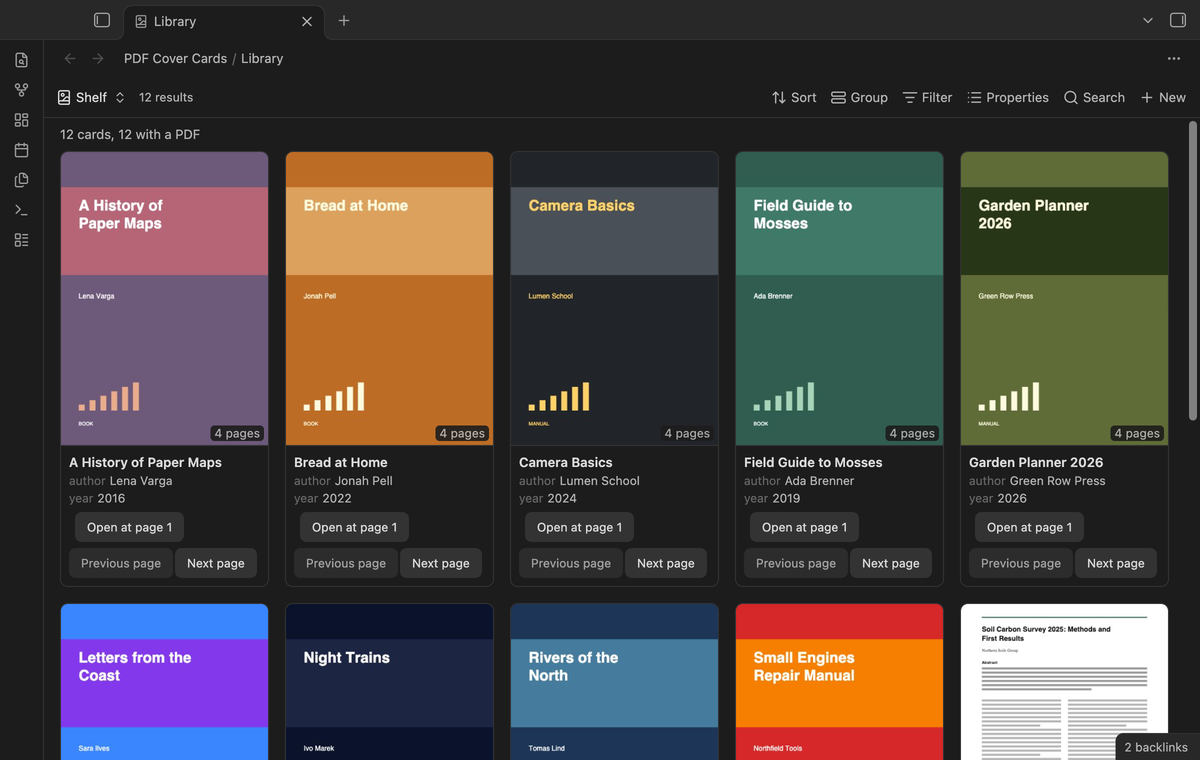
Use "Previous page" or "Next page" to preview another page. The open button follows the preview. Controls appear on drawn PDFs with two or more pages. They stop at the first and last pages.
Page browsing is free within the 30-cover limit. It does not change the PDF or the note. A view refresh restores the page from the PDF link.
### Browse PDF pages on a card
Use "Previous page" or "Next page" to preview another page. The open button follows the preview. Controls appear on drawn PDFs with two or more pages. They stop at the first and last pages.
Page browsing is free within the 30-cover limit. It does not change the PDF or the note. A view refresh restores the page from the PDF link.
 ### PDF files as cards
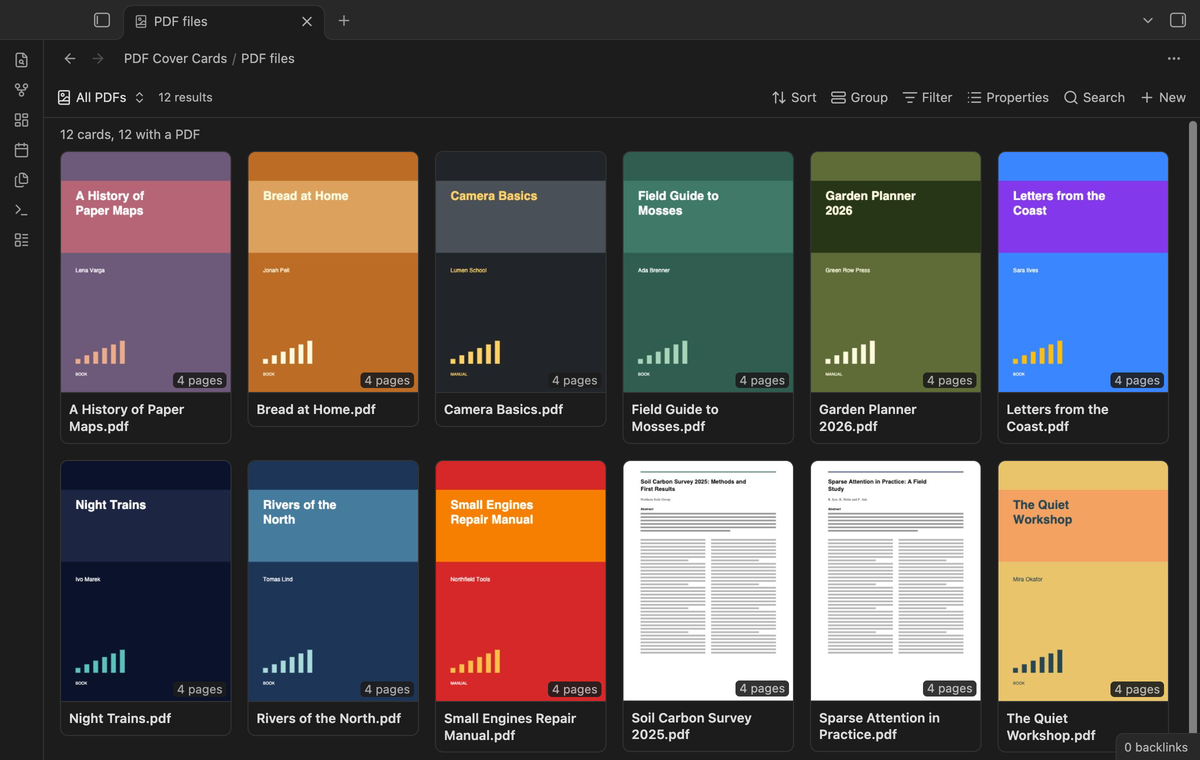
A base can select the PDF files themselves, for example with the filter `file.ext == "pdf"`. Then each PDF is a card with its own cover.
### PDF files as cards
A base can select the PDF files themselves, for example with the filter `file.ext == "pdf"`. Then each PDF is a card with its own cover.
 ### Embeds and live update
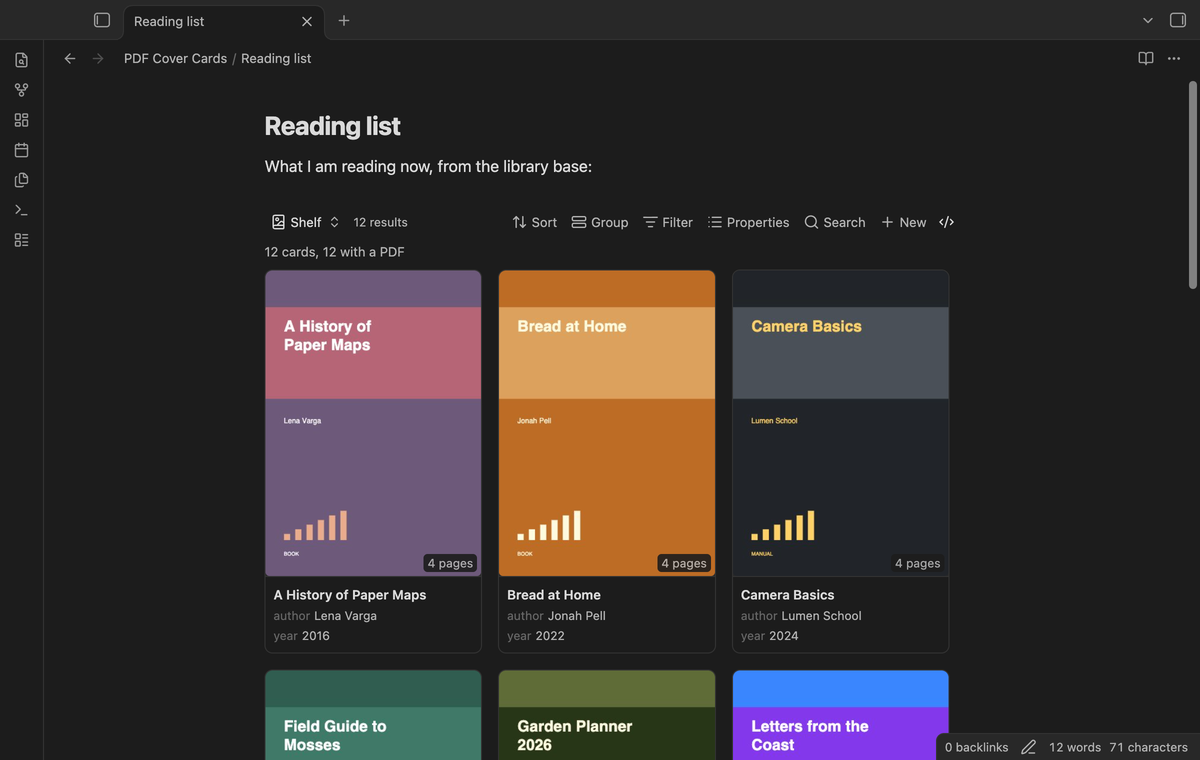
Embed the layout in any note with `![[Library.base#Shelf]]`. When a PDF changes, its cover draws again.
### Embeds and live update
Embed the layout in any note with `![[Library.base#Shelf]]`. When a PDF changes, its cover draws again.
 ### Cover crop (Pro)
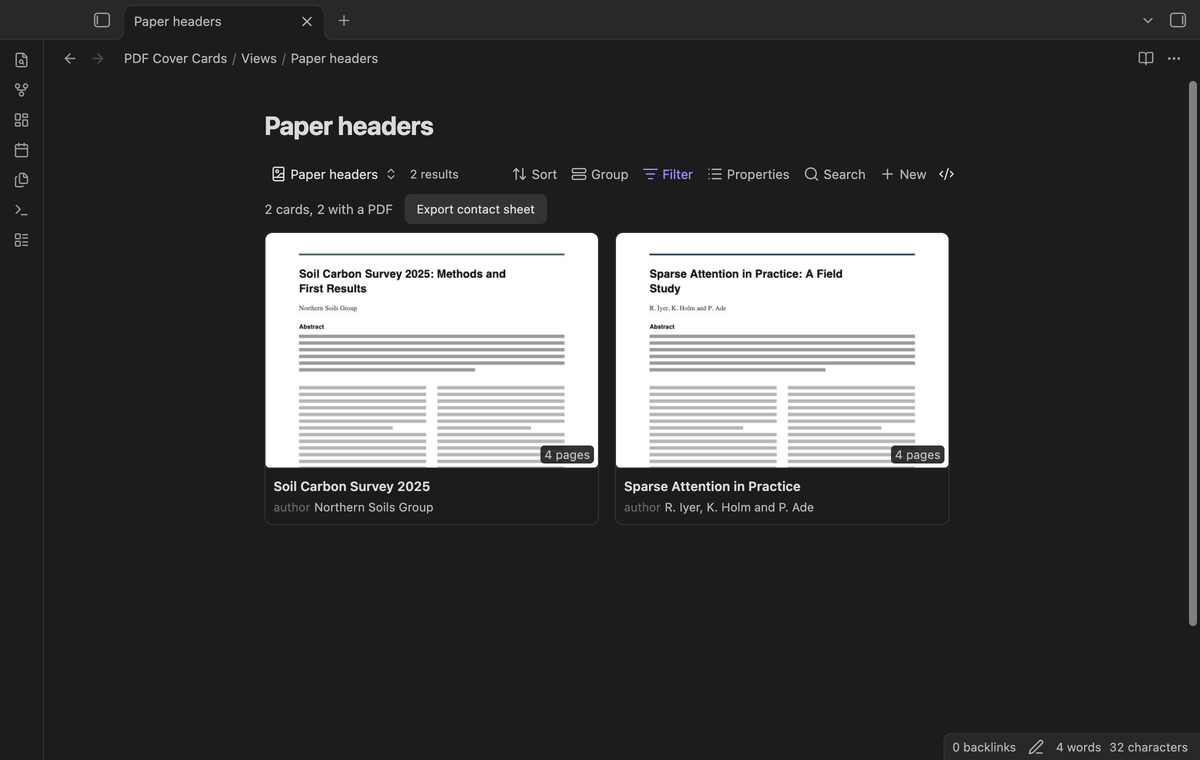
Show only the top half or the top third of the page. For papers and reports, the title and the abstract are then large enough to read on the card.
### Cover crop (Pro)
Show only the top half or the top third of the page. For papers and reports, the title and the abstract are then large enough to read on the card.
 ### Contact sheet export (Pro)
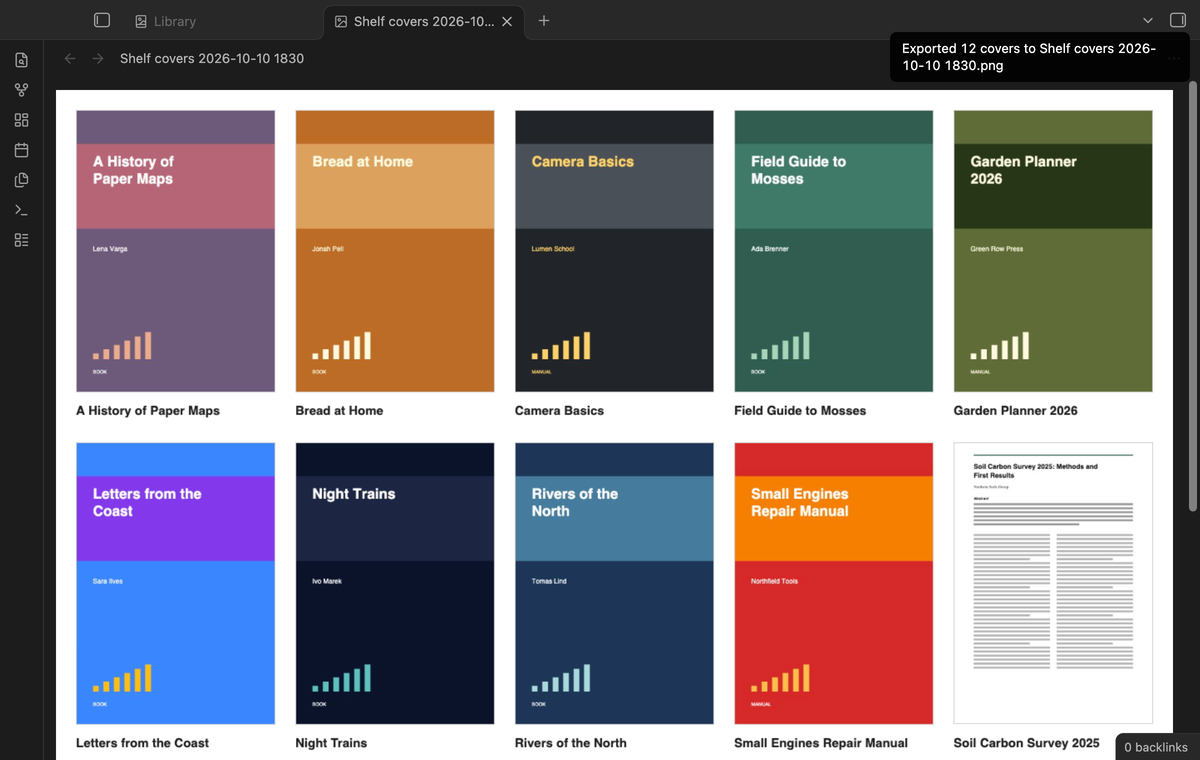
Export the drawn covers of the view to a PNG image, with the note name under each picture. A view with more than about 150 covers goes on more than one image. The images go into the folder for new files. Use the button above the cards or the command "Export the covers of this view as a contact sheet".
### Contact sheet export (Pro)
Export the drawn covers of the view to a PNG image, with the note name under each picture. A view with more than about 150 covers goes on more than one image. The images go into the folder for new files. Use the button above the cards or the command "Export the covers of this view as a contact sheet".
 ## Install
1. Open "Settings → Community plugins" and turn off restricted mode.
2. Select "Browse", search for "PDF Cover Cards", then select "Install" and "Enable".
3. Make sure that the core plugin "Bases" is on ("Settings → Core plugins").
## Usage
1. Create a base, or open one. Set its filters so that it selects your document notes, for example a folder or a tag.
2. Select the view menu in the base toolbar and add a view of the type "PDF covers".
3. Open the view options. In "PDF property", choose the property that holds the link to the PDF.
4. Use "Properties" in the base toolbar to choose the properties that show under the title.
The plugin draws covers near the screen, with at most two PDFs at a time by default. Pro saves JPEG covers in the plugin folder for reuse.
## Pro
The free version draws the covers of the first 30 cards of a view that have a PDF. It includes the property and link rules, `#page=N`, PDF files as cards, the properties on the cards, embeds and live update. When a view has more cards with a PDF, a line above the cards says how many covers it did not draw.
Pro draws covers on every card (the free version draws the first 30), crops covers to the top of the page, saves drawn covers so large bases open fast, and exports PNG contact sheets, split for large views. To get it:
1. Sponsor [theluckystrike on GitHub Sponsors](https://github.com/sponsors/theluckystrike) with $5 a month, or $15 once. A total payment of $15 meets the payment requirement for Pro without further payment. Sign-in and the checks below still apply.
2. In Obsidian, open the settings of PDF Cover Cards and select "Sign in with GitHub".
3. The plugin copies a code and opens github.com/login/device. Paste the code there and approve.
The status line then shows your GitHub login and the tier. If you sponsor after you sign in, select Refresh. A negative sponsorship answer turns Pro off.
## Settings
The view options are in the base toolbar. Bases saves them with each view in the base file.
| Option | What it does |
| --- | --- |
| PDF property | The property that links to the PDF. It can hold one link or a list. |
| Use the first PDF link in the note | When the property gives no PDF, use the first PDF that the note links to or embeds. On by default. |
| Card width | From 120 to 400 pixels. |
| Show properties | Shows the properties of the view under the title. |
| Cover crop (Pro) | Whole page, top half or top third. |
## Install
1. Open "Settings → Community plugins" and turn off restricted mode.
2. Select "Browse", search for "PDF Cover Cards", then select "Install" and "Enable".
3. Make sure that the core plugin "Bases" is on ("Settings → Core plugins").
## Usage
1. Create a base, or open one. Set its filters so that it selects your document notes, for example a folder or a tag.
2. Select the view menu in the base toolbar and add a view of the type "PDF covers".
3. Open the view options. In "PDF property", choose the property that holds the link to the PDF.
4. Use "Properties" in the base toolbar to choose the properties that show under the title.
The plugin draws covers near the screen, with at most two PDFs at a time by default. Pro saves JPEG covers in the plugin folder for reuse.
## Pro
The free version draws the covers of the first 30 cards of a view that have a PDF. It includes the property and link rules, `#page=N`, PDF files as cards, the properties on the cards, embeds and live update. When a view has more cards with a PDF, a line above the cards says how many covers it did not draw.
Pro draws covers on every card (the free version draws the first 30), crops covers to the top of the page, saves drawn covers so large bases open fast, and exports PNG contact sheets, split for large views. To get it:
1. Sponsor [theluckystrike on GitHub Sponsors](https://github.com/sponsors/theluckystrike) with $5 a month, or $15 once. A total payment of $15 meets the payment requirement for Pro without further payment. Sign-in and the checks below still apply.
2. In Obsidian, open the settings of PDF Cover Cards and select "Sign in with GitHub".
3. The plugin copies a code and opens github.com/login/device. Paste the code there and approve.
The status line then shows your GitHub login and the tier. If you sponsor after you sign in, select Refresh. A negative sponsorship answer turns Pro off.
## Settings
The view options are in the base toolbar. Bases saves them with each view in the base file.
| Option | What it does |
| --- | --- |
| PDF property | The property that links to the PDF. It can hold one link or a list. |
| Use the first PDF link in the note | When the property gives no PDF, use the first PDF that the note links to or embeds. On by default. |
| Card width | From 120 to 400 pixels. |
| Show properties | Shows the properties of the view under the title. |
| Cover crop (Pro) | Whole page, top half or top third. |
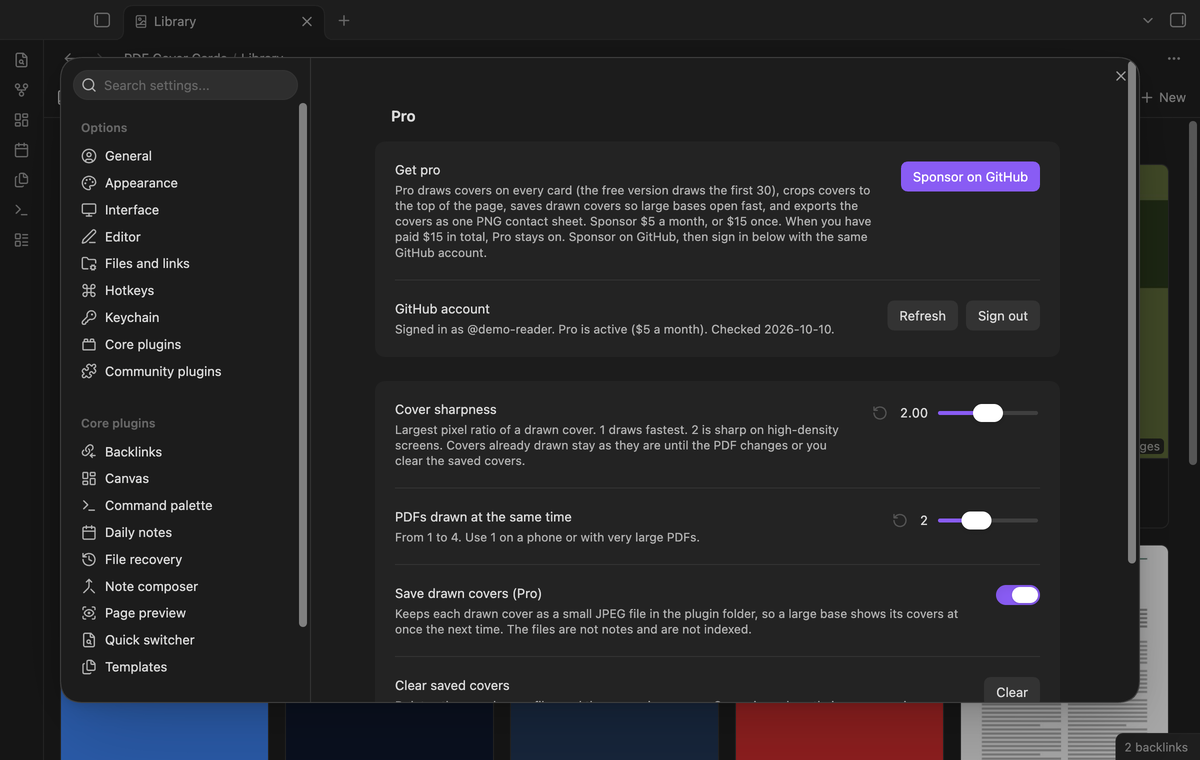 The plugin settings tab has the Pro section (sign in with GitHub, status and Refresh) and these settings:
- "Cover sharpness" is the largest pixel ratio of a drawn picture, from 1 to 3. 1 is the fastest, 2 is sharp on high-density screens. The default is 2.
- "PDFs drawn at the same time" is from 1 to 4. Use 1 on a phone or with very large PDFs. The default is 2.
- "Save drawn covers (Pro)" keeps the drawn pictures in the plugin folder. On by default.
- "Clear saved covers" deletes the saved pictures. The command "Clear saved covers" does the same.
## FAQ
### Does PDF Cover Cards change my notes or my PDFs?
No. It only reads them. The contact sheet export makes new PNG files. Saved covers go into the plugin folder, not between your notes.
### How is this different from the core Cards layout?
The core Cards layout shows an image property as the picture. It shows nothing for a PDF link. This plugin draws the PDF page. The first post of the request on the Obsidian forum ("Allow PDFs as card image in Base") has 16 likes.
### How fast is it?
The plugin draws only the covers near the screen. In the end-to-end test, a base of 200 notes with 12 PDFs draws its first 30 covers. The time depends on your device and on the PDFs. The first open after the app starts is slower, because Obsidian loads its PDF reader then. Large scanned PDFs take longer.
### Which PDFs work?
Each PDF that the Obsidian PDF viewer opens. A damaged or locked PDF shows a short message on its card.
## Payment, account and network
The core features are free. Pro features need a GitHub Sponsors sponsorship of theluckystrike: $5 a month or more, or $15 once. A total payment of $15 meets the payment requirement for Pro without further payment. Sign-in and the checks below still apply. Your notes stay readable and editable with or without Pro.
GitHub handles the payment. Sponsor at https://github.com/sponsors/theluckystrike. You need no account for the free features. Pro needs the GitHub account that sponsors.
Until you select "Sign in with GitHub" in the settings, PDF Cover Cards makes no network requests. Sign in uses the GitHub device flow. PDF Cover Cards sends its public client ID and the scope `read:user` to `https://github.com/login/device/code` and shows you a code. While you enter the code at https://github.com/login/device, it asks `https://github.com/login/oauth/access_token` every few seconds to check the sign-in status. The scope permits profile reads only. GitHub needs this access to show the sponsorship tier. It grants no repository scope and no write access.
After sign in, PDF Cover Cards sends one query to `https://api.github.com/graphql`. It checks if the signed-in account sponsors theluckystrike. It asks for the tier and the total payment to theluckystrike. The plugin reuses a successful check for 7 days. Failed checks can retry after 6 hours. Select Refresh to request an earlier check. It sends no note content, file names or other vault data, and it has no telemetry.
After a successful check, Pro can work offline for up to 14 days. Sign out or a negative sponsorship answer turns Pro off. The plugin stores the GitHub token through the secret storage API of Obsidian. It does not put the token in its saved settings or its local sponsorship data. The local storage of this device keeps your GitHub login, the tier and the time of the last check. Sign out clears the token. You can also revoke the access in your GitHub settings, under Applications.
## Support
Report bugs and feature requests in this repository's GitHub issues.
The plugin settings tab has the Pro section (sign in with GitHub, status and Refresh) and these settings:
- "Cover sharpness" is the largest pixel ratio of a drawn picture, from 1 to 3. 1 is the fastest, 2 is sharp on high-density screens. The default is 2.
- "PDFs drawn at the same time" is from 1 to 4. Use 1 on a phone or with very large PDFs. The default is 2.
- "Save drawn covers (Pro)" keeps the drawn pictures in the plugin folder. On by default.
- "Clear saved covers" deletes the saved pictures. The command "Clear saved covers" does the same.
## FAQ
### Does PDF Cover Cards change my notes or my PDFs?
No. It only reads them. The contact sheet export makes new PNG files. Saved covers go into the plugin folder, not between your notes.
### How is this different from the core Cards layout?
The core Cards layout shows an image property as the picture. It shows nothing for a PDF link. This plugin draws the PDF page. The first post of the request on the Obsidian forum ("Allow PDFs as card image in Base") has 16 likes.
### How fast is it?
The plugin draws only the covers near the screen. In the end-to-end test, a base of 200 notes with 12 PDFs draws its first 30 covers. The time depends on your device and on the PDFs. The first open after the app starts is slower, because Obsidian loads its PDF reader then. Large scanned PDFs take longer.
### Which PDFs work?
Each PDF that the Obsidian PDF viewer opens. A damaged or locked PDF shows a short message on its card.
## Payment, account and network
The core features are free. Pro features need a GitHub Sponsors sponsorship of theluckystrike: $5 a month or more, or $15 once. A total payment of $15 meets the payment requirement for Pro without further payment. Sign-in and the checks below still apply. Your notes stay readable and editable with or without Pro.
GitHub handles the payment. Sponsor at https://github.com/sponsors/theluckystrike. You need no account for the free features. Pro needs the GitHub account that sponsors.
Until you select "Sign in with GitHub" in the settings, PDF Cover Cards makes no network requests. Sign in uses the GitHub device flow. PDF Cover Cards sends its public client ID and the scope `read:user` to `https://github.com/login/device/code` and shows you a code. While you enter the code at https://github.com/login/device, it asks `https://github.com/login/oauth/access_token` every few seconds to check the sign-in status. The scope permits profile reads only. GitHub needs this access to show the sponsorship tier. It grants no repository scope and no write access.
After sign in, PDF Cover Cards sends one query to `https://api.github.com/graphql`. It checks if the signed-in account sponsors theluckystrike. It asks for the tier and the total payment to theluckystrike. The plugin reuses a successful check for 7 days. Failed checks can retry after 6 hours. Select Refresh to request an earlier check. It sends no note content, file names or other vault data, and it has no telemetry.
After a successful check, Pro can work offline for up to 14 days. Sign out or a negative sponsorship answer turns Pro off. The plugin stores the GitHub token through the secret storage API of Obsidian. It does not put the token in its saved settings or its local sponsorship data. The local storage of this device keeps your GitHub login, the tier and the time of the last check. Sign out clears the token. You can also revoke the access in your GitHub settings, under Applications.
## Support
Report bugs and feature requests in this repository's GitHub issues.