# Heading Link Sync
Heading Link Sync updates heading wikilinks when you retype a heading. Change `## Milestones` to `## Roadmap`, then leave the line. Links such as `[[Project Plan#Milestones]]` become `[[Project Plan#Roadmap]]`.
The core heading and block rename commands open a dialog. Links do not follow a heading that you retype.
Heading sync for wikilinks and embeds, and reference counts in the editor, are free. Pro adds Markdown links, block ID links, a preview of the changes and a report of broken heading links. Pro costs $5 a month or $15 once.
## Features
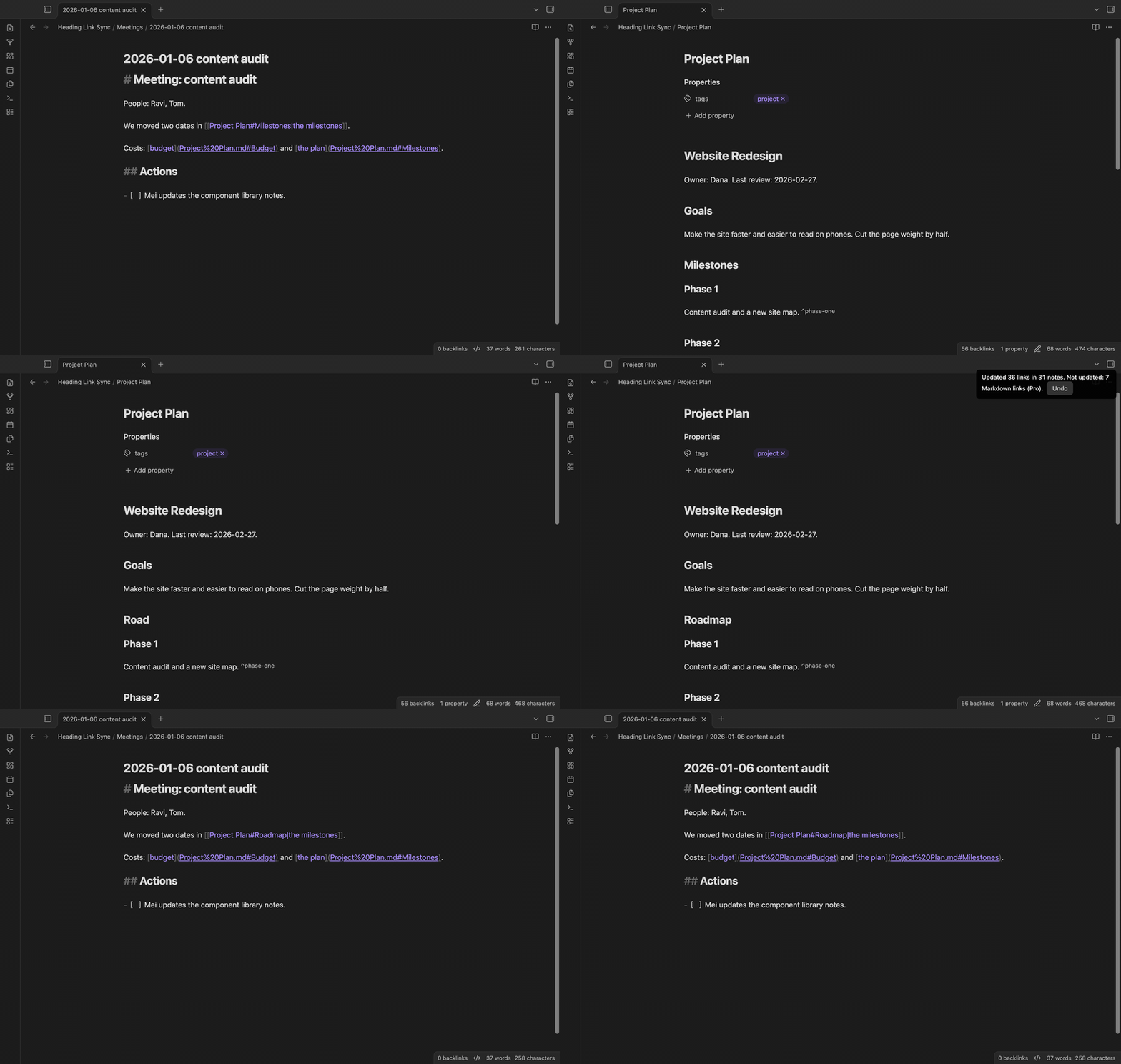 ### Rename a heading by typing
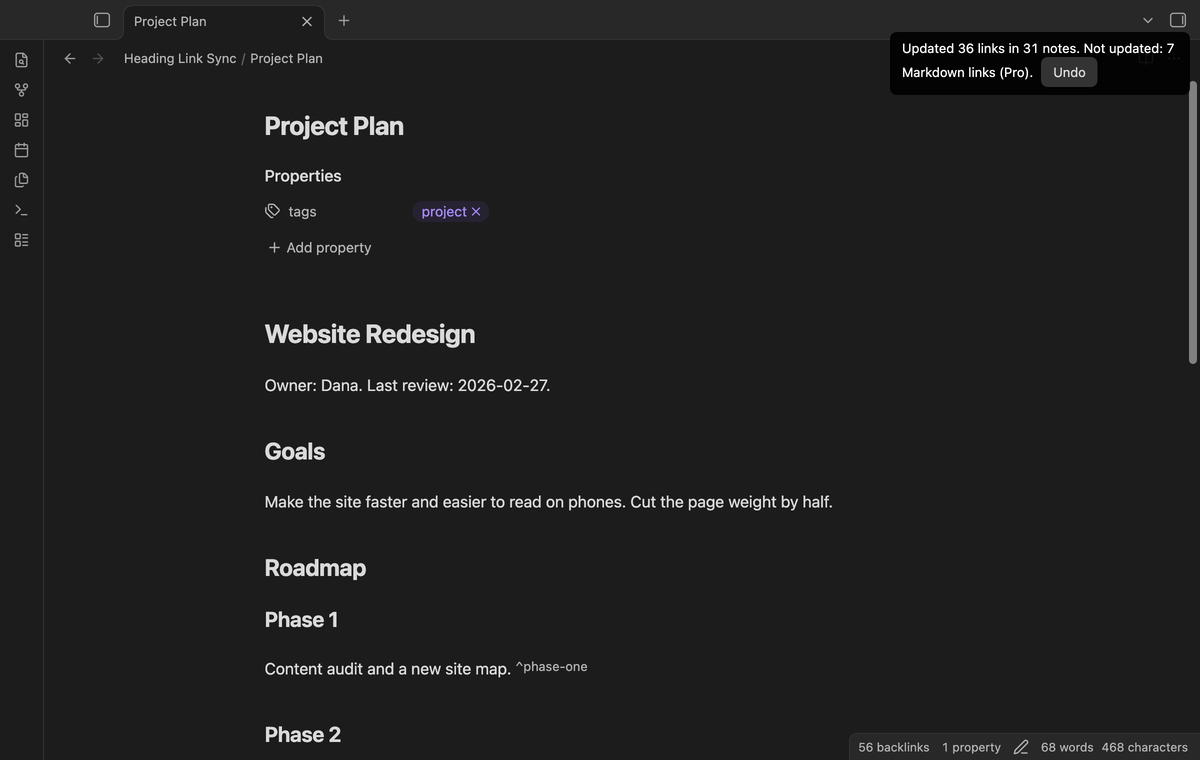 Leave the heading line or stop typing for 1.5 seconds. The plugin updates the links and shows a count with an Undo button.
Undo restores changed links. If a link is no longer certain, Undo leaves that note alone and reports it. The command "Undo the last link update" does the same.
### Wikilink forms that follow
Leave the heading line or stop typing for 1.5 seconds. The plugin updates the links and shows a count with an Undo button.
Undo restores changed links. If a link is no longer certain, Undo leaves that note alone and reports it. The command "Undo the last link update" does the same.
### Wikilink forms that follow
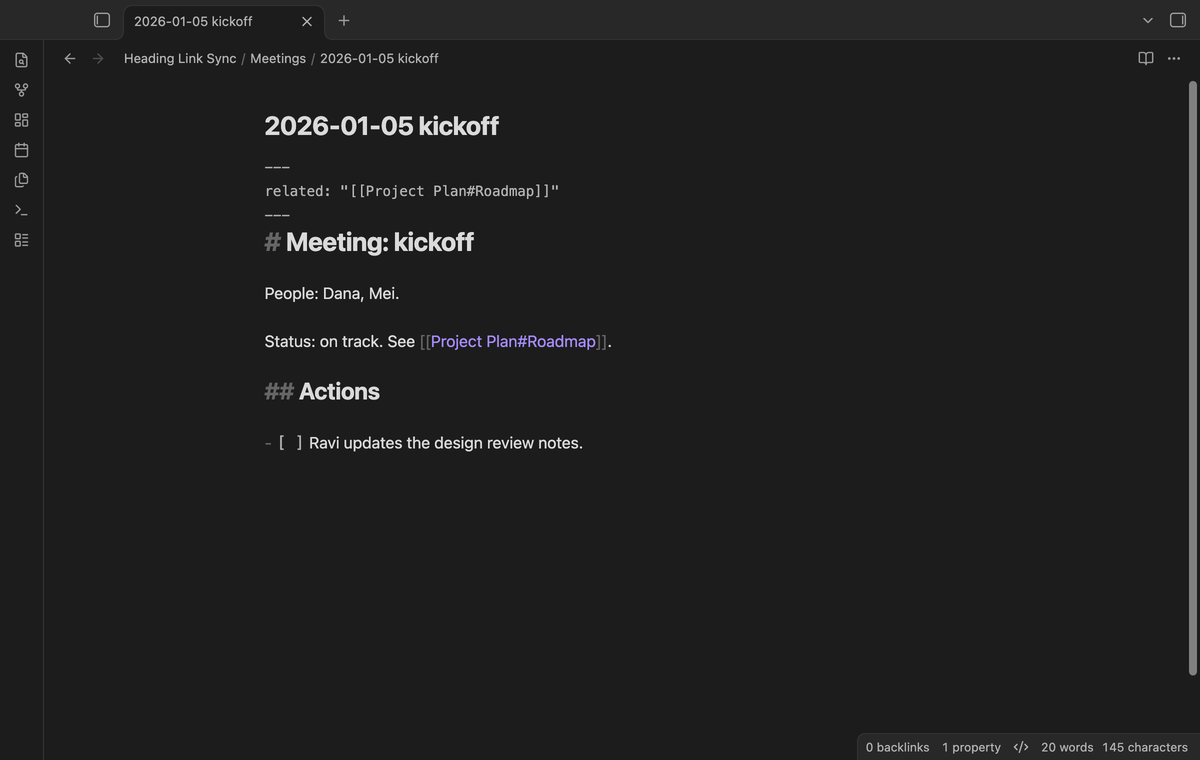 These forms are updated in the free version:
- `[[Note#Heading]]` and `[[Note#Heading|alias]]`, where the alias stays as it is
- embeds such as `![[Note#Heading]]`
- `[[#Heading]]` inside the same note
- nested paths such as `[[Note#Milestones#Phase 1]]`
- wikilinks in properties, such as `related: "[[Note#Heading]]"`
Links in tables keep their escaped pipe. Links in fenced code, inline code and math blocks do not change. The plugin compares heading text the same way as the app: case and special characters such as `:` or `?` do not matter.
### Reference counts in the editor
These forms are updated in the free version:
- `[[Note#Heading]]` and `[[Note#Heading|alias]]`, where the alias stays as it is
- embeds such as `![[Note#Heading]]`
- `[[#Heading]]` inside the same note
- nested paths such as `[[Note#Milestones#Phase 1]]`
- wikilinks in properties, such as `related: "[[Note#Heading]]"`
Links in tables keep their escaped pipe. Links in fenced code, inline code and math blocks do not change. The plugin compares heading text the same way as the app: case and special characters such as `:` or `?` do not matter.
### Reference counts in the editor
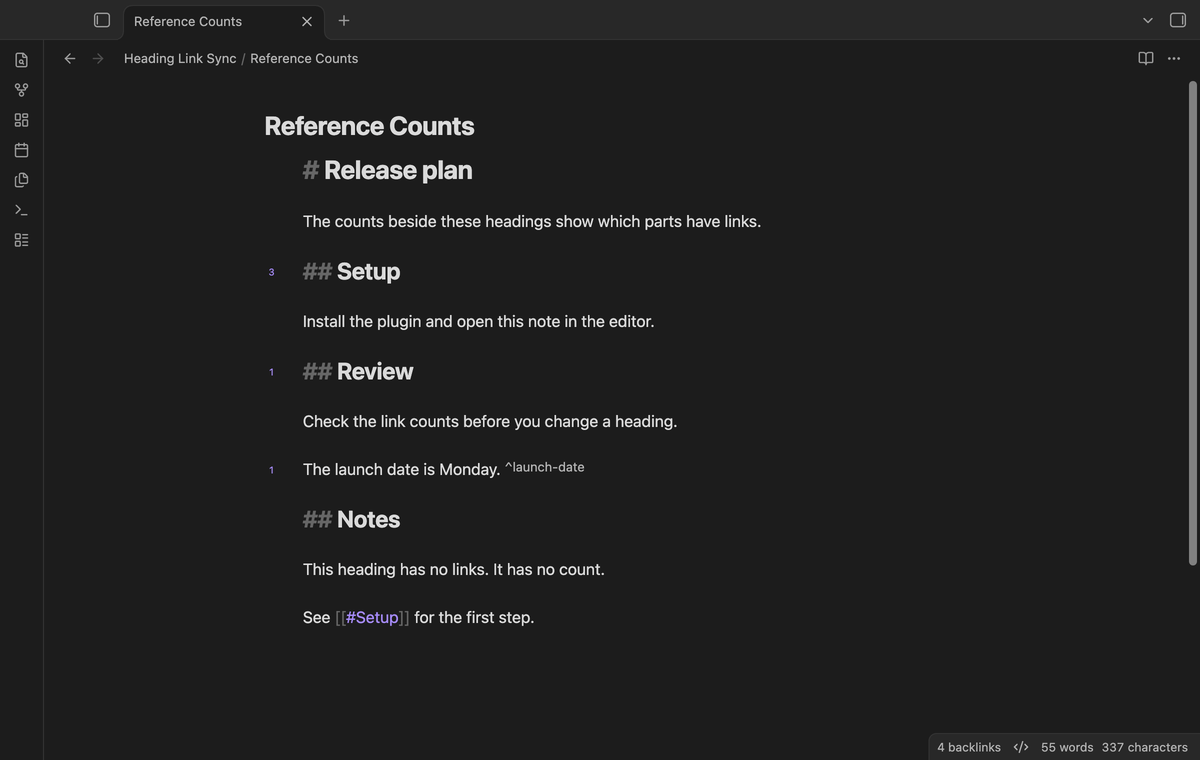 A number beside a heading or block ID shows how many links point to it. The count includes wikilinks, Markdown links, embeds, property links and links inside the same note. Counts are per link. Unreferenced text has no number.
Counts refresh after Obsidian indexes edits, renames or deletions. Old line positions clear while you type. A nested path counts for its last heading. A plain link to a duplicate heading counts for the first match, as it does in Obsidian. Broken subpaths and links from excluded folders do not count. Counts are free, including those for Markdown links and block IDs. Turn off "Show reference counts" to hide them.
### Ask first
A number beside a heading or block ID shows how many links point to it. The count includes wikilinks, Markdown links, embeds, property links and links inside the same note. Counts are per link. Unreferenced text has no number.
Counts refresh after Obsidian indexes edits, renames or deletions. Old line positions clear while you type. A nested path counts for its last heading. A plain link to a duplicate heading counts for the first match, as it does in Obsidian. Broken subpaths and links from excluded folders do not count. Counts are free, including those for Markdown links and block IDs. Turn off "Show reference counts" to hide them.
### Ask first
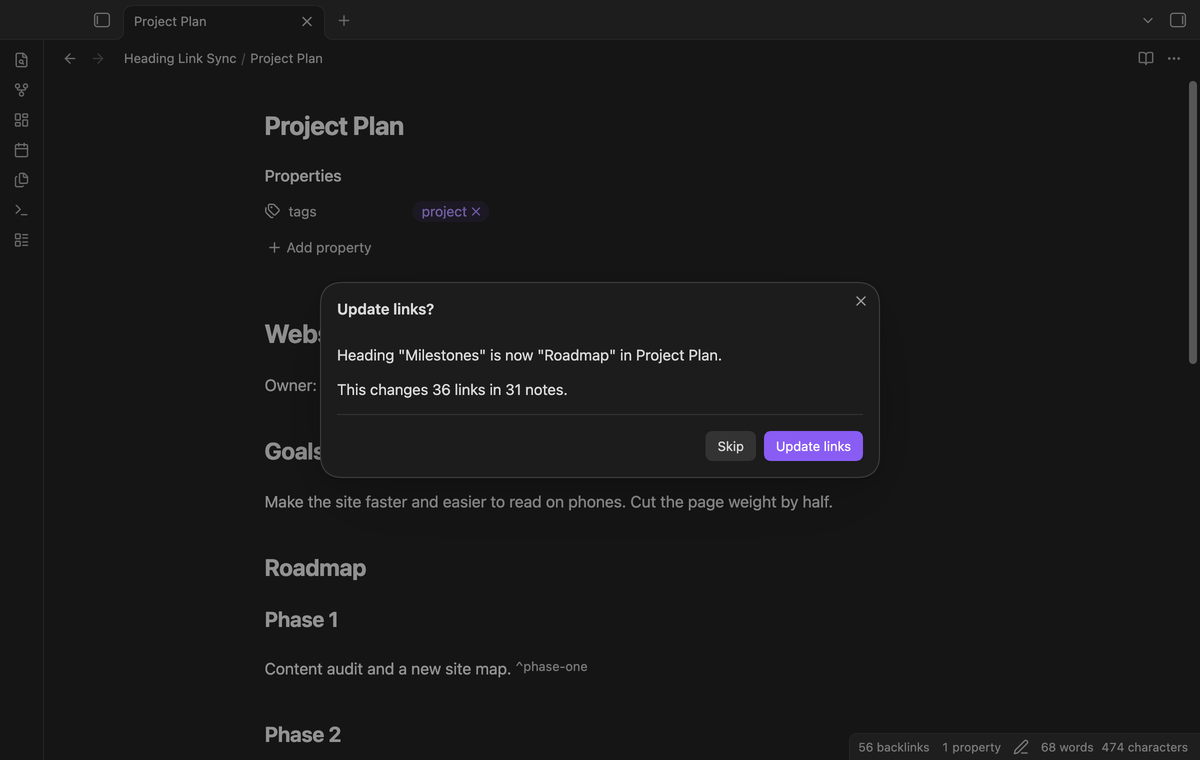 Set "When a heading changes" to "Ask first" if you want to confirm each update. The dialog names the old and new heading and the number of links and notes. Skip leaves the notes as they are.
### Markdown links (Pro)
Set "When a heading changes" to "Ask first" if you want to confirm each update. The dialog names the old and new heading and the number of links and notes. Skip leaves the notes as they are.
### Markdown links (Pro)
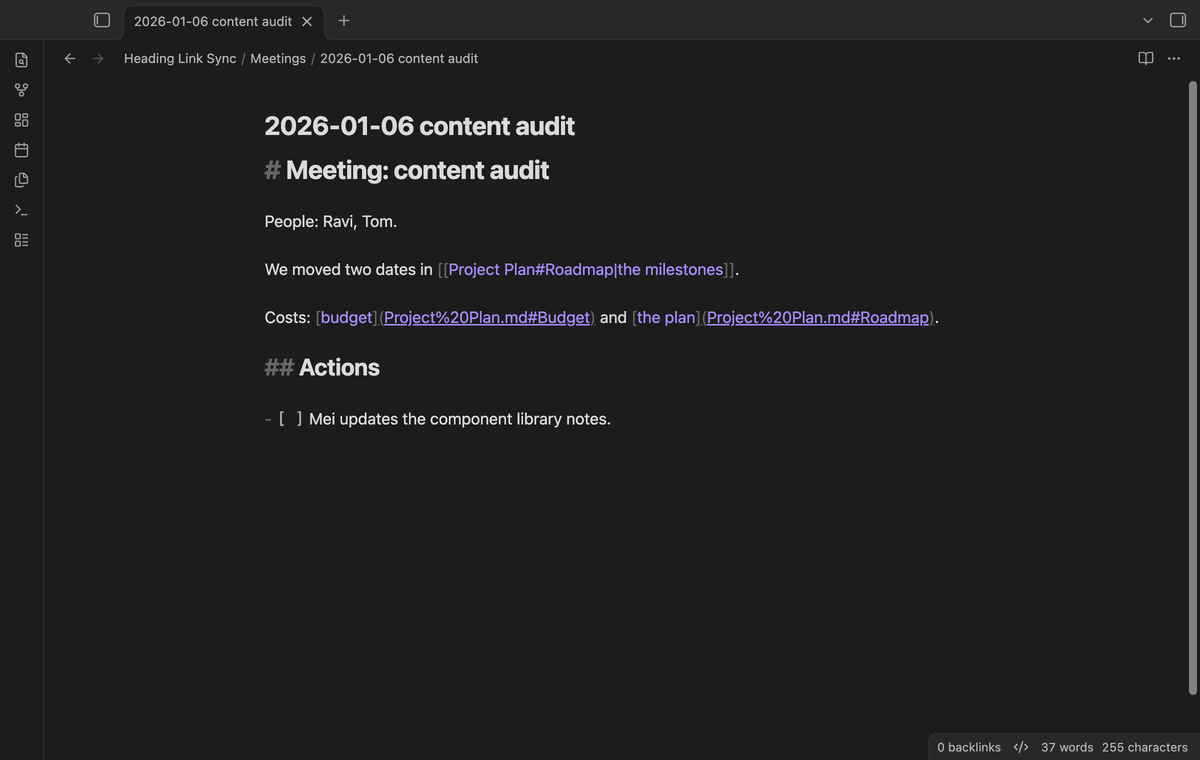 Pro also updates `[text](Note.md#Heading)` links. It writes spaces as `%20`, as the app does when it makes a Markdown link. Links in angle brackets keep raw spaces, and fully encoded links stay fully encoded. Without Pro, the notice tells you how many Markdown links it did not change.
### Block IDs (Pro)
Pro also updates `[text](Note.md#Heading)` links. It writes spaces as `%20`, as the app does when it makes a Markdown link. Links in angle brackets keep raw spaces, and fully encoded links stay fully encoded. Without Pro, the notice tells you how many Markdown links it did not change.
### Block IDs (Pro)
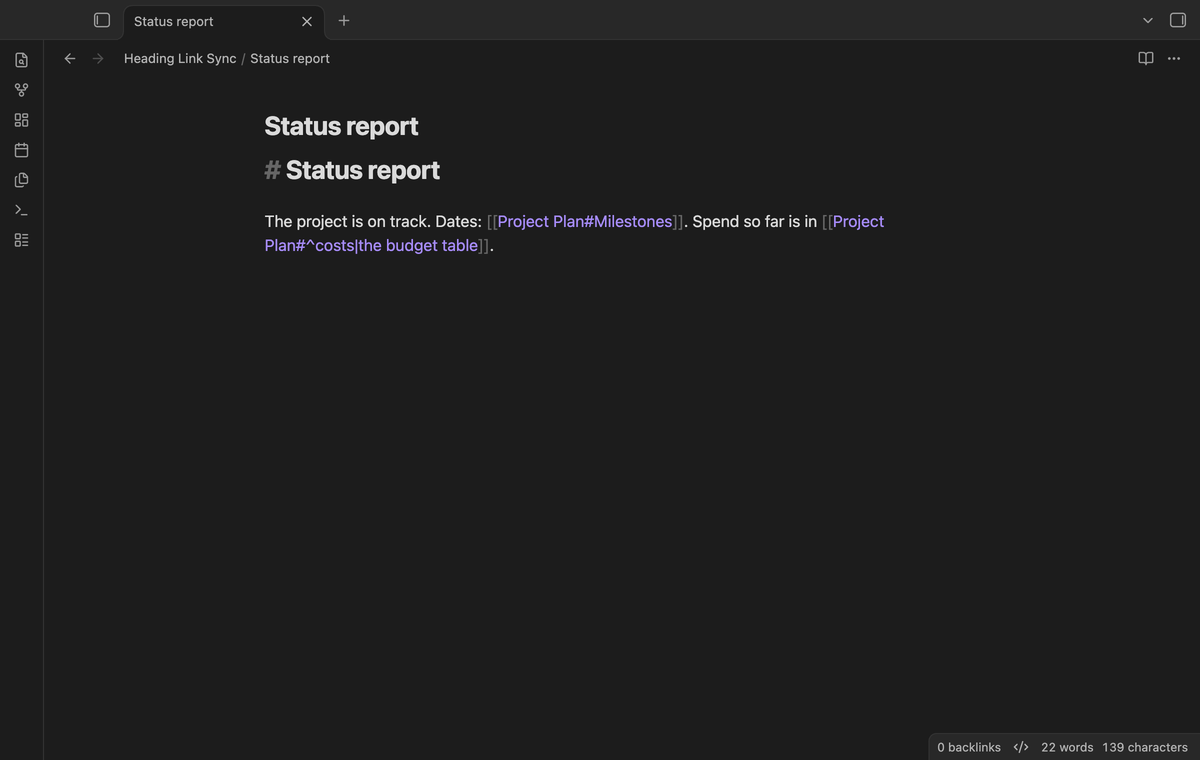 Edit a `^block-id` at the end of a paragraph or under a table, and Pro updates the `[[Note#^block-id]]` links and embeds to it. Block IDs match in any letter case, as in the app.
### Preview the changes (Pro)
Edit a `^block-id` at the end of a paragraph or under a table, and Pro updates the `[[Note#^block-id]]` links and embeds to it. Block IDs match in any letter case, as in the app.
### Preview the changes (Pro)
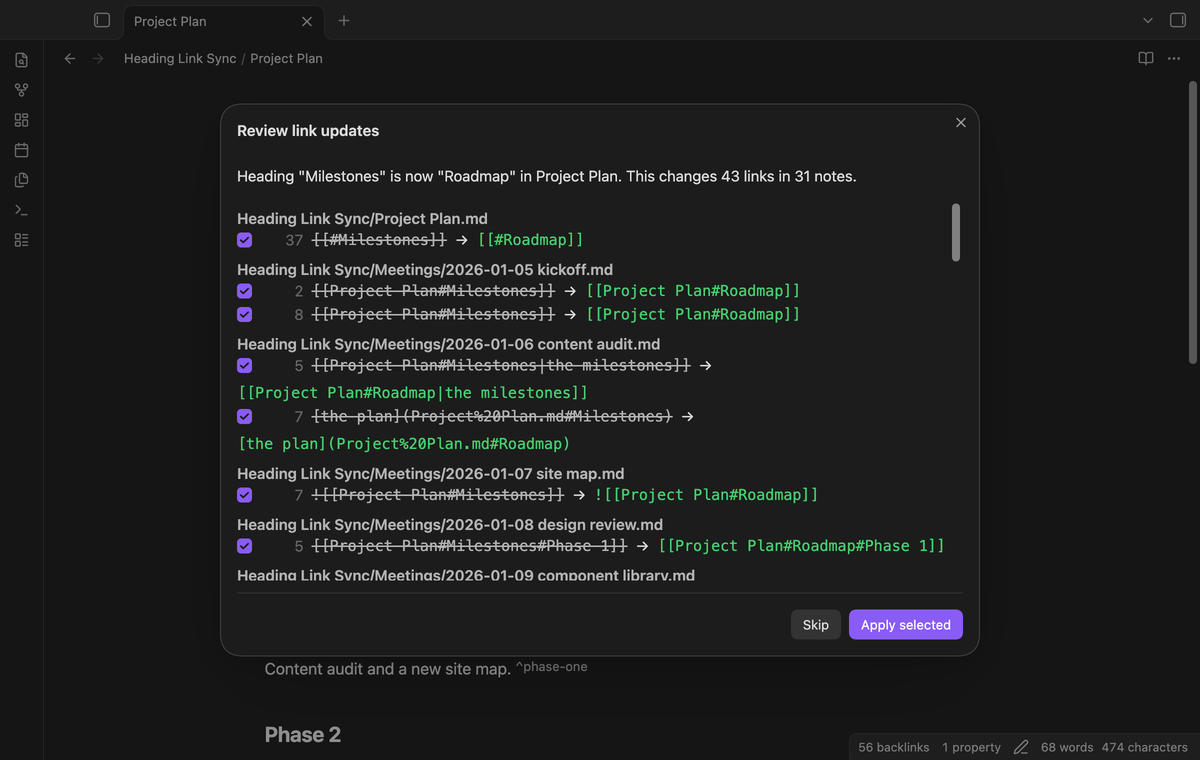 With Pro, "Ask first" lists the changes: the note, the line, the old link and the new link. Clear a check box to keep one link as it is, then select "Apply selected".
The list shows the first 500 changes. If there are more, a line above the buttons counts the links that are not shown, and "Apply selected" changes them too.
### Broken heading link report (Pro)
With Pro, "Ask first" lists the changes: the note, the line, the old link and the new link. Clear a check box to keep one link as it is, then select "Apply selected".
The list shows the first 500 changes. If there are more, a line above the buttons counts the links that are not shown, and "Apply selected" changes them too.
### Broken heading link report (Pro)
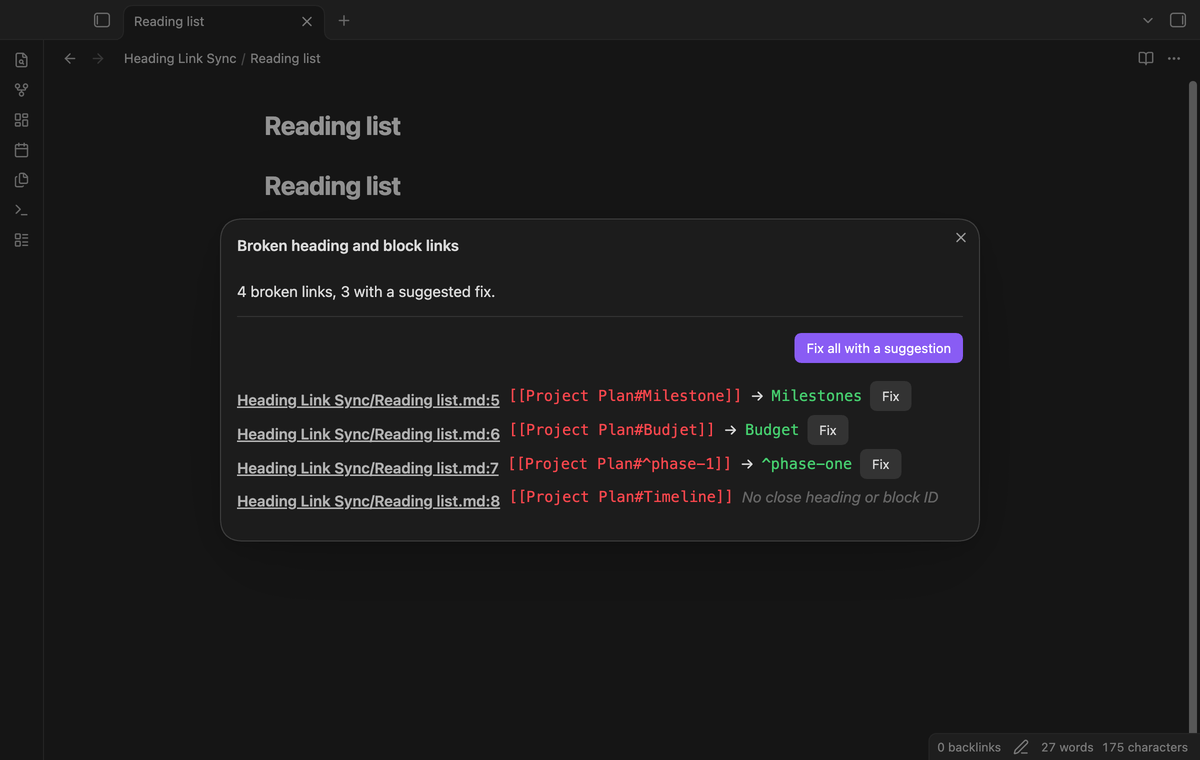 The command "Find broken heading and block links" lists links whose note exists but whose heading or block ID does not. It shows up to 500. For each one it suggests the closest heading or block ID in that note. Select Fix for one link, or "Fix all with a suggestion" for the listed links.
## Install
After the community listing goes live, open Settings, Community plugins, Browse. Search for "Heading Link Sync". Select Install, then Enable.
To install by hand, download `main.js`, `manifest.json` and `styles.css` from the latest release. Put them in `/.obsidian/plugins/heading-link-sync/`. Reload the list of community plugins, then turn on Heading Link Sync.
It needs Obsidian 1.13.4 or newer. It was tested on desktop with Obsidian 1.13.4 and 1.14.4.
## Usage
1. Turn on the plugin.
2. Open a note that other notes link to, and type over the text of one of its headings.
3. Move the cursor to another line, or stop typing for a moment.
4. Read the notice. Select Undo if you did not want the change.
The plugin acts on edits that you make in the editor. It ignores sync and git changes, unless you typed in that note in the last 5 seconds. A change of letter case alone is not a rename, because the links still work.
## Pro
To enable Pro:
1. Sponsor [theluckystrike on GitHub Sponsors](https://github.com/sponsors/theluckystrike) with $5 a month, or $15 once.
2. In Obsidian, open the settings of Heading Link Sync and select "Sign in with GitHub".
3. The plugin copies a code and opens github.com/login/device. Paste the code there and approve.
## Settings
The command "Find broken heading and block links" lists links whose note exists but whose heading or block ID does not. It shows up to 500. For each one it suggests the closest heading or block ID in that note. Select Fix for one link, or "Fix all with a suggestion" for the listed links.
## Install
After the community listing goes live, open Settings, Community plugins, Browse. Search for "Heading Link Sync". Select Install, then Enable.
To install by hand, download `main.js`, `manifest.json` and `styles.css` from the latest release. Put them in `/.obsidian/plugins/heading-link-sync/`. Reload the list of community plugins, then turn on Heading Link Sync.
It needs Obsidian 1.13.4 or newer. It was tested on desktop with Obsidian 1.13.4 and 1.14.4.
## Usage
1. Turn on the plugin.
2. Open a note that other notes link to, and type over the text of one of its headings.
3. Move the cursor to another line, or stop typing for a moment.
4. Read the notice. Select Undo if you did not want the change.
The plugin acts on edits that you make in the editor. It ignores sync and git changes, unless you typed in that note in the last 5 seconds. A change of letter case alone is not a rename, because the links still work.
## Pro
To enable Pro:
1. Sponsor [theluckystrike on GitHub Sponsors](https://github.com/sponsors/theluckystrike) with $5 a month, or $15 once.
2. In Obsidian, open the settings of Heading Link Sync and select "Sign in with GitHub".
3. The plugin copies a code and opens github.com/login/device. Paste the code there and approve.
## Settings
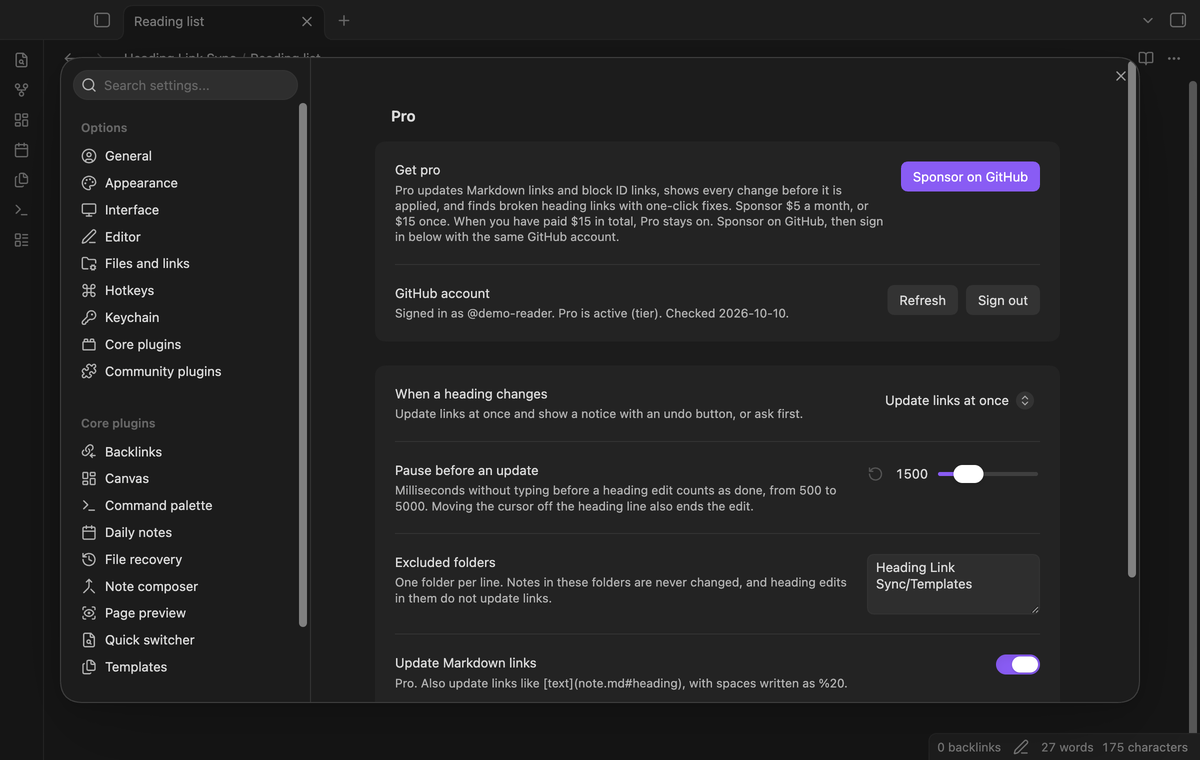 | Setting | Default | Allowed values |
| --- | --- | --- |
| Show reference counts | On | On or off |
| When a heading changes | Update links at once | Update links at once, or Ask first |
| Pause before an update | 1500 | 500 to 5000 milliseconds |
| Excluded folders | empty | One folder per line |
| Update Markdown links | On | On or off (Pro) |
| Update block ID links | On | On or off (Pro) |
Notes in an excluded folder are never changed, and heading edits in them do not update other notes.
## FAQ
### How is this different from "Rename this heading"?
The core command opens a dialog before the edit. This plugin follows typing. If you use the core dialog, links already point to the new text.
### What if I stop typing in the middle of a word?
The links follow the half-typed text, then follow again when you finish. Raise the pause if this happens often.
### Does it change notes that do not link to the heading?
It reads the edited note and its linking notes, and writes only the changed part of each link.
### What happens with two headings of the same text?
A plain link goes to the first heading. Heading Link Sync follows the same rule. If you rename the second heading, only nested links that point to it change. If a rename would send an old link to a different heading, the plugin adds the parent heading to the link, for example `[[Note#Part B#Notes]]`. If no such path exists, it leaves the link alone and says so.
### What does it leave alone?
Links in code and math, links to a heading that does not exist, links with no safe path after the rename, property links when the new text contains a quote mark, and linking notes after the first 5,000.
## Payment, account and network
The core features are free. Pro features need a GitHub Sponsors sponsorship of theluckystrike: $5 a month or more, or $15 once. A total payment of $15 meets the payment requirement for Pro without further payment. Sign-in and the checks below still apply. Your notes stay readable and editable with or without Pro.
GitHub handles the payment. Sponsor at https://github.com/sponsors/theluckystrike. You need no account for the free features. Pro needs the GitHub account that sponsors.
Until you select "Sign in with GitHub" in the settings, Heading Link Sync makes no network requests. Sign in uses the GitHub device flow. Heading Link Sync sends its public client ID and the scope `read:user` to `https://github.com/login/device/code` and shows you a code. While you enter the code at https://github.com/login/device, it asks `https://github.com/login/oauth/access_token` every few seconds to check the sign-in status. The scope permits profile reads only. GitHub needs this access to show the sponsorship tier. It grants no repository scope and no write access.
After sign in, Heading Link Sync sends one query to `https://api.github.com/graphql`. It checks if the signed-in account sponsors theluckystrike. It asks for the tier and the total payment to theluckystrike. The plugin reuses a successful check for 7 days. Failed checks can retry after 6 hours. Select Refresh to request an earlier check. It sends no note content, file names or other vault data, and it has no telemetry.
After a successful check, Pro can work offline for up to 14 days. Sign out or a negative sponsorship answer turns Pro off. The plugin stores the GitHub token through the secret storage API of Obsidian. It does not put the token in its saved settings or its local sponsorship data. The local storage of this device keeps your GitHub login, the tier and the time of the last check. Sign out clears the token. You can also revoke the access in your GitHub settings, under Applications.
## Support
Report bugs and feature requests in this repository's issue tracker. Include your Obsidian version, the old and new heading, and one link that did not update.
To build from source:
```
npm ci
npm run build
npm test
```
The tests check 59 golden cases for link rules and reference counts. An end-to-end test types a new heading in Obsidian and checks the text of 31 linking notes.
## License
MIT
| Setting | Default | Allowed values |
| --- | --- | --- |
| Show reference counts | On | On or off |
| When a heading changes | Update links at once | Update links at once, or Ask first |
| Pause before an update | 1500 | 500 to 5000 milliseconds |
| Excluded folders | empty | One folder per line |
| Update Markdown links | On | On or off (Pro) |
| Update block ID links | On | On or off (Pro) |
Notes in an excluded folder are never changed, and heading edits in them do not update other notes.
## FAQ
### How is this different from "Rename this heading"?
The core command opens a dialog before the edit. This plugin follows typing. If you use the core dialog, links already point to the new text.
### What if I stop typing in the middle of a word?
The links follow the half-typed text, then follow again when you finish. Raise the pause if this happens often.
### Does it change notes that do not link to the heading?
It reads the edited note and its linking notes, and writes only the changed part of each link.
### What happens with two headings of the same text?
A plain link goes to the first heading. Heading Link Sync follows the same rule. If you rename the second heading, only nested links that point to it change. If a rename would send an old link to a different heading, the plugin adds the parent heading to the link, for example `[[Note#Part B#Notes]]`. If no such path exists, it leaves the link alone and says so.
### What does it leave alone?
Links in code and math, links to a heading that does not exist, links with no safe path after the rename, property links when the new text contains a quote mark, and linking notes after the first 5,000.
## Payment, account and network
The core features are free. Pro features need a GitHub Sponsors sponsorship of theluckystrike: $5 a month or more, or $15 once. A total payment of $15 meets the payment requirement for Pro without further payment. Sign-in and the checks below still apply. Your notes stay readable and editable with or without Pro.
GitHub handles the payment. Sponsor at https://github.com/sponsors/theluckystrike. You need no account for the free features. Pro needs the GitHub account that sponsors.
Until you select "Sign in with GitHub" in the settings, Heading Link Sync makes no network requests. Sign in uses the GitHub device flow. Heading Link Sync sends its public client ID and the scope `read:user` to `https://github.com/login/device/code` and shows you a code. While you enter the code at https://github.com/login/device, it asks `https://github.com/login/oauth/access_token` every few seconds to check the sign-in status. The scope permits profile reads only. GitHub needs this access to show the sponsorship tier. It grants no repository scope and no write access.
After sign in, Heading Link Sync sends one query to `https://api.github.com/graphql`. It checks if the signed-in account sponsors theluckystrike. It asks for the tier and the total payment to theluckystrike. The plugin reuses a successful check for 7 days. Failed checks can retry after 6 hours. Select Refresh to request an earlier check. It sends no note content, file names or other vault data, and it has no telemetry.
After a successful check, Pro can work offline for up to 14 days. Sign out or a negative sponsorship answer turns Pro off. The plugin stores the GitHub token through the secret storage API of Obsidian. It does not put the token in its saved settings or its local sponsorship data. The local storage of this device keeps your GitHub login, the tier and the time of the last check. Sign out clears the token. You can also revoke the access in your GitHub settings, under Applications.
## Support
Report bugs and feature requests in this repository's issue tracker. Include your Obsidian version, the old and new heading, and one link that did not update.
To build from source:
```
npm ci
npm run build
npm test
```
The tests check 59 golden cases for link rules and reference counts. An end-to-end test types a new heading in Obsidian and checks the text of 31 linking notes.
## License
MIT