# Flatten Table
Flatten Table shows one table row for each item of a list property. A note can hold a list of objects in its properties, for example the milestones of a project or the roles of a person. The core table view of Bases gives one row per note, so the whole list is one cell. Flatten Table gives each item its own row, and the keys of the items become the columns. Your data stays in the properties of your notes.
Flatten Table is a view for Bases. The base selects notes; Flatten Table draws rows through the public Bases API.
 ## Features
### One row for each list item
Pick a list property in the view options. Each item of that list becomes one row, with a Source column that links to its note. When the items are objects, each key is a column. Keys match without regard to case, so "Owner" in one note and "owner" in another note go into the same column.
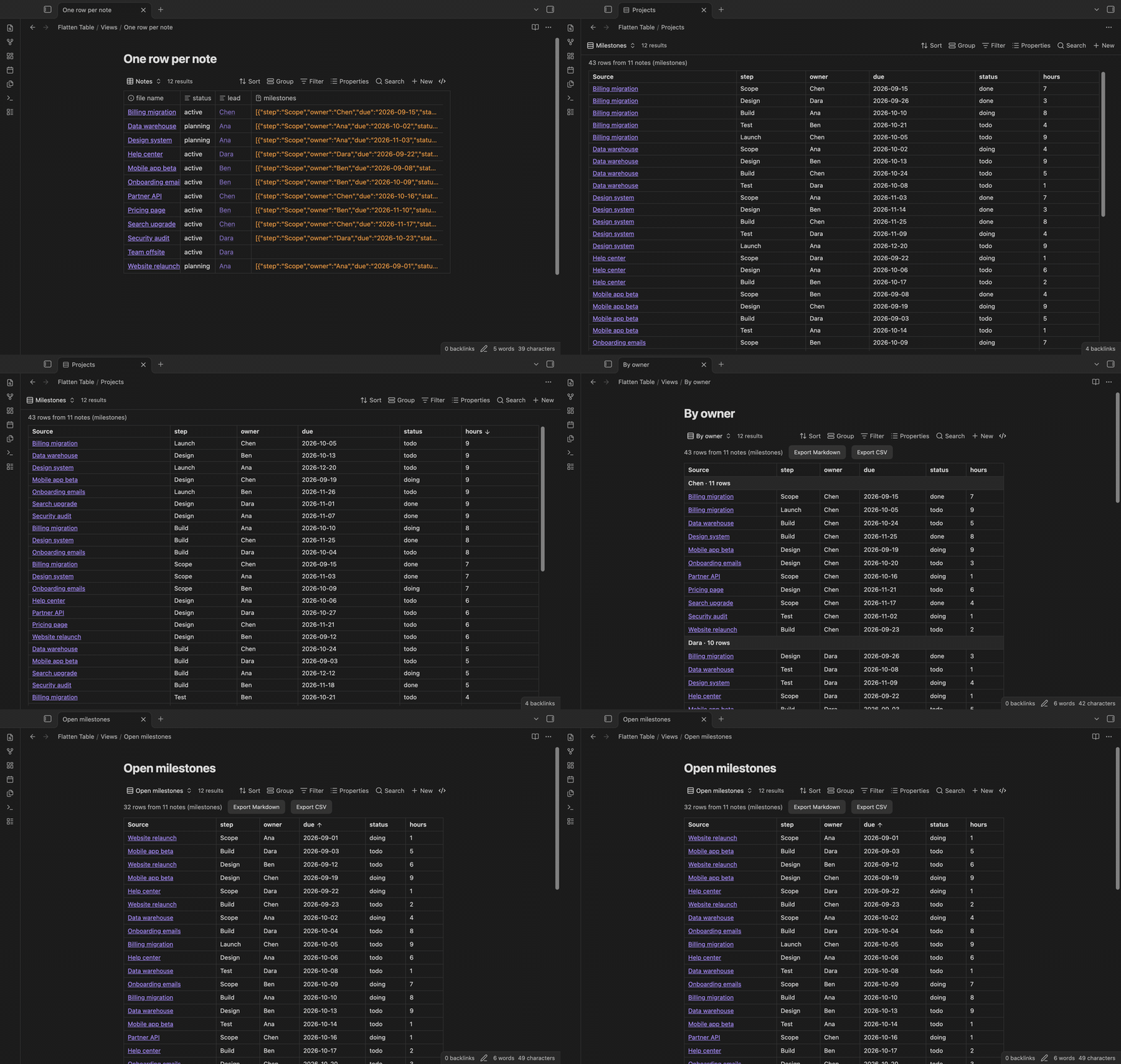
The core table view puts the full list in one cell:
## Features
### One row for each list item
Pick a list property in the view options. Each item of that list becomes one row, with a Source column that links to its note. When the items are objects, each key is a column. Keys match without regard to case, so "Owner" in one note and "owner" in another note go into the same column.
The core table view puts the full list in one cell:
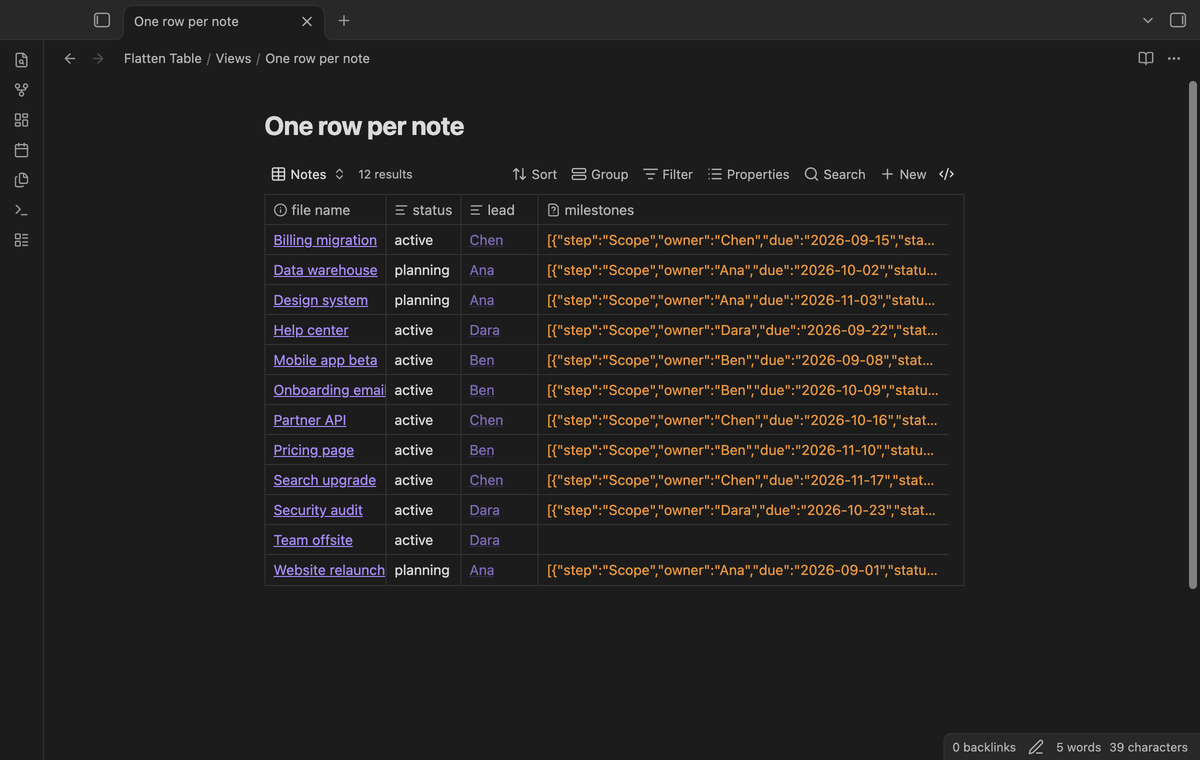 The flat view gives 43 rows from 11 project notes:
 A list of plain values, such as a list of authors, gives one column with the name of the property. A nested object in an item gives dotted columns, for example `who.name` and `who.team`.
### Sort by several columns
Click a column header to sort the rows. Click again to sort the other way, and a third time to go back to the order of the base. Numbers sort as numbers, dates in the form YYYY-MM-DD sort in date order, and empty cells stay at the end. The sort is saved with the view in the base file. Old views with one sort column still work.
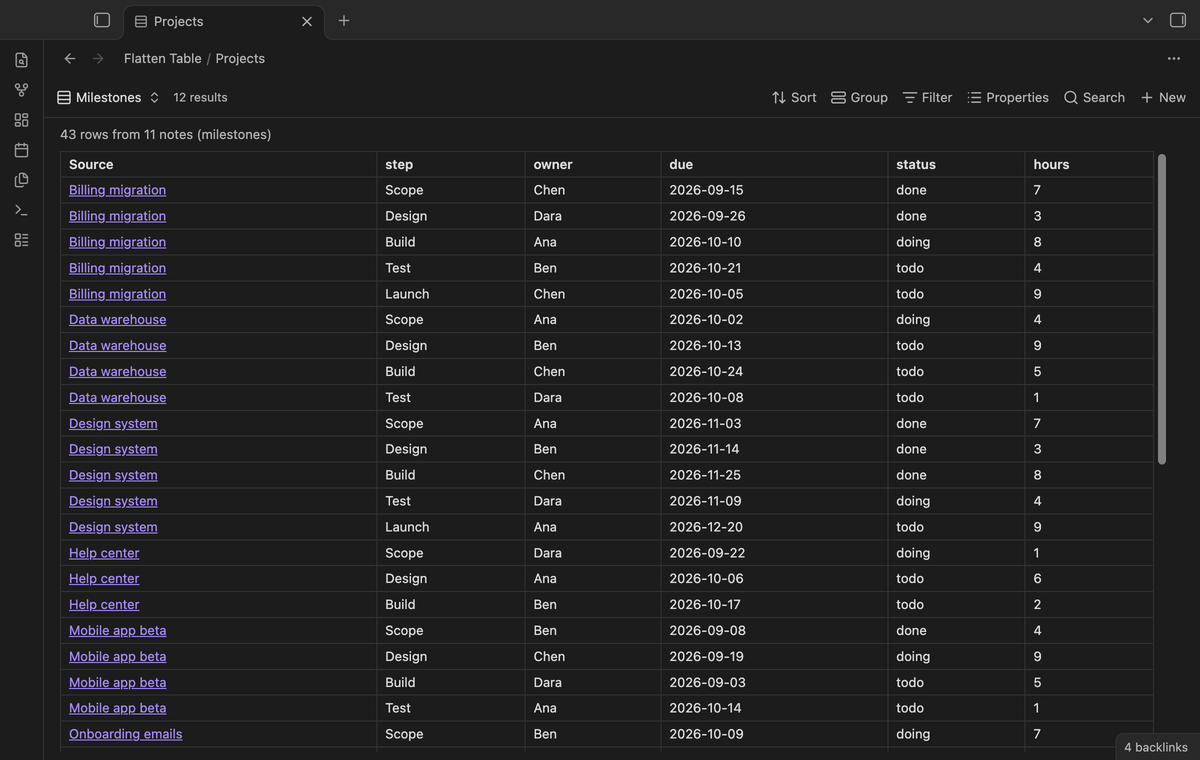
To sort by several columns, click the first header, then hold Shift and click another header. For example, sort by `owner` first, then `due` within each owner. With two or more rules, each sorted header shows its priority number. Shift-click an active header to reverse its order, then Shift-click again to remove that rule. A click without Shift clears the other sort rules. Rows with equal values keep their base order. On a phone without a keyboard, you can sort by one column only. This feature is free.
A list of plain values, such as a list of authors, gives one column with the name of the property. A nested object in an item gives dotted columns, for example `who.name` and `who.team`.
### Sort by several columns
Click a column header to sort the rows. Click again to sort the other way, and a third time to go back to the order of the base. Numbers sort as numbers, dates in the form YYYY-MM-DD sort in date order, and empty cells stay at the end. The sort is saved with the view in the base file. Old views with one sort column still work.
To sort by several columns, click the first header, then hold Shift and click another header. For example, sort by `owner` first, then `due` within each owner. With two or more rules, each sorted header shows its priority number. Shift-click an active header to reverse its order, then Shift-click again to remove that rule. A click without Shift clears the other sort rules. Rows with equal values keep their base order. On a phone without a keyboard, you can sort by one column only. This feature is free.
 ### Live update and embeds
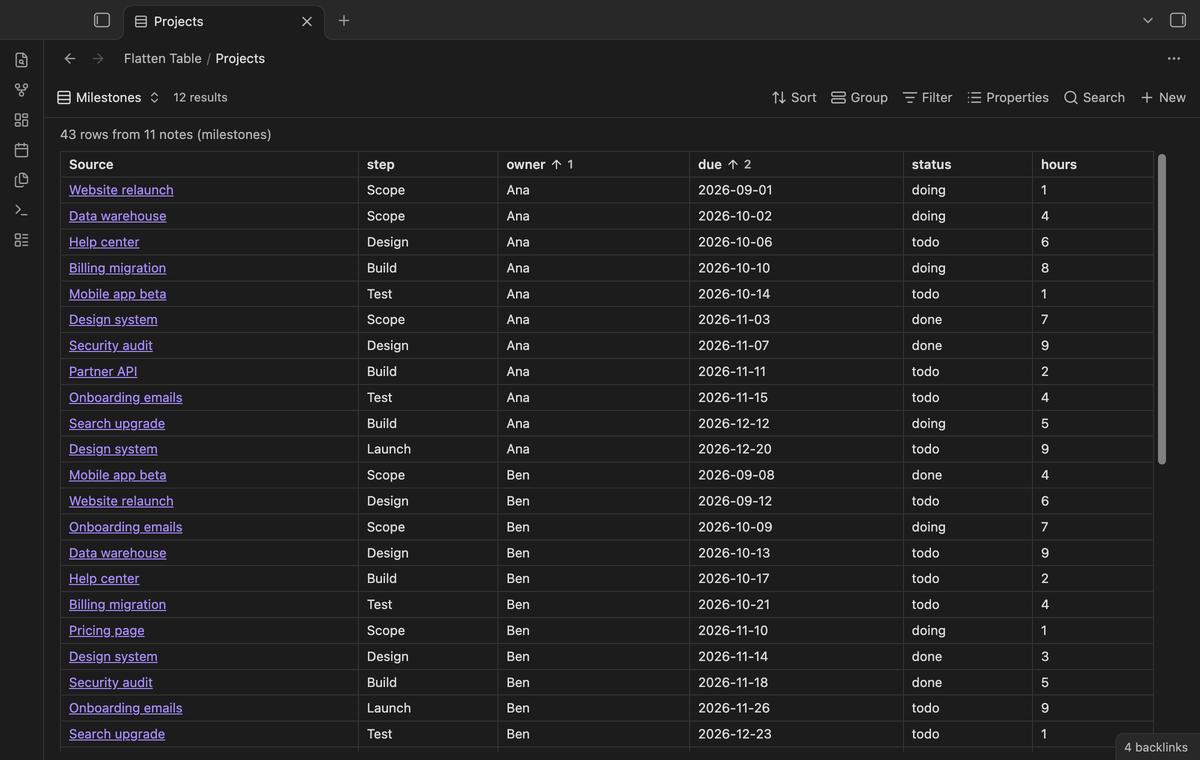
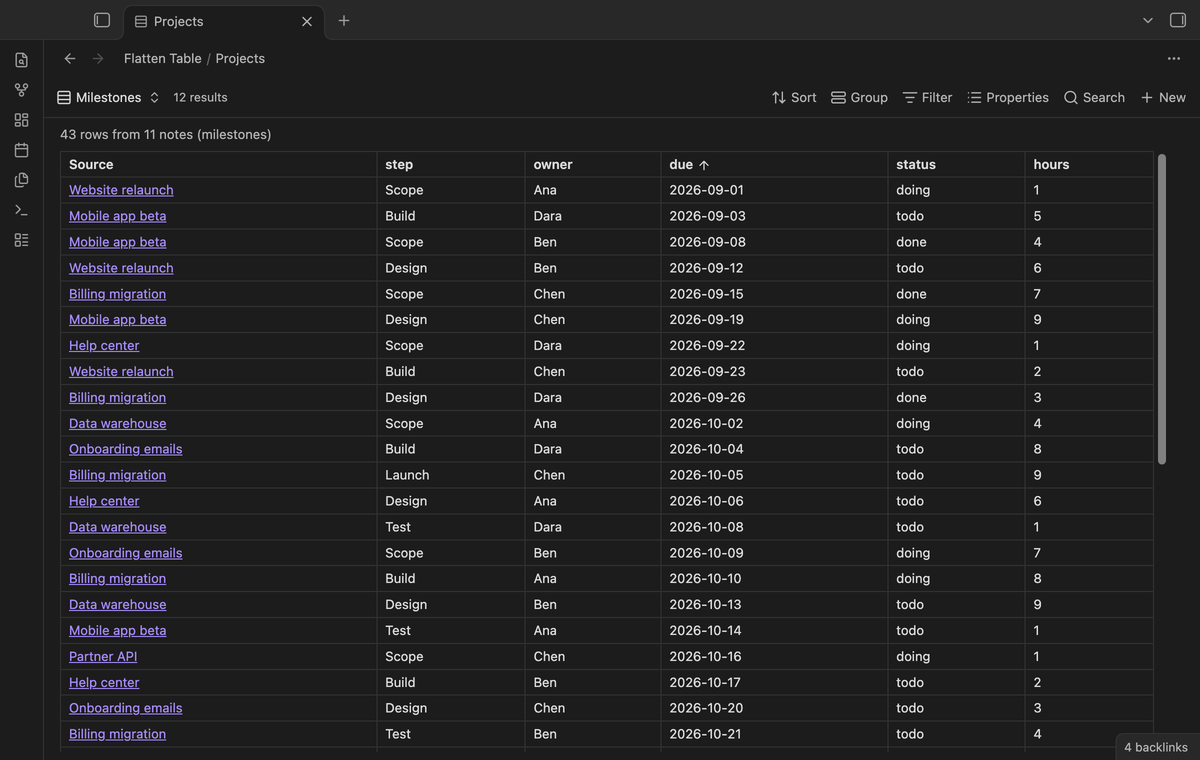
When you change a property, the table draws again after a short delay. You can embed the view in a note with `![[Your base.base#View name]]`, for example in a weekly review.
### Live update and embeds
When you change a property, the table draws again after a short delay. You can embed the view in a note with `![[Your base.base#View name]]`, for example in a weekly review.
 ### Group rows (Pro)
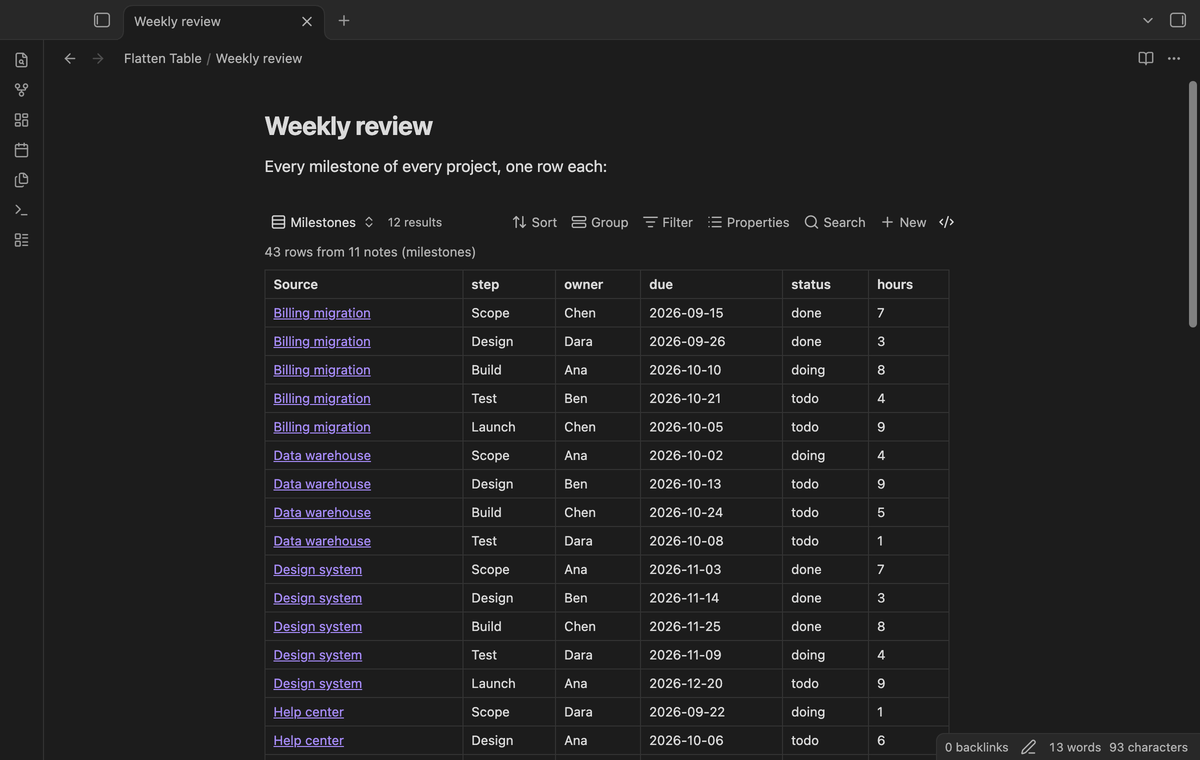
Group the rows by a column, or by Source. Each group has a header with its value and the number of rows.
### Group rows (Pro)
Group the rows by a column, or by Source. Each group has a header with its value and the number of rows.
 ### Filter rows (Pro)
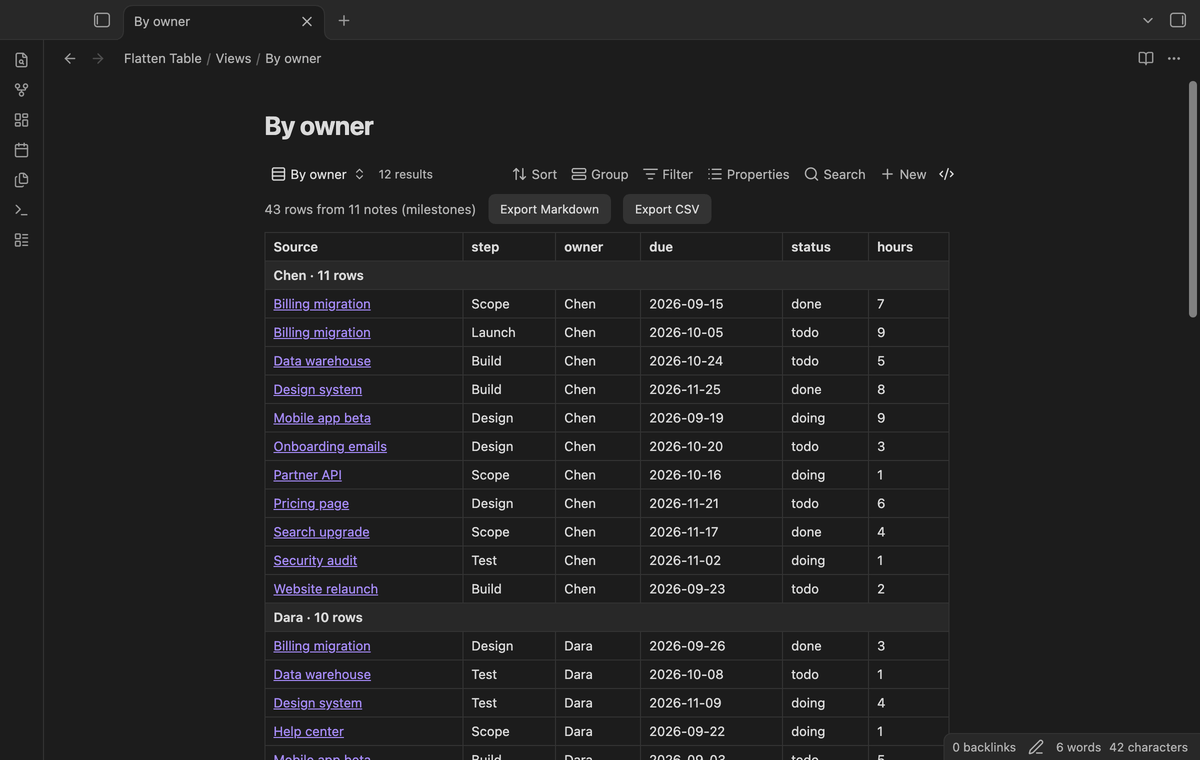
The filters of the base select notes. The row filter of Flatten Table selects items. Keep only the rows where a column contains, equals or does not equal a value, or is empty. For numbers and dates, keep the rows that are larger or smaller than a value. The filter can use a key that the Columns option hides.
### Filter rows (Pro)
The filters of the base select notes. The row filter of Flatten Table selects items. Keep only the rows where a column contains, equals or does not equal a value, or is empty. For numbers and dates, keep the rows that are larger or smaller than a value. The filter can use a key that the Columns option hides.
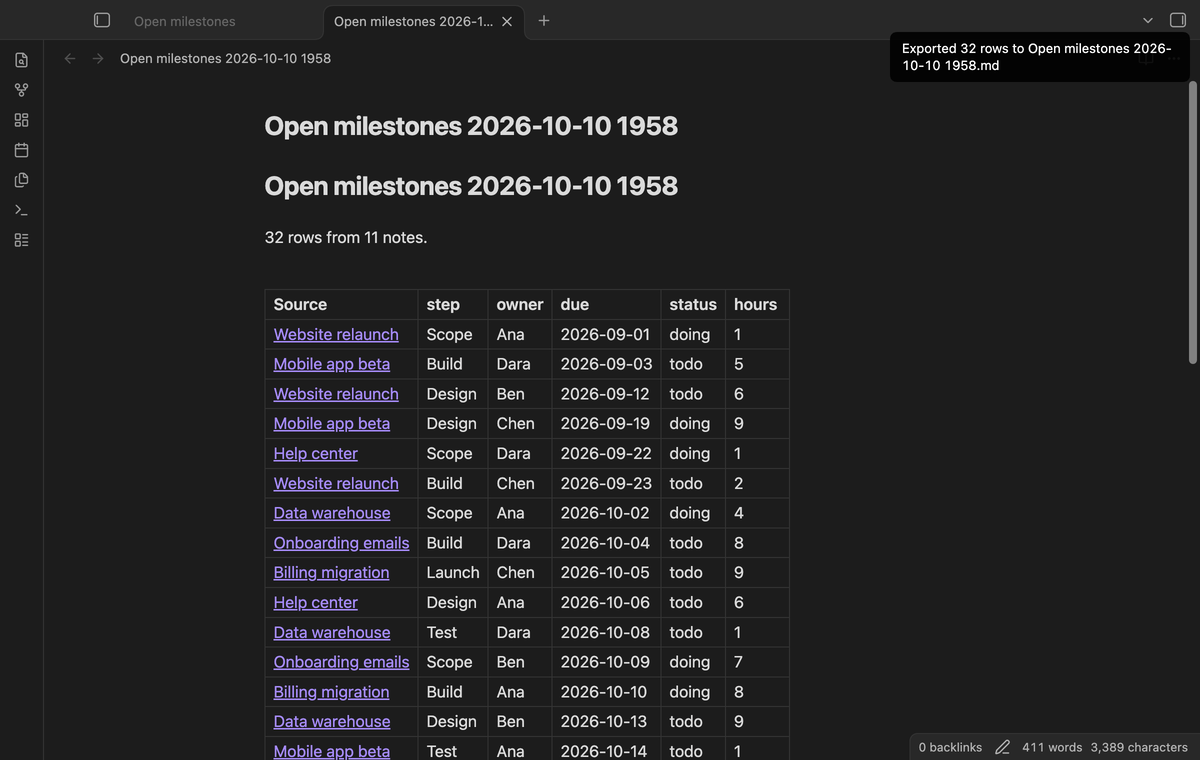
 ### Export to a note or CSV (Pro)
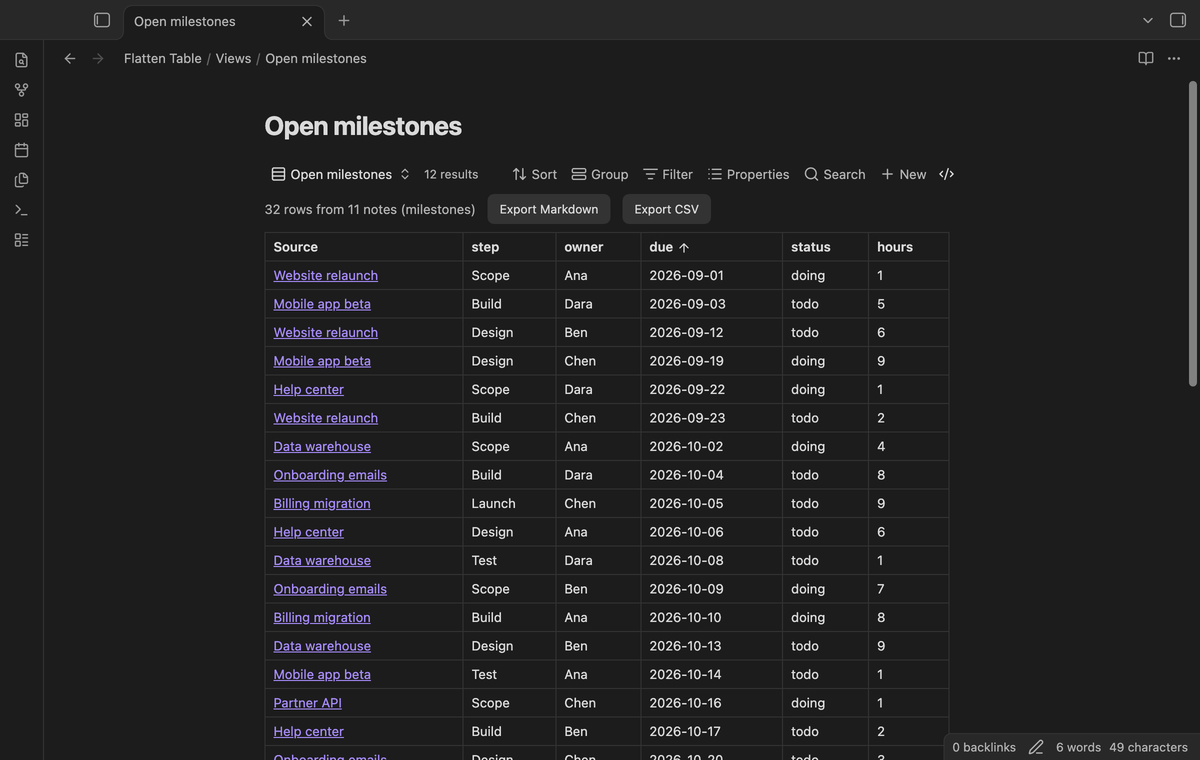
Export the flat table, with its filter and sort, to a new Markdown note or a CSV file. With the Source column on, the Markdown table links each row to its note. Use the buttons above the table or the commands "Export the flat table as a Markdown note" and "Export the flat table as a CSV file".
### Export to a note or CSV (Pro)
Export the flat table, with its filter and sort, to a new Markdown note or a CSV file. With the Source column on, the Markdown table links each row to its note. Use the buttons above the table or the commands "Export the flat table as a Markdown note" and "Export the flat table as a CSV file".
 ## Install
1. Open "Settings → Community plugins" and turn off restricted mode.
2. Select "Browse", search for "Flatten Table", then select "Install" and "Enable".
3. Make sure that the core plugin "Bases" is on ("Settings → Core plugins").
To install by hand, copy `main.js`, `manifest.json` and `styles.css` from the latest release into `/.obsidian/plugins/flatten-table/`. Then enable the plugin. You need Obsidian 1.13.4 or later.
## Usage
1. Write a list of objects in the properties of your notes. The Properties panel of Obsidian cannot edit such a list, so use the source mode:
```yaml
milestones:
- step: Design
owner: Ana
due: 2026-10-01
hours: 3
- step: Build
owner: Ben
due: 2026-10-20
hours: 8
```
2. Create a base, or open one. Set its filters so that it selects these notes, for example a folder or a tag.
3. Select the view menu in the base toolbar and add a view of the type "Flatten table".
4. Open the view options. In "List property", pick `milestones`.
A property that holds one value, not a list, gives one row. A note where the property is missing or empty gives no row. Turn on "Keep notes without items" to show an empty row for such a note.
A wikilink in a property, such as `owner: "[[Ana]]"`, shows as a link.
## Pro
The free version flattens the lists of up to 50 notes that have items, with column sort, the Source and item number columns, embeds and live update. When more notes have items, the table says how many it left out.
Pro removes the 50-note limit and adds row filters, groups and export to Markdown or CSV. To get it:
1. Sponsor [theluckystrike on GitHub Sponsors](https://github.com/sponsors/theluckystrike) with $5 a month, or $15 once. A total payment of $15 meets the payment requirement for Pro without further payment. Sign-in and the checks below still apply.
2. In Obsidian, open the settings of Flatten Table and select "Sign in with GitHub".
3. The plugin copies a code and opens github.com/login/device. Paste the code there and approve.
The status line then shows your GitHub login and the tier. If you sponsor after you sign in, select Refresh. A negative sponsorship answer turns Pro off. See [Payment, account and network](#payment-account-and-network) for the check and offline limits.
## Install
1. Open "Settings → Community plugins" and turn off restricted mode.
2. Select "Browse", search for "Flatten Table", then select "Install" and "Enable".
3. Make sure that the core plugin "Bases" is on ("Settings → Core plugins").
To install by hand, copy `main.js`, `manifest.json` and `styles.css` from the latest release into `/.obsidian/plugins/flatten-table/`. Then enable the plugin. You need Obsidian 1.13.4 or later.
## Usage
1. Write a list of objects in the properties of your notes. The Properties panel of Obsidian cannot edit such a list, so use the source mode:
```yaml
milestones:
- step: Design
owner: Ana
due: 2026-10-01
hours: 3
- step: Build
owner: Ben
due: 2026-10-20
hours: 8
```
2. Create a base, or open one. Set its filters so that it selects these notes, for example a folder or a tag.
3. Select the view menu in the base toolbar and add a view of the type "Flatten table".
4. Open the view options. In "List property", pick `milestones`.
A property that holds one value, not a list, gives one row. A note where the property is missing or empty gives no row. Turn on "Keep notes without items" to show an empty row for such a note.
A wikilink in a property, such as `owner: "[[Ana]]"`, shows as a link.
## Pro
The free version flattens the lists of up to 50 notes that have items, with column sort, the Source and item number columns, embeds and live update. When more notes have items, the table says how many it left out.
Pro removes the 50-note limit and adds row filters, groups and export to Markdown or CSV. To get it:
1. Sponsor [theluckystrike on GitHub Sponsors](https://github.com/sponsors/theluckystrike) with $5 a month, or $15 once. A total payment of $15 meets the payment requirement for Pro without further payment. Sign-in and the checks below still apply.
2. In Obsidian, open the settings of Flatten Table and select "Sign in with GitHub".
3. The plugin copies a code and opens github.com/login/device. Paste the code there and approve.
The status line then shows your GitHub login and the tier. If you sponsor after you sign in, select Refresh. A negative sponsorship answer turns Pro off. See [Payment, account and network](#payment-account-and-network) for the check and offline limits.
 ## Settings
The view options are in the base toolbar. They are saved with each view in the base file.
| Option | What it does |
| --- | --- |
| List property | The property whose items become rows. |
| Columns | Column names to show, in this order. Empty shows all keys. |
| Show source column | Shows or hides the Source column. |
| Show item number column | Shows the position of each item in its list, from 1. |
| Keep notes without items | Shows one empty row for a note with no items. |
| Group by column (Pro) | A column name, or Source. |
| Filter column, rule and value (Pro) | Keeps only the rows that match. |
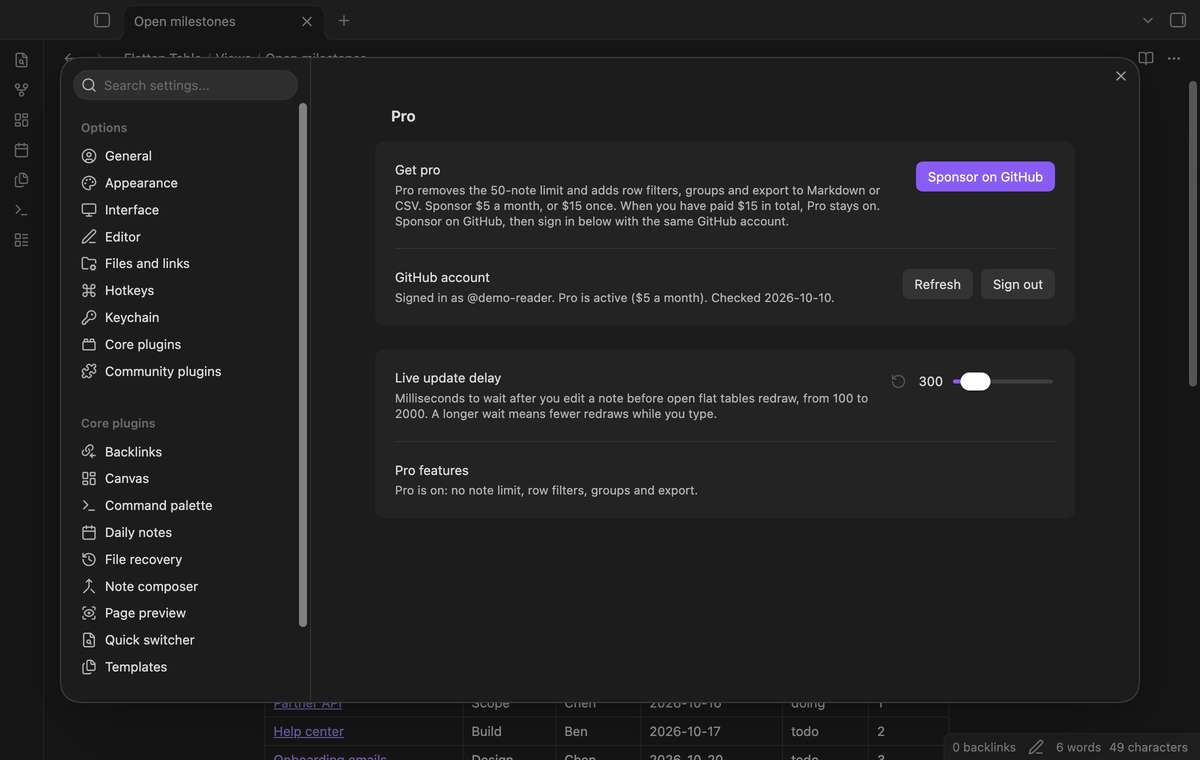
The plugin settings tab has the Pro section (sign in with GitHub, status and Refresh) and one setting. "Live update delay" is the time in milliseconds to wait after an edit before the tables draw again, from 100 to 2000. The default is 300.
## FAQ
### Does Flatten Table change my notes?
No. It only reads the properties of your notes. Export creates a new file and does not touch the sources.
### How is this different from Dataview?
Dataview has `FLATTEN` in its query language, and it does not need Bases. Flatten Table works inside Bases: you get the base filters, the view menu and embeds, and you write no query. The request for this in Bases is forum topic 105425, "Bases: a DV FLATTEN solution to allow 1 file multi-entry".
## Payment, account and network
The core features are free. Pro features need a GitHub Sponsors sponsorship of theluckystrike: $5 a month or more, or $15 once. A total payment of $15 meets the payment requirement for Pro without further payment. Sign-in and the checks below still apply. Your notes stay readable and editable with or without Pro.
GitHub handles the payment. Sponsor at https://github.com/sponsors/theluckystrike. You need no account for the free features. Pro needs the GitHub account that sponsors.
Until you select "Sign in with GitHub" in the settings, Flatten Table makes no network requests. Sign in uses the GitHub device flow. Flatten Table sends its public client ID and the scope `read:user` to `https://github.com/login/device/code` and shows you a code. While you enter the code at https://github.com/login/device, it asks `https://github.com/login/oauth/access_token` every few seconds to check the sign-in status. The scope permits profile reads only. GitHub needs this access to show the sponsorship tier. It grants no repository scope and no write access.
After sign in, Flatten Table sends one query to `https://api.github.com/graphql`. It checks if the signed-in account sponsors theluckystrike. It asks for the tier and the total payment to theluckystrike. The plugin reuses a successful check for 7 days. Failed checks can retry after 6 hours. Select Refresh to request an earlier check. It sends no note content, file names or other vault data, and it has no telemetry.
After a successful check, Pro can work offline for up to 14 days. Sign out or a negative sponsorship answer turns Pro off. The plugin stores the GitHub token through the secret storage API of Obsidian. It does not put the token in its saved settings or its local sponsorship data. The local storage of this device keeps your GitHub login, the tier and the time of the last check. Sign out clears the token. You can also revoke the access in your GitHub settings, under Applications.
## Support
Report bugs and ask for features in the GitHub issues of this repository. Add your Obsidian version and a small sample note.
## Settings
The view options are in the base toolbar. They are saved with each view in the base file.
| Option | What it does |
| --- | --- |
| List property | The property whose items become rows. |
| Columns | Column names to show, in this order. Empty shows all keys. |
| Show source column | Shows or hides the Source column. |
| Show item number column | Shows the position of each item in its list, from 1. |
| Keep notes without items | Shows one empty row for a note with no items. |
| Group by column (Pro) | A column name, or Source. |
| Filter column, rule and value (Pro) | Keeps only the rows that match. |
The plugin settings tab has the Pro section (sign in with GitHub, status and Refresh) and one setting. "Live update delay" is the time in milliseconds to wait after an edit before the tables draw again, from 100 to 2000. The default is 300.
## FAQ
### Does Flatten Table change my notes?
No. It only reads the properties of your notes. Export creates a new file and does not touch the sources.
### How is this different from Dataview?
Dataview has `FLATTEN` in its query language, and it does not need Bases. Flatten Table works inside Bases: you get the base filters, the view menu and embeds, and you write no query. The request for this in Bases is forum topic 105425, "Bases: a DV FLATTEN solution to allow 1 file multi-entry".
## Payment, account and network
The core features are free. Pro features need a GitHub Sponsors sponsorship of theluckystrike: $5 a month or more, or $15 once. A total payment of $15 meets the payment requirement for Pro without further payment. Sign-in and the checks below still apply. Your notes stay readable and editable with or without Pro.
GitHub handles the payment. Sponsor at https://github.com/sponsors/theluckystrike. You need no account for the free features. Pro needs the GitHub account that sponsors.
Until you select "Sign in with GitHub" in the settings, Flatten Table makes no network requests. Sign in uses the GitHub device flow. Flatten Table sends its public client ID and the scope `read:user` to `https://github.com/login/device/code` and shows you a code. While you enter the code at https://github.com/login/device, it asks `https://github.com/login/oauth/access_token` every few seconds to check the sign-in status. The scope permits profile reads only. GitHub needs this access to show the sponsorship tier. It grants no repository scope and no write access.
After sign in, Flatten Table sends one query to `https://api.github.com/graphql`. It checks if the signed-in account sponsors theluckystrike. It asks for the tier and the total payment to theluckystrike. The plugin reuses a successful check for 7 days. Failed checks can retry after 6 hours. Select Refresh to request an earlier check. It sends no note content, file names or other vault data, and it has no telemetry.
After a successful check, Pro can work offline for up to 14 days. Sign out or a negative sponsorship answer turns Pro off. The plugin stores the GitHub token through the secret storage API of Obsidian. It does not put the token in its saved settings or its local sponsorship data. The local storage of this device keeps your GitHub login, the tier and the time of the last check. Sign out clears the token. You can also revoke the access in your GitHub settings, under Applications.
## Support
Report bugs and ask for features in the GitHub issues of this repository. Add your Obsidian version and a small sample note.