# Embedded Text Finder
Find a review note from text that lives in its Markdown embeds. Embedded Text Finder searches the bodies of notes in a selected folder, follows static Markdown wikilink embeds, and shows the containing note beside the source of a match. A source can sit outside the folder that you selected.
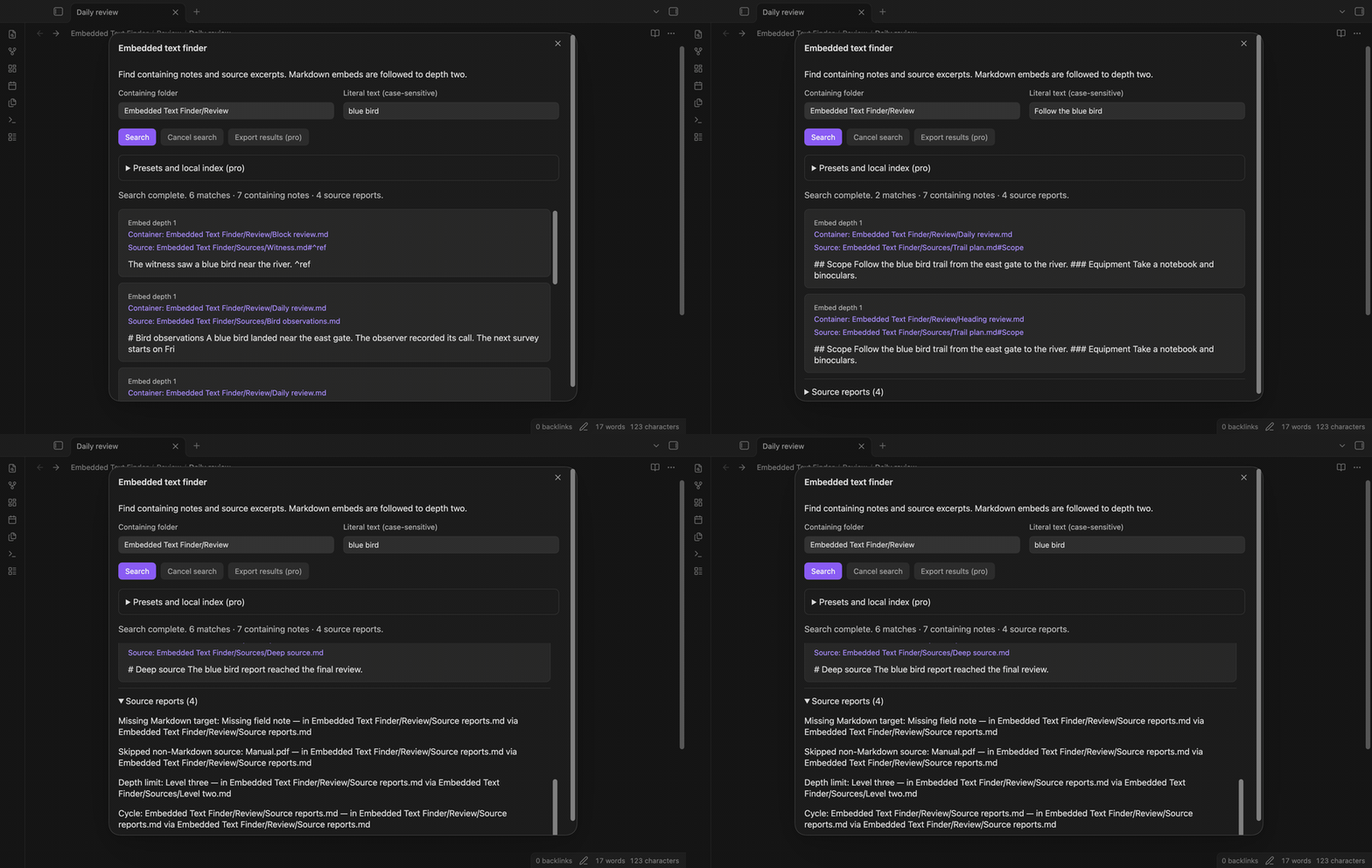
For example, a daily review embeds a bird observation. The phrase “blue bird” occurs in the observation, but the review contains only the embed link. Search that phrase and the result names the daily review as the container and the observation as the source. Open either path from the result.
 ## Features
### Find the containing note
Choose a folder, enter literal text, and select Search. Subfolders are included. The folder controls which notes count as containers; embed sources can come from another folder in the same vault. A body match shows the same path as container and source. Each source range has one result per container, with its first matching excerpt. Text comparison is case-sensitive. Brackets and stars are text characters, with no regular expression meaning.
 ### Search one note and its embeds
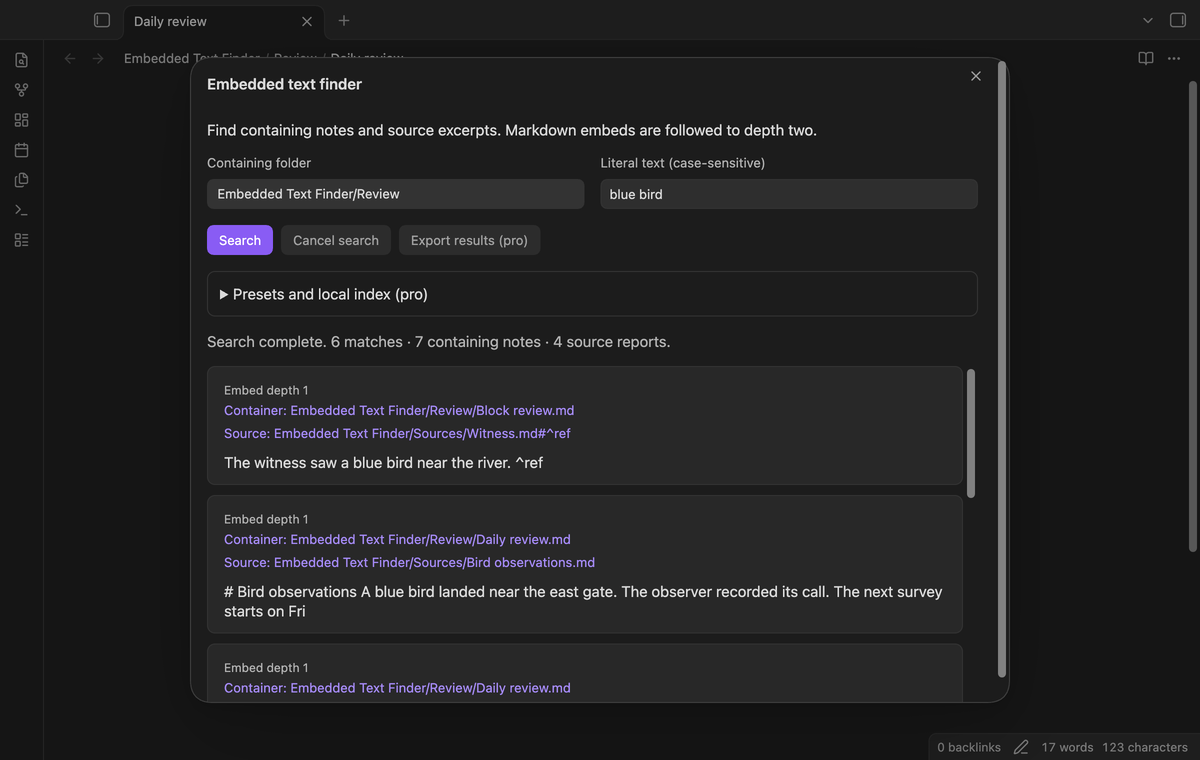
Run Embedded Text Finder: Find text in the active note and its embeds to search the note that you have open. The window selects "Only the active note and its embeds" and turns off the folder list. That note is the only container, so each result shows which embedded note holds the text. Use it for a monthly or master note that shows many embeds. The command is unavailable when no Markdown note is open.
 ### Search a heading embed
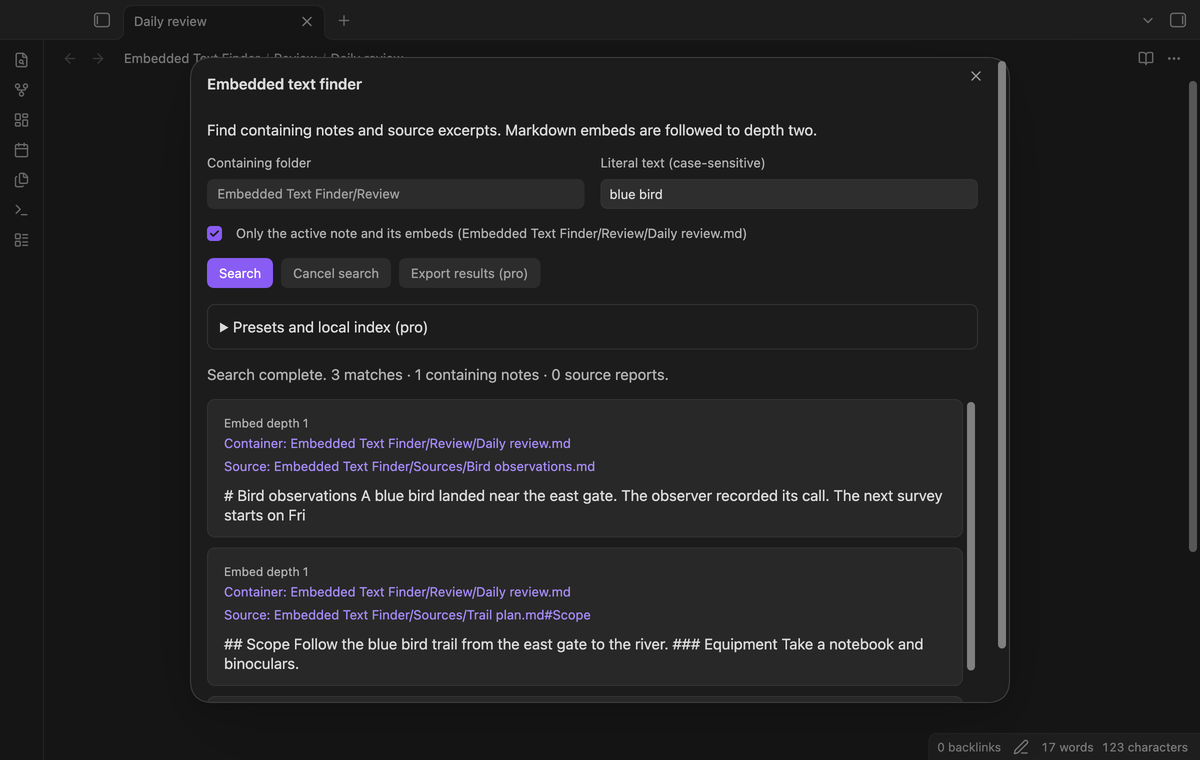
An embed such as `![[Trail plan#Scope]]` restricts the source to that heading section. A matching phrase in another section does not make this embed a result. The section includes lower-level headings until the next heading at the same or a higher level. The source button retains the heading link. This version validates basic ATX headings that start with hash characters.
 ### Search a block embed
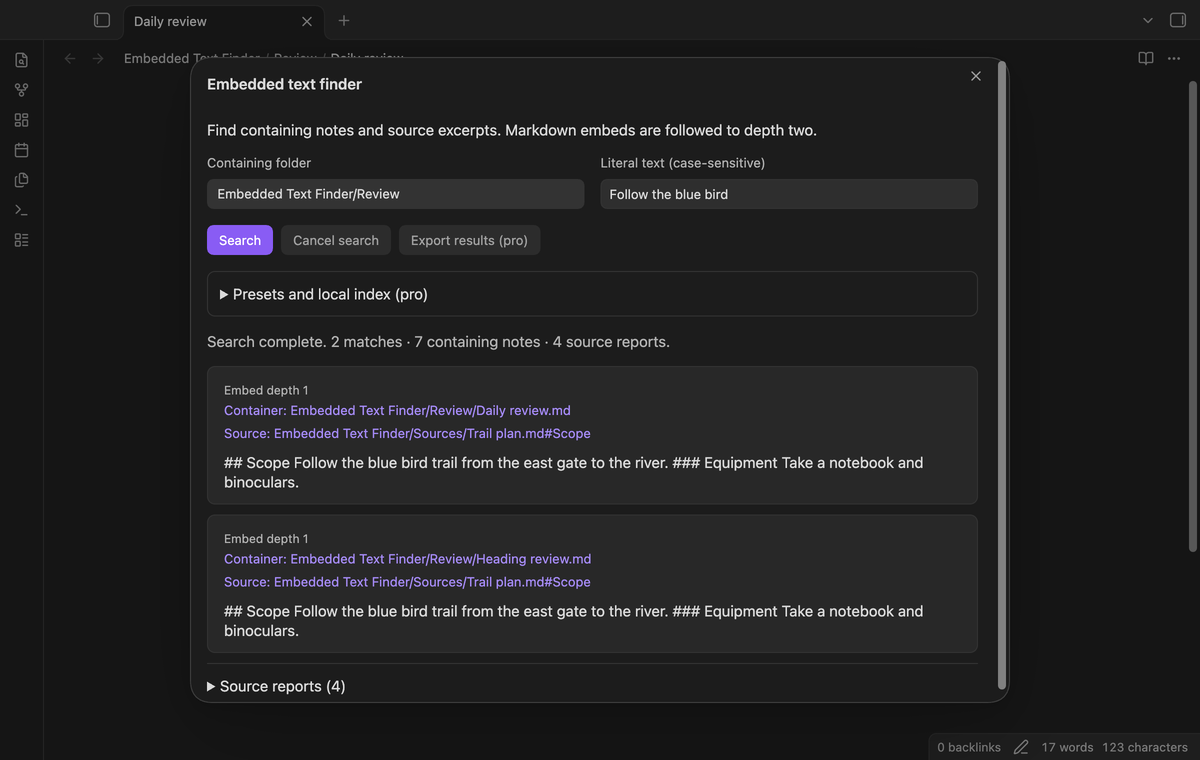
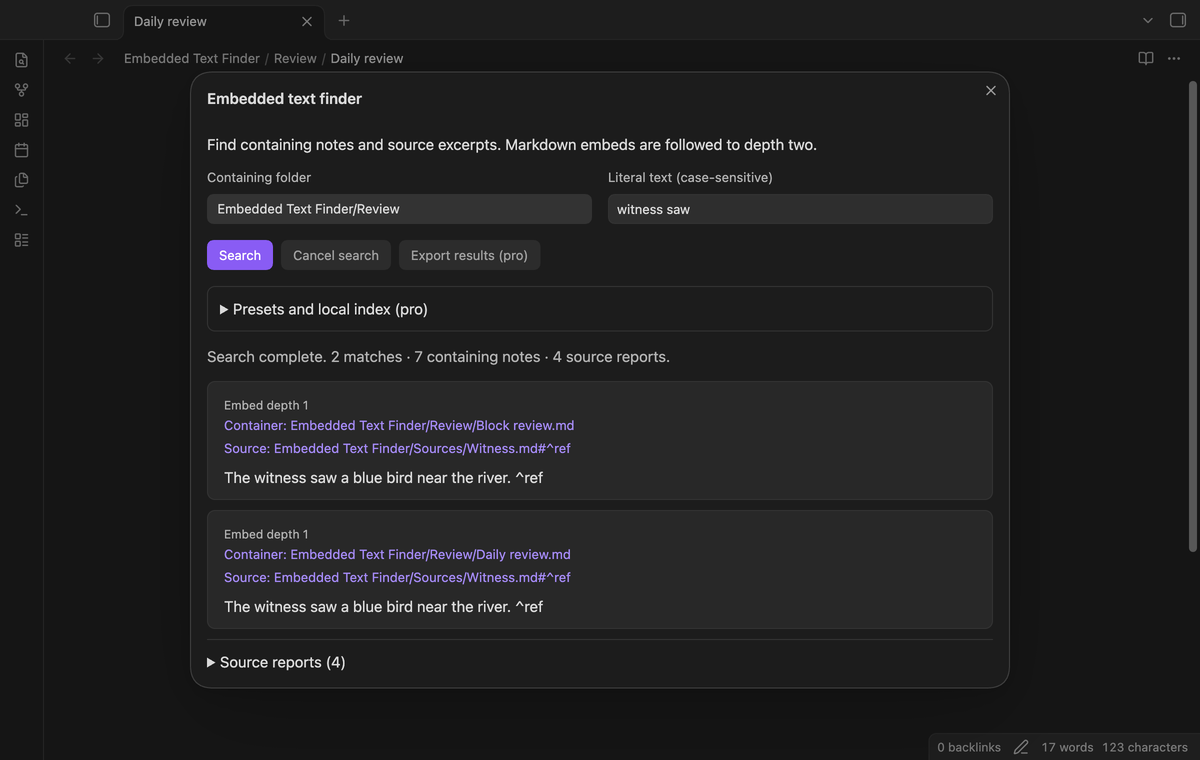
An embed such as `![[Witness#^ref]]` searches the referenced block. The block identifier comes from Obsidian metadata. A match outside that block is excluded from the embed result. Select the source button to open the note at that block. If the section is missing or its cached offsets cannot be validated, the plugin retries once and then reports the source.
 ### Follow two embed levels
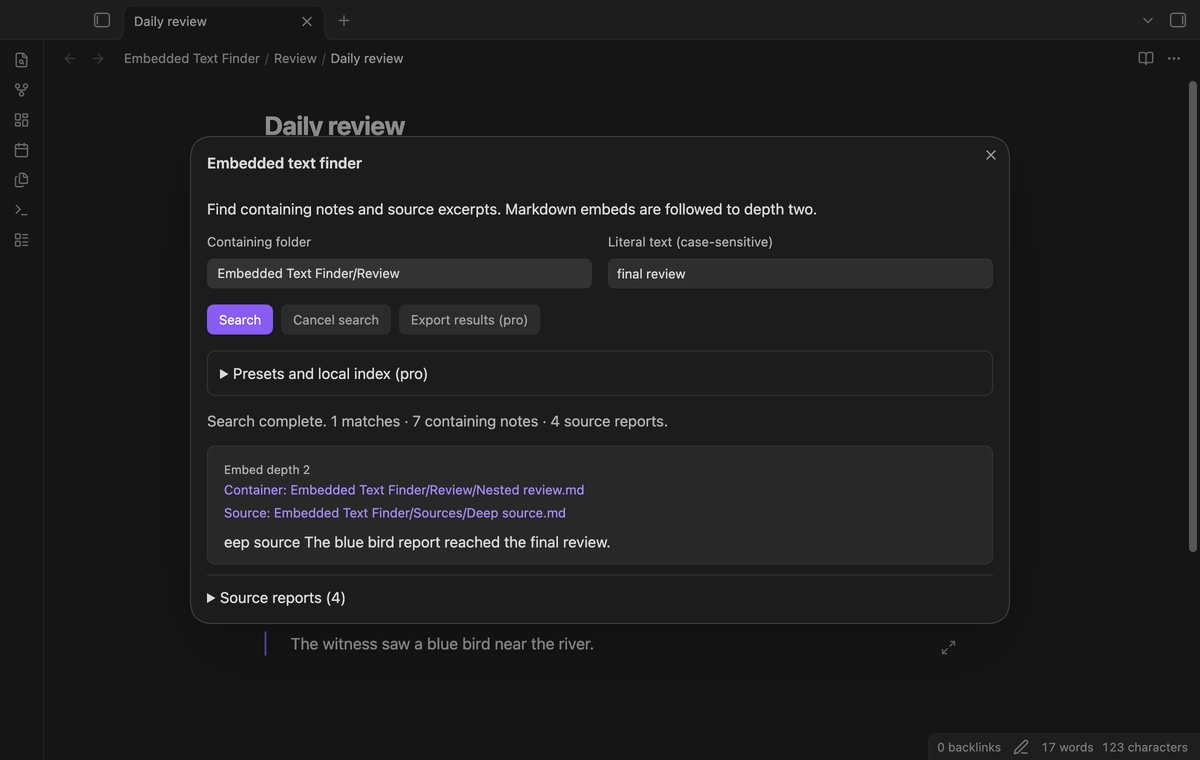
A container can embed a relay note that embeds a final source. Text in the final source can return the container at depth two. Expansion stops at that point. A third embed level produces a depth-limit report. The depth label shows the level of each excerpt. Repeated references to a matching source range share a result within the container.
 ### Read source reports
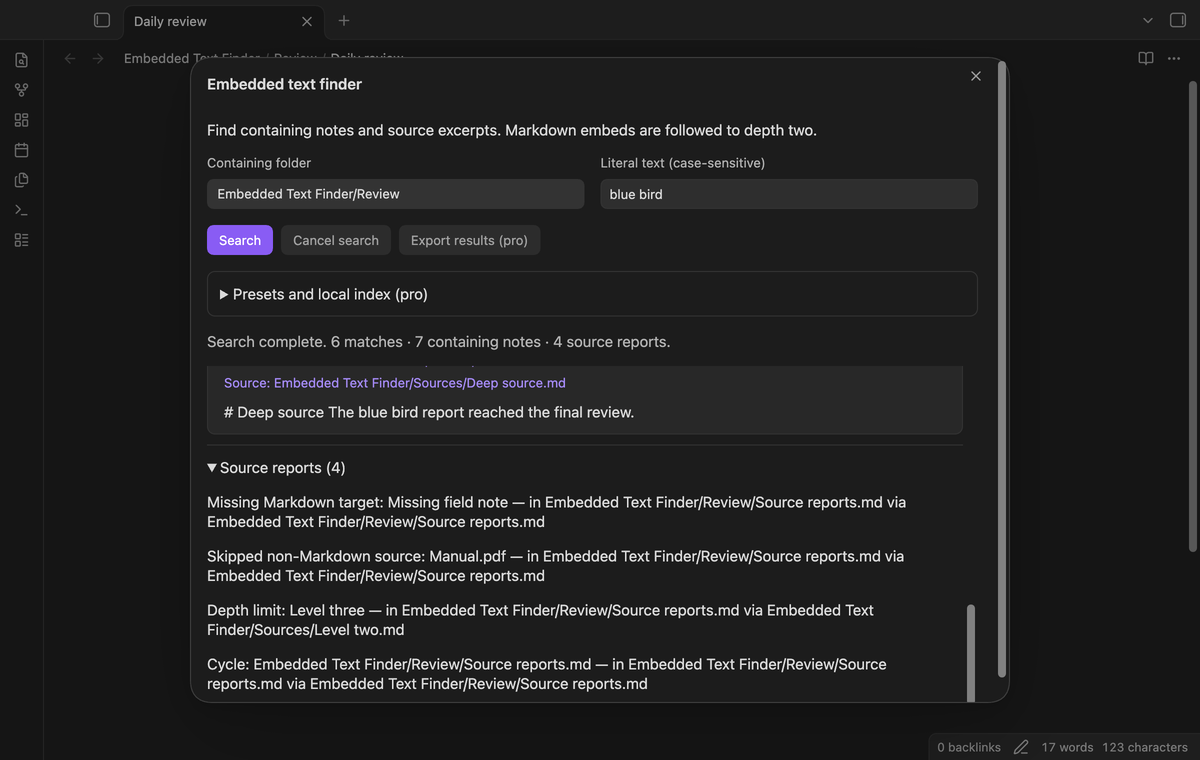
Missing Markdown targets, skipped media, read failures, unresolved sections, cycles, and depth limits appear below the results. A PDF reference is skipped without fetching its content. Fenced examples and inline code do not expand into embeds. Front matter and comments are excluded. A search yields between batches; Cancel search stops further work and marks the returned list as partial.
 ### Save presets and keep a local index (Pro)
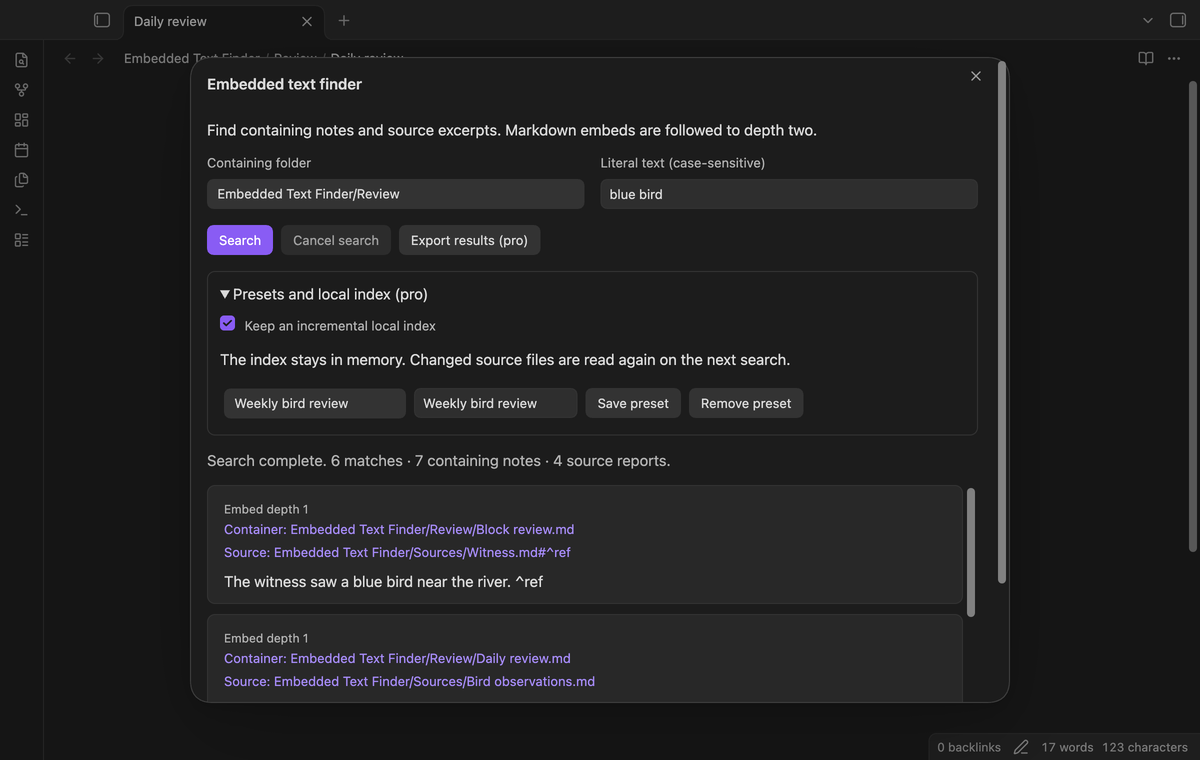
A preset stores a name, folder, and query. Save a preset for a repeated review, select it to restore the fields, then run Search. Saving an existing name replaces it. Remove preset deletes the selected preset. Up to 50 presets are retained. The optional incremental index keeps parsed source documents in memory. File changes invalidate those entries; a later search reads them again. Rename events clear the index.
 ### Export linked results (Pro)
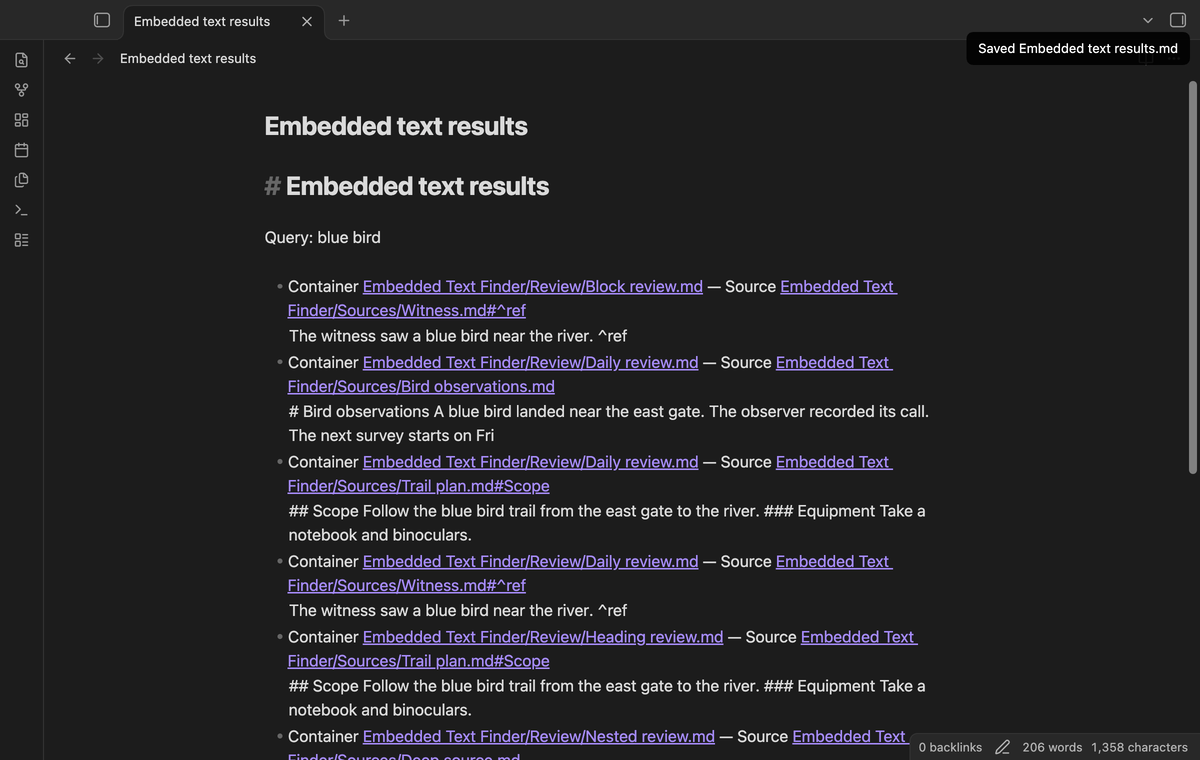
Export results creates a Markdown note at the vault root. It includes links to the containing notes and their sources, including heading or block suffixes. It writes a new numbered file when the base export name already exists. A cancelled search exports its partial-result label. Export does not alter the source notes. The screenshot uses a local sponsorship fixture for demonstration.
 ## Install
This product needs Obsidian 1.13.4 or later. For a manual installation, copy `main.js`, `manifest.json`, and `styles.css` from the release into `.obsidian/plugins/embedded-text-finder/` in your vault. Reload Obsidian and enable Embedded Text Finder in Community plugins. Keep a vault backup before testing a new plugin. The source uses the MIT license.
## Usage
Open the command palette and run Embedded Text Finder: Find text in notes and embeds. Select the containing folder from the list and type the phrase as it appears in the source. Select Search or press Enter in the text field. The plugin remembers the last folder and query in its local settings data.
Select Container to open the containing note or Source to open the matching source. Opening a path closes the search window. Run the command again to search another phrase. The window does not save the "Only the active note and its embeds" choice. For a long result list, Show next 100 matches adds the next page. The status counts matches, completed containers, and source reports. The report panel shows its first 100 entries.
## Settings
After a minor or major update, this plugin opens one What's new tab in the background. The tab and settings card suggest other NoteMods plugins and Zovo Chat and link to notemods.com for feedback ([privacy](https://notemods.com/privacy/)). The tab sends no data. Turn the tab off in Settings.
The search window holds the folder, query, preset, and index controls. Vault root includes the vault's Markdown notes.
The plugin settings tab describes search scope and provides GitHub Sponsors controls. Sign out clears the memory index. Free searches remain available. Disable the index in the search window to clear it while keeping Pro enabled. Closing Obsidian also removes the memory index. Presets and the last search fields are stored in the plugin's `data.json` file.
## FAQ
Does this search the reading view? It searches basic static Markdown text and expands wikilink embeds. It does not reproduce the complete reading renderer. Markdown image syntax, Dataview output, HTML rendering, PDF text, Canvas, and remote content are outside this version. Formatting markers can remain in excerpts.
Why is a heading missing? The metadata cache may still be updating, or the heading may use unsupported formatting. Basic ATX headings are supported. Run the search again after Obsidian updates the note. Setext headings and formatted heading validation are outside this version.
What was not tested? Physical mobile devices, Linux desktop runtime, large-vault performance, live GitHub payment, and live OAuth sign-in were not tested in this build. Desktop end-to-end tests use the earliest supported and latest public versions. Pro behavior uses a local sponsorship fixture. No mobile-device support claim follows from those tests.
## Payment, account and network
The core features are free. Pro features need a GitHub Sponsors sponsorship of theluckystrike: $5 a month or more, or $15 once. A total payment of $15 meets the payment requirement for Pro without further payment. Sign-in and the checks below still apply. Your notes stay readable and editable with or without Pro.
GitHub handles the payment. Sponsor at https://github.com/sponsors/theluckystrike?frequency=one-time&metadata_source=embedded-text-finder. You need no account for the free features. Pro needs the GitHub account that sponsors.
Until you select "Sign in with GitHub" in the settings, Embedded Text Finder makes no network requests. Sign in uses the GitHub device flow. Embedded Text Finder sends its public client ID and the scope `read:user` to `https://github.com/login/device/code` and shows you a code. While you enter the code at https://github.com/login/device, it asks `https://github.com/login/oauth/access_token` every few seconds to check the sign-in status. The scope permits profile reads only. GitHub needs this access to show the sponsorship tier. It grants no repository scope and no write access.
After sign in, Embedded Text Finder sends one query to `https://api.github.com/graphql`. It checks if the signed-in account sponsors theluckystrike. It asks for the tier and the total payment to theluckystrike. The plugin reuses a successful check for 7 days. Failed checks can retry after 6 hours. Select Refresh to request an earlier check. It sends no note content, file names or other vault data, and it has no telemetry.
After a successful check, Pro can work offline for up to 14 days. Sign out or a negative sponsorship answer turns Pro off. The plugin stores the GitHub token through the secret storage API of Obsidian. It does not put the token in its saved settings or its local sponsorship data. The local storage of this device keeps your GitHub login, the tier and the time of the last check. Sign out clears the token. You can also revoke the access in your GitHub settings, under Applications.
## Support
Include the plugin version, Obsidian version, query, and a small pair of sample notes when you report a problem to the publisher. Remove private text first. State which note should be the container and which section should be the source. Include source reports when they explain a missing result. The publisher is theluckystrike at notemods.com.