# Context Trees
Context Trees is a side view for Obsidian that shows where each search result and each backlink sits in its note. Above each hit you see the heading path and the parent list items above the matching line. Hits that share a parent show that parent once, so a note with five matches reads as one small outline.
Context Trees is a separate view. It does not patch, wrap or hide the core Search pane or the core Backlinks pane, and it does not change them. Those panes stay as they are. Context Trees opens next to them and reads your notes with the public Obsidian API only. It does not depend on the private code of those panes.
 ## Features
### Search with context trees
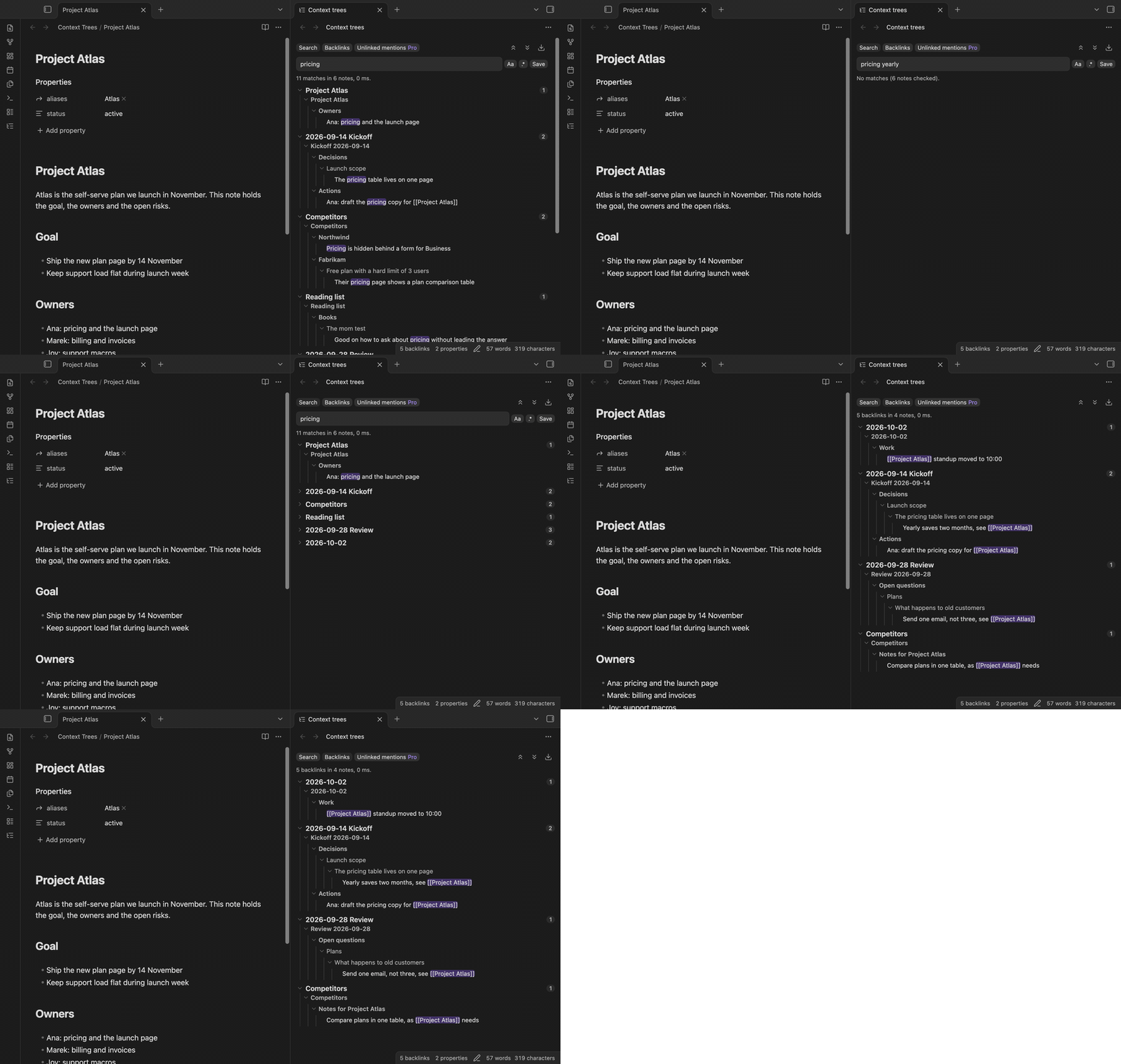
Type a word or a quoted phrase. Each word of the query must be on the same line. Each result note shows a tree: the headings above the match, then the parent list items, then the matching line with the hit marked. Two matches in the same list share the parents above them. The status line gives the number of matching lines, the number of notes and the time of the search. A line with two hits counts as one match.
## Features
### Search with context trees
Type a word or a quoted phrase. Each word of the query must be on the same line. Each result note shows a tree: the headings above the match, then the parent list items, then the matching line with the hit marked. Two matches in the same list share the parents above them. The status line gives the number of matching lines, the number of notes and the time of the search. A line with two hits counts as one match.
 ### Backlinks with context trees
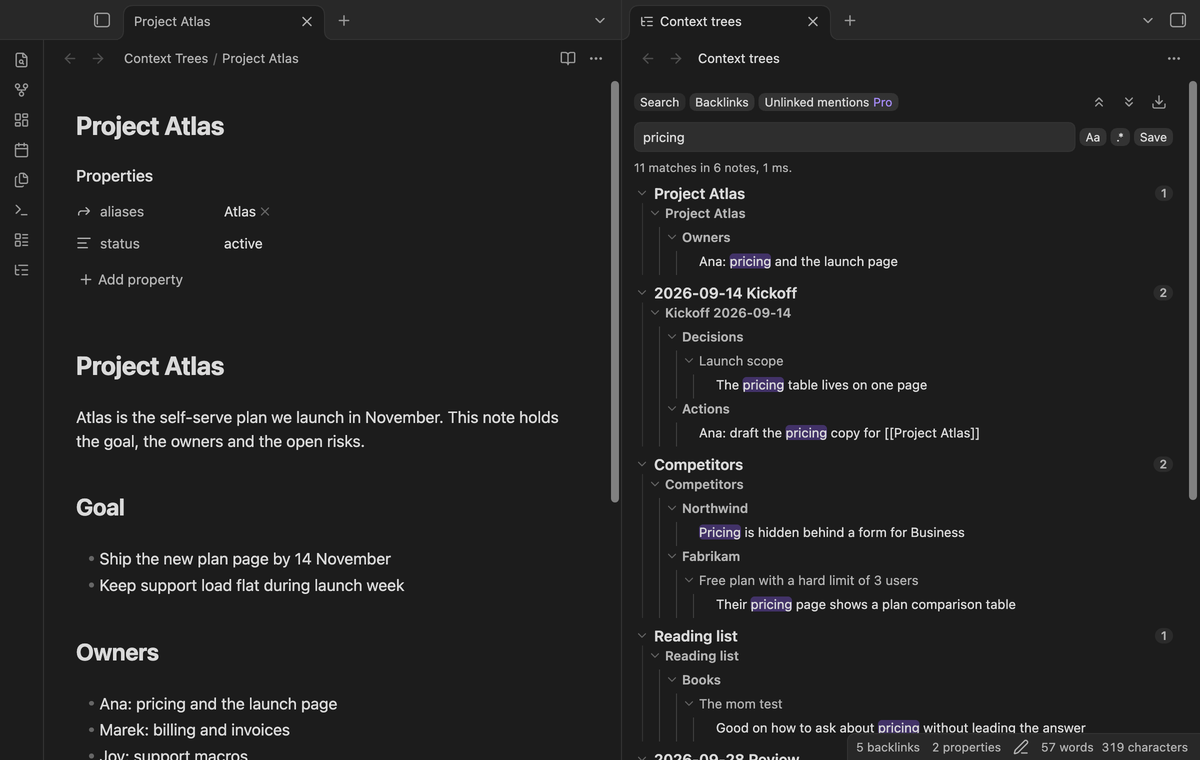
Open the Backlinks tab to see the notes that link to the open note. Each linking line comes with its heading path and its parent items, so you see why a note links here without opening it. The view follows the open note and updates when links change. Embeds count as links.
### Backlinks with context trees
Open the Backlinks tab to see the notes that link to the open note. Each linking line comes with its heading path and its parent items, so you see why a note links here without opening it. The view follows the open note and updates when links change. Embeds count as links.
 ### Fold, unfold and open at the line
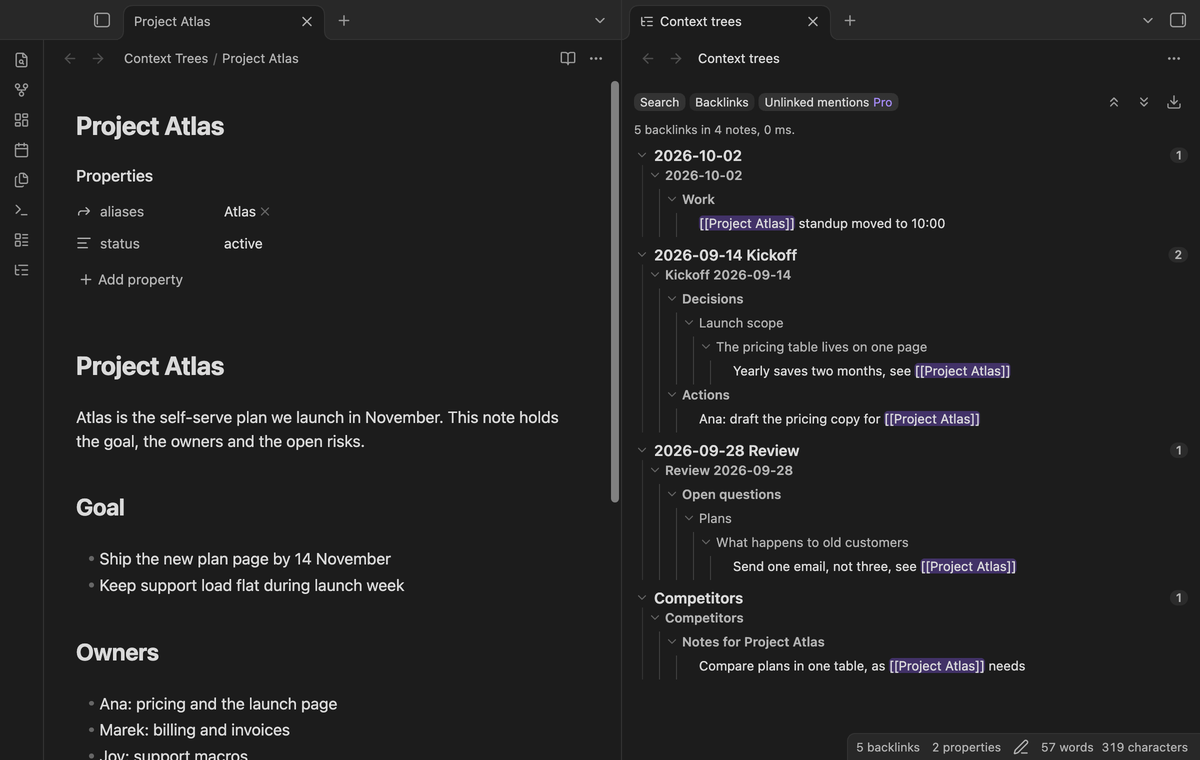
Select the arrow of a note or of any branch to fold it. The two buttons above the results fold or unfold each note and branch in the results. Select a line to open its note with the cursor on that line. Hold Ctrl (Cmd on macOS) to open it in a new tab. Select a note name to open the note at the top.
### Fold, unfold and open at the line
Select the arrow of a note or of any branch to fold it. The two buttons above the results fold or unfold each note and branch in the results. Select a line to open its note with the cursor on that line. Hold Ctrl (Cmd on macOS) to open it in a new tab. Select a note name to open the note at the top.
 ### Readable internal links
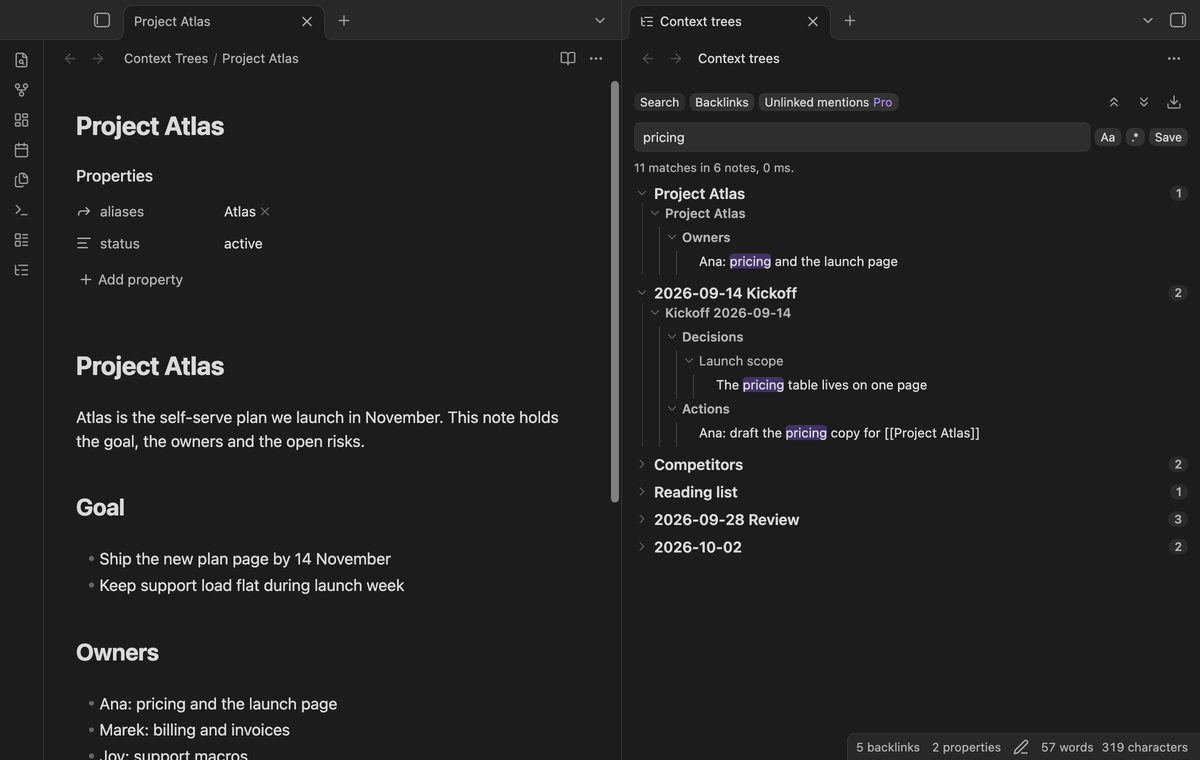
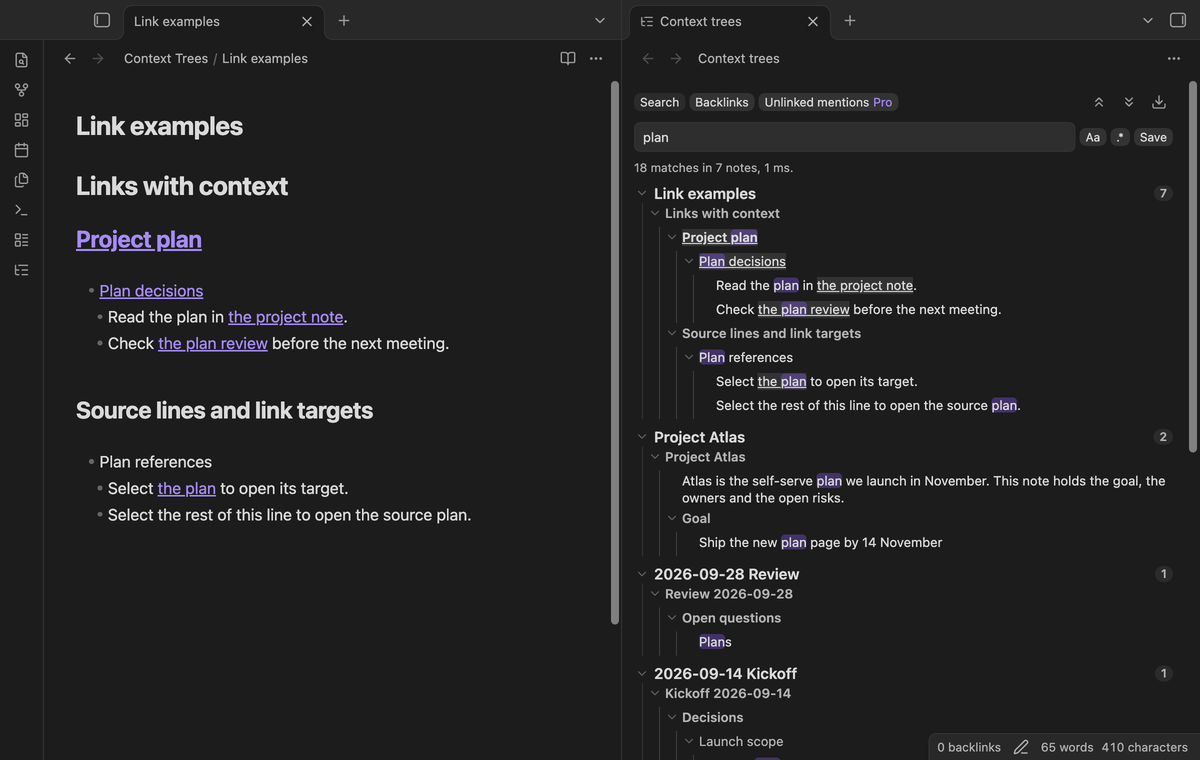
Wiki links in headings, parent items and matching lines show their name or alias. For example, `[[Project Atlas|the project]]` shows "the project" as a link. Select that link to open its target. Heading and block links keep their target. Hold Ctrl (Cmd on macOS) to open the target in a new tab. You can also use Tab to select a link, then press Enter or Space.
Select the text beside a link to open the source note at that line. Search marks stay visible in link labels. If the query matches a hidden path, the visible label is marked. A missing target shows a notice and does not create a note. Code spans, embeds, Markdown links and other Markdown stay as text. This feature is free.
### Readable internal links
Wiki links in headings, parent items and matching lines show their name or alias. For example, `[[Project Atlas|the project]]` shows "the project" as a link. Select that link to open its target. Heading and block links keep their target. Hold Ctrl (Cmd on macOS) to open the target in a new tab. You can also use Tab to select a link, then press Enter or Space.
Select the text beside a link to open the source note at that line. Search marks stay visible in link labels. If the query matches a hidden path, the visible label is marked. A missing target shows a notice and does not create a note. Code spans, embeds, Markdown links and other Markdown stay as text. This feature is free.
 ### Regular expressions and saved queries (Pro)
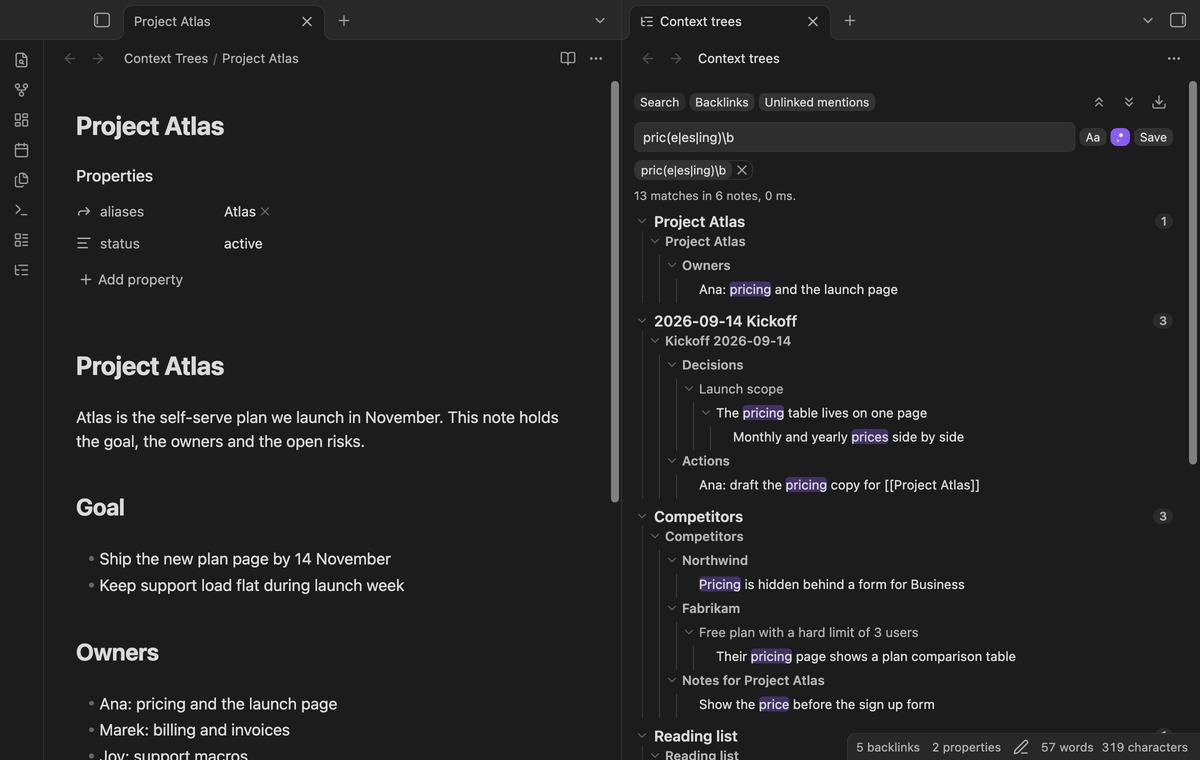
Switch on the regular expression button to search each line with a pattern. A bad pattern shows an error and no results. Select Save to keep a query as a chip above the results. Select a chip to run it again, or its cross to delete it.
### Regular expressions and saved queries (Pro)
Switch on the regular expression button to search each line with a pattern. A bad pattern shows an error and no results. Select Save to keep a query as a chip above the results. Select a chip to run it again, or its cross to delete it.
 ### Unlinked mentions with context (Pro)
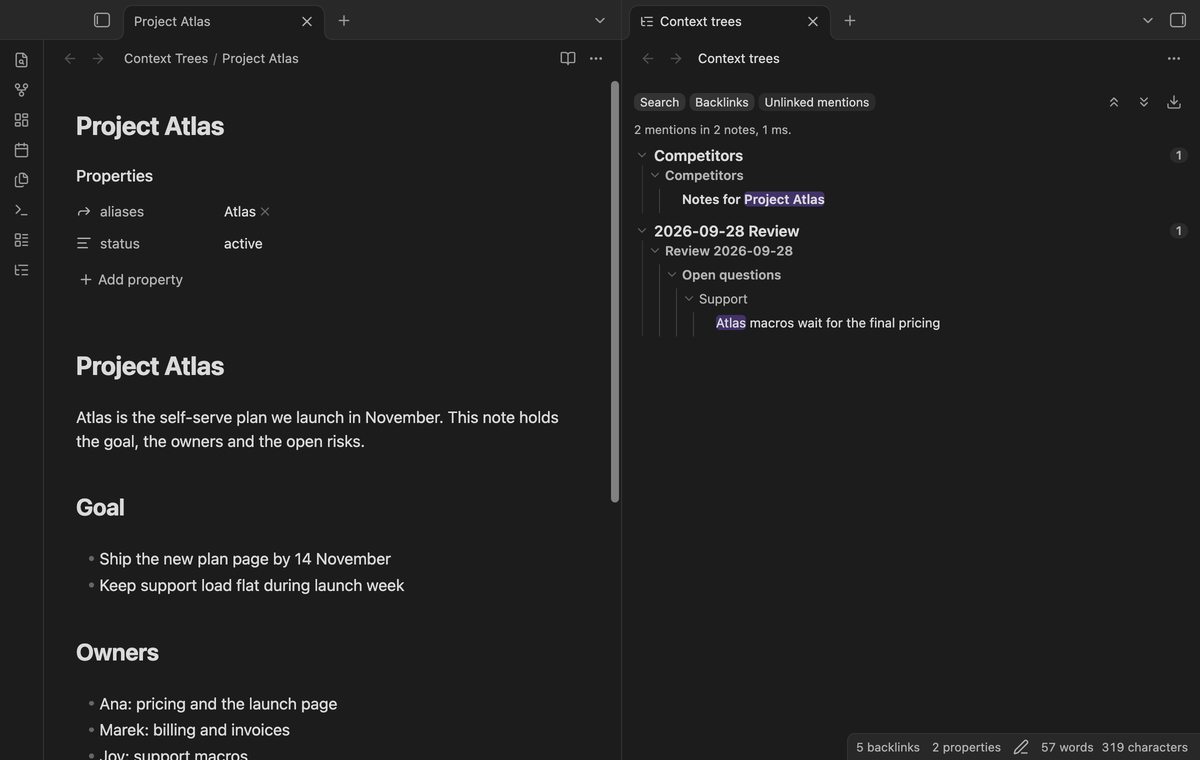
The Unlinked mentions tab lists the notes that name the open note, or one of its aliases, as plain text without a link. The name must be a whole word, and text that already is a link does not count. Each mention shows its context tree.
### Unlinked mentions with context (Pro)
The Unlinked mentions tab lists the notes that name the open note, or one of its aliases, as plain text without a link. The name must be a whole word, and text that already is a link does not count. Each mention shows its context tree.
 ### Export the results (Pro)
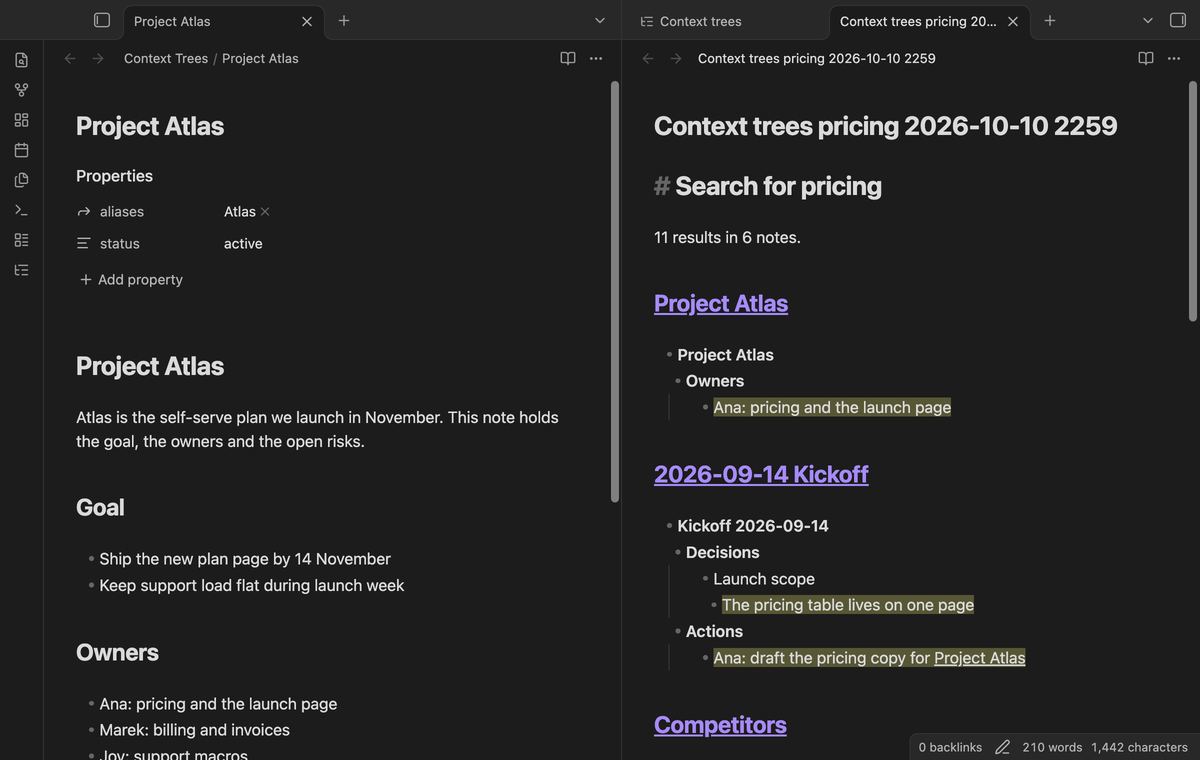
The download button, or the command "Export the results as a note", writes the current results to a new Markdown note. Each result note is a heading with a link, and below it the tree as a nested list. The matching lines are highlighted with `==`.
### Export the results (Pro)
The download button, or the command "Export the results as a note", writes the current results to a new Markdown note. Each result note is a heading with a link, and below it the tree as a nested list. The matching lines are highlighted with `==`.
 ## Install
1. Open "Settings → Community plugins" and turn off restricted mode.
2. Select "Browse", search for "Context Trees", then select "Install" and "Enable".
To install by hand, copy `main.js`, `manifest.json` and `styles.css` from the latest release into `/.obsidian/plugins/context-trees/`. Then enable the plugin. You need Obsidian 1.13.4 or later. The plugin is not marked desktop only and uses no desktop-only API. The tests run on desktop only.
## Usage
1. Select the tree icon in the ribbon, or run "Open the side view". The view opens in the right sidebar.
2. Type in the search box and wait a moment, or press Enter.
3. Select Backlinks to see the links to the open note.
4. Use the command "Search the vault" to open the view with the cursor in the search box.
Context Trees reads the headings and the list items from the Obsidian metadata cache, so it uses the same idea of a list item that Obsidian uses. The properties block of a note is not searched. If a note has no cache yet, for example a note that you made a moment ago, the view reads its headings and lists from the text.
## Settings
| Setting | What it does |
| --- | --- |
| Fold notes at start | Each note starts folded to its name and match count. Default off. |
| Notes per page | How many notes are listed before "Show more", from 10 to 500. Default 50. The count also includes the notes that are not listed yet. |
| Search delay | Milliseconds to wait after you stop typing, from 100 to 1500. Default 250. |
The settings tab also has the Pro section: sign in with GitHub, the status and Refresh.
## FAQ
### Is this a fork of Better Search Views?
No. Context Trees has no code from Better Search Views and its author did not make it. It solves a similar job in a different way. Better Search Views changes the core panes by patching private parts of Obsidian. Context Trees is its own view and uses only the public API.
### Does it change the core Search pane?
No. The core Search and Backlinks panes work as before. Their syntax, such as `path:` and `tag:`, is not available here. Context Trees searches the text of each line.
### How fast is it?
The end-to-end test makes a vault of 2,000 small notes. In that test, the first results must show in less than 1 second, and a full search must end in less than 4 seconds. The view reads 48 notes at a time and shows results while it reads. The time on your device depends on the device and on the size of your notes.
### Can I open a link from a result?
Yes. Select a wiki link label to open the target note. Select the rest of the row to open the source line. The view reads the target relative to the source note, so two notes with the same name follow the normal Obsidian link rules. Export keeps the original link text.
### Does it change my notes?
No. It only reads notes. Export creates a new note.
## Payment, account and network
The core features are free. Pro features need a GitHub Sponsors sponsorship of theluckystrike: $5 a month or more, or $15 once. A total payment of $15 meets the payment requirement for Pro without further payment. Sign-in and the checks below still apply. Your notes stay readable and editable with or without Pro.
GitHub handles the payment. Sponsor at https://github.com/sponsors/theluckystrike. You need no account for the free features. Pro needs the GitHub account that sponsors.
Until you select "Sign in with GitHub" in the settings, Context Trees makes no network requests. Sign in uses the GitHub device flow. Context Trees sends its public client ID and the scope `read:user` to `https://github.com/login/device/code` and shows you a code. While you enter the code at https://github.com/login/device, it asks `https://github.com/login/oauth/access_token` every few seconds to check the sign-in status. The scope permits profile reads only. GitHub needs this access to show the sponsorship tier. It grants no repository scope and no write access.
After sign in, Context Trees sends one query to `https://api.github.com/graphql`. It checks if the signed-in account sponsors theluckystrike. It asks for the tier and the total payment to theluckystrike. The plugin reuses a successful check for 7 days. Failed checks can retry after 6 hours. Select Refresh to request an earlier check. It sends no note content, file names or other vault data, and it has no telemetry.
After a successful check, Pro can work offline for up to 14 days. Sign out or a negative sponsorship answer turns Pro off. The plugin stores the GitHub token through the secret storage API of Obsidian. It does not put the token in its saved settings or its local sponsorship data. The local storage of this device keeps your GitHub login, the tier and the time of the last check. Sign out clears the token. You can also revoke the access in your GitHub settings, under Applications.
## Support
Report bugs and ask for features in the GitHub issues of this repository. Add your Obsidian version and a small sample note.
## Install
1. Open "Settings → Community plugins" and turn off restricted mode.
2. Select "Browse", search for "Context Trees", then select "Install" and "Enable".
To install by hand, copy `main.js`, `manifest.json` and `styles.css` from the latest release into `/.obsidian/plugins/context-trees/`. Then enable the plugin. You need Obsidian 1.13.4 or later. The plugin is not marked desktop only and uses no desktop-only API. The tests run on desktop only.
## Usage
1. Select the tree icon in the ribbon, or run "Open the side view". The view opens in the right sidebar.
2. Type in the search box and wait a moment, or press Enter.
3. Select Backlinks to see the links to the open note.
4. Use the command "Search the vault" to open the view with the cursor in the search box.
Context Trees reads the headings and the list items from the Obsidian metadata cache, so it uses the same idea of a list item that Obsidian uses. The properties block of a note is not searched. If a note has no cache yet, for example a note that you made a moment ago, the view reads its headings and lists from the text.
## Settings
| Setting | What it does |
| --- | --- |
| Fold notes at start | Each note starts folded to its name and match count. Default off. |
| Notes per page | How many notes are listed before "Show more", from 10 to 500. Default 50. The count also includes the notes that are not listed yet. |
| Search delay | Milliseconds to wait after you stop typing, from 100 to 1500. Default 250. |
The settings tab also has the Pro section: sign in with GitHub, the status and Refresh.
## FAQ
### Is this a fork of Better Search Views?
No. Context Trees has no code from Better Search Views and its author did not make it. It solves a similar job in a different way. Better Search Views changes the core panes by patching private parts of Obsidian. Context Trees is its own view and uses only the public API.
### Does it change the core Search pane?
No. The core Search and Backlinks panes work as before. Their syntax, such as `path:` and `tag:`, is not available here. Context Trees searches the text of each line.
### How fast is it?
The end-to-end test makes a vault of 2,000 small notes. In that test, the first results must show in less than 1 second, and a full search must end in less than 4 seconds. The view reads 48 notes at a time and shows results while it reads. The time on your device depends on the device and on the size of your notes.
### Can I open a link from a result?
Yes. Select a wiki link label to open the target note. Select the rest of the row to open the source line. The view reads the target relative to the source note, so two notes with the same name follow the normal Obsidian link rules. Export keeps the original link text.
### Does it change my notes?
No. It only reads notes. Export creates a new note.
## Payment, account and network
The core features are free. Pro features need a GitHub Sponsors sponsorship of theluckystrike: $5 a month or more, or $15 once. A total payment of $15 meets the payment requirement for Pro without further payment. Sign-in and the checks below still apply. Your notes stay readable and editable with or without Pro.
GitHub handles the payment. Sponsor at https://github.com/sponsors/theluckystrike. You need no account for the free features. Pro needs the GitHub account that sponsors.
Until you select "Sign in with GitHub" in the settings, Context Trees makes no network requests. Sign in uses the GitHub device flow. Context Trees sends its public client ID and the scope `read:user` to `https://github.com/login/device/code` and shows you a code. While you enter the code at https://github.com/login/device, it asks `https://github.com/login/oauth/access_token` every few seconds to check the sign-in status. The scope permits profile reads only. GitHub needs this access to show the sponsorship tier. It grants no repository scope and no write access.
After sign in, Context Trees sends one query to `https://api.github.com/graphql`. It checks if the signed-in account sponsors theluckystrike. It asks for the tier and the total payment to theluckystrike. The plugin reuses a successful check for 7 days. Failed checks can retry after 6 hours. Select Refresh to request an earlier check. It sends no note content, file names or other vault data, and it has no telemetry.
After a successful check, Pro can work offline for up to 14 days. Sign out or a negative sponsorship answer turns Pro off. The plugin stores the GitHub token through the secret storage API of Obsidian. It does not put the token in its saved settings or its local sponsorship data. The local storage of this device keeps your GitHub login, the tier and the time of the last check. Sign out clears the token. You can also revoke the access in your GitHub settings, under Applications.
## Support
Report bugs and ask for features in the GitHub issues of this repository. Add your Obsidian version and a small sample note.