# Call Notes Sync
Call Notes Sync copies your Fathom meeting summaries into your vault as one note per meeting. Each note has the title, date, participants, summary, action items as tasks and a link back to the recording. It syncs again from where it stopped.
Unofficial. This plugin is not made by, affiliated with or approved by Fathom. Fathom is a mark of its owner. The plugin only reads your own meetings through the public Fathom API, with an API key that you make yourself in your own Fathom account.
 ## Features
### Sync now, from a command or the ribbon
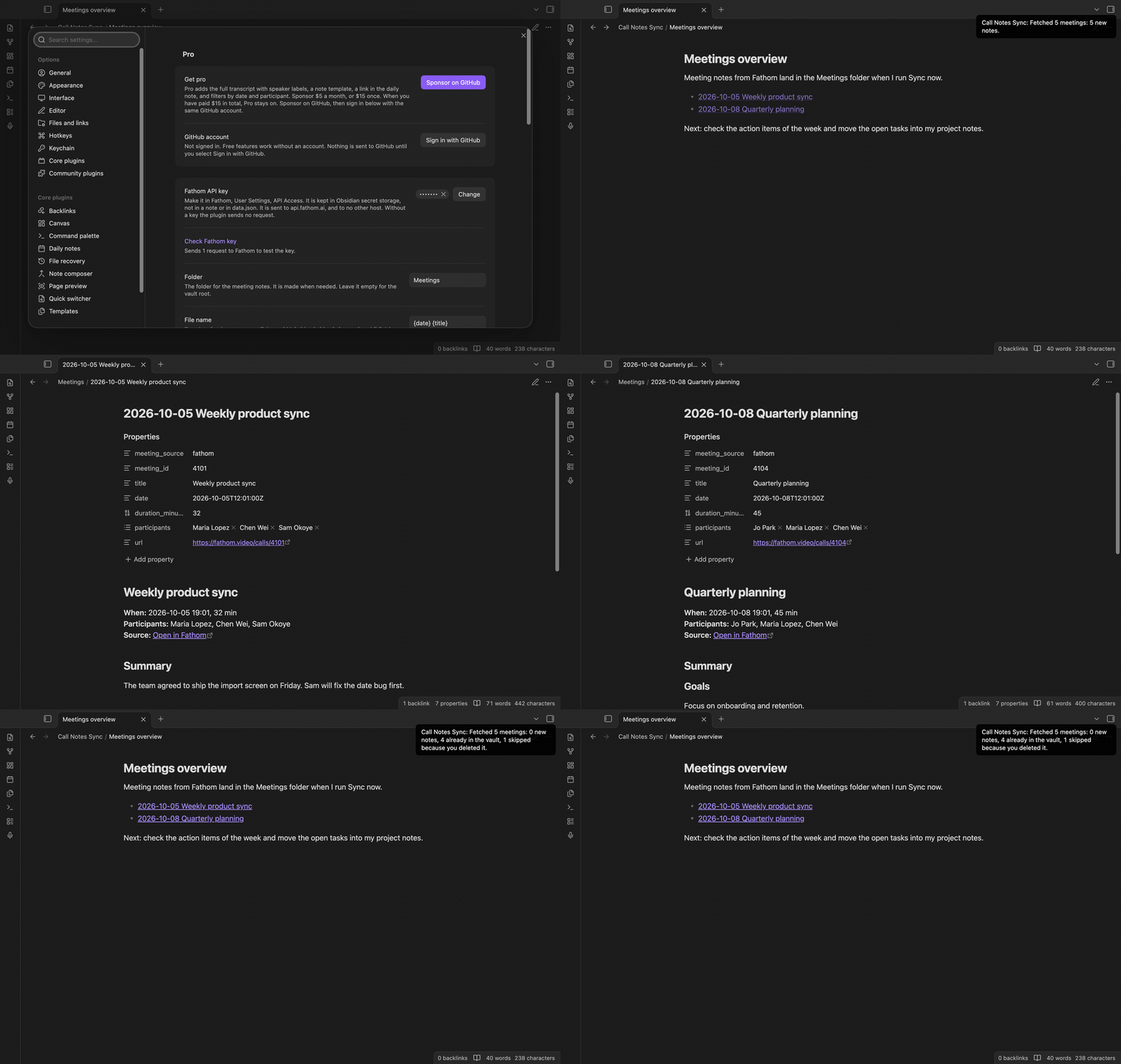
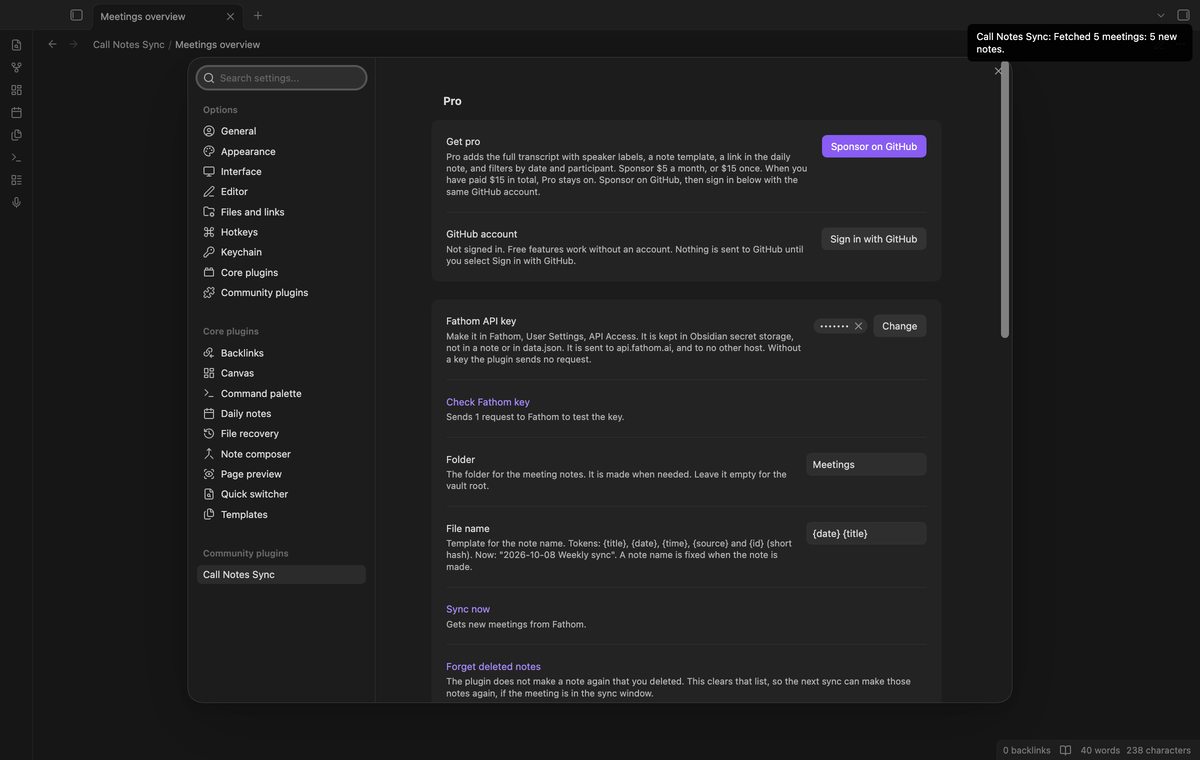
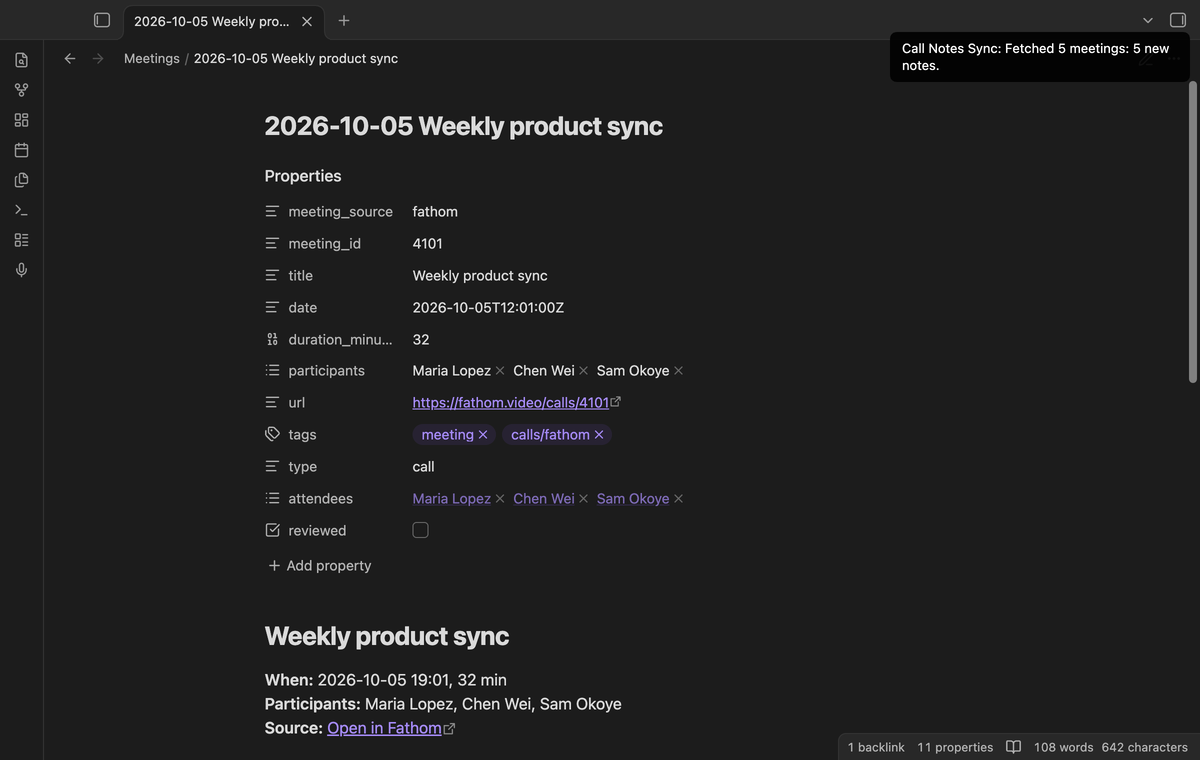
Select the microphone icon in the ribbon, or run "Call Notes Sync: Sync now". The plugin asks Fathom for new meetings. A notice says what happened, for example "Fetched 5 meetings: 5 new notes." One run reads up to 20 pages. If there is more, run Sync now again.
 ### One note per meeting
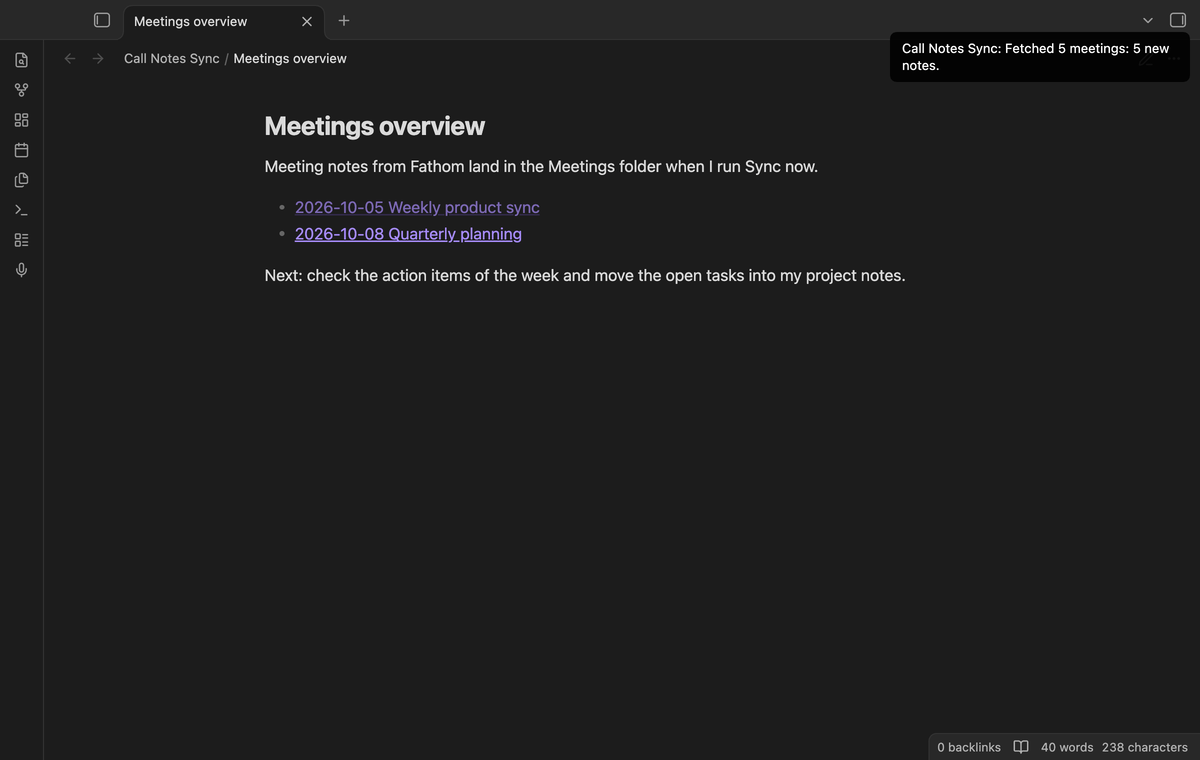
The properties hold the source, the meeting id, the title, the date, the length, the participants and the link. The body shows the summary, then the action items as tasks, with the name of the owner in brackets when Fathom gives one. A link in the header opens the recording in Fathom.
 ### Summary headings and finished tasks
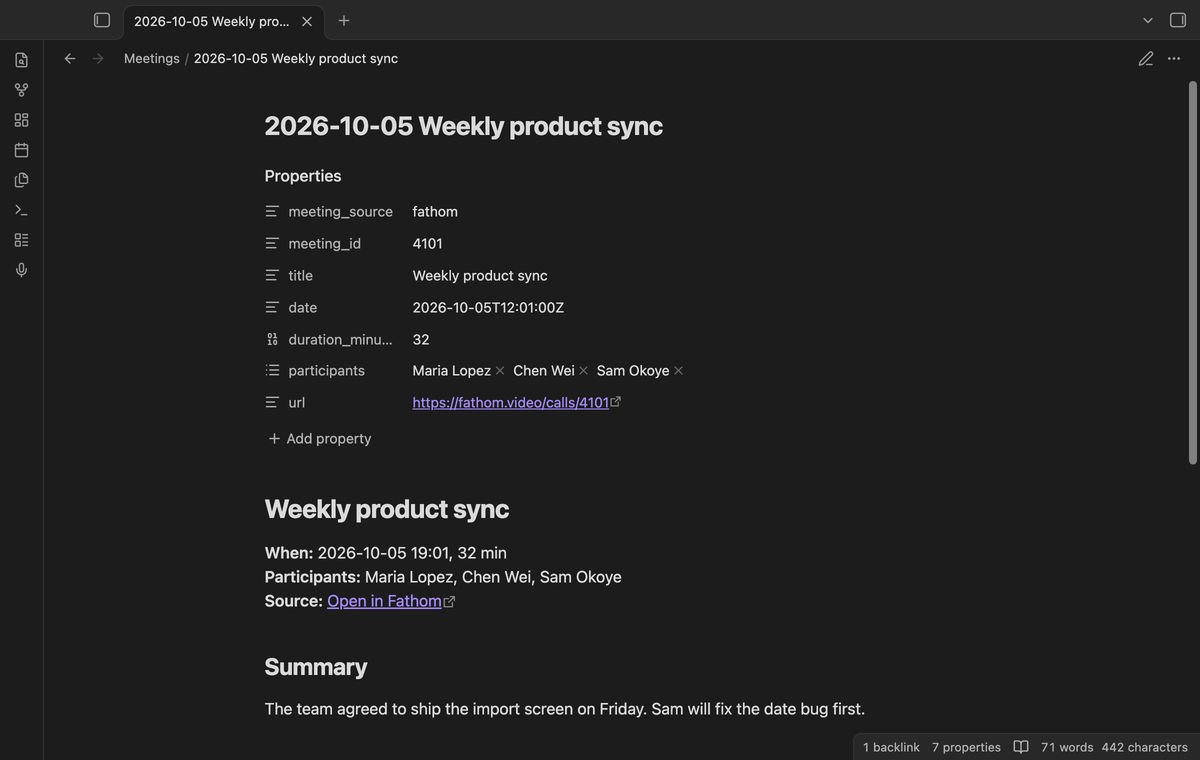
Fathom sends the summary as Markdown. Its headings move down, so your note keeps its own outline. A task that you finished in Fathom is checked.
 ### Deleted notes stay deleted
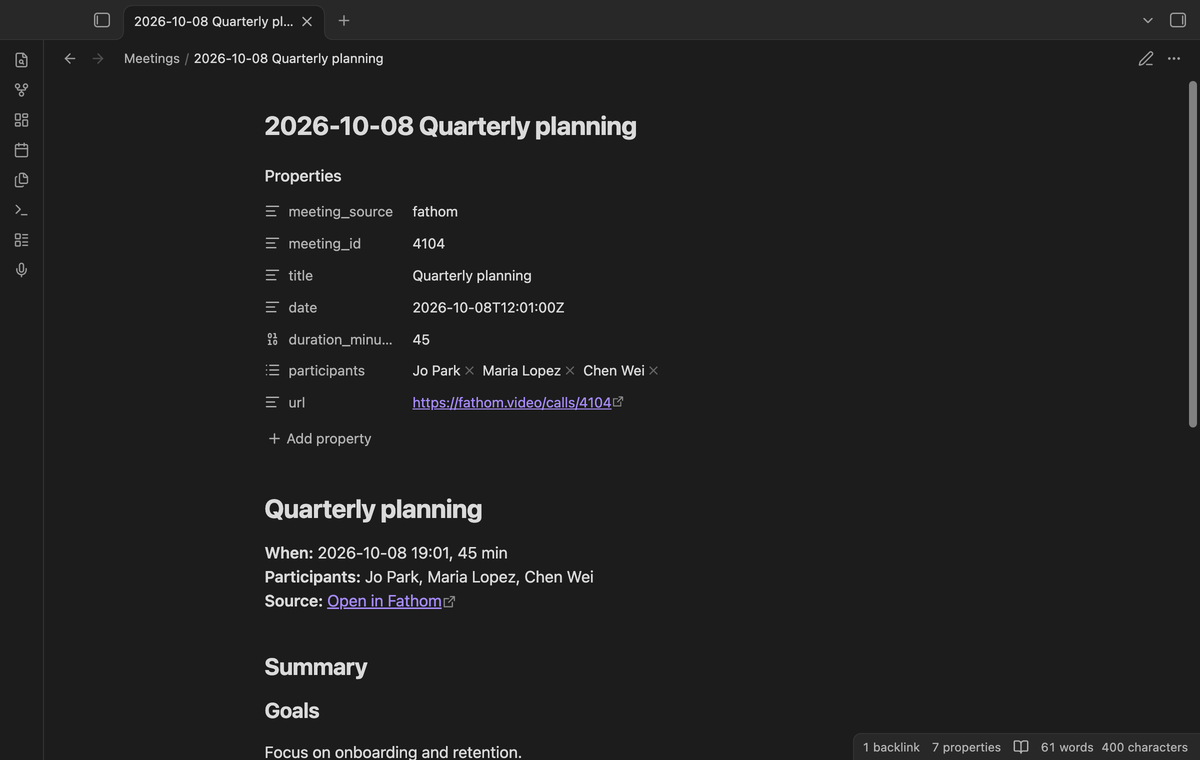
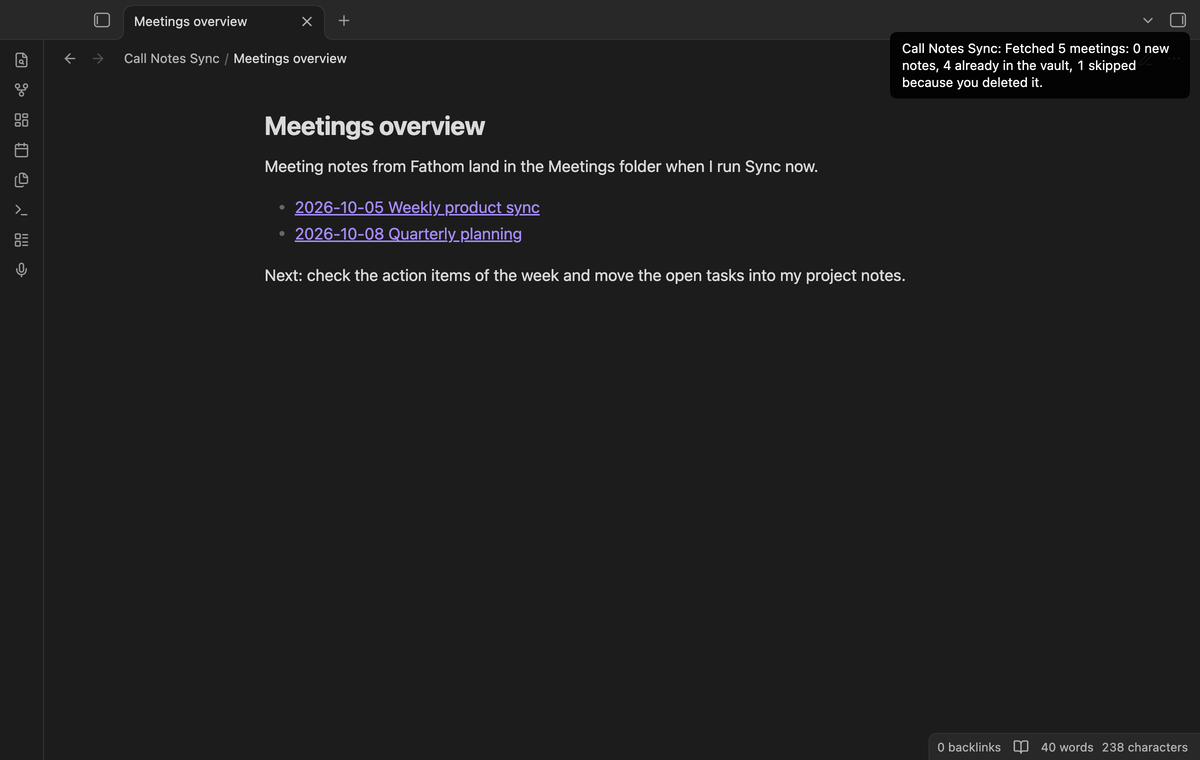
If you delete a note, the plugin remembers the meeting and does not make it again. This works while Obsidian is closed too. A later sync never changes a meeting note that exists, so your edits are safe.
"Forget deleted notes" clears the list. "Start from the beginning" asks for your whole history again.
 ### Key in secret storage
The API key lives in the secret storage of Obsidian. It is not in a note and not in `data.json`.
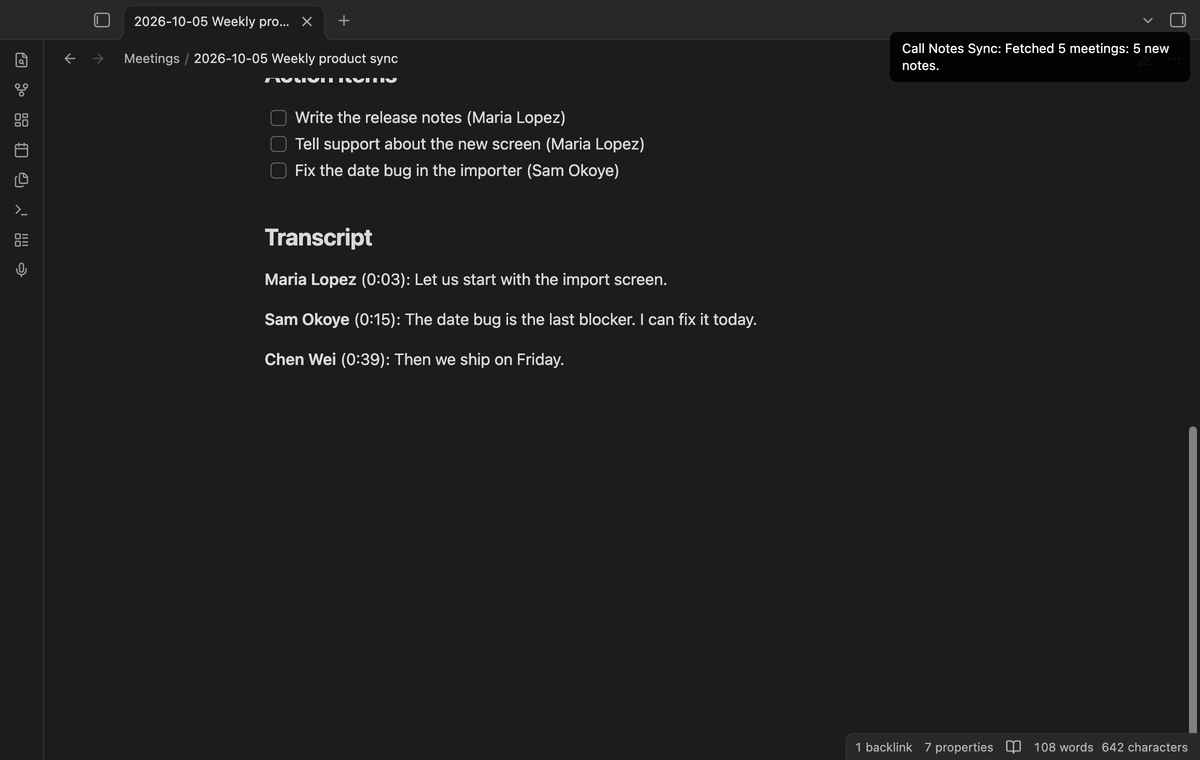
 ### Transcript with speaker labels (Pro)
With Pro, a new note also has the full transcript. Each paragraph starts with the speaker and the time from the start of the meeting. Lines of one speaker in a row make one paragraph.
 ### Template, daily note link and filters (Pro)
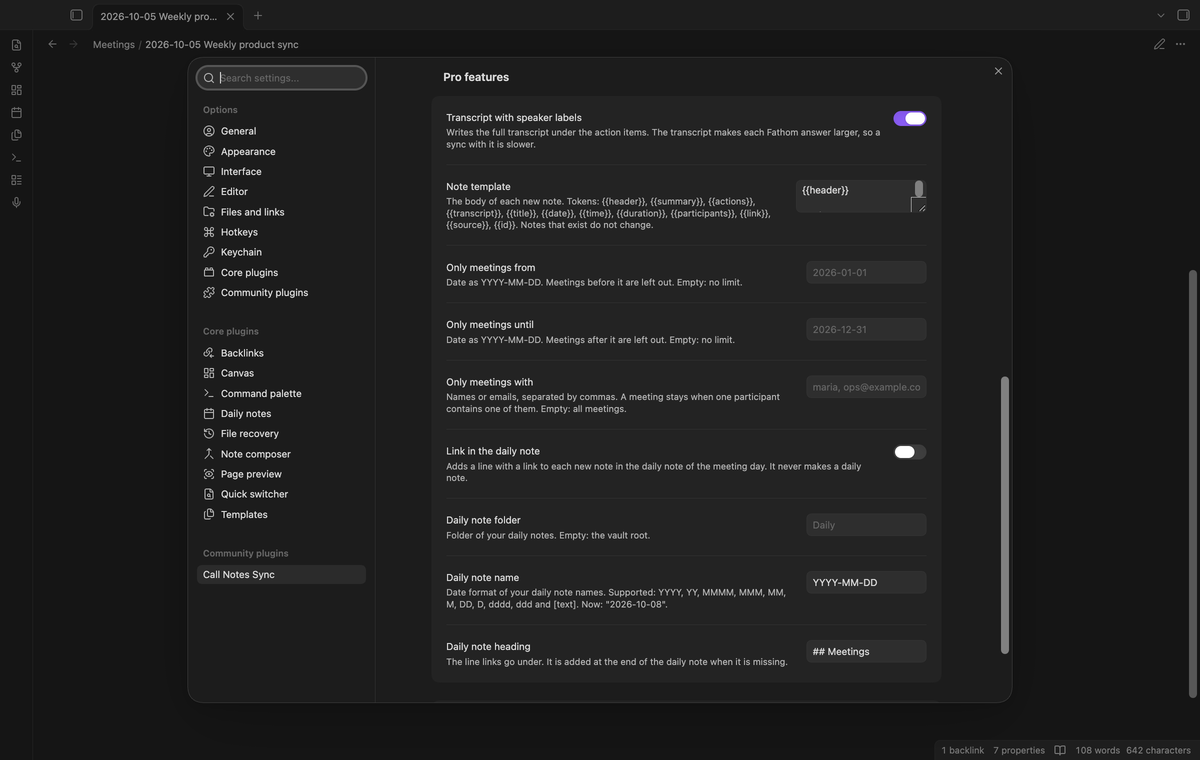
A note template sets the body of each new note. Its tokens are `{{header}}`, `{{summary}}`, `{{actions}}`, `{{transcript}}`, `{{title}}`, `{{date}}`, `{{time}}`, `{{duration}}`, `{{participants}}`, `{{link}}`, `{{source}}` and `{{id}}`. The daily note link adds a line with a link to each new note under a heading that you choose. The plugin never makes a daily note. Filters leave out meetings before or after a date, and keep only meetings with a participant whose name or email contains your text.
 ### Tags, properties and attendee links (Pro)
Tags add a `tags` list to the properties of each new note. Extra properties add one `name: value` line for each line that you write. A value can use tokens such as `{{title}}`, `{{date}}` and `{{duration}}`. `{{participant_links}}` alone makes a list of `[[wiki links]]`, one for each attendee, so each meeting connects to your person notes. The built-in properties stay.
 ## Install
1. Open Settings, Community plugins, and select Browse.
2. Search for "Call Notes Sync", then select Install and Enable.
3. Open the plugin settings and save your Fathom API key.
To make the key, open Fathom, go to User Settings and select API Access.
## Usage
Save the key, run "Sync now" and open the folder "Meetings". A meeting younger than 48 hours with no summary and no action items is not ready. The plugin takes it in a later sync. Each sync starts 48 hours before the newest meeting that it saw, so a late recording is not lost.
## Settings
After a minor or major update, this plugin opens one What's new tab in the background. The tab and settings card suggest other NoteMods plugins and Zovo Chat and link to notemods.com for feedback ([privacy](https://notemods.com/privacy/)). The tab sends no data. Turn the tab off in Settings.
The settings are the key, the folder, the file name tokens `{title}`, `{date}`, `{time}`, `{source}` and `{id}`. The Pro group holds the rest.
## FAQ
### Is this allowed by Fathom?
The plugin runs on your device and uses your own key, which Fathom describes as the way to reach your own meetings for personal automation. Fathom's terms apply to your account and your use of its API, so read them before you sync.
### Does a note update when the summary changes in Fathom?
No. A note is made once. To get a new copy, delete the note, run "Forget deleted notes" and "Start from the beginning", then run "Sync now". Your other deleted notes also come back.
### I turned on Pro. Why do old notes have no transcript, tags or properties?
Pro features apply to notes that the plugin makes after Pro is on. Use the steps above for an older note.
### Is there a limit on requests?
Yes. A Fathom key allows 60 requests a minute, and 30 a minute with a summary or a transcript. The plugin waits about two seconds between pages. If Fathom says "slow down", it waits the seconds that Fathom asks, up to two minutes, and stops after two retries.
### Does it work with Fathom OAuth?
No. It needs a personal Fathom API key.
## Payment, account and network
The core features are free. Pro features need a GitHub Sponsors sponsorship of theluckystrike: $5 a month or more, or $15 once. A total payment of $15 meets the payment requirement for Pro without further payment. Sign-in and the checks below still apply. Your notes stay readable and editable with or without Pro.
GitHub handles the payment. Sponsor at https://github.com/sponsors/theluckystrike?frequency=one-time&metadata_source=call-notes-sync. You need a Fathom account for every feature, free or Pro. Pro also needs the GitHub account that sponsors.
Call Notes Sync talks to Fathom at `https://api.fathom.ai/external/v1/meetings`, and only after you save a Fathom API key in the settings. Each request carries the key in the X-Api-Key header. The requests only read. They send a date window and a page position, and with Pro filters nothing else, because the filters run in the plugin. Check Fathom key sends one request with the key and nothing else. Fathom sends back, for each meeting in the window, the title, date, the web link, the recorder and the invitees (names and email addresses), the summary and the action items, and with the Pro transcript also every spoken sentence with its speaker name and time. The plugin keeps in your vault only what it writes into the notes. It writes the title, date, length, link, participant names (the email address only for a person who has no name), summary and action items, and with Pro the transcript, tags and extra properties. The sync state in data.json holds the meeting ids with the note paths, the time of the newest meeting and the last sync time. It does not keep email addresses, summaries or transcripts. It sends nothing to any other host and has no telemetry. Meeting notes can hold personal data of other people. You decide whether to connect Fathom and which meetings to sync. Your key can read only the meetings that Fathom lets that key see (the ones you recorded and the ones shared with you or your team).
Until you select "Sign in with GitHub" in the settings, Call Notes Sync sends nothing to GitHub. Sign in uses the GitHub device flow. Call Notes Sync sends its public client ID and the scope `read:user` to `https://github.com/login/device/code` and shows you a code. While you enter the code at https://github.com/login/device, it asks `https://github.com/login/oauth/access_token` every few seconds to check the sign-in status. The scope permits profile reads only. GitHub needs this access to show the sponsorship tier. It grants no repository scope and no write access.
After sign in, Call Notes Sync sends one query to `https://api.github.com/graphql`. It checks if the signed-in account sponsors theluckystrike. It asks for the tier and the total payment to theluckystrike. The plugin reuses a successful check for 7 days. Failed checks can retry after 6 hours. Select Refresh to request an earlier check. It sends no note content, file names or other vault data to GitHub, and it has no telemetry.
After a successful check, Pro can work offline for up to 14 days. Sign out or a negative sponsorship answer turns Pro off. The plugin stores the GitHub token through the secret storage API of Obsidian. It does not put the token in its saved settings or its local sponsorship data. The local storage of this device keeps your GitHub login, the tier and the time of the last check. Sign out clears the token. You can also revoke the access in your GitHub settings, under Applications.
## Support
Report bugs and feature requests in this repository's issue tracker. To support the work, use [GitHub Sponsors](https://github.com/sponsors/theluckystrike?frequency=one-time&metadata_source=call-notes-sync).
```
npm ci
npm run build
npm test
```
## License
MIT
## Community
Questions, bugs or plugin ideas? Talk to me and other Obsidian users in [Zovo Chat](https://t.me/+k2MM-BIc7SQ5OWM0) on Telegram. It has a topic for these plugins. You can also open an issue here.