# Bases View Extract
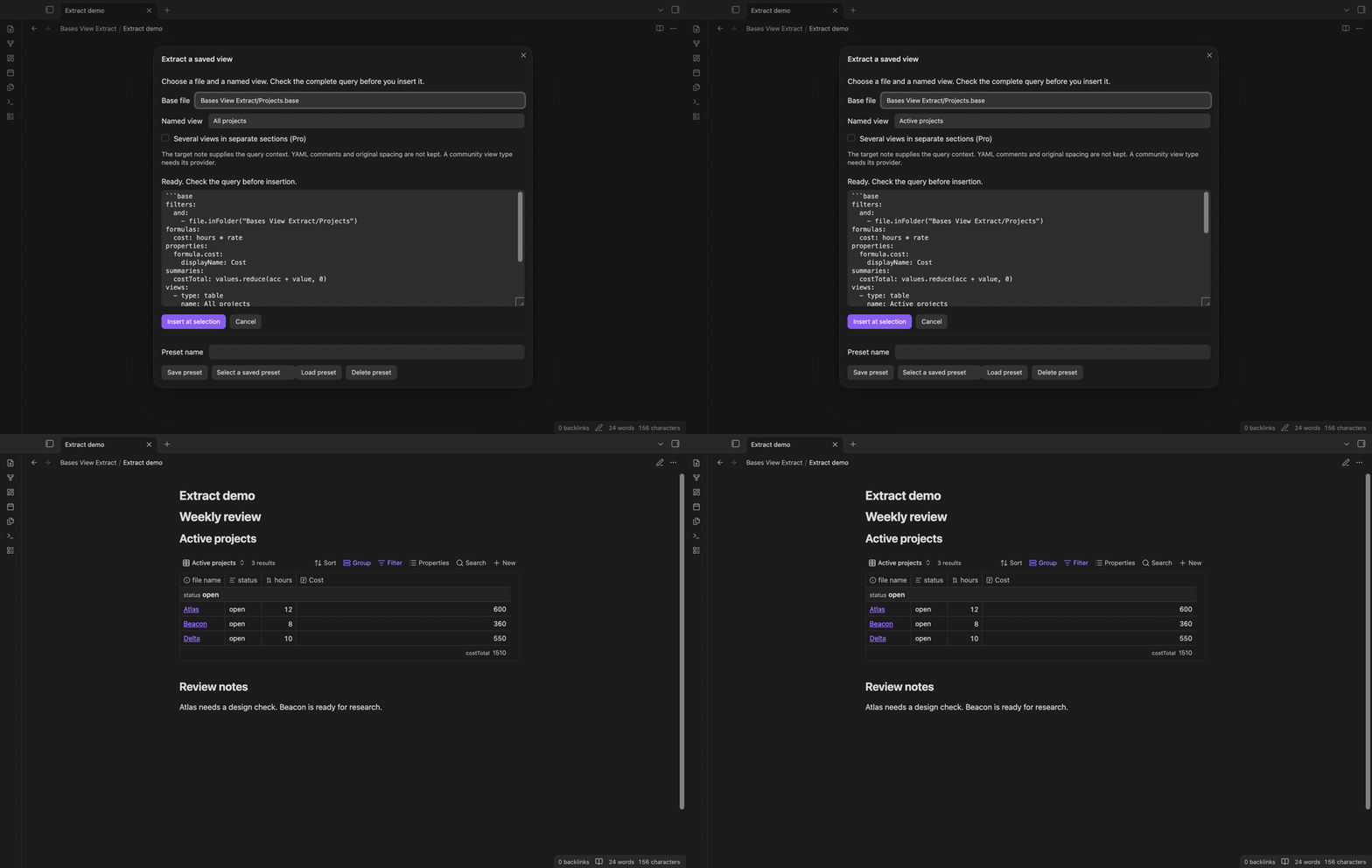
Bases View Extract copies one saved view from a `.base` file into a complete embedded query. Choose a file and a named view, check the YAML, then insert a fenced `base` block at the selection in your Markdown editor. The source Base stays unchanged.
Use it when a large Base has several views and you need one of them in a weekly review, project note or dashboard. Shared definitions stay with the selected view. You do not need to find and copy each formula by hand.
 ## Features
### Choose a named view
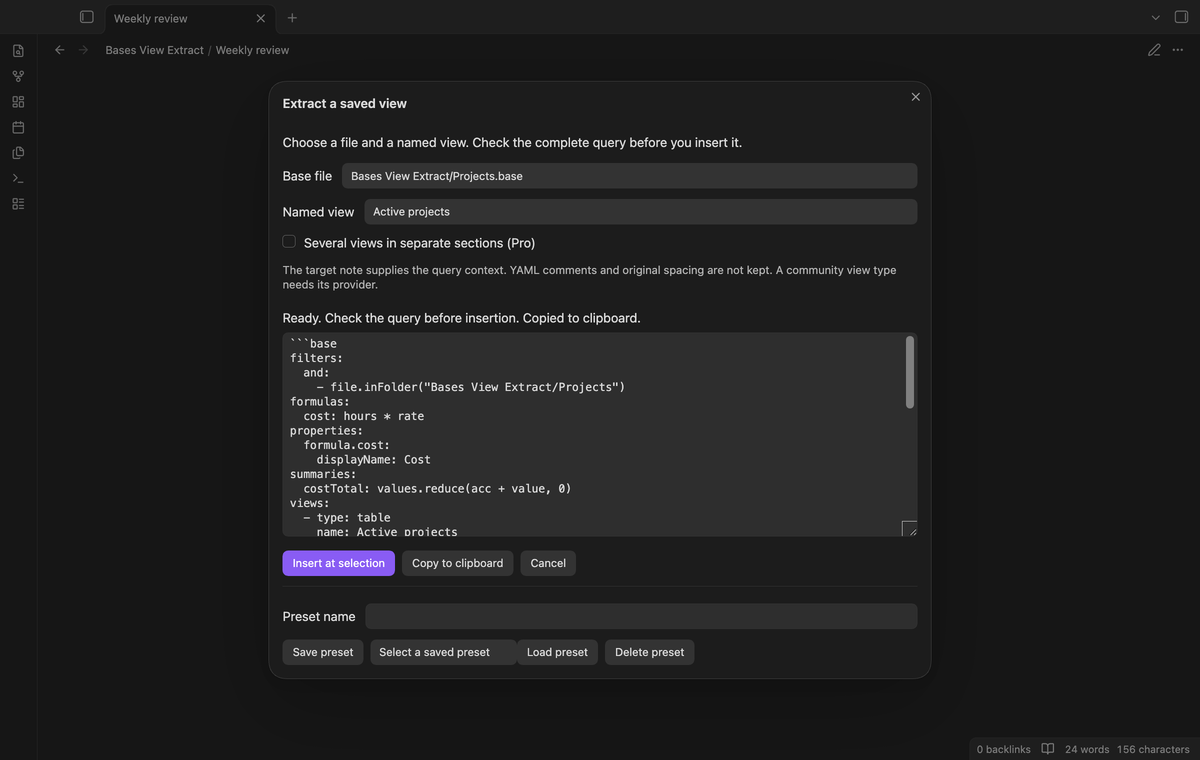
The command lists `.base` files in the current vault. Select a file, then choose its saved view by name. The output has that view in its `views` array. Other views are left out. Names are case sensitive. A duplicate selected name stops extraction with an error, so the command does not guess which entry you meant.
 ### Keep shared definitions
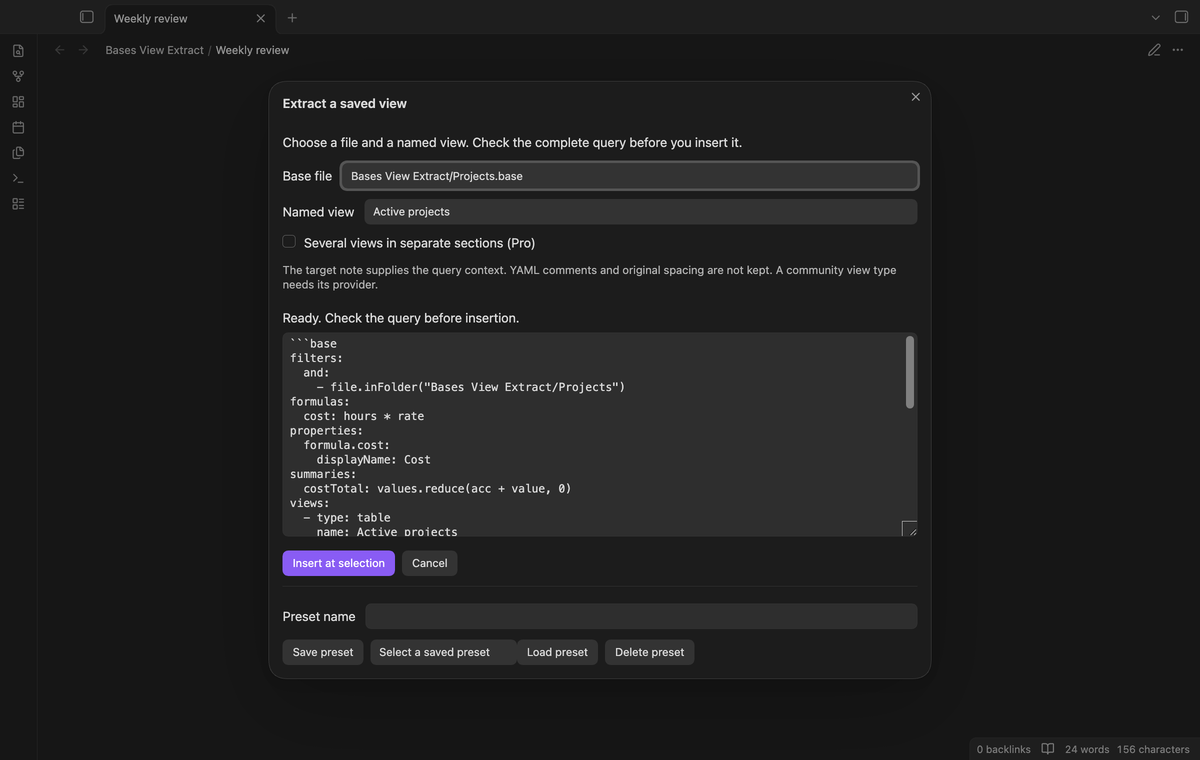
Shared filters, formulas, property labels and summary definitions remain in the query. A view filter stays inside the selected view. Extraction also keeps unknown top fields and view options as parsed values. This lets a community view keep its own options, though that view still needs its provider to render.
 ### Preview the complete query
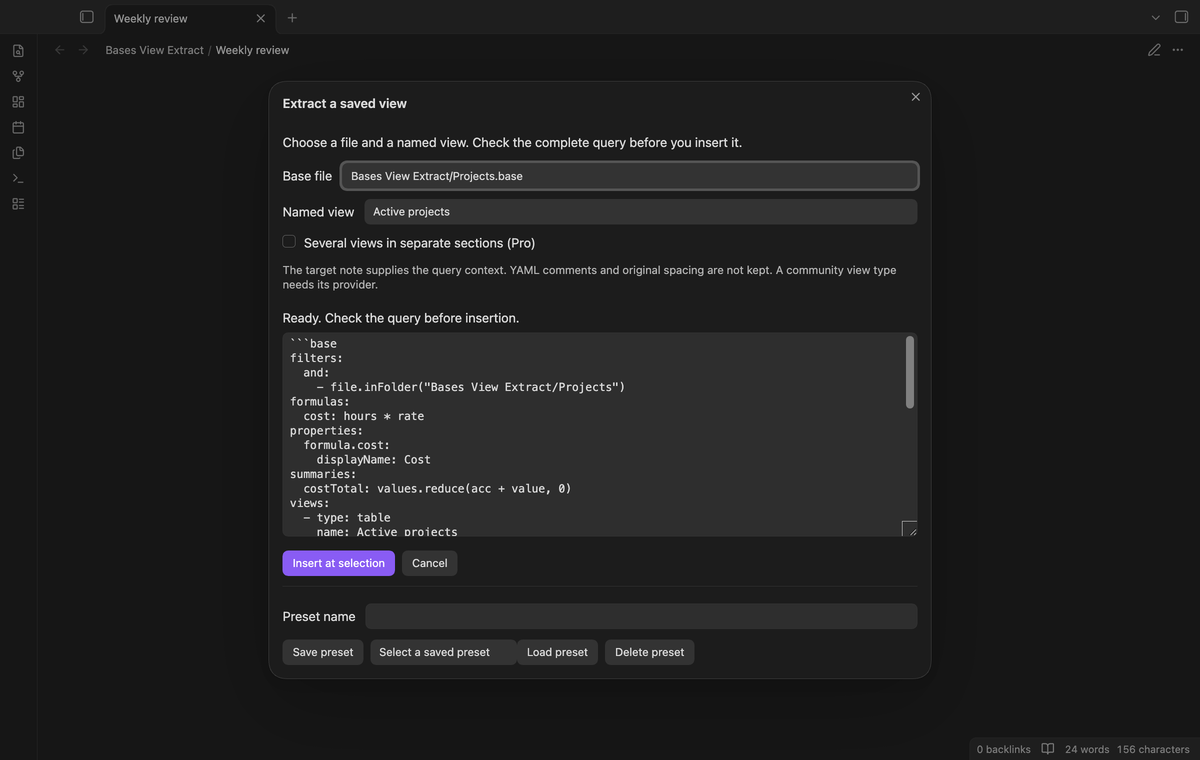
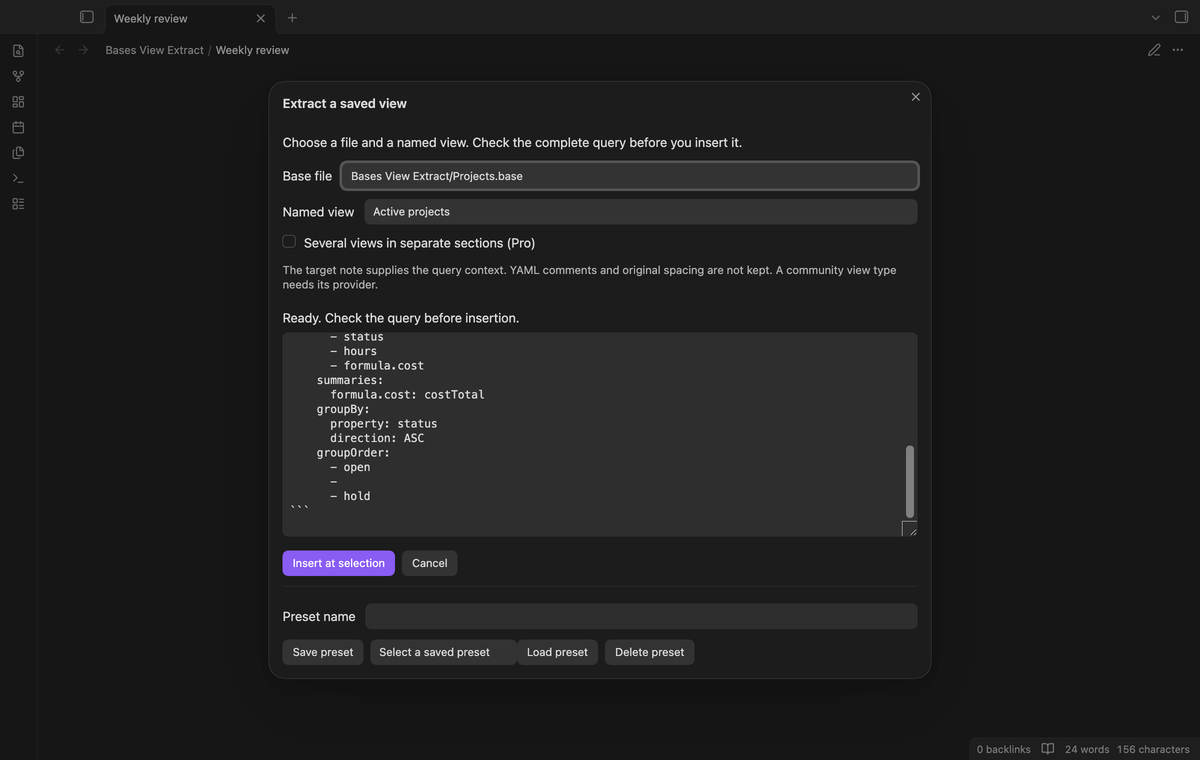
The read only preview shows the fenced block before insertion. Scroll it to check the selected view, sort rules, group setup and summary choices. Group order keeps its sequence and null keys. Parsing and serialization remove YAML comments and change spacing; the output is a new representation of the parsed values.
 ### Copy to clipboard
Select “Copy to clipboard” to copy the complete query block, including its base fence and shared definitions. The copy omits the extra first newline that the preview adds when the cursor is in the middle of a line. Paste it into another note or a template. Copy of one saved view is free. The window stays open, and the action leaves the editor and source unchanged. It copies query source, not result rows. Several view sections and loaded presets keep their Pro requirement.
Copy is disabled until the preview is valid. If clipboard access fails, the preview stays available. Select its text and copy it manually, or try the button again. A context warning stays visible after copy. Check the query in the note where you paste it; that note supplies the context. The plugin writes to the clipboard only when you select this action. It never reads the clipboard.
 ### Check note context
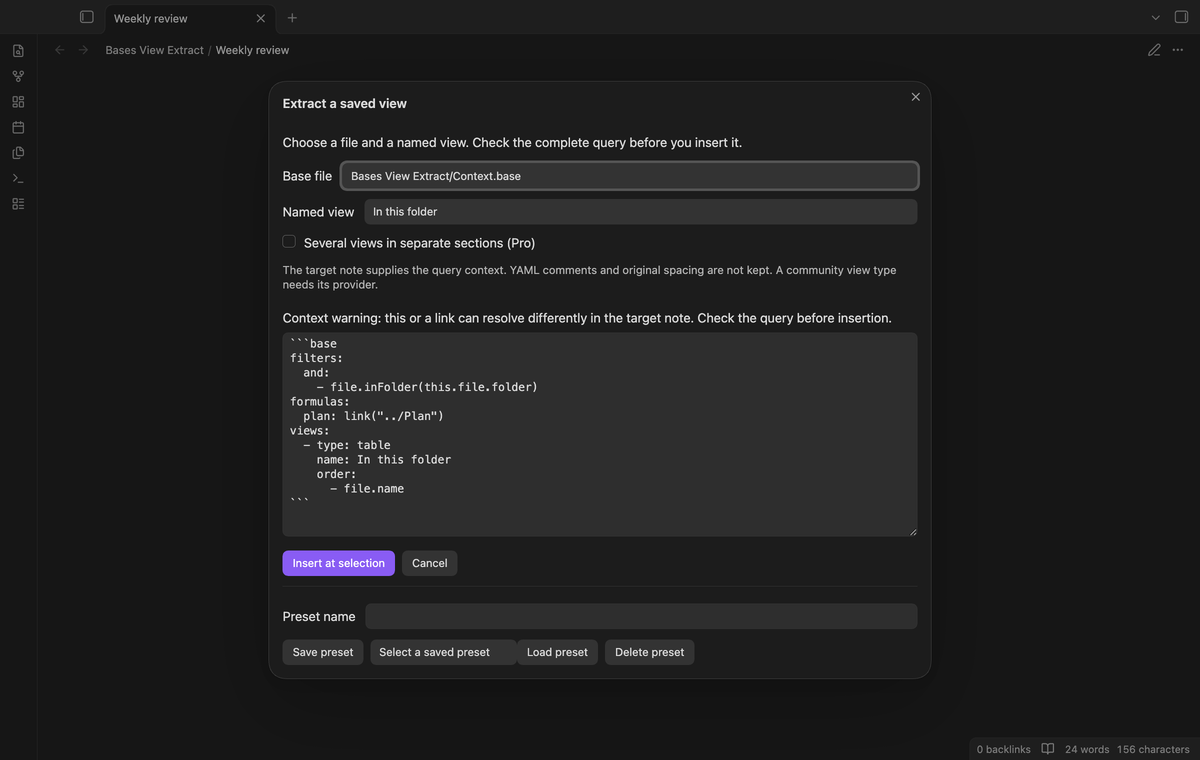
The preview explains that an embedded query uses the target note as its context. Expressions with `this`, wikilinks, link or file calls, or parent paths show a stronger warning. This check is conservative. Read the expressions before insertion; a copied query can select different notes when its context changes.
 ### Separate sections for several views (Pro)
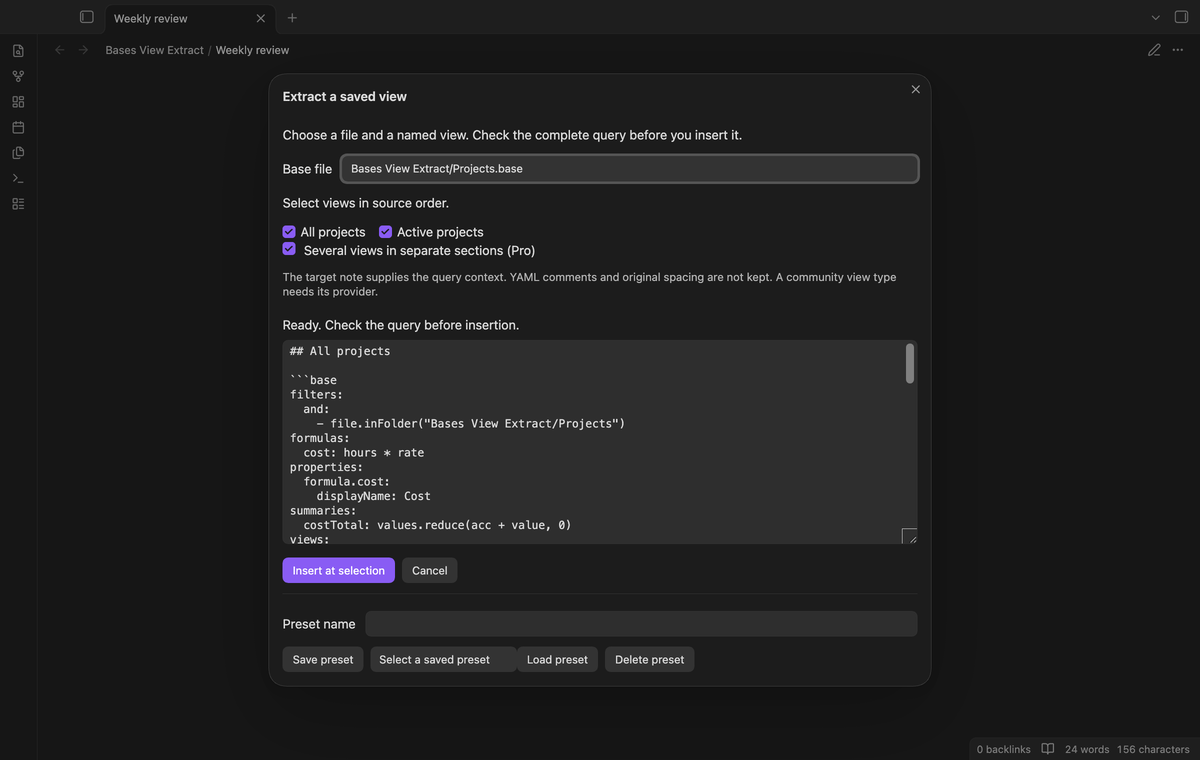
Turn on “Several views in separate sections” and select the views to extract. Their source order sets the section order. Each section has a heading and a complete query with the shared definitions. Check the combined preview before insertion. Pro adds this batch action; extraction of one saved view remains free.
 ### Named query presets (Pro)
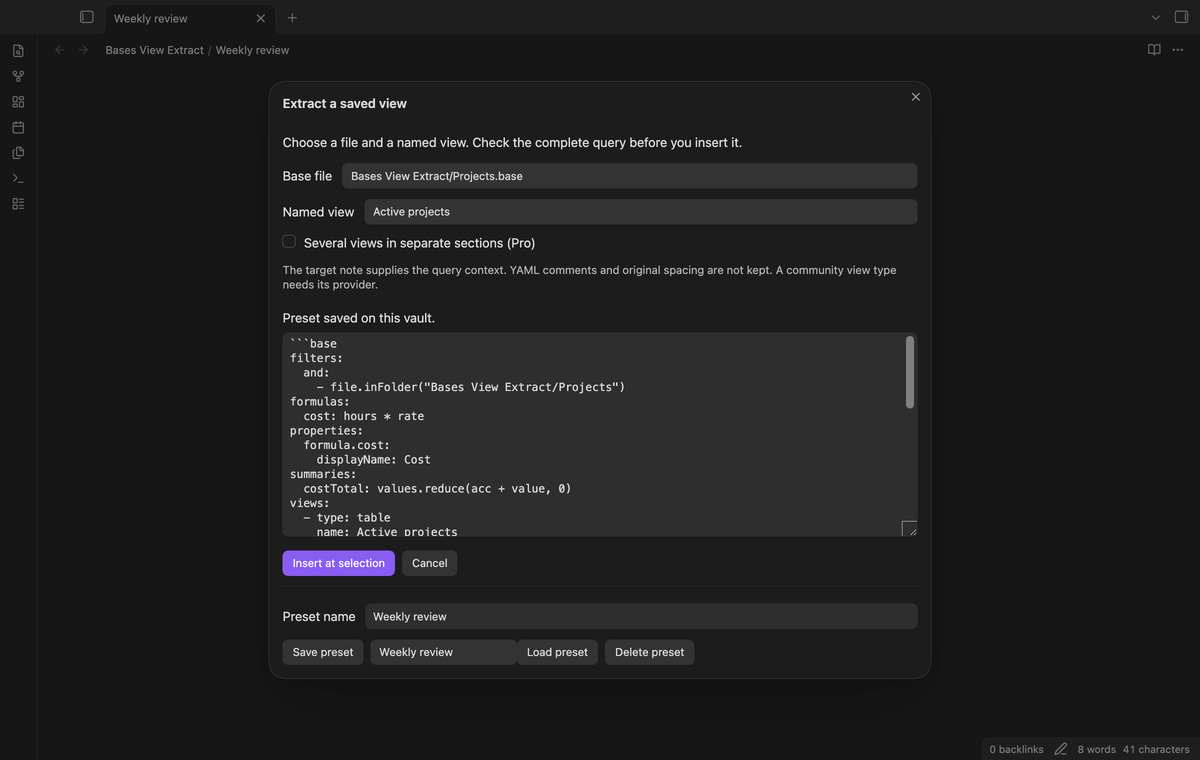
Enter a preset name and select “Save preset” to keep a snapshot of the source query and chosen views. Select the saved name and “Load preset” to preview it again. Source edits do not update that snapshot. Duplicate preset names are rejected. “Delete preset” removes the local saved copy, including when Pro is off. Without Pro, “Several views in separate sections”, “Save preset” and “Load preset” show a Sponsor on GitHub notice.
 ## Install
Search for Bases View Extract in Community plugins → Browse, install it and enable it. To install by hand, put `main.js`, `manifest.json` and `styles.css` in `/.obsidian/plugins/bases-view-extract/`. Enable it in Community plugins. It needs Obsidian 1.13.4 or later. Enable the core Bases plugin to render the inserted query.
## Usage
1. Open the Markdown note that will hold the query. Put the cursor on an empty line, or select the text to replace.
2. Run “Bases View Extract: Extract a saved view” from the command palette.
3. Select a Base file and its named view. Read the complete preview and its context notice.
4. Select “Insert at selection”. The editor replaces the selection, or inserts at the cursor. The inserted text ends with a newline. In the middle of a line, it also starts with a newline so the fence is on its own line.
To paste the query elsewhere, select “Copy to clipboard” at step 4. Paste the copied block at the required position in another note or template. Copy keeps the current note and selection unchanged.
Cancel closes the window without insertion. A parse error clears the preview and disables the insert button. If the target note, its text or its selection changes while the window is open, insertion stops. Close the window and run the command again. Multiple editor selections are not supported.
## Settings
After a minor or major update, this plugin opens one What's new tab in the background. The tab and settings card suggest other NoteMods plugins and Zovo Chat and link to notemods.com for feedback ([privacy](https://notemods.com/privacy/)). The tab sends no data. Turn the tab off in Settings.
The plugin settings contain the GitHub Sponsors controls for Pro: sponsor, sign in, refresh and sign out. The extraction window contains the file selector, view selector, preview and preset controls. There are no background extraction rules to set. Presets are stored in this plugin’s `data.json` in the vault. Vault sync can copy that file to your other devices.
## FAQ
### Does it update the source or earlier extracts?
Extraction reads the Base and inserts text in the active editor. It does not update the source file or track an earlier inserted block. Run extraction again to get a new snapshot after a source edit. A saved preset can still be used if its source file is moved or deleted.
### What does “complete” mean here?
The output keeps the shared definitions and one selected view. It does not evaluate filters or calculate the query results. It does not select only the formulas that the view uses. Unused shared formulas remain present. A Base that needs a community view provider still needs that provider after extraction.
### What has not been tested?
Phone and tablet devices, Windows, Linux and third party themes have not been tested in this local build. Live GitHub authorization and payment were not tested; Pro tests use a local sponsorship reply. Query results in different note contexts and third party view providers have not been verified. The app tests check extraction and editor behavior on desktop versions 1.13.4 and 1.14.4.
## Payment, account and network
The core features are free. Pro features need a GitHub Sponsors sponsorship of theluckystrike: $5 a month or more, or $15 once. A total payment of $15 meets the payment requirement for Pro without further payment. Sign-in and the checks below still apply. Your notes stay readable and editable with or without Pro.
GitHub handles the payment. Sponsor at https://github.com/sponsors/theluckystrike?frequency=one-time&metadata_source=bases-view-extract. You need no account for the free features. Pro needs the GitHub account that sponsors.
Until you select "Sign in with GitHub" in the settings, Bases View Extract makes no network requests. Sign in uses the GitHub device flow. Bases View Extract sends its public client ID and the scope `read:user` to `https://github.com/login/device/code` and shows you a code. While you enter the code at https://github.com/login/device, it asks `https://github.com/login/oauth/access_token` every few seconds to check the sign-in status. The scope permits profile reads only. GitHub needs this access to show the sponsorship tier. It grants no repository scope and no write access.
After sign in, Bases View Extract sends one query to `https://api.github.com/graphql`. It checks if the signed-in account sponsors theluckystrike. It asks for the tier and the total payment to theluckystrike. The plugin reuses a successful check for 7 days. Failed checks can retry after 6 hours. Select Refresh to request an earlier check. It sends no note content, file names or other vault data, and it has no telemetry.
After a successful check, Pro can work offline for up to 14 days. Sign out or a negative sponsorship answer turns Pro off. The plugin stores the GitHub token through the secret storage API of Obsidian. It does not put the token in its saved settings or its local sponsorship data. The local storage of this device keeps your GitHub login, the tier and the time of the last check. Sign out clears the token. You can also revoke the access in your GitHub settings, under Applications.
## Support
Report a defect through the publisher’s GitHub repository when it is available. Include the app version, selected view name and a small Base that reproduces the problem. Remove private note names and text from the sample. State whether the failure occurs during file selection, preview or insertion. The sample vault in `docs/sample-notes/` can help compare your query with a small known input.