# Bases Note Templates
Bases Note Templates makes the New button of a base start new notes from a template. You pick a template note for the base. When you press New, the new note gets the properties and the text of that template, plus the values of the base filters, in the right folder, with a file name from a pattern.
A base filtered by `status == "todo"` and `project == "[[Apollo]]"` then gives notes like `2026-10-10 Apollo.md`, with `status: todo`, `project: "[[Apollo]]"` and the headings of your task template already in place. You no longer make a note, delete it, and insert a template by hand.
One template for each base, the filter values, the folder and the name pattern are free. Pro adds more templates with a list to pick from, a template for each view, Templater, and Duplicate as new note. Pro costs $5 a month, or $15 once, through GitHub Sponsors. A total payment of $15 meets the payment requirement for Pro without further payment. Sign-in and the checks below still apply.
## Features
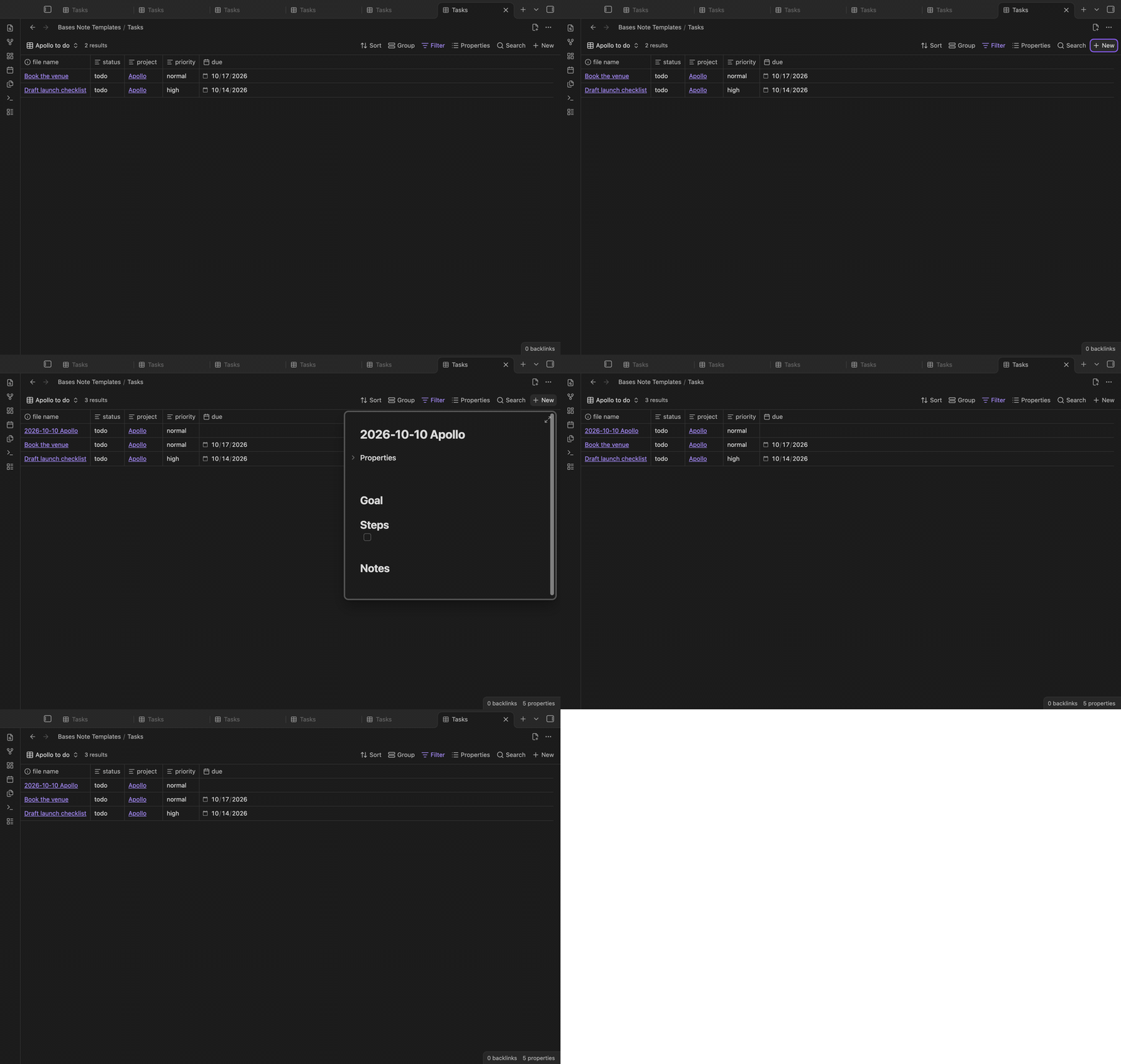 ### A template for the New button
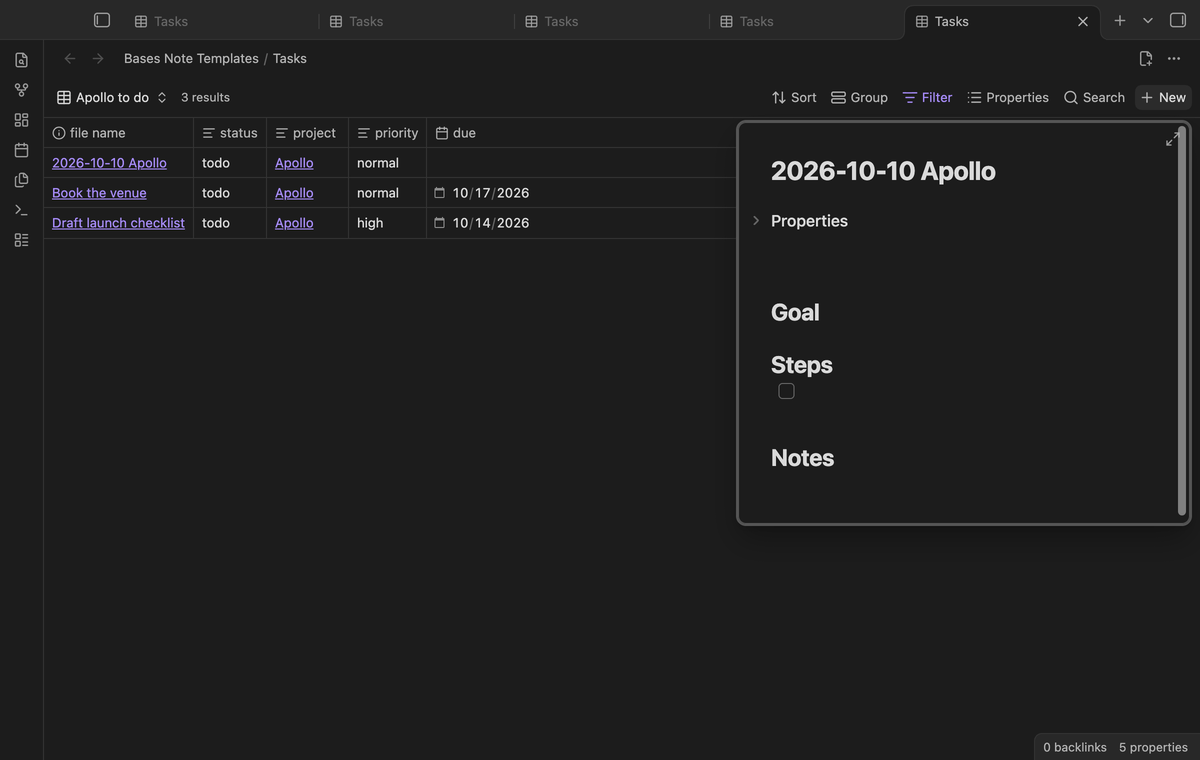 Press New in a base as usual. The app makes the note and writes the filter values. Then the plugin adds the template: its properties go in first, and its text becomes the body of the note. The app's popover shows the result, so you can type right away.
The plugin waits for the app to finish its own step, then rewrites the note in one edit and renames it if a name pattern or a folder is set. If the base has no setup, the plugin does not touch the note.
### Filter values as properties
Press New in a base as usual. The app makes the note and writes the filter values. Then the plugin adds the template: its properties go in first, and its text becomes the body of the note. The app's popover shows the result, so you can type right away.
The plugin waits for the app to finish its own step, then rewrites the note in one edit and renames it if a name pattern or a folder is set. If the base has no setup, the plugin does not touch the note.
### Filter values as properties
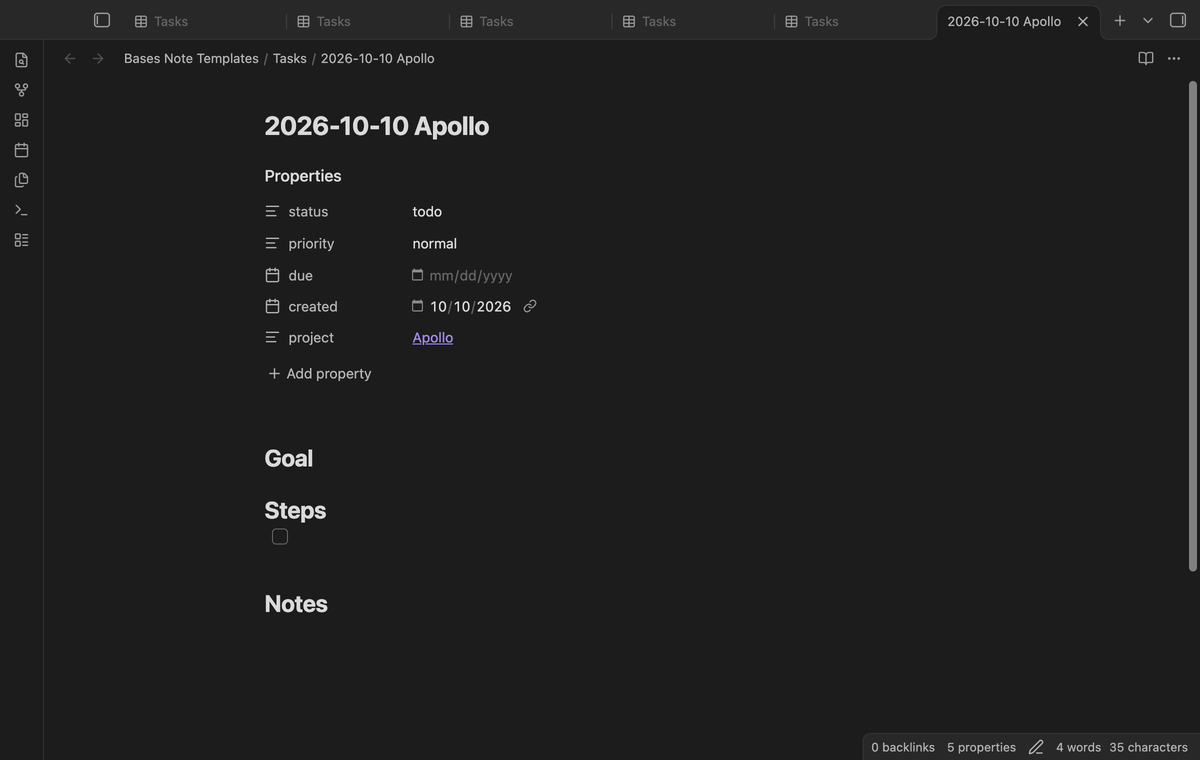 A value from the filters wins over the same property in the template. The template above says `status: draft`, but the view shows only `status == "todo"`, so the new note gets `todo` and shows up in the view. An empty value does not hide a template value: the app adds an empty property for each column, and the template's `priority: normal` stays.
The plugin reads the same filter rules as the app: `==`, `>=` and `<=`, `contains`, `containsAll` and `containsAny`, `file.hasTag`, `file.inFolder`, `file.folder ==`, `file.hasProperty`, and `!prop.isEmpty()`. Values can be text, numbers, true or false, lists, `link()`, `date()` and `today()`. A test in the app compares the result with what the New button of Obsidian writes for the same base.
### Extra properties
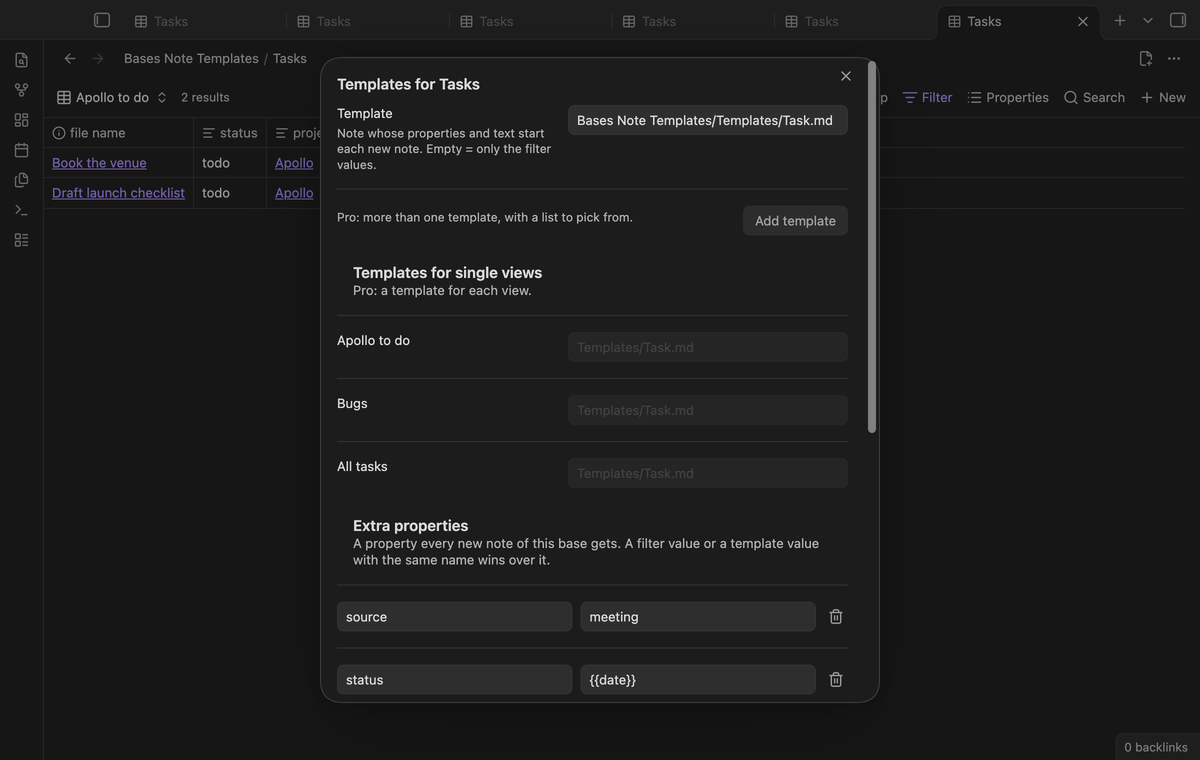
In the setup of the base, add name and value pairs under "Extra properties". A note that you make with the command, the header button or the New button of that base gets each pair as a property. Use it for a `source`, a default `status`, or a date stamp like `{{date:YYYY-MM-DD}}`. The plugin renders `{{date}}`, `{{time}}`, `{{base}}`, `{{view}}` and `{{template}}` in an extra value.
A filter value or a template value with the same name wins over an extra property, so extras are defaults, not overrides.
A value from the filters wins over the same property in the template. The template above says `status: draft`, but the view shows only `status == "todo"`, so the new note gets `todo` and shows up in the view. An empty value does not hide a template value: the app adds an empty property for each column, and the template's `priority: normal` stays.
The plugin reads the same filter rules as the app: `==`, `>=` and `<=`, `contains`, `containsAll` and `containsAny`, `file.hasTag`, `file.inFolder`, `file.folder ==`, `file.hasProperty`, and `!prop.isEmpty()`. Values can be text, numbers, true or false, lists, `link()`, `date()` and `today()`. A test in the app compares the result with what the New button of Obsidian writes for the same base.
### Extra properties
In the setup of the base, add name and value pairs under "Extra properties". A note that you make with the command, the header button or the New button of that base gets each pair as a property. Use it for a `source`, a default `status`, or a date stamp like `{{date:YYYY-MM-DD}}`. The plugin renders `{{date}}`, `{{time}}`, `{{base}}`, `{{view}}` and `{{template}}` in an extra value.
A filter value or a template value with the same name wins over an extra property, so extras are defaults, not overrides.
 ### Folder and name pattern
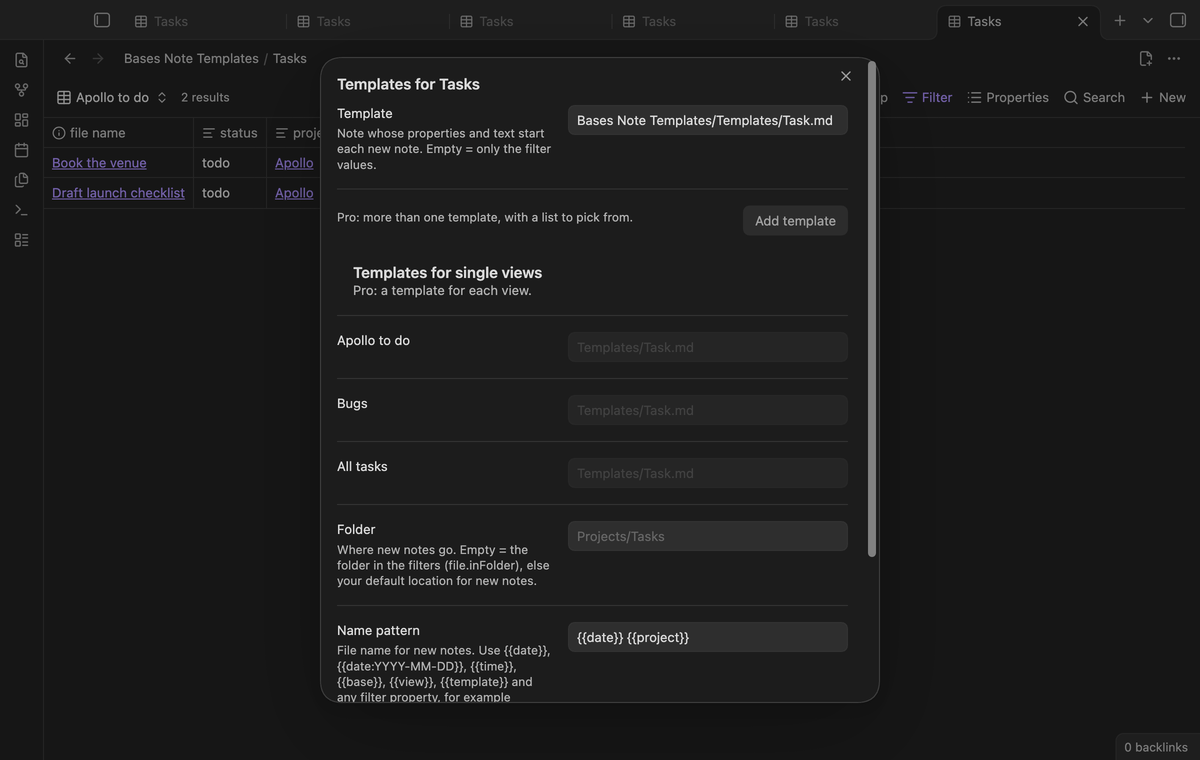 Run "Set up templates for this base" from an open base. Choose the template, a folder and a name pattern. With no folder, notes go to the folder in the filters, such as `file.inFolder("Tasks")`, else to your default location for new notes.
The name pattern can use `{{date}}`, `{{date:YYYY-MM-DD}}`, `{{time}}`, `{{base}}`, `{{view}}`, `{{template}}` and any filter property, such as `{{project}}`. A link loses its brackets, so `[[Apollo]]` gives `Apollo`. Characters that a file name cannot hold become spaces. If the name is taken, the plugin adds a number, like the app does.
Templates can use the variables of the core Templates plugin: `{{title}}`, `{{date}}` and `{{time}}`, with or without a format. They work in the text and in property values.
### Command and header button
Run "Set up templates for this base" from an open base. Choose the template, a folder and a name pattern. With no folder, notes go to the folder in the filters, such as `file.inFolder("Tasks")`, else to your default location for new notes.
The name pattern can use `{{date}}`, `{{date:YYYY-MM-DD}}`, `{{time}}`, `{{base}}`, `{{view}}`, `{{template}}` and any filter property, such as `{{project}}`. A link loses its brackets, so `[[Apollo]]` gives `Apollo`. Characters that a file name cannot hold become spaces. If the name is taken, the plugin adds a number, like the app does.
Templates can use the variables of the core Templates plugin: `{{title}}`, `{{date}}` and `{{time}}`, with or without a format. They work in the text and in property values.
### Command and header button
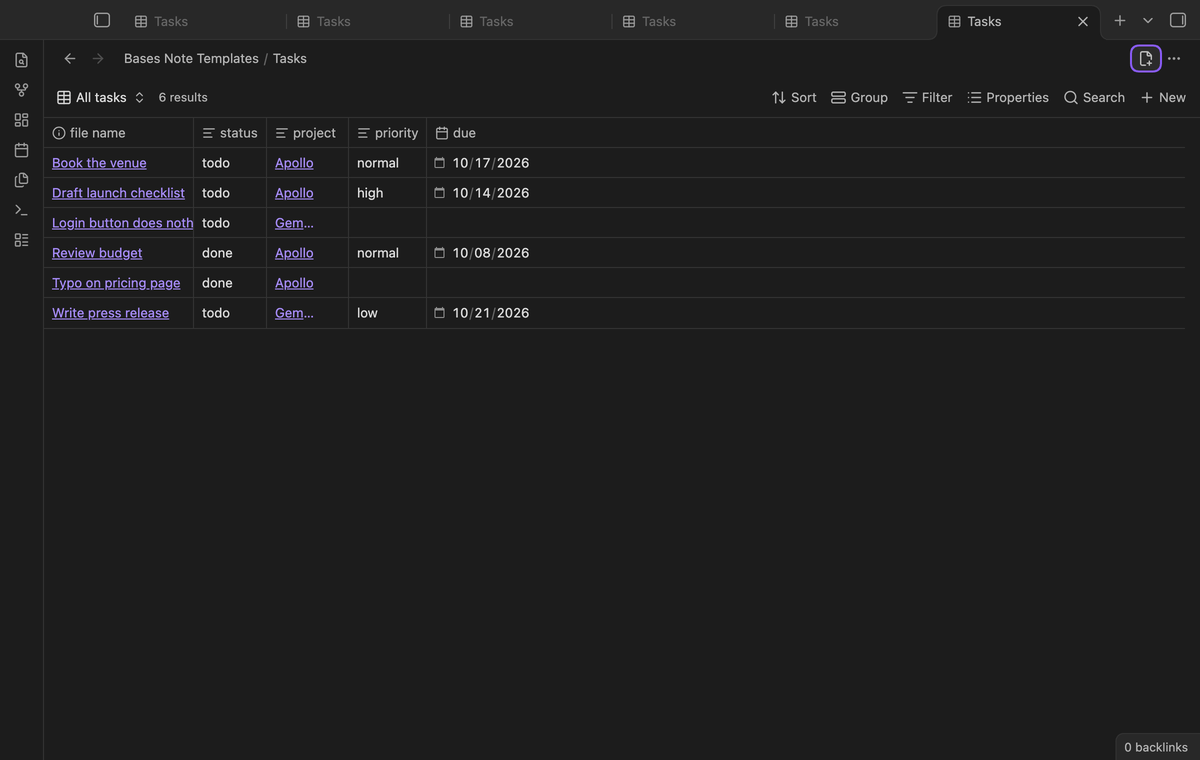 "New note from template in this base" makes the same note without the New button and opens it in a new tab. A base with a setup also gets a button in its tab header that does the same. Both use only the public view interface of Obsidian.
### More templates with a list to pick from (Pro)
"New note from template in this base" makes the same note without the New button and opens it in a new tab. A base with a setup also gets a button in its tab header that does the same. Both use only the public view interface of Obsidian.
### More templates with a list to pick from (Pro)
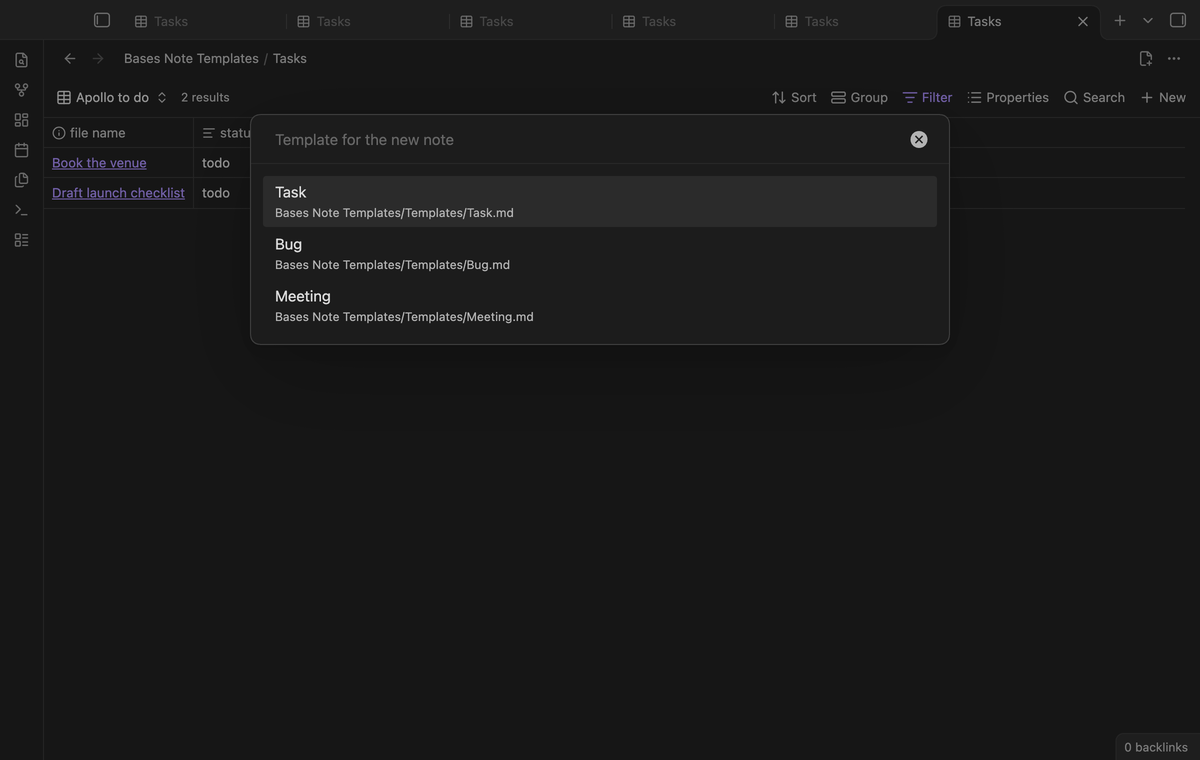 Add up to 10 templates to a base. When you press New, run the command or select the header button, a list asks which template to use. Press Escape and the note stays as the app made it.
### A template for each view (Pro)
Add up to 10 templates to a base. When you press New, run the command or select the header button, a list asks which template to use. Press Escape and the note stays as the app made it.
### A template for each view (Pro)
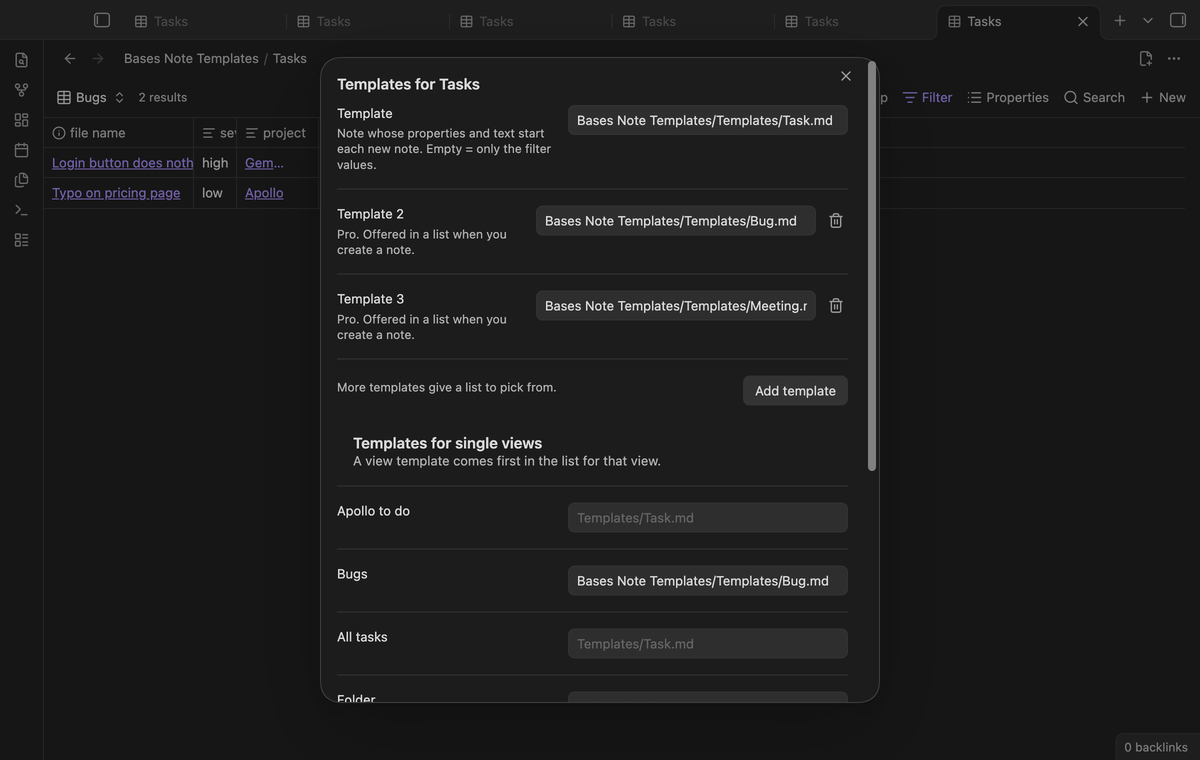 Give a view its own template, for example a Bug template for the Bugs view of a Tasks base. In that view, the view template comes first in the list.
### Duplicate as new note (Pro)
Give a view its own template, for example a Bug template for the Bugs view of a Tasks base. In that view, the view template comes first in the list.
### Duplicate as new note (Pro)
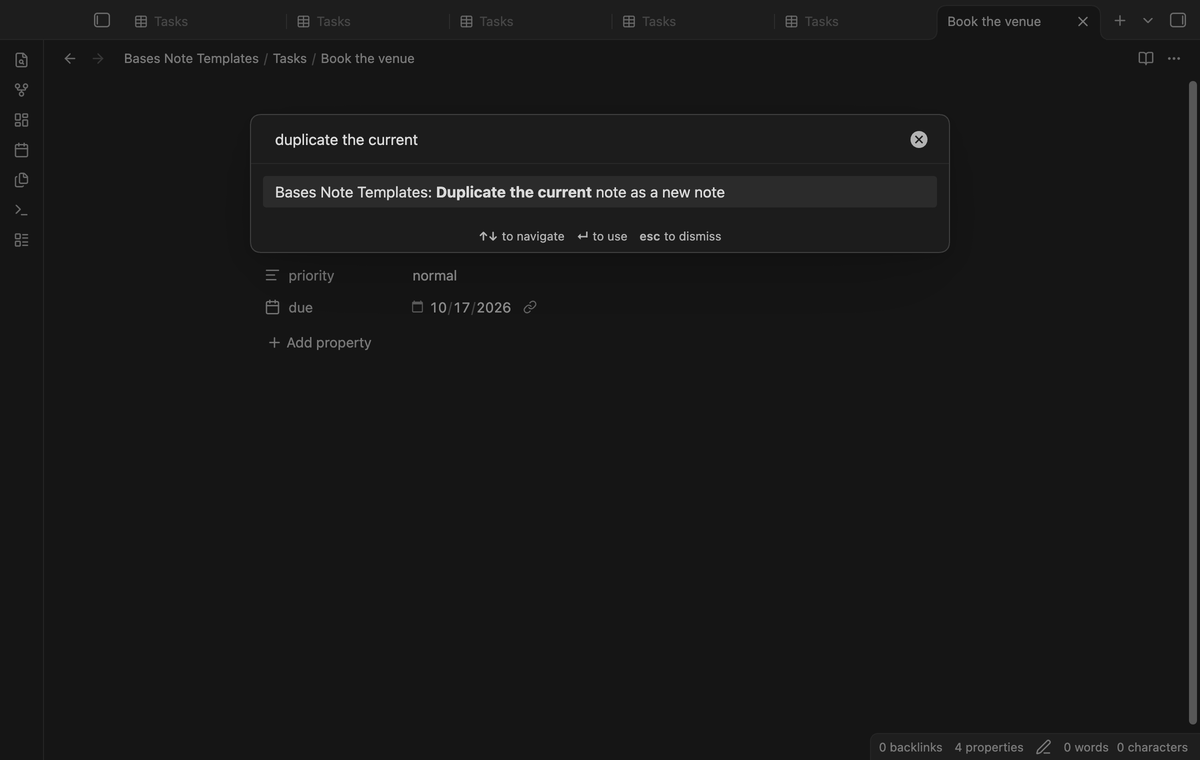 Right-click a row of a base and select "Duplicate as new note", or run "Duplicate the current note as a new note". The plugin copies the text of the note, properties included, to a new note in the same folder and opens it. The copy has the same properties as the original, so it shows up in a base that filters on folder or properties.
With Pro, the plugin can also hand a new note to Templater. If the note still has Templater tags after Templater had its own chance, the plugin asks Templater to fill them in.
## Install
When Bases Note Templates is listed in the community directory, open Settings, then Community plugins, then Browse, and search for "Bases Note Templates". Select Install, then Enable.
To install by hand, download `main.js`, `manifest.json` and `styles.css` from the latest release. Put the three files in `/.obsidian/plugins/bases-note-templates/`. Reload the list of community plugins, then turn on Bases Note Templates.
Bases Note Templates needs Obsidian 1.13.4 or newer and the Bases core plugin. It was tested on desktop with Obsidian 1.13.4 and 1.14.4.
## Usage
1. Make a template note, for example `Templates/Task.md`, with the properties and headings that each new note needs.
2. Open a base file and run "Set up templates for this base".
3. Choose the template. Add a folder and a name pattern if you want them. Select Save.
4. Press New in the base, or run "New note from template in this base".
5. For Pro, sponsor on GitHub, then open the settings and select "Sign in with GitHub".
The plugin sets no default hotkeys. You can give any command a hotkey in Settings, then Hotkeys.
## Pro
Right-click a row of a base and select "Duplicate as new note", or run "Duplicate the current note as a new note". The plugin copies the text of the note, properties included, to a new note in the same folder and opens it. The copy has the same properties as the original, so it shows up in a base that filters on folder or properties.
With Pro, the plugin can also hand a new note to Templater. If the note still has Templater tags after Templater had its own chance, the plugin asks Templater to fill them in.
## Install
When Bases Note Templates is listed in the community directory, open Settings, then Community plugins, then Browse, and search for "Bases Note Templates". Select Install, then Enable.
To install by hand, download `main.js`, `manifest.json` and `styles.css` from the latest release. Put the three files in `/.obsidian/plugins/bases-note-templates/`. Reload the list of community plugins, then turn on Bases Note Templates.
Bases Note Templates needs Obsidian 1.13.4 or newer and the Bases core plugin. It was tested on desktop with Obsidian 1.13.4 and 1.14.4.
## Usage
1. Make a template note, for example `Templates/Task.md`, with the properties and headings that each new note needs.
2. Open a base file and run "Set up templates for this base".
3. Choose the template. Add a folder and a name pattern if you want them. Select Save.
4. Press New in the base, or run "New note from template in this base".
5. For Pro, sponsor on GitHub, then open the settings and select "Sign in with GitHub".
The plugin sets no default hotkeys. You can give any command a hotkey in Settings, then Hotkeys.
## Pro
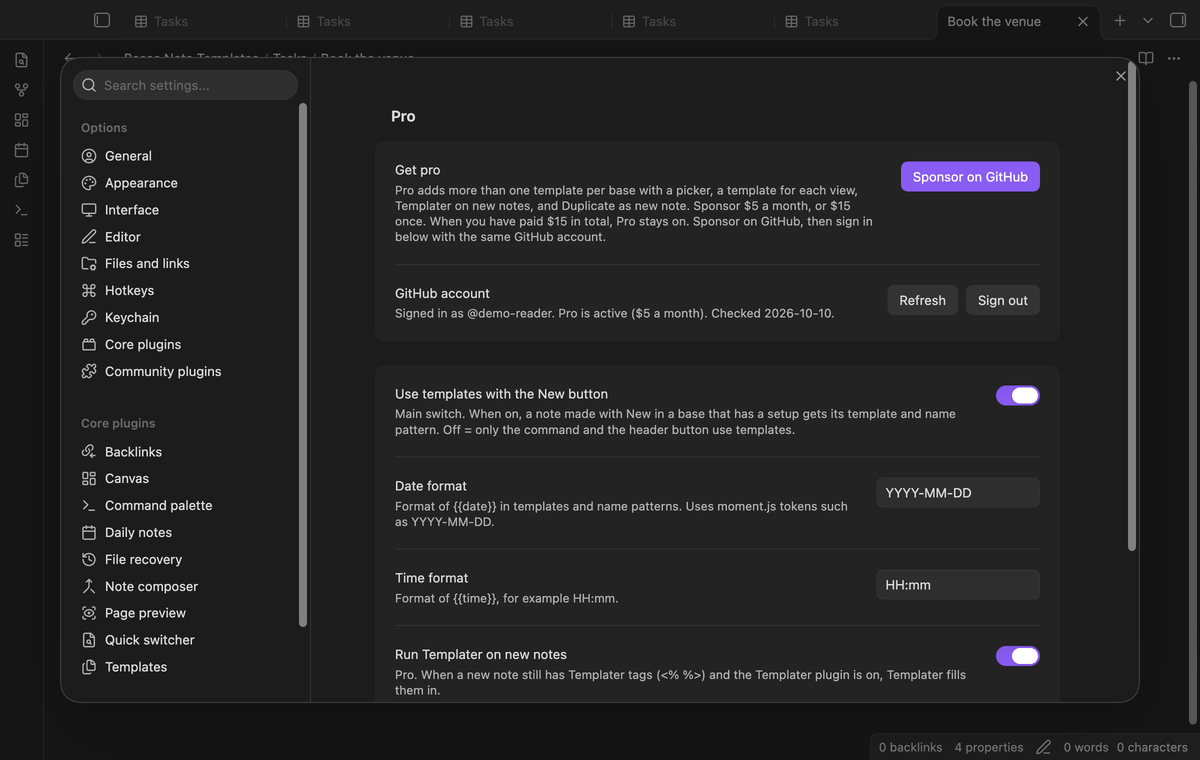 Pro unlocks more templates for each base with a list, view templates, Templater, and Duplicate as new note. To get it:
1. Sponsor [theluckystrike on GitHub Sponsors](https://github.com/sponsors/theluckystrike) with $5 a month, or $15 once. A total payment of $15 meets the payment requirement for Pro without further payment. Sign-in and the checks below still apply.
2. In Obsidian, open the settings of Bases Note Templates and select "Sign in with GitHub".
3. The plugin copies a code and opens github.com/login/device. Paste the code there and approve.
Without Pro, a base with more templates uses its first template, and view templates wait. Your setup stays saved and comes back when Pro is on.
## Settings
Pro unlocks more templates for each base with a list, view templates, Templater, and Duplicate as new note. To get it:
1. Sponsor [theluckystrike on GitHub Sponsors](https://github.com/sponsors/theluckystrike) with $5 a month, or $15 once. A total payment of $15 meets the payment requirement for Pro without further payment. Sign-in and the checks below still apply.
2. In Obsidian, open the settings of Bases Note Templates and select "Sign in with GitHub".
3. The plugin copies a code and opens github.com/login/device. Paste the code there and approve.
Without Pro, a base with more templates uses its first template, and view templates wait. Your setup stays saved and comes back when Pro is on.
## Settings
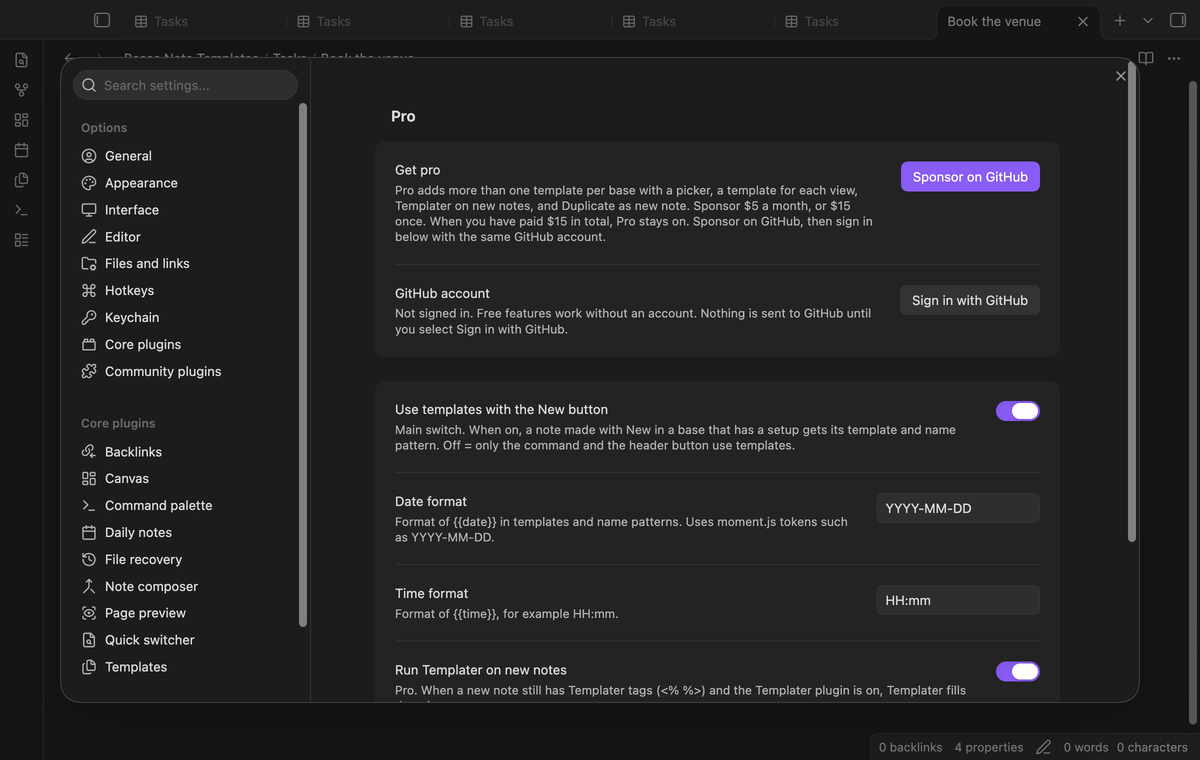 | Setting | Default | Allowed values |
| --- | --- | --- |
| Use templates with the New button | On | On or off |
| Date format | YYYY-MM-DD | moment.js tokens |
| Time format | HH:mm | moment.js tokens |
| Run Templater on new notes | On | On or off (Pro) |
"Bases with templates" lists each base that has a setup. Delete an entry to remove its setup. The plugin keeps the setup when you rename or move the base, a template or the folder for new notes.
## FAQ
### Does the app not do this already?
Partly. The New button writes the filter values, and it puts the note in the folder of `file.inFolder()`. Obsidian 1.13.4 and 1.14.4 also read a hidden `newItemTemplate` key in a base file, but it copies only the template's properties, not its text, and then the filter values are lost. There is no view template, no name pattern and no setting for it.
### Does it change my base files?
No. The setup lives in the plugin's `data.json`. Base files stay as they are.
### Can new notes get a property that is not in the filters or the template?
Yes. Open the setup of the base and add the name and the value under "Extra properties". A new note from the command, the header button or the New button gets the pair, and `{{date}}`, `{{time}}`, `{{base}}`, `{{view}}` and `{{template}}` work in the value. A filter value or a template value with the same name wins.
### Why is the New button of an embedded base not changed?
When a base is embedded in a note, the active tab is the note, so the plugin cannot tell which base made the new note. It leaves that note alone. Open the base file and use New or the command there.
### What if another plugin makes an empty note while a base is open?
The plugin changes a new note only when it is empty and sits in the folder where the New button of that base puts notes. Other notes are left alone.
### Are formulas in filters supported?
Filters that compare with a formula or with `this` are skipped when the command makes a note. The New button of the app still writes them.
## Payment, account and network
The core features are free. Pro features need a GitHub Sponsors sponsorship of theluckystrike: $5 a month or more, or $15 once. A total payment of $15 meets the payment requirement for Pro without further payment. Sign-in and the checks below still apply. Your notes stay readable and editable with or without Pro.
GitHub handles the payment. Sponsor at https://github.com/sponsors/theluckystrike. You need no account for the free features. Pro needs the GitHub account that sponsors.
Until you select "Sign in with GitHub" in the settings, Bases Note Templates makes no network requests. Sign in uses the GitHub device flow. Bases Note Templates sends its public client ID and the scope `read:user` to `https://github.com/login/device/code` and shows you a code. While you enter the code at https://github.com/login/device, it asks `https://github.com/login/oauth/access_token` every few seconds to check the sign-in status. The scope permits profile reads only. GitHub needs this access to show the sponsorship tier. It grants no repository scope and no write access.
After sign in, Bases Note Templates sends one query to `https://api.github.com/graphql`. It checks if the signed-in account sponsors theluckystrike. It asks for the tier and the total payment to theluckystrike. The plugin reuses a successful check for 7 days. Failed checks can retry after 6 hours. Select Refresh to request an earlier check. It sends no note content, file names or other vault data, and it has no telemetry.
After a successful check, Pro can work offline for up to 14 days. Sign out or a negative sponsorship answer turns Pro off. The plugin stores the GitHub token through the secret storage API of Obsidian. It does not put the token in its saved settings or its local sponsorship data. The local storage of this device keeps your GitHub login, the tier and the time of the last check. Sign out clears the token. You can also revoke the access in your GitHub settings, under Applications.
## Support
Report a bug or ask for a feature in the issue tracker of this repository. Please include your Obsidian version, the filters of the base and the template that shows the problem.
To build from source:
```
npm ci
npm run build
npm test
```
The tests check golden cases for the filter rules, the merge and the name patterns. End-to-end tests press New in real Obsidian 1.13.4 and 1.14.4 and compare the result with the app's own filter values.
## License
MIT
| Setting | Default | Allowed values |
| --- | --- | --- |
| Use templates with the New button | On | On or off |
| Date format | YYYY-MM-DD | moment.js tokens |
| Time format | HH:mm | moment.js tokens |
| Run Templater on new notes | On | On or off (Pro) |
"Bases with templates" lists each base that has a setup. Delete an entry to remove its setup. The plugin keeps the setup when you rename or move the base, a template or the folder for new notes.
## FAQ
### Does the app not do this already?
Partly. The New button writes the filter values, and it puts the note in the folder of `file.inFolder()`. Obsidian 1.13.4 and 1.14.4 also read a hidden `newItemTemplate` key in a base file, but it copies only the template's properties, not its text, and then the filter values are lost. There is no view template, no name pattern and no setting for it.
### Does it change my base files?
No. The setup lives in the plugin's `data.json`. Base files stay as they are.
### Can new notes get a property that is not in the filters or the template?
Yes. Open the setup of the base and add the name and the value under "Extra properties". A new note from the command, the header button or the New button gets the pair, and `{{date}}`, `{{time}}`, `{{base}}`, `{{view}}` and `{{template}}` work in the value. A filter value or a template value with the same name wins.
### Why is the New button of an embedded base not changed?
When a base is embedded in a note, the active tab is the note, so the plugin cannot tell which base made the new note. It leaves that note alone. Open the base file and use New or the command there.
### What if another plugin makes an empty note while a base is open?
The plugin changes a new note only when it is empty and sits in the folder where the New button of that base puts notes. Other notes are left alone.
### Are formulas in filters supported?
Filters that compare with a formula or with `this` are skipped when the command makes a note. The New button of the app still writes them.
## Payment, account and network
The core features are free. Pro features need a GitHub Sponsors sponsorship of theluckystrike: $5 a month or more, or $15 once. A total payment of $15 meets the payment requirement for Pro without further payment. Sign-in and the checks below still apply. Your notes stay readable and editable with or without Pro.
GitHub handles the payment. Sponsor at https://github.com/sponsors/theluckystrike. You need no account for the free features. Pro needs the GitHub account that sponsors.
Until you select "Sign in with GitHub" in the settings, Bases Note Templates makes no network requests. Sign in uses the GitHub device flow. Bases Note Templates sends its public client ID and the scope `read:user` to `https://github.com/login/device/code` and shows you a code. While you enter the code at https://github.com/login/device, it asks `https://github.com/login/oauth/access_token` every few seconds to check the sign-in status. The scope permits profile reads only. GitHub needs this access to show the sponsorship tier. It grants no repository scope and no write access.
After sign in, Bases Note Templates sends one query to `https://api.github.com/graphql`. It checks if the signed-in account sponsors theluckystrike. It asks for the tier and the total payment to theluckystrike. The plugin reuses a successful check for 7 days. Failed checks can retry after 6 hours. Select Refresh to request an earlier check. It sends no note content, file names or other vault data, and it has no telemetry.
After a successful check, Pro can work offline for up to 14 days. Sign out or a negative sponsorship answer turns Pro off. The plugin stores the GitHub token through the secret storage API of Obsidian. It does not put the token in its saved settings or its local sponsorship data. The local storage of this device keeps your GitHub login, the tier and the time of the last check. Sign out clears the token. You can also revoke the access in your GitHub settings, under Applications.
## Support
Report a bug or ask for a feature in the issue tracker of this repository. Please include your Obsidian version, the filters of the base and the template that shows the problem.
To build from source:
```
npm ci
npm run build
npm test
```
The tests check golden cases for the filter rules, the merge and the name patterns. End-to-end tests press New in real Obsidian 1.13.4 and 1.14.4 and compare the result with the app's own filter values.
## License
MIT