# Bases Link Graph
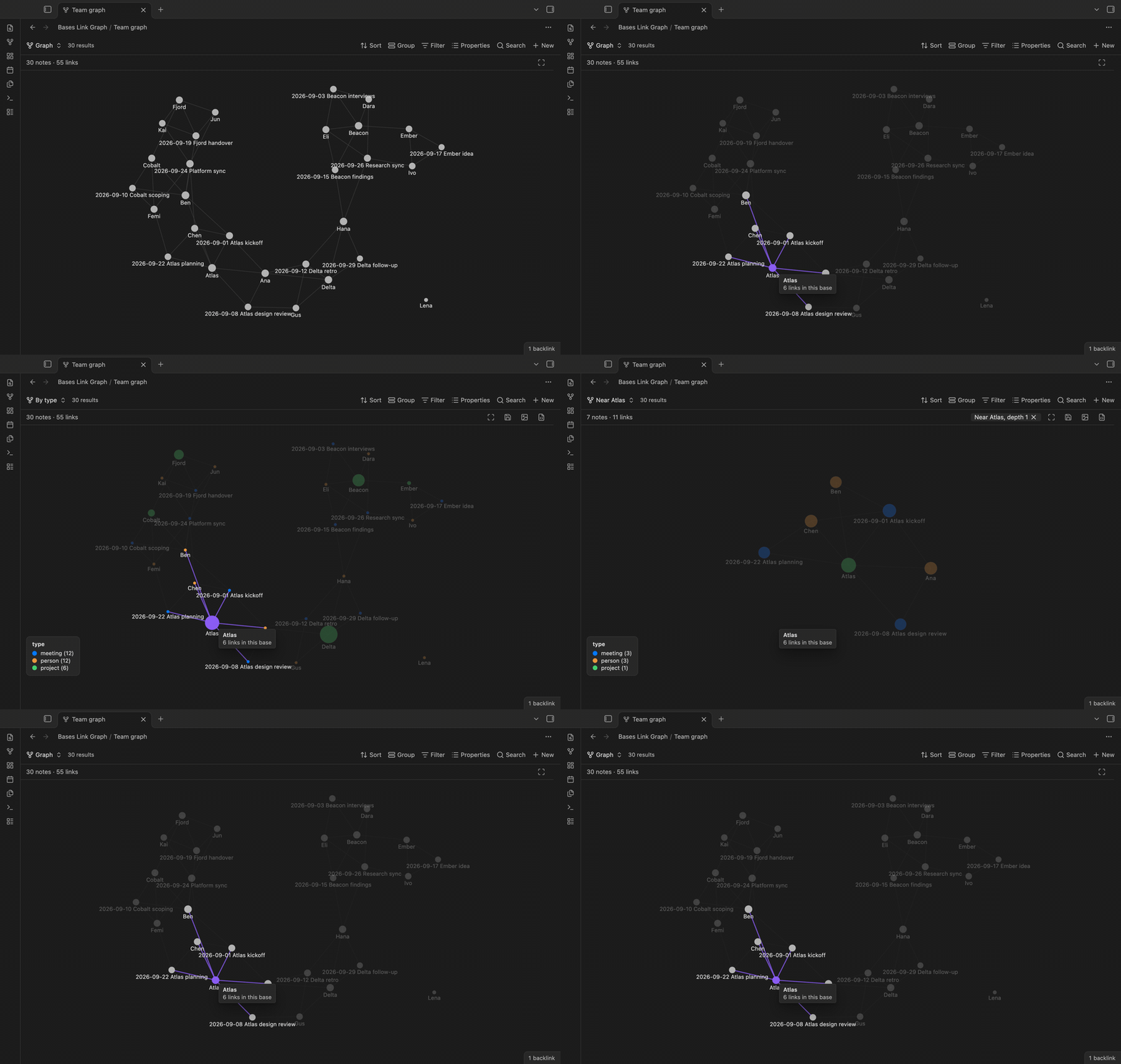
Bases Link Graph draws the notes that a base selects as a graph. Each note is a node, and each link between two of those notes is an edge. Set the filters of the base, and the graph shows only those notes.
Bases Link Graph is a view for the core Bases plugin. It uses only the public Bases API.
 ## Features
### The notes of a base as a graph
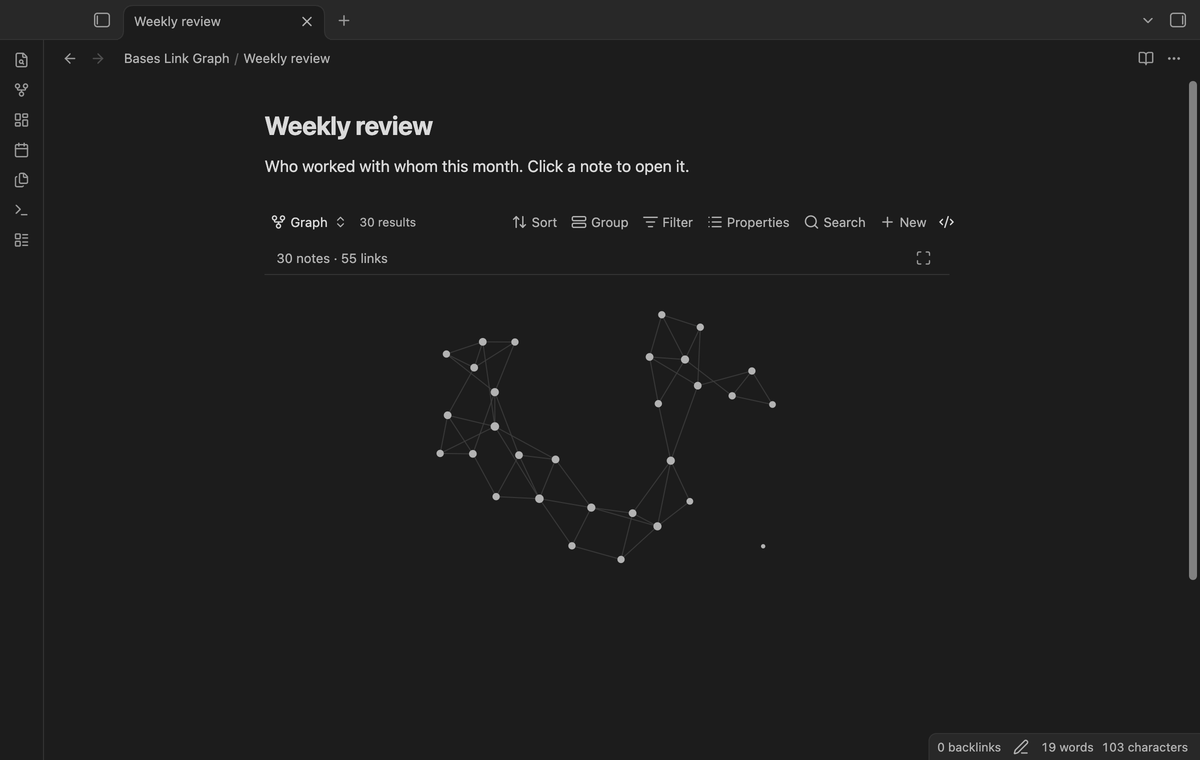
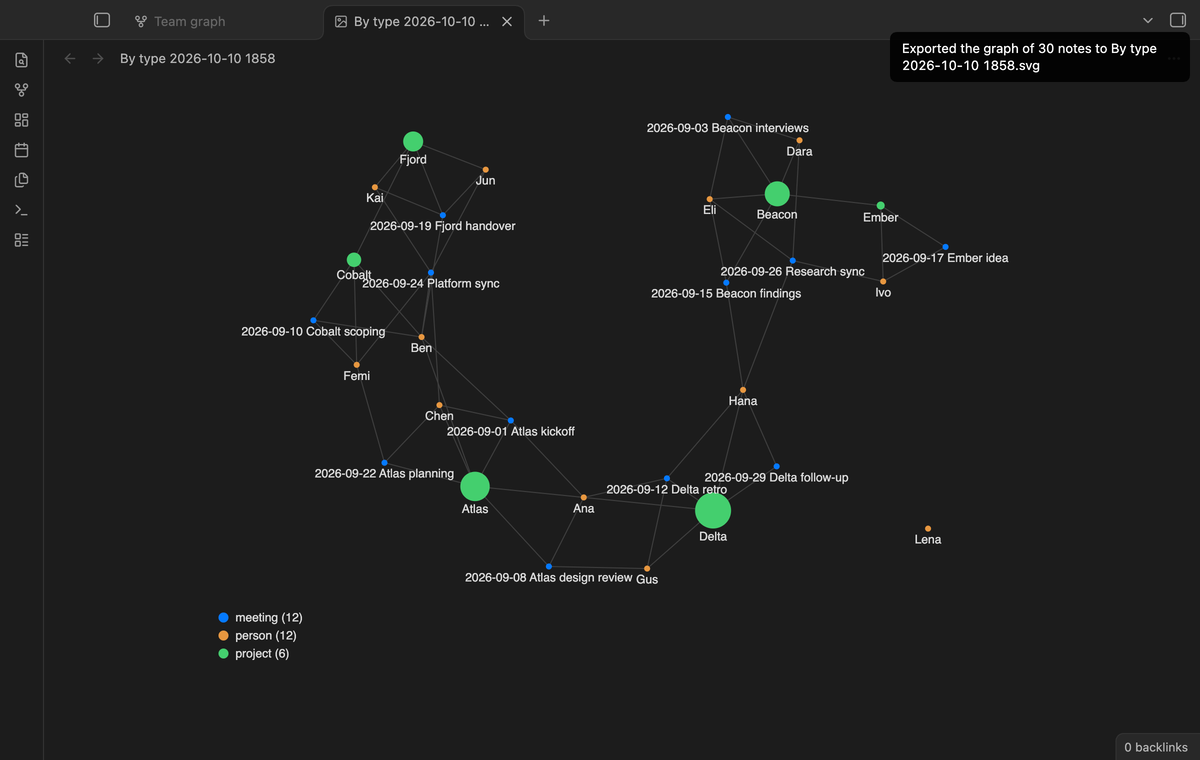
With "Show notes without links" on, each row of the base becomes one node. A link from one note in the base to another note in the base becomes an edge. Links to notes outside the base are left out. A small force layout places linked notes near each other. Notes with more links are a little larger.
## Features
### The notes of a base as a graph
With "Show notes without links" on, each row of the base becomes one node. A link from one note in the base to another note in the base becomes an edge. Links to notes outside the base are left out. A small force layout places linked notes near each other. Notes with more links are a little larger.
 ### Choose the source of links
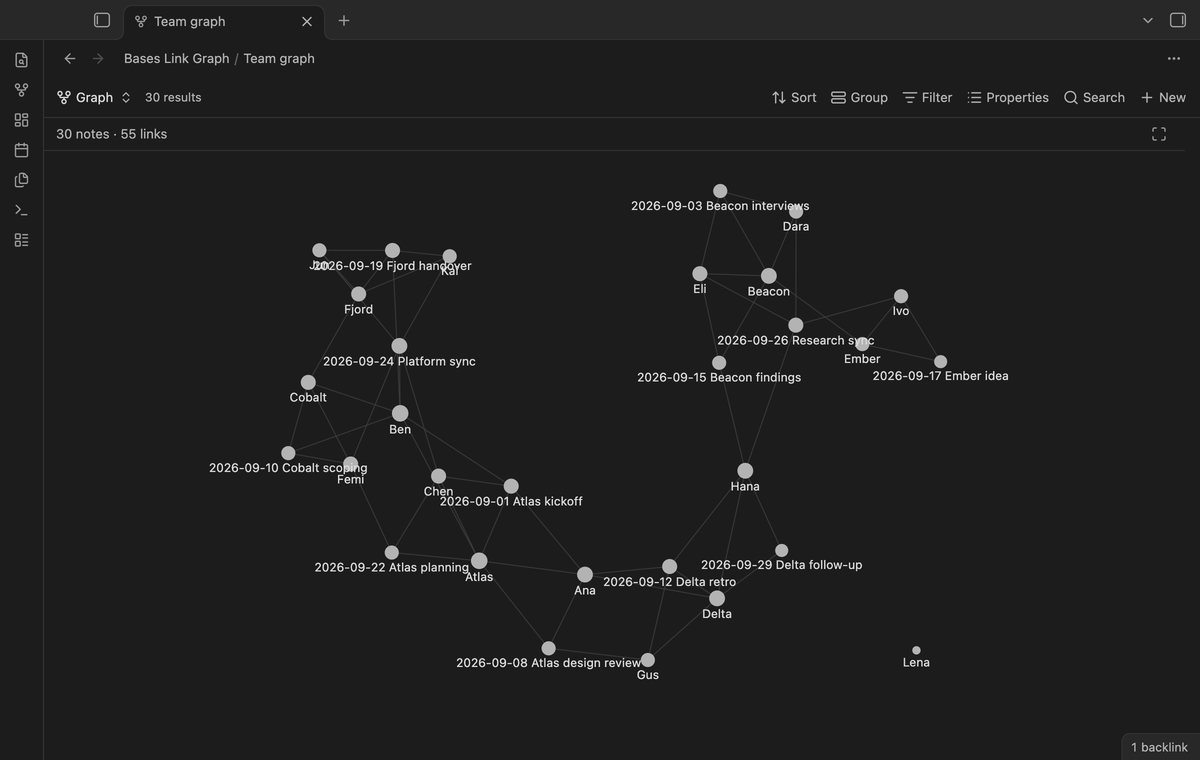
Set "Draw links from" to "All links", "Note body" or "Properties". All links is the default. Note body includes embeds. Properties uses frontmatter links. Add names such as `parent` and `friend` to "Link properties" to select relations. An empty list uses all properties. Names are case sensitive; `note.parent` also works.
The filter is free. Bases saves it with each view. Targets must be notes in the base. Pro edges from shared values use their own setting.
### Choose the source of links
Set "Draw links from" to "All links", "Note body" or "Properties". All links is the default. Note body includes embeds. Properties uses frontmatter links. Add names such as `parent` and `friend` to "Link properties" to select relations. An empty list uses all properties. Names are case sensitive; `note.parent` also works.
The filter is free. Bases saves it with each view. Targets must be notes in the base. Pro edges from shared values use their own setting.
 ### Click to open, hover to preview
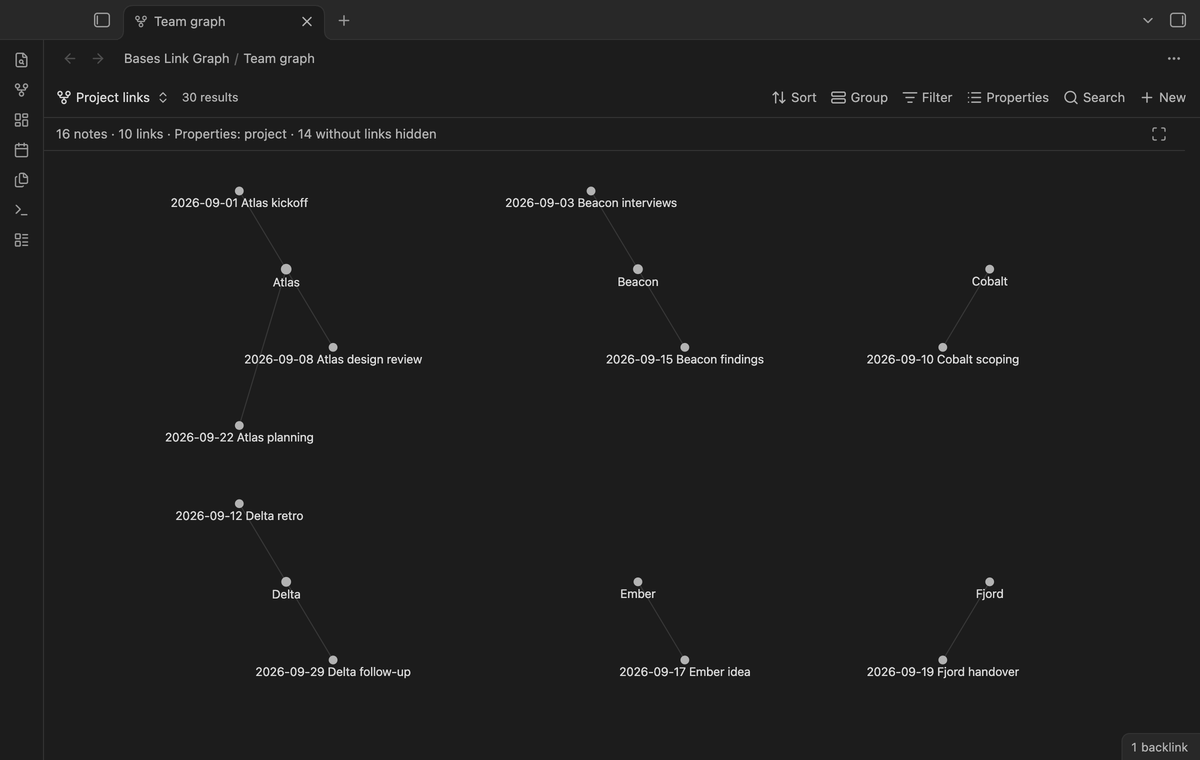
Click a node to open its note. Ctrl-click (Cmd-click on macOS) opens it in a new tab. Hover over a node to light up its links and see a card with its name. Hold Ctrl (Cmd on macOS) while you move onto a node to see the page preview of the note. Scroll to zoom, drag the background to pan, and drag a node to move it. Double-click the background to fit the graph in the view.
### Click to open, hover to preview
Click a node to open its note. Ctrl-click (Cmd-click on macOS) opens it in a new tab. Hover over a node to light up its links and see a card with its name. Hold Ctrl (Cmd on macOS) while you move onto a node to see the page preview of the note. Scroll to zoom, drag the background to pan, and drag a node to move it. Double-click the background to fit the graph in the view.
 ### Live update and embeds
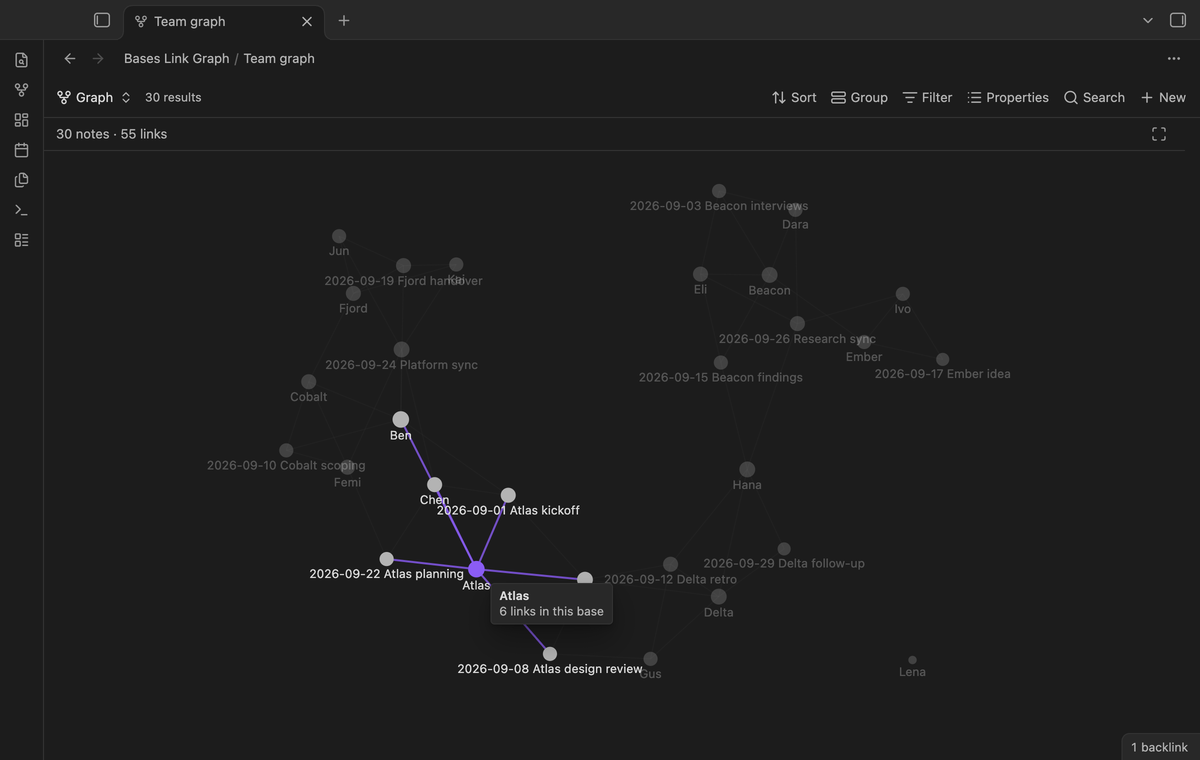
After a link changes, the graph draws again. Nodes keep their place. Embed a view with `![[Your base.base#View name]]`. The colors follow your theme.
### Live update and embeds
After a link changes, the graph draws again. Nodes keep their place. Embed a view with `![[Your base.base#View name]]`. The colors follow your theme.
 ### Size and color by a property (Pro)
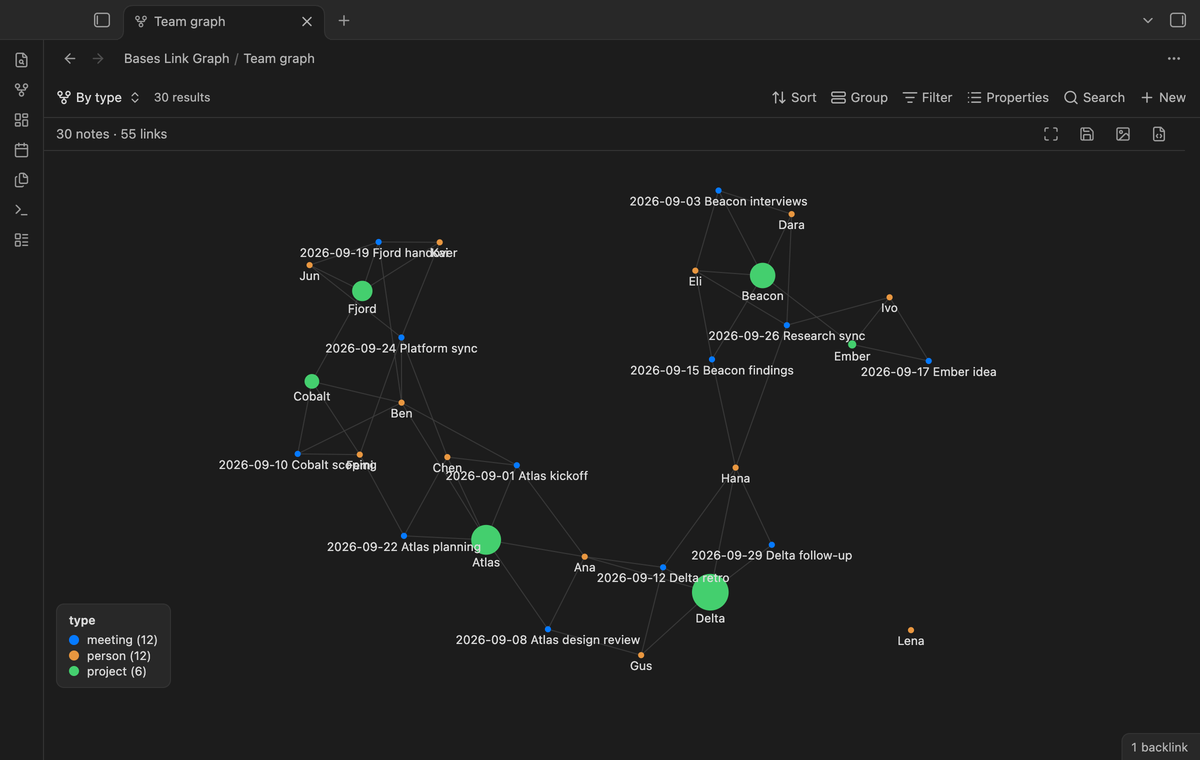
Set "Size by" to a number property, for example hours or rating. The area of each node then follows the value. Set "Color by" to any property, for example type. A legend shows each value and its count. Many different numbers become five ranges. With more than eight values, the less common ones share one "Other" color.
### Size and color by a property (Pro)
Set "Size by" to a number property, for example hours or rating. The area of each node then follows the value. Set "Color by" to any property, for example type. A legend shows each value and its count. Many different numbers become five ranges. With more than eight values, the less common ones share one "Other" color.
 ### Edges from shared values (Pro)
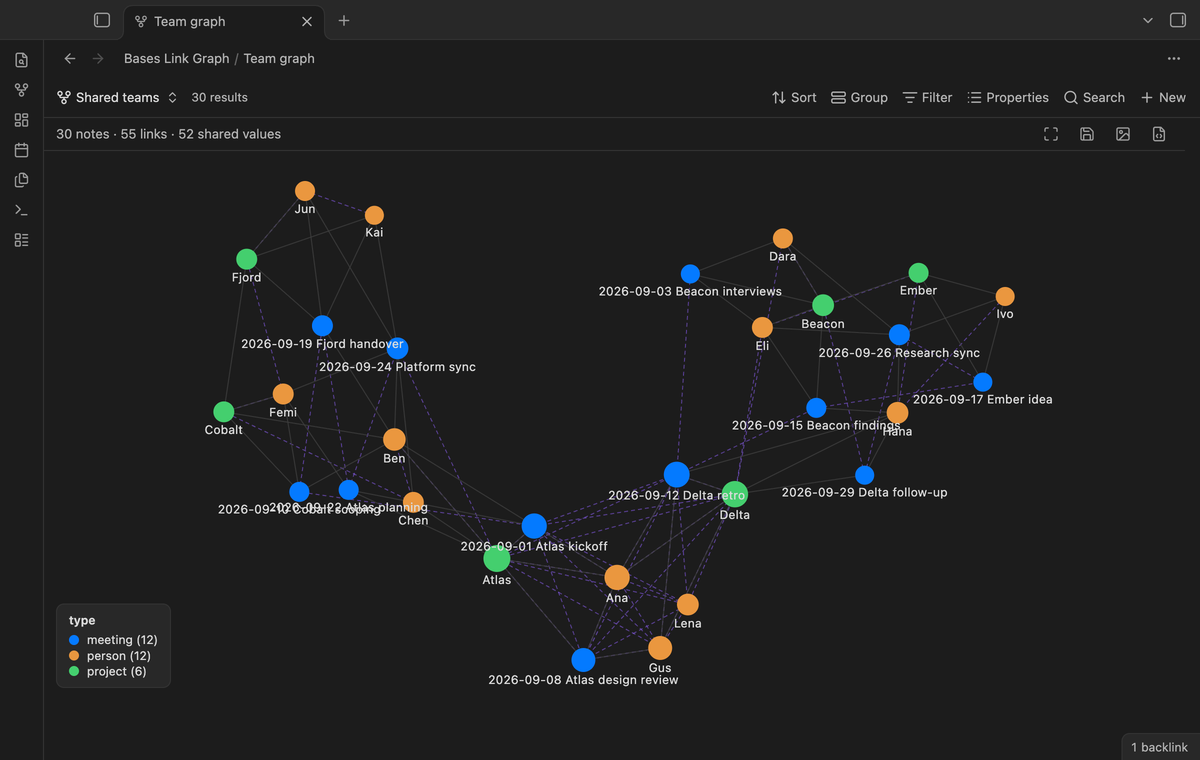
In "Join notes that share", type one or more property names, for example `team` or `tags`. Notes with the same value get a dashed edge. Case, a leading `#` and wikilink brackets do not matter, so `[[Alpha]]`, `alpha` and `[[Alpha|the alpha]]` are the same value. A value that more than 12 notes share joins them in a chain, so that one common tag does not fill the view with lines.
### Edges from shared values (Pro)
In "Join notes that share", type one or more property names, for example `team` or `tags`. Notes with the same value get a dashed edge. Case, a leading `#` and wikilink brackets do not matter, so `[[Alpha]]`, `alpha` and `[[Alpha|the alpha]]` are the same value. A value that more than 12 notes share joins them in a chain, so that one common tag does not fill the view with lines.
 ### Local depth (Pro)
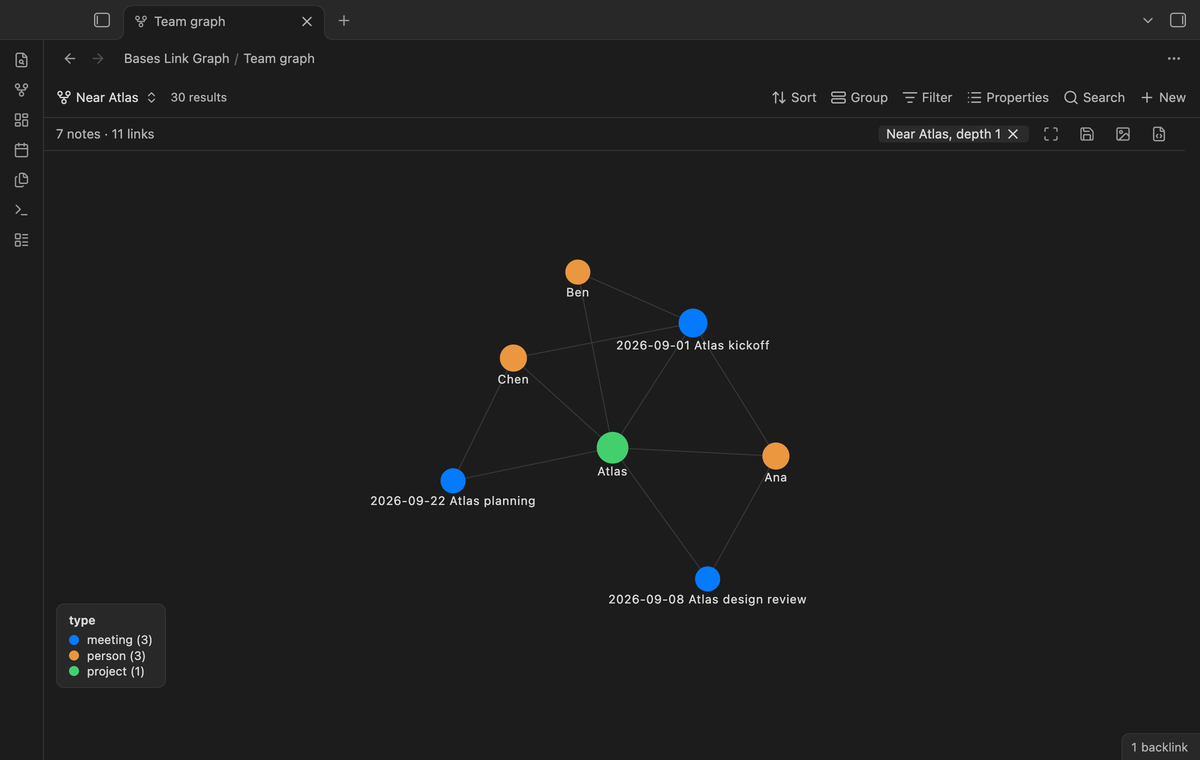
Right-click a node and select "Show only notes near this one". The graph then shows that note and the notes that are up to N edges away, in both directions. Set N with the "Local depth" slider, from 1 to 5. Select the x on the chip above the graph to show all notes again.
### Local depth (Pro)
Right-click a node and select "Show only notes near this one". The graph then shows that note and the notes that are up to N edges away, in both directions. Set N with the "Local depth" slider, from 1 to 5. Select the x on the chip above the graph to show all notes again.
 ### Export and saved layouts (Pro)
Use the buttons above the graph or the export commands to create PNG or SVG files. Exports show the whole graph with labels; SVG also includes the legend. "Save layout" keeps node positions in the base file for this view. "Reset layout" removes them.
### Export and saved layouts (Pro)
Use the buttons above the graph or the export commands to create PNG or SVG files. Exports show the whole graph with labels; SVG also includes the legend. "Save layout" keeps node positions in the base file for this view. "Reset layout" removes them.
 ## Install
1. Open "Settings → Community plugins", select "Browse" and search for "Bases Link Graph".
2. Select "Install" and "Enable". The core plugin "Bases" must be on.
For manual installation, copy the release files into `/.obsidian/plugins/bases-link-graph/` and enable the plugin. You need Obsidian 1.13.4 or later.
## Usage
1. Create a base, or open one. Set its filters so that it selects the notes that you want to see.
2. Select the view menu in the base toolbar and add a view of the type "Link graph".
3. Open the view options to choose labels, the link length and, with Pro, size, color, shared values and depth.
The base limit applies: when the base shows the first 100 results, the graph has 100 nodes.
## Pro
The free version draws the notes of a base with their link edges, a link-source filter, labels, zoom, pan, drag, click to open, hover preview, embeds and live update. It has no note limit.
Pro adds node size and color by a property with a legend, edges from shared property values, the local depth filter, export to PNG or SVG, and saved layouts. To get it:
1. Sponsor [theluckystrike on GitHub Sponsors](https://github.com/sponsors/theluckystrike) with $5 a month, or $15 once. Read the account and network conditions below.
2. In Obsidian, open the settings of Bases Link Graph and select "Sign in with GitHub".
3. The plugin copies a code and opens github.com/login/device. Paste the code there and approve.
When Pro is off, the Pro options stay saved in the base file and the graph ignores them.
## Settings
The view options are in the base toolbar. They are saved with each view in the base file.
| Option | What it does |
| --- | --- |
| Labels | When zoomed in, always, or on hover only. |
| Show notes without links | Shows or hides the notes that have no edge. |
| Draw links from | All links, Note body, or Properties. |
| Link properties | Names of link properties. Empty uses all. Applies only to Properties. |
| Link length | The distance between linked notes, from 20 to 200. |
| Size by (Pro) | A number property for the node size. Empty uses the number of links. |
| Color by (Pro) | A property for the node color, with a legend. |
| Join notes that share (Pro) | Property names whose shared values add dashed edges. |
| Local depth (Pro) | How many edges away from the chosen note to show, 0 to 5. |
The plugin settings tab has the Pro section and two settings: "Animate the layout" (on by default) and "Live update delay" (100 to 2000 ms, default 400).
## FAQ
### How is this different from the core graph view?
The core graph shows the vault or one note and its neighbours. Bases Link Graph uses the filters of a base.
### How is this different from Graph Explorer Base View and Base Graph?
Graph Explorer Base View tracks exploration and maturity in frontmatter. Base Graph adds external notes, ring and layered layouts, and clusters. Bases Link Graph has shared-value edges and image export.
### How fast is it?
The end-to-end test opens a base of 500 notes with 1,490 links. The test fails if the layout warm-up takes 400 ms or more, or if one frame takes 50 ms or more on average. We have not measured it on a phone or a tablet.
### Does it change my notes?
No. Saved layouts and view options go in the base file. Export creates a new file.
## Payment, account and network
The core features are free. Pro features need a GitHub Sponsors sponsorship of theluckystrike: $5 a month or more, or $15 once. A total payment of $15 meets the payment requirement for Pro without further payment. Sign-in and the checks below still apply. Your notes stay readable and editable with or without Pro.
GitHub handles the payment. Sponsor at https://github.com/sponsors/theluckystrike. You need no account for the free features. Pro needs the GitHub account that sponsors.
Until you select "Sign in with GitHub" in the settings, Bases Link Graph makes no network requests. Sign in uses the GitHub device flow. Bases Link Graph sends its public client ID and the scope `read:user` to `https://github.com/login/device/code` and shows you a code. While you enter the code at https://github.com/login/device, it asks `https://github.com/login/oauth/access_token` every few seconds to check the sign-in status. The scope permits profile reads only. GitHub needs this access to show the sponsorship tier. It grants no repository scope and no write access.
After sign in, Bases Link Graph sends one query to `https://api.github.com/graphql`. It checks if the signed-in account sponsors theluckystrike. It asks for the tier and the total payment to theluckystrike. The plugin reuses a successful check for 7 days. Failed checks can retry after 6 hours. Select Refresh to request an earlier check. It sends no note content, file names or other vault data, and it has no telemetry.
After a successful check, Pro can work offline for up to 14 days. Sign out or a negative sponsorship answer turns Pro off. The plugin stores the GitHub token through the secret storage API of Obsidian. It does not put the token in its saved settings or its local sponsorship data. The local storage of this device keeps your GitHub login, the tier and the time of the last check. Sign out clears the token. You can also revoke the access in your GitHub settings, under Applications.
## Support
Report bugs and feature requests in this repository's issues. Add your Obsidian version and, if possible, a small sample base.
## Install
1. Open "Settings → Community plugins", select "Browse" and search for "Bases Link Graph".
2. Select "Install" and "Enable". The core plugin "Bases" must be on.
For manual installation, copy the release files into `/.obsidian/plugins/bases-link-graph/` and enable the plugin. You need Obsidian 1.13.4 or later.
## Usage
1. Create a base, or open one. Set its filters so that it selects the notes that you want to see.
2. Select the view menu in the base toolbar and add a view of the type "Link graph".
3. Open the view options to choose labels, the link length and, with Pro, size, color, shared values and depth.
The base limit applies: when the base shows the first 100 results, the graph has 100 nodes.
## Pro
The free version draws the notes of a base with their link edges, a link-source filter, labels, zoom, pan, drag, click to open, hover preview, embeds and live update. It has no note limit.
Pro adds node size and color by a property with a legend, edges from shared property values, the local depth filter, export to PNG or SVG, and saved layouts. To get it:
1. Sponsor [theluckystrike on GitHub Sponsors](https://github.com/sponsors/theluckystrike) with $5 a month, or $15 once. Read the account and network conditions below.
2. In Obsidian, open the settings of Bases Link Graph and select "Sign in with GitHub".
3. The plugin copies a code and opens github.com/login/device. Paste the code there and approve.
When Pro is off, the Pro options stay saved in the base file and the graph ignores them.
## Settings
The view options are in the base toolbar. They are saved with each view in the base file.
| Option | What it does |
| --- | --- |
| Labels | When zoomed in, always, or on hover only. |
| Show notes without links | Shows or hides the notes that have no edge. |
| Draw links from | All links, Note body, or Properties. |
| Link properties | Names of link properties. Empty uses all. Applies only to Properties. |
| Link length | The distance between linked notes, from 20 to 200. |
| Size by (Pro) | A number property for the node size. Empty uses the number of links. |
| Color by (Pro) | A property for the node color, with a legend. |
| Join notes that share (Pro) | Property names whose shared values add dashed edges. |
| Local depth (Pro) | How many edges away from the chosen note to show, 0 to 5. |
The plugin settings tab has the Pro section and two settings: "Animate the layout" (on by default) and "Live update delay" (100 to 2000 ms, default 400).
## FAQ
### How is this different from the core graph view?
The core graph shows the vault or one note and its neighbours. Bases Link Graph uses the filters of a base.
### How is this different from Graph Explorer Base View and Base Graph?
Graph Explorer Base View tracks exploration and maturity in frontmatter. Base Graph adds external notes, ring and layered layouts, and clusters. Bases Link Graph has shared-value edges and image export.
### How fast is it?
The end-to-end test opens a base of 500 notes with 1,490 links. The test fails if the layout warm-up takes 400 ms or more, or if one frame takes 50 ms or more on average. We have not measured it on a phone or a tablet.
### Does it change my notes?
No. Saved layouts and view options go in the base file. Export creates a new file.
## Payment, account and network
The core features are free. Pro features need a GitHub Sponsors sponsorship of theluckystrike: $5 a month or more, or $15 once. A total payment of $15 meets the payment requirement for Pro without further payment. Sign-in and the checks below still apply. Your notes stay readable and editable with or without Pro.
GitHub handles the payment. Sponsor at https://github.com/sponsors/theluckystrike. You need no account for the free features. Pro needs the GitHub account that sponsors.
Until you select "Sign in with GitHub" in the settings, Bases Link Graph makes no network requests. Sign in uses the GitHub device flow. Bases Link Graph sends its public client ID and the scope `read:user` to `https://github.com/login/device/code` and shows you a code. While you enter the code at https://github.com/login/device, it asks `https://github.com/login/oauth/access_token` every few seconds to check the sign-in status. The scope permits profile reads only. GitHub needs this access to show the sponsorship tier. It grants no repository scope and no write access.
After sign in, Bases Link Graph sends one query to `https://api.github.com/graphql`. It checks if the signed-in account sponsors theluckystrike. It asks for the tier and the total payment to theluckystrike. The plugin reuses a successful check for 7 days. Failed checks can retry after 6 hours. Select Refresh to request an earlier check. It sends no note content, file names or other vault data, and it has no telemetry.
After a successful check, Pro can work offline for up to 14 days. Sign out or a negative sponsorship answer turns Pro off. The plugin stores the GitHub token through the secret storage API of Obsidian. It does not put the token in its saved settings or its local sponsorship data. The local storage of this device keeps your GitHub login, the tier and the time of the last check. Sign out clears the token. You can also revoke the access in your GitHub settings, under Applications.
## Support
Report bugs and feature requests in this repository's issues. Add your Obsidian version and, if possible, a small sample base.