# Bases Filter Switches
Bases Filter Switches puts a row of one-click switches under the toolbar of a base. Each switch is a saved filter, such as "Todo" for `status == "todo"`. Click it and the base shows only those notes. Click again to remove the filter. You do not open the filter editor, and you do not need one view for each mix of filters.
The switches work in base files and in embedded bases. A switch changes the filter of the base file itself, not the filter of one view or layout.
The free version gives each base one group of up to 3 switches. Pro removes the limit, adds presets with a command for each, adds default switches, and builds switches from the values of a property. Pro costs $5 a month, or $15 once, through GitHub Sponsors. A total payment of $15 meets the payment requirement for Pro. Sign-in and the checks below still apply.
## Features
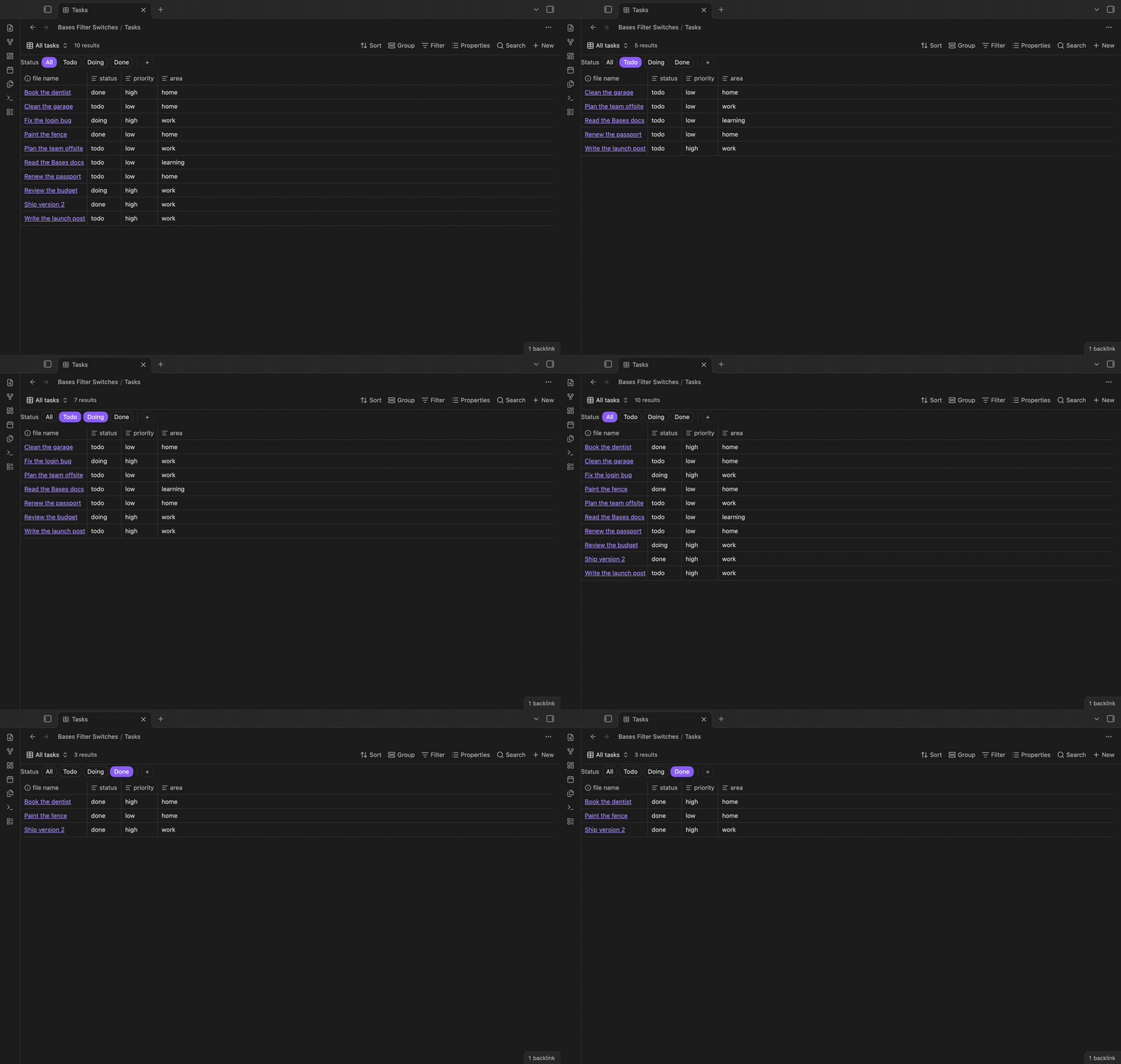 ### Switches above a base
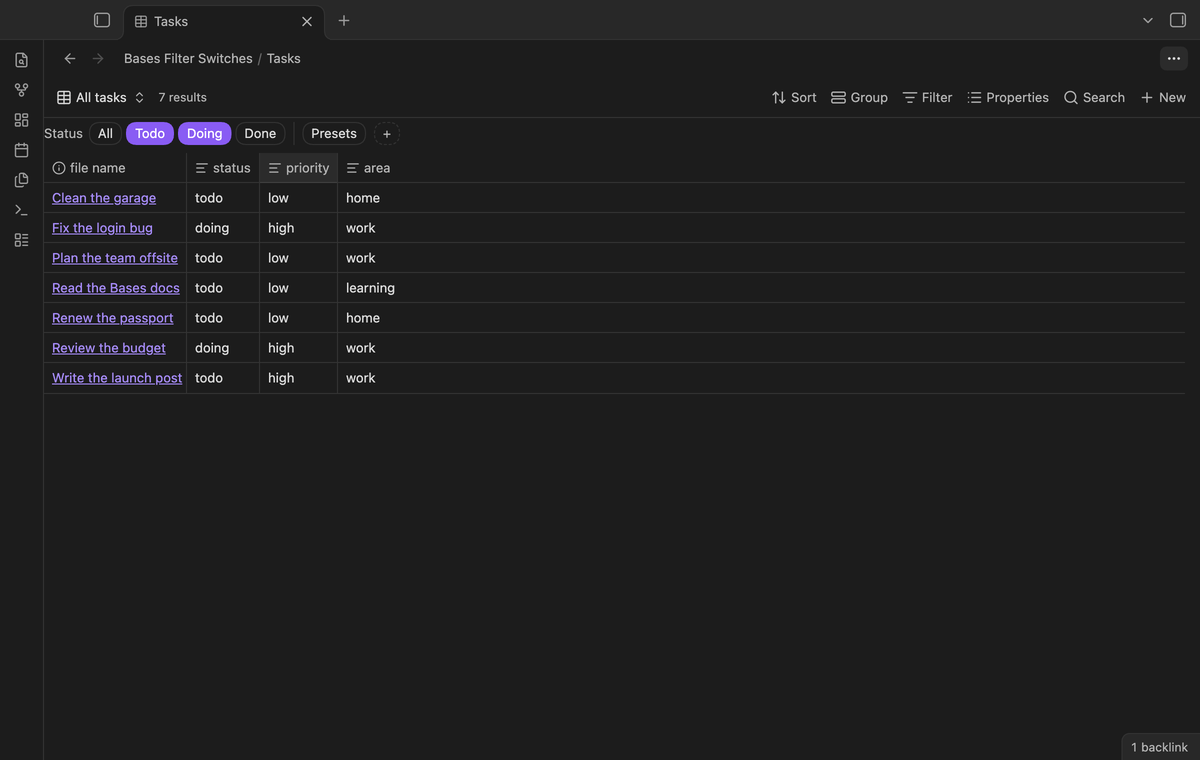 Switches come in groups, for example a Status group with Todo, Doing and Done. Switches of one group are joined with "or": Todo and Doing together show the notes that are todo or doing. Different groups are joined with "and". The "All" switch of a group turns off the switches of that group.
Each switch is a real filter. When a switch is on, its filter is in the top-level filters of the base, next to the filters you wrote yourself. When you open the filter editor, you see it there. The plugin does not change the text of your own filters. A top-level filter that is not an "and" list becomes the first item of a new "and" list.
### Embedded bases
Switches come in groups, for example a Status group with Todo, Doing and Done. Switches of one group are joined with "or": Todo and Doing together show the notes that are todo or doing. Different groups are joined with "and". The "All" switch of a group turns off the switches of that group.
Each switch is a real filter. When a switch is on, its filter is in the top-level filters of the base, next to the filters you wrote yourself. When you open the filter editor, you see it there. The plugin does not change the text of your own filters. A top-level filter that is not an "and" list becomes the first item of a new "and" list.
### Embedded bases
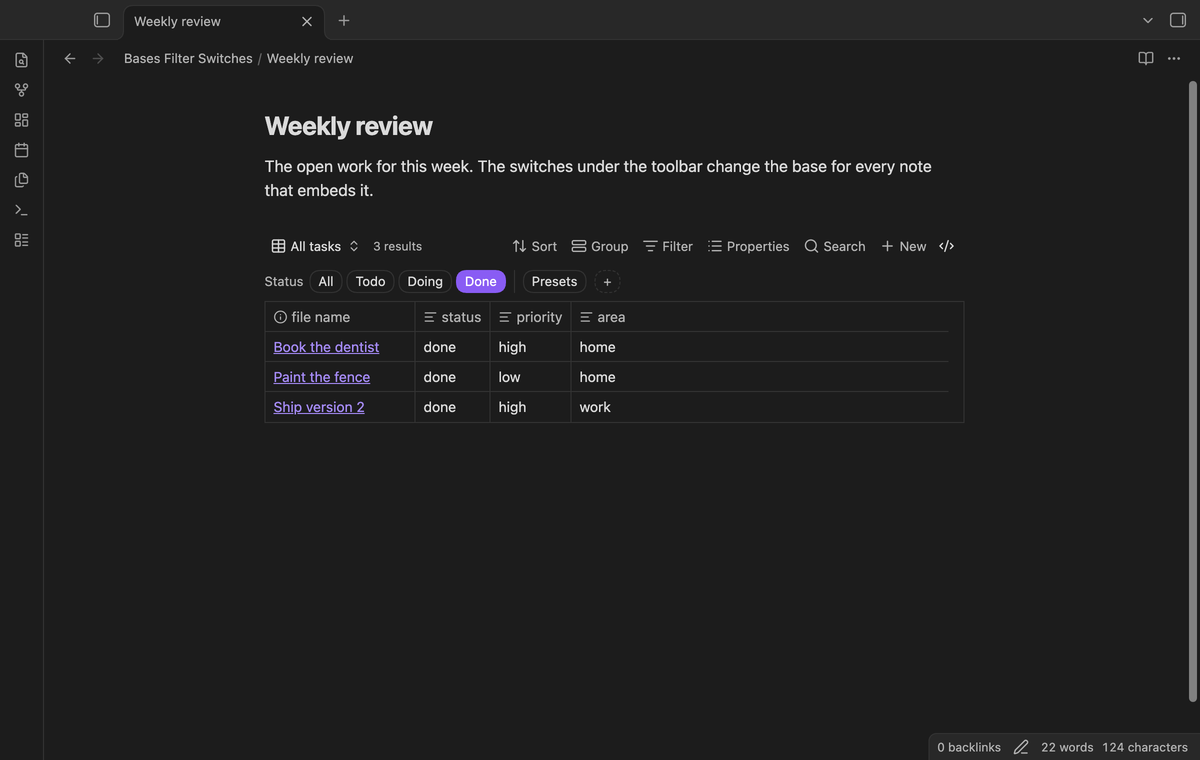 A base embedded in a note with `![[Tasks.base]]` gets the same switches under its toolbar. A switch changes the base file, so each note that embeds this base shows the same filter.
### Add a switch without writing YAML
A base embedded in a note with `![[Tasks.base]]` gets the same switches under its toolbar. A switch changes the base file, so each note that embeds this base shows the same filter.
### Add a switch without writing YAML
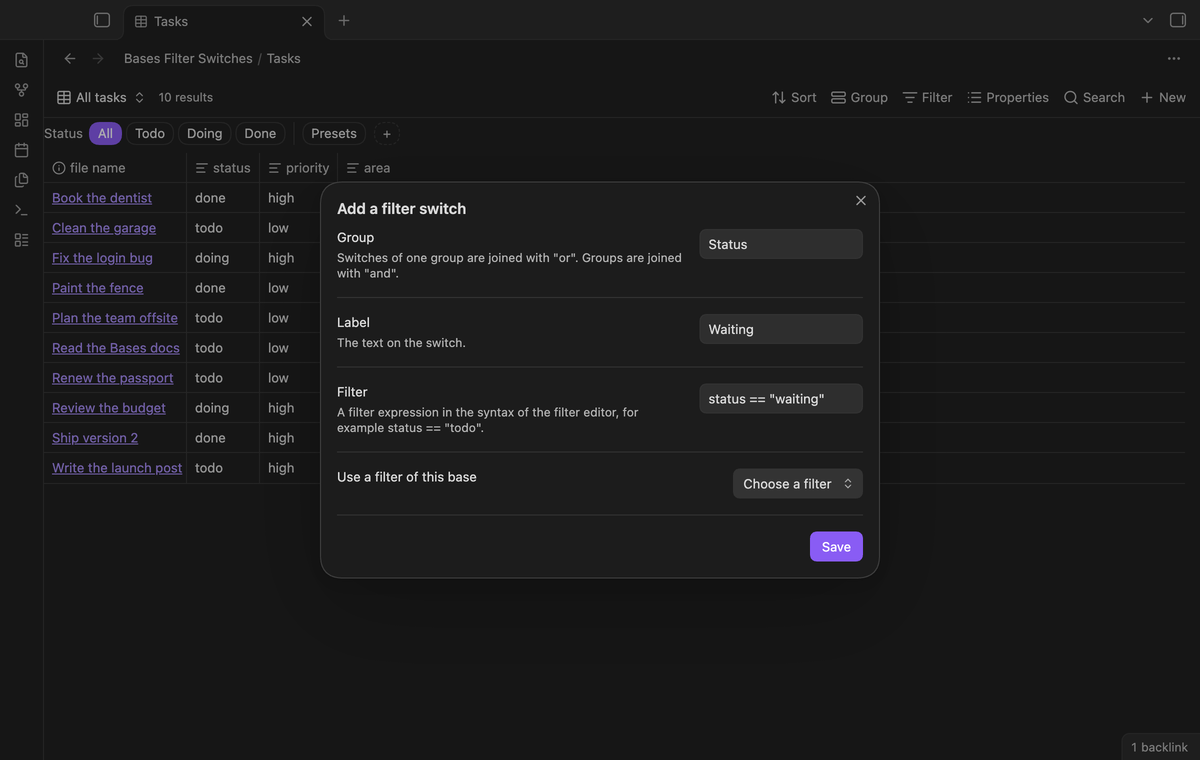 Select the + button, or run "Add a filter switch to the current base". Type a group, a label and a filter. The filter uses the same syntax as the filter editor, for example `status == "todo"` or `file.hasTag("project")`. You can also pick a top-level filter that the base already has, and that filter becomes a switch. On desktop, right-click a switch to edit or remove it.
### Theme colors and keyboard
Select the + button, or run "Add a filter switch to the current base". Type a group, a label and a filter. The filter uses the same syntax as the filter editor, for example `status == "todo"` or `file.hasTag("project")`. You can also pick a top-level filter that the base already has, and that filter becomes a switch. On desktop, right-click a switch to edit or remove it.
### Theme colors and keyboard
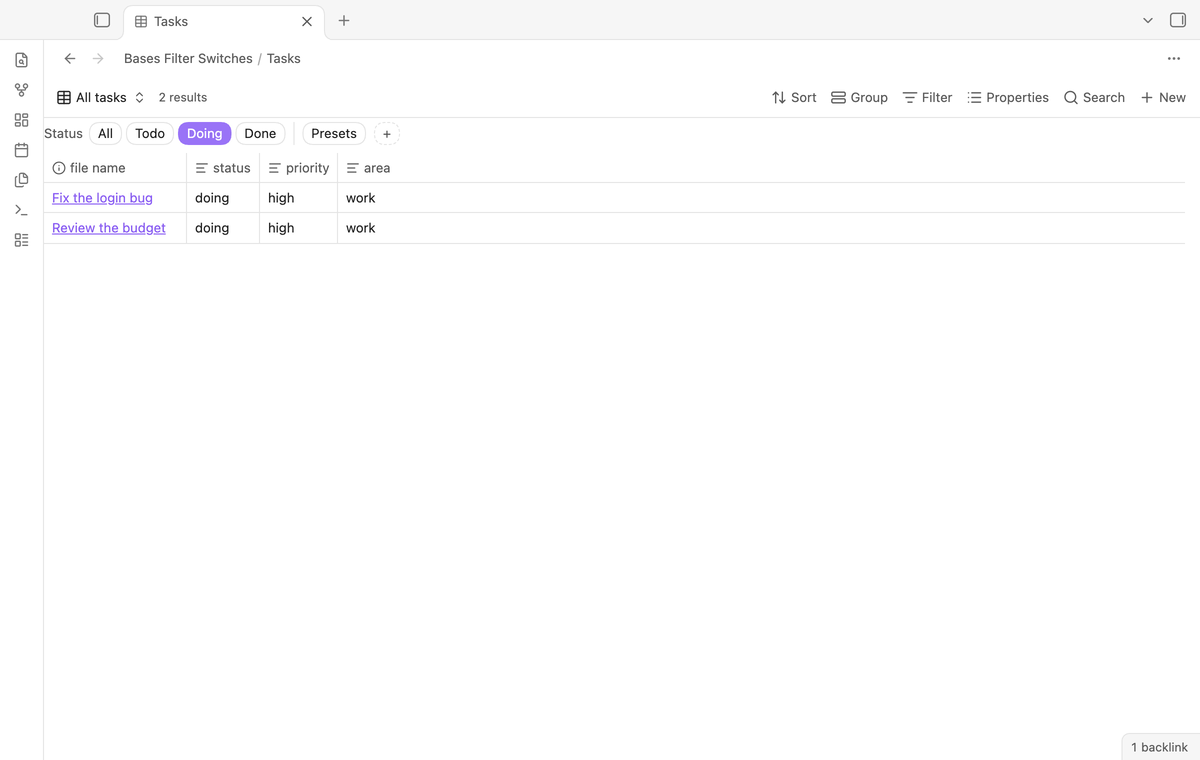 The switches take their colors from your theme, in light and dark mode. A switch that is on has the accent color. Each switch is a button: press Tab to reach the row, the arrow keys, Home and End to move, and Enter or Space to turn a switch on or off.
### Switches from the values of a property (Pro)
The switches take their colors from your theme, in light and dark mode. A switch that is on has the accent color. Each switch is a button: press Tab to reach the row, the arrow keys, Home and End to move, and Enter or Space to turn a switch on or off.
### Switches from the values of a property (Pro)
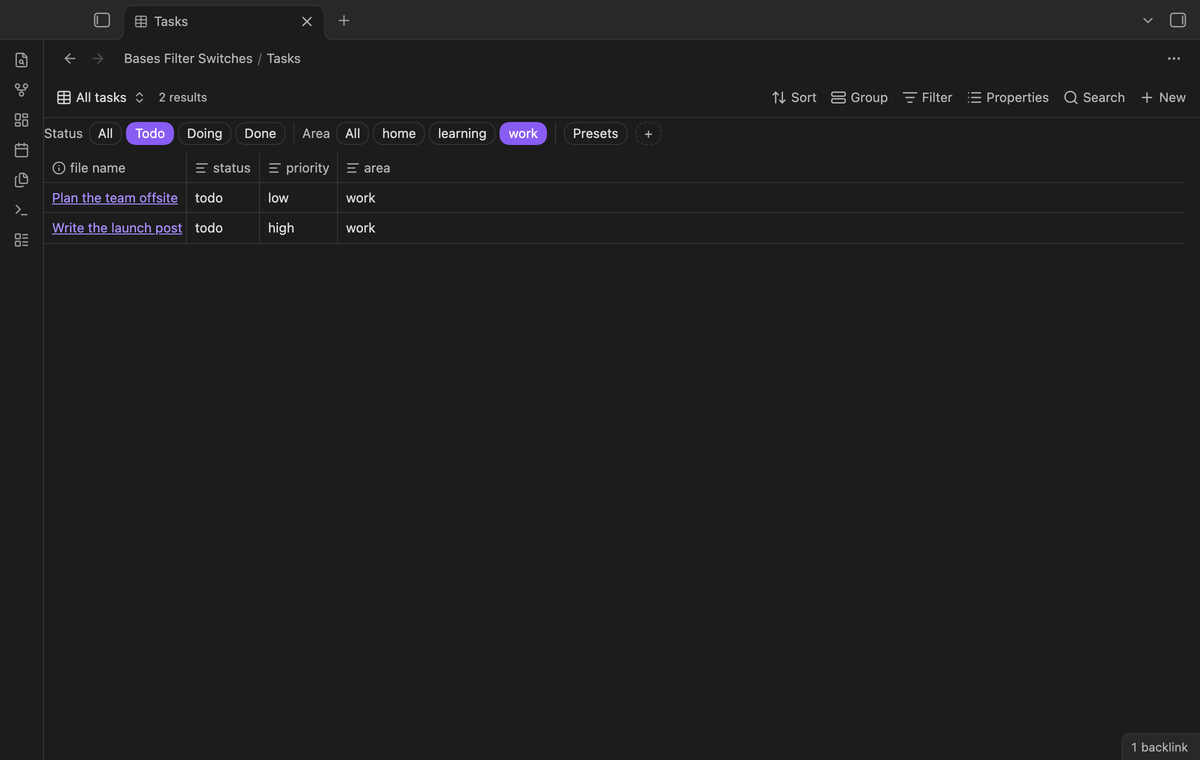 Run "Add switches from the values of a property" and choose a property such as `area`. The group gets one switch for each value that notes have now, and new values show up by themselves. For a list property, the switches use `contains()`. You can make the group "one at a time", so a click on one switch turns the others off.
### Presets (Pro)
Run "Add switches from the values of a property" and choose a property such as `area`. The group gets one switch for each value that notes have now, and new values show up by themselves. For a list property, the switches use `contains()`. You can make the group "one at a time", so a click on one switch turns the others off.
### Presets (Pro)
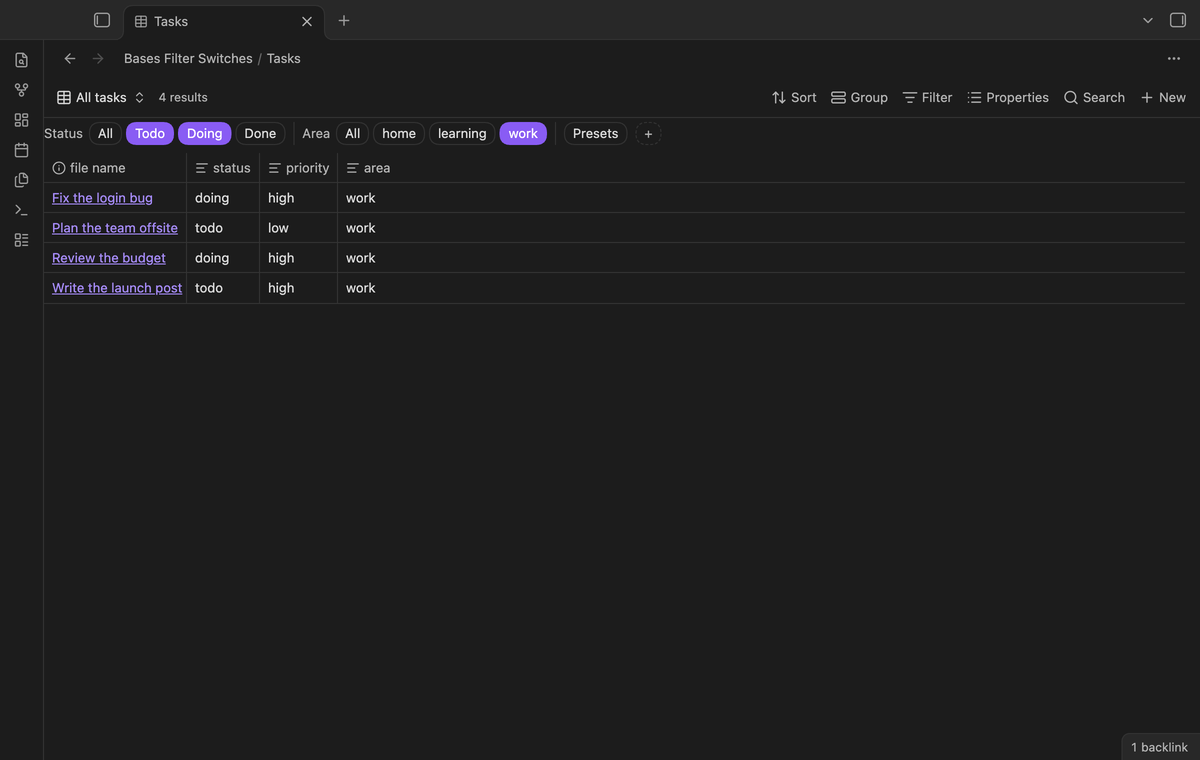 A preset saves which switches are on, in each group, under one name. Choose it from the Presets menu to set the switches of each group at once. Each preset also gets a command, so you can give it a hotkey.
### Default switches (Pro)
A preset saves which switches are on, in each group, under one name. Choose it from the Presets menu to set the switches of each group at once. Each preset also gets a command, so you can give it a hotkey.
### Default switches (Pro)
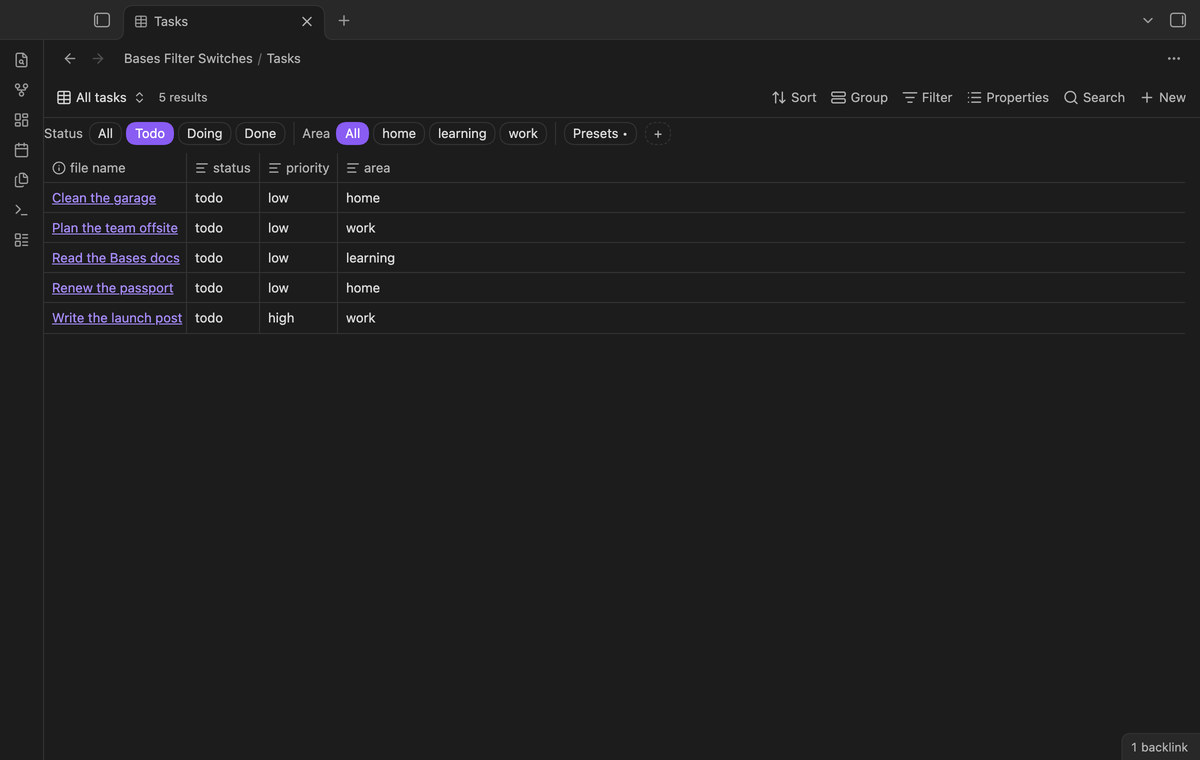 Select "Save switches as the default" in the Presets menu to save the switches that are on now under the key `filterSwitches.default`. The command "Apply the default switches of the current base" or the menu item "Apply the default switches" turns them back on. "Clear the saved default" removes the default.
## Install
When the plugin is in the community directory, open Settings, then Community plugins, then Browse, and search for "Bases Filter Switches". Select Install, then Enable.
To install by hand, download `main.js`, `manifest.json` and `styles.css` from the latest release. Put the three files in `/.obsidian/plugins/bases-filter-switches/`. Reload the list of community plugins, then turn on Bases Filter Switches.
Bases Filter Switches needs Obsidian 1.13.4 or newer and the Bases core plugin. It was tested on desktop with Obsidian 1.13.4 and 1.14.4.
## Usage
1. Open a base. Under the toolbar you see a small "+ Filter switch" button.
2. Select it and add a switch, for example group "Status", label "Todo", filter `status == "todo"`.
3. Add more switches to the group. Click them to filter the base.
4. Select "All" to turn off the switches of the group.
The switches are saved in the base file under the key `filterSwitches`. Core Bases ignores this key and keeps it when it saves the file. You can edit it by hand:
```yaml
filterSwitches:
groups:
- name: Status
switches:
- label: Todo
filter: status == "todo"
- label: Done
filter: status == "done"
```
## Pro
Select "Save switches as the default" in the Presets menu to save the switches that are on now under the key `filterSwitches.default`. The command "Apply the default switches of the current base" or the menu item "Apply the default switches" turns them back on. "Clear the saved default" removes the default.
## Install
When the plugin is in the community directory, open Settings, then Community plugins, then Browse, and search for "Bases Filter Switches". Select Install, then Enable.
To install by hand, download `main.js`, `manifest.json` and `styles.css` from the latest release. Put the three files in `/.obsidian/plugins/bases-filter-switches/`. Reload the list of community plugins, then turn on Bases Filter Switches.
Bases Filter Switches needs Obsidian 1.13.4 or newer and the Bases core plugin. It was tested on desktop with Obsidian 1.13.4 and 1.14.4.
## Usage
1. Open a base. Under the toolbar you see a small "+ Filter switch" button.
2. Select it and add a switch, for example group "Status", label "Todo", filter `status == "todo"`.
3. Add more switches to the group. Click them to filter the base.
4. Select "All" to turn off the switches of the group.
The switches are saved in the base file under the key `filterSwitches`. Core Bases ignores this key and keeps it when it saves the file. You can edit it by hand:
```yaml
filterSwitches:
groups:
- name: Status
switches:
- label: Todo
filter: status == "todo"
- label: Done
filter: status == "done"
```
## Pro
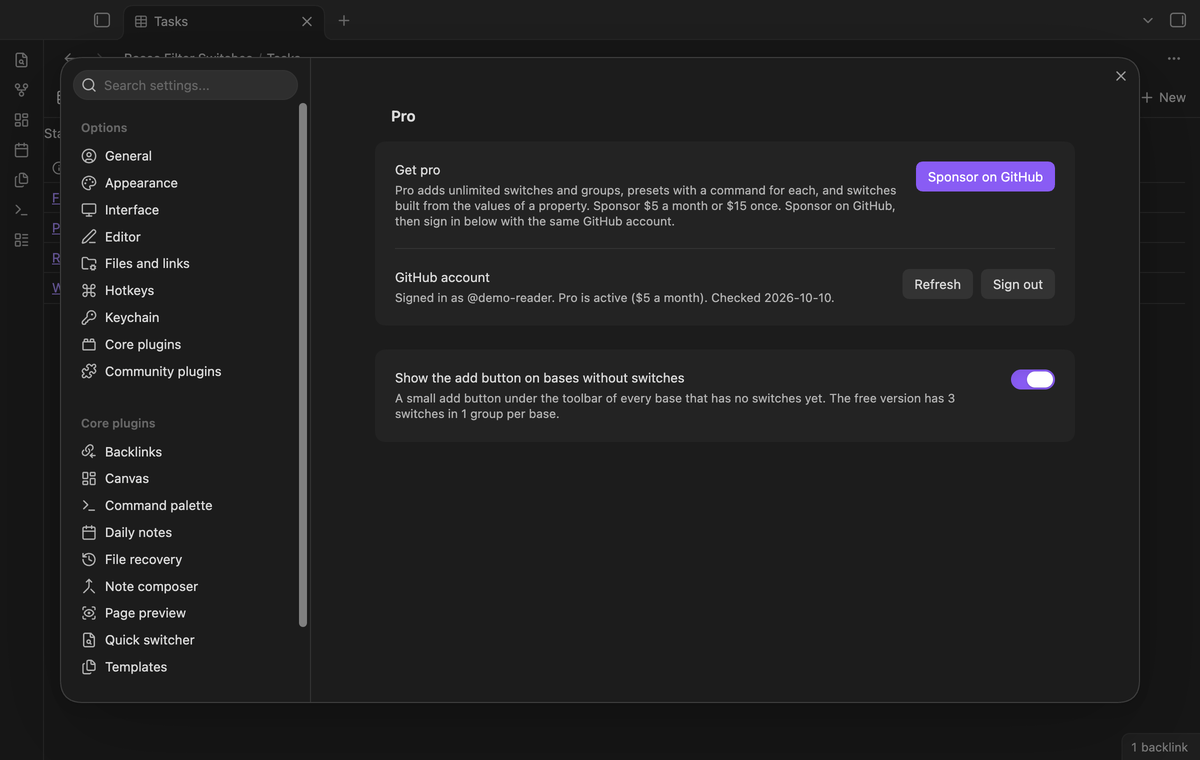 The free version is useful on its own: one group of up to 3 switches in each base. Pro adds unlimited switches and groups, presets with a command for each, default switches, and switches built from the values of a property. If a base has more switches than the free version shows, the row shows the count. Those switches stay in the file.
1. Sponsor [theluckystrike on GitHub Sponsors](https://github.com/sponsors/theluckystrike) with $5 a month, or $15 once. A total payment of $15 meets the payment requirement for Pro without further payment. Sign-in and the checks below still apply.
2. In Obsidian, open the settings of Bases Filter Switches and select "Sign in with GitHub".
3. The plugin copies a code and opens github.com/login/device. Paste the code there and approve.
If you sponsor after you sign in, select Refresh. A negative sponsorship answer turns Pro off. See [Payment, account and network](#payment-account-and-network) for the check and offline limits.
## Settings
The free version is useful on its own: one group of up to 3 switches in each base. Pro adds unlimited switches and groups, presets with a command for each, default switches, and switches built from the values of a property. If a base has more switches than the free version shows, the row shows the count. Those switches stay in the file.
1. Sponsor [theluckystrike on GitHub Sponsors](https://github.com/sponsors/theluckystrike) with $5 a month, or $15 once. A total payment of $15 meets the payment requirement for Pro without further payment. Sign-in and the checks below still apply.
2. In Obsidian, open the settings of Bases Filter Switches and select "Sign in with GitHub".
3. The plugin copies a code and opens github.com/login/device. Paste the code there and approve.
If you sponsor after you sign in, select Refresh. A negative sponsorship answer turns Pro off. See [Payment, account and network](#payment-account-and-network) for the check and offline limits.
## Settings
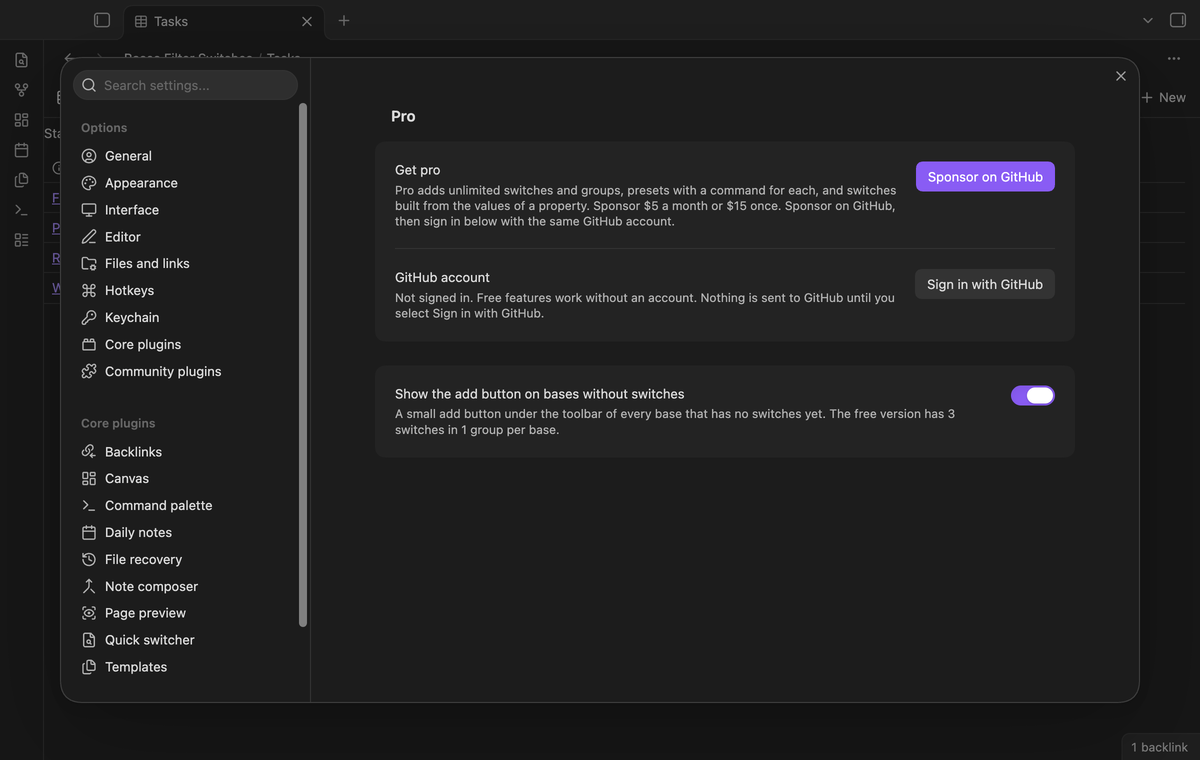 | Setting | Default | Allowed values |
| --- | --- | --- |
| Show the add button on bases without switches | On | On or off |
The Pro section shows your GitHub account, the Pro status, and the Sign in, Refresh and Sign out buttons.
## FAQ
### Where is the state of the switches saved?
In the filters of the base file. A switch is on when its filter is in the top-level filters. A hand-typed filter that matches a switch shows that switch as on.
### Does it change the rest of my base file?
It edits only the top-level `filters` and its own `filterSwitches` key, and it keeps your comments, key order and quotes. Core Bases rewrites the whole file when you change a view, and then the comments are lost.
### Can a switch change one view only?
No. Switches change the top-level filters, so they apply to each view of the base.
### Do base code blocks get switches?
No. The plugin only edits base files. Embed a base file with `![[name.base]]`.
### Is there another plugin for this?
Bases Toolbox turns single top-level filter conditions off and on from a window. This plugin puts the switches on the base and its embeds.
## Payment, account and network
The core features are free. Pro features need a GitHub Sponsors sponsorship of theluckystrike: $5 a month or more, or $15 once. A total payment of $15 meets the payment requirement for Pro without further payment. Sign-in and the checks below still apply. Your notes stay readable and editable with or without Pro.
GitHub handles the payment. Sponsor at https://github.com/sponsors/theluckystrike. You need no account for the free features. Pro needs the GitHub account that sponsors.
Until you select "Sign in with GitHub" in the settings, Bases Filter Switches makes no network requests. Sign in uses the GitHub device flow. Bases Filter Switches sends its public client ID and the scope `read:user` to `https://github.com/login/device/code` and shows you a code. While you enter the code at https://github.com/login/device, it asks `https://github.com/login/oauth/access_token` every few seconds to check the sign-in status. The scope permits profile reads only. GitHub needs this access to show the sponsorship tier. It grants no repository scope and no write access.
After sign in, Bases Filter Switches sends one query to `https://api.github.com/graphql`. It checks if the signed-in account sponsors theluckystrike. It asks for the tier and the total payment to theluckystrike. The plugin reuses a successful check for 7 days. Failed checks can retry after 6 hours. Select Refresh to request an earlier check. It sends no note content, file names or other vault data, and it has no telemetry.
After a successful check, Pro can work offline for up to 14 days. Sign out or a negative sponsorship answer turns Pro off. The plugin stores the GitHub token through the secret storage API of Obsidian. It does not put the token in its saved settings or its local sponsorship data. The local storage of this device keeps your GitHub login, the tier and the time of the last check. Sign out clears the token. You can also revoke the access in your GitHub settings, under Applications.
## Support
Report a bug or ask for a feature in the issue tracker of this repository. Please include your Obsidian version and the `filters` and `filterSwitches` parts of the base file.
To build from source:
```
npm ci
npm run build
npm test
```
The tests check golden cases for the switch operations on real base files. An end-to-end test clicks the switches in Obsidian and checks the rows of the base.
## License
MIT
| Setting | Default | Allowed values |
| --- | --- | --- |
| Show the add button on bases without switches | On | On or off |
The Pro section shows your GitHub account, the Pro status, and the Sign in, Refresh and Sign out buttons.
## FAQ
### Where is the state of the switches saved?
In the filters of the base file. A switch is on when its filter is in the top-level filters. A hand-typed filter that matches a switch shows that switch as on.
### Does it change the rest of my base file?
It edits only the top-level `filters` and its own `filterSwitches` key, and it keeps your comments, key order and quotes. Core Bases rewrites the whole file when you change a view, and then the comments are lost.
### Can a switch change one view only?
No. Switches change the top-level filters, so they apply to each view of the base.
### Do base code blocks get switches?
No. The plugin only edits base files. Embed a base file with `![[name.base]]`.
### Is there another plugin for this?
Bases Toolbox turns single top-level filter conditions off and on from a window. This plugin puts the switches on the base and its embeds.
## Payment, account and network
The core features are free. Pro features need a GitHub Sponsors sponsorship of theluckystrike: $5 a month or more, or $15 once. A total payment of $15 meets the payment requirement for Pro without further payment. Sign-in and the checks below still apply. Your notes stay readable and editable with or without Pro.
GitHub handles the payment. Sponsor at https://github.com/sponsors/theluckystrike. You need no account for the free features. Pro needs the GitHub account that sponsors.
Until you select "Sign in with GitHub" in the settings, Bases Filter Switches makes no network requests. Sign in uses the GitHub device flow. Bases Filter Switches sends its public client ID and the scope `read:user` to `https://github.com/login/device/code` and shows you a code. While you enter the code at https://github.com/login/device, it asks `https://github.com/login/oauth/access_token` every few seconds to check the sign-in status. The scope permits profile reads only. GitHub needs this access to show the sponsorship tier. It grants no repository scope and no write access.
After sign in, Bases Filter Switches sends one query to `https://api.github.com/graphql`. It checks if the signed-in account sponsors theluckystrike. It asks for the tier and the total payment to theluckystrike. The plugin reuses a successful check for 7 days. Failed checks can retry after 6 hours. Select Refresh to request an earlier check. It sends no note content, file names or other vault data, and it has no telemetry.
After a successful check, Pro can work offline for up to 14 days. Sign out or a negative sponsorship answer turns Pro off. The plugin stores the GitHub token through the secret storage API of Obsidian. It does not put the token in its saved settings or its local sponsorship data. The local storage of this device keeps your GitHub login, the tier and the time of the last check. Sign out clears the token. You can also revoke the access in your GitHub settings, under Applications.
## Support
Report a bug or ask for a feature in the issue tracker of this repository. Please include your Obsidian version and the `filters` and `filterSwitches` parts of the base file.
To build from source:
```
npm ci
npm run build
npm test
```
The tests check golden cases for the switch operations on real base files. An end-to-end test clicks the switches in Obsidian and checks the rows of the base.
## License
MIT