# Gallery
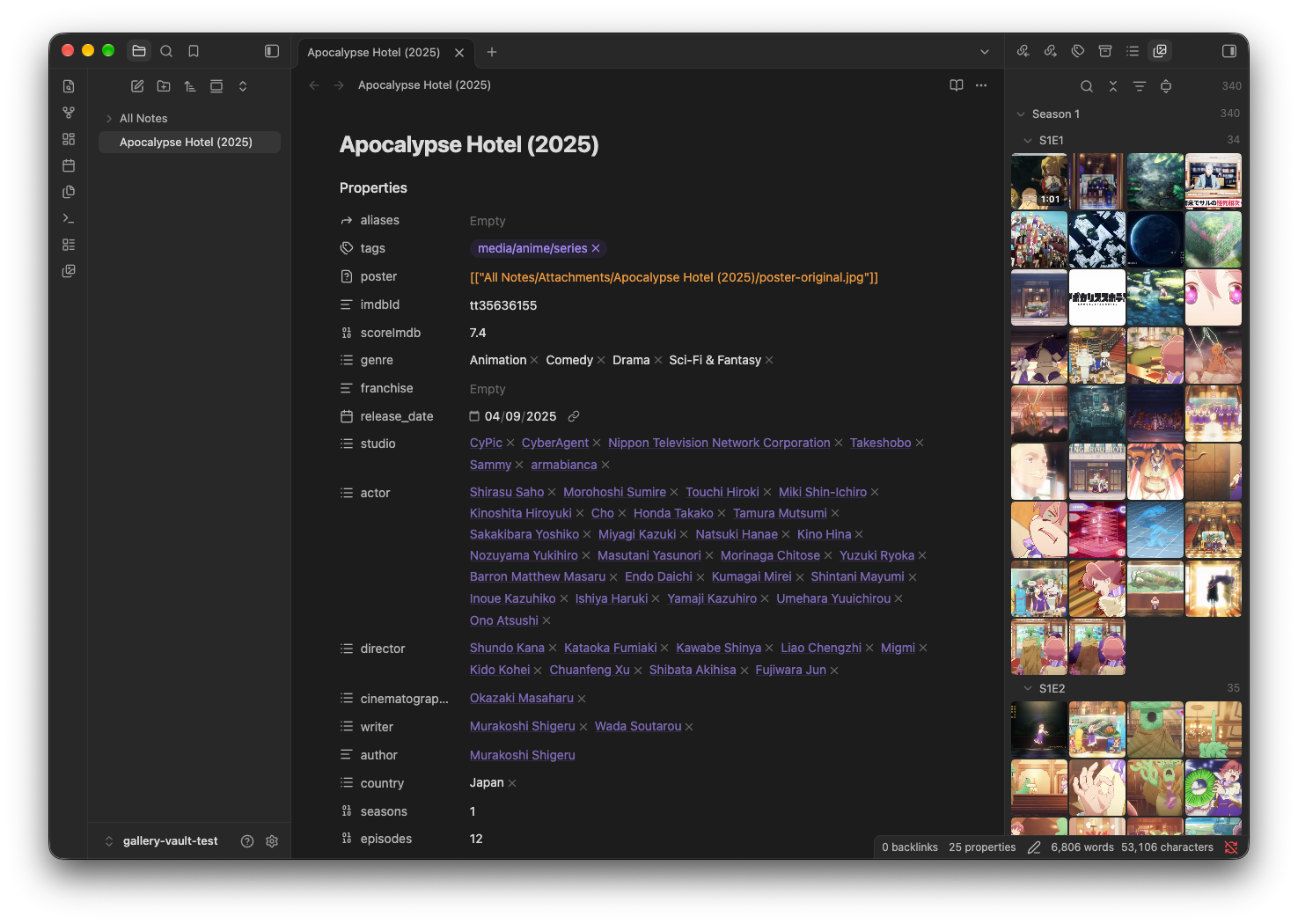
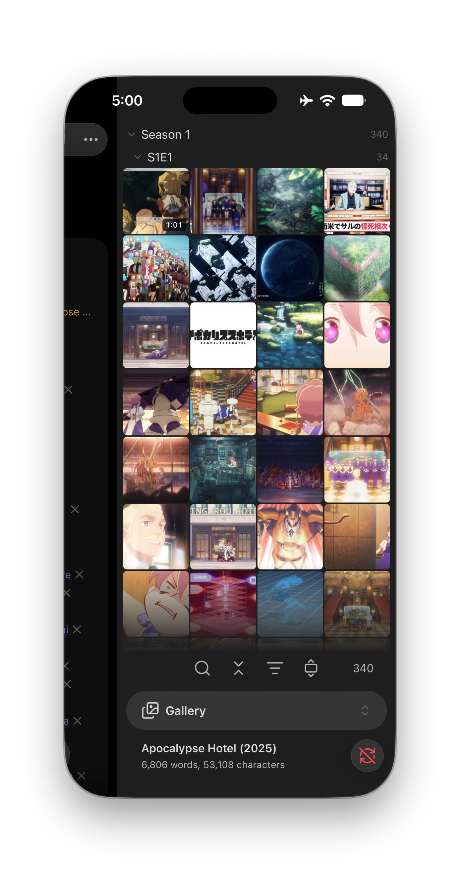
Browse images and videos from your active note in a searchable sidebar and a full-window viewer. Gallery works on desktop, iOS, and Android.
## Features
- Browse local images and videos from the active note.
- Search filenames and section headings, highlight matches, and filter images or videos. Search and filters also apply to the viewer.
- Browse collapsible, nested sections with media counts and a pinned heading, or hide sections for a continuous media grid.
- Adjust tile size with 20 fixed scale levels, optionally choose a separate mobile size, and switch between cropped thumbnails and whole images.
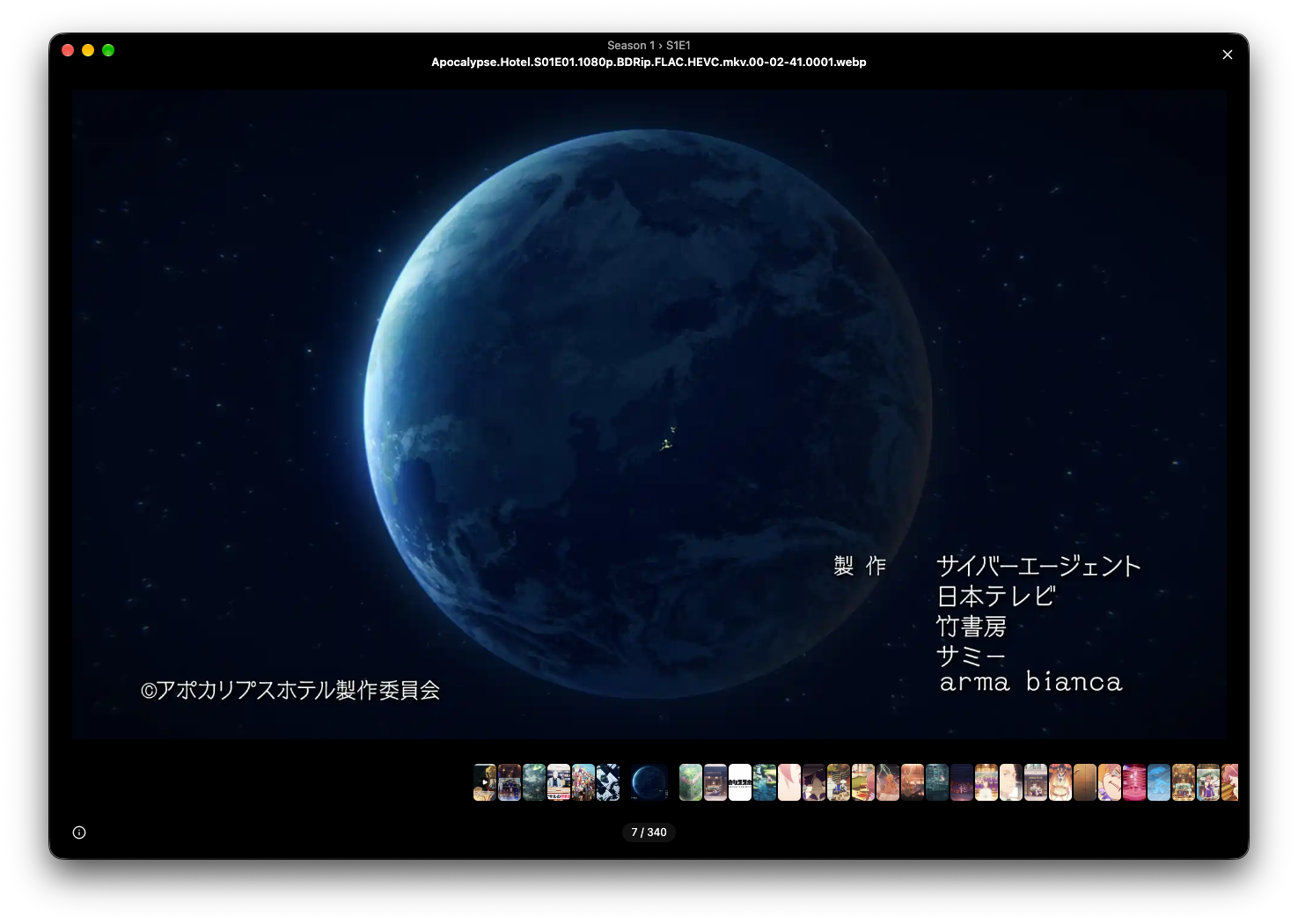
- Open media in a full-window viewer with swipe navigation, arrow keys, and a thumbnail strip.
- Zoom images, move around an enlarged image, and hide or show the viewer controls.
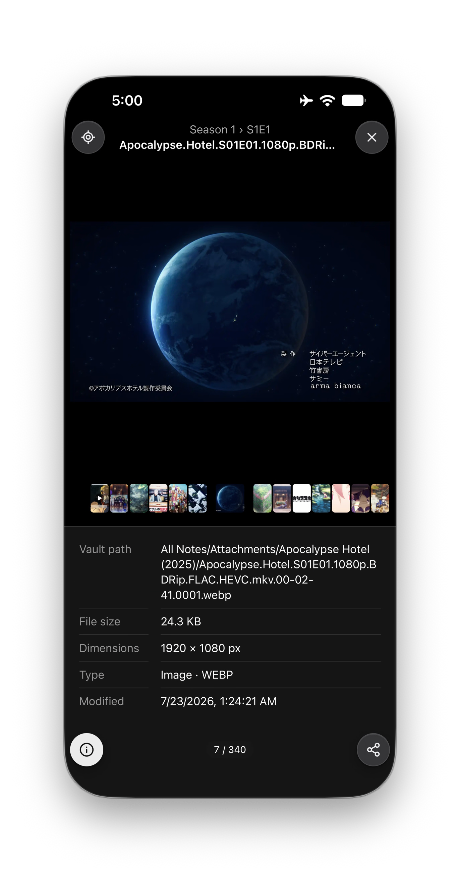
- View file information, including video duration and frame rate when available.
- Return to the original embed, share supported files, and use desktop context menus to copy or open media.
- Navigate the toolbar, section headings, and media tiles with the keyboard, with support for light and dark themes.
## Performance
Gallery loads media from the active note rather than scanning the whole vault. Thumbnails load near the visible area; already generated previews are reused from a bounded in-memory cache while the note stays open. Videos never autoplay in the grid. The viewer prepares neighboring images for smooth navigation. Gallery has no runtime dependencies.
## Supported media
Gallery supports local files embedded in a note using Obsidian's wiki embeds or Markdown embeds.
Images: AVIF, BMP, GIF, HEIC, HEIF, JPEG, JPG, JXL, PNG, SVG, and WebP.
Videos: M4V, MOV, MP4, OGV, and WebM.
Display and playback still depend on the codecs supported by Obsidian on the current operating system.
Remote URLs, media paths in properties, raw HTML media, and media inside embedded notes are not supported.
## Use Gallery
1. Open a Markdown note that contains image or video embeds.
2. Select the images icon in the ribbon, or run **Gallery: Open media** from the command palette.
3. Use the toolbar to search filenames and headings, filter images or videos, collapse or expand all sections, and change how images fit inside tiles.
4. Select a heading to collapse only that heading and everything nested inside it.
5. For keyboard navigation, run **Gallery: Focus media** or assign it a keyboard shortcut. Use `Up` and `Down` to move through headings and grids. From the first heading or tile, press `Up` to reach the toolbar. Use `Left` and `Right` to move between toolbar buttons, and `Down` to return to the search field or results. On a heading, use `Right` to expand or enter it and `Left` to collapse it or return to its parent. Press `Enter` on a tile to open it.
6. Select a tile to open the full-window viewer.
7. In the viewer, select an image or the empty area around it to hide or show the controls.
8. Swipe up, press `Up`, or select the information button to view the vault path, file size, dimensions, type, and modification time. Swipe down or press `Down` to hide the information panel. Another downward action closes the viewer.
9. Drag or flick the thumbnail strip to move quickly through nearby media. The item nearest the center becomes active and snaps into place when scrolling stops.
10. Where supported, select the share button to open the operating system's sharing options for the active file.
11. Open **Settings → Gallery → Tile scale** to choose one of 20 fixed scale levels. Each number always represents the same scale; resizing the panel changes how many tiles fit, not the selected number. Rows fill the available width, so neighboring levels can look the same when they fit the same number of columns. Larger levels allow much larger tiles. Reset restores level 8, the original size.
12. Enable **Settings → Gallery → Use separate mobile tile scale** to choose independent **Desktop tile scale** and **Mobile tile scale** values. The mobile value initially inherits your current size. Turning the setting off restores shared sizing without forgetting your mobile choice.
13. Disable **Settings → Gallery → Show sections** to display one continuous grid. Search still matches section headings, and the viewer keeps section labels. Re-enabling the setting restores your collapsed sections.
### Desktop
Use `Left` and `Right`, or swipe horizontally on a trackpad, to switch media. To zoom an image, pinch on a trackpad, hold `Ctrl` while scrolling, or double-click. Drag an enlarged image to move around it.
Right-click media to copy the original file or its vault path, show it in the system file manager, or open it. Select **Go to source in note** to return to the embed in the note.
### Mobile
Gallery opens in the right sidebar, with its controls above Obsidian's view selector. Swipe horizontally in the viewer to switch media. Pinch an image to zoom, then drag it to move around it.
Media fills the available viewing area without cropping or stretching, including small images. In portrait orientation, hiding the controls frees space without shifting the image down. In compact landscape mode, file information opens in a scrollable panel on the left.
Select the locate button to return to the embed in the note. The share button appears when the device supports a sharing option. On Android, the system chooser may also offer apps that can open or edit the file.
## Privacy and permissions
- No network requests.
- No telemetry or analytics.
- No accounts, payments, or advertisements.
- No access outside the Obsidian vault.
- No writes to notes or attachments.
- Settings are saved locally. A diagnostic JSON file is created only when you select **Save report to vault**; it contains versions, device capabilities and geometry, never filenames, vault paths, URLs or note content. Nothing is uploaded automatically.
- Clipboard content is never read. Explicit copy actions write the selected media, its path, or a support report. On macOS, exact-file copy uses a desktop-only API and checks that the format it just wrote is present; unsupported image formats are never silently converted to PNG.
- Sharing sends only the currently selected local media file to a destination explicitly chosen by the user in the operating system's share sheet. Nothing is shared automatically.
## Customization and troubleshooting
Standard Obsidian CSS snippets can customize Gallery. See [CSS customization](docs/CUSTOMIZATION.md) for scoped selectors and an optional example; no extra plugin is required. Do not edit the installed `styles.css`, because updates replace it.
For support, see [troubleshooting](docs/TROUBLESHOOTING.md). An optional local report is available on desktop through **Gallery: Show mobile diagnostics**; the command is not shown on mobile and does not send anything.
Playback and sharing depend on the installed Obsidian app, operating system, and device. A file that works on one device may not work on another. If a video preview or sharing option is unavailable, follow the troubleshooting guide above.
## Version history
Every user-visible change is recorded in [CHANGELOG.md](CHANGELOG.md). Work that has not been released yet stays under **Unreleased**; published versions receive their own dated section.
## Install Gallery manually
Copy these release files into `/.obsidian/plugins/gallery/`:
- `main.js`
- `manifest.json`
- `styles.css`
Reload Obsidian, then enable **Gallery** under **Settings → Community plugins**.
## Development
Requirements: Node.js 20 or later and npm.
```bash
npm ci
npm run dev
```
Quality checks:
```bash
npm run check
```
The check runs unit tests, TypeScript validation, a production build, and the official Obsidian ESLint rules.
Use a dedicated test vault for UI testing. Do not enable development builds in a vault that contains important data.
### Technical details
Gallery reads Obsidian's metadata cache for the active note. Tiles render in small batches. Visible images take priority over offscreen preloading. On mobile, one image thumbnail and one video-preview job can progress independently, so a slow video does not block images.
The thumbnail cache has separate limits for encoded previews and offscreen image sources. Recently viewed stills stay attached within the offscreen budget, which accounts for their actual preview dimensions; older sources can be detached while their encoded preview remains available for reuse without reading the original again. Cache hits bypass the thumbnail-generation queue, although the browser can still need to decode a detached preview. On mobile, if the canvas cannot export WebP, opaque image previews use a compact JPEG fallback; transparent previews retain PNG. These limits do not include currently visible media or temporary decoder memory. Changing notes, rebuilding the gallery, or closing the view releases the cache. There is no persistent or cross-note media cache, and original files are never modified. The viewer keeps at most the two adjacent original images ready for page transitions.
When Web Share is available, Gallery reads a file for sharing only after the user selects the share button. Otherwise, Android sharing can use Obsidian's native adapter to pass the original vault-relative path without copying the file into JavaScript memory. The adapter is not a public typed API and may change; Gallery checks that it is available before showing the button.
On iOS, a paused native video thumbnail is used as a fallback if the system cannot produce a cached still. It does not autoplay and is unloaded offscreen. Codec support still depends on the device.
Video frame rate is estimated from displayed frames rather than read from the file container. Unavailable WebView APIs are reported explicitly. Mobile system UI and native sharing require testing on physical devices; browser tests cannot verify every device.
## Release
Run `npm run release:prepare` to verify and assemble exactly three installation assets under `dist//`. Source, tests, dependencies, personal settings and reports are excluded. Keep the source in a separate development checkout outside your vault, and copy only these three files into a test vault.
See [release preparation](docs/RELEASING.md) for the public-source checklist, GitHub release and Obsidian Community submission. The plugin must be reviewed by the directory before appearing in its installation catalog.
## License
[MIT](LICENSE)
## Support