Page tree (default)
Create an ordinary page that will hold your vault, for example **Obsidian Vault**. The plugin creates one page per folder and one page per note underneath it.Database
Create a database, for example by typing `/database` on a page and choosing **Database – Full page**. The title column is detected automatically. Optionally add: | Column | Type | Used for | | --- | --- | --- | | `Tags` | Multi-select | The note's frontmatter `tags` | | `Folder` | Select (or Text) | The note's folder path, e.g. `Projects/Website` | Column names can be changed in the settings. Options inside the columns are created automatically. Use the original database, not a *linked view* of it — the Notion API [does not support linked databases](https://developers.notion.com/reference/retrieve-a-database). Databases with several data sources are supported by pasting the data source ID instead of the link (**•••** → **Manage data sources** → **Copy data source ID**), as described in Notion's [data sources upgrade guide](https://developers.notion.com/docs/upgrade-guide-2025-09-03).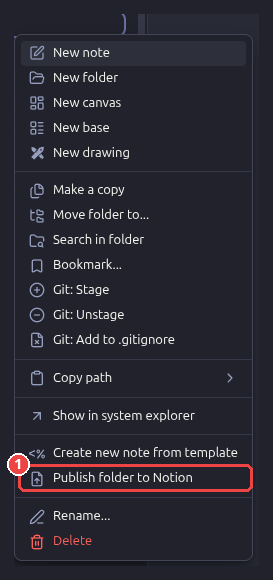 After the first publish, two properties are added to the note's frontmatter:
```yaml
notion_id: 1a2b3c4d-5e6f-4a1b-9c2d-3e4f5a6b7c8d
notion_url: https://app.notion.com/p/My-note-1a2b3c4d5e6f4a1b9c2d3e4f5a6b7c8d
```
`notion_id` links the note to its page — keep it to update the same page next time, or delete
it to publish a fresh copy. Publishing a folder with more than 20 notes asks for confirmation
first, and ends with a summary such as *12 created, 3 updated, 85 unchanged*.
## What happens when…
| You… | Result in Notion |
| --- | --- |
| Publish a note for the first time | A page is created. |
| Edit the note and publish again | The same page is updated; its link stays the same. |
| Publish a folder in which nothing changed | Nothing is uploaded; notes are reported as *unchanged*. |
| Move a note to another folder | Page tree: the page moves to the new folder page. Database: the `Folder` column changes. |
| Rename a note | The page title changes. |
| Rename or move a folder | A new folder page is created; delete the old one in Notion. |
| Delete a note in Obsidian | The Notion page is kept. |
| Delete or trash a page in Notion | It is recreated on the next publish. |
| Edit a published page in Notion | Your edits are overwritten the next time the note changes. Obsidian is the source of truth. |
| Add sub-pages inside a published page in Notion | The update stops instead of deleting them. |
| Duplicate a note in Obsidian | The copy shares `notion_id` with the original — remove it from the copy first, or both will write to one page. |
## Markdown conversion
Notes are converted to
[Notion-flavoured Markdown](https://developers.notion.com/guides/data-apis/enhanced-markdown)
before upload.
| In Obsidian | In Notion |
| --- | --- |
| Headings, **bold**, *italic*, ~~strike~~, `code`, links | Same |
| Nested lists (tabs or spaces) | Nested lists |
| `- [ ]` / `- [x]` tasks | To-dos (custom statuses such as `[/]` stay unchecked) |
| `> [!tip] Title` callouts | Callouts with a matching icon and colour |
| `> quote` over several lines | One quote block |
| `==highlight==`, `` | Yellow highlight |
| Tables, code blocks, `$$math$$` | Tables, code blocks, equations |
| `[[Note]]`, `[[Note\|alias]]` | Plain text (`Note`, `alias`) |
| `[text](other-note.md)` | Plain text |
| `![[image.png]]`, local images, embeds | Visible marker such as *[image: image.png]* |
| `%% comment %%`, `` | **Removed** — never sent to Notion |
| Frontmatter | Not part of the page body |
| Block IDs (`^abc123`) | Removed |
## Troubleshooting
Click **Test** in the settings first — it checks the token and the destination without
publishing anything.
| Message | Cause and fix |
| --- | --- |
| *Choose the secret that holds your Notion API token first* / *Set the Notion API token…* | No secret is selected in **API token**, or the selected secret is empty — for example on a new device, since secrets are not synced. Create or pick the secret again. |
| *Notion could not find the root page / this database… + Add connection → "Obsidian"* | The connection has no access. Share the page or database with it ([step 3](#3-give-your-connection-access)). |
| *This link is a page, not a database* | A page link was pasted in **Database**. Paste a database link, or switch **Publish as** to *Page tree*. |
| *This database has 2 data sources* | Paste the data source ID instead (**•••** → **Manage data sources** → **Copy data source ID**). |
| *The database needs a multi-select column named "Tags"* (or select column "Folder") | Add the column, rename it in the settings, or turn off *Sync tags* / *Sync folder*. |
| *Folder pages need "Sync folder" to be turned on* | Turn on *Sync folder*, or clear *Folder pages*. |
| *The root page is in the Notion trash* | Restore it from Notion's trash, or choose another page. |
| *API token is invalid* (HTTP 401) | The token was mistyped or revoked. Copy it again from the Developer portal. |
| HTTP 403 `restricted_resource` | The connection lacks a capability ([step 1](#1-create-a-notion-api-token)), or a Free workspace with more than one member reached its [1,000-block limit](https://developers.notion.com/reference/workspace-block-limits). That limit does not apply to personal access tokens. |
| *…would delete child pages or databases* | You added sub-pages inside a published page in Notion. Move them elsewhere, then publish again. |
| *…too large or too heavily formatted* | Notion accepts at most 5,000 blocks per page ([docs](https://developers.notion.com/guides/data-apis/working-with-markdown-content)). Split the note. |
| *The change may still have been saved; check Notion before trying again* | Notion timed out while writing. Check the page in Notion before publishing again. |
| Publishing is slow on large folders | Notion limits each connection to a number of requests per minute ([request limits](https://developers.notion.com/reference/request-limits)); the plugin waits and retries automatically. |
Technical details of failures are written to the developer console
(**View → Toggle Developer Tools**), prefixed with `[Vault to Notion]`.
## Limitations
- Local images, attachments and embeds are not uploaded yet.
- Links between notes become plain text rather than links between Notion pages.
- Publishing is one-way: changes made in Notion are not brought back into Obsidian.
- Deleting notes or folders in Obsidian does not delete their Notion pages.
## Network use and privacy
This plugin connects to one remote service: the **Notion API at `api.notion.com`**. It is used
to read the page or database you configure and to create, update and move pages there. The
plugin sends the content of the notes you publish — nothing else, and only when you publish.
There is no telemetry and no other server involved.
What the plugin accesses on your device:
- **Notes**: only the note you publish, or the notes inside the folder you publish. It does
not scan the rest of the vault. It writes `notion_id` and `notion_url` into the frontmatter
of the notes it publishes.
- **Clipboard**: after publishing a single note it *writes* the page's link to the clipboard.
It never reads the clipboard. Turn off **Copy link after publishing** to disable this.
Your API token is kept in Obsidian's
[secret storage](https://docs.obsidian.md/plugins/guides/secret-storage) on this device, not in
the plugin's `data.json`, so it does not end up in vault backups, sync or Git. Secret storage is
not synced between devices: on another device, add the token once more in the settings.
Tokens saved by earlier builds in `data.json` are moved into secret storage automatically.
## Development
```bash
npm install
npm run dev # rebuild main.js on every change
npm run build # type-check and build for production
npm run lint # Obsidian's official lint rules (eslint-plugin-obsidianmd)
```
Copy `main.js` and `manifest.json` into `
After the first publish, two properties are added to the note's frontmatter:
```yaml
notion_id: 1a2b3c4d-5e6f-4a1b-9c2d-3e4f5a6b7c8d
notion_url: https://app.notion.com/p/My-note-1a2b3c4d5e6f4a1b9c2d3e4f5a6b7c8d
```
`notion_id` links the note to its page — keep it to update the same page next time, or delete
it to publish a fresh copy. Publishing a folder with more than 20 notes asks for confirmation
first, and ends with a summary such as *12 created, 3 updated, 85 unchanged*.
## What happens when…
| You… | Result in Notion |
| --- | --- |
| Publish a note for the first time | A page is created. |
| Edit the note and publish again | The same page is updated; its link stays the same. |
| Publish a folder in which nothing changed | Nothing is uploaded; notes are reported as *unchanged*. |
| Move a note to another folder | Page tree: the page moves to the new folder page. Database: the `Folder` column changes. |
| Rename a note | The page title changes. |
| Rename or move a folder | A new folder page is created; delete the old one in Notion. |
| Delete a note in Obsidian | The Notion page is kept. |
| Delete or trash a page in Notion | It is recreated on the next publish. |
| Edit a published page in Notion | Your edits are overwritten the next time the note changes. Obsidian is the source of truth. |
| Add sub-pages inside a published page in Notion | The update stops instead of deleting them. |
| Duplicate a note in Obsidian | The copy shares `notion_id` with the original — remove it from the copy first, or both will write to one page. |
## Markdown conversion
Notes are converted to
[Notion-flavoured Markdown](https://developers.notion.com/guides/data-apis/enhanced-markdown)
before upload.
| In Obsidian | In Notion |
| --- | --- |
| Headings, **bold**, *italic*, ~~strike~~, `code`, links | Same |
| Nested lists (tabs or spaces) | Nested lists |
| `- [ ]` / `- [x]` tasks | To-dos (custom statuses such as `[/]` stay unchecked) |
| `> [!tip] Title` callouts | Callouts with a matching icon and colour |
| `> quote` over several lines | One quote block |
| `==highlight==`, `` | Yellow highlight |
| Tables, code blocks, `$$math$$` | Tables, code blocks, equations |
| `[[Note]]`, `[[Note\|alias]]` | Plain text (`Note`, `alias`) |
| `[text](other-note.md)` | Plain text |
| `![[image.png]]`, local images, embeds | Visible marker such as *[image: image.png]* |
| `%% comment %%`, `` | **Removed** — never sent to Notion |
| Frontmatter | Not part of the page body |
| Block IDs (`^abc123`) | Removed |
## Troubleshooting
Click **Test** in the settings first — it checks the token and the destination without
publishing anything.
| Message | Cause and fix |
| --- | --- |
| *Choose the secret that holds your Notion API token first* / *Set the Notion API token…* | No secret is selected in **API token**, or the selected secret is empty — for example on a new device, since secrets are not synced. Create or pick the secret again. |
| *Notion could not find the root page / this database… + Add connection → "Obsidian"* | The connection has no access. Share the page or database with it ([step 3](#3-give-your-connection-access)). |
| *This link is a page, not a database* | A page link was pasted in **Database**. Paste a database link, or switch **Publish as** to *Page tree*. |
| *This database has 2 data sources* | Paste the data source ID instead (**•••** → **Manage data sources** → **Copy data source ID**). |
| *The database needs a multi-select column named "Tags"* (or select column "Folder") | Add the column, rename it in the settings, or turn off *Sync tags* / *Sync folder*. |
| *Folder pages need "Sync folder" to be turned on* | Turn on *Sync folder*, or clear *Folder pages*. |
| *The root page is in the Notion trash* | Restore it from Notion's trash, or choose another page. |
| *API token is invalid* (HTTP 401) | The token was mistyped or revoked. Copy it again from the Developer portal. |
| HTTP 403 `restricted_resource` | The connection lacks a capability ([step 1](#1-create-a-notion-api-token)), or a Free workspace with more than one member reached its [1,000-block limit](https://developers.notion.com/reference/workspace-block-limits). That limit does not apply to personal access tokens. |
| *…would delete child pages or databases* | You added sub-pages inside a published page in Notion. Move them elsewhere, then publish again. |
| *…too large or too heavily formatted* | Notion accepts at most 5,000 blocks per page ([docs](https://developers.notion.com/guides/data-apis/working-with-markdown-content)). Split the note. |
| *The change may still have been saved; check Notion before trying again* | Notion timed out while writing. Check the page in Notion before publishing again. |
| Publishing is slow on large folders | Notion limits each connection to a number of requests per minute ([request limits](https://developers.notion.com/reference/request-limits)); the plugin waits and retries automatically. |
Technical details of failures are written to the developer console
(**View → Toggle Developer Tools**), prefixed with `[Vault to Notion]`.
## Limitations
- Local images, attachments and embeds are not uploaded yet.
- Links between notes become plain text rather than links between Notion pages.
- Publishing is one-way: changes made in Notion are not brought back into Obsidian.
- Deleting notes or folders in Obsidian does not delete their Notion pages.
## Network use and privacy
This plugin connects to one remote service: the **Notion API at `api.notion.com`**. It is used
to read the page or database you configure and to create, update and move pages there. The
plugin sends the content of the notes you publish — nothing else, and only when you publish.
There is no telemetry and no other server involved.
What the plugin accesses on your device:
- **Notes**: only the note you publish, or the notes inside the folder you publish. It does
not scan the rest of the vault. It writes `notion_id` and `notion_url` into the frontmatter
of the notes it publishes.
- **Clipboard**: after publishing a single note it *writes* the page's link to the clipboard.
It never reads the clipboard. Turn off **Copy link after publishing** to disable this.
Your API token is kept in Obsidian's
[secret storage](https://docs.obsidian.md/plugins/guides/secret-storage) on this device, not in
the plugin's `data.json`, so it does not end up in vault backups, sync or Git. Secret storage is
not synced between devices: on another device, add the token once more in the settings.
Tokens saved by earlier builds in `data.json` are moved into secret storage automatically.
## Development
```bash
npm install
npm run dev # rebuild main.js on every change
npm run build # type-check and build for production
npm run lint # Obsidian's official lint rules (eslint-plugin-obsidianmd)
```
Copy `main.js` and `manifest.json` into `