# Best Annotate

**English** | [简体中文](README.zh-CN.md)

An Obsidian plugin for annotating your notes with styled text groups, underlines and phonetic marks.
## Features
- **Annotate blocks**: create an annotate block from the editor context menu (**Create annotate**), and click an existing block to edit it in place.
- **Text groups**: select any range inside an annotate block and style it independently:
- Text color and background color
- Underline with configurable color, thickness and offset
- Phonetic annotation (ruby-style marks above or below the text) with color, font size, position and spacing control
- **Block appearance**: per-block font size, text color, background, max width, line height, margins, padding, border and text/paragraph alignment.
- **Fast group presets**: save reusable group styles as one-click buttons with custom title, icon and colors; manage them in the settings tab.
- **Final preview**: preview the generated output in render or HTML mode, with temporary highlights showing added / changed / deleted HTML (colors and duration are configurable).
## Installation
### From the community plugin list
Not available yet.
### Manual installation
1. Download `main.js`, `manifest.json` and `styles.css` from the latest [release](https://github.com/tadx2/Best-Annotate/releases).
2. Copy them into `/.obsidian/plugins/best-annotate/`.
3. Reload Obsidian and enable **Best Annotate** in **Settings → Community plugins**.
## Usage
**Quick start**
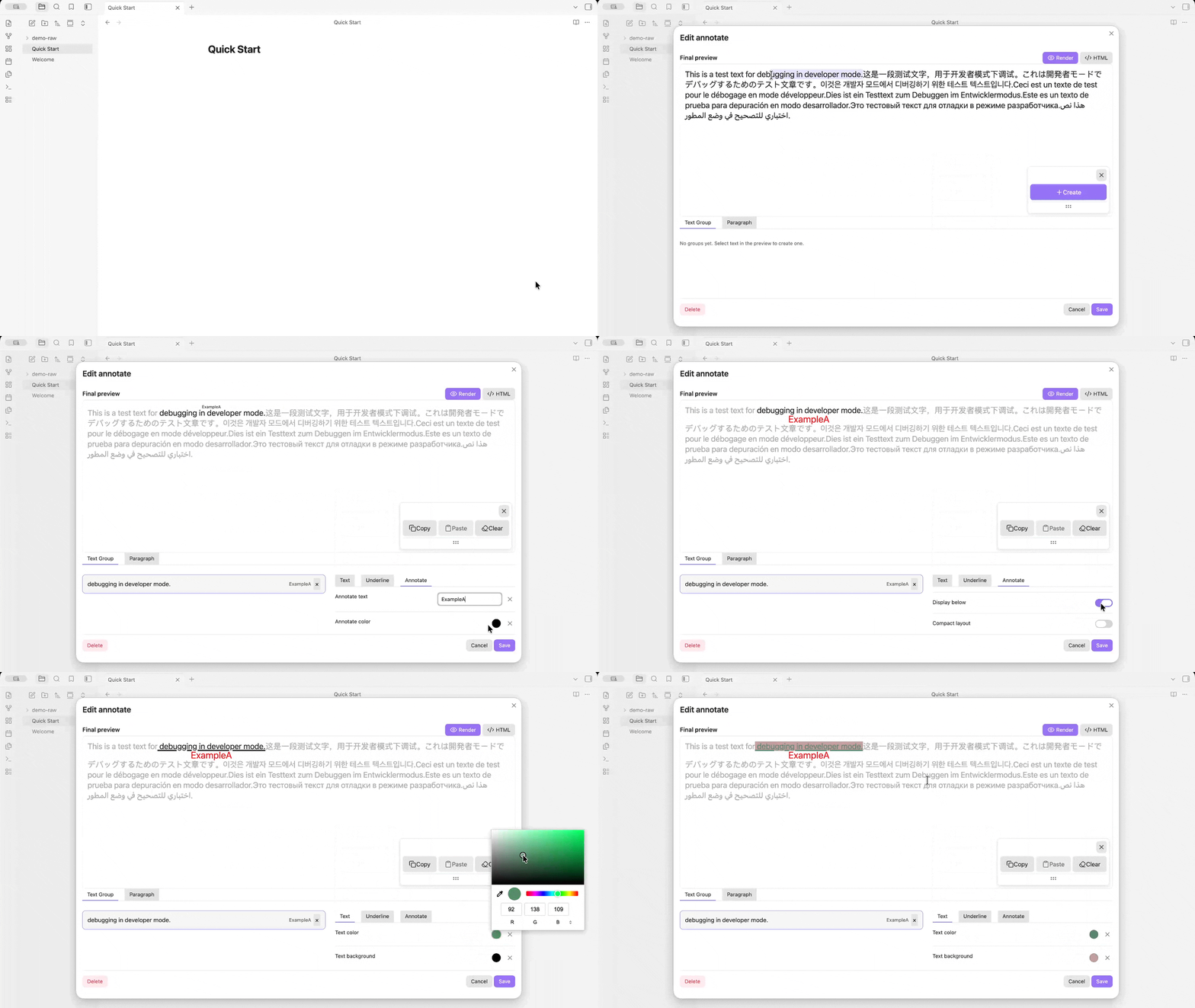
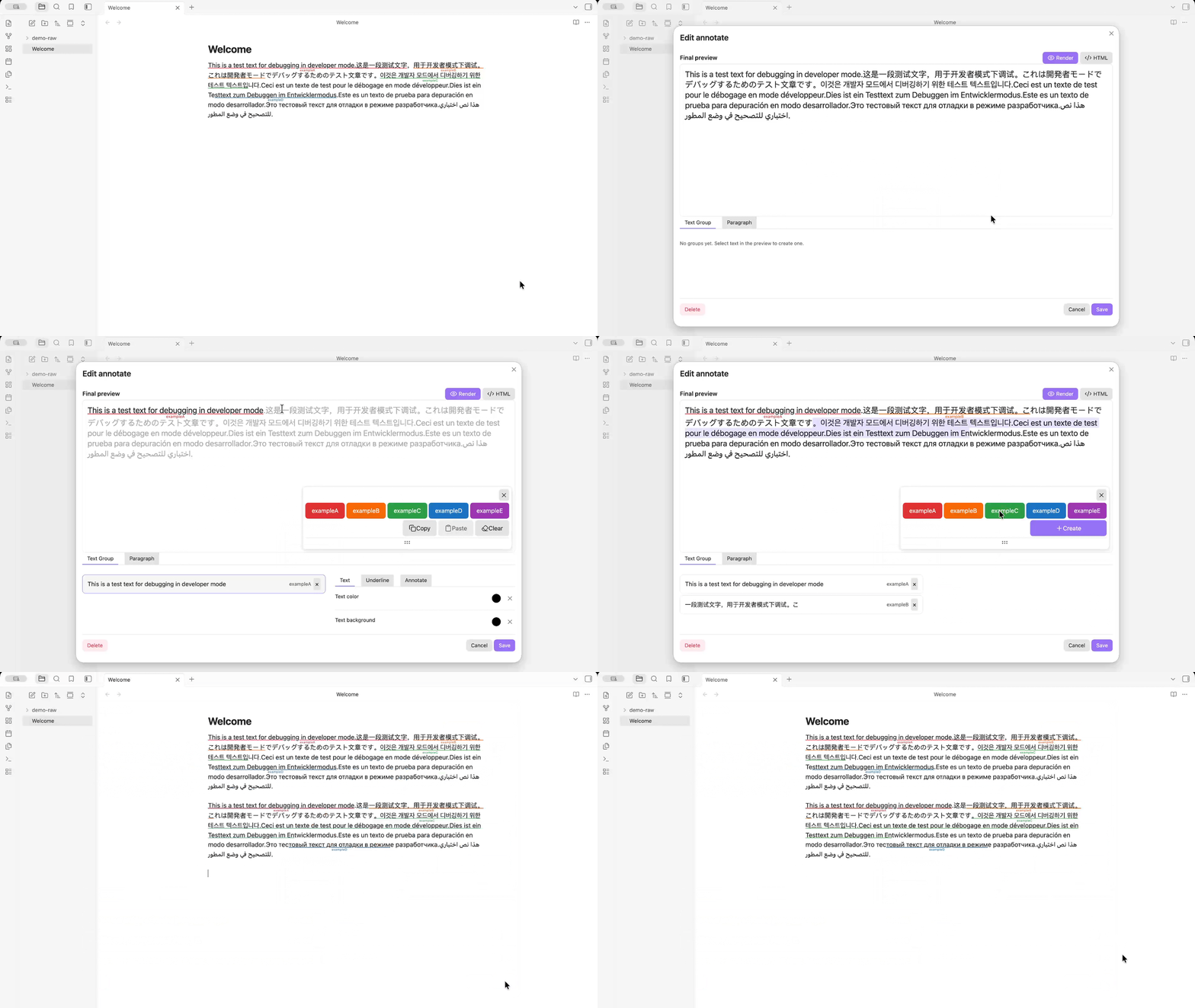
1. Open a note, right-click in the editor and choose **Create annotate**.
2. Enter the text and save — an annotate block is inserted at the cursor.
3. Click the block to open the editor: select text to create groups, apply underlines or phonetic marks, and adjust the block appearance.
4. Use the fast group preset buttons to apply saved styles with one click.
**Create an annotate block**
**Style text groups**
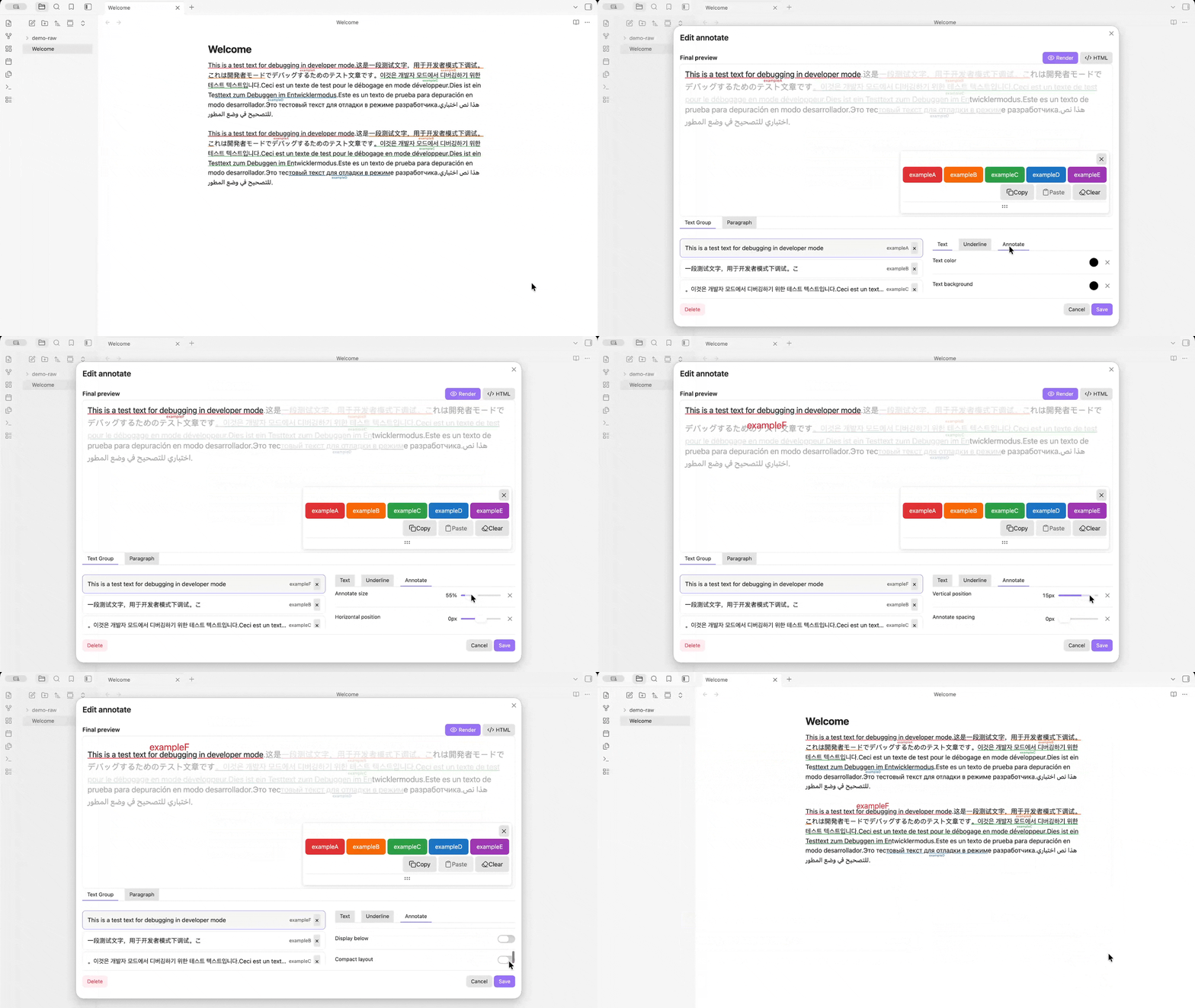
Fine-tune each group in the **Text Group** tab: annotate size, horizontal/vertical position, spacing, underline and colors.
**Adjust the paragraph**
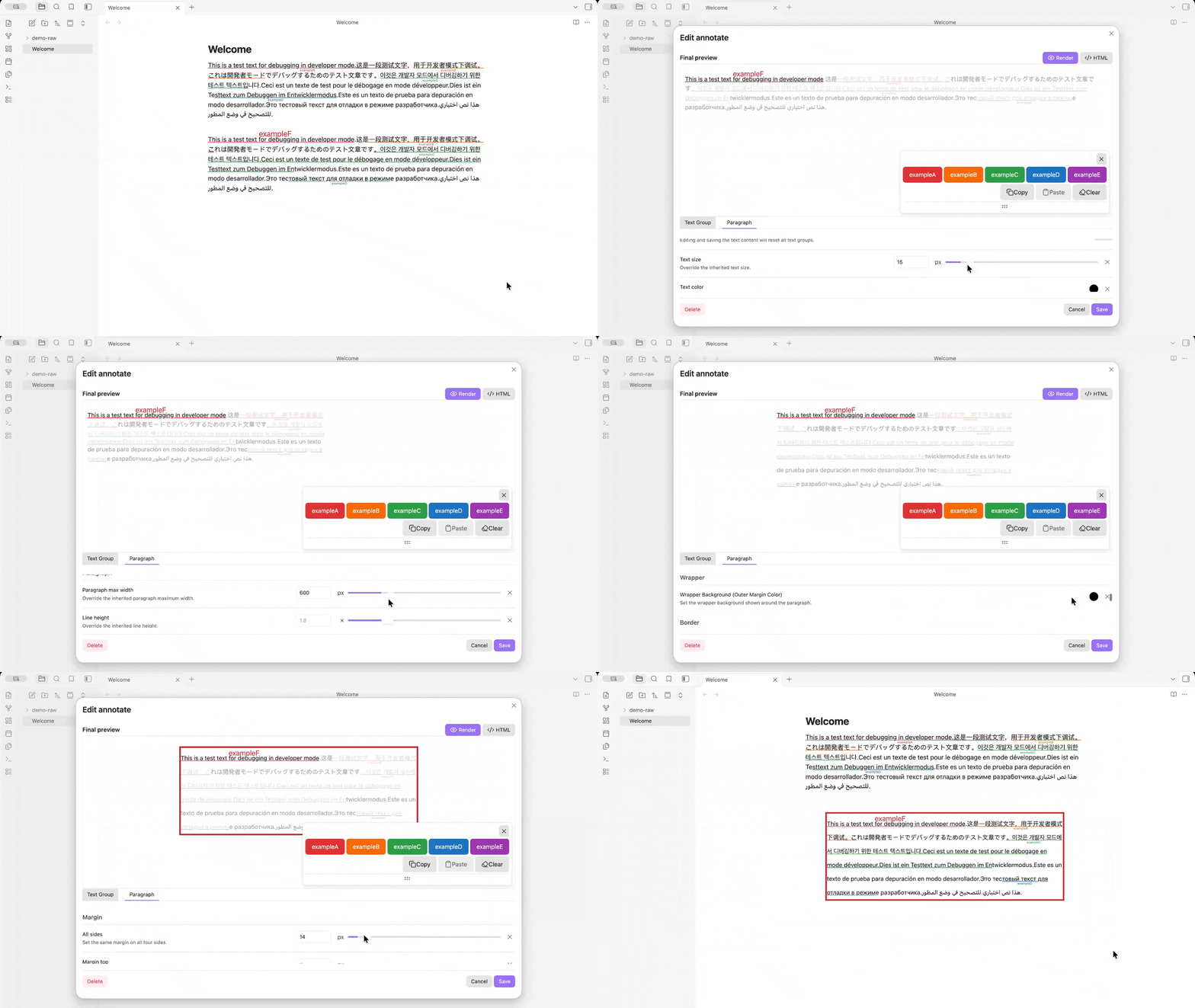
Adjust the block appearance in the **Paragraph** tab: text size, max width, line height, border and more.
**Configure preset buttons**
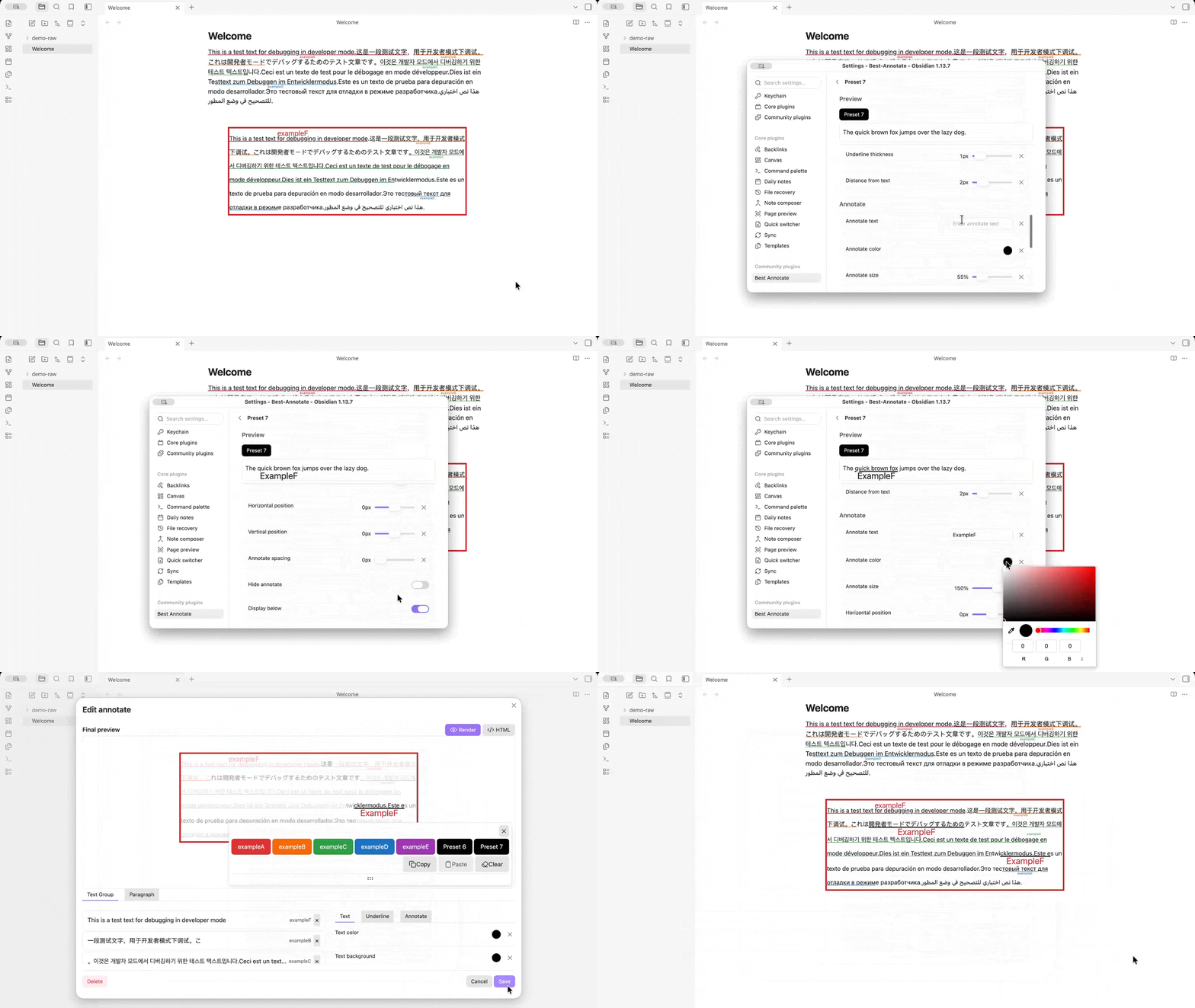
Each preset button has its own settings page with a live preview: button title, icon, colors, and the full group appearance (annotate text, color, size, position and more).
## Settings
Open **Settings → Best Annotate** to configure:
- **Group preset**: the default appearance applied to newly created annotate blocks (**Default group preset**).
- **Final preview settings**: default preview mode (render / HTML), highlight colors for added / changed / deleted HTML, and highlight duration.
- **Fast group button presets**: add, reorder, edit or delete preset buttons, or edit them directly as JSON.
- **Developer**: dev-only options (**Dev mode**, **Use default text content**) to prefill new annotates with sample text.
## Fast group preset examples
Ready-made preset files live in [`src/presets/`](src/presets/):
- [`syntax-presets-grammer-en.json`](src/presets/syntax-presets-grammer-en.json) — English grammar annotation (Subject, Predicate, Object, Complement, Adverbial), each underlined and labeled in a distinct color.
- [`syntax-presets-grammer-cn.json`](src/presets/syntax-presets-grammer-cn.json) — the same set with Chinese titles and labels (主语、谓语、宾语、补语、状语).
To use one:
1. Open **Settings → Best Annotate → Fast group button presets**.
2. Click **Edit presets as JSON**.
3. Paste the file contents and save.
Saving replaces **all** current presets. To merge instead of replace, paste the new entries into the existing JSON array.
A minimal preset looks like this:
```json
[
{
"title": "Subject",
"description": "The person or thing performing the action",
"icon": "",
"buttonColor": "#e03131",
"buttonTextColor": "#ffffff",
"appearance": {
"underline": true,
"underlineColor": "#e03131",
"annotate": "Subject",
"annotateColor": "#e03131",
"annotatePosition": "under"
}
}
]
```
Any omitted field falls back to the default appearance, so you only need to list what you want to override.
## Privacy
The plugin works entirely offline. It makes no network requests and collects no data. Annotations are stored as HTML inside your notes.
## Development
```bash
npm install
npm run dev # watch mode
npm run build # production build
npm run lint
```
## License
[MIT](LICENSE)