Quick Voice Note
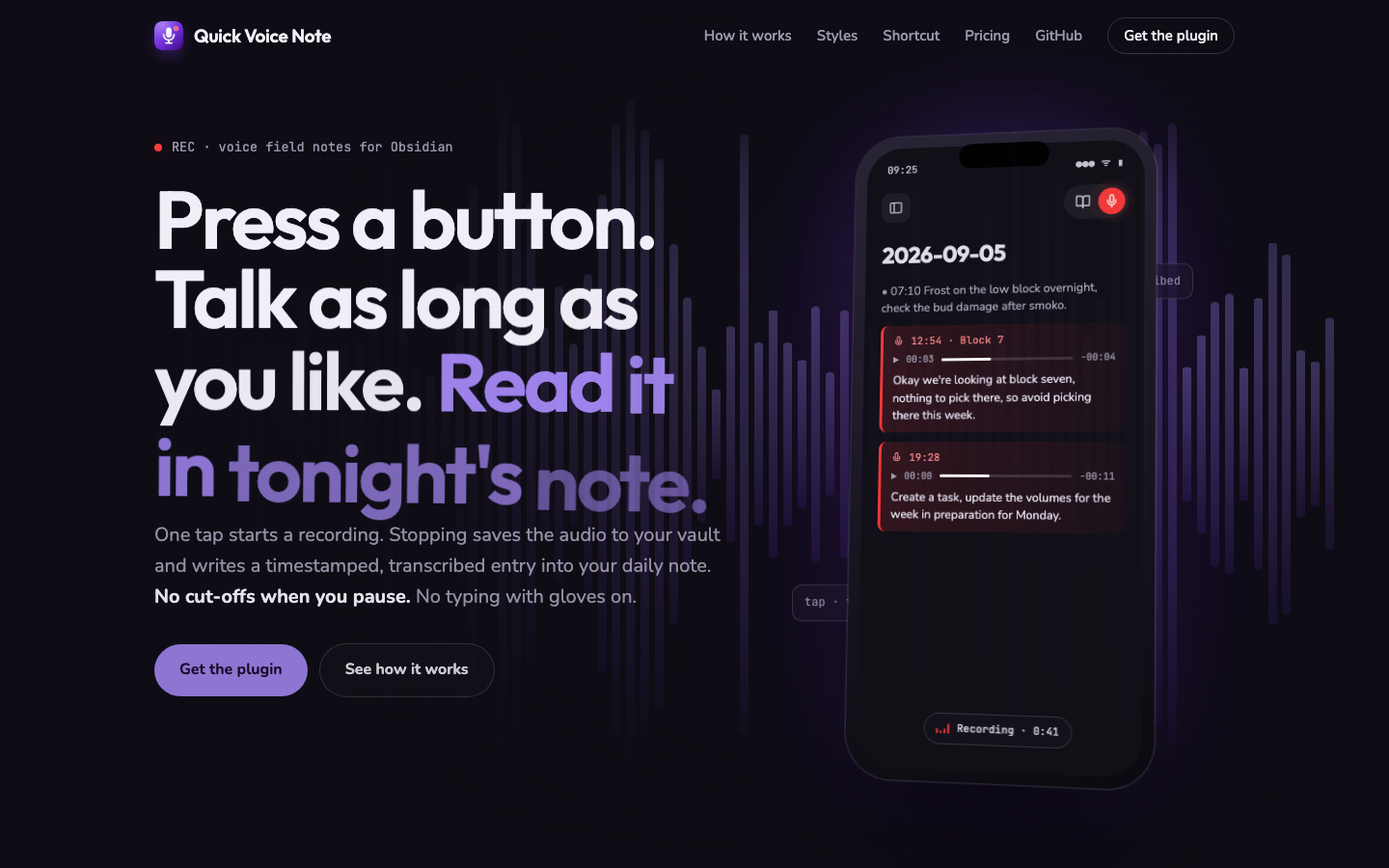
Press a button. Talk as long as you like. Read it in today's note.
quickvoicenote.com
Long voice memos for Obsidian. One tap starts a recording. Stopping saves the
audio to your vault and appends a timestamped, transcribed entry to today's
daily note:
```markdown
- 14:32 ![[Recordings/Voice 2026-09-05 14-32-10.m4a]]
- lecture recap: three causes of the crisis, the second one is the essay question
```
Built for people who think out loud: students recapping a lecture on the
walk home, founders with a business idea in the car, anyone whose best
thoughts arrive away from a desk. Unlike system dictation, it doesn't cut off when you pause, keeps
the original audio as backup, and files everything exactly where you'll look
for it tonight.
## How it works
- **Mobile:** a red mic sits in the note header next to the reading mode
toggle. Tap it and you're already recording.
- **Desktop:** mic button in the ribbon, or the "Record voice note" command.
- **One tap from your pocket:** point an iOS Shortcut, Android shortcut, or an
NFC tag at `obsidian://voice-note` and Obsidian opens with recording already
running. One tap stops and saves.
- **Pause:** a pause button sits beside stop. Paused time doesn't count
towards the clock or the safety limit; tap again to pick up where you were.
- Stopping saves the audio into your vault (`Recordings/` by default),
transcribes it, and adds the entry to today's daily note (respecting
your Daily Notes folder, format, and template) or to the note you're in.
## Where it lands, and how it looks
Under **Settings → In the note**:
- **Save to:** today's daily note, the note you're in (at the cursor or at
the end), or ask after each recording.
- **Audio in the note:** embedded player, a link to the file, or transcript
only. The recording is always kept in the recordings folder.
- **Memo style:** list item, voice callout (a tinted card with a mic icon,
in the colour and wash strength you pick), quote block, heading per memo, plain
paragraph, or a single line. A live preview shows each one, and the
template under Advanced is yours to edit for anything else.
## Transcription
Recordings become readable text via any transcription API that speaks the OpenAI format.
Bring your own key (OpenAI, Groq, or a local Whisper server) under
**Settings → Advanced → Transcription service**.
Prefer zero setup? A **Cloud key** (A$9 a month, 3 days free) gives you
managed transcription with no accounts, no API keys and no configuration:
[start a trial](https://quickvoicenote.com/#pricing), then paste the license
key into **Settings → License key**.
Transcription is optional: without it you still get one tap audio capture
filed into your daily notes.
## Install
Settings → Community plugins → Browse → search **Quick Voice Note**, or
[install directly from Obsidian](obsidian://show-plugin?id=quick-voice-note). Manual install: copy `main.js`, `manifest.json`,
and `styles.css` from the [latest release](https://github.com/spencer1975/quick-voice-note/releases/latest)
into `/.obsidian/plugins/quick-voice-note/`, then enable the plugin.
## Privacy
- Audio stays in your vault. It leaves your device only if transcription is
enabled, and then only to the endpoint you configure.
- Your API key is stored in the plugin's local data file inside your vault and
is never transmitted anywhere except the transcription endpoint you chose.
## Settings
The defaults are deliberately boring. Most people only ever touch the
transcription key. Everything else (templates, folders, headings, file
naming, daily note fallbacks) lives under **Advanced**.