# Figlet Generator
        
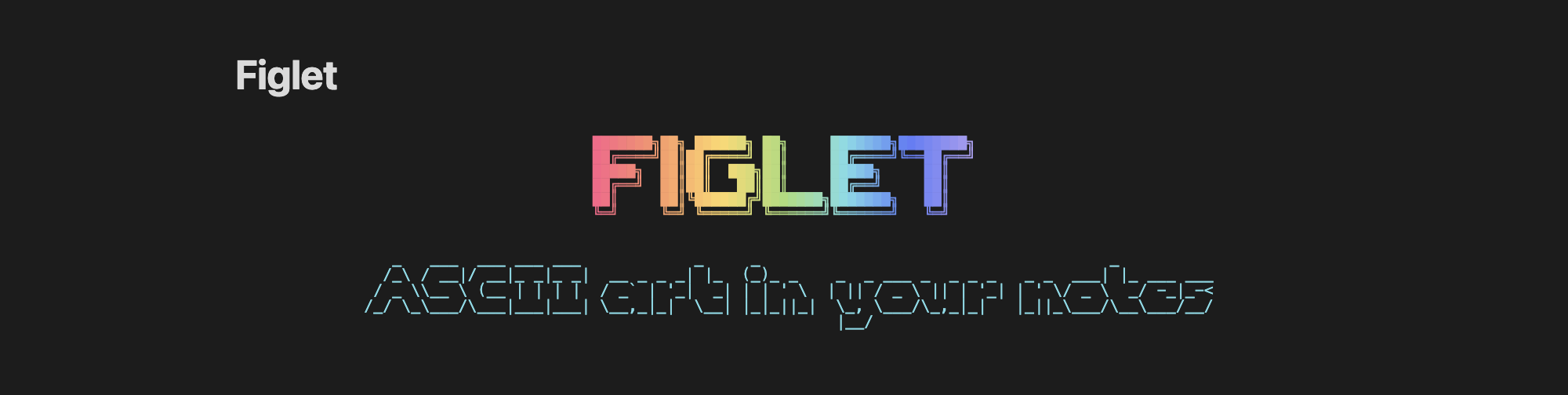
Generate and display ASCII art text using Figlet fonts in Obsidian: 326 bundled fonts, solid colors, gradients, and sizing options, from a code block or an insert dialog.
**Author:** saltyfireball
## Features
### Code blocks that render as ASCII art
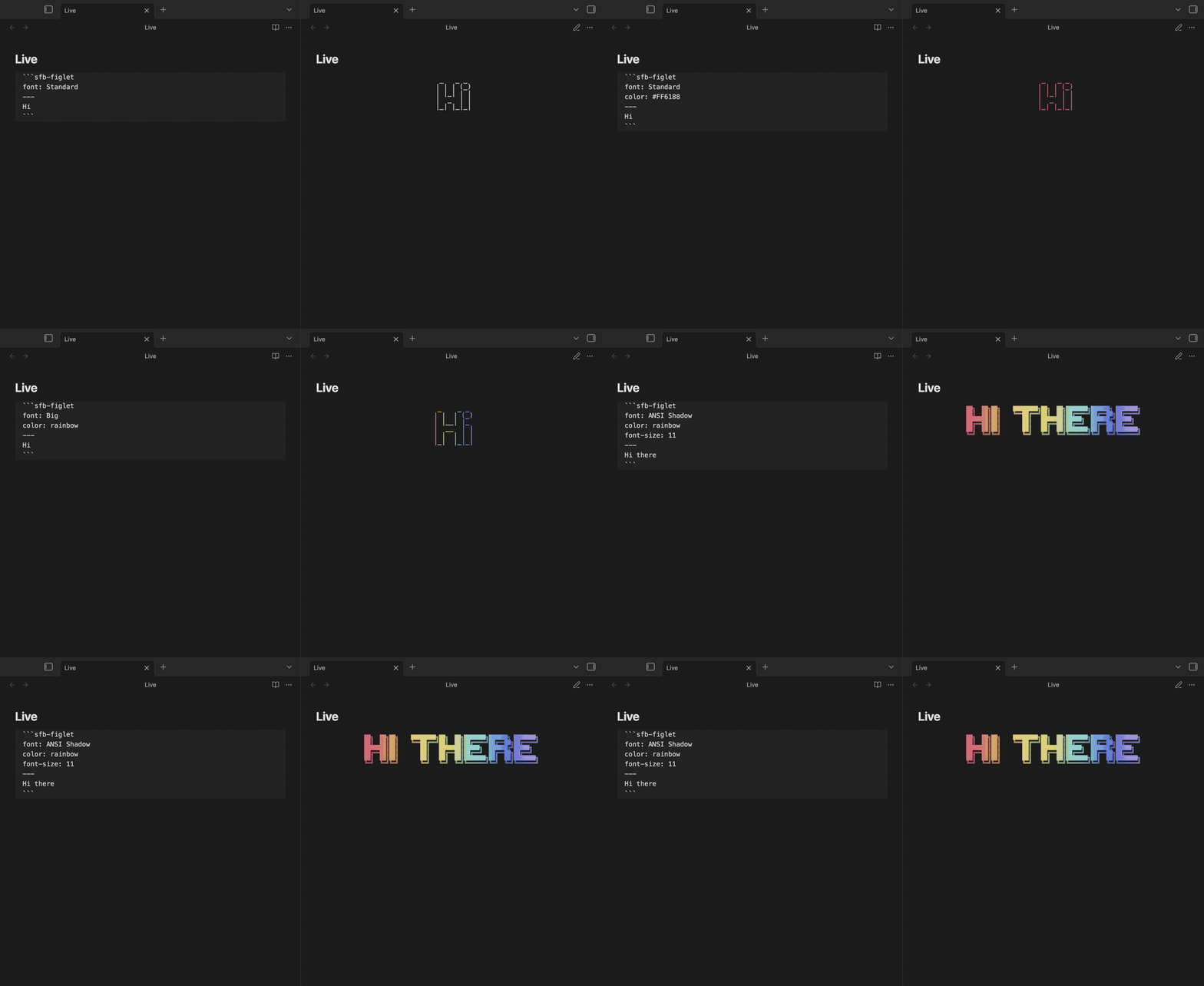
Write options on top, a `---` line, then your text. The block re-renders as you edit it.
````
```sfb-figlet
font: Big
color: rainbow
---
Hi there
```
````
### 326 fonts
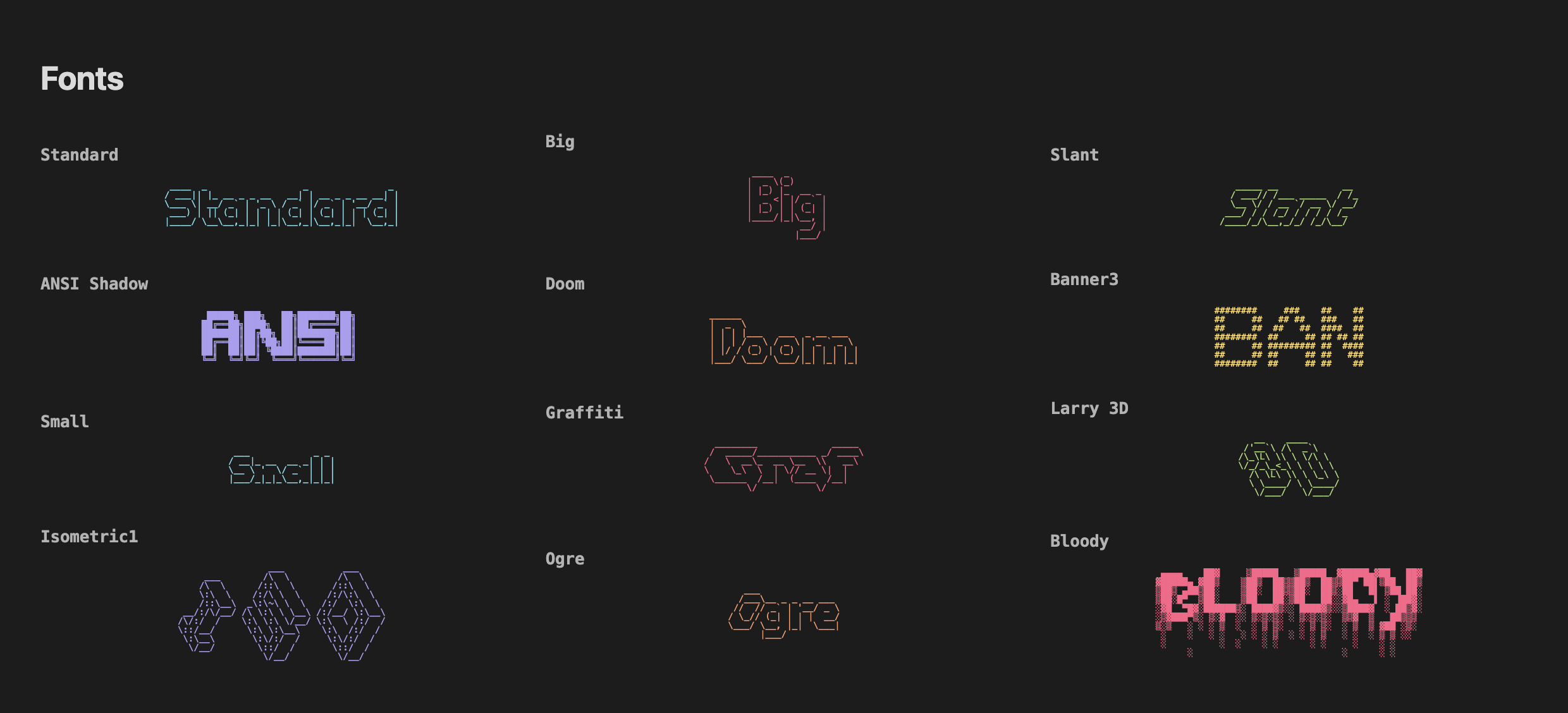
Every font from the Figlet font library ships inside the plugin, so nothing extra needs installing. Font names ignore case: `font: ansi shadow` works.
### Solid colors, gradients and rainbow
One color, a list of colors for a gradient, or `rainbow` for the palette in settings.
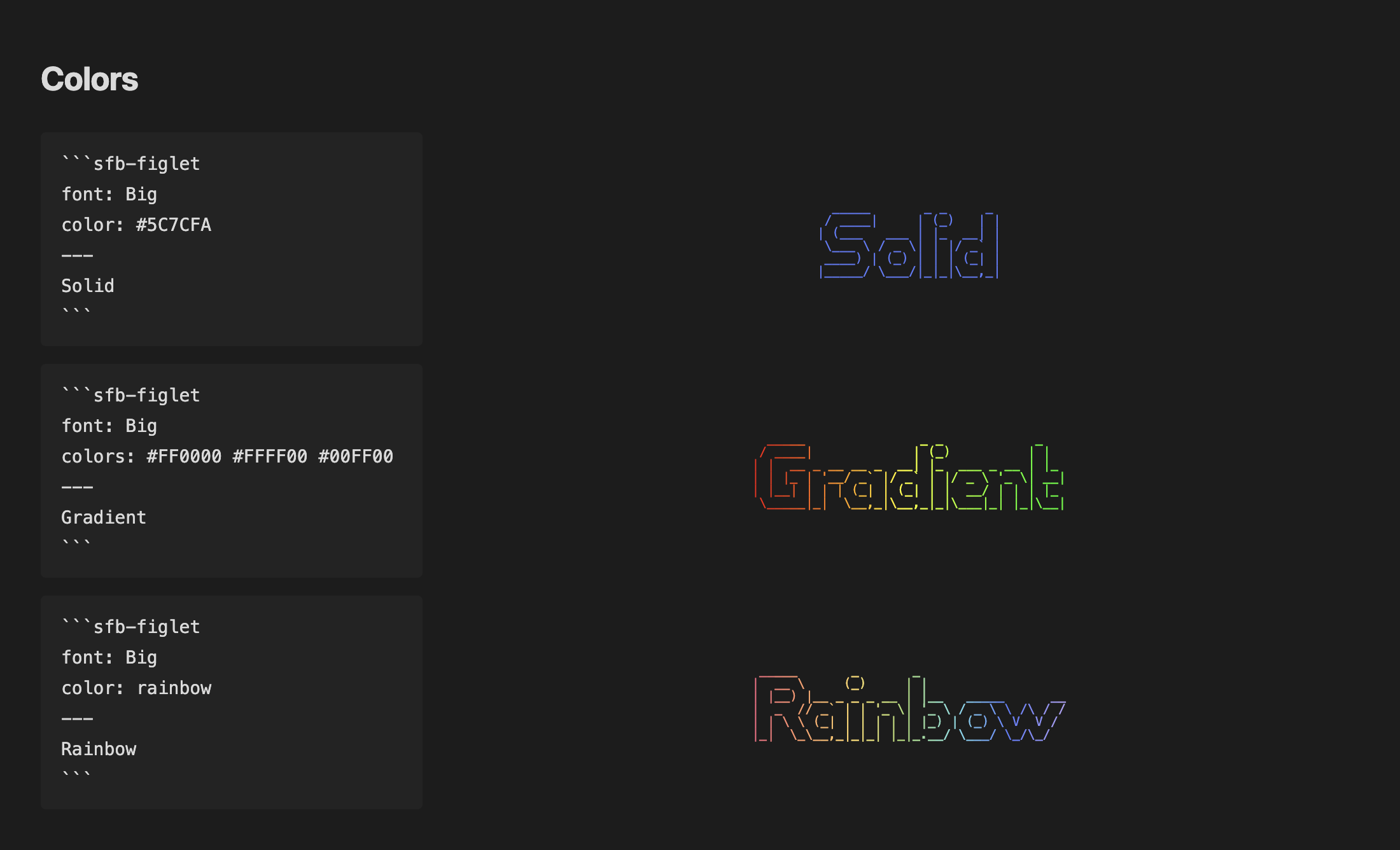
````
```sfb-figlet
font: Big
colors: #FF0000 #FFFF00 #00FF00
---
Gradient
```
````
### Size, opacity and alignment
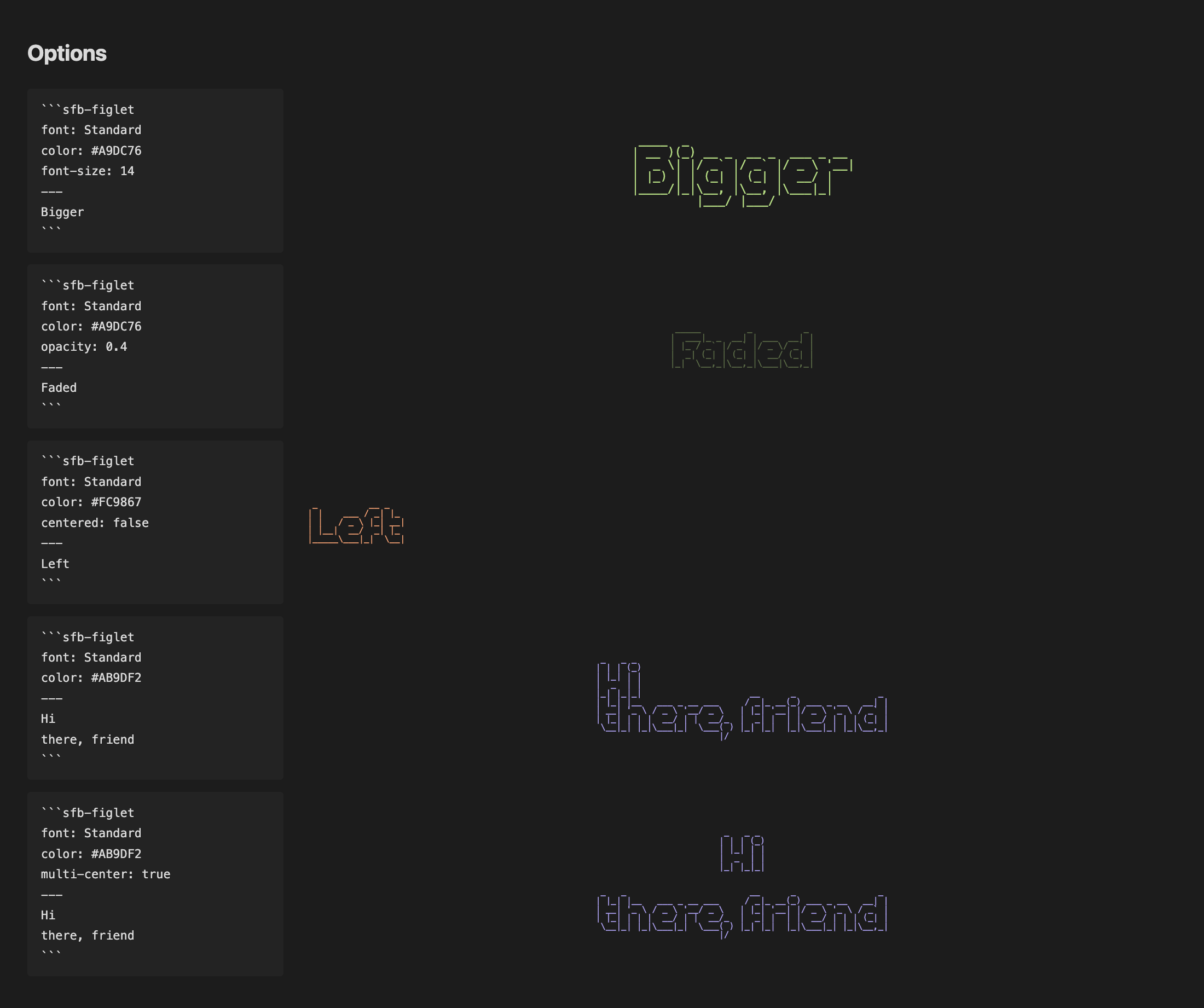
`multi-center: true` centers each line on its own; without it the lines keep their left edges and the block is centered as a whole.
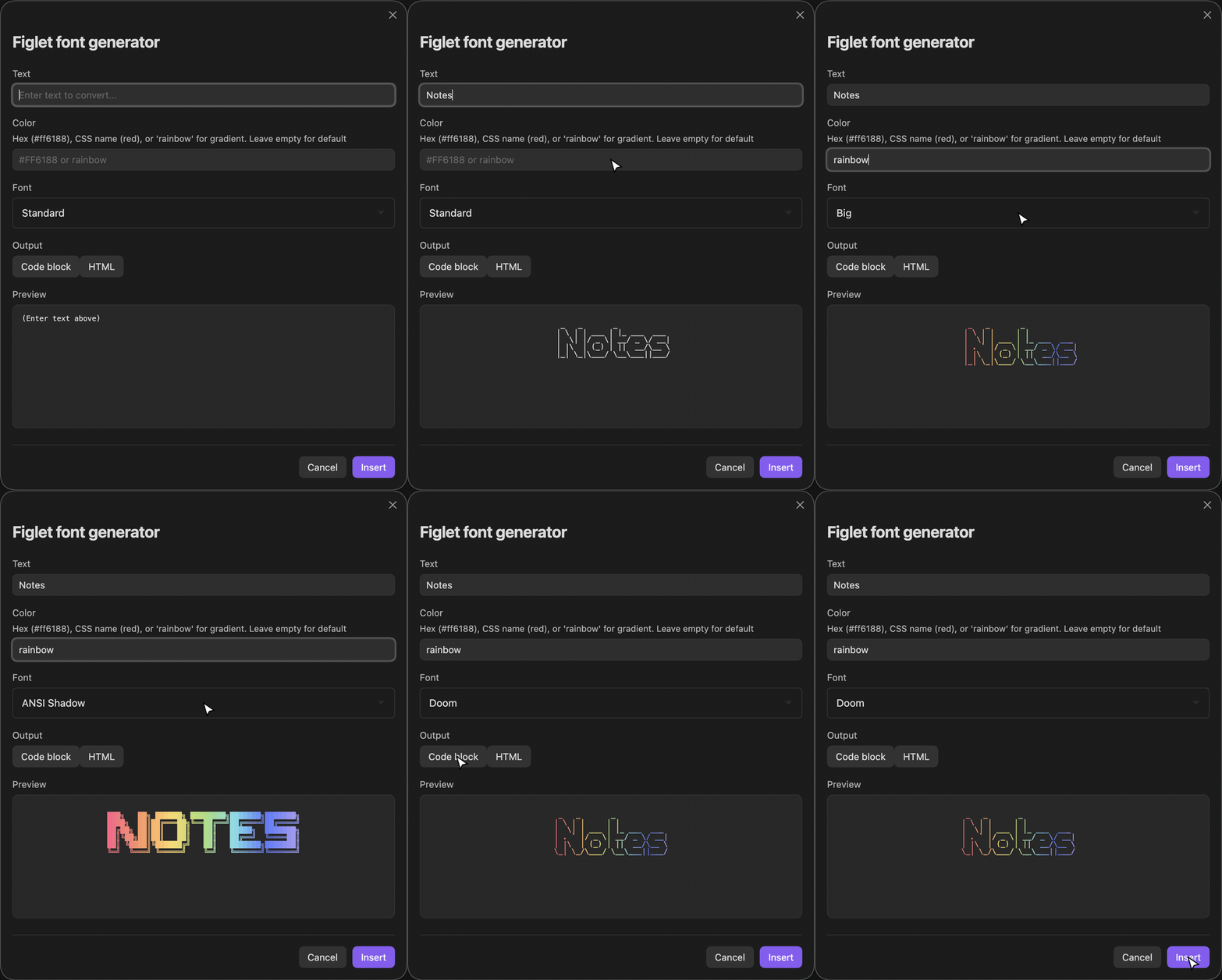
### Insert dialog
Run **Insert figlet ASCII art** from the command palette to type text, pick a color and font, watch the preview, and insert either an `sfb-figlet` code block or plain HTML.
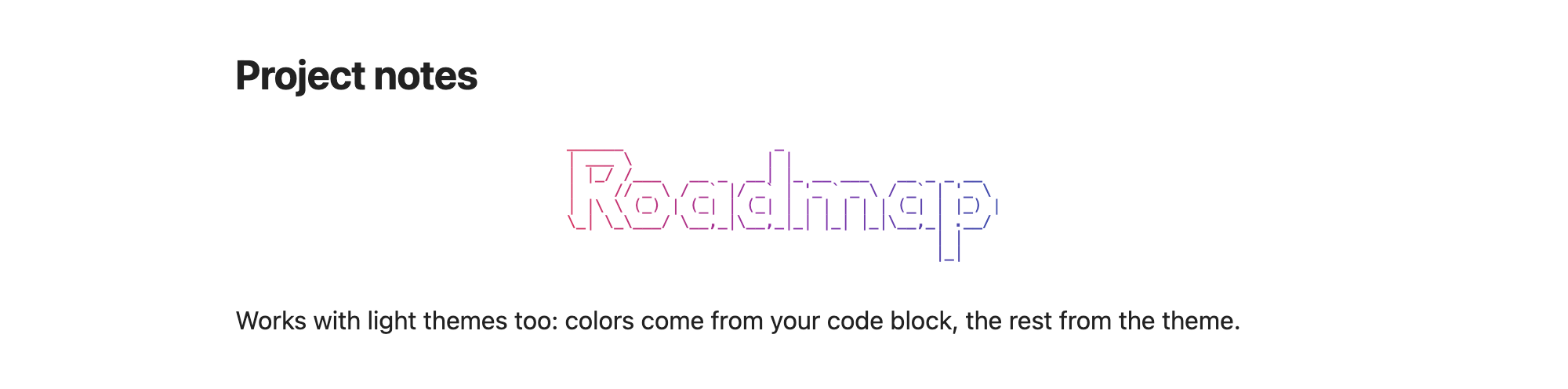
### Light themes
Colors come from your code block; everything else follows the theme.
### Cross-plugin API
Other plugins can generate ASCII art through `window.figletAPI`.
```typescript
const ascii = await window.figletAPI.generateText('Hello', 'Banner');
const html = window.figletAPI.createHtml(ascii, { color: '#FF0000' });
```
## Installation
### Obsidian Community Plugin (pending)
This plugin has been submitted for review to the Obsidian community plugin directory. Once approved, you will be able to install it directly from **Settings > Community plugins > Browse** by searching for "Figlet Generator".
### Using BRAT
You can install this plugin right now using the [BRAT](https://github.com/TfTHacker/obsidian42-brat) plugin:
1. Install BRAT from **Settings > Community plugins > Browse** (search for "BRAT" by TfTHacker)
2. Open the BRAT settings
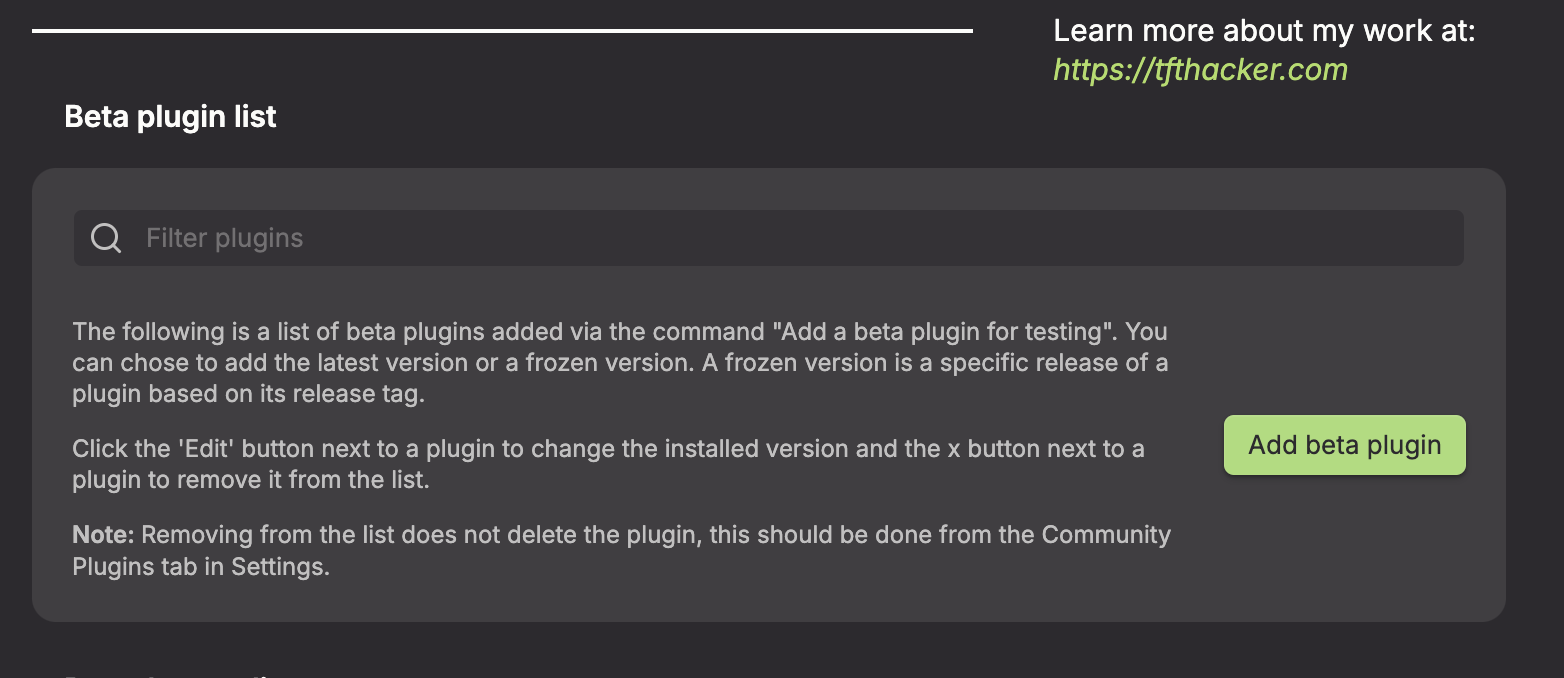
3. Under the **Beta plugins** section, click **Add beta plugin**
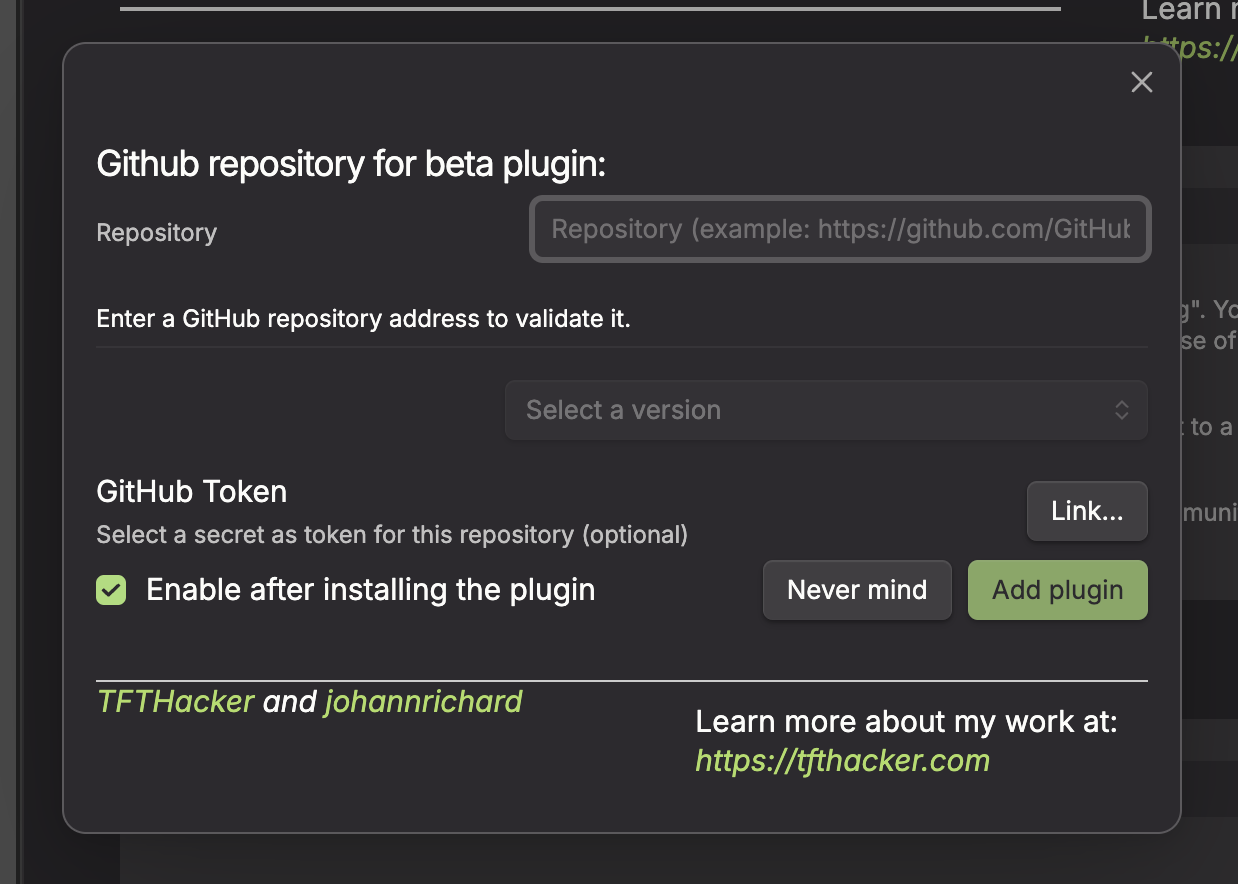
4. In the overlay, enter this plugin's repository: `https://github.com/saltyfireball/obsidian-figlet-generator` (or just `saltyfireball/obsidian-figlet-generator`)
5. Leave the version set to latest
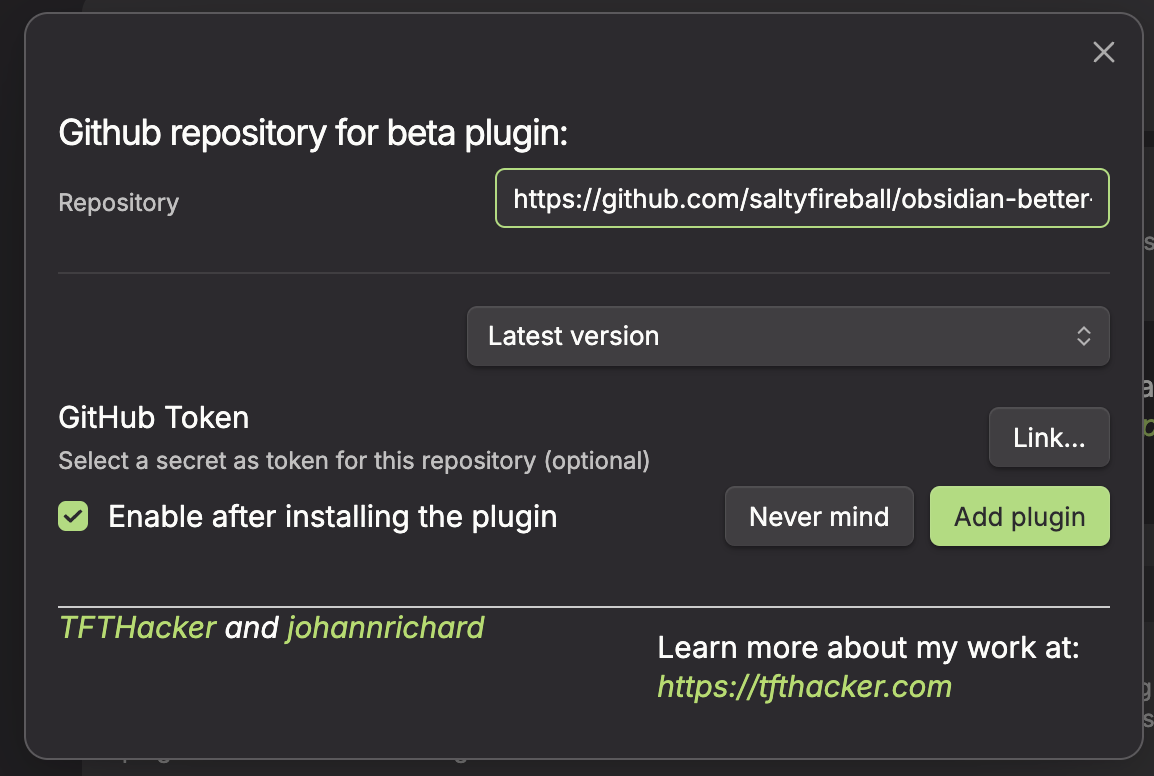
6. Click **Add plugin**
### Manual
1. Download the latest release from the [Releases](https://github.com/saltyfireball/obsidian-figlet-generator/releases) page
2. Copy `main.js`, `manifest.json`, and `styles.css` into your vault's `.obsidian/plugins/figlet-generator/` directory
3. Enable the plugin in **Settings > Community plugins**
## Usage
### Insert dialog
1. Open the command palette (Ctrl/Cmd + P)
2. Search for "Insert figlet ASCII art"
3. Enter your text
4. Optionally set a color (hex, CSS name, or `rainbow`) and pick a font
5. Choose **Code block** or **HTML** output
6. Click **Insert**
### Code blocks
Create a code block with language ID `sfb-figlet` (configurable in settings). Options go above the `---` line, text below it:
````
```sfb-figlet
font: Big
color: #FF6B6B
font-size: 12
line-height: 1.2
centered: true
opacity: 0.8
---
Your Text Here
```
````
#### Code block options
| Option | Type | Default | Description |
|--------|------|---------|-------------|
| `font` | string | Standard | Name of the Figlet font to use (case does not matter) |
| `color` | string | inherit | A single color, several space/comma-separated colors, or `rainbow`/`gradient` for the palette in settings |
| `colors` | string | - | Same as `color`; the two are interchangeable |
| `font-size` | number | settings value (10) | Font size in pixels |
| `line-height` | number | settings value (1) | Line height multiplier |
| `centered` | boolean | settings value (true) | Center the output |
| `opacity` | number | 1 | Opacity from 0 to 1 (`figlet-opacity` is an alias) |
| `multi-center` | boolean | false | Center each line independently |
| `load_text` | string | - | `frontmatter` fills `{{frontmatter:key}}` placeholders in the text from the note's frontmatter |
With `load_text: frontmatter`, each `{{frontmatter:key}}` in the text is replaced by that frontmatter value of the note (a string, number or boolean; anything else, or a missing key, becomes empty):
````
```sfb-figlet
font: Big
load_text: frontmatter
---
{{frontmatter:title}}
```
````
`color` and `colors` accept the same values:
| Example | Result |
|---------|--------|
| `color: #5C7CFA` | Single color |
| `color: #FF0000 #FFFF00 #00FF00` | 3-color gradient |
| `color: rainbow` or `color: gradient` | Palette from settings |
Gradients blend smoothly between hex and `rgb()`/`rgba()` stops, with channels as numbers (`rgb(255, 0, 0)`) or percentages (`rgb(100%, 0%, 0%)`), comma or space separated (`rgb(255 0 0 / 50%)`). Negative, out-of-range and exponent values (`rgb(-10 0 2.55e2)`) clamp to 0-255, and the space form takes `none` for 0. A malformed `rgb()` stop, including one that mixes numbers and percentages, renders as transparent. With any other stop (a named color, a CSS variable, `hsl()`), each part of the text takes its nearest stop instead, in bands.
#### Examples
````
```sfb-figlet
font: Banner
color: #5C7CFA
---
My Notes
```
````
````
```sfb-figlet
font: Lean
color: #4CAF50
font-size: 11
---
Introduction
```
````
````
```sfb-figlet
font: Slant
color: #FF6188 #FC9867 #FFD866 #A9DC76 #78DCE8
---
Inline Multi-Color
```
````
````
```sfb-figlet
font: Standard
multi-center: true
---
Centered
Lines
```
````
### Cross-plugin API
#### `generateText(text: string, font?: string): Promise`
Returns the ASCII art as plain text.
```typescript
const ascii = await window.figletAPI.generateText('Hello', 'Banner');
```
#### `createHtml(figletText: string, options?: FigletStyleOptions): string`
Wraps ASCII art from `generateText` in styled HTML. The font is chosen in `generateText`; `createHtml` only styles it. Unlike code blocks, it does not read the plugin's settings: options left out use the fixed defaults (font size 10, line height 1, centered).
```typescript
const ascii = await window.figletAPI.generateText("Hello", "Standard");
const html = window.figletAPI.createHtml(ascii, {
color: "#FF0000",
fontSize: 12,
lineHeight: 1.2,
centered: true,
opacity: 0.8,
});
```
#### `defaultGradientColors`
The plugin's default gradient palette.
```typescript
console.log(window.figletAPI.defaultGradientColors);
// ['#FF6188', '#FC9867', '#FFD866', '#A9DC76', '#78DCE8', '#5C7CFA', '#AB9DF2']
```
#### `openModal(app: App, plugin: unknown, editor: Editor): void`
Opens the insert dialog for an editor, as the **Insert figlet ASCII art** command does. The dialog inserts at the editor's cursor or replaces its selection. It always uses Figlet Generator's own settings: `app` and `plugin` are accepted for compatibility and ignored.
```typescript
window.figletAPI.openModal(this.app, this, editor);
```
#### `FigletStyleOptions`
```typescript
interface FigletStyleOptions {
color?: string;
colors?: string[]; // two or more for a gradient
fontSize?: number;
lineHeight?: number;
centered?: boolean;
opacity?: number; // 0 to 1
}
```
## Settings
Requires Obsidian 1.13 or later. Every setting here also shows up in Obsidian's settings search.
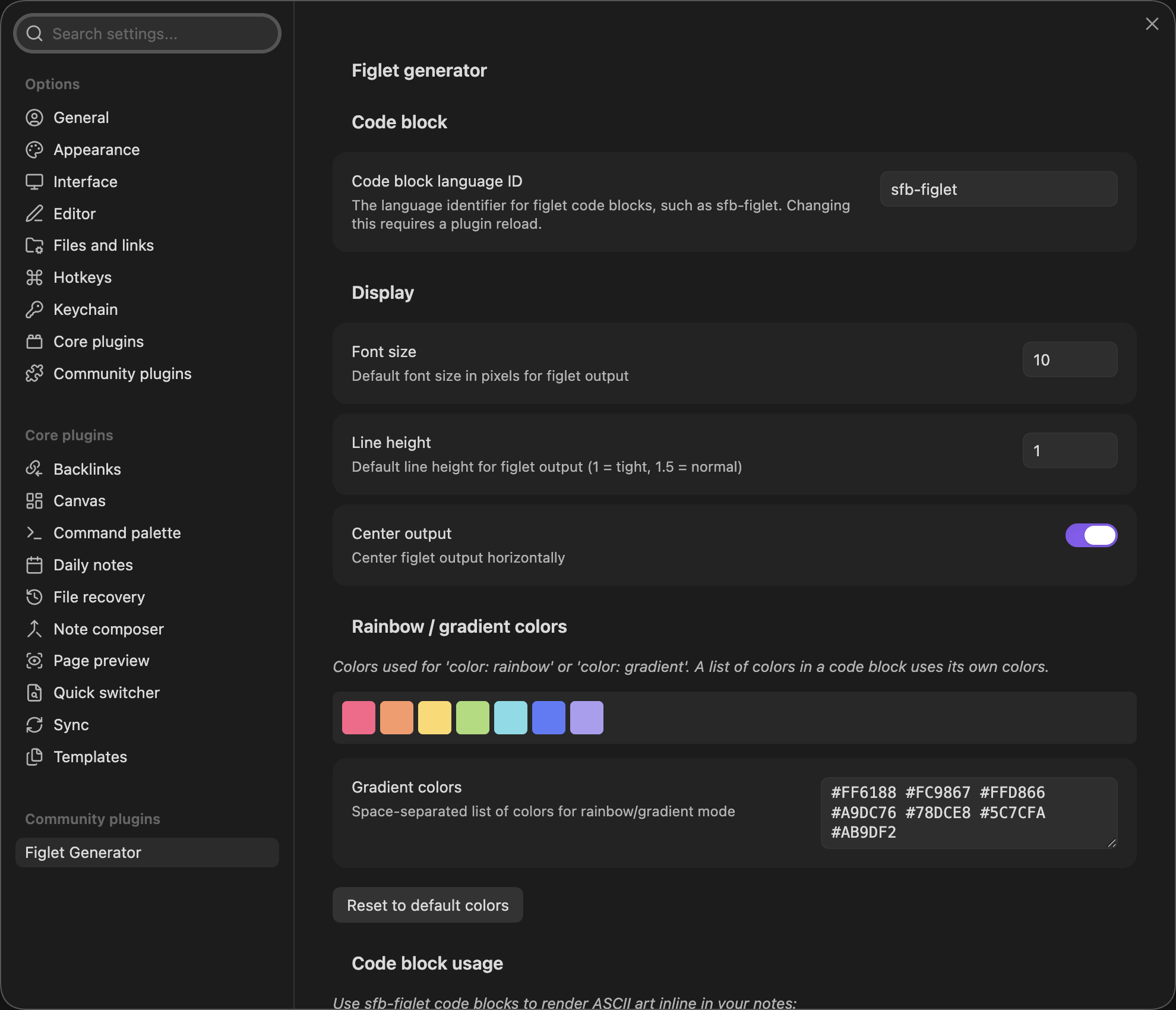
- **Code block language ID** - The language identifier for code blocks (default: `sfb-figlet`; reload the plugin after changing it)
- **Font size** - Default font size in pixels (default: 10)
- **Line height** - Default line height multiplier (default: 1)
- **Center output** - Center output by default (default: on)
- **Gradient colors** - The palette for `rainbow` and `gradient`
- **Favorite fonts** - Fonts listed first in the insert dialog
## Troubleshooting
### Code block not rendering
- Check that the language ID matches your settings (default: `sfb-figlet`)
- Put your text after the `---` line
### Font not found
- Check the spelling against the font list in the insert dialog or settings
- Use `Standard` if unsure
### API not available
- Make sure Figlet Generator is installed and enabled
- Check the developer console for errors
## Limitations
- Very large text may be slow to render
- Some fonts do not include every character
## About the font data in main.js
Most of `main.js` (about 1.5 MB) is font data, not code. At build time, [`scripts/figlet-fonts-plugin.mjs`](scripts/figlet-fonts-plugin.mjs) reads each font listed in [`src/font-list.json`](src/font-list.json) from the [figlet](https://www.npmjs.com/package/figlet) package's `fonts/` folder, gzips it and embeds it as a base64 string, because the community directory installs only `main.js`, `manifest.json` and `styles.css`. Each string decodes back to the original `.flf` text file when a font is first used, and the tests check that every one matches its source file byte for byte. Nothing in it is executable code.
## Making the README media
The screenshots and GIFs in `assets/media/` are captured from the Obsidian app with the plugin installed, by the author's `obsidian-plugin-showcase` tool (a separate, private repository, not part of this plugin). Build this plugin first (`npm run build`) in a checkout next to the showcase checkout, then run `node src/run.mjs plugins/figlet/scenes.mjs` from the showcase checkout and copy its output into `assets/media/`.
## License
[MIT](LICENSE)