# Better Search and Replace
        
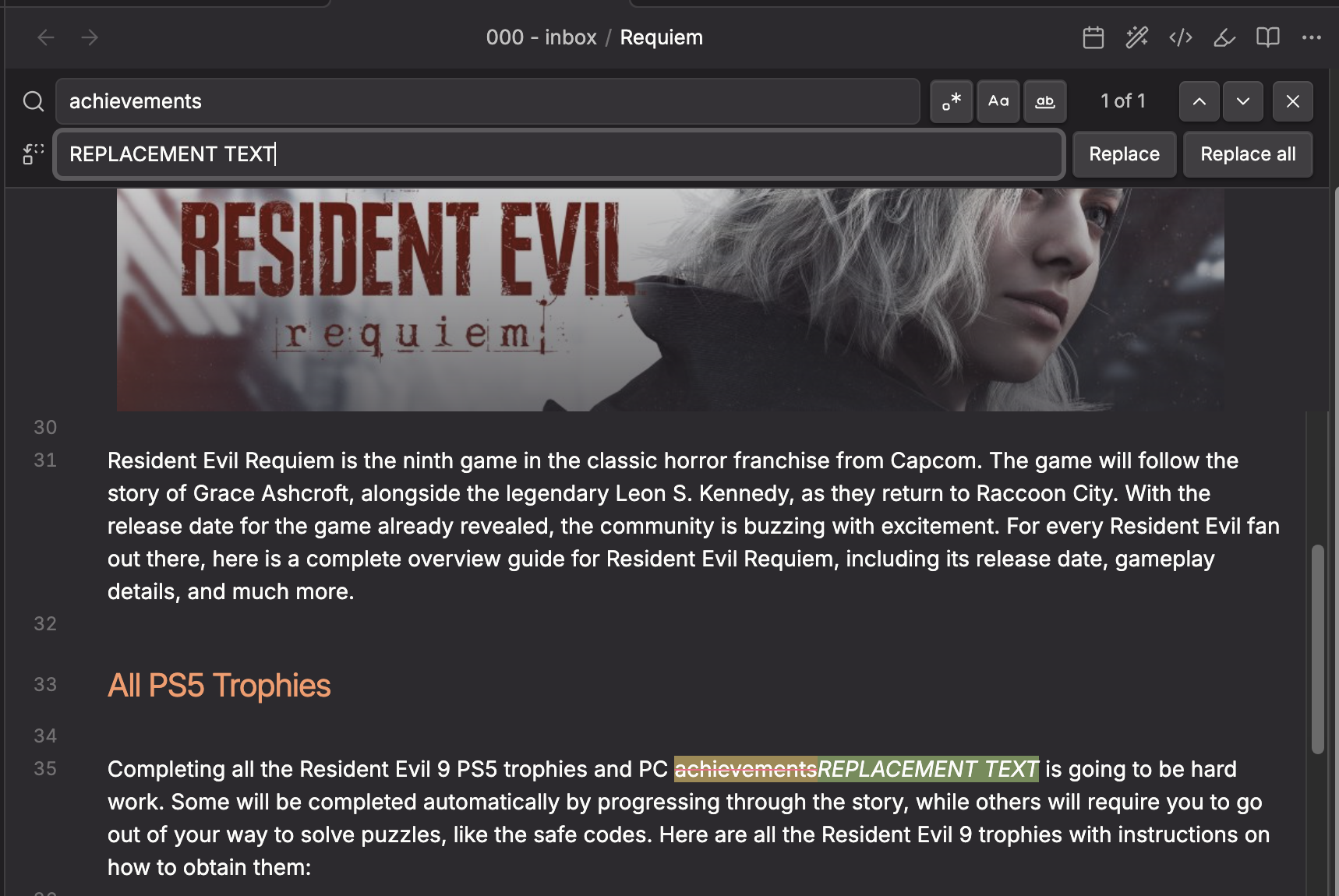
An enhanced search and replace plugin for [Obsidian](https://obsidian.md). Provides a floating search bar docked to the top of the editor with live highlighting, real-time diff preview, regex support with capture groups, and more.
Works on both desktop and mobile.
## Features
- **Floating search bar** -- slides in at the top of the editor (not a modal, not a sidebar)
- **Real-time match highlighting** -- matches are highlighted as you type
- **Live diff preview** -- matched text is shown with strikethrough (red) and the replacement is shown as green ghost text inline, so you can see exactly what will change before committing
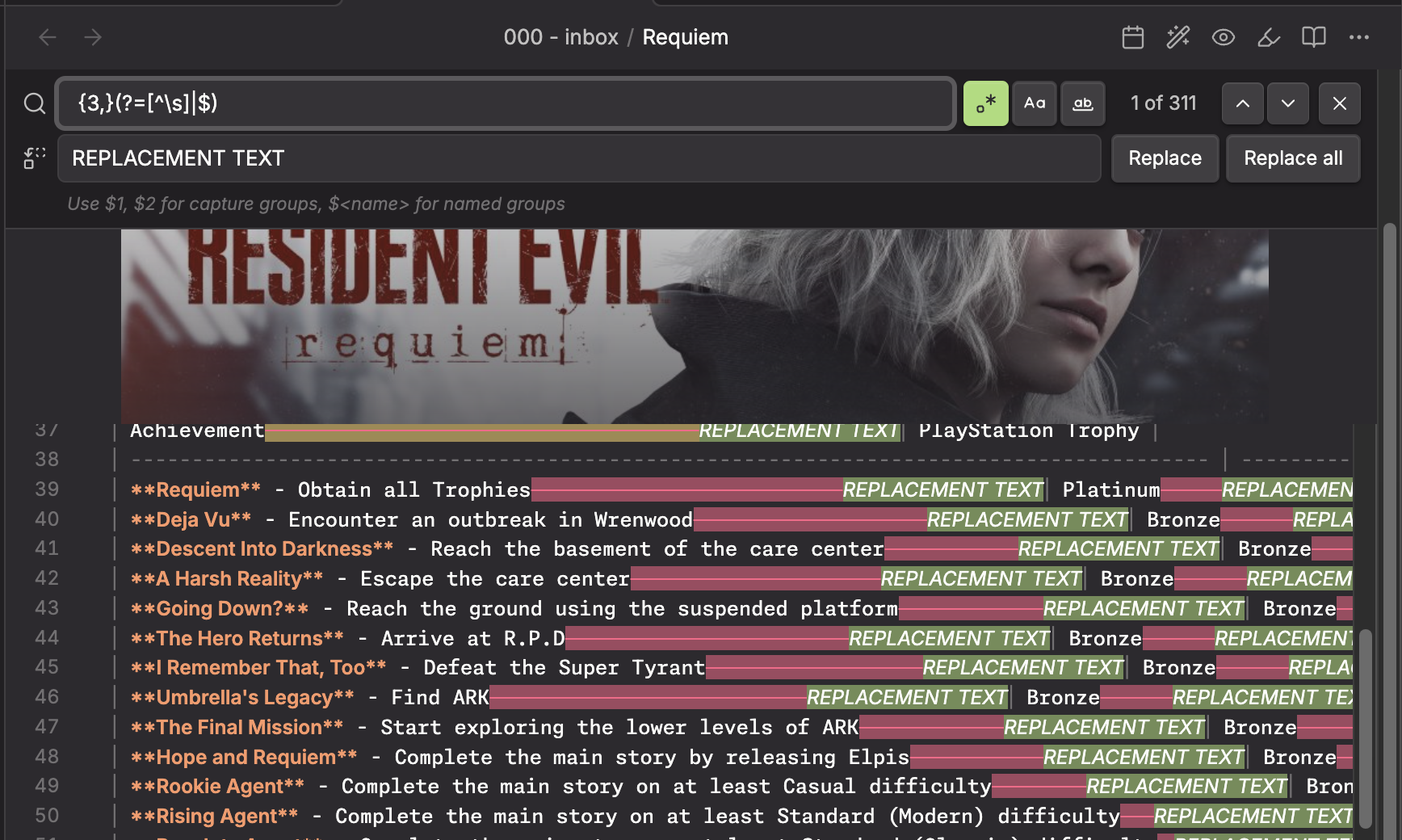
- **Regular expression support** -- full JavaScript regex with capture groups (`$1`, `$2`, `$`)
- **Case sensitive toggle** -- match exact case or ignore case
- **Whole word toggle** -- restrict matches to whole words only
- **Match counter** -- shows "3 of 12" style count inline with the search field
- **Match navigation** -- step through matches one at a time with up/down arrows
- **Replace current** -- replace just the current match
- **Replace all** -- replace every match at once
- **Regex validation** -- invalid regex patterns are caught immediately with inline error messages
- **Capture group hint** -- when regex mode is on, a hint reminds you that `$1`, `$2`, `$` are available
- **Customizable colors** -- match highlight, current match, strikethrough, and preview colors are all configurable in settings
- **Keyboard shortcuts** -- Enter/Shift+Enter to navigate, Escape to close, Enter in replace field to replace current, Shift+Enter to replace all
- **Command palette integration** -- open via "Better Search and Replace: Find and replace in current file"
- **Hotkey support** -- assign any shortcut (e.g. Cmd/Ctrl+F) to replace the built-in search
- **Note toolbar integration** -- accessible from the helpers modal when the note-toolbar plugin is installed
## How to Use
1. Open the command palette and run **Better Search and Replace: Find and replace in current file**
2. Type your search query in the search field
3. Matches are highlighted in the editor in real time
4. Use the toggle buttons to enable:
- `.*` Regex mode
- `Aa` Case sensitivity
- `W` Whole word matching
5. Type replacement text in the replace field to see a live diff preview
6. Click **Replace** to replace the current match, or **Replace All** to replace every match
7. Press **Escape** or click the X button to close the search bar
### Setting Up a Keyboard Shortcut
To replace Obsidian's built-in `Cmd/Ctrl+F` with this plugin:
1. Go to **Settings > Hotkeys**
2. Search for **"Better Search and Replace: Find and replace in current file"**
3. Click the **+** button and press your desired key combination (e.g. `Cmd/Ctrl+F`)
4. If the shortcut conflicts with the built-in search, Obsidian will prompt you to remove the existing binding
### Regex Capture Groups
When regex mode is enabled, you can use standard JavaScript replacement patterns in the replace field:
| Pattern | Meaning |
| --------------- | ------------------------------------ |
| `$1`, `$2`, ... | Capture group 1, 2, etc. |
| `$` | Named capture group (`(?...)`) |
| `$&` | The entire matched substring |
| `` $` `` | Text before the match |
| `$'` | Text after the match |
| `$$` | A literal `$` |
## Installation
### Obsidian Community Plugin
This plugin is available in the official Obsidian community plugin directory. Install it from **Settings > Community plugins > Browse** and search for "Better Search and Replace" or "Better Search and Replace by saltyfireball".
Community plugin page:
### More Plugins by saltyfireball
Browse all of my published Obsidian plugins on my profile:
## Settings
- **Default search options** -- set whether regex, case sensitivity, and whole word matching are on by default
- **Match highlight color** -- background color for matched text
- **Match strikethrough color** -- color of the strikethrough line on matches when replacement is shown
- **Replacement preview color** -- background color for the ghost replacement text
- **Current match highlight color** -- background color for the currently selected match
Default colors use the Monokai Pro palette:
- Match: Red (#FF6188) at 25% opacity
- Current match: Yellow (#FFD866) at 35% opacity
- Preview: Green (#A9DC76) at 25% opacity
## License
[MIT](LICENSE)