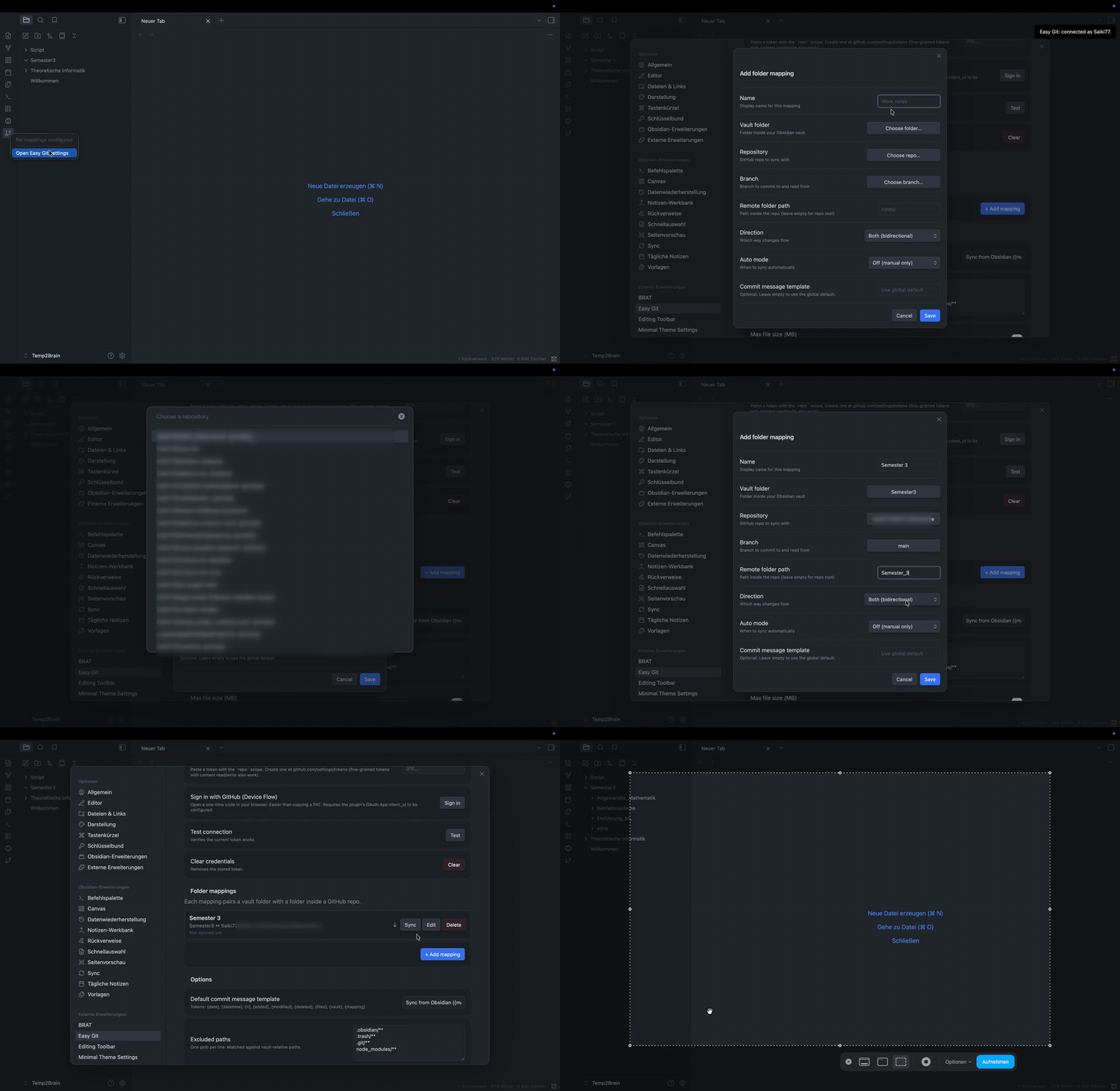
End-to-end: open Settings, add a mapping, pick the repo, save, sync. (MP4)
## Why
Obsidian's built-in Sync covers your whole vault. Easy Git is for the case where you want to share only one or two folders with a repo: a notes folder you keep public, course material you collaborate on, a snippets section you want backed up under version control. You pick the folder, you pick the repo, you pick the direction. That's it.
## Install
**From inside Obsidian** (recommended)
1. Settings → Community plugins → **Browse**.
2. Search **Easy Git** and click **Install**, then **Enable**.
**Via BRAT** (for early-access builds between releases)
1. Install the [BRAT](https://github.com/TfTHacker/obsidian42-brat) plugin.
2. BRAT settings → **Add Beta Plugin** → paste `Saiki77/Easy-Git`.
3. Enable **Easy Git** under Settings → Community plugins.
**Manual:** download `main.js`, `manifest.json`, `styles.css` from the [latest release](../../releases) into `/.obsidian/plugins/easy-git/`.
## Sign in
Either works for private repos.
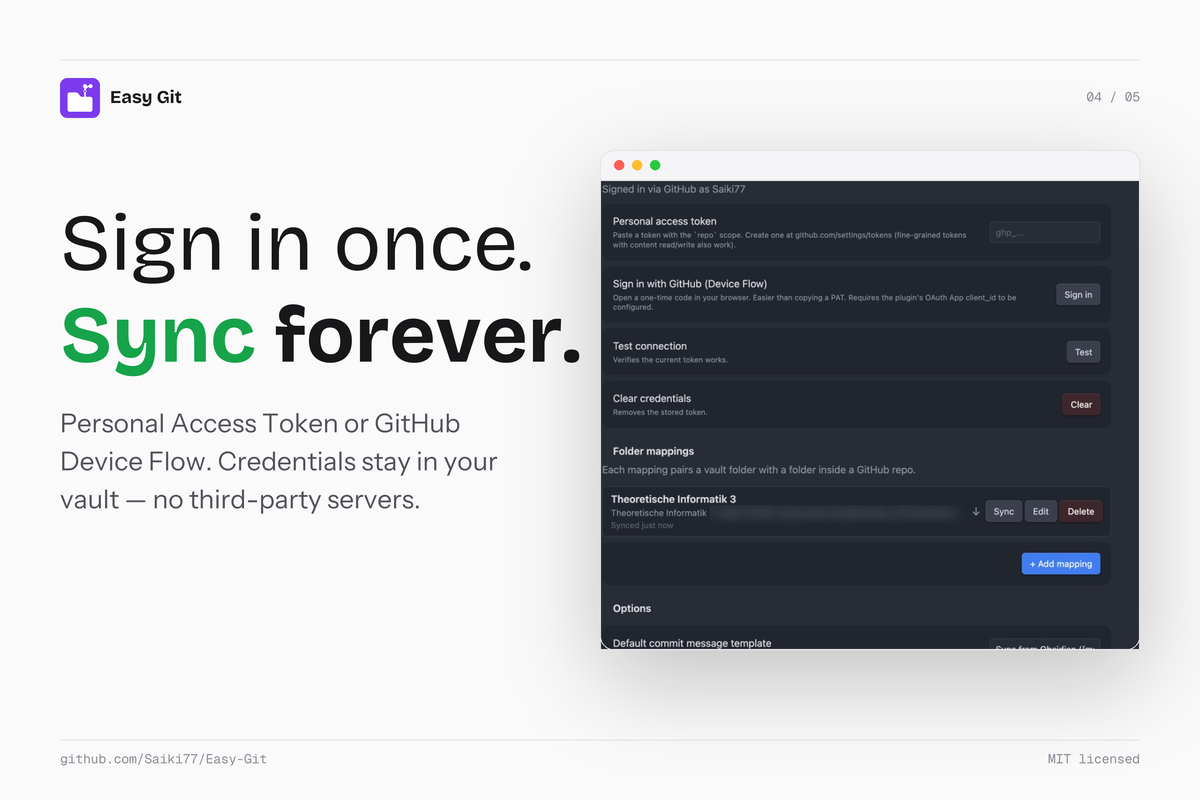
- **Personal Access Token.** Create one at [github.com/settings/tokens](https://github.com/settings/tokens) with the `repo` scope (or a fine-grained token with `Contents: Read and write` + `Metadata: Read`), paste it in settings, hit **Test connection**.
- **Sign in with GitHub.** Click the button, enter the one-time code on github.com, the plugin picks up the token automatically.
## Add a folder mapping
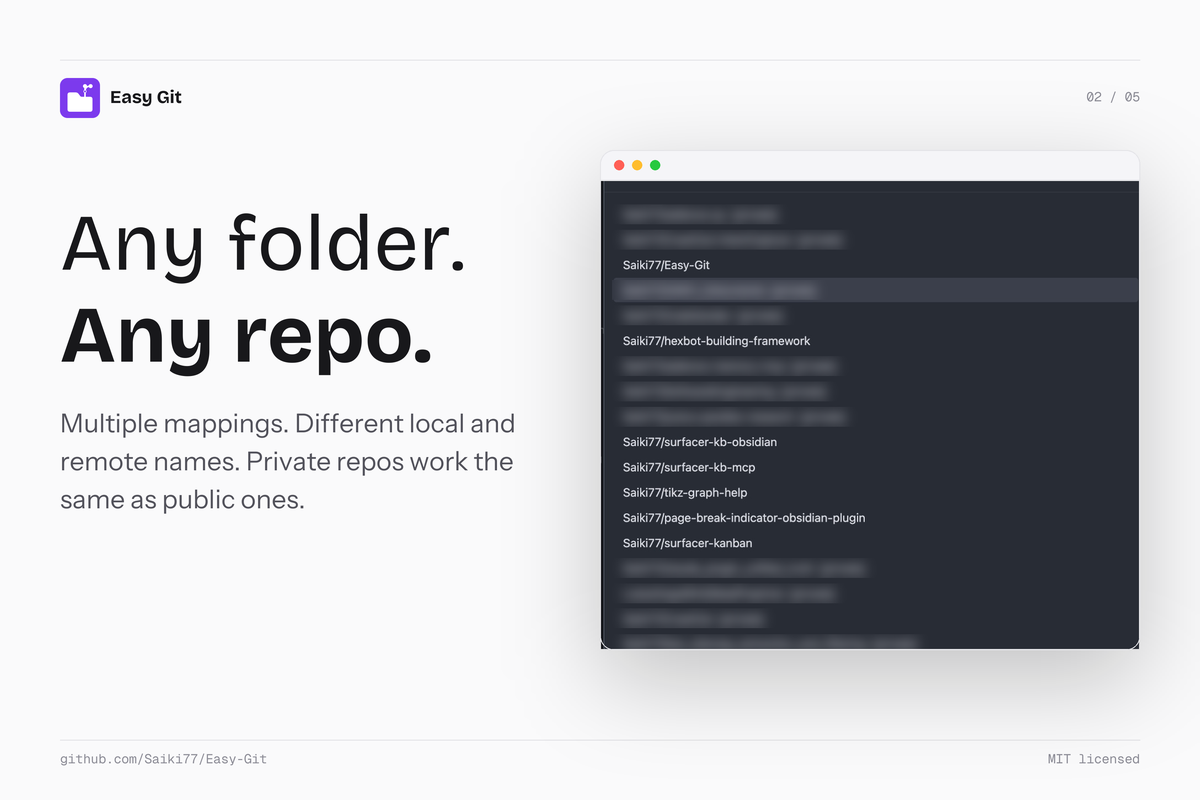
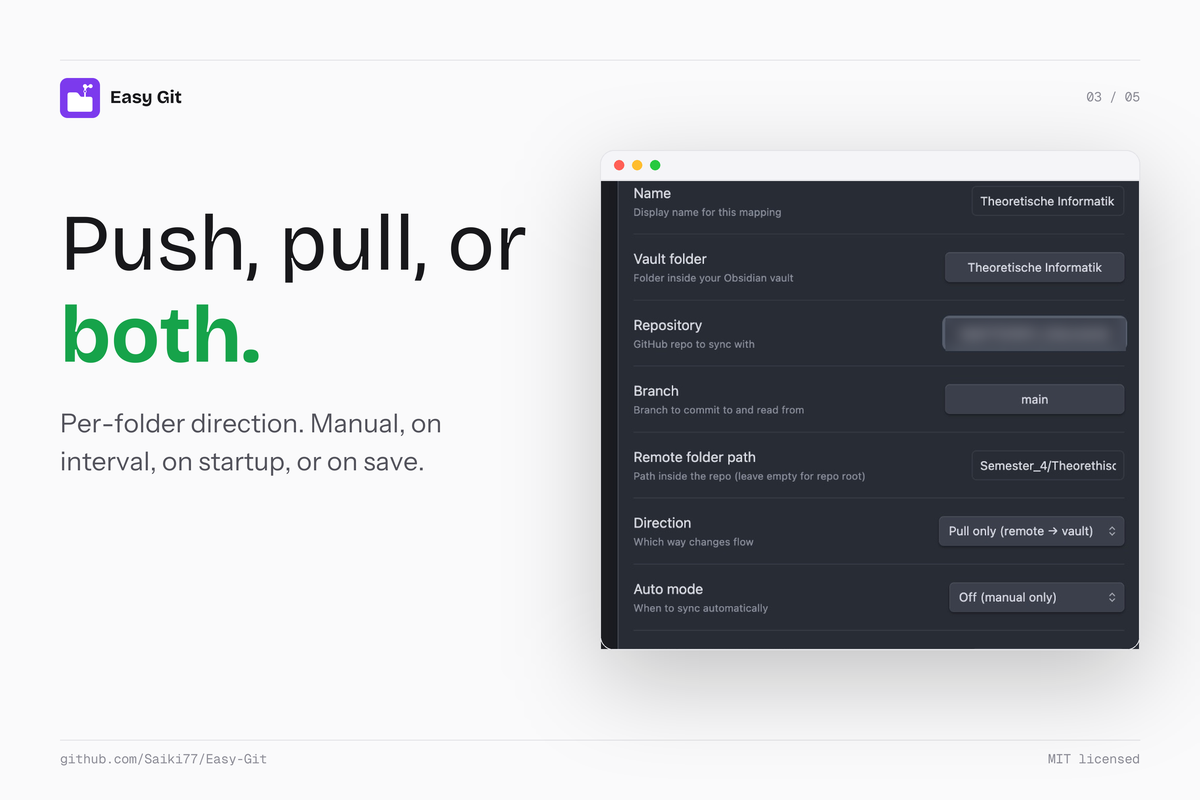
Settings → Easy Git → **+ Add mapping**. Pick the vault folder (or the vault root for whole-vault sync), add one or more destinations (each = repo + branch + path inside the repo), the direction (push only, pull only, or both), and how often to sync (manual, on interval, on startup, or on save). Save.
If you rename or move the mapping's folder inside Obsidian later, Easy Git updates the mapping path automatically and shows a Notice. If the folder is missing entirely (deleted, or moved while Obsidian was closed), the next sync aborts with a clear error instead of interpreting the missing folder as "delete everything on the remote."
After that, sync from the ribbon menu, the command palette (`Easy Git: Sync mapping…`), or the **Sync** button next to each mapping.
## Multiple destinations per mapping
A single mapping can push the same vault folder to (or pull it from) several places at once. The mapping's direction (push / pull / both) applies to every destination of that mapping.
### One vault folder → many remote folders (push or both)
**Mirror to several repos**
```
Vault Remote
───── ──────
Notes/blog ──┬──> public-blog/main/posts/
└──> backup/main/blog-mirror/
```
Useful for keeping a public-facing copy and a private backup in sync from one source.
**Fan out to several folders of one repo** (e.g. a static site)
```
Vault Remote (one repo)
───── ──────
Notes/blog ──> site/main/src/content/blog/
Notes/projects ──> site/main/src/content/projects/
Notes/about ──> site/main/src/about/
```
### Many remote folders → one vault folder (pull)
The same mechanism works in the other direction. Set the mapping's direction to **pull** and add multiple destinations to aggregate several remote sources into a single vault folder:
```
Remote Vault
────── ─────
team-repo/main/notes/ ──┐
shared-team/main/docs/ ──┼──> Notes/aggregated/
upstream/main/handbook/ ──┘
```
Each destination pulls its own remote into the shared vault folder and tracks its own last-sync state. Each remote's files keep their existing relative paths. If `team-repo` brings `intro.md` and `upstream` also brings `intro.md`, whichever destination syncs last overwrites the file in your vault. Use distinct remote paths or rename files on the remote side if you need them to coexist.
### How it behaves
- Destinations sync **sequentially**, each producing its own atomic commit. Order is the order shown in the modal.
- Each destination tracks **its own last-sync state**, so a hiccup with one remote doesn't poison the others. If destination 1 errors, destination 2 still tries.
- The conflict modal shows the destination label in its title when a mapping has more than one destination, so it's clear which target the conflict is for.
- In pull-only multi-destination mappings, files owned by sibling destinations don't fire informational "not pushed" notices. Each destination sees only its own slice.
### Adding or removing a destination
In the mapping modal, scroll to **Destinations** and click **+ Add destination** for another row, or **Remove** on an existing one. Each row needs a repo and a branch; the path inside the repo can be empty (= repo root). Save when done.
## Wikilinks and attachments
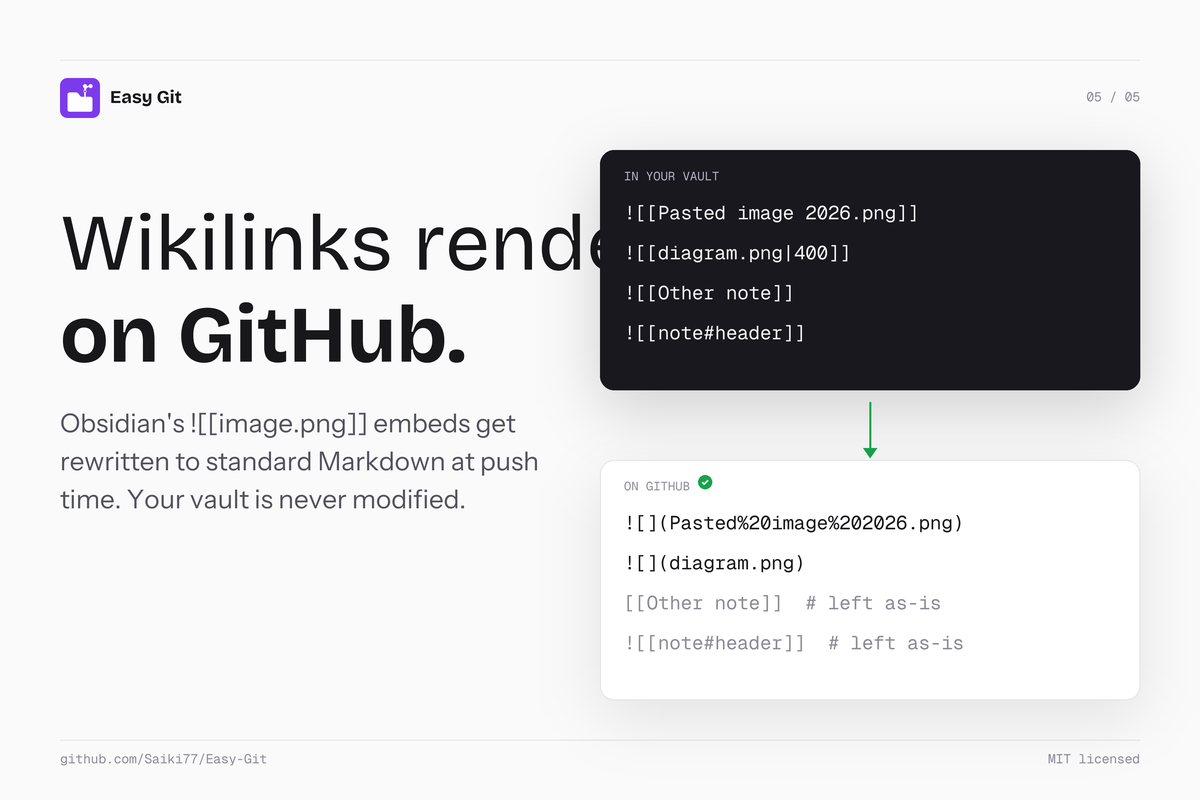
Obsidian uses wikilink embeds like `![[Pasted image …png]]`. GitHub's Markdown renderer doesn't understand them, so they'd show as literal text. Easy Git rewrites them to standard CommonMark at push time:
| In your vault | What lands on GitHub |
| --- | --- |
| `![[image.png]]` | `` |
| `![[image.png\|Caption]]` | `` |
| `![[image.png\|400]]` | ` ` (width hint preserved as inline HTML) |
| `![[note#header]]` | unchanged (GitHub can't transclude) |
If a wikilink points to an attachment outside the mapping's vault folder, the file is copied to `attachments/` inside the mapping's remote folder and the rewritten link points there. That keeps each remote folder self-contained, you can browse it on GitHub without broken references.
Your vault is never modified. The rewrite only affects the bytes pushed to GitHub. Pulling those notes back into Obsidian renders fine because both wikilink and standard-Markdown forms work in Obsidian.
Toggle off per mapping if you want the raw wikilinks pushed verbatim (the mapping summary will show `(raw wikilinks)`).
### Excalidraw drawings
Excalidraw drawings embedded as `![[Drawing.excalidraw|700]]` (or `.excalidraw.md` for the newer format) won't render on GitHub by themselves, since GitHub doesn't understand the source files. Easy Git auto-resolves them to their **companion image**: when the rewriter sees an Excalidraw embed, it looks for a sibling `.svg` or `.png` in the same folder and rewrites the embed to point there. Width hints (`|700`) are preserved as inline HTML so drawings keep their intended size.
To enable this, turn on **Auto-export SVG** (or PNG) in the Excalidraw plugin's settings. Excalidraw will then write a companion `.svg` next to every drawing each time you edit it, and Easy Git will pick it up automatically.
If no companion exists, Easy Git falls back to a plain link and surfaces a one-time Notice telling you how to enable auto-export.
## Pull-only and push-only semantics
A pull-only mapping treats the remote folder as the source of truth on every sync. The engine scans the live remote tree, scans your local vault folder, and reconciles — no dependency on a stored "sync history" cache that could drift out of step with reality.
What this means in practice:
- **A new file on GitHub appears locally on the next sync.** No state-cache lookup; if it's on remote and not local, it's pulled. Period.
- **A changed file on GitHub overwrites local on the next sync.** The pre-existing local file is copied to `.easy-git-backup//` first, so nothing is lost.
- **A file deleted on GitHub is removed locally** only when local matches what we last pulled (i.e. you didn't edit it). If you edited a file locally and the file then disappeared from GitHub, your local edit is preserved and a Notice is logged.
- **A file you create locally that was never on GitHub is left alone.** Pull-only doesn't mirror destruction — local-only additions stay. The plugin only deletes files it previously pulled itself.
Push-only is symmetric: local is the source of truth; remote-only files the plugin never pushed are left alone; the plugin only deletes remote files it previously pushed.
Bidirectional mappings use the full 3-way diff (with `lastSyncState` as the common ancestor) — that's the one direction where the cache is structurally necessary.
## Conflict handling
When both sides of a sync changed a file since the last sync, Easy Git resolves it through a layered approach. Each step handles a different category; what survives lands in the conflict modal.
1. **mtime auto-resolve.** If your local file's mtime is decisively newer than what we recorded at last sync, the engine takes that as "you edited this locally" and resolves to **keep local**. Covers the common single-user-on-multiple-devices case.
2. **3-way text merge.** For text files where both sides edited *disjoint* regions, the engine fetches the common ancestor blob from GitHub (using `lastSyncState.files[path].sha` — the SHA both sides forked from), runs a 3-way diff, and if the merge is clean, writes the merged content locally. The pre-merge content is backed up first (see below). Skipped for binary files and for `.md` files in mappings with wikilink rewrite on (where merging rewritten markdown back to the vault would destroy your wikilink notation).
3. **Conflict modal.** Anything still ambiguous opens the modal with **keep local / keep remote / keep both** per file, plus bulk **Apply to all unset** buttons.
In all three paths, local files are protected by the backup mechanism below.
## Backups
Easy Git never overwrites a local file without first writing a snapshot of the pre-existing content to a backup folder, unless the mapping is set to **pull only** (in which case you've explicitly opted into remote-wins behavior).
Before any `pull-modify` or `pull-delete` operation, the engine snapshots the current local file to:
```
/.easy-git-backup//
```
One folder per sync run, files preserved with their full vault paths inside. The folder is hardcoded to be excluded from any sync, so backups never travel to your remote — they're local-only.
If a backup write itself fails (disk full, permission error, etc.), the sync aborts with a clear error rather than risk overwriting your file without a safety net. The promise: **your local content is never lost unless you've explicitly told the plugin "pull only" for this mapping.**
Backups can be auto-pruned. Open **Settings → Easy Git → Backups** and set "Auto-prune backups older than (days)" to anything above 0 — the engine deletes timestamped subfolders past that window at the end of each sync. Leave it at 0 to keep every snapshot forever (the default for existing installs).
## Conflicts
If the same file changed on both sides since the last sync, Easy Git pauses and lets you pick **keep local**, **keep remote**, or **keep both** (renames your local copy with a `-conflict-local-` suffix so neither side is lost). Cancelling the conflict modal aborts the entire run without touching anything.
## How sync works under the hood
Each run produces one atomic commit via GitHub's Git Data API: blob → tree (with `base_tree` so unrelated files in the repo are preserved) → commit → ref update. The branch's current HEAD is fetched right before the commit is built, and the ref update is non-fast-forward-protected, so if someone else pushes mid-run the sync retries from scratch (up to 3×, 1s/3s/9s backoff) instead of clobbering.
File identity is the git blob SHA-1 (matches `git hash-object`), so we compare local and remote without round-tripping content.
For a step-by-step walkthrough of one sync run, the three-way classifier, the conflict-resolution choices, the wikilink rewriter, and the OAuth Device Flow, see [docs/how-it-works.md](docs/how-it-works.md).
## Defaults
- Excluded: `.obsidian/**`, `.trash/**`, `.git/**`, `node_modules/**` (editable in settings).
- Files over 95 MB are skipped (GitHub's blob limit is 100 MB).
- Authenticated rate limit headroom is checked before each run.
- Mobile compatible: no shell access, no node-only modules.
## Per-mapping `.easygitignore`
Drop a `.easygitignore` file at the root of any mapping's vault folder and its patterns are added on top of the global excludes for that mapping only. Same syntax as the global list: one glob per line, `#` for comments, blank lines ignored. Useful when you want to exclude `*.pdf` in one mapping but not another. The `.easygitignore` file itself is never pushed.
## Sync log
Every sync run is recorded in an in-Obsidian log so you can see exactly what happened on each mapping without opening the developer console. Open it via:
- The **View sync log** button next to **+ Add mapping** in settings, or
- The command palette: `Easy Git: Show sync log`
Each entry shows the mapping and destination, when it ran, the trigger (manual, interval, startup, on-save, command), the duration, and the outcome. Successful runs list the files added, modified, or deleted. Failed runs surface the full error including the vault path that caused it. The log keeps the most recent 100 entries and can be cleared from the log modal.
If a sync errors with `File already exists at "Notes/Foo.md"` (or similar), that's a case-insensitive filename collision: the remote has one casing and your vault has another. Easy Git tries to recover automatically by writing the new content to the existing file regardless of case; the error only surfaces if recovery itself fails.
## Status bar
A small indicator sits in Obsidian's bottom-right status bar showing the aggregate sync state across all mappings:
- `↻ Ready`: at least one mapping configured, nothing has synced yet
- `↻ Synced 5m ago`: last successful sync (most recent across mappings)
- `↻ Syncing…`: a sync is in progress
- `! Easy Git error`: at least one mapping has an unresolved error
Click it to jump straight to Easy Git's settings. Hidden when you have no mappings configured.
## Self-healing
Easy Git tries hard to keep working even when settings drift, get hand-edited, or carry state from an older version:
- **Schema migration on load.** Pre-0.5.0 single-destination mappings are transparently rewritten to the multi-destination shape. Pre-0.2.0 mappings without a `rewriteWikilinks` flag default to wikilink rewrite on.
- **Settings heal pass.** Every load runs a `healSettings()` pass that normalizes vault folder paths (strips slashes), clamps invalid numeric values back to defaults (max file size, retention days, interval minutes, debounce ms), regenerates missing destination IDs, repairs half-cleared auth state, and tops up the global exclude list with safety patterns (`.easy-git-backup/**`, `.obsidian/**`, etc.) without removing any of your additions.
- **Corrupted data.json fallback.** If the saved settings file is unreadable, the plugin starts with defaults and shows a Notice rather than failing to load.
- **Folder rename auto-fix.** When you rename a folder inside Obsidian, mappings pointing at it are updated automatically.
- **Case-mismatch auto-fix.** If a mapping's saved path differs only in case from a folder that actually exists (common after a macOS/Windows case rename), the engine finds it and persists the corrected path.
- **Broken mappings flagged, not auto-deleted.** Mappings with missing destinations, missing repo/branch, or pointing at a folder that no longer exists show an inline warning row in settings with a tooltip explaining what to fix. The Sync button is disabled until you fix or remove the mapping — you decide, the plugin never throws away your config.
## Settings layout
The settings tab is grouped into foldable sections so you can collapse the parts you don't need to look at:
- **Authentication** — token paste, Device Flow sign-in, test connection
- **Folder mappings** — your mappings list, add/edit/delete, sync log shortcut
- **Conflict handling** — toggles for mtime auto-resolve and 3-way text merge
- **Backups** — retention window and link to the backup folder
- **Sync behaviour** — commit message template, max file size
- **Excluded paths** — global glob list (per-mapping uses `.easygitignore`)
- **Notifications & diagnostics** — Notice toggle, debug logging, sync log
- **About** — version, source, license
All three conflict layers (mtime auto-resolve, 3-way merge, the modal) and the backup mechanism are still on by default; the new toggles only exist for the rare case where you want to disable one.
## Permissions
- **Clipboard**: written to only by the **Sign in with GitHub** button, which copies the one-time device code so you can paste it on github.com. No clipboard reads anywhere.
- **Network**: every HTTP call goes to `api.github.com` (and `github.com/login/...` for Device Flow). No third-party servers.
- **Vault**: reads and writes only inside the folders you configure as mappings, minus your exclusion globs.
## Build from source
```sh
npm install
npm run build
```
`main.js` is the bundled output. The release workflow at `.github/workflows/release.yml` builds and uploads `main.js` + `manifest.json` + `styles.css` on tag push.
## License
[MIT](./LICENSE)
` (width hint preserved as inline HTML) |
| `![[note#header]]` | unchanged (GitHub can't transclude) |
If a wikilink points to an attachment outside the mapping's vault folder, the file is copied to `attachments/` inside the mapping's remote folder and the rewritten link points there. That keeps each remote folder self-contained, you can browse it on GitHub without broken references.
Your vault is never modified. The rewrite only affects the bytes pushed to GitHub. Pulling those notes back into Obsidian renders fine because both wikilink and standard-Markdown forms work in Obsidian.
Toggle off per mapping if you want the raw wikilinks pushed verbatim (the mapping summary will show `(raw wikilinks)`).
### Excalidraw drawings
Excalidraw drawings embedded as `![[Drawing.excalidraw|700]]` (or `.excalidraw.md` for the newer format) won't render on GitHub by themselves, since GitHub doesn't understand the source files. Easy Git auto-resolves them to their **companion image**: when the rewriter sees an Excalidraw embed, it looks for a sibling `.svg` or `.png` in the same folder and rewrites the embed to point there. Width hints (`|700`) are preserved as inline HTML so drawings keep their intended size.
To enable this, turn on **Auto-export SVG** (or PNG) in the Excalidraw plugin's settings. Excalidraw will then write a companion `.svg` next to every drawing each time you edit it, and Easy Git will pick it up automatically.
If no companion exists, Easy Git falls back to a plain link and surfaces a one-time Notice telling you how to enable auto-export.
## Pull-only and push-only semantics
A pull-only mapping treats the remote folder as the source of truth on every sync. The engine scans the live remote tree, scans your local vault folder, and reconciles — no dependency on a stored "sync history" cache that could drift out of step with reality.
What this means in practice:
- **A new file on GitHub appears locally on the next sync.** No state-cache lookup; if it's on remote and not local, it's pulled. Period.
- **A changed file on GitHub overwrites local on the next sync.** The pre-existing local file is copied to `.easy-git-backup//` first, so nothing is lost.
- **A file deleted on GitHub is removed locally** only when local matches what we last pulled (i.e. you didn't edit it). If you edited a file locally and the file then disappeared from GitHub, your local edit is preserved and a Notice is logged.
- **A file you create locally that was never on GitHub is left alone.** Pull-only doesn't mirror destruction — local-only additions stay. The plugin only deletes files it previously pulled itself.
Push-only is symmetric: local is the source of truth; remote-only files the plugin never pushed are left alone; the plugin only deletes remote files it previously pushed.
Bidirectional mappings use the full 3-way diff (with `lastSyncState` as the common ancestor) — that's the one direction where the cache is structurally necessary.
## Conflict handling
When both sides of a sync changed a file since the last sync, Easy Git resolves it through a layered approach. Each step handles a different category; what survives lands in the conflict modal.
1. **mtime auto-resolve.** If your local file's mtime is decisively newer than what we recorded at last sync, the engine takes that as "you edited this locally" and resolves to **keep local**. Covers the common single-user-on-multiple-devices case.
2. **3-way text merge.** For text files where both sides edited *disjoint* regions, the engine fetches the common ancestor blob from GitHub (using `lastSyncState.files[path].sha` — the SHA both sides forked from), runs a 3-way diff, and if the merge is clean, writes the merged content locally. The pre-merge content is backed up first (see below). Skipped for binary files and for `.md` files in mappings with wikilink rewrite on (where merging rewritten markdown back to the vault would destroy your wikilink notation).
3. **Conflict modal.** Anything still ambiguous opens the modal with **keep local / keep remote / keep both** per file, plus bulk **Apply to all unset** buttons.
In all three paths, local files are protected by the backup mechanism below.
## Backups
Easy Git never overwrites a local file without first writing a snapshot of the pre-existing content to a backup folder, unless the mapping is set to **pull only** (in which case you've explicitly opted into remote-wins behavior).
Before any `pull-modify` or `pull-delete` operation, the engine snapshots the current local file to:
```
/.easy-git-backup//
```
One folder per sync run, files preserved with their full vault paths inside. The folder is hardcoded to be excluded from any sync, so backups never travel to your remote — they're local-only.
If a backup write itself fails (disk full, permission error, etc.), the sync aborts with a clear error rather than risk overwriting your file without a safety net. The promise: **your local content is never lost unless you've explicitly told the plugin "pull only" for this mapping.**
Backups can be auto-pruned. Open **Settings → Easy Git → Backups** and set "Auto-prune backups older than (days)" to anything above 0 — the engine deletes timestamped subfolders past that window at the end of each sync. Leave it at 0 to keep every snapshot forever (the default for existing installs).
## Conflicts
If the same file changed on both sides since the last sync, Easy Git pauses and lets you pick **keep local**, **keep remote**, or **keep both** (renames your local copy with a `-conflict-local-` suffix so neither side is lost). Cancelling the conflict modal aborts the entire run without touching anything.
## How sync works under the hood
Each run produces one atomic commit via GitHub's Git Data API: blob → tree (with `base_tree` so unrelated files in the repo are preserved) → commit → ref update. The branch's current HEAD is fetched right before the commit is built, and the ref update is non-fast-forward-protected, so if someone else pushes mid-run the sync retries from scratch (up to 3×, 1s/3s/9s backoff) instead of clobbering.
File identity is the git blob SHA-1 (matches `git hash-object`), so we compare local and remote without round-tripping content.
For a step-by-step walkthrough of one sync run, the three-way classifier, the conflict-resolution choices, the wikilink rewriter, and the OAuth Device Flow, see [docs/how-it-works.md](docs/how-it-works.md).
## Defaults
- Excluded: `.obsidian/**`, `.trash/**`, `.git/**`, `node_modules/**` (editable in settings).
- Files over 95 MB are skipped (GitHub's blob limit is 100 MB).
- Authenticated rate limit headroom is checked before each run.
- Mobile compatible: no shell access, no node-only modules.
## Per-mapping `.easygitignore`
Drop a `.easygitignore` file at the root of any mapping's vault folder and its patterns are added on top of the global excludes for that mapping only. Same syntax as the global list: one glob per line, `#` for comments, blank lines ignored. Useful when you want to exclude `*.pdf` in one mapping but not another. The `.easygitignore` file itself is never pushed.
## Sync log
Every sync run is recorded in an in-Obsidian log so you can see exactly what happened on each mapping without opening the developer console. Open it via:
- The **View sync log** button next to **+ Add mapping** in settings, or
- The command palette: `Easy Git: Show sync log`
Each entry shows the mapping and destination, when it ran, the trigger (manual, interval, startup, on-save, command), the duration, and the outcome. Successful runs list the files added, modified, or deleted. Failed runs surface the full error including the vault path that caused it. The log keeps the most recent 100 entries and can be cleared from the log modal.
If a sync errors with `File already exists at "Notes/Foo.md"` (or similar), that's a case-insensitive filename collision: the remote has one casing and your vault has another. Easy Git tries to recover automatically by writing the new content to the existing file regardless of case; the error only surfaces if recovery itself fails.
## Status bar
A small indicator sits in Obsidian's bottom-right status bar showing the aggregate sync state across all mappings:
- `↻ Ready`: at least one mapping configured, nothing has synced yet
- `↻ Synced 5m ago`: last successful sync (most recent across mappings)
- `↻ Syncing…`: a sync is in progress
- `! Easy Git error`: at least one mapping has an unresolved error
Click it to jump straight to Easy Git's settings. Hidden when you have no mappings configured.
## Self-healing
Easy Git tries hard to keep working even when settings drift, get hand-edited, or carry state from an older version:
- **Schema migration on load.** Pre-0.5.0 single-destination mappings are transparently rewritten to the multi-destination shape. Pre-0.2.0 mappings without a `rewriteWikilinks` flag default to wikilink rewrite on.
- **Settings heal pass.** Every load runs a `healSettings()` pass that normalizes vault folder paths (strips slashes), clamps invalid numeric values back to defaults (max file size, retention days, interval minutes, debounce ms), regenerates missing destination IDs, repairs half-cleared auth state, and tops up the global exclude list with safety patterns (`.easy-git-backup/**`, `.obsidian/**`, etc.) without removing any of your additions.
- **Corrupted data.json fallback.** If the saved settings file is unreadable, the plugin starts with defaults and shows a Notice rather than failing to load.
- **Folder rename auto-fix.** When you rename a folder inside Obsidian, mappings pointing at it are updated automatically.
- **Case-mismatch auto-fix.** If a mapping's saved path differs only in case from a folder that actually exists (common after a macOS/Windows case rename), the engine finds it and persists the corrected path.
- **Broken mappings flagged, not auto-deleted.** Mappings with missing destinations, missing repo/branch, or pointing at a folder that no longer exists show an inline warning row in settings with a tooltip explaining what to fix. The Sync button is disabled until you fix or remove the mapping — you decide, the plugin never throws away your config.
## Settings layout
The settings tab is grouped into foldable sections so you can collapse the parts you don't need to look at:
- **Authentication** — token paste, Device Flow sign-in, test connection
- **Folder mappings** — your mappings list, add/edit/delete, sync log shortcut
- **Conflict handling** — toggles for mtime auto-resolve and 3-way text merge
- **Backups** — retention window and link to the backup folder
- **Sync behaviour** — commit message template, max file size
- **Excluded paths** — global glob list (per-mapping uses `.easygitignore`)
- **Notifications & diagnostics** — Notice toggle, debug logging, sync log
- **About** — version, source, license
All three conflict layers (mtime auto-resolve, 3-way merge, the modal) and the backup mechanism are still on by default; the new toggles only exist for the rare case where you want to disable one.
## Permissions
- **Clipboard**: written to only by the **Sign in with GitHub** button, which copies the one-time device code so you can paste it on github.com. No clipboard reads anywhere.
- **Network**: every HTTP call goes to `api.github.com` (and `github.com/login/...` for Device Flow). No third-party servers.
- **Vault**: reads and writes only inside the folders you configure as mappings, minus your exclusion globs.
## Build from source
```sh
npm install
npm run build
```
`main.js` is the bundled output. The release workflow at `.github/workflows/release.yml` builds and uploads `main.js` + `manifest.json` + `styles.css` on tag push.
## License
[MIT](./LICENSE)