# Document Exporter
Export single notes, entire folders, or hand-picked files into PDF, Word, Markdown bundles, and HTML documents. Supports batch export with directory structure preservation.
## Features
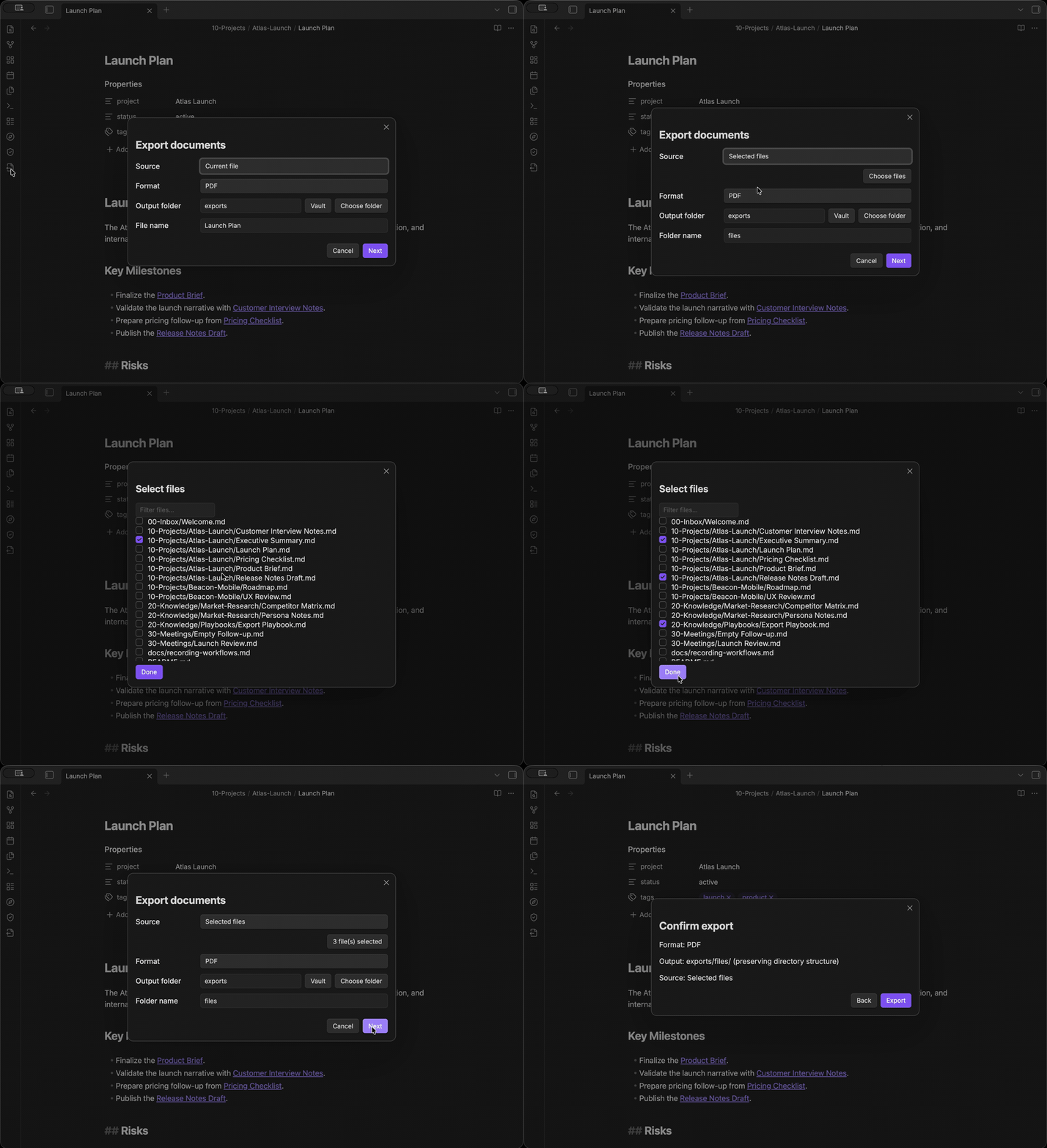
- **Batch export** — export an entire folder or selected files at once, preserving directory structure
- **PDF** — generates a print-ready `.pdf` with native Obsidian rendering
- **Word document** — generates a `.docx` document for editing and sharing
- **Markdown bundle** — combines notes into a single `.md` file with copied attachments and rewritten links
- **HTML document** — generates a standalone `.html` with table of contents, native rendering, and linked assets
- **Progress bar with cancel** — visual progress indicator for every export, with a cancel button that preserves already-exported files
## Usage
Multiple ways to start an export:
| Entry point | How |
|-------------|-----|
| Sidebar icon | Click the export icon in the left sidebar |
| Right-click a file | File explorer → right-click a Markdown file → "Export this file" |
| Right-click a folder | File explorer → right-click a folder → "Export this folder" |
| Right-click in editor | Right-click inside a note → "Export current file" |
| Command palette | `Cmd/Ctrl+P` → "Export documents" |
### Export dialog
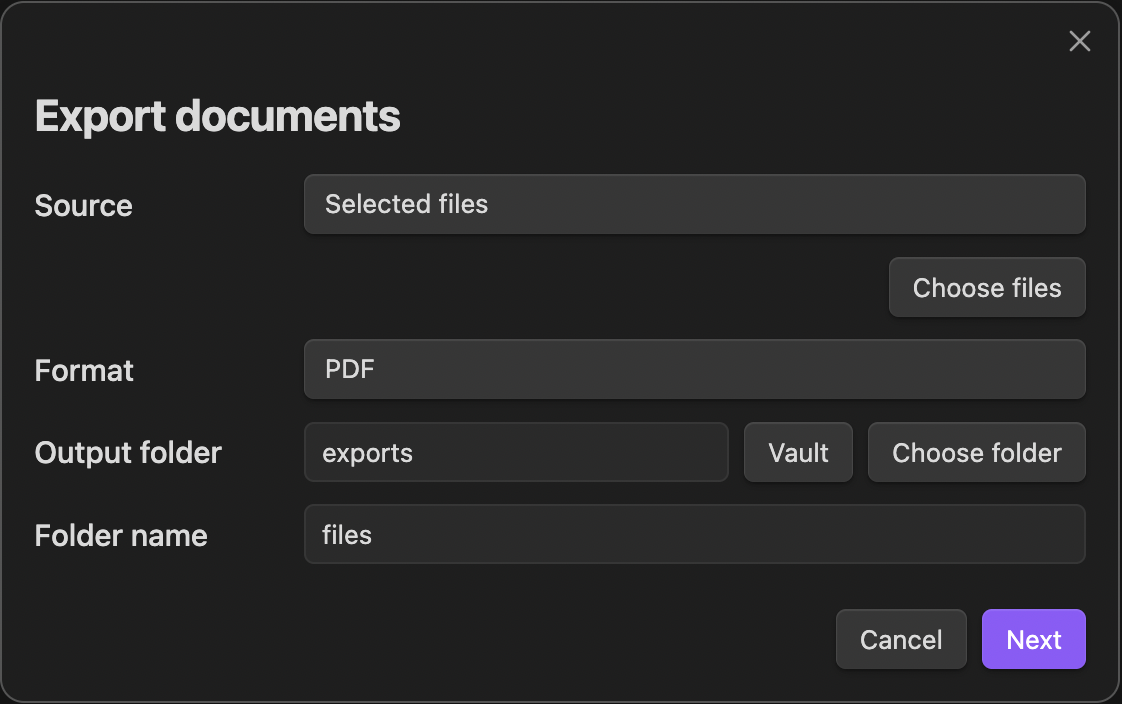 1. Choose **source** — current file, folder, or selected files
2. Choose **format** — PDF, Word document, Markdown bundle, or HTML document
3. Set **output folder** — type a path, click **Vault** to pick from vault folders, or **Choose folder** to select a system folder (desktop only)
4. Set **file name** (single file) or **folder name** (batch export) — defaults to the source file or folder name
5. Click **Next** → review the summary → click **Export**
A progress bar appears during export showing the current step or file. Click **Cancel** to stop; already-exported files are kept.
## Examples
### Export the current note as PDF
1. Open a note → right-click → **Export current file**
2. Format: **PDF** → click **Export**
3. Result: `exports/.pdf`
### Export a folder as Markdown bundle
1. Right-click a folder → **Export this folder**
2. Format: **Markdown bundle** → click **Export**
3. Result: `exports//.md` + `assets/` (if images exist)
### Export selected files as HTML
1. Start an export from sidebar icon or command palette
2. Source: **Selected files** → pick files → Format: **HTML document**
3. Click **Export**
4. Result: a standalone `.html` per file with linked assets
## Settings
Open **Settings → Document Exporter**.
| Setting | Description | Default |
|---------|-------------|---------|
| Default export format | Format pre-selected when opening the dialog | PDF |
| Output folder | Where exported files are saved | `exports` |
| Include source path comments | Add HTML comments showing each section's origin | Off |
| Copy attachments | Copy referenced images and files into the export | On |
| Overwrite existing exports | Overwrite if output already exists; otherwise a timestamped folder is created | Off |
## Limitations
- Inline note embeds (`![[Note]]`) are preserved as links, not expanded
- Dataview queries are not executed during export
- Canvas files are not supported
- PDF export requires the desktop app
## Privacy
Document Exporter does not make any network requests. All processing happens locally. No data is sent to external services.
## Installation
Search "Document Exporter" in **Settings → Community plugins → Browse** and click Install.
### Manual installation
Copy `main.js`, `manifest.json`, and `styles.css` into your vault's `.obsidian/plugins/document-exporter/` directory.
## Development
```bash
npm install
npm run dev # watch mode
npm run build # production build
npm test # run tests
```
## License
MIT
1. Choose **source** — current file, folder, or selected files
2. Choose **format** — PDF, Word document, Markdown bundle, or HTML document
3. Set **output folder** — type a path, click **Vault** to pick from vault folders, or **Choose folder** to select a system folder (desktop only)
4. Set **file name** (single file) or **folder name** (batch export) — defaults to the source file or folder name
5. Click **Next** → review the summary → click **Export**
A progress bar appears during export showing the current step or file. Click **Cancel** to stop; already-exported files are kept.
## Examples
### Export the current note as PDF
1. Open a note → right-click → **Export current file**
2. Format: **PDF** → click **Export**
3. Result: `exports/.pdf`
### Export a folder as Markdown bundle
1. Right-click a folder → **Export this folder**
2. Format: **Markdown bundle** → click **Export**
3. Result: `exports//.md` + `assets/` (if images exist)
### Export selected files as HTML
1. Start an export from sidebar icon or command palette
2. Source: **Selected files** → pick files → Format: **HTML document**
3. Click **Export**
4. Result: a standalone `.html` per file with linked assets
## Settings
Open **Settings → Document Exporter**.
| Setting | Description | Default |
|---------|-------------|---------|
| Default export format | Format pre-selected when opening the dialog | PDF |
| Output folder | Where exported files are saved | `exports` |
| Include source path comments | Add HTML comments showing each section's origin | Off |
| Copy attachments | Copy referenced images and files into the export | On |
| Overwrite existing exports | Overwrite if output already exists; otherwise a timestamped folder is created | Off |
## Limitations
- Inline note embeds (`![[Note]]`) are preserved as links, not expanded
- Dataview queries are not executed during export
- Canvas files are not supported
- PDF export requires the desktop app
## Privacy
Document Exporter does not make any network requests. All processing happens locally. No data is sent to external services.
## Installation
Search "Document Exporter" in **Settings → Community plugins → Browse** and click Install.
### Manual installation
Copy `main.js`, `manifest.json`, and `styles.css` into your vault's `.obsidian/plugins/document-exporter/` directory.
## Development
```bash
npm install
npm run dev # watch mode
npm run build # production build
npm test # run tests
```
## License
MIT