# Japan Work Secretary
**Track part-time shifts in Japan: see your pay by time band and get warned before a week goes over the 28-hour student limit.**
[中文说明 →](README.zh.md) · [日本語](#日本語)
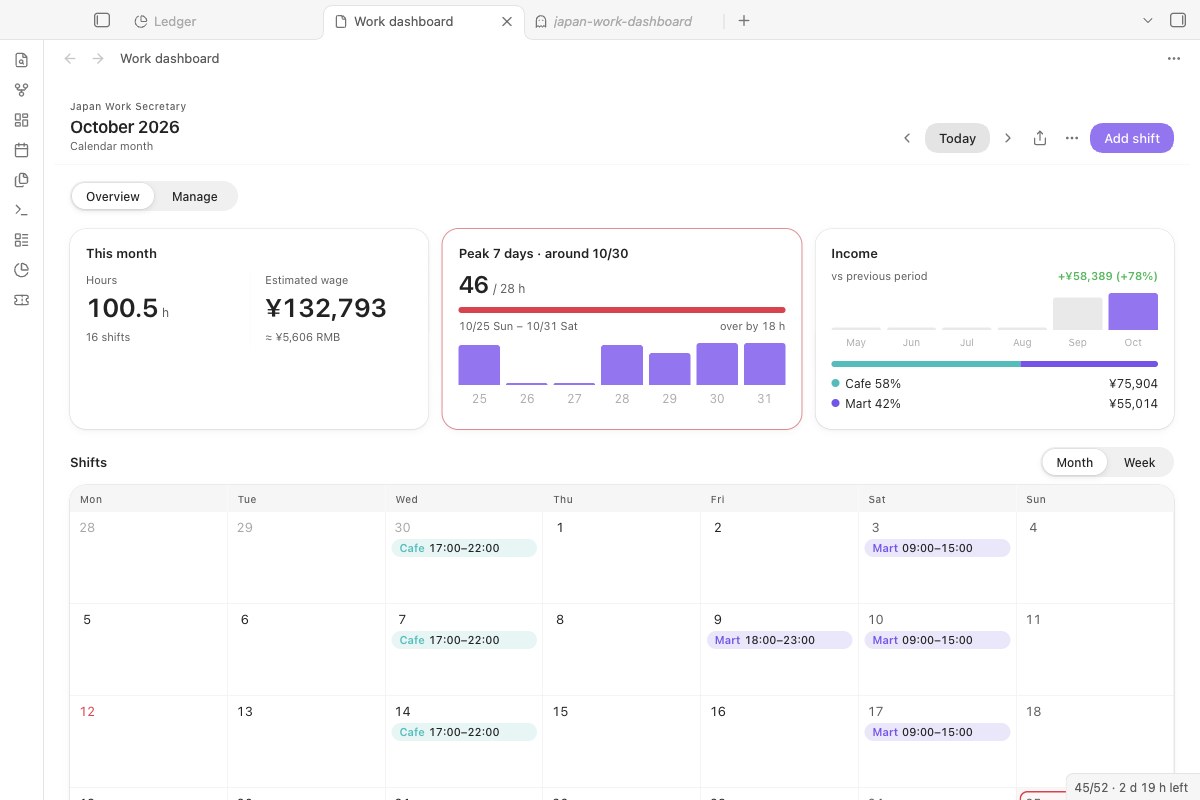
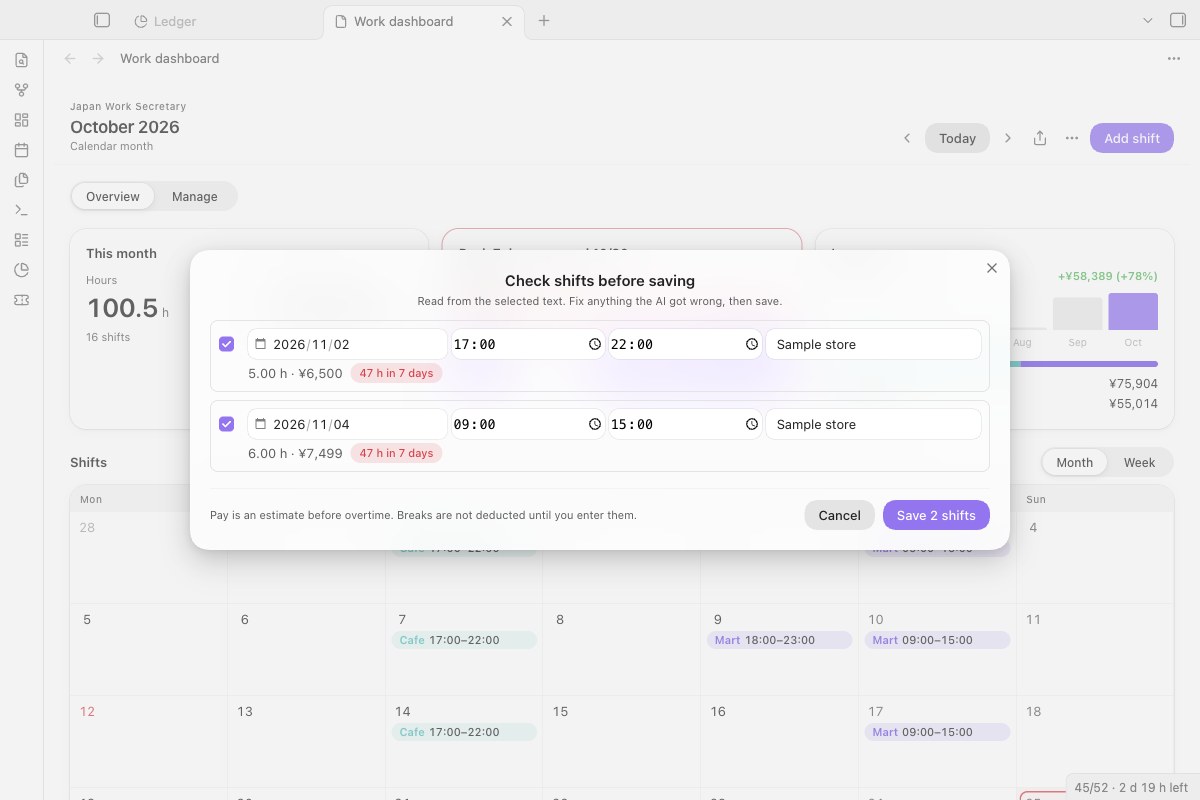 *Shifts the AI found open in a check list. Fix a date or time, untick a row, see which rows would break the 28-hour rule. Nothing is saved until you press Save.*
- **Progress, Cancel and Retry.** While a roster is read, a notice shows the step; *Cancel* drops the reply. On failure it says why (no key, key rejected, out of balance, model not found, no reply in time) and offers *Retry*, or *Open settings* when the key is missing or rejected.
- With several images, the ones that worked still reach the check list; the notice names the ones that did not.
## Schedule, pay and limits
- **Month and week views,** one colour per store; recurring shifts and weekly templates.
- **Wage bands with start dates:** when your rate goes up, add a band from that date; earlier shifts keep the old rate.
- **Breaks you actually took.** Each shift's break is *Not confirmed* or *Confirmed*. Until you confirm it, nothing is deducted: the shift counts as scheduled toward the 28 hours, and the hours and pay with the break deducted are shown beside it (your planned break, or the legal minimum). The law says the employer must give 45 minutes over 6 hours and 60 minutes over 8 hours ([Labour Standards Act art. 34](https://laws.e-gov.go.jp/law/322AC0000000049#Mp-Ch_4-At_34)); that is not proof you had one.
- **Late night is 22:00–05:00** ([art. 37](https://laws.e-gov.go.jp/law/322AC0000000049#Mp-Ch_4-At_37-Pr_4)), counted minute by minute, so a 21:00–06:00 shift splits into evening, late-night and morning rates.
- **Overtime** over 8 hours a day or 40 a week, the store's Sunday and holiday bonus by calendar day, the statutory rest day premium (off until you name the day), commuting allowance, and a payroll month starting on any day.
- **28 hours in any 7 days,** with the busiest window marked on the calendar. **Long vacations** from your school's calendar are checked at 8 hours a day; a week mixing term and vacation days is marked *Needs checking* and held to 28 hours with all its hours, because the official page does not say how such a week is counted.
- **Income alert lines** you set yourself, monthly or yearly. The plugin does not decide tax.
## Calendar and pay notes
- **Sync to macOS Calendar** from the ⋯ menu: smart sync writes only changed shifts, events carry a hidden marker and are updated in place, and events for deleted shifts are removed.
- **Export .ics** for Google Calendar, Outlook or a phone.
- **Save pay note:** a Markdown note with every shift, totals by store and overtime, to check against your payslip (給与明細).
## AI for reading schedules
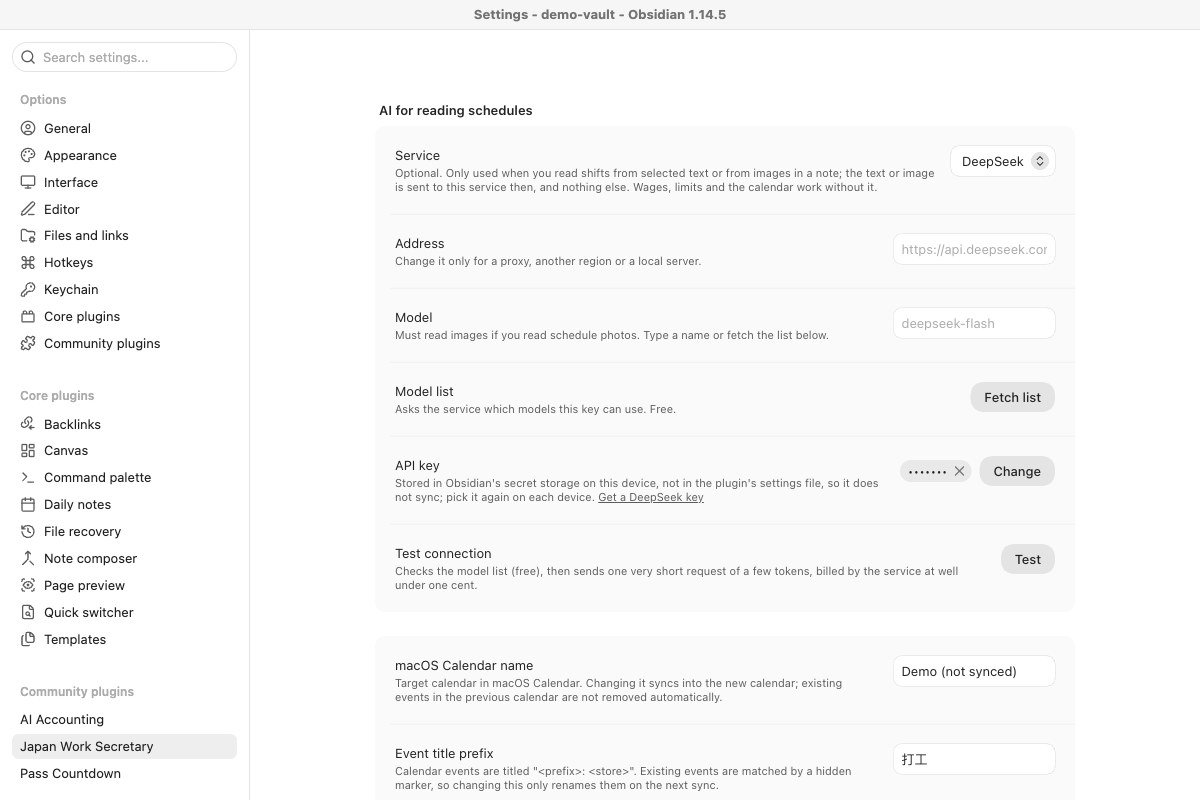 - **Presets:** DeepSeek (default), Qwen, SiliconFlow, Kimi, Zhipu GLM, Google Gemini, OpenAI, or any OpenAI-compatible or local server. For roster photos, pick a model that reads images.
- **Model list** asks the service which models your key can use (free).
- **Test connection** checks the model list (free), then sends one very short request (a few tokens, well under one cent).
## Install
**From Obsidian (once listed):** Settings → Community plugins → Browse, search for **Japan Work Secretary**.
**Manually:** download `main.js`, `manifest.json` and `styles.css` from the latest release into `