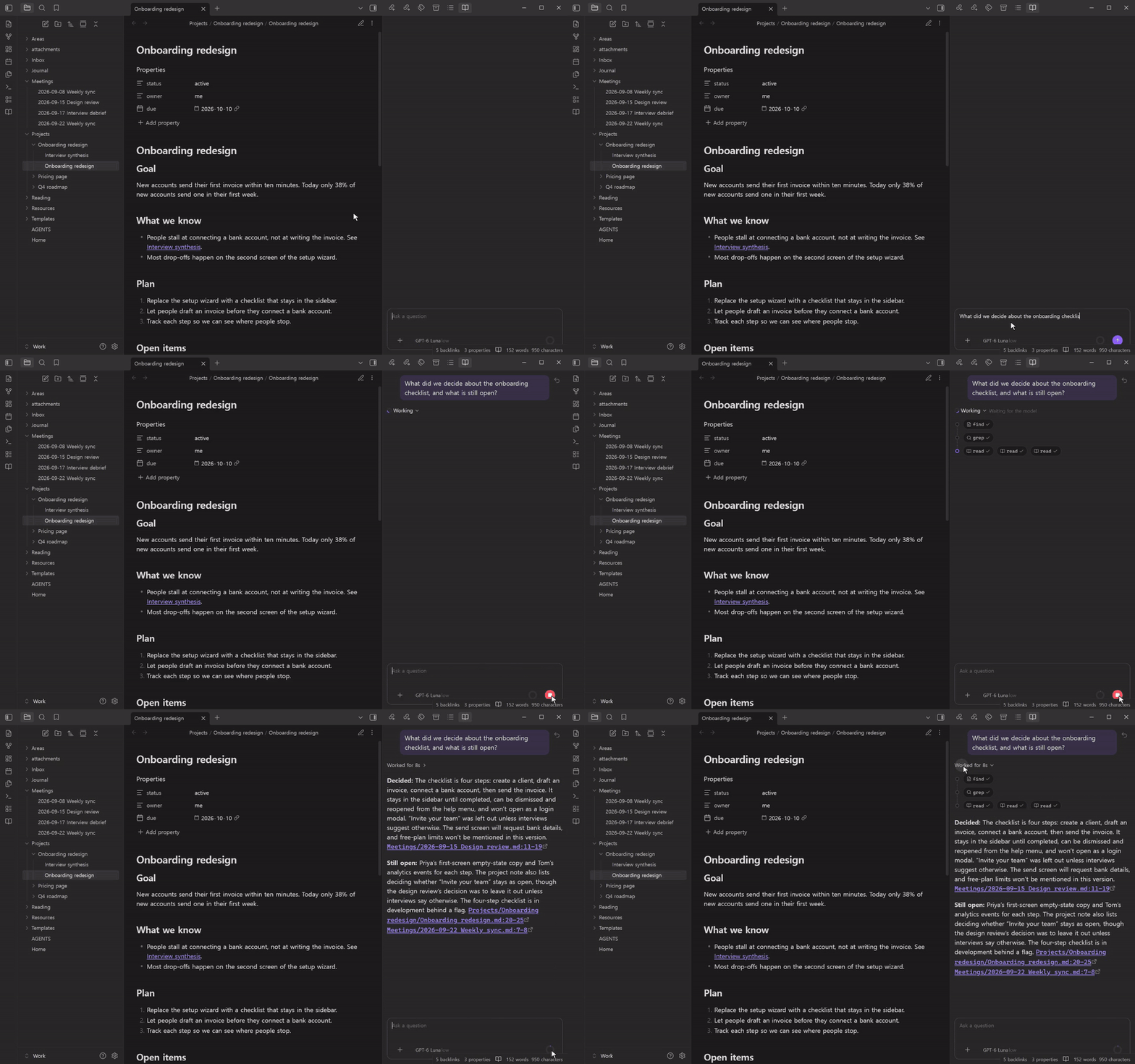
 ### Every step in view
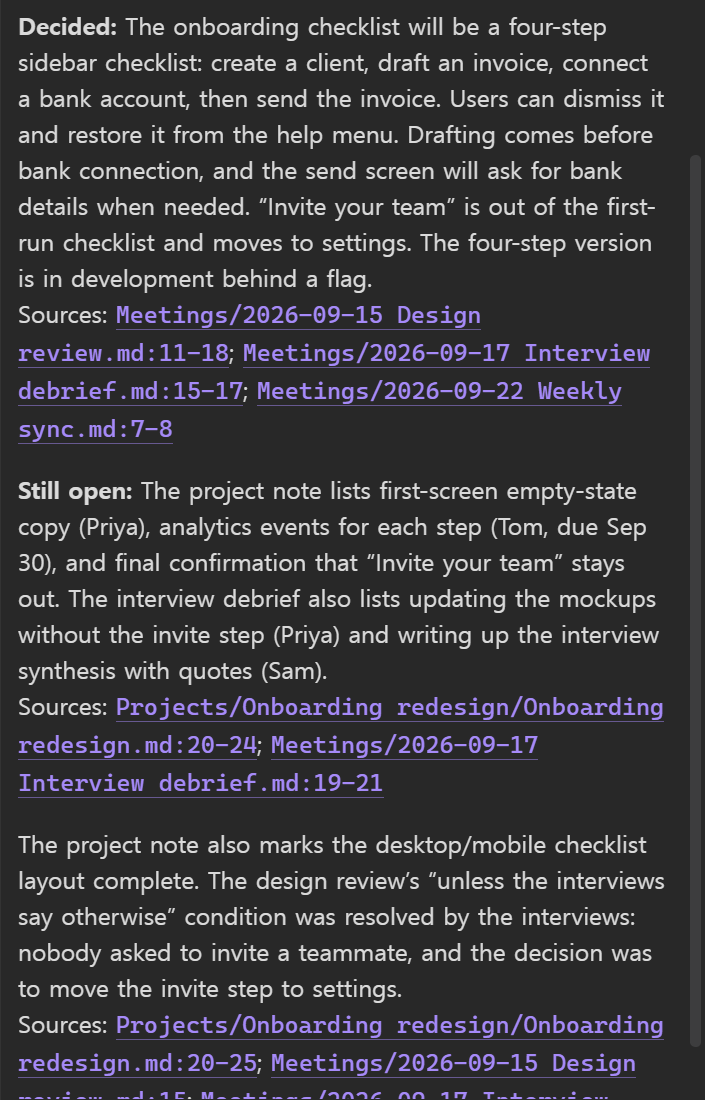
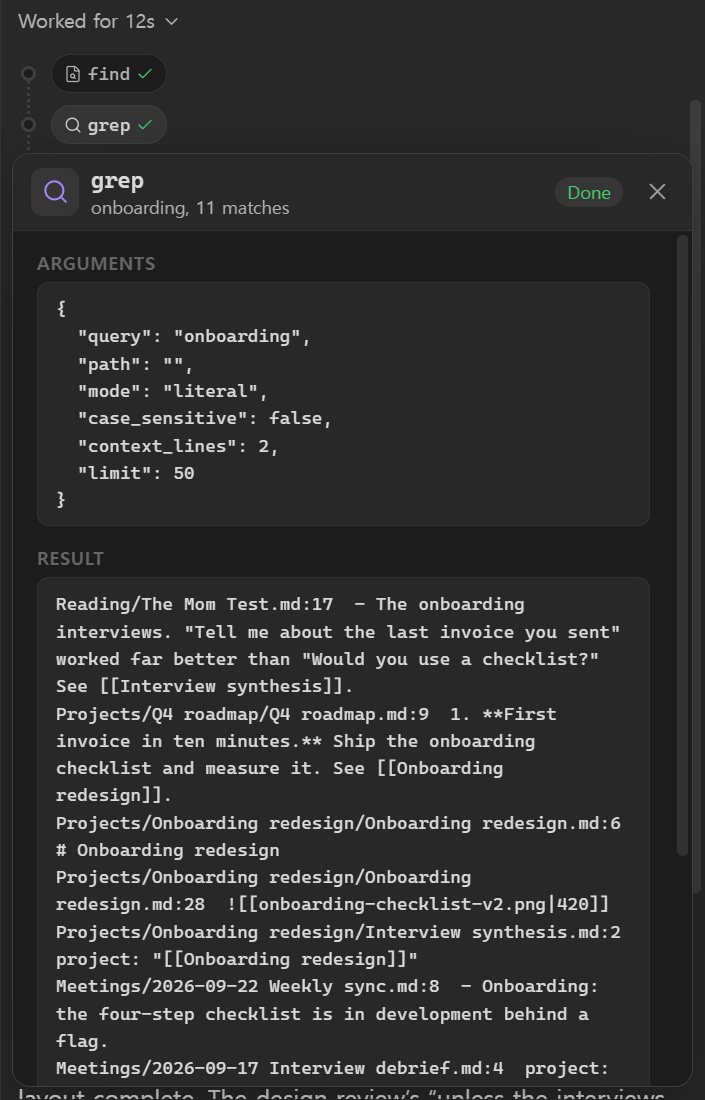
Each request gets one work block. It reads **Working** while the agent works and folds into **Worked for** and the time it took. Unfold it for a timeline: the model's thinking, then each tool call as a chip, with calls that ran in parallel side by side. Select a chip to see its arguments and its result.
### Every step in view
Each request gets one work block. It reads **Working** while the agent works and folds into **Worked for** and the time it took. Unfold it for a timeline: the model's thinking, then each tool call as a chip, with calls that ran in parallel side by side. Select a chip to see its arguments and its result.
 ### Changes wait for your approval
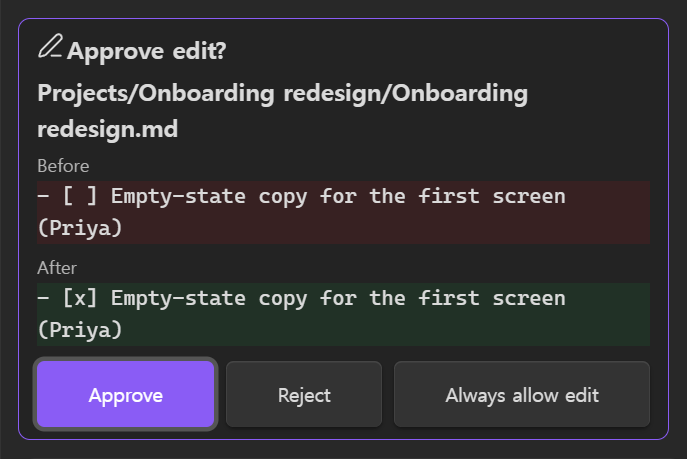
Tools that only read run on their own, several at once. Anything that changes a note or a file, or runs a command, shows a card first: a new note with its full content, an edit as before and after. Approve it, reject it, or allow that tool from now on.
### Changes wait for your approval
Tools that only read run on their own, several at once. Anything that changes a note or a file, or runs a command, shows a card first: a new note with its full content, an edit as before and after. Approve it, reject it, or allow that tool from now on.
 ### Rewind a wrong turn
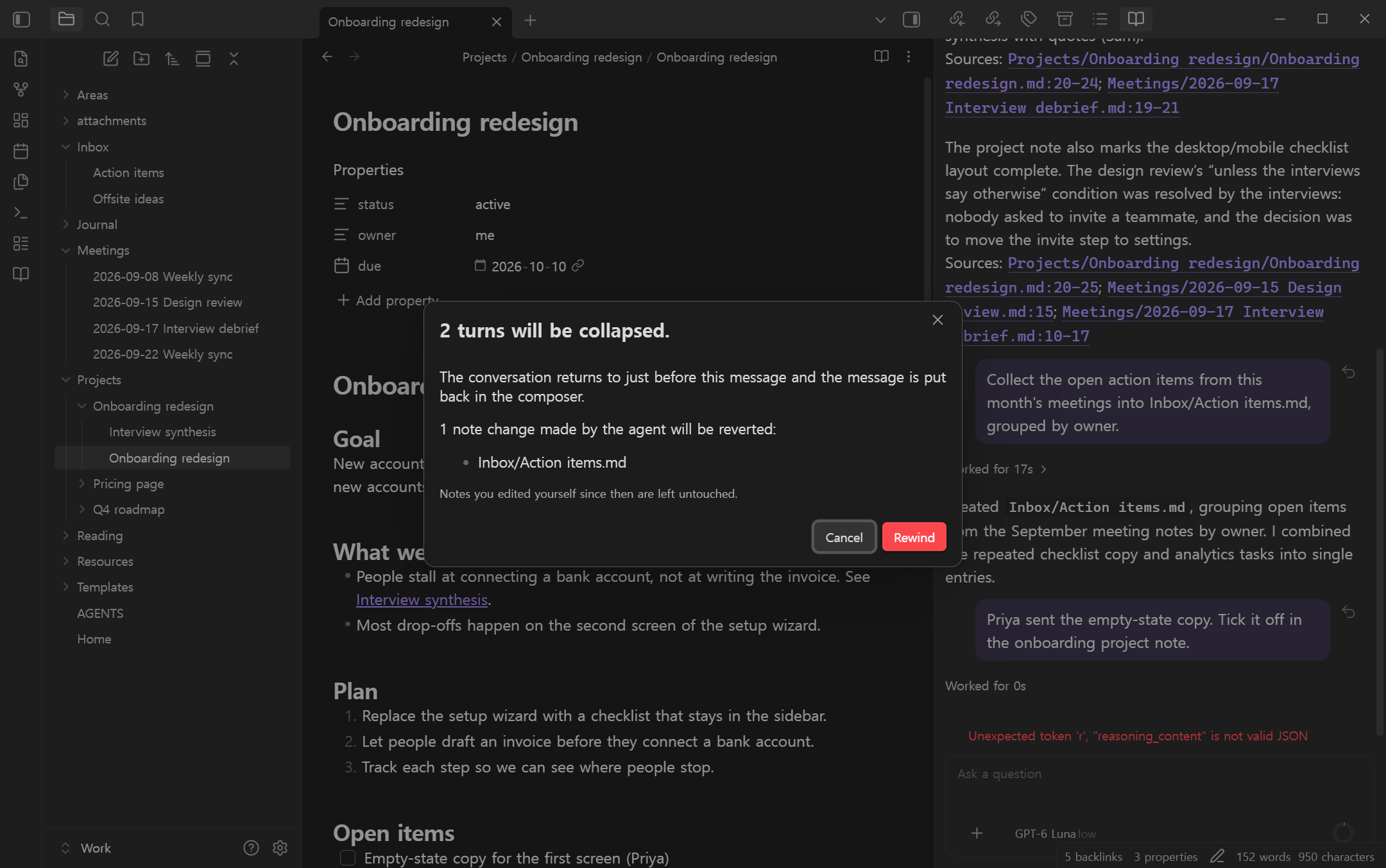
Go back to any earlier message. The turns after it collapse, and the notes the agent created or changed in that span go back to how they were. Notes you edited yourself in the meantime are left alone and listed. The message returns to the composer so you can word it differently.
### Rewind a wrong turn
Go back to any earlier message. The turns after it collapse, and the notes the agent created or changed in that span go back to how they were. Notes you edited yourself in the meantime are left alone and listed. The message returns to the composer so you can word it differently.
 ### On your phone too
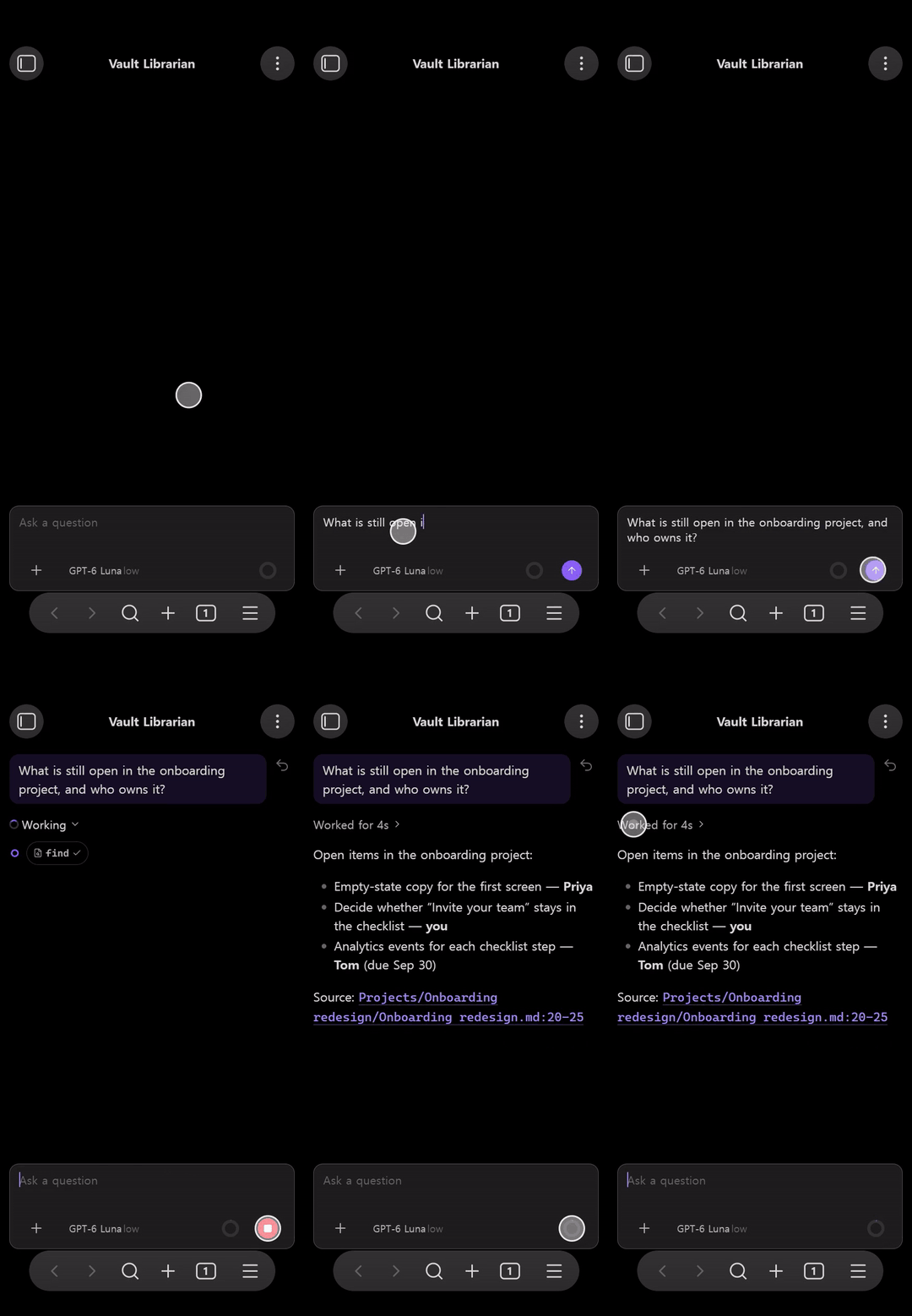
The same plugin runs on iPhone, iPad and Android, and the phone talks to your model provider directly, with nothing to run on a computer. Sessions and settings are files in the plugin folder, so your vault's sync carries them to your other devices. While the agent works, the screen stays on; a request the phone cut off in the background carries on when you come back.
### On your phone too
The same plugin runs on iPhone, iPad and Android, and the phone talks to your model provider directly, with nothing to run on a computer. Sessions and settings are files in the plugin folder, so your vault's sync carries them to your other devices. While the agent works, the screen stays on; a request the phone cut off in the background carries on when you come back.
 ### A shell, the web and Obsidian commands
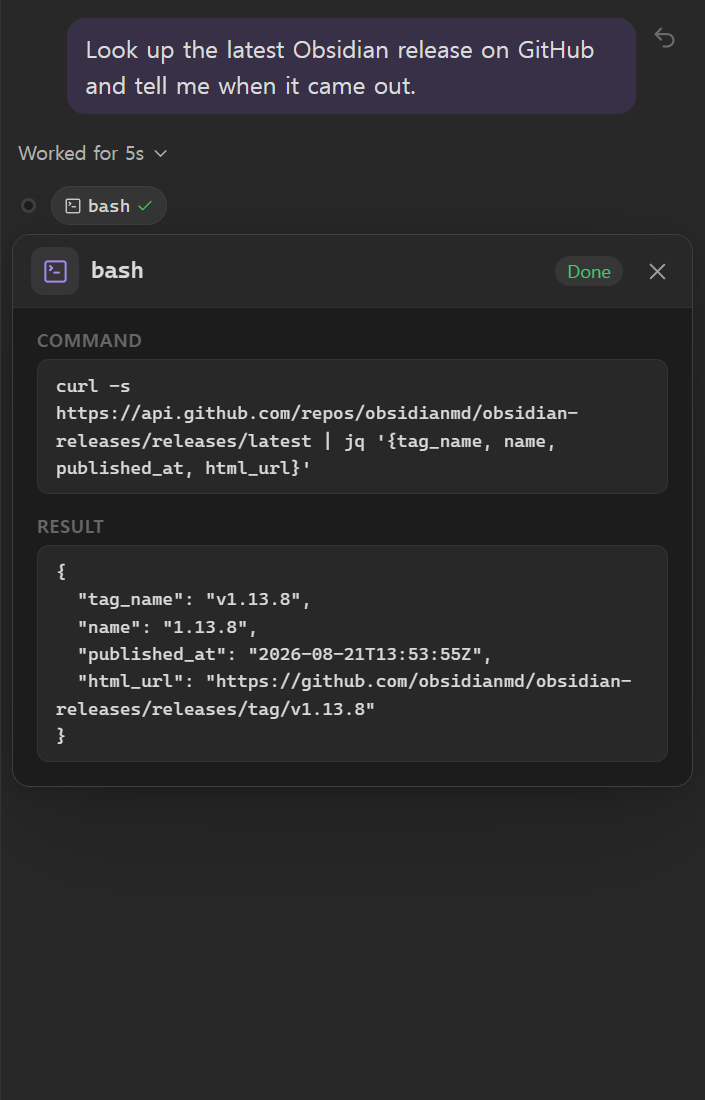
`bash` runs a shell inside Obsidian, not on your computer. The vault is its working folder, so `grep`, `sed`, `awk`, `jq` and the rest work on your notes. `curl` fetches any URL through Obsidian, with no CORS setup and the same on phones, and `obsidian` runs any Obsidian CLI command. Every `bash` call asks first by default, and the card shows the whole command.
### A shell, the web and Obsidian commands
`bash` runs a shell inside Obsidian, not on your computer. The vault is its working folder, so `grep`, `sed`, `awk`, `jq` and the rest work on your notes. `curl` fetches any URL through Obsidian, with no CORS setup and the same on phones, and `obsidian` runs any Obsidian CLI command. Every `bash` call asks first by default, and the card shows the whole command.
 ### Your rules
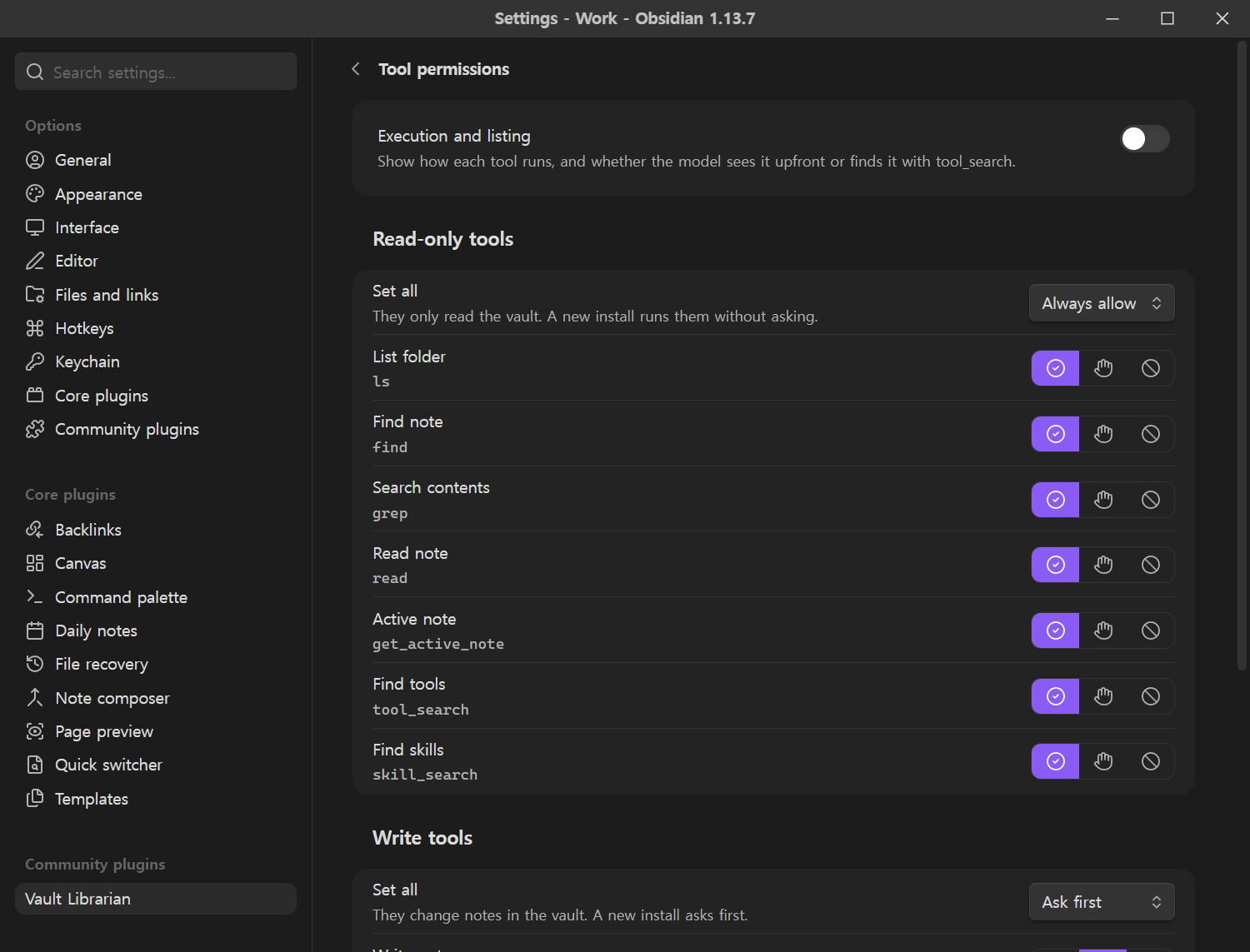
Each tool can be **Always allow**, **Ask first** or **Blocked**, one at a time or a whole group at once. A blocked tool is taken out of the model's tool list and refused again if it is called anyway. An `AGENTS.md` at the vault root is part of the agent's instructions, and so is the `AGENTS.md` of any folder it works in.
### Your rules
Each tool can be **Always allow**, **Ask first** or **Blocked**, one at a time or a whole group at once. A blocked tool is taken out of the model's tool list and refused again if it is called anyway. An `AGENTS.md` at the vault root is part of the agent's instructions, and so is the `AGENTS.md` of any folder it works in.
 ### And more
- **Skills.** Each `.agents/skills/
### And more
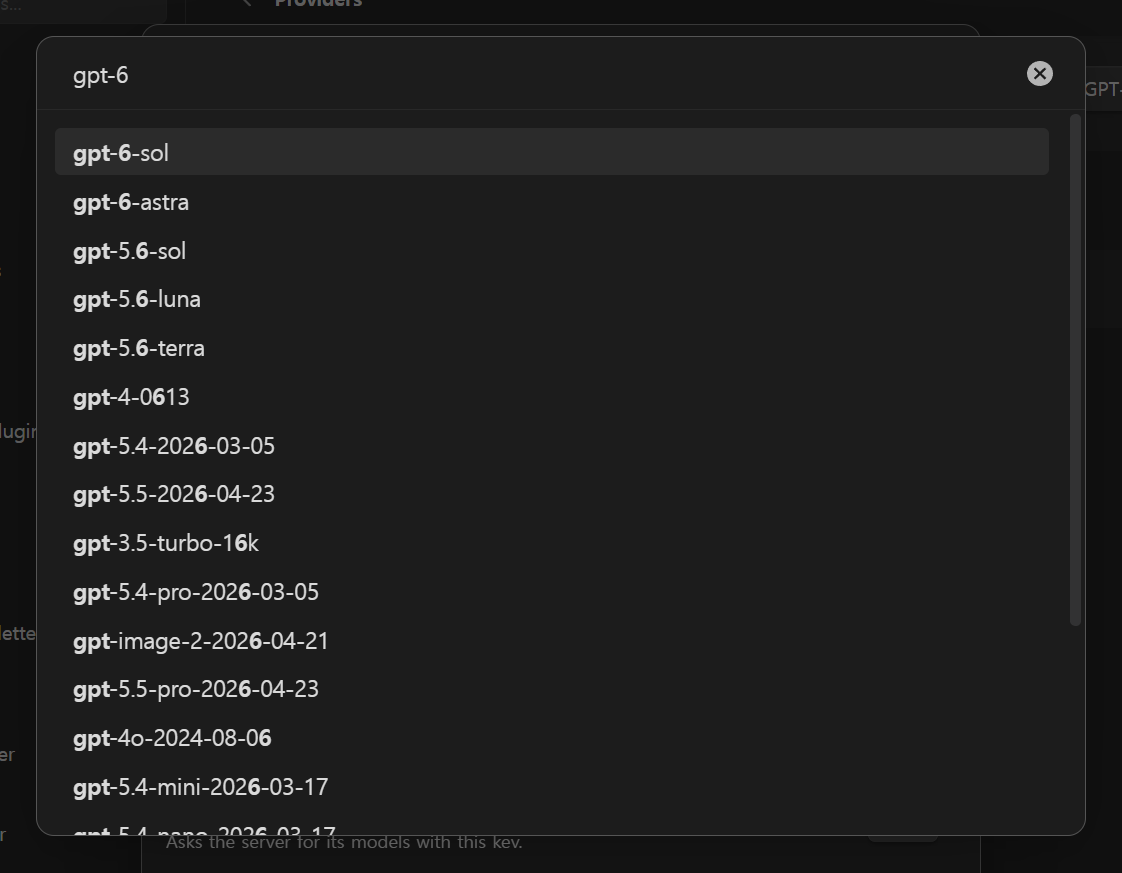
- **Skills.** Each `.agents/skills/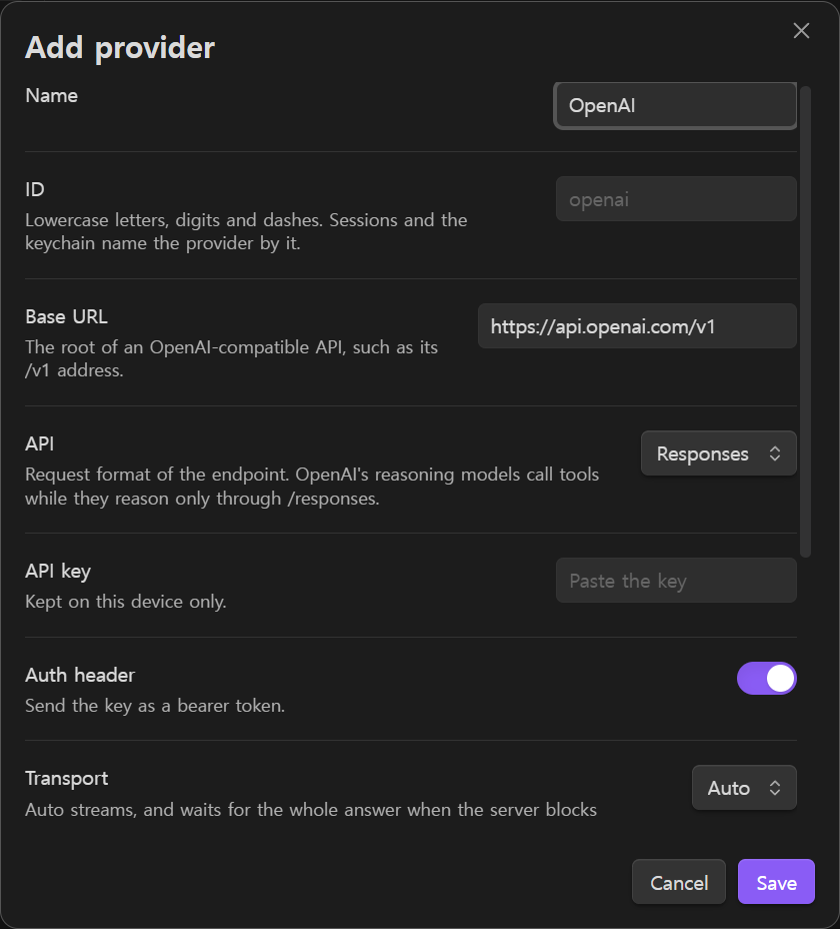 3. **Add a model.** Under **Models**, **Add from server** lists the models the server offers and fills in tool calling, reasoning, image input, the context window, the output limit and the effort levels the model takes. They come from what the server reports, from Ollama for models it serves (also behind Open WebUI), and from Pi's model lists, which name open-weight models by their Hugging Face names for vLLM. **Add model** takes one by hand, and **Detect** in a model's editor fills the same details in again. The model needs tool calling. **Test** next to Connection checks the endpoint before you save.
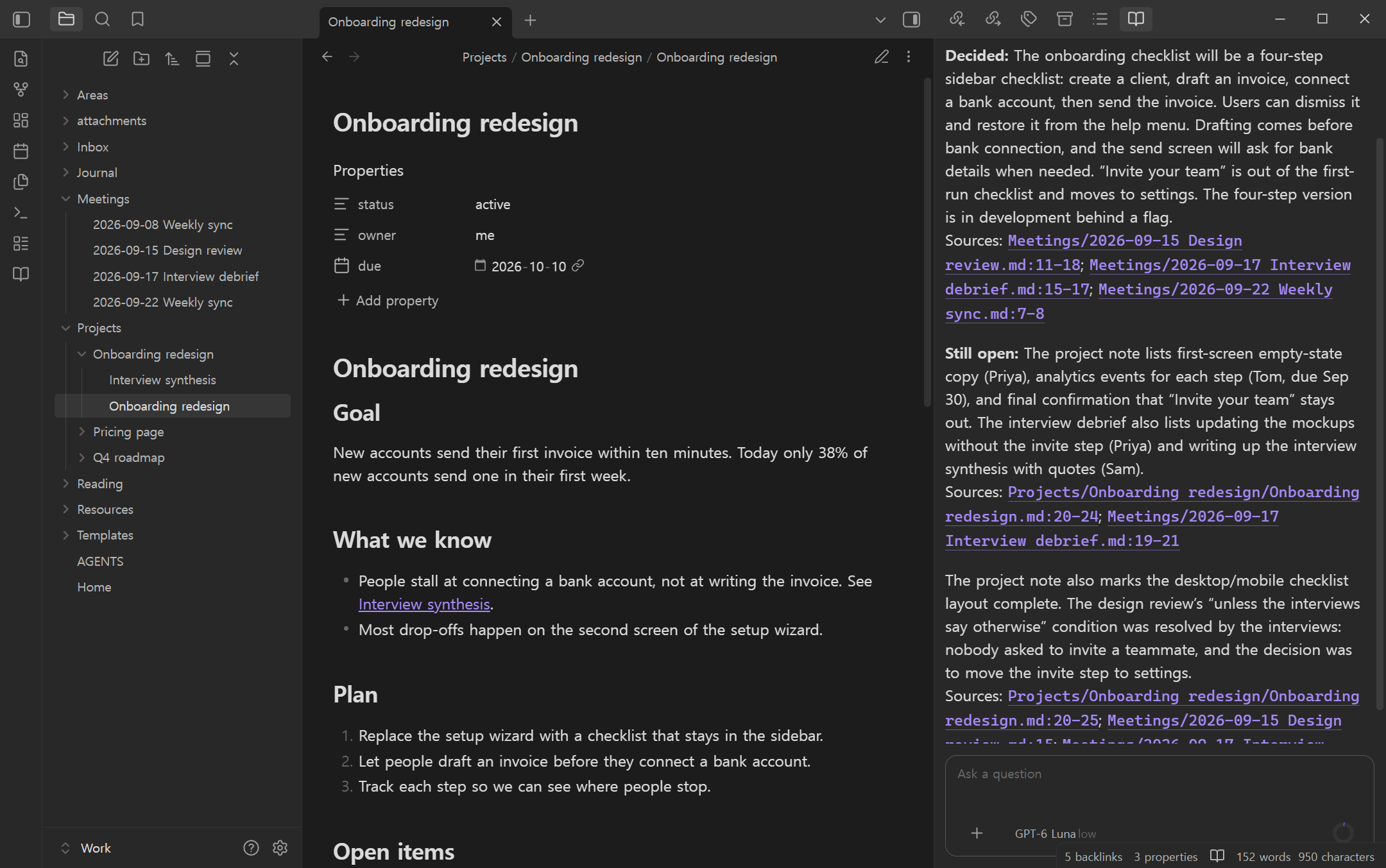
 4. **Ask.** Open the chat from the ribbon icon or the **Open chat** command, and ask about your notes.
 API keys are stored with Obsidian's `SecretStorage`, which is per device. On a new device the chat shows a banner asking for the key, and nothing is sent until it is set. With a sync passphrase under **Device sync**, keys also enter `data.json`, but only sealed (PBKDF2-SHA256 with 600,000 iterations and AES-256-GCM, the same format Google Calendar Tasks Sync uses), so a device without the passphrase cannot read them. MCP sign-ins travel sealed the same way, each device writing its own file under `signins` in the plugin folder, and a device that has a working sign-in keeps its own. Keys never enter the session files.
### Streaming and CORS
`fetch` streaming needs the server to allow the origins Obsidian uses: `app://obsidian.md` on desktop, `capacitor://localhost` on iOS, `http://localhost` on Android. If it does not, keep the transport on **Auto**: the first failed request switches the provider to Obsidian's `requestUrl` for the rest of the session. Or set the transport to **Non-streaming (Obsidian)** for good.
### Compatibility settings
OpenAI-compatible servers differ in the details. The provider and model editors expose the same compatibility flags as Pi's `models.json` (`supportsReasoningEffort`, `maxTokensField`, `thinkingFormat` and so on), and a model can use another API than its provider. Model-level values override provider-level ones. The chat offers the effort levels a model's **Thinking level map** allows, and a level the model does not take moves to the nearest one it does, on the model button as in the request.
## Commands
| Command | What it does |
| --- | --- |
| Open chat | Opens the chat, in the right sidebar unless **Open chat in** says otherwise (full screen on phones) |
| Open chat in right sidebar | Opens the chat in the right sidebar |
| Open chat in main area | Opens the chat as a tab |
| Open chat in new tab | Opens one more chat as a tab, on a new session |
| New session | Starts a new conversation; one at work keeps running |
| Open session history | Lists conversations, the ones at work on top |
| Compact context | Compacts the current conversation into a summary now |
| Add active note to prompt | Attaches the note you are viewing to your next message |
In the composer, `/` lists the slash commands: `/new`, `/history`, `/compact`, `/note`, `/model`, `/thinking`, `/skill`, `/settings` and `/help`. `@` attaches a note or a folder.
## Privacy
The plugin talks to the endpoints you configure: the model provider, and any MCP server or WebDAV storage you add. When **Add from server** or **Detect** meets a model that Open WebUI takes from Ollama's cloud, it asks `ollama.com/api/show` about that model by name, without your key. Note contents reach the model provider when the agent reads them, or when you attach a note or an image yourself. On a new install the tools that only read run without asking, so the agent can read notes it finds on its own, list and read the WebDAV storage, and call an MCP server's read tools with arguments it chose, such as a search query taken from your notes. Set the **Read-only tools** group, the **WebDAV storage** group or a server's group to **Ask first** to approve each call. Files reach the WebDAV storage only through the storage tools that change it, which ask first by default. The shell's `curl` is the exception: it sends a request to whatever URL the agent chooses, including URLs it found in notes or web pages, and a request can carry note contents. By default every `bash` call asks first, and its card shows the whole command, URL included. Set `bash` to **Always allow** only if you are comfortable with the agent browsing on its own: it then reaches any URL and runs any Obsidian command without asking. Header values such as `Authorization` are masked on screen but are sent as written and stay in the session file. There is no telemetry.
The `find` and `grep` tools enumerate Markdown notes to search the vault; a folder restriction narrows the search results. They run only after the tool's permission check (Always allow by default on a new install). Opening the image picker enumerates vault file paths locally so you can choose an image. It sends only the image you attach, not the complete file list. Vault enumeration is necessary for these features and may be reported on the community scorecard.
When enabled, the vault-root `AGENTS.md` is included in the system prompt sent to your configured endpoint. Search results can include note paths and excerpts. Signing in to an MCP server on desktop opens a listener on `127.0.0.1` for the few minutes the browser takes to come back, then closes it; on a phone the sign-in returns through an `obsidian://` link. No files outside the vault are read, except on the WebDAV storage you connect, and the temporary PNG that `obsidian dev:screenshot` has Obsidian write and the plugin then moves into the shell and deletes. A screenshot, like `dev:dom`, holds whatever the window shows. The shell sees the vault and its own scratch space, never the rest of your disk, and has no way to reach the network except through `curl`.
## Development
```bash
npm install
npm run dev # watch build
npm run build # type check and production bundle
npm run lint # Biome and ESLint (eslint-plugin-obsidianmd)
npm test # vitest
```
The agent loop is `@earendil-works/pi-agent-core`; the OpenAI-compatible adapter is `@earendil-works/pi-ai`. Both are pinned. Commits follow Conventional Commits (enforced by commitlint through prek) and releases are cut by release-please.
The media in this README are recorded from the demo vault in [`docs/demo`](docs/demo). After a UI change, `npm run build && node docs/demo/record.mjs` records them again; the script's header lists what it needs. The tour video at the top is `docs/media/tour.mp4` uploaded to GitHub by dropping it into an issue comment box, since a README plays only videos uploaded that way: upload the new file the same way and replace the address.
Found a bug or want something? [Open an issue](https://github.com/PubCyBerry/obsidian-vault-librarian/issues/new/choose).
## License
MIT
API keys are stored with Obsidian's `SecretStorage`, which is per device. On a new device the chat shows a banner asking for the key, and nothing is sent until it is set. With a sync passphrase under **Device sync**, keys also enter `data.json`, but only sealed (PBKDF2-SHA256 with 600,000 iterations and AES-256-GCM, the same format Google Calendar Tasks Sync uses), so a device without the passphrase cannot read them. MCP sign-ins travel sealed the same way, each device writing its own file under `signins` in the plugin folder, and a device that has a working sign-in keeps its own. Keys never enter the session files.
### Streaming and CORS
`fetch` streaming needs the server to allow the origins Obsidian uses: `app://obsidian.md` on desktop, `capacitor://localhost` on iOS, `http://localhost` on Android. If it does not, keep the transport on **Auto**: the first failed request switches the provider to Obsidian's `requestUrl` for the rest of the session. Or set the transport to **Non-streaming (Obsidian)** for good.
### Compatibility settings
OpenAI-compatible servers differ in the details. The provider and model editors expose the same compatibility flags as Pi's `models.json` (`supportsReasoningEffort`, `maxTokensField`, `thinkingFormat` and so on), and a model can use another API than its provider. Model-level values override provider-level ones. The chat offers the effort levels a model's **Thinking level map** allows, and a level the model does not take moves to the nearest one it does, on the model button as in the request.
## Commands
| Command | What it does |
| --- | --- |
| Open chat | Opens the chat, in the right sidebar unless **Open chat in** says otherwise (full screen on phones) |
| Open chat in right sidebar | Opens the chat in the right sidebar |
| Open chat in main area | Opens the chat as a tab |
| Open chat in new tab | Opens one more chat as a tab, on a new session |
| New session | Starts a new conversation; one at work keeps running |
| Open session history | Lists conversations, the ones at work on top |
| Compact context | Compacts the current conversation into a summary now |
| Add active note to prompt | Attaches the note you are viewing to your next message |
In the composer, `/` lists the slash commands: `/new`, `/history`, `/compact`, `/note`, `/model`, `/thinking`, `/skill`, `/settings` and `/help`. `@` attaches a note or a folder.
## Privacy
The plugin talks to the endpoints you configure: the model provider, and any MCP server or WebDAV storage you add. When **Add from server** or **Detect** meets a model that Open WebUI takes from Ollama's cloud, it asks `ollama.com/api/show` about that model by name, without your key. Note contents reach the model provider when the agent reads them, or when you attach a note or an image yourself. On a new install the tools that only read run without asking, so the agent can read notes it finds on its own, list and read the WebDAV storage, and call an MCP server's read tools with arguments it chose, such as a search query taken from your notes. Set the **Read-only tools** group, the **WebDAV storage** group or a server's group to **Ask first** to approve each call. Files reach the WebDAV storage only through the storage tools that change it, which ask first by default. The shell's `curl` is the exception: it sends a request to whatever URL the agent chooses, including URLs it found in notes or web pages, and a request can carry note contents. By default every `bash` call asks first, and its card shows the whole command, URL included. Set `bash` to **Always allow** only if you are comfortable with the agent browsing on its own: it then reaches any URL and runs any Obsidian command without asking. Header values such as `Authorization` are masked on screen but are sent as written and stay in the session file. There is no telemetry.
The `find` and `grep` tools enumerate Markdown notes to search the vault; a folder restriction narrows the search results. They run only after the tool's permission check (Always allow by default on a new install). Opening the image picker enumerates vault file paths locally so you can choose an image. It sends only the image you attach, not the complete file list. Vault enumeration is necessary for these features and may be reported on the community scorecard.
When enabled, the vault-root `AGENTS.md` is included in the system prompt sent to your configured endpoint. Search results can include note paths and excerpts. Signing in to an MCP server on desktop opens a listener on `127.0.0.1` for the few minutes the browser takes to come back, then closes it; on a phone the sign-in returns through an `obsidian://` link. No files outside the vault are read, except on the WebDAV storage you connect, and the temporary PNG that `obsidian dev:screenshot` has Obsidian write and the plugin then moves into the shell and deletes. A screenshot, like `dev:dom`, holds whatever the window shows. The shell sees the vault and its own scratch space, never the rest of your disk, and has no way to reach the network except through `curl`.
## Development
```bash
npm install
npm run dev # watch build
npm run build # type check and production bundle
npm run lint # Biome and ESLint (eslint-plugin-obsidianmd)
npm test # vitest
```
The agent loop is `@earendil-works/pi-agent-core`; the OpenAI-compatible adapter is `@earendil-works/pi-ai`. Both are pinned. Commits follow Conventional Commits (enforced by commitlint through prek) and releases are cut by release-please.
The media in this README are recorded from the demo vault in [`docs/demo`](docs/demo). After a UI change, `npm run build && node docs/demo/record.mjs` records them again; the script's header lists what it needs. The tour video at the top is `docs/media/tour.mp4` uploaded to GitHub by dropping it into an issue comment box, since a README plays only videos uploaded that way: upload the new file the same way and replace the address.
Found a bug or want something? [Open an issue](https://github.com/PubCyBerry/obsidian-vault-librarian/issues/new/choose).
## License
MIT