
 |
|  |
| 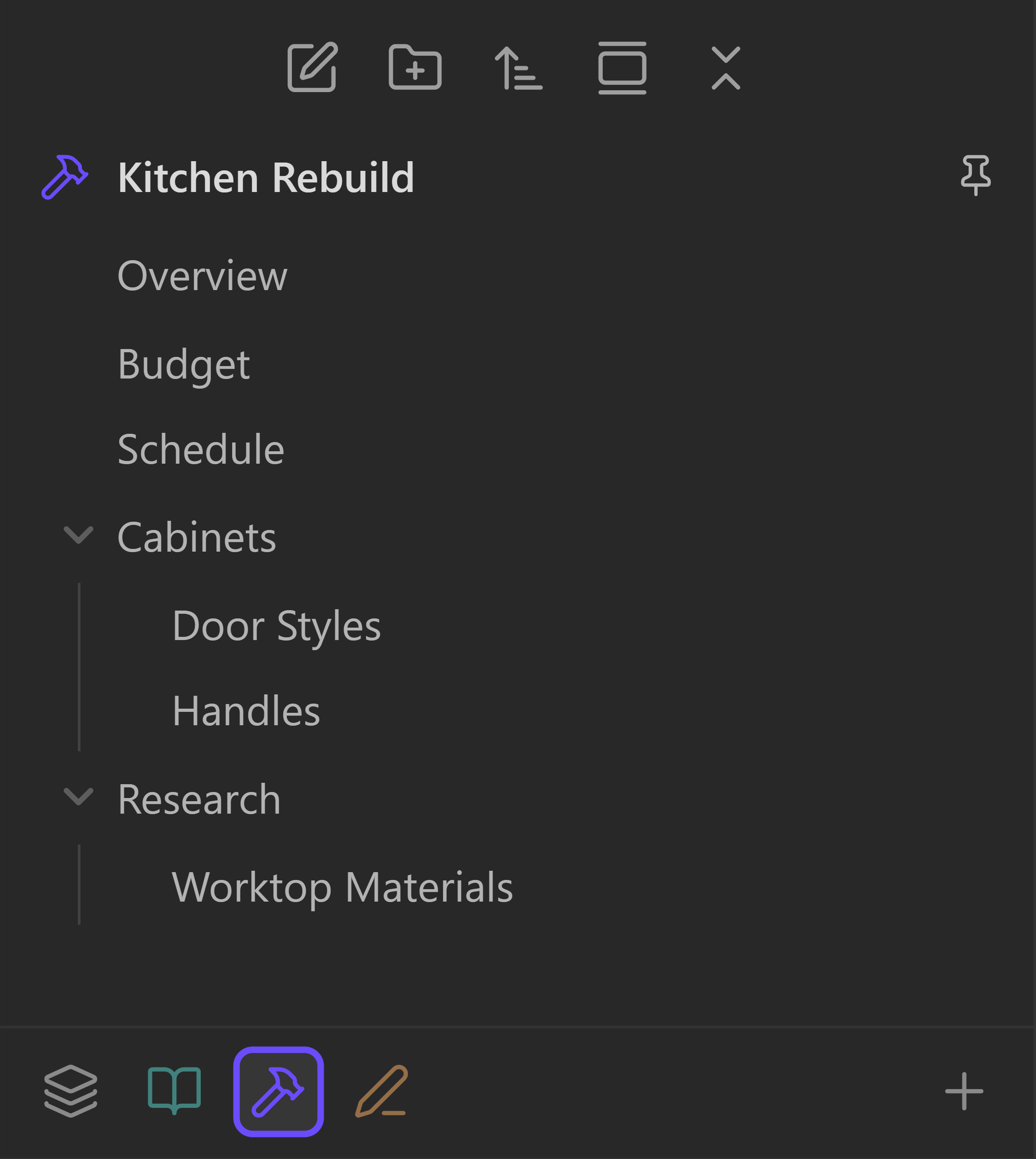 |
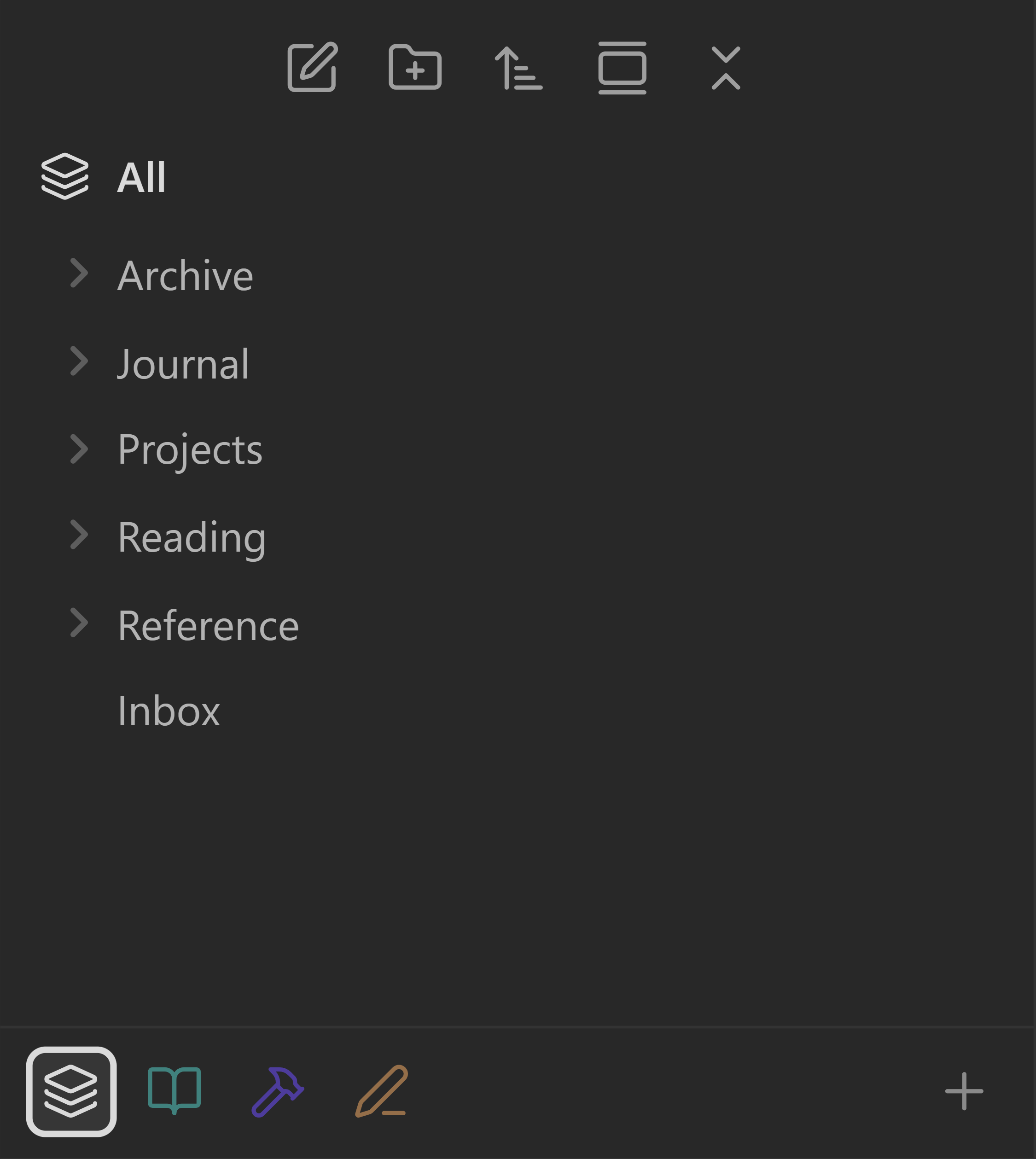
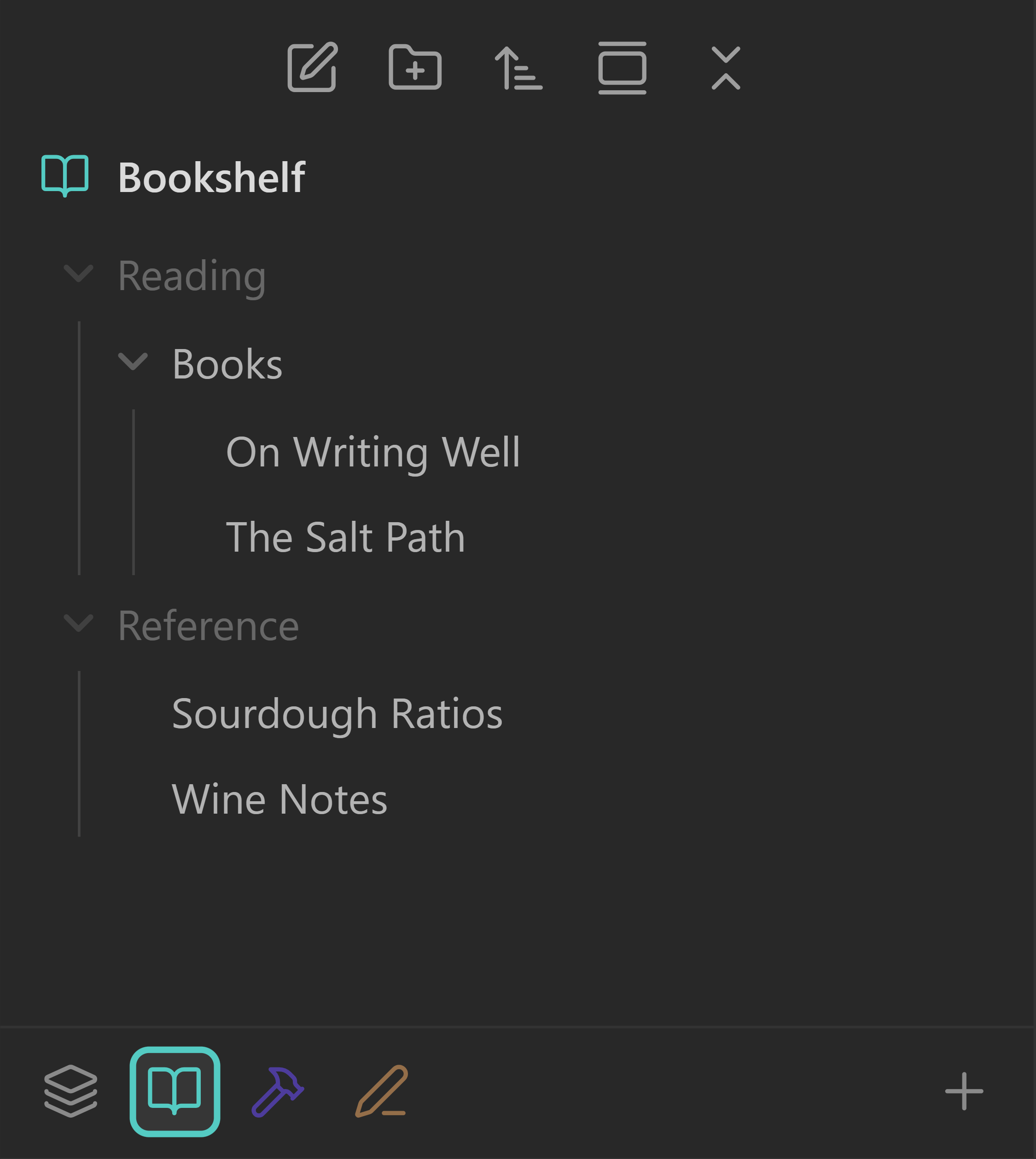
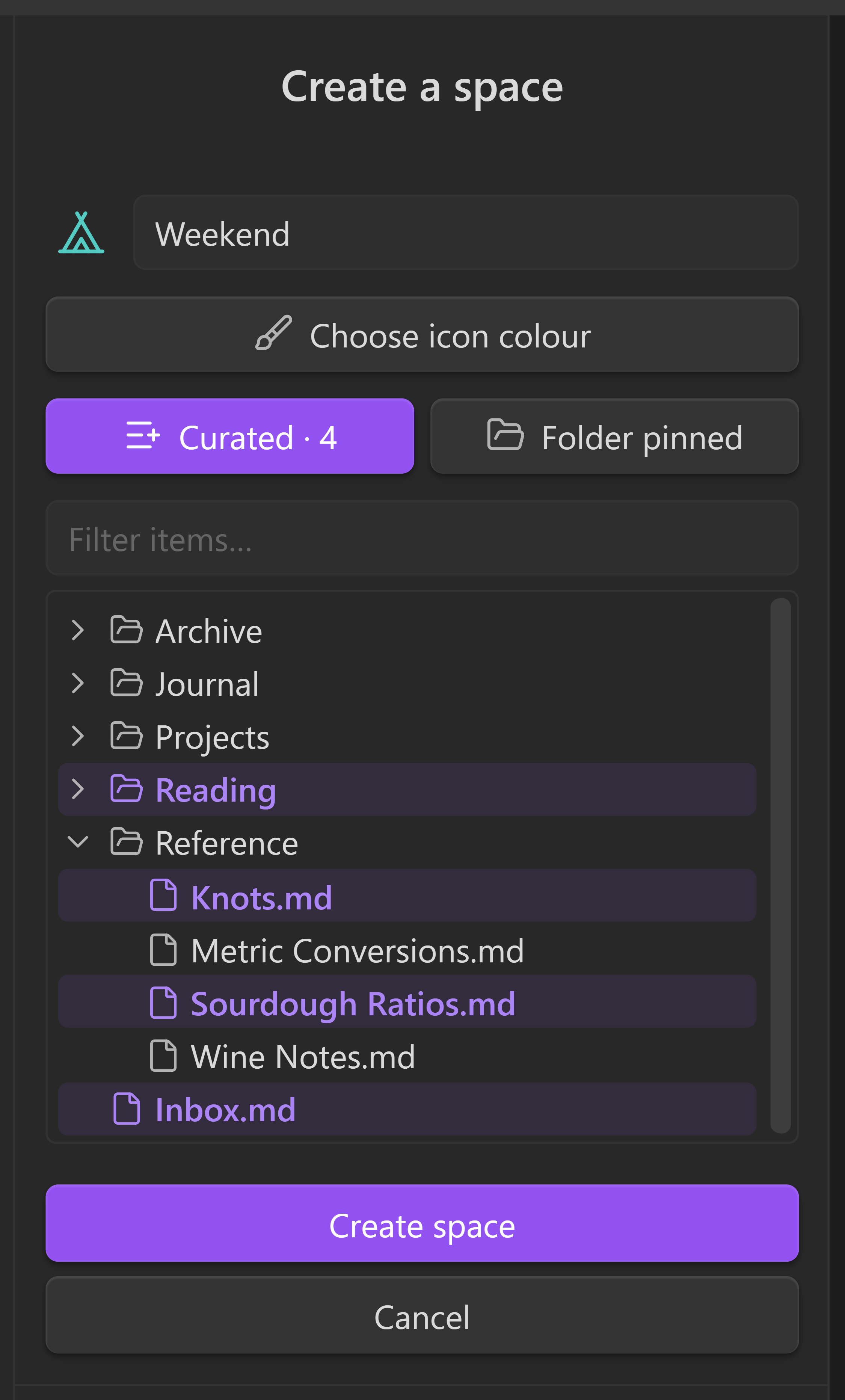
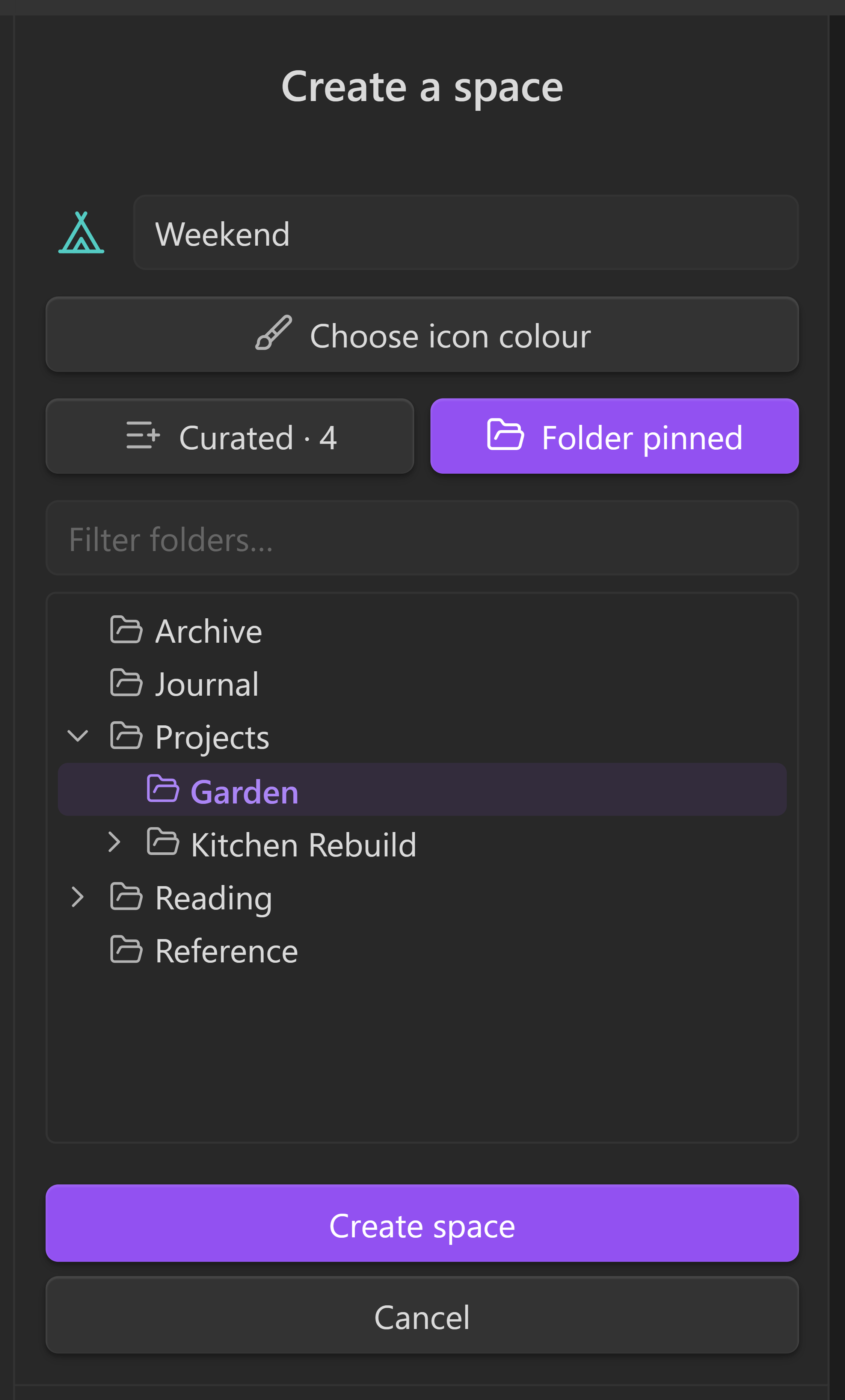
Same vault, same notes, same paths. Only what the explorer shows changes. **All** is Obsidian's own tree, untouched. A **curated space** contains one or more arbitrary item(s) you picked. A **folder pinned space** contains the children of a chosen folder: creating a new note or folder here creates it under that folder's real path.
Navigate spaces by either:
- Clicking a space icon in the space strip
- Clicking your space's icon at the top of the space view
- Using the command palette
## Two kinds of space
**Curated spaces** hold notes and folders you pick by hand. Add a folder and everything inside it comes along; the parent folders needed to reach your files appear dimmed, as scaffolding rather than members.
**Folder pinned spaces** are a live window onto a single folder. Its contents appear at the top level of the explorer, the folder itself is hidden, and anything you later add to that folder shows up without you doing anything. New notes created while you are in the space land in that folder.
A space's type is fixed when you create it: a curated space can never become a folder pinned space, or the reverse.
## How Spaces differs from Workspaces
Obsidian's core **Workspaces** plugin saves and restores *layouts* (which panes, tabs and sidebars are open) and you save and load them by name. It does not change what the file explorer shows.
Spaces works the other way round: it filters the explorer, so picking a space changes which notes and folders exist on screen. Tabs follow as a consequence of switching rather than something you save by hand.
The two overlap on tabs, so Spaces defers. If the core Workspaces plugin is enabled, Spaces stops restoring tabs, says so once, and leaves layouts to Workspaces. Filtering carries on as normal, and the setting you chose is left exactly as you set it.
## Additional features
**Remembers your tabs, if you ask it to.** Turn on **Restore tabs when switching spaces** and each space keeps its own tab layout and sidebar state. It is off by default, so switching moves the file tree and leaves your panes where they are.
**Lets you open anything.** Open a note that is not in the current space and it appears anyway, dimmed and italic, as a *visitor*. Links never lead to nowhere. Visitors last as long as you keep them open in a tab.
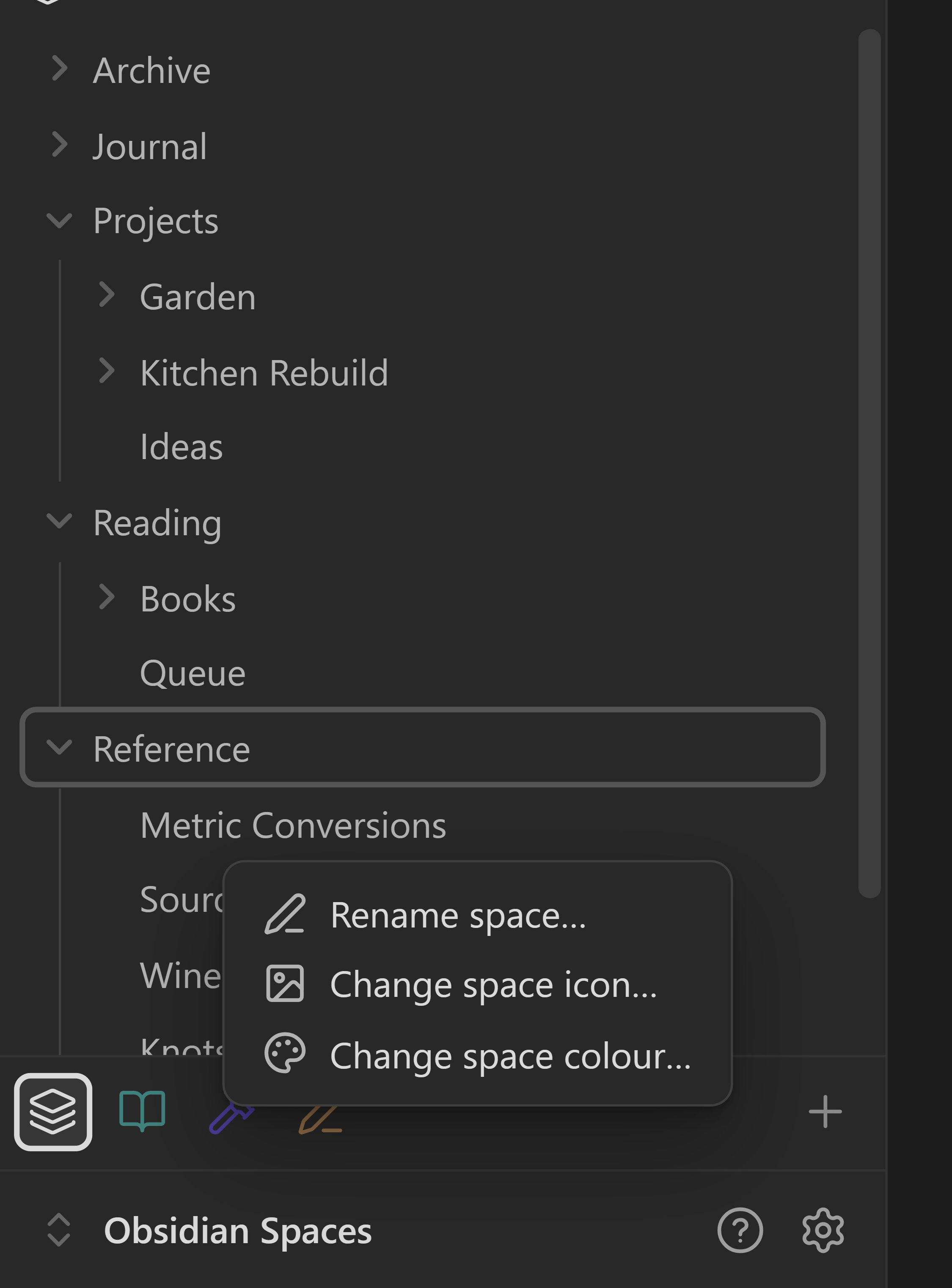
**Reorder as you see fit.** Drag rows in the tree to arrange them, remembered separately for each space. Drag the icons in the space strip to reorder your spaces.
**Puts finished spaces away.** Archive a space instead of deleting it, and restore it later with its notes, folders and order intact. See [Archiving](#archiving).
## Requirements
- **Obsidian 1.13.0 or later**
- **Desktop only.** The manifest declares `isDesktopOnly: true`, so Obsidian does not offer the plugin on mobile
Mobile support is on the roadmap. Two things stand in the way today: reordering rides Obsidian's own HTML5 drag events, which never fire from a touch gesture, and the filtering works against the desktop file explorer's DOM, which mobile lays out differently. Both are solvable, neither is verified on a phone yet, and the manifest stays honest about that until they are.
## Installing
Build Spaces from a local copy of this repository:
npm install
npm run build
Then copy `main.js`, `manifest.json` and `styles.css` into `
|
Same vault, same notes, same paths. Only what the explorer shows changes. **All** is Obsidian's own tree, untouched. A **curated space** contains one or more arbitrary item(s) you picked. A **folder pinned space** contains the children of a chosen folder: creating a new note or folder here creates it under that folder's real path.
Navigate spaces by either:
- Clicking a space icon in the space strip
- Clicking your space's icon at the top of the space view
- Using the command palette
## Two kinds of space
**Curated spaces** hold notes and folders you pick by hand. Add a folder and everything inside it comes along; the parent folders needed to reach your files appear dimmed, as scaffolding rather than members.
**Folder pinned spaces** are a live window onto a single folder. Its contents appear at the top level of the explorer, the folder itself is hidden, and anything you later add to that folder shows up without you doing anything. New notes created while you are in the space land in that folder.
A space's type is fixed when you create it: a curated space can never become a folder pinned space, or the reverse.
## How Spaces differs from Workspaces
Obsidian's core **Workspaces** plugin saves and restores *layouts* (which panes, tabs and sidebars are open) and you save and load them by name. It does not change what the file explorer shows.
Spaces works the other way round: it filters the explorer, so picking a space changes which notes and folders exist on screen. Tabs follow as a consequence of switching rather than something you save by hand.
The two overlap on tabs, so Spaces defers. If the core Workspaces plugin is enabled, Spaces stops restoring tabs, says so once, and leaves layouts to Workspaces. Filtering carries on as normal, and the setting you chose is left exactly as you set it.
## Additional features
**Remembers your tabs, if you ask it to.** Turn on **Restore tabs when switching spaces** and each space keeps its own tab layout and sidebar state. It is off by default, so switching moves the file tree and leaves your panes where they are.
**Lets you open anything.** Open a note that is not in the current space and it appears anyway, dimmed and italic, as a *visitor*. Links never lead to nowhere. Visitors last as long as you keep them open in a tab.
**Reorder as you see fit.** Drag rows in the tree to arrange them, remembered separately for each space. Drag the icons in the space strip to reorder your spaces.
**Puts finished spaces away.** Archive a space instead of deleting it, and restore it later with its notes, folders and order intact. See [Archiving](#archiving).
## Requirements
- **Obsidian 1.13.0 or later**
- **Desktop only.** The manifest declares `isDesktopOnly: true`, so Obsidian does not offer the plugin on mobile
Mobile support is on the roadmap. Two things stand in the way today: reordering rides Obsidian's own HTML5 drag events, which never fire from a touch gesture, and the filtering works against the desktop file explorer's DOM, which mobile lays out differently. Both are solvable, neither is verified on a phone yet, and the manifest stays honest about that until they are.
## Installing
Build Spaces from a local copy of this repository:
npm install
npm run build
Then copy `main.js`, `manifest.json` and `styles.css` into `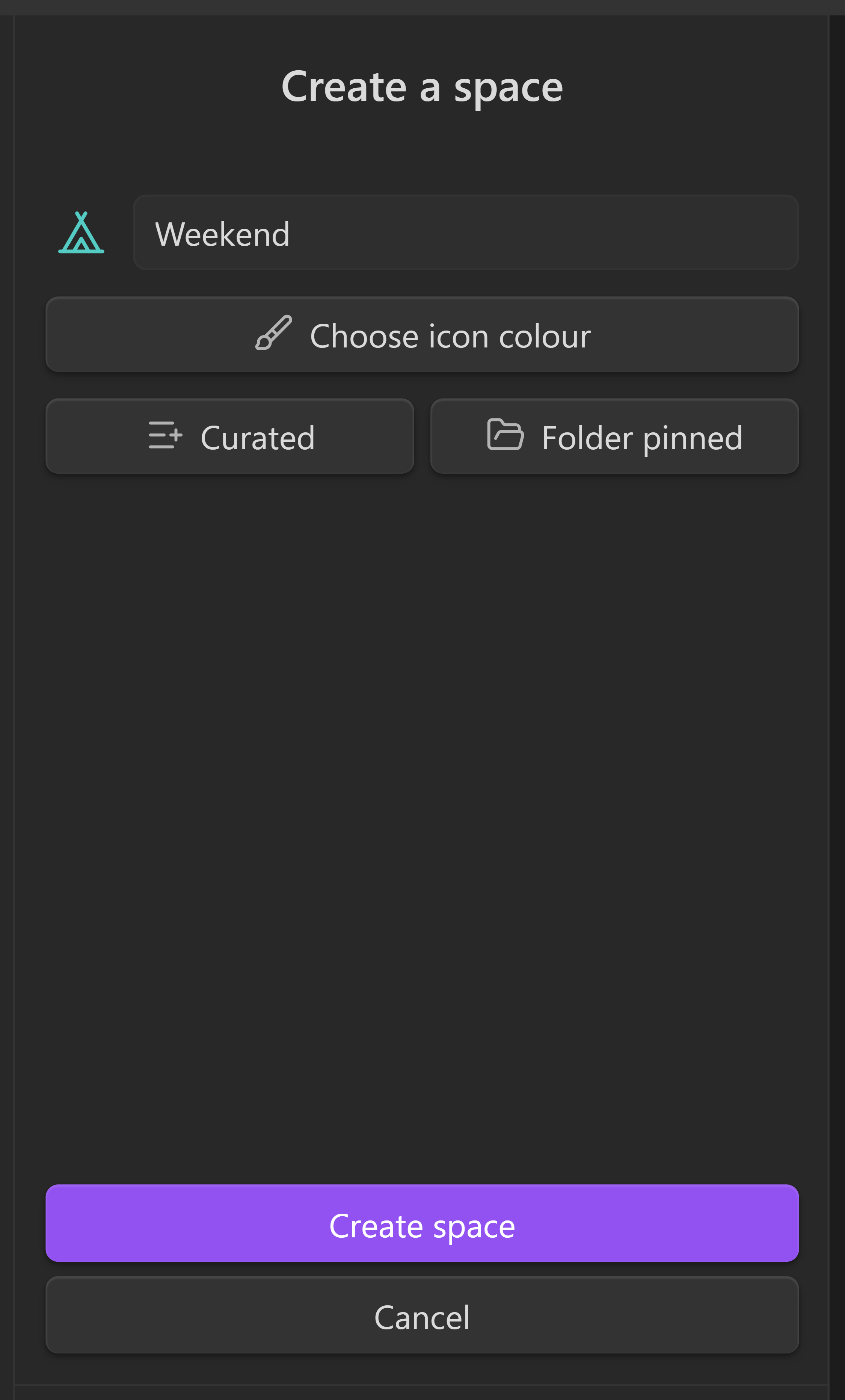 |
|  |
|  |
Click **All** to leave the space and see the whole vault again.
## Adding and removing things later
Drag a note or folder from the file tree onto a space's icon in the strip to add it to that space. Select several and they all go in together. The icon marks itself while you hover, so the one that lights is the one that will take the drop, and a notice afterwards says what was added. Nothing moves on disk: the note stays exactly where it is and the space gains a member.
When Spaces can see that your selection runs past the edge of the file tree's view, it declines the drop and says so. Select fewer notes and folders, then drag again.
A space pinned to a folder declines the drop and says why. It shows that folder's contents rather than a member list, so there is nothing for a drop to add to. To put a note inside that folder, use Obsidian's own "Move file to...".
The drag needs a pointer. In **All**, the context menu below does the same job from the keyboard. Inside a space the menu acts on that space alone, so dragging is the only way to put a note into a different space without switching spaces first.
Right-click a row in the file tree:
- In **All**, **Add to space** offers each of your spaces.
- Inside a space, `Remove from
|
Click **All** to leave the space and see the whole vault again.
## Adding and removing things later
Drag a note or folder from the file tree onto a space's icon in the strip to add it to that space. Select several and they all go in together. The icon marks itself while you hover, so the one that lights is the one that will take the drop, and a notice afterwards says what was added. Nothing moves on disk: the note stays exactly where it is and the space gains a member.
When Spaces can see that your selection runs past the edge of the file tree's view, it declines the drop and says so. Select fewer notes and folders, then drag again.
A space pinned to a folder declines the drop and says why. It shows that folder's contents rather than a member list, so there is nothing for a drop to add to. To put a note inside that folder, use Obsidian's own "Move file to...".
The drag needs a pointer. In **All**, the context menu below does the same job from the keyboard. Inside a space the menu acts on that space alone, so dragging is the only way to put a note into a different space without switching spaces first.
Right-click a row in the file tree:
- In **All**, **Add to space** offers each of your spaces.
- Inside a space, `Remove from 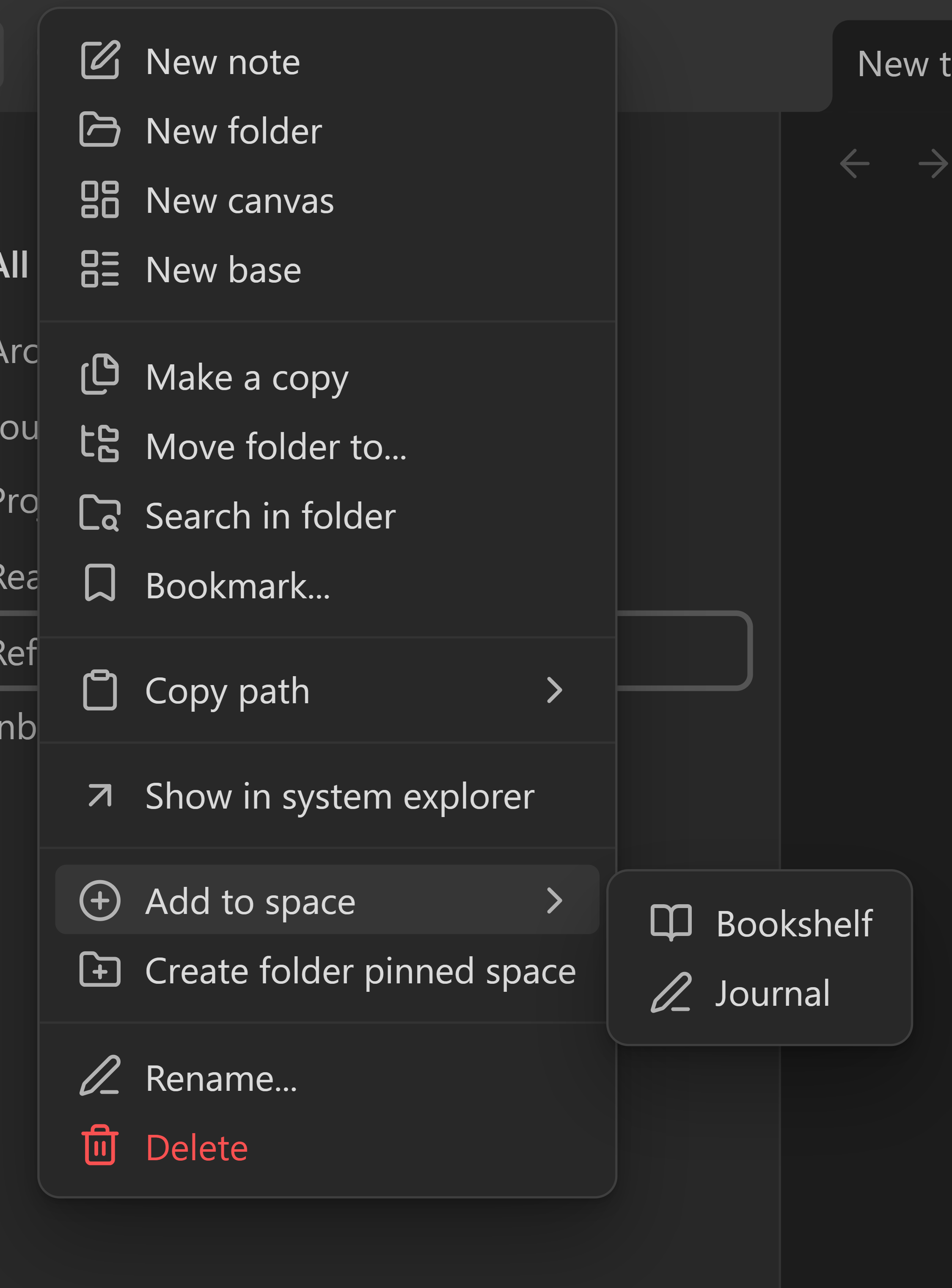 |
|  |
Only spaces that can take the row are offered: a folder pinned space is a window onto its own folder, so it never appears in **Add to space**.
## Tags
A curated space can hold a tag as well as notes and folders. Every note carrying the tag appears in the space, wherever it lives in your vault.
To add one:
- In the creation form, switch the picker from **Vault** to **Tags** and click a tag.
- On an existing space, open Settings → Spaces, click **Contents…** beside the space, and type the tag under **Add a tag**.
Nested tags match. A space holding `project` includes notes tagged `project/atlas` and `project/atlas/phase-1`. A space holding `project/atlas` includes only that tag and the tags nested under it.
Add the tag to a note and it appears, change or delete the tag and it leaves. Tags written in a note's properties and tags written in its text both count.
A tag leaves out any note whose path matches **Ignored paths** under Settings → Spaces → Preferences. To show one of them anyway, add that note to the space yourself. A note you add by hand is shown whatever the ignore list says.
To drop a single note without dropping the tag, right-click it inside the space and choose `Remove from
|
Only spaces that can take the row are offered: a folder pinned space is a window onto its own folder, so it never appears in **Add to space**.
## Tags
A curated space can hold a tag as well as notes and folders. Every note carrying the tag appears in the space, wherever it lives in your vault.
To add one:
- In the creation form, switch the picker from **Vault** to **Tags** and click a tag.
- On an existing space, open Settings → Spaces, click **Contents…** beside the space, and type the tag under **Add a tag**.
Nested tags match. A space holding `project` includes notes tagged `project/atlas` and `project/atlas/phase-1`. A space holding `project/atlas` includes only that tag and the tags nested under it.
Add the tag to a note and it appears, change or delete the tag and it leaves. Tags written in a note's properties and tags written in its text both count.
A tag leaves out any note whose path matches **Ignored paths** under Settings → Spaces → Preferences. To show one of them anyway, add that note to the space yourself. A note you add by hand is shown whatever the ignore list says.
To drop a single note without dropping the tag, right-click it inside the space and choose `Remove from 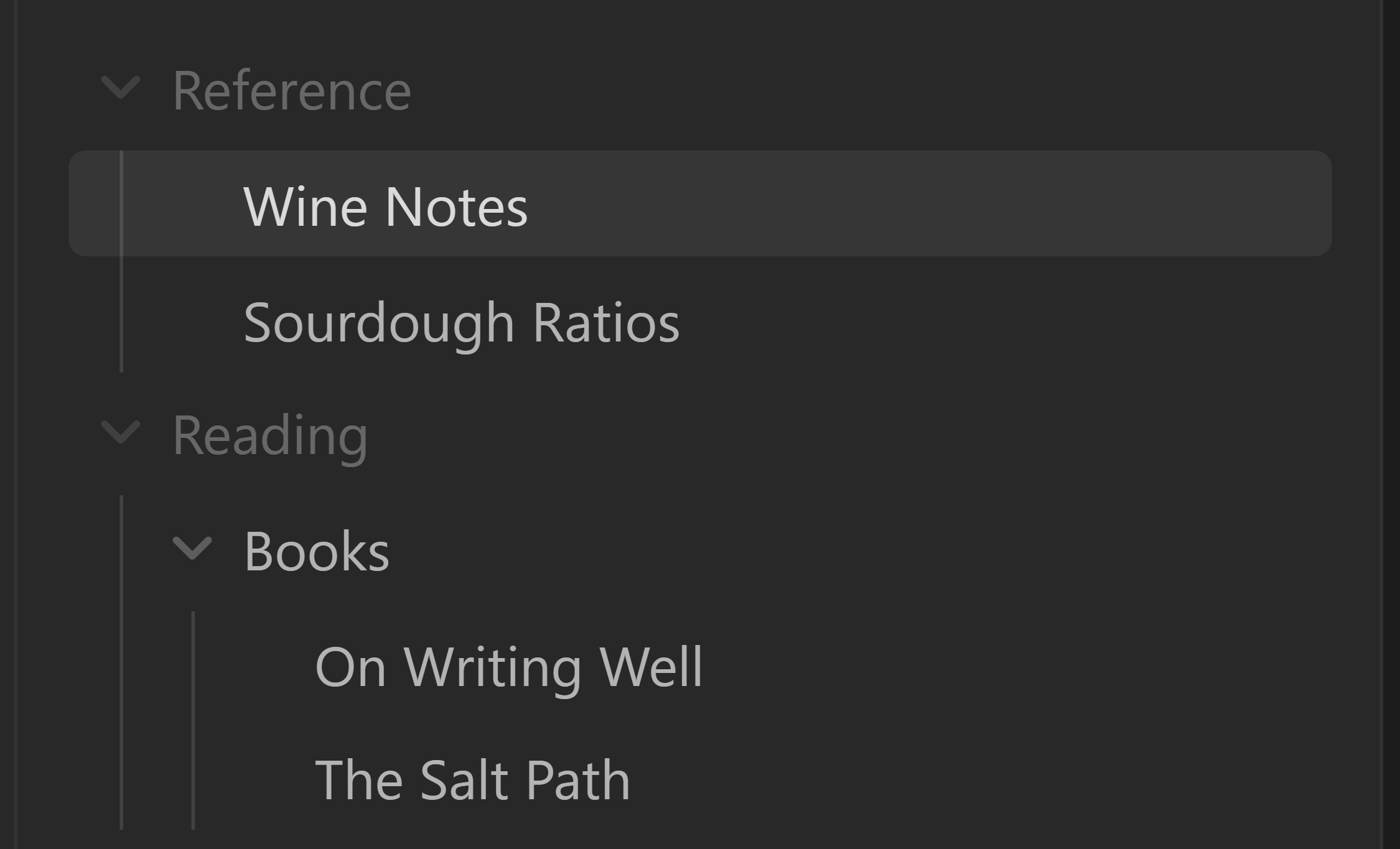 |
|  |
| 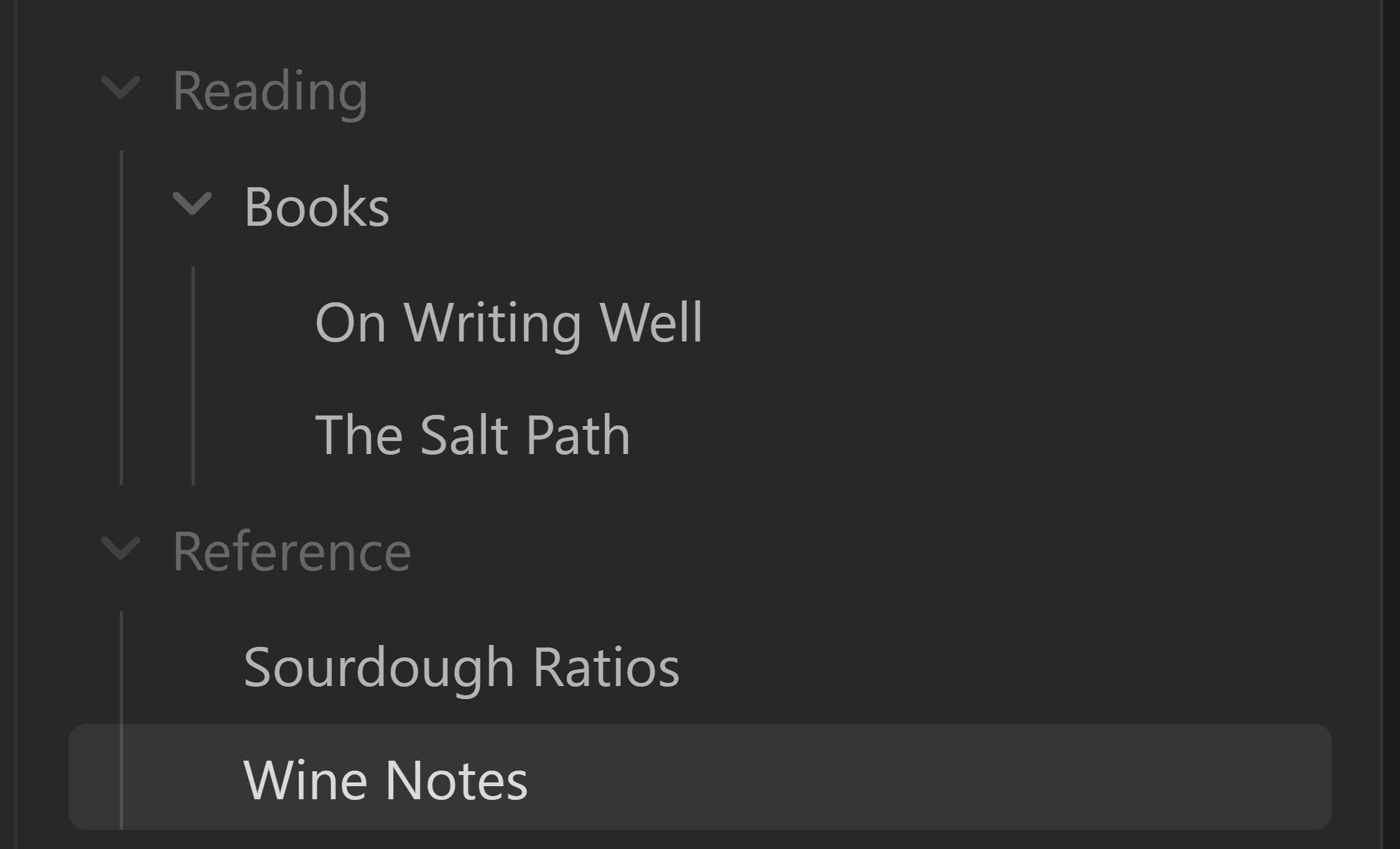 |
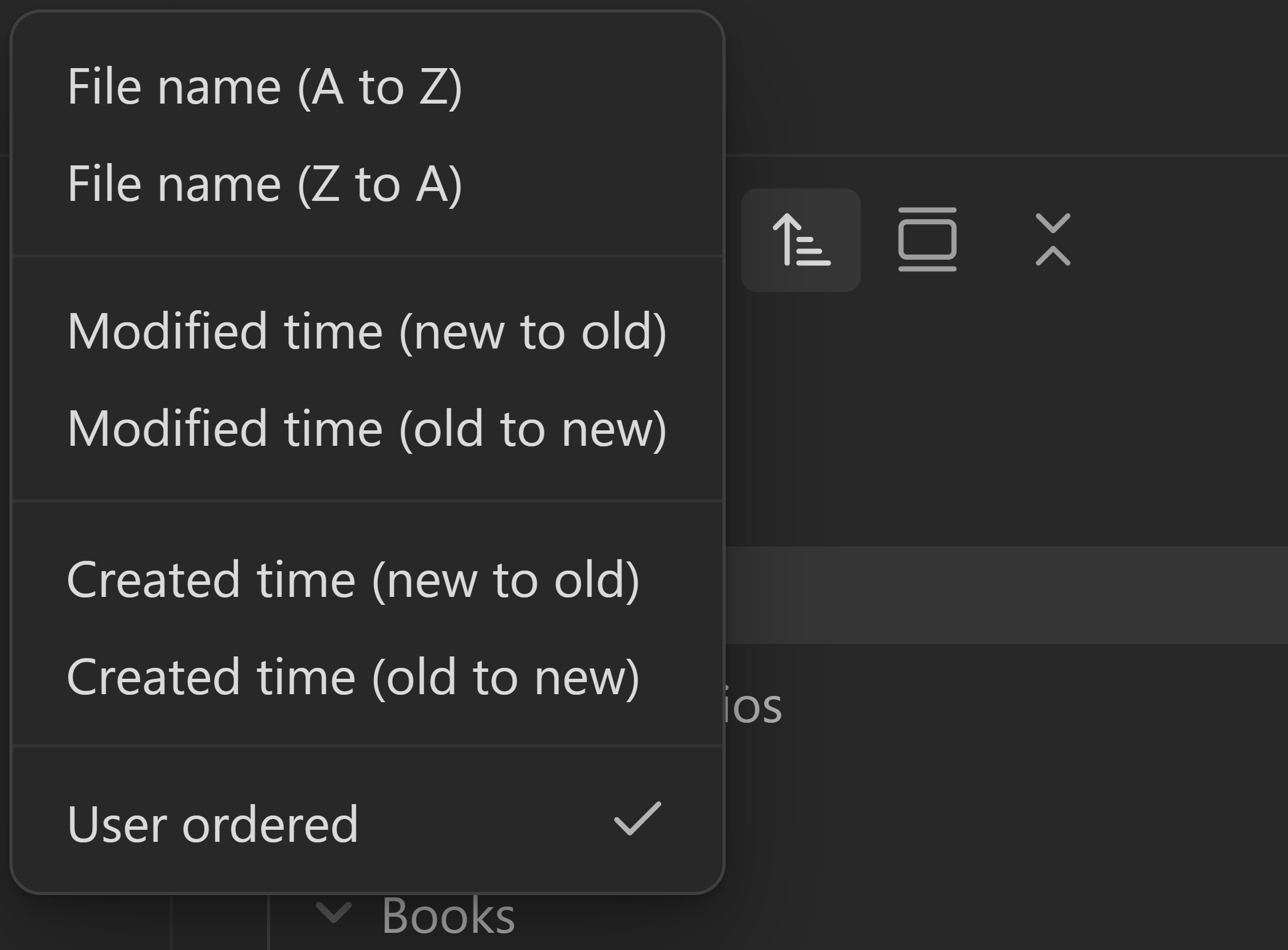
Spaces adds **User ordered** to that menu as a seventh mode, ticked when your saved order is what you are looking at. Picking it is one of three ways back:
- **User ordered** in the sort menu. It appears once the space has an order to return to, so a space you have never dragged a row in will not show it.
- **Restore saved ordering** on the right-click menu of a space's icon in the strip.
- The **Restore saved ordering** command, which also covers **All**.
Two things worth knowing:
**Which mode is Obsidian's, not the space's.** What Spaces remembers per space is whether to show your order or Obsidian's sort. The sort mode itself is Obsidian's single setting, so putting one space in A to Z and another in modified-time at the same time is not something this can do. One space on your order and another on Obsidian's sort works fine.
**Your orders sync; the choice between them does not.** Saved orders live in `data.json` and travel with your vault. Which spaces are currently showing Obsidian's sort is local to each device, so the same space can show your order on one machine and Obsidian's sort on another.
While a space is showing Obsidian's sort, dragging rows in it is switched off, and Spaces says so once rather than silently ignoring the drag.
## Space strip placement
The space strip can sit along the bottom of the file explorer, which is the default, or move to the top, left or right.
Left and right show it as a full height vertical ribbon down the side of the pane.
Top puts it between Obsidian's own toolbar row and the space header. Obsidian's toolbar stays above the strip in every placement.
Placement is saved per vault in `data.json`, so it survives a restart and travels with the vault.
There are three ways to change it, and all three go through the same setter, so a hotkey, the dropdown and a drag can never disagree about where the strip ends up.
**The Space strip position dropdown**, in Settings → Appearance, sets it directly.
**Four commands** in the palette, `Move the space strip to the top/bottom/left/right`, do the same without opening Settings.
**Dragging** moves it by hand, but only once you ask for it.
The strip stays locked most of the time. Locked is the default, and it is also always the state you find it in after a restart, whatever it was left at before. Locked shows no handle and no extra chrome at all.
Run **Unlock the space strip** and a grab handle appears at the strip's leading edge, pushing **All** and the rest of the icons along to make room for it. Drag the handle toward an edge and the region the strip would occupy there lights up; release over it to drop the strip in place. Run **Lock the space strip** to end the mode and hide the handle again, or right-click the handle and choose **Lock the space strip** from there instead.
The palette only ever offers one half of that pair at a time: **Unlock the space strip** while it is locked, **Lock the space strip** while it is unlocked, never both.
The lock is a mode, not a setting. It lives only for as long as Obsidian is open, is deliberately absent from Settings, and always starts locked again the next time Obsidian loads the plugin.
## Commands
All available from the command palette, and bindable to hotkeys.
| Command | What it does |
|---|---|
| Switch to All | Leaves the active space and shows the whole vault |
| Switch to space | Opens a search box; type a space's name to switch to it |
| Next space / Previous space | Cycles through your spaces |
| Create space | Opens the creation form in the explorer pane |
| New note in active space | Creates a note, in the pinned folder if the space has one |
| New folder in active space | Creates a folder, in the pinned folder if the space has one |
| Add active file to space | Adds the file you are editing to a space you choose |
| Pause or resume space filtering | Releases the explorer entirely, showing Obsidian's own unfiltered tree |
| Restore saved ordering | Returns to your own row order after switching to one of Obsidian's sort modes (see [Sorting](#sorting)) |
| Move the space strip to the top / bottom / left / right | Repositions the space strip, the same as the Space strip position setting below |
| Unlock the space strip | Shows a grab handle for moving the strip by hand |
| Lock the space strip | Hides the grab handle again |
## Settings
Settings → Spaces has three pages. **Appearance** holds the settings that change how the explorer looks; **Preferences** holds the behavioral ones; **Spaces** lists your spaces, where you can rename one, review its members, archive it, or delete it. Every setting here is findable from Obsidian's own settings search.
| Setting | Default | What it controls |
|---|---|---|
| Show the space name above the file tree | On | A header row naming the active space |
| Mark folder pinned spaces with a pin | Off | Adds a pin to that header for a folder pinned space; hover it for the folder |
| All stays at the left of the space strip | Off | Keeps **All** in place while the other icons scroll |
| Space strip position | Bottom | Where the strip of space icons sits in the file explorer. Left and right show it as a vertical ribbon |
| Active space style | Shaded | How the strip marks the space you are in. Shaded shades it the way your theme shades a selected row, Boxed adds an outline in the space's color, Bolded draws the icon at a heavier weight and no shading |
| Assign a color to new spaces | On | New spaces take the next palette color. Off, they start neutral and you pick |
| Drag indicator | Box | How the file pane shows where a dragged row will land. Box opens a gap between the rows and fills it. Line draws a thin rule at the boundary and moves nothing |
| Use theme colors for space icons | Off | Draws every space icon in your theme's icon color. Your saved colors are kept and come back when you turn it off |
| Show notes you open that are not in this space | On | Whether visitors appear. Off, a non-member note you open stays hidden |
| Ignored paths | Empty | One glob per line, hidden from every space. `*` matches within a path segment, `**` across segments. A tag or a property leaves out what is listed here. A note you add by hand is still shown, and so is a note you have open |
| Allow reordering a space's notes and folders | On | Whether dragging rows rearranges them inside a space |
| Allow reordering outside spaces | On | The same, for **All** |
| Restore tabs when switching spaces | Off | Whether each space restores its own tabs. On, switching also rearranges your panes; off changes nothing about which rows are visible |
| Compact folder chains | Off | Draws a chain of folders that leads to a single folder as one row named for the folders it replaces (see below) |
| Shorten long compacted paths | On | Drops leading folders from a compacted path that is too wide for the file explorer, with two dots in their place |
A space that gathers notes from across your vault shows the folders they live in, so one note several folders deep costs several rows. Turn on **Compact folder chains** under Settings → Appearance, and a chain of folders that leads to a single folder draws as one row named for the folders it replaces, such as `Work/Clients/Northwind`. Folders you added to the space yourself always keep their own row.
The compacted row is the deepest folder with a longer label, so collapsing it, its context menu and dropping onto it all act on that folder. The setting is vault-wide.
A row whose path is wider than the file explorer drops its leading folders, one at a time, until the rest fits. `Research/2026/Q4/Projects/Atlas/Design/Decisions` reads `../Q4/Projects/Atlas/Design/Decisions` in a pane that is a little too narrow and `../Design/Decisions` in a much narrower one, and the row names the full path when you hover it. Widen the file explorer and the folders come back as soon as they fit. Turn **Shorten long compacted paths** off to always draw the whole path.
## Your files and your data
Spaces never creates, renames, moves or deletes notes as part of managing a space. The two creation commands above make files because you asked them to; everything else only changes what the explorer shows.
Spaces, settings and saved row orders live in `data.json` inside the plugin's own folder. Tab layouts and the selected space are kept in Obsidian's local storage for the vault.
The plugin makes no network requests. A test (`tests/noNetwork.test.ts`) scans the source for `fetch`, `requestUrl` and socket calls and asserts there are none, and that the plugin ships no runtime dependencies.
## Limitations
- One active space per window, applied to every file-explorer leaf.
- A space's kind is fixed at creation: a curated space cannot become folder pinned, or the reverse.
- Dragging to reorder rows or spaces needs a pointer; both gestures stand down on touch.
- Dropping notes and folders on a space icon needs a pointer too. The file explorer's context menu offers "Add to space" in **All**; inside a space it offers only that space, so adding to a different one from the keyboard means switching spaces first.
- A space pinned to a folder does not take the drop at all, because it has no member list. Use Obsidian's own "Move file to..." to put a note inside its folder.
- The item picker in the creation form draws at most 200 rows at a time and tells you how many more matched. Keep typing to narrow it.
## Development
npm install
npx tsc --noEmit # strict type check
npx vitest run # the test suite
npm run build # type check, then bundle to main.js
## Support
If Spaces earns a place in your vault: [Ko-fi](https://ko-fi.com/psjdev) for a one-off, or [GitHub Sponsors](https://github.com/sponsors/psjdev).
## License
MIT. See [LICENSE](LICENSE).
|
Spaces adds **User ordered** to that menu as a seventh mode, ticked when your saved order is what you are looking at. Picking it is one of three ways back:
- **User ordered** in the sort menu. It appears once the space has an order to return to, so a space you have never dragged a row in will not show it.
- **Restore saved ordering** on the right-click menu of a space's icon in the strip.
- The **Restore saved ordering** command, which also covers **All**.
Two things worth knowing:
**Which mode is Obsidian's, not the space's.** What Spaces remembers per space is whether to show your order or Obsidian's sort. The sort mode itself is Obsidian's single setting, so putting one space in A to Z and another in modified-time at the same time is not something this can do. One space on your order and another on Obsidian's sort works fine.
**Your orders sync; the choice between them does not.** Saved orders live in `data.json` and travel with your vault. Which spaces are currently showing Obsidian's sort is local to each device, so the same space can show your order on one machine and Obsidian's sort on another.
While a space is showing Obsidian's sort, dragging rows in it is switched off, and Spaces says so once rather than silently ignoring the drag.
## Space strip placement
The space strip can sit along the bottom of the file explorer, which is the default, or move to the top, left or right.
Left and right show it as a full height vertical ribbon down the side of the pane.
Top puts it between Obsidian's own toolbar row and the space header. Obsidian's toolbar stays above the strip in every placement.
Placement is saved per vault in `data.json`, so it survives a restart and travels with the vault.
There are three ways to change it, and all three go through the same setter, so a hotkey, the dropdown and a drag can never disagree about where the strip ends up.
**The Space strip position dropdown**, in Settings → Appearance, sets it directly.
**Four commands** in the palette, `Move the space strip to the top/bottom/left/right`, do the same without opening Settings.
**Dragging** moves it by hand, but only once you ask for it.
The strip stays locked most of the time. Locked is the default, and it is also always the state you find it in after a restart, whatever it was left at before. Locked shows no handle and no extra chrome at all.
Run **Unlock the space strip** and a grab handle appears at the strip's leading edge, pushing **All** and the rest of the icons along to make room for it. Drag the handle toward an edge and the region the strip would occupy there lights up; release over it to drop the strip in place. Run **Lock the space strip** to end the mode and hide the handle again, or right-click the handle and choose **Lock the space strip** from there instead.
The palette only ever offers one half of that pair at a time: **Unlock the space strip** while it is locked, **Lock the space strip** while it is unlocked, never both.
The lock is a mode, not a setting. It lives only for as long as Obsidian is open, is deliberately absent from Settings, and always starts locked again the next time Obsidian loads the plugin.
## Commands
All available from the command palette, and bindable to hotkeys.
| Command | What it does |
|---|---|
| Switch to All | Leaves the active space and shows the whole vault |
| Switch to space | Opens a search box; type a space's name to switch to it |
| Next space / Previous space | Cycles through your spaces |
| Create space | Opens the creation form in the explorer pane |
| New note in active space | Creates a note, in the pinned folder if the space has one |
| New folder in active space | Creates a folder, in the pinned folder if the space has one |
| Add active file to space | Adds the file you are editing to a space you choose |
| Pause or resume space filtering | Releases the explorer entirely, showing Obsidian's own unfiltered tree |
| Restore saved ordering | Returns to your own row order after switching to one of Obsidian's sort modes (see [Sorting](#sorting)) |
| Move the space strip to the top / bottom / left / right | Repositions the space strip, the same as the Space strip position setting below |
| Unlock the space strip | Shows a grab handle for moving the strip by hand |
| Lock the space strip | Hides the grab handle again |
## Settings
Settings → Spaces has three pages. **Appearance** holds the settings that change how the explorer looks; **Preferences** holds the behavioral ones; **Spaces** lists your spaces, where you can rename one, review its members, archive it, or delete it. Every setting here is findable from Obsidian's own settings search.
| Setting | Default | What it controls |
|---|---|---|
| Show the space name above the file tree | On | A header row naming the active space |
| Mark folder pinned spaces with a pin | Off | Adds a pin to that header for a folder pinned space; hover it for the folder |
| All stays at the left of the space strip | Off | Keeps **All** in place while the other icons scroll |
| Space strip position | Bottom | Where the strip of space icons sits in the file explorer. Left and right show it as a vertical ribbon |
| Active space style | Shaded | How the strip marks the space you are in. Shaded shades it the way your theme shades a selected row, Boxed adds an outline in the space's color, Bolded draws the icon at a heavier weight and no shading |
| Assign a color to new spaces | On | New spaces take the next palette color. Off, they start neutral and you pick |
| Drag indicator | Box | How the file pane shows where a dragged row will land. Box opens a gap between the rows and fills it. Line draws a thin rule at the boundary and moves nothing |
| Use theme colors for space icons | Off | Draws every space icon in your theme's icon color. Your saved colors are kept and come back when you turn it off |
| Show notes you open that are not in this space | On | Whether visitors appear. Off, a non-member note you open stays hidden |
| Ignored paths | Empty | One glob per line, hidden from every space. `*` matches within a path segment, `**` across segments. A tag or a property leaves out what is listed here. A note you add by hand is still shown, and so is a note you have open |
| Allow reordering a space's notes and folders | On | Whether dragging rows rearranges them inside a space |
| Allow reordering outside spaces | On | The same, for **All** |
| Restore tabs when switching spaces | Off | Whether each space restores its own tabs. On, switching also rearranges your panes; off changes nothing about which rows are visible |
| Compact folder chains | Off | Draws a chain of folders that leads to a single folder as one row named for the folders it replaces (see below) |
| Shorten long compacted paths | On | Drops leading folders from a compacted path that is too wide for the file explorer, with two dots in their place |
A space that gathers notes from across your vault shows the folders they live in, so one note several folders deep costs several rows. Turn on **Compact folder chains** under Settings → Appearance, and a chain of folders that leads to a single folder draws as one row named for the folders it replaces, such as `Work/Clients/Northwind`. Folders you added to the space yourself always keep their own row.
The compacted row is the deepest folder with a longer label, so collapsing it, its context menu and dropping onto it all act on that folder. The setting is vault-wide.
A row whose path is wider than the file explorer drops its leading folders, one at a time, until the rest fits. `Research/2026/Q4/Projects/Atlas/Design/Decisions` reads `../Q4/Projects/Atlas/Design/Decisions` in a pane that is a little too narrow and `../Design/Decisions` in a much narrower one, and the row names the full path when you hover it. Widen the file explorer and the folders come back as soon as they fit. Turn **Shorten long compacted paths** off to always draw the whole path.
## Your files and your data
Spaces never creates, renames, moves or deletes notes as part of managing a space. The two creation commands above make files because you asked them to; everything else only changes what the explorer shows.
Spaces, settings and saved row orders live in `data.json` inside the plugin's own folder. Tab layouts and the selected space are kept in Obsidian's local storage for the vault.
The plugin makes no network requests. A test (`tests/noNetwork.test.ts`) scans the source for `fetch`, `requestUrl` and socket calls and asserts there are none, and that the plugin ships no runtime dependencies.
## Limitations
- One active space per window, applied to every file-explorer leaf.
- A space's kind is fixed at creation: a curated space cannot become folder pinned, or the reverse.
- Dragging to reorder rows or spaces needs a pointer; both gestures stand down on touch.
- Dropping notes and folders on a space icon needs a pointer too. The file explorer's context menu offers "Add to space" in **All**; inside a space it offers only that space, so adding to a different one from the keyboard means switching spaces first.
- A space pinned to a folder does not take the drop at all, because it has no member list. Use Obsidian's own "Move file to..." to put a note inside its folder.
- The item picker in the creation form draws at most 200 rows at a time and tells you how many more matched. Keep typing to narrow it.
## Development
npm install
npx tsc --noEmit # strict type check
npx vitest run # the test suite
npm run build # type check, then bundle to main.js
## Support
If Spaces earns a place in your vault: [Ko-fi](https://ko-fi.com/psjdev) for a one-off, or [GitHub Sponsors](https://github.com/sponsors/psjdev).
## License
MIT. See [LICENSE](LICENSE).