# Co-Ober



> English | [中文](#中文)
An Obsidian plugin that brings the [OpenCode](https://opencode.ai) AI Agent into your vault as a living assistant. It understands your notes, explores your vault structure, and helps you think, write, and organize. All without leaving Obsidian.
## Why Co-Ober
Most Obsidian AI plugins need third-party API keys (ongoing token costs) or middleware layers (extra token consumption). Co-Ober connects directly to your local OpenCode CLI, which provides free token quotas that cover most note-taking use cases. No API keys, no middlemen.
## Features
**Chat Sidebar**: Open from the ribbon icon or command palette. Talk to the OpenCode Agent directly inside Obsidian with streaming responses rendered in real-time.
**`@mention` Notes**: Type `@` to reference any note in your vault. The agent reads and understands your existing knowledge base, then answers, summarizes, or creates content based on it.
**Tool Output as Notes**: Sync rules write the results of the agent's tool calls (a file write, a search) straight into vault notes. No manual copy-paste for those. Your chat reply itself is only saved as a note when you ask the agent to write one.
**Model & Mode Switching**: Switch AI models and Agent modes (`build` / `plan`, or whatever the connected runtime offers) in the toolbar. Mode cycles on click; model opens a hover dropdown.
**Custom Agents & Skills**: Define local agent profiles and reusable skill instructions in Settings, then inject them into new chat prompts.
**Streaming Response Rendering**: Real-time rendering of Markdown, thinking blocks, tool calls (with filename display for read/write/edit operations), and plan panels.
**Sync Engine**: Tool call results (file edits, writes) are written back to Vault notes based on configurable sync rules with filename templates.
**Permission Modes**: Choose your control level: `safe` (confirm every action in a banner), `readonly` or `plan` (this client refuses file writes and command execution, whatever the capability settings allow), or `yolo` (auto-approve everything). Cycles on click with color-coded borders; in `safe` and `yolo`, a client-side change the agent performed without asking is recorded in the transcript.
**Auto-Reconnect**: Recovers automatically when the OpenCode process crashes.
**i18n (Internationalization)**: Switch between English and Chinese UI in Settings > Appearance.
**MCP Servers**: Configure local MCP servers in Settings and attach them when creating or restoring OpenCode sessions.
## Requirements
- [OpenCode CLI](https://opencode.ai) installed and accessible
- Obsidian v1.8.0+
- Desktop only (macOS, Linux, Windows)
## Installation
### Official community plugin marketplace (recommended)
1. Open Obsidian and go to Settings → Community plugins → Browse
2. Search for "Co-Ober" in the official community plugin marketplace
3. Click **Install**, then **Enable**
### Manual
1. Download `main.js`, `manifest.json`, and `styles.css` from the [latest release](../../releases/latest)
2. Create a folder called `co-ober` in your vault's plugins folder:
```
/path/to/vault/.obsidian/plugins/co-ober/
```
3. Copy the downloaded files into the `co-ober` folder
4. Enable the plugin in Obsidian: Settings → Community plugins → Enable "Co-Ober"
### From source (development)
1. Clone this repository into your vault's plugins folder:
```bash
cd /path/to/vault/.obsidian/plugins
git clone https://github.com/player-Muteki/co-ober.git
cd co-ober
```
2. Install dependencies and build:
```bash
npm install
npm run build
```
3. Enable the plugin in Obsidian:
- Settings → Community plugins → Enable "Co-Ober"
## Configuration
| Setting | Description | Default |
|---------|-------------|---------|
| OpenCode CLI Path | Path to the `opencode` executable | `opencode` |
| Default Agent | Agent mode on startup (`build` / `plan`; the full list comes from the connected runtime) | `build` |
| Default Thinking Effort | Reasoning effort applied to each newly created session | `default` |
| Default Model | Model selected for new OpenCode sessions | — |
| Common Models | Models shown in the chat toolbar when selected in Settings | — |
| Custom Agents & Skills | Local prompt profiles and reusable skill instructions injected into chat prompts | — |
| Permission Mode | `safe` (confirm all) / `readonly` / `plan` (both close client file writes and commands) / `yolo` (auto-approve all, grants noted) | `safe` |
| Custom System Prompt | Instructions Co-Ober prepends to each message you send; the agent's own system prompt is untouched | — |
| Default Sync Folder | Folder where sync notes are created | `opencode-sync` |
| Max Note Reference Size | Maximum bytes when reading a referenced note | `8000` |
| Max Messages per Session | Truncate session when exceeded | `200` |
| Session Retention Days | Delete inactive conversations older than this; pinned sessions and anything open in a tab are exempt | `30` |
| Max Open Tabs | How many conversations can be open in tabs at once (2–12) | `6` |
| Sync Rules | Map tool call results to vault notes (tool → folder → filename template) | — |
| MCP Servers | Local stdio MCP server definitions (name → command → args) passed to new OpenCode sessions | — |
| Language | UI language (`en` / `zh`) | `en` |
| Auto Scroll | Keep the chat pinned to new streaming output until the user scrolls away | `true` |
| Auto Connect | Open a connection when the Co-Ober view opens; off leaves the manual connect button | `true` |
| File System Capability | Controls ACP file delegate access: `enabled` / `readonly` / `disabled` (ignored while `readonly`/`plan` permission mode is active) | `enabled` |
| Terminal Capability | Controls ACP terminal delegate access: `enabled` / `disabled` (ignored while `readonly`/`plan` permission mode is active) | `enabled` |
| Terminal Timeout | Maximum terminal wait time before the spawned command is terminated (ms) | `30000` |
| Terminal Max Output | Maximum terminal output retained per terminal (bytes) | `100000` |
| Idle Timeout | Maximum time (ms) to wait for agent response before timeout | `300000` |
| Diagnostics | Settings panel check for CLI path, connection, runtime metadata, MCP config, and sync folder | — |
Runtime agents, models, and available commands/skills load from an existing OpenCode connection or after an explicit reconnect. Opening Settings does not start OpenCode or create a metadata session.
## Keyboard Shortcuts
| Shortcut | Action |
|----------|--------|
| `Ctrl/Cmd + N` | New session |
| `Ctrl/Cmd + L` | Clear screen |
| `Ctrl/Cmd + Shift + C` | Copy last assistant message |
| `Enter` | Send message |
| `Escape` | Stop generation |
| `Tab` | Cycle to next agent mode |
| `Shift + Tab` | Cycle to previous agent mode |
| `Alt + 1..9` | Switch to that conversation tab (never cancels a running stream) |
| `@` | Reference a vault note |
| `/` | Slash commands |
## Privacy & Data Use
- **Sent to API**: Your input, referenced notes, attached files/images, and tool call outputs. All communication goes through your local OpenCode CLI, which handles provider API calls.
- **Local storage**: Co-Ober settings and session data are stored in Obsidian's plugin data (`data.json` within `.obsidian/plugins/co-ober/`). Synced notes are created in your configured folder (default: `opencode-sync/`).
- **No telemetry**: Co-Ober does not send telemetry or analytics data. Network activity is limited to the OpenCode CLI subprocess communicating with AI providers.
- **Environment**: The OpenCode subprocess inherits the Obsidian process environment for PATH resolution and proxy configuration.
## Troubleshooting
### OpenCode CLI not found
If you see `Failed to connect to OpenCode`, the plugin can't locate the `opencode` executable.
**Solution**: Set the full path to `opencode` in Settings → OpenCode CLI Path.
| Platform | Command | Example Path |
|----------|---------|--------------|
| macOS/Linux | `which opencode` | `/usr/local/bin/opencode` |
| Windows (native) | `where.exe opencode` | `C:\Program Files\opencode\opencode.exe` |
| Windows (npm) | `npm root -g` | `{global-node-modules}\opencode\bin\opencode` |
**Alternative**: Add the directory containing `opencode` to your system PATH.
### Session not persisting
Sessions are stored in Obsidian's plugin data. If sessions disappear after restart:
- Check that Obsidian has write access to the `.obsidian/` directory
- Verify that session retention days is not set too low
### Sync rules not creating notes
- The target folder is created when it is missing — check the path is not already taken by a file of the same name
- Check that the sync rule is enabled in Settings
- Verify the tool name matches the agent's tool call (e.g., `edit`, `write`)
## Architecture
```
src/
├── main.ts # Plugin entry point, lifecycle, unified storage
├── settings.ts # Settings tab: connection, diagnostics, agent, sync, MCP, capability config
├── types.ts # Shared type definitions and defaults
│
├── client/ # OpenCode Agent client layer
│ ├── acp.ts # ACP facade: sessions, prompts, permissions, capabilities, reconnect
│ ├── AcpJsonRpcTransport.ts # JSON-RPC request/notification transport
│ ├── AcpSubprocess.ts # Local OpenCode subprocess lifecycle
│ ├── agent.ts # Runtime wrapper: idle timeout and permission policy
│ ├── fsDelegate.ts # Vault-bounded ACP fs/read_text_file and fs/write_text_file delegate
│ ├── terminalManager.ts # ACP terminal create/output/kill/wait/release delegate
│ ├── sessionUpdateNormalizer.ts # Converts ACP updates into UI-friendly normalized events
│ └── index.ts # Module exports
│
├── view/ # Sidebar chat view
│ ├── CoOberView.ts # Obsidian ItemView: DOM composition, input, drag/drop, keybindings
│ ├── CoOberViewController.ts # Connection/session/send orchestration and UI state transitions
│ ├── renderer.ts # Message rendering: markdown, tool calls, thinking blocks
│ ├── permissionBanner.ts # Safe-mode permission prompts
│ ├── inlineEditPanel.ts # Selection edit preview and apply UI
│ ├── sessionDropdown.ts # Session switch/delete UI
│ └── welcomeView.ts # Empty-state and capability-aware status UI
│
├── chat/ # Chat input, toolbar, state, sessions, stream handling
│ ├── input.ts # Prompt input, send/stop, mention and slash triggers
│ ├── toolbar.ts # Model/mode/effort/permission toolbar and usage meter
│ ├── chatState.ts # Mutable chat view state
│ ├── session.ts # Serialized session store backed by plugin data
│ └── streamController.ts # Applies normalized stream updates, persistence, and sync hooks
│
├── context/ # Vault context management
│ ├── mention.ts # @mention note picker and resolution
│ ├── resolver.ts # Resolve note/file references to content
│ └── injection.ts # Build system prompt from BASE_IDENTITY + custom instructions
│
├── sync/ # Sync engine: agent → vault
│ ├── engine.ts # Execute sync rules, write tool results as notes
│ └── templates.ts # Filename template rendering ({{tool}}, {{date}}, {{shortId}})
│
├── commands/ # Slash command parsing and display helpers
├── agents/ # Custom agent/skill prompt assembly
├── i18n/ # Internationalization (EN/ZH locale dictionaries)
└── utils/ # Cross-cutting utilities (vault path, etc.)
```
## Roadmap
- [x] OpenCode ACP integration
- [x] `@mention` vault notes
- [x] Sync engine with configurable rules
- [x] Model and mode switching
- [x] Inline edit (select text in note → AI edit with diff preview)
- [x] MCP server support
- [x] Custom agents and skills
- [x] i18n (internationalization)
- [ ] Full slash command support (local + ACP routing)
- [ ] Enhanced `@mention` file support
- [ ] More planned.
## License
Licensed under the [MIT License](LICENSE).
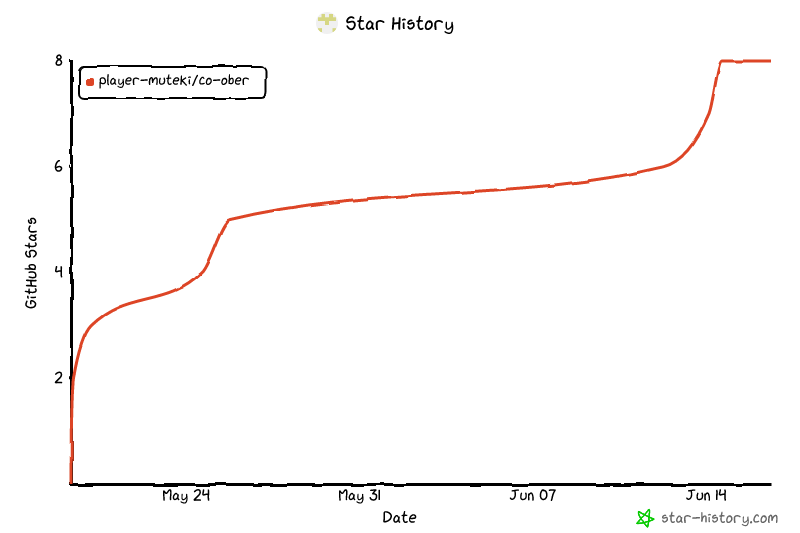
## Star History
 ## Acknowledgments
- [Obsidian](https://obsidian.md) for the plugin API
- [OpenCode](https://opencode.ai/) for the free AI Agent platform and ACP protocol
---
# Co-Ober 中文说明
> [English](#co-ober) | 中文
将 [OpenCode](https://opencode.ai) AI Agent 带入你的 Obsidian 仓库,成为一个住在 Vault 里的助手。它能理解你的笔记、探索仓库结构,帮你思考、写作和整理——全程不用离开 Obsidian。
## 为什么做 Co-Ober
现有的 Obsidian AI 插件大致分两类:需要自行配置第三方 API Key(长期产生 Token 费用)或依赖中间层中转(增加 Token 消耗)。Co-Ober 直连本地 OpenCode CLI,而 OpenCode 本身提供免费 Token 额度,对绝大多数笔记用户完全够用。无需 API Key,也无需中间层。直接使用,轻量,零成本。
## 功能特性
**侧边栏对话**:通过工具栏图标或命令面板打开。在 Obsidian 内直接与 OpenCode Agent 对话,流式响应实时渲染。
**`@提及` 笔记**:输入 `@` 即可引用 Vault 中的任意笔记。Agent 能读取并理解你现有的知识库,然后基于笔记内容进行回答、总结或创作。
**工具输出保存为笔记**:同步规则会把 Agent 工具调用的结果(例如一次写文件、一次检索)直接写入 Vault 笔记,这类内容无需手动复制。聊天回复本身只有在你要求 Agent 写笔记时才会成为笔记。
**模型与模式切换**:在界面中直接切换 AI 模型和 Agent 模式(离线时为 `build` / `plan`,完整列表来自已连接的运行时)。
**自定义 Agent 与技能**:在设置中定义本地 Agent 配置和可复用技能指令,并注入到新的对话提示词中。
**流式响应渲染**:实时渲染 Markdown、思考块、工具调用(读写编辑操作显示具体操作的文件名)和计划面板。
**同步引擎**:工具调用结果(文件编辑、写入)根据可配置的同步规则和文件名模板,自动写回 Vault 笔记。
**权限模式**:选择控制级别:`safe`(每次操作都在横幅中确认)/ `readonly` 或 `plan`(无论能力设置如何,本客户端都拒绝写文件与执行命令)/ `yolo`(全部自动批准)。点击循环并显示不同颜色的边框;在 `safe` 与 `yolo` 下,agent 未经询问就完成的本地改动会记录在对话里。
**自动重连**:OpenCode 进程崩溃后自动恢复连接。
**国际化(i18n)**:在设置 → 外观中切换中英文界面。
**MCP 服务器**:在设置中配置本地 MCP 服务器,新建或恢复 OpenCode 会话时自动附加。
## 系统要求
- 已安装并可访问 [OpenCode CLI](https://opencode.ai)
- Obsidian v1.8.0+
- 仅桌面端(macOS、Linux、Windows)
## 安装方式
### 官方插件市场下载(推荐)
1. 打开 Obsidian,进入 设置 → 第三方插件 → 浏览
2. 在官方插件市场中搜索 "Co-Ober"
3. 点击**安装**,安装完成后点击**启用**
### 手动安装
1. 从[最新 Release](../../releases/latest) 下载 `main.js`、`manifest.json` 和 `styles.css`
2. 在 Vault 的插件目录中创建 `co-ober` 文件夹:
```
/path/to/vault/.obsidian/plugins/co-ober/
```
3. 将下载的文件复制到 `co-ober` 文件夹
4. 在 Obsidian 中启用插件:设置 → 第三方插件 → 启用 "Co-Ober"
### 从源码安装(开发)
1. 将仓库克隆到 Vault 的插件目录:
```bash
cd /path/to/vault/.obsidian/plugins
git clone https://github.com/player-Muteki/co-ober.git
cd co-ober
```
2. 安装依赖并构建:
```bash
npm install
npm run build
```
3. 在 Obsidian 中启用插件:
- 设置 → 第三方插件 → 启用 "Co-Ober"
## 配置说明
| 设置项 | 说明 | 默认值 |
|--------|------|--------|
| OpenCode CLI 路径 | `opencode` 可执行文件路径 | `opencode` |
| 默认 Agent | 启动时的 Agent 模式(离线为 `build` / `plan`,完整列表来自已连接的运行时) | `build` |
| 默认思考强度 | 应用到每个新建会话的推理强度 | `default` |
| 默认模型 | 新建 OpenCode 会话时选择的模型 | — |
| 常用模型 | 在设置中勾选后显示在聊天工具栏中的模型 | — |
| 自定义 Agent 与技能 | 本地提示词配置和可复用技能指令,会注入对话提示词 | — |
| 权限模式 | `safe`(逐一确认)/ `readonly` / `plan`(两者都关闭本客户端的写入与命令)/ `yolo`(全部自动批准,并记录放行) | `safe` |
| 自定义系统提示词 | Co-Ober 拼在你每条消息前面的指令;不会改动 Agent 自身的系统提示词 | — |
| 默认同步文件夹 | 同步笔记的创建位置 | `opencode-sync` |
| 最大笔记引用大小 | 引用笔记时的最大字节数 | `8000` |
| 每会话最大消息数 | 超出后截断 | `200` |
| 会话保留天数 | 超过此天数的不活跃会话会被清除;置顶的以及还开在标签页里的不受影响 | `30` |
| 最大标签页数 | 同时可以打开的会话标签页数量(2–12) | `6` |
| 同步规则 | 将工具调用结果映射为 Vault 笔记(工具 → 文件夹 → 文件名模板) | — |
| MCP 服务器 | 本地 stdio/http/sse MCP 服务器定义,用于新建 OpenCode 会话 | — |
| 界面语言 | UI 语言(`en` / `zh`) | `en` |
| 自动滚动 | 流式输出时保持滚动到底部,用户手动上滑后暂停 | `true` |
| 自动连接 | 打开 Co-Ober 视图时自动建立连接;关闭后仅保留手动连接按钮 | `true` |
| 文件系统能力 | 控制 ACP 文件委托访问:`enabled` / `readonly` / `disabled`(权限模式为 `readonly`/`plan` 时该项不再生效) | `enabled` |
| 终端能力 | 控制 ACP 终端委托访问:`enabled` / `disabled`(权限模式为 `readonly`/`plan` 时该项不再生效) | `enabled` |
| 终端超时 | 等待终端命令完成的最长时间,超时后终止(毫秒) | `30000` |
| 终端最大输出 | 每个终端保留的最大输出字节数 | `100000` |
| 空闲超时 | 等待 Agent 响应的最大时间(毫秒) | `300000` |
| 诊断工具 | 设置页中检查 CLI 路径、连接、运行时元数据、MCP 配置和同步文件夹 | — |
运行时 Agent、模型和可用命令/技能从已有的 OpenCode 连接中加载,或在手动重连后加载。打开设置页不会启动 OpenCode 或创建元数据会话。
## 键盘快捷键
| 快捷键 | 操作 |
|--------|------|
| `Ctrl/Cmd + N` | 新建会话 |
| `Ctrl/Cmd + L` | 清空屏幕 |
| `Ctrl/Cmd + Shift + C` | 复制最后一条助手消息 |
| `Enter` | 发送消息 |
| `Escape` | 停止生成 |
| `Tab` | 切换到下一个 Agent 模式 |
| `Shift + Tab` | 切换到上一个 Agent 模式 |
| `Alt + 1..9` | 切换到该编号的会话标签页(不会中断正在生成的回复) |
| `@` | 引用 Vault 笔记 |
| `/` | 斜杠命令 |
## 隐私与数据
- **发送至 API**:你的输入、引用的笔记、附加的文件/图片以及工具调用结果。所有通信都经过本地 OpenCode CLI,由它处理与 AI 提供商的 API 调用。
- **本地存储**:Co-Ober 的设置和会话数据存储在 Obsidian 的插件数据中(`.obsidian/plugins/co-ober/data.json`)。同步的笔记保存在你配置的文件夹中(默认:`opencode-sync/`)。
- **无遥测**:Co-Ober 不发送任何遥测或分析数据。网络活动仅限于 OpenCode CLI 子进程与 AI 提供商的通信。
- **环境变量**:OpenCode 子进程继承 Obsidian 进程的环境变量,用于 PATH 解析和代理配置。
## 故障排除
### 找不到 OpenCode CLI
如果看到 `Failed to connect to OpenCode`,说明插件找不到 `opencode` 可执行文件。
**解决方案**:在设置 → OpenCode CLI 路径中填入 `opencode` 的完整路径。
| 平台 | 命令 | 示例路径 |
|------|------|----------|
| macOS/Linux | `which opencode` | `/usr/local/bin/opencode` |
| Windows(原生) | `where.exe opencode` | `C:\Program Files\opencode\opencode.exe` |
| Windows(npm) | `npm root -g` | `{global-node-modules}\opencode\bin\opencode` |
**替代方案**:将包含 `opencode` 的目录添加到系统 PATH。
### 会话重启后丢失
会话存储在 Obsidian 的插件数据中。如果重启后会话消失:
- 检查 Obsidian 是否对 `.obsidian/` 目录有写入权限
- 确认会话保留天数没有设置过低
### 同步规则没有创建笔记
- 目标文件夹缺失时会自动创建——请确认该路径没有被同名文件占用
- 检查设置中该同步规则是否已启用
- 确认工具名称与 Agent 的工具调用匹配(如 `edit`、`write`)
## 项目架构
```
src/
├── main.ts # 插件入口、生命周期管理、统一存储
├── settings.ts # 设置面板:连接、诊断、Agent、同步、MCP、能力配置
├── types.ts # 共享类型定义和默认值
│
├── client/ # OpenCode Agent 客户端层
│ ├── acp.ts # ACP 门面:会话、提示词、权限、能力协商、重连
│ ├── AcpJsonRpcTransport.ts # JSON-RPC 请求/通知传输
│ ├── AcpSubprocess.ts # 本地 OpenCode 子进程生命周期
│ ├── agent.ts # 运行时包装:空闲超时和权限策略
│ ├── fsDelegate.ts # 限定在 Vault 内的 ACP 文件读写委托
│ ├── terminalManager.ts # ACP 终端创建、输出、终止、等待、释放委托
│ ├── sessionUpdateNormalizer.ts # 将 ACP 更新转换为 UI 友好的标准事件
│ └── index.ts # 模块导出
│
├── view/ # 侧边栏对话视图
│ ├── CoOberView.ts # Obsidian ItemView:DOM 组合、输入、拖拽、快捷键
│ ├── CoOberViewController.ts # 连接、会话、发送流程和 UI 状态编排
│ ├── renderer.ts # 消息渲染:Markdown、工具调用、思考块
│ ├── permissionBanner.ts # safe 模式权限确认 UI
│ ├── inlineEditPanel.ts # 选区编辑预览和应用 UI
│ ├── sessionDropdown.ts # 会话切换和删除 UI
│ └── welcomeView.ts # 空状态和能力感知状态 UI
│
├── chat/ # 对话输入、工具栏、状态、会话、流处理
│ ├── input.ts # 提示词输入、发送/停止、@ 和 / 触发
│ ├── toolbar.ts # 模型、模式、effort、权限工具栏和用量仪表
│ ├── chatState.ts # 对话视图可变状态
│ ├── session.ts # 基于插件数据的序列化会话存储
│ └── streamController.ts # 应用标准化流更新、持久化和同步钩子
│
├── context/ # Vault 上下文管理
│ ├── mention.ts # @提及笔记选择器和解析
│ ├── resolver.ts # 将笔记/文件引用解析为实际内容
│ └── injection.ts # 从 BASE_IDENTITY + 自定义指令构建系统提示词
│
├── sync/ # 同步引擎:Agent → Vault
│ ├── engine.ts # 执行同步规则,将工具结果写入笔记
│ └── templates.ts # 文件名模板渲染({{tool}}、{{date}}、{{shortId}})
│
├── commands/ # 斜杠命令解析和显示辅助
├── agents/ # 自定义 Agent/技能提示词组装
├── i18n/ # 国际化(中英双语词典)
└── utils/ # 通用工具函数(Vault 路径等)
```
## 开发路线图
- [x] OpenCode ACP 集成
- [x] `@提及` Vault 笔记
- [x] 可配置规则的同步引擎
- [x] 模型和模式切换
- [x] 行内编辑(选中笔记文字 → AI 编辑并显示 Diff 预览)
- [x] MCP 服务器支持
- [x] 自定义 Agent 和技能
- [x] 国际化(i18n)
- [ ] 斜杠命令满血适配(本地 + ACP 路由)
- [ ] @ 文件功能满血优化
- [ ] 更多功能规划中
## 许可证
本项目采用 [MIT 许可证](LICENSE)。
## Star 历史
## 致谢
- [Obsidian](https://obsidian.md) 提供的插件 API
- [OpenCode](https://opencode.ai/) 提供的免费 AI Agent 平台和 ACP 协议
## Acknowledgments
- [Obsidian](https://obsidian.md) for the plugin API
- [OpenCode](https://opencode.ai/) for the free AI Agent platform and ACP protocol
---
# Co-Ober 中文说明
> [English](#co-ober) | 中文
将 [OpenCode](https://opencode.ai) AI Agent 带入你的 Obsidian 仓库,成为一个住在 Vault 里的助手。它能理解你的笔记、探索仓库结构,帮你思考、写作和整理——全程不用离开 Obsidian。
## 为什么做 Co-Ober
现有的 Obsidian AI 插件大致分两类:需要自行配置第三方 API Key(长期产生 Token 费用)或依赖中间层中转(增加 Token 消耗)。Co-Ober 直连本地 OpenCode CLI,而 OpenCode 本身提供免费 Token 额度,对绝大多数笔记用户完全够用。无需 API Key,也无需中间层。直接使用,轻量,零成本。
## 功能特性
**侧边栏对话**:通过工具栏图标或命令面板打开。在 Obsidian 内直接与 OpenCode Agent 对话,流式响应实时渲染。
**`@提及` 笔记**:输入 `@` 即可引用 Vault 中的任意笔记。Agent 能读取并理解你现有的知识库,然后基于笔记内容进行回答、总结或创作。
**工具输出保存为笔记**:同步规则会把 Agent 工具调用的结果(例如一次写文件、一次检索)直接写入 Vault 笔记,这类内容无需手动复制。聊天回复本身只有在你要求 Agent 写笔记时才会成为笔记。
**模型与模式切换**:在界面中直接切换 AI 模型和 Agent 模式(离线时为 `build` / `plan`,完整列表来自已连接的运行时)。
**自定义 Agent 与技能**:在设置中定义本地 Agent 配置和可复用技能指令,并注入到新的对话提示词中。
**流式响应渲染**:实时渲染 Markdown、思考块、工具调用(读写编辑操作显示具体操作的文件名)和计划面板。
**同步引擎**:工具调用结果(文件编辑、写入)根据可配置的同步规则和文件名模板,自动写回 Vault 笔记。
**权限模式**:选择控制级别:`safe`(每次操作都在横幅中确认)/ `readonly` 或 `plan`(无论能力设置如何,本客户端都拒绝写文件与执行命令)/ `yolo`(全部自动批准)。点击循环并显示不同颜色的边框;在 `safe` 与 `yolo` 下,agent 未经询问就完成的本地改动会记录在对话里。
**自动重连**:OpenCode 进程崩溃后自动恢复连接。
**国际化(i18n)**:在设置 → 外观中切换中英文界面。
**MCP 服务器**:在设置中配置本地 MCP 服务器,新建或恢复 OpenCode 会话时自动附加。
## 系统要求
- 已安装并可访问 [OpenCode CLI](https://opencode.ai)
- Obsidian v1.8.0+
- 仅桌面端(macOS、Linux、Windows)
## 安装方式
### 官方插件市场下载(推荐)
1. 打开 Obsidian,进入 设置 → 第三方插件 → 浏览
2. 在官方插件市场中搜索 "Co-Ober"
3. 点击**安装**,安装完成后点击**启用**
### 手动安装
1. 从[最新 Release](../../releases/latest) 下载 `main.js`、`manifest.json` 和 `styles.css`
2. 在 Vault 的插件目录中创建 `co-ober` 文件夹:
```
/path/to/vault/.obsidian/plugins/co-ober/
```
3. 将下载的文件复制到 `co-ober` 文件夹
4. 在 Obsidian 中启用插件:设置 → 第三方插件 → 启用 "Co-Ober"
### 从源码安装(开发)
1. 将仓库克隆到 Vault 的插件目录:
```bash
cd /path/to/vault/.obsidian/plugins
git clone https://github.com/player-Muteki/co-ober.git
cd co-ober
```
2. 安装依赖并构建:
```bash
npm install
npm run build
```
3. 在 Obsidian 中启用插件:
- 设置 → 第三方插件 → 启用 "Co-Ober"
## 配置说明
| 设置项 | 说明 | 默认值 |
|--------|------|--------|
| OpenCode CLI 路径 | `opencode` 可执行文件路径 | `opencode` |
| 默认 Agent | 启动时的 Agent 模式(离线为 `build` / `plan`,完整列表来自已连接的运行时) | `build` |
| 默认思考强度 | 应用到每个新建会话的推理强度 | `default` |
| 默认模型 | 新建 OpenCode 会话时选择的模型 | — |
| 常用模型 | 在设置中勾选后显示在聊天工具栏中的模型 | — |
| 自定义 Agent 与技能 | 本地提示词配置和可复用技能指令,会注入对话提示词 | — |
| 权限模式 | `safe`(逐一确认)/ `readonly` / `plan`(两者都关闭本客户端的写入与命令)/ `yolo`(全部自动批准,并记录放行) | `safe` |
| 自定义系统提示词 | Co-Ober 拼在你每条消息前面的指令;不会改动 Agent 自身的系统提示词 | — |
| 默认同步文件夹 | 同步笔记的创建位置 | `opencode-sync` |
| 最大笔记引用大小 | 引用笔记时的最大字节数 | `8000` |
| 每会话最大消息数 | 超出后截断 | `200` |
| 会话保留天数 | 超过此天数的不活跃会话会被清除;置顶的以及还开在标签页里的不受影响 | `30` |
| 最大标签页数 | 同时可以打开的会话标签页数量(2–12) | `6` |
| 同步规则 | 将工具调用结果映射为 Vault 笔记(工具 → 文件夹 → 文件名模板) | — |
| MCP 服务器 | 本地 stdio/http/sse MCP 服务器定义,用于新建 OpenCode 会话 | — |
| 界面语言 | UI 语言(`en` / `zh`) | `en` |
| 自动滚动 | 流式输出时保持滚动到底部,用户手动上滑后暂停 | `true` |
| 自动连接 | 打开 Co-Ober 视图时自动建立连接;关闭后仅保留手动连接按钮 | `true` |
| 文件系统能力 | 控制 ACP 文件委托访问:`enabled` / `readonly` / `disabled`(权限模式为 `readonly`/`plan` 时该项不再生效) | `enabled` |
| 终端能力 | 控制 ACP 终端委托访问:`enabled` / `disabled`(权限模式为 `readonly`/`plan` 时该项不再生效) | `enabled` |
| 终端超时 | 等待终端命令完成的最长时间,超时后终止(毫秒) | `30000` |
| 终端最大输出 | 每个终端保留的最大输出字节数 | `100000` |
| 空闲超时 | 等待 Agent 响应的最大时间(毫秒) | `300000` |
| 诊断工具 | 设置页中检查 CLI 路径、连接、运行时元数据、MCP 配置和同步文件夹 | — |
运行时 Agent、模型和可用命令/技能从已有的 OpenCode 连接中加载,或在手动重连后加载。打开设置页不会启动 OpenCode 或创建元数据会话。
## 键盘快捷键
| 快捷键 | 操作 |
|--------|------|
| `Ctrl/Cmd + N` | 新建会话 |
| `Ctrl/Cmd + L` | 清空屏幕 |
| `Ctrl/Cmd + Shift + C` | 复制最后一条助手消息 |
| `Enter` | 发送消息 |
| `Escape` | 停止生成 |
| `Tab` | 切换到下一个 Agent 模式 |
| `Shift + Tab` | 切换到上一个 Agent 模式 |
| `Alt + 1..9` | 切换到该编号的会话标签页(不会中断正在生成的回复) |
| `@` | 引用 Vault 笔记 |
| `/` | 斜杠命令 |
## 隐私与数据
- **发送至 API**:你的输入、引用的笔记、附加的文件/图片以及工具调用结果。所有通信都经过本地 OpenCode CLI,由它处理与 AI 提供商的 API 调用。
- **本地存储**:Co-Ober 的设置和会话数据存储在 Obsidian 的插件数据中(`.obsidian/plugins/co-ober/data.json`)。同步的笔记保存在你配置的文件夹中(默认:`opencode-sync/`)。
- **无遥测**:Co-Ober 不发送任何遥测或分析数据。网络活动仅限于 OpenCode CLI 子进程与 AI 提供商的通信。
- **环境变量**:OpenCode 子进程继承 Obsidian 进程的环境变量,用于 PATH 解析和代理配置。
## 故障排除
### 找不到 OpenCode CLI
如果看到 `Failed to connect to OpenCode`,说明插件找不到 `opencode` 可执行文件。
**解决方案**:在设置 → OpenCode CLI 路径中填入 `opencode` 的完整路径。
| 平台 | 命令 | 示例路径 |
|------|------|----------|
| macOS/Linux | `which opencode` | `/usr/local/bin/opencode` |
| Windows(原生) | `where.exe opencode` | `C:\Program Files\opencode\opencode.exe` |
| Windows(npm) | `npm root -g` | `{global-node-modules}\opencode\bin\opencode` |
**替代方案**:将包含 `opencode` 的目录添加到系统 PATH。
### 会话重启后丢失
会话存储在 Obsidian 的插件数据中。如果重启后会话消失:
- 检查 Obsidian 是否对 `.obsidian/` 目录有写入权限
- 确认会话保留天数没有设置过低
### 同步规则没有创建笔记
- 目标文件夹缺失时会自动创建——请确认该路径没有被同名文件占用
- 检查设置中该同步规则是否已启用
- 确认工具名称与 Agent 的工具调用匹配(如 `edit`、`write`)
## 项目架构
```
src/
├── main.ts # 插件入口、生命周期管理、统一存储
├── settings.ts # 设置面板:连接、诊断、Agent、同步、MCP、能力配置
├── types.ts # 共享类型定义和默认值
│
├── client/ # OpenCode Agent 客户端层
│ ├── acp.ts # ACP 门面:会话、提示词、权限、能力协商、重连
│ ├── AcpJsonRpcTransport.ts # JSON-RPC 请求/通知传输
│ ├── AcpSubprocess.ts # 本地 OpenCode 子进程生命周期
│ ├── agent.ts # 运行时包装:空闲超时和权限策略
│ ├── fsDelegate.ts # 限定在 Vault 内的 ACP 文件读写委托
│ ├── terminalManager.ts # ACP 终端创建、输出、终止、等待、释放委托
│ ├── sessionUpdateNormalizer.ts # 将 ACP 更新转换为 UI 友好的标准事件
│ └── index.ts # 模块导出
│
├── view/ # 侧边栏对话视图
│ ├── CoOberView.ts # Obsidian ItemView:DOM 组合、输入、拖拽、快捷键
│ ├── CoOberViewController.ts # 连接、会话、发送流程和 UI 状态编排
│ ├── renderer.ts # 消息渲染:Markdown、工具调用、思考块
│ ├── permissionBanner.ts # safe 模式权限确认 UI
│ ├── inlineEditPanel.ts # 选区编辑预览和应用 UI
│ ├── sessionDropdown.ts # 会话切换和删除 UI
│ └── welcomeView.ts # 空状态和能力感知状态 UI
│
├── chat/ # 对话输入、工具栏、状态、会话、流处理
│ ├── input.ts # 提示词输入、发送/停止、@ 和 / 触发
│ ├── toolbar.ts # 模型、模式、effort、权限工具栏和用量仪表
│ ├── chatState.ts # 对话视图可变状态
│ ├── session.ts # 基于插件数据的序列化会话存储
│ └── streamController.ts # 应用标准化流更新、持久化和同步钩子
│
├── context/ # Vault 上下文管理
│ ├── mention.ts # @提及笔记选择器和解析
│ ├── resolver.ts # 将笔记/文件引用解析为实际内容
│ └── injection.ts # 从 BASE_IDENTITY + 自定义指令构建系统提示词
│
├── sync/ # 同步引擎:Agent → Vault
│ ├── engine.ts # 执行同步规则,将工具结果写入笔记
│ └── templates.ts # 文件名模板渲染({{tool}}、{{date}}、{{shortId}})
│
├── commands/ # 斜杠命令解析和显示辅助
├── agents/ # 自定义 Agent/技能提示词组装
├── i18n/ # 国际化(中英双语词典)
└── utils/ # 通用工具函数(Vault 路径等)
```
## 开发路线图
- [x] OpenCode ACP 集成
- [x] `@提及` Vault 笔记
- [x] 可配置规则的同步引擎
- [x] 模型和模式切换
- [x] 行内编辑(选中笔记文字 → AI 编辑并显示 Diff 预览)
- [x] MCP 服务器支持
- [x] 自定义 Agent 和技能
- [x] 国际化(i18n)
- [ ] 斜杠命令满血适配(本地 + ACP 路由)
- [ ] @ 文件功能满血优化
- [ ] 更多功能规划中
## 许可证
本项目采用 [MIT 许可证](LICENSE)。
## Star 历史
## 致谢
- [Obsidian](https://obsidian.md) 提供的插件 API
- [OpenCode](https://opencode.ai/) 提供的免费 AI Agent 平台和 ACP 协议