# Vivlio
New in 0.18.3: Japanese books preserve ordinary line breaks by default. Multiline comments, extra breaks at the start of callouts, and Japanese indentation after line breaks are also fixed. [Release notes and migration](docs/releases/0.18.3.md)
**English** | [日本語](README.ja.md)
Typeset Obsidian notes with [Vivliostyle](https://vivliostyle.org/) — CSS paged
media, Japanese vertical writing, ruby and emphasis dots — with a live preview,
and export to PDF and EPUB.
Desktop only (`isDesktopOnly: true`). Nothing is downloaded on first run: the
typesetting engine ships in the plugin and the PDF is printed by the Chromium
Obsidian already runs.
Implements [docs/SPEC.md](docs/SPEC.md). A full user manual in Japanese
starts at [manual/](manual/00_vivlio_plugin_manual.md) — the settings tab,
`vivlio.yaml`, writing, themes of your own, and troubleshooting.
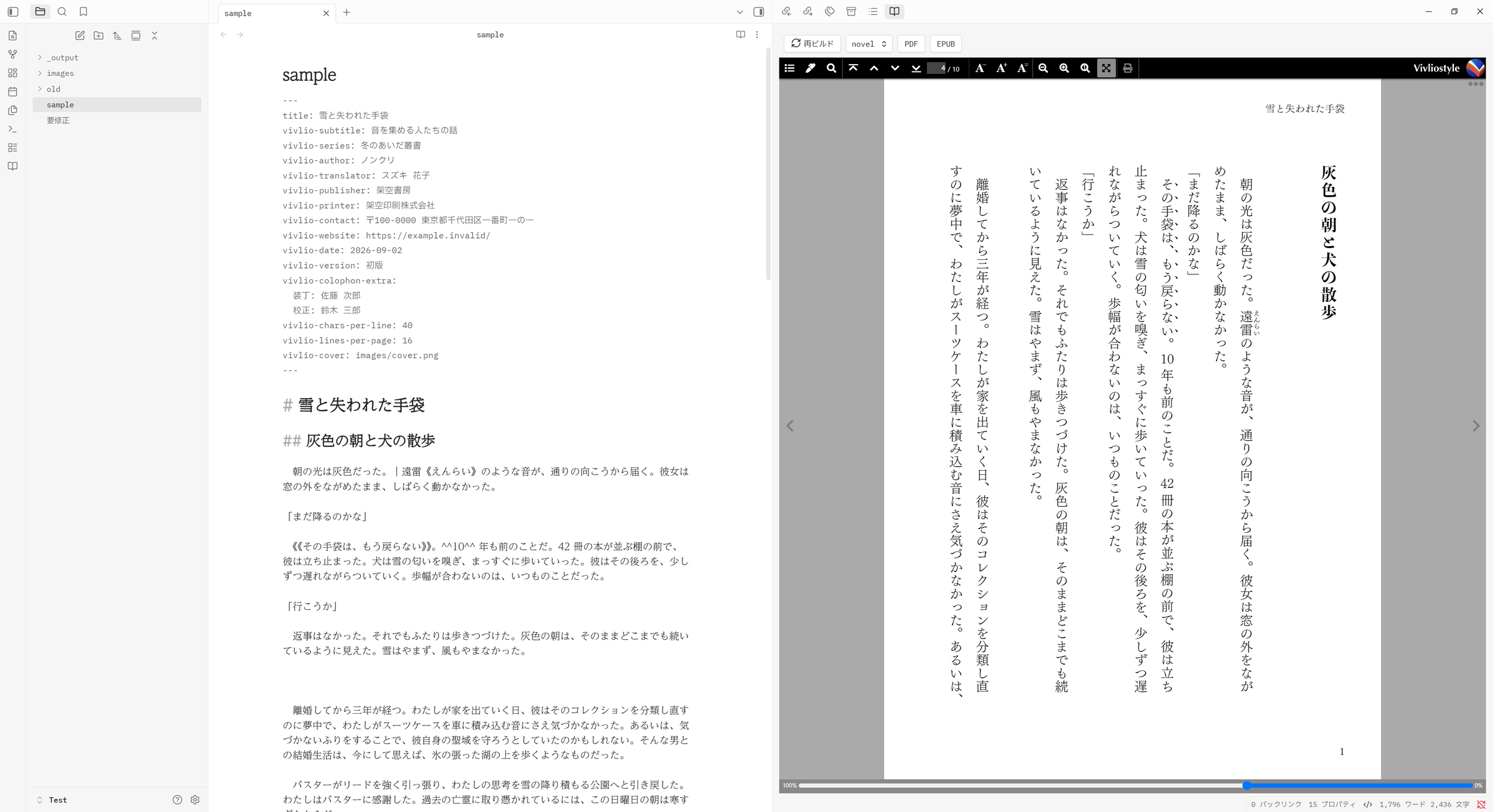
*The note on the left, the page on the right. The preview uses the same engine
and the same stylesheet the PDF will.*
One thing the preview cannot do on its own: the page numbers on a contents
page read `??` until every page has been laid out, because the number comes
from `target-counter`, which has nothing to count against a page that has not
been composed yet. PDF export composes the whole book and resolves the numbers;
reflowable EPUB output hides contents-page numbers. To see the real numbers on screen, turn on **Render
every page up front** in the settings — the preview then takes longer to
appear and is right from the first frame.
## What it does
The [manual sample](sample/manual/index.md) exercises the updated `manual` theme with four Japanese chapters, two schematic figures, settings, callouts, code, cross-note figure references and a 36-row checklist. See the [setup and verification notes](sample/manual-README.md).
| | |
|---|---|
| **Preview** | A pane showing the real page composition — the same engine and stylesheet the PDF will use. Vertical writing, hanging punctuation and Japanese/Latin spacing included, none of which Obsidian's own PDF export can produce. |
| **A book is one note or many** | One note is a book on its own. Point at a folder and the notes directly in it are the book; point at a table-of-contents note and the notes it links to are. |
| **Obsidian syntax** | Embeds, wikilinks, callouts, task lists, tags, highlights, plus Aozora/Kakuyomu ruby, emphasis dots and tate-chu-yoko. |
| **PDF** | Tagged, searchable, with bookmarks, metadata and `i, ii, iii, 1, 2 …` page labels. Fonts are embedded and subset by Chromium, so the file is printable elsewhere. |
| **EPUB 3** | Reflowable, with the theme's CSS, a cover and landmarks. |
| **Pre-export checks** | Images that will print below 300 dpi, fonts this machine does not have, a cover whose aspect ratio does not match the page. |
## Samples and CSS customizations
Print magazine packages: [vertical Japanese “余白通信”](sample/css/vertical-magazine/README.md) / [horizontal Japanese “FIELD NOTES”](sample/css/horizontal-magazine/README.md). The vertical edition uses right binding and three text bands (an illustration and two text bands on article-opening pages); the horizontal edition uses left binding, two columns and full-width headings. Both use A4, 3 mm bleed and crop marks. Each ZIP contains standalone CSS, two original articles, four SVG illustrations, a four-page sample PDF, source credits and a license. These are vault CSS samples tested with Vivlio 0.17.3, not built-in themes. Setup guides are in Japanese.
- **Restyle your own manuscript** → [CSS customizations](sample/README.md#cssカスタマイズ): chapter title pages and vertical multicolumn layouts with illustrations and callout boxes.
- **Try a complete book** → [Complete samples](sample/README.md#完成サンプル): manuscripts, YAML settings, required assets and example outputs for fiction, essays, haiku/tanka, manuals and papers.
See the [sample catalog (Japanese)](sample/README.md) for versions and downloads, and the [manual (Japanese)](manual/02-first-book.md#サンプル一式で試す) for setup. Samples using built-in themes need no additional CSS. Follow each sample's README for vault placement and folder names.
The [illustrated vertical layout sample](sample/css/vertical-feature/README.md) includes Markdown, YAML, standalone CSS, original SVG illustrations and a spread preview. It demonstrates four vertical text bands on A4, a panorama occupying the first band, images within individual bands, callout boxes, and running heads and folios on the outer edges of facing pages.
## Installing
**From Obsidian.** Settings → Community plugins → Browse, search for *Vivlio*,
install and enable it.
**By hand.** Take `main.js`, `manifest.json` and `styles.css` from a
[release](https://github.com/nonkuri/obsidian-vivlio/releases) and drop them
into `VaultFolder/.obsidian/plugins/vivlio/`, then reload Obsidian and enable
the plugin under Community plugins.
Desktop Obsidian 1.8.7 or later. The plugin prints through the Chromium that
Obsidian is already running, which is why there is no mobile build.
## Opening the preview
**Sync cursor: on/off** in the preview toolbar displays the current state; clicking it toggles both directions for that pane. It starts on when a preview opens. Moving the editor cursor follows the start of its paragraph in the preview; clicking preview text opens the source note at that paragraph's first line. An already open note uses its existing tab; other notes open in a new tab without splitting the editor. Headings and list items also work. Links keep their normal behavior, and selecting text does not move the editor.
Synchronization waits until the displayed preview matches the edited source. With automatic refresh disabled, use **Rebuild** after editing. A paragraph spanning several pages follows its first page; generated content without a source paragraph has no cursor target.
Three ways in, whichever is nearest to hand:
- **The ribbon.** The book icon in the left ribbon typesets the note you are
looking at.
- **The command palette.** `Vivlio: Open preview` does the same.
- **The file explorer's context menu.** Right-click a Markdown note for
**Vivlio: preview**. Right-click a *folder* for **Vivlio: preview as a
book** — every `.md` in it, in chapter order — and **Vivlio: export as a
book** beside it.
The pane opens on the right, with a toolbar across the top: **Rebuild**, a
theme picker, and **PDF** and **EPUB** buttons that open the export dialog for
whatever the pane is showing. It re-typesets as you edit the note; turn that
off with **Refresh the preview automatically** in the settings, and rebuild by
hand with the toolbar button or `Vivlio: Reload typeset result`.
Preview display preferences are in **Settings → Vivlio → Preview**: single page,
facing pages or automatic spread, fit to screen (on by default), and fixed zoom
(10–1000%, default 100%). Settings apply when opening or rebuilding the preview.
**Remember changes made in the viewer** is on by default: page display mode and
zoom/fit changes become vault-wide defaults and survive rebuilding and restarting
Obsidian. Turn it off to restore the plugin settings on each rebuild. These
preferences are not exported to `vivlio.yaml` and do not affect PDF/EPUB output;
paper, margins and other typesetting settings remain in the existing book configuration.
## Commands
| Command | What it does |
|---|---|
| `Vivlio: Open preview` | Typeset the active note in a side pane |
| `Vivlio: Export to PDF` / `to EPUB` | Export dialog, checks, then the file |
| `Vivlio: Export this folder as a book` | Every `.md` in the folder, in order |
| `Vivlio: Build a book from this note's links` | The note's `[[links]]` become the spine |
| `Vivlio: Create book configuration` | Wizard that writes `vivlio.yaml` — every key, the untouched ones as comments |
| `Vivlio: Add configuration to this note` | Adds, edits and removes flat `vivlio-*` frontmatter, with what each key means |
| `Vivlio: Write configuration reference` | Every key, with defaults and comments |
The file explorer's context menu offers preview and export as well — see
[Opening the preview](#opening-the-preview).
Open any `.yaml` file (for example, `print.yaml` or `ebook.yaml`) and run **Export to PDF** or **Export to EPUB** to export its whole folder as one book using the selected configuration. The same actions are available by right-clicking a YAML file in the File Explorer. Starting from a Markdown note or folder still uses the conventional `vivlio.yaml` beside the manuscript.
When a multi-selection contains exactly one `.yaml`, that file is used as the configuration. With two or more YAML files—even two editions beside the same manuscript—Vivlio asks you to select one configuration at a time rather than guessing which one to use.
Running **Create book configuration** while any YAML file is open also loads that file into the wizard and writes the result back to the same file. When started from Markdown, the wizard creates or updates `vivlio.yaml` as before.
## Configuring a book
Three layers; a lower one overrides the one above it.
1. **Settings tab** — vault-wide defaults.
2. **`vivlio.yaml`** next to the book — the real place for a book's settings.
Nesting and comments allowed.
3. **A note's frontmatter** — flat `vivlio-*` keys are recommended for Obsidian's
property editor. Hand-written nested `vivlio:` settings are also accepted.
For a single-note book, that note supplies layer 3. For a folder or selected YAML,
the table-of-contents note supplies it; for a book built from links, the selected
note does. These settings apply to the whole book. Ordinary chapter notes cannot
override the theme or writing mode individually; use note classes and CSS for
chapter styling. `vivlio-order`, `vivlio-toc` and `vivlio-paper-role` are note metadata.
### Editing `.yaml` and `.css` inside Obsidian
Obsidian's built-in editor is centred on Markdown notes and does not provide a general editor for arbitrary `.yaml` and `.css` files. With **Show .yaml / .css / .epub in the file explorer** enabled, Vivlio makes its configuration and theme files visible and opens them in a minimal plain-text editor.
For syntax highlighting, line numbers, folding, and search and replace without leaving Obsidian, [Code Space](https://community.obsidian.md/plugins/code-space) is a useful community plugin; it is also what the author of this README uses. Install it from **Settings → Community plugins → Browse** by searching for “Code Space”. It manages `.css`, `.yaml`, and `.yml` by default.
If those files still open in Vivlio's minimal editor after installing Code Space, turn off Vivlio's setting above, restart Obsidian, and check that `css`, `yaml`, and `yml` are present under Code Space's **Managed extensions**. Only one plugin can own a file extension at a time. Code Space's external-folder mounting feature is not needed for this workflow.
```yaml
# vivlio.yaml
title: 吾輩は猫である
author: 夏目漱石
theme: novel # novel, novel-2col, essay, haiku, tanka, english-novel, manual or paper, or a CSS path in the vault
writingMode: vertical-rl
size: 文庫
charsPerLine: 39
linesPerPage: 15
footnote: gcpm # bottom of the page
cover: 装丁/表紙.png
# Optional closing image:
# backCover: 装丁/裏表紙.png
# backCoverFit: contain
sections:
titlePage: auto
toc: auto
preface: まえがき.md
colophon: auto
pageNumbering: continuous # excludes covers and their unnumbered padding pages
startPage: 1 # first folio; zero and negative values count but stay hidden
cropMarks: false # many Japanese printers ask for no marks
bleed: 3mm # …and 3mm of bleed; the sheet grows to carry it
output: 原稿/出力/猫.pdf
```
`bleed` works with or without `cropMarks`. Without them the sheet is printed
at the trim size plus twice the bleed, which is the shape a Japanese printer
means by 「トンボなし・塗り足し3mm」; the text block keeps its place relative to
the trim.
Use `backCover` to append a back cover, with `backCoverFit: cover` (fill and crop,
the default) or `contain` (fit the whole image). PDF and preview add a blank
inside and any padding needed to place it on the final even physical page,
independently of folio numbering. These closing pages have no folios, running
heads or contents entries. The PDF export switch **Include front and back
covers** controls both together. EPUB appends only the image, without blank
pages, and keeps the front cover as its shelf thumbnail.
The front/back cover images and a `coverPage` background reach the outer bleed edge with
or without crop marks. Use `![[images/illustration.png|bleed]]` for a full-page
bleeding illustration in the body. For a tinted page, put the class on the
page element, for example
``. Ordinary body
images remain fitted inside the text block.
```yaml
---
title: 吾輩は猫である
vivlio-theme: manual
vivlio-size: 文庫
---
```
A note's own `title` is read as well, so a single note exported on its own
needs no `vivlio-title` to name the book. Write `vivlio-title` when the two
should differ — it wins — which is the form `Vivlio: Add configuration to this
note` inserts, since every key it offers takes the `vivlio-` prefix.
`Vivlio: Create book configuration` asks about every one of those keys and
writes them all. A key you left at **Use the default** is written as a comment,
so the file lists what this book could say while the book still follows the
vault as its defaults change — delete the `#` to take one over.
For an English trade paperback, start with the English preset in the wizard,
or use these settings:
```yaml
lang: en
theme: english-novel
writingMode: horizontal-tb
size: 6x9
sections:
titlePage: auto
copyrightPage: auto
toc: auto
colophon: off
```
English books use a prose copyright page immediately after the title page;
the Japanese-style colophon remains a separate, optional section at the back.
When neither setting is written, `lang: en` selects the values above. The
wizard also writes a language-matched `labels:` block, where headings and the
copyright-page sentences can be edited without changing the theme.
```yaml
# --- Typesetting ---
# Page size: 文庫 (A6, 105x148mm) | 新書 | JIS-B6 | A5 | ...
# size: 文庫
# Characters per line; empty lets the theme size the text block from the page
charsPerLine: 39
```
Run `Vivlio: Write configuration reference` for a `vivlio.yaml` listing every
key with its default and a comment, as values rather than comments.
## Chapter order
1. A table-of-contents note (`index.md`, a note named after the folder, or one
with `vivlio-toc: true`) — its `[[links]]` in the order they appear.
2. Otherwise the natural order of file names, so `2.md` comes before `10.md`.
3. `vivlio-order: 3` pins a note to a position either way.
The table-of-contents note itself stays out of the book unless
`includeToc: true`.
`vivlio-order` and `vivlio-toc` belong to a note rather than to the book, so
`vivlio.yaml` has no use for them and the configuration reference leaves them
out. `Vivlio: Add configuration to this note` offers both.
## Notation
Since 0.18.3, books with `lang: ja` (the default) or a Japanese language tag such as `ja-JP` preserve ordinary line breaks as ` ` within the same paragraph. Blank lines separate paragraphs. This depends on the book language, independently of the UI language or writing mode. Other languages, including English, still treat ordinary line breaks as soft wrapping.
For Japanese manuscripts wrapped for editing, or to preserve the previous layout, set this in `vivlio.yaml`:
```yaml
vfm:
hardLineBreaks: false
```
For a single note, use `vivlio-vfm: { hardLineBreaks: false }` in its frontmatter. Explicit `true` or `false` overrides the language default; `true` preserves ordinary line breaks in any language. Two trailing spaces or ` ` still create an explicit break with either setting. Existing Japanese books may have different line and page counts after updating.
| You write | You get |
|---|---|
| `《《テキスト》》` | emphasis dots (Kakuyomu style); choose sesame dots, circles, triangles, or type any mark |
| `漢字《かんじ》` | ruby over the run of kanji in front of it — the shorthand a manuscript actually uses |
| `|任意《よみ》` | ruby over anything; `|` says where the base begins (a halfwidth `\|` does too) |
| `{漢字\|かんじ}` | ruby (VFM's own syntax) |
| `^^1/2^^` | tate-chu-yoko, up to four characters |
| a one- or two-digit number, in vertical writing | set upright automatically — a pair combined into one em, a lone digit stood up rather than laid on its side. Only when no digit, letter or `. , : % -` adjoins it |
| `==highlight==` | emphasis dots, bold, `` or plain text — your choice |
| `[#改ページ]`, or a line of `===` | a forced page break, written either the way Aozora Bunko writes one or the way Den-Den Markdown does. Leave a blank line above the equals signs, or Markdown reads them as a heading underline |
| three or more blank lines | space on the page: `n` blank lines give `n - 2` blank lines of it |
| an ideographic space starting a paragraph | that paragraph is indented, and the character itself goes; spaces after line breaks and inside verse works are preserved |
| `> [!anything]` | a framed callout. Any type; it survives as `callout-` for a theme to style |
| `![[fig.png\|300]]` | a picture at a stated width — `300`, `300x200`, `60%`, `80mm`, `300px` |
| `` | a captioned `` when placed in its own paragraph. `` also sets the width; the size hint is omitted from the caption. [Image sizing (Japanese)](manual/05-writing-and-structure.md#画像) |
| `![[Note]]`, `![[Note#Heading]]` | the note's text, set in place (three deep; a cycle is refused) |
| `[[Note]]`, `[[Note\|shown]]` | a link when the note is in the book, plain text when it is not |
| `- [ ]` | ☐ / ☑, drawn as text rather than as a form control |
| `$E = mc^2$`, `$$…$$` | math, converted to MathML (Temml) while the book is built. Nothing is loaded to typeset it in the reader, so it comes out the same in a PDF, in an EPUB and with no network. A currency `$` is written `\$` (see [Math](#math)) |
| a `mermaid` or `dataview` block | drawn by Obsidian's own renderer, then placed as a figure |
| `#tag`, `%%comment%%`, `^block-id` | removed |
Every stage can be switched off in the settings tab, and none of them can reach
inside a code block: conversions use parser extensions and document-tree
transforms. Ordinary line breaks are configured with the book's `vfm.hardLineBreaks` option.

### Math
`$...$` and `$$...$$` are turned into MathML while the book is typeset. Temml
does the conversion, so a formula is part of the document itself and comes out
the same in a PDF, in an EPUB and in a vault with no network. (The other way -
leaving the LaTeX in the page and fetching MathJax to set it in the reader - is
not used: a book does not run code, and that script is taken out before the
book is written.) In vertical writing both inline and display math stay
horizontal.
A `$` opens a formula only when all three of these hold:
- no space follows the opening `$`
- no space precedes the closing `$`
- no digit follows the closing `$`
So `it cost $100 to $200` and `$1,000 to $2,000` are left alone. What does get
read as math is a pair with no space between them whose second `$` is followed
by something other than a digit. Write `\$` for the dollar sign itself
(`$` and a code span do the same), or `vfm: { math: false }` to switch
the syntax off altogether.
## Columns
B6 and A5 — the sheets a 同人誌 is usually printed on — and the 新書 are
commonly set vertically in two columns. The `novel-2col` theme sets them:
```yaml
# vivlio.yaml
theme: novel-2col
size: JIS-B6
charsPerLine: 23 # characters in one column's line
linesPerPage: 17 # lines one column holds
```
**Both figures are per column.** In vertical writing the two columns are an
upper and a lower band, and each band is as long as the page is wide, so the
page carries twice `linesPerPage` lines. A line runs down its own band and the
lines march leftwards; when the upper band is full the text continues at the
top right of the one below.
To change only the count, write `columns:`. An explicit count applies to the
body regardless of theme, so it can split not only a vertical `novel` page but
also horizontal `manual` pages and custom themes. `columns: 1` returns
`novel-2col` to one column. Themes without a grid simply split their existing
body area; the font size and margins are left alone.
The setup wizard offers Shinsho, B6 and A5 two-column presets. The body size is
derived from the sheet and the grid, so rewriting the two figures moves the
whole page with them.
The cover, title page, copyright page, contents and colophon stay in one column
— a colophon split across two bands is not a colophon. Footnotes (`gcpm`) sit
at the foot of the page, spanning both.
Multi-paragraph footnotes retain their paragraphs, lists and code blocks in
`gcpm`, `dpub` and `pandoc` modes. See [the writing guide](manual/05-writing-and-structure.md)
for the Markdown syntax.
With `english-novel` and `footnote: dpub`, printed notes show the same numbers
as their references, starting at 1 in each chapter.
Vivlio warns when a multi-column body contains a table. A narrow column can
force extreme wrapping inside cells or push a table beyond the page. The
warning does not stop export: check the preview and use one column for that
manuscript when the table does not fit. EPUB removes columns and therefore
does not show this warning.
## A theme of your own
`theme:` also takes a stylesheet path. Since 0.17.4, paths beginning with `./` or `../` are relative to the YAML file (or the note for frontmatter), so a book and its CSS can move together. Other paths and global settings remain vault-root-relative. The stylesheet
can start from a bundled one:
```css
/* 装丁/私の本.css, beside vivlio.yaml */
@import url("vivlio:novel");
:root {
--vs-novel--boten-font-size: 0.32rem;
--vs-novel--secondary-ink: #4a4a4a;
}
.callout-warning { border-color: #b00; }
```
```yaml
# vivlio.yaml
theme: ./装丁/私の本.css
```
Since 0.17.3, importing `novel`, `novel-2col`, `essay`, `haiku`, `tanka` or
`bunko` inherits its default character grid for automatic font sizing. You
can leave `charsPerLine`, `linesPerPage` and `columns` unset. To change the
grid, set these book options; an explicit `baseFontSize` takes precedence.
The [chapter-title CSS sample](sample/novel-title-page.css) puts each chapter
title on a separate left page and starts its text on the following left page.
The theme picker offers the eight themes built for this plugin — `novel`, for a
novel set vertically, `novel-2col`, for one set vertically in two columns,
`essay`, for Japanese nonfiction and essays, `haiku` and `tanka`, for short poetry collections, `english-novel`, for a western trade paperback, `manual`, for a manual or
tech book set across the page, and `paper`, for an academic paper or report — followed by **every `.css` file in the vault, listed by its path**. Put
a stylesheet anywhere in the vault and it is in the list; there is nothing to
register. `vivlio:base`, `vivlio:bunko`, `vivlio:techbook` and `vivlio:academic`
— the CC0 Vivliostyle themes — resolve when a book names one, but are left out
of the picker: they have not been gone over against this plugin's folios and
headings yet.
**The bundled themes are Vivliostyle Themes v2** (theme-base 2.1.1, the
official themes 2.0.2), and every theme built for this plugin stands on that
same theme-base. Vivliostyle released Themes v3 in September 2026 and its
documentation now describes the v3 way of writing a theme, which does not work
here. Nothing fails loudly; the rules are simply ignored. Two things in
particular:
- Import a bundled theme as `vivlio:novel` and so on. The v3 package imports,
such as `@import '@vivliostyle/theme-base/page';`, do not resolve.
- Use the v2 variable names. v3 renamed many of them (`--vs--html-font-size`
became `--vs-font-size`, `--vs-page--mbox-content-top-left` became
`--vs-page--mbox-top-left-content`, and so on), and a v2 theme does not read
the new names. To adapt a v3 stylesheet, read the table in the
[v3 migration guide](https://docs.vivliostyle.org/themes/migration-v3/)
backwards.
The [manual](manual/06-custom-theme.md#vivliostyle-themes-v3-の書き方は使えません)
lists the names people reach for most often. Moving the bundled themes to v3 will
be announced in the release notes.
For papers and reports, choose **Paper / report (A4, horizontal)** in the setup wizard (Vivlio 0.14.0 or later). The `paper` theme joins the manuscript notes into a continuous flow and automatically numbers chapters, sections, figures and tables across notes. The contents and ID-based references use those numbers. Set the note property `vivlio-paper-role` to `abstract`, `references`, `appendix` or `unnumbered` where appropriate; the default is `body`. Appendices use A, A.1, etc.
Figures float with their captions to page tops, allowing subsequent prose to fill the remaining space. Long tables span pages with repeated captions and column headers. See the [sample manuscript](sample/paper/index.md) and [configuration](sample/paper/vivlio.yaml): no manually entered numbers or additional CSS are needed. Selecting a theme alone does not change the paper size or writing direction. Use `theme: paper` to enable the manuscript processing; importing its CSS alone does not enable automatic numbering across notes.
Any other `@import` is an ordinary one, relative to the file doing the
importing and read from the vault. Each is followed once, so a ring of imports
is safe. The whole thing is flattened into a single stylesheet before use, which
is why the preview and the EPUB read exactly the same text.
Local files named by `url(...)` are resolved relative to the stylesheet that
contains the declaration, including stylesheets brought in through `@import`.
Vivlio rewrites those references to book assets and packs images into the EPUB.
Fonts, including those referenced by CSS, are included only when **Embed fonts in EPUB**
is enabled (off by default). Remote URLs, data URLs and fragment-only references are left as
written; a missing local file is reported before export.
```css
/* style/parts/callouts.css -> style/images/paper.png */
.callout { background-image: url("../images/paper.png"); }
```
The classes worth knowing when writing one: `.boten`, `.tcy`, `.callout` and
`.callout-`, `.task-list`, `.vivlio-page-break`, `.vivlio-blank-lines`,
`.vivlio-no-indent`, `.vivlio-rendered`, `.copyright-page` and
`.copyright-page-content`.
## Building
```bash
npm install
npm run build
```
`main.js`, `manifest.json` and `styles.css` are what a release ships. The
prebuilt Vivliostyle viewer and the four CC0 themes are embedded in the bundle,
so there is nothing else to copy.
```bash
npm test
```
The tests run the real conversion pipeline, the configuration layers and the
local server outside Obsidian, against a small stub of the app's API.
## Releasing
Follow [the release procedure](docs/RELEASING.md). Update the documentation and
release notes, bump the version metadata without creating a tag, then run the
tests and production build. Commit and push to `main`, wait for CI to pass,
and tag that same commit with the manifest version (without a `v` prefix).
The Release workflow builds, attests and uploads only `main.js`, `manifest.json`
and `styles.css`. Verify the published version and all three assets afterward.
```bash
npm version --no-git-tag-version --ignore-scripts
node version-bump.mjs
npm test
npm run build
```
## How it works
```
note(s) ──▶ VFM (+ this plugin's hooks) ──▶ HTML + generated CSS
│
127.0.0.1 (token-scoped)
│
┌───────────────────┴───────────────────┐
▼ ▼
iframe + Vivliostyle viewer hidden webview → printToPDF
(preview) → pdf-lib (bookmarks,
metadata, page labels)
```
Vivliostyle fetches the document and its assets over XHR, which rules out
`file://`, so the plugin serves the build over loopback while a preview or an
export is open. That server binds `127.0.0.1` only, requires a per-session
token in every URL, checks the `Host` header, answers only GET and HEAD, sends
no CORS headers, and refuses any path outside the vault unless a font was
explicitly configured from elsewhere.
## Licence
AGPL-3.0-or-later. `@vivliostyle/core` and `@vivliostyle/viewer` are AGPL-3.0
and are bundled into `main.js`, so the plugin as a whole is AGPL-3.0. See
[LICENSE](LICENSE) and [NOTICE](NOTICE) — VFM is Apache-2.0 and the themes are
CC0-1.0.
Fonts are never bundled. Checking that a font's licence allows embedding it in
a PDF or an EPUB is up to you.