# Prompt Shelf
*[فارسی](README.fa.md)*
Keep your AI providers, API keys and reusable prompts in one place, and run them on any text — from the command palette, or from your own `dataviewjs` and plugin code.
An **action** is a named prompt such as *Summarize*, *Translate* or *Clean up transcript*. Write it once in settings, then use it anywhere.
## Providers
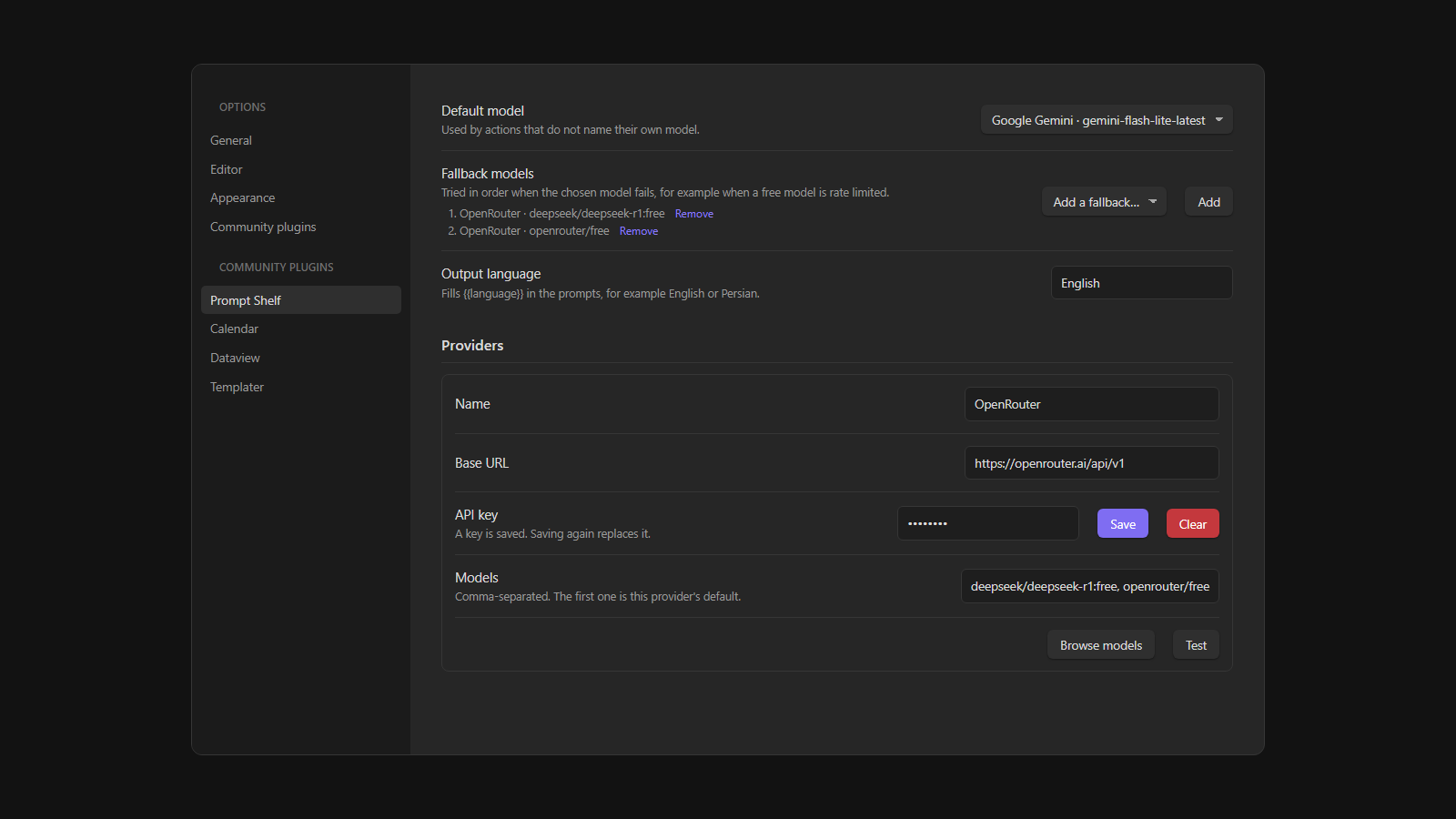
- **OpenAI-compatible**: OpenRouter (including its free models), OpenAI, DeepSeek, Groq, Ollama and LM Studio, and any gateway that speaks the OpenAI chat API
- **Anthropic**
- **Google Gemini** (a Google AI Studio key)
Each provider has a **Browse models** button that lists what the service offers (free OpenRouter models are marked) and a **Test** button.
## Using it
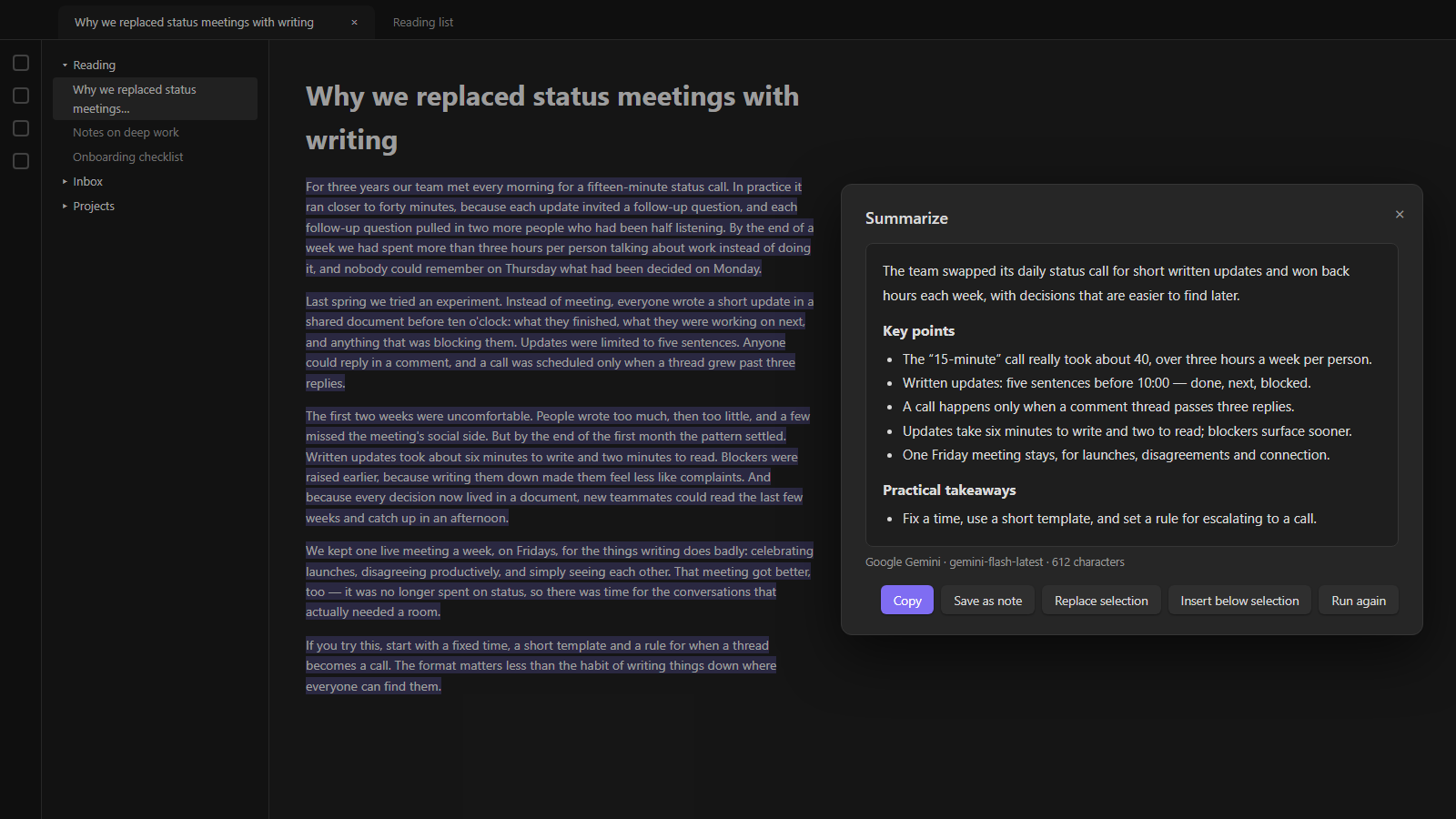
**Right-click or command palette** — select some text (or nothing, for the whole note), then right-click and choose *Run AI action on selection…*, or run *Prompt Shelf: Run an action on the selection or the whole note* from the command palette. Pick an action; the answer streams into a window where you can copy it, save it as a note, replace the selection or insert it below.
Answers appear while they are being written, and a **Stop** button ends a run early. Providers that do not allow streaming from Obsidian fall back to waiting for the whole answer.
**From a script** — the plugin exposes an API. Here a note shows a video's transcript and summarizes it with a ready-made panel:
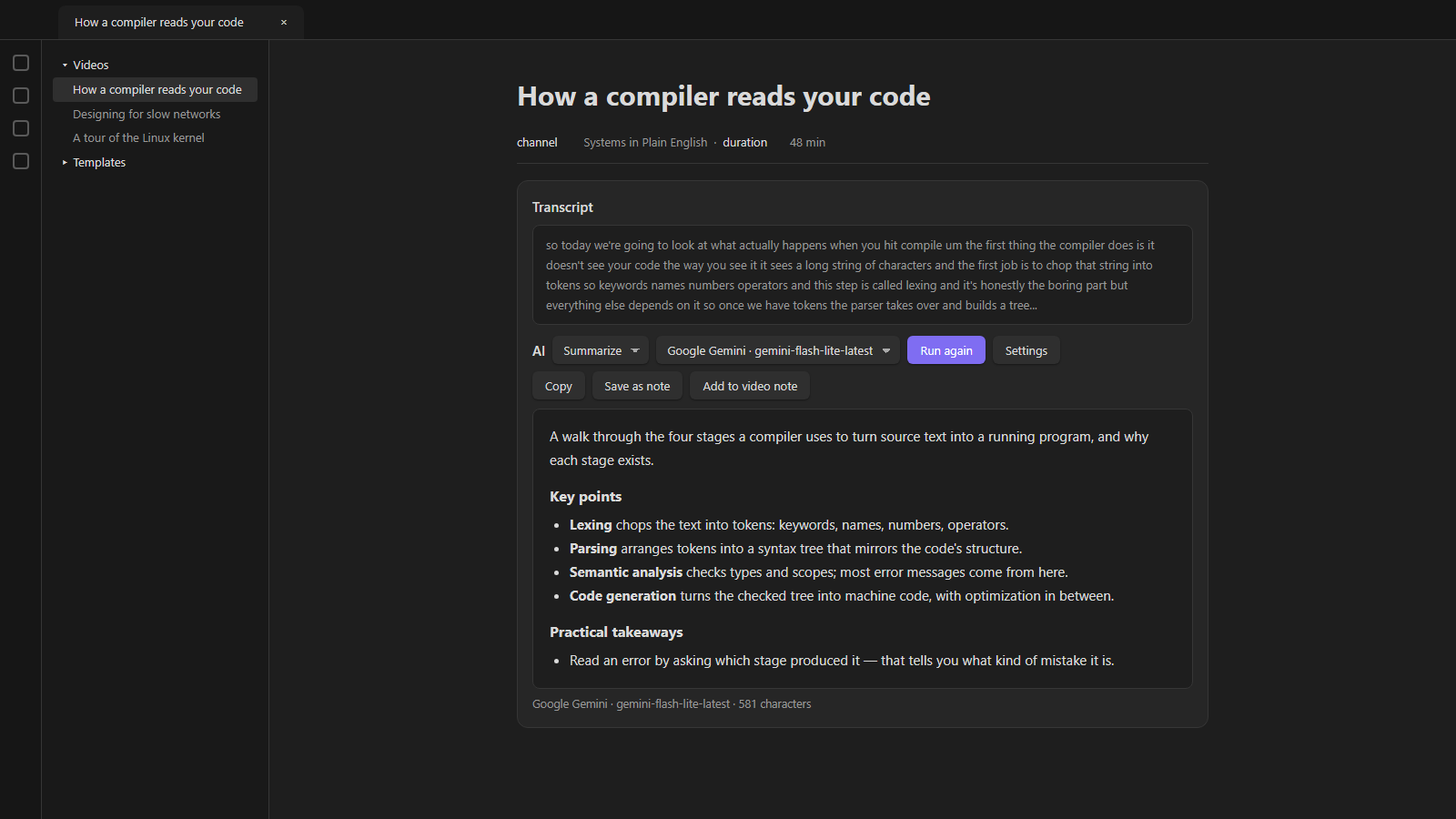
```js
const ai = app.plugins.plugins["prompt-shelf"]?.api;
// A ready-made panel: action and model pickers, Run, the answer and Copy
const panel = ai.panel(dv.el("div", ""), {
id: "my-note", // remembers the chosen action and model
getText: () => myText,
getKey: () => currentItemId, // answers are cached per key for the session
vars: () => ({ title: myTitle }),
defaultAction: "summarize",
buttons: [{ text: "Add to note", onClick: (answer, action) => { /* … */ } }],
});
panel.result(); // the answer currently shown, or null
panel.refresh(); // call after the text changes
// Without UI
const summary = await ai.run("summarize", text, { vars: { title } });
const reply = await ai.chat({ system: "…", prompt: "…" });
```
`ai.saveNote(text, { action, vars })`, `ai.actions()`, `ai.models()`, `ai.ready()`, `ai.pick(text)` and `ai.openSettings()` are also available.
## Saving answers
**Save as note** creates a note in the folder set in settings (`Inbox` by default), named from a template such as `{{title}} - {{action}}`. The action, model, date and the script's variables — a title or a URL, say — become note properties.
## Thinking
Each action has a **Thinking** level: model default, off, low, medium or high. Lower is faster, and a summary rarely needs more than low. It maps to `reasoning_effort` (OpenAI), `reasoning.effort` (OpenRouter), a thinking budget (Anthropic, Gemini 2.x) or `thinkingLevel` (later Gemini models). A model that does not accept the setting says so, and the error tells you to switch it back.
## Prompts
- `{{text}}` is the input. If a prompt has no `{{text}}`, the text is appended to it.
- `{{language}}` is the output language from settings.
- Scripts can pass any other variable, such as `{{title}}`. A line whose variables are all empty is dropped, so `Title: {{title}}` simply disappears when there is no title.
## Long texts
Texts longer than **Chunk size** are sent in parts. If the action has a **merge prompt**, the parts' answers are combined with it — this is how *Summarize* turns a two-hour transcript into one summary. Otherwise the answers are joined. Set the chunk size to 0 for models with a large context window, such as Gemini.
## When something goes wrong
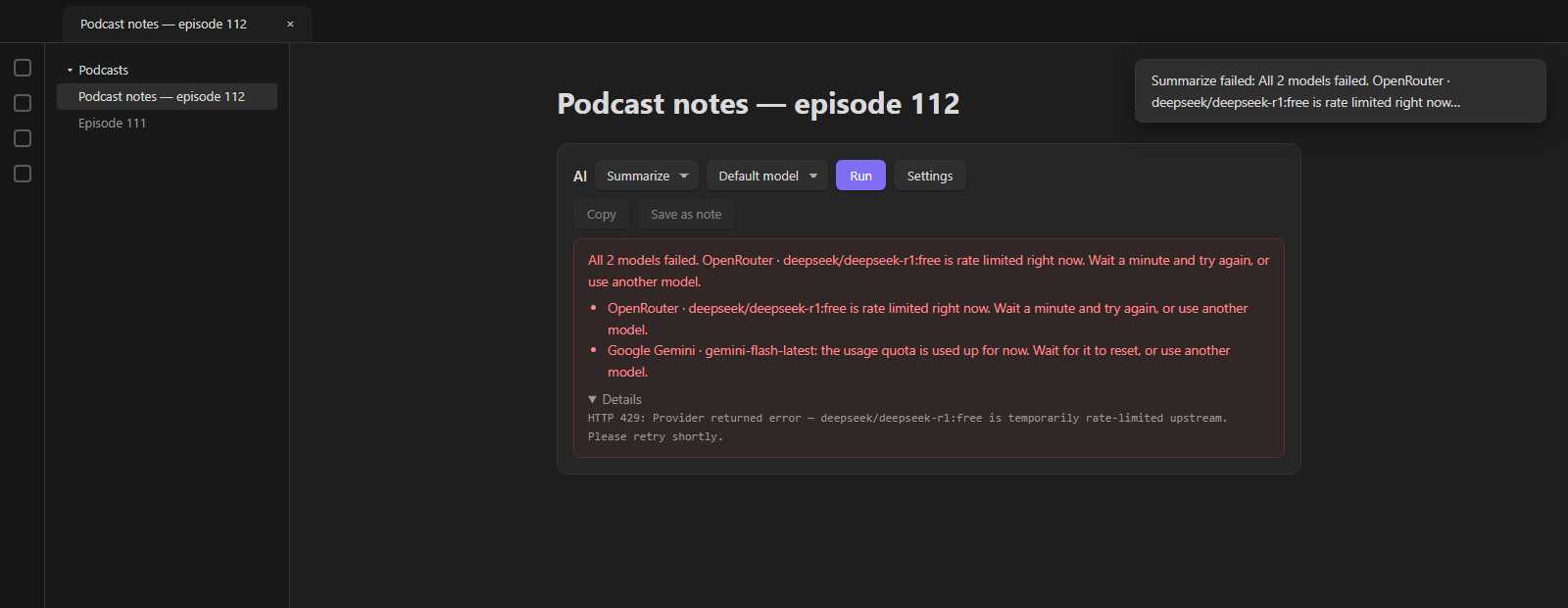
Errors say what happened in plain words — a rejected key, a rate-limited free model, a used-up quota, a model that does not exist, a text too long for the model, a region the provider does not serve, OpenRouter privacy settings that block free models — with the provider's own message under *Details*.
Add **fallback models** in settings and a failed request moves on to the next one, which is handy with free models that are often rate limited.
## Network
Every request goes through Obsidian's `requestUrl`, except streamed answers: `requestUrl` cannot read a response as it arrives, so streaming uses `fetch`. When a provider does not allow that from Obsidian, the plugin falls back to `requestUrl` and waits for the whole answer. Streaming can be turned off in settings.
Nothing is sent anywhere except to the providers you configure, and only when you run an action.
## About the keys
Keys are stored in the plugin's own `secret.json`, **not** in `data.json`, because many vaults commit `data.json` to git. The settings never show a saved key again; saving replaces it and there is a Clear button. Keys never appear in error messages.
The file is plaintext: a plugin has no OS keychain on mobile. Keep it out of git and other sync tools:
```
.obsidian/plugins/*/secret.json
```
Since the file does not sync, enter your keys once on each device.
## Support
This project is offered for free so everyone can use it without restrictions.
If you found this tool useful, you can support its continuous development and improvement through donations.

 ## Licence
MIT — see [LICENSE](LICENSE).
## Licence
MIT — see [LICENSE](LICENSE).