# Folder Nav
**English** · [简体中文](README.zh.md)
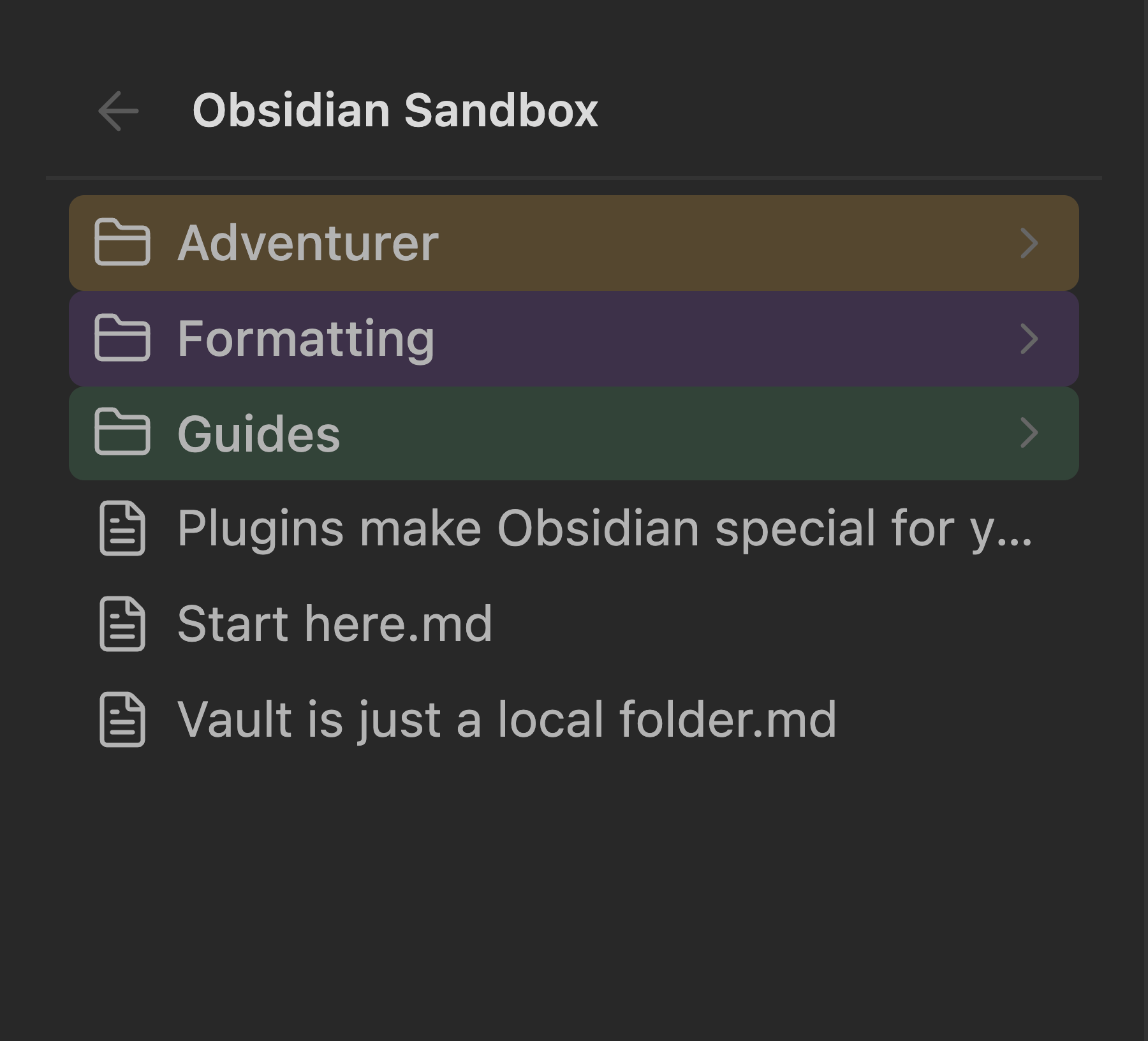
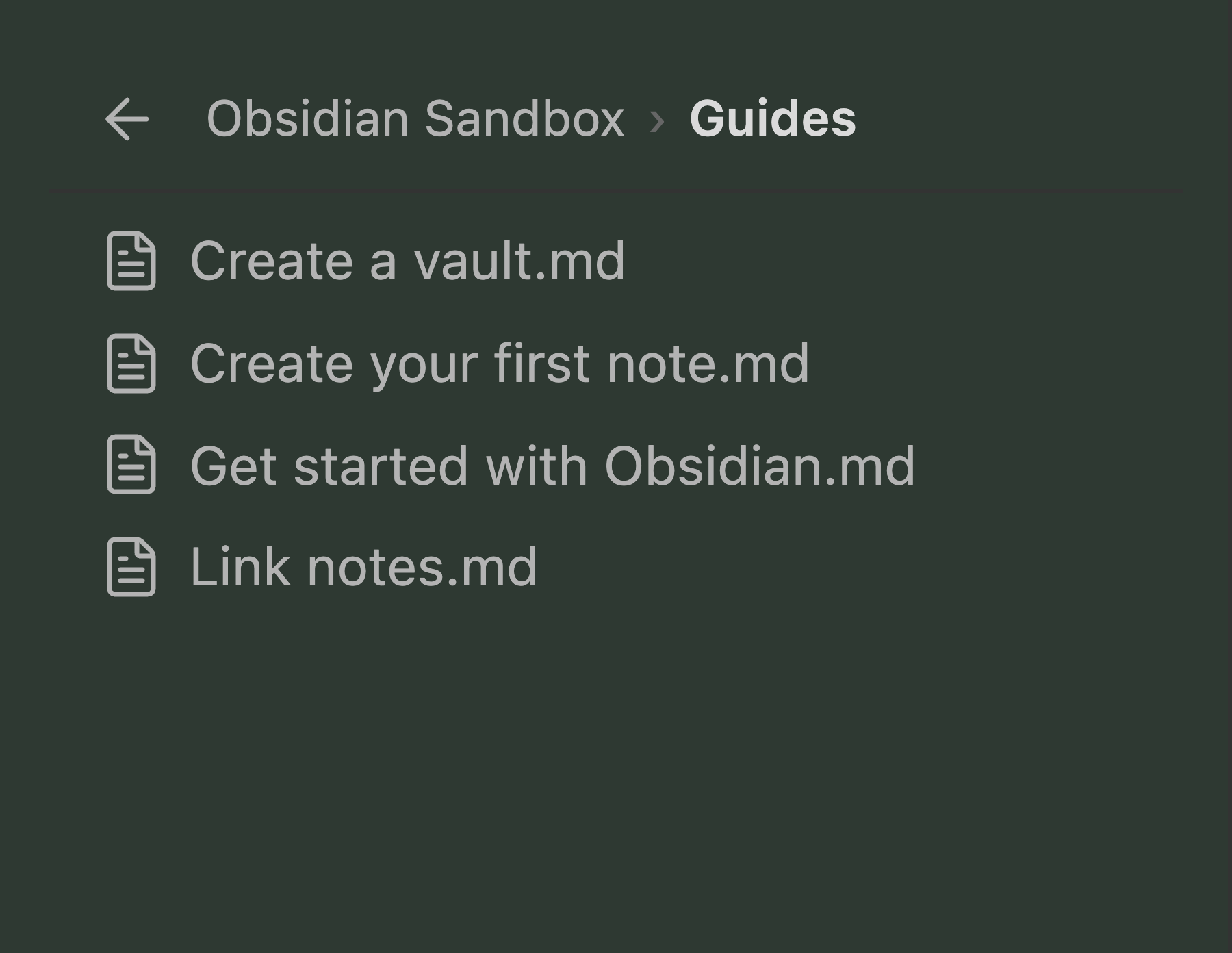
An Obsidian plugin that replaces the sidebar file tree with **drill-down navigation** — the sidebar shows one folder at a time, and a breadcrumb walks you back up. Like double-clicking into folders in Windows Explorer or macOS Finder.
No more ever-deepening indentation eating the width of a narrow sidebar.
## Why
Obsidian's file explorer indents every level. By the third or fourth level — `Notes › Course › Week 3 › Handout.pdf` — the names are squeezed into a sliver, and the whole tree is always on screen competing for attention.
Folder Nav keeps the sidebar at a constant depth. You see the folder you're standing in, and the breadcrumb tells you where that is.
## Usage
Enabled by default: it takes over the built-in **Files** view. The sidebar tab is unchanged, and so is the ribbon icon.
**Mouse**
| Action | Result |
| --- | --- |
| Click a folder | Go into it |
| Click a file | Open it in the main editor area (never in the sidebar) |
| Click a breadcrumb segment | Jump back to that level |
| Click `←` | Go up one level |
| Right-click a file or folder | **New note** / **New folder**, **Rename**, **Move to…**, **Make a copy**, **Delete** — plus other plugins' menu items |
> Obsidian adds its core context-menu items inside the file explorer's own code, *before* it fires the `file-menu` event — so a plugin listening to that event only ever sees third-party contributions. Since Folder Nav replaces that view, it rebuilds the core items itself on public API. **Delete** in particular hands off to Obsidian's own `promptForDeletion`, so your "confirm before deleting" setting is respected.
**Keyboard** (click the list first)
| Key | Action |
| --- | --- |
| `↑` / `↓` | Move the selection |
| `Enter` | Open the selection |
| `Backspace` / `Alt+←` / `Cmd/Ctrl+[` | Go up one level |
| `Esc` | Clear the selection |
**Commands** (also bindable in Settings → Hotkeys)
- `Folder Nav: Toggle drill-down / native file list`
- `Folder Nav: Go to vault root`
- `Folder Nav: Go up one level`
- `Folder Nav: Reveal current file in list`
## Folder colours
Give a folder a colour and it carries into everything below it: the row is tinted where it sits, and the whole sidebar picks up a wash once you're inside. A drill-down list never shows you the parent folder, so the colour is what tells you where you are.
**Set one** — right-click a folder → **Folder colour**, then pick a swatch. A folder with no colour of its own inherits the nearest coloured ancestor, so drilling deeper keeps the cue.
**Manage them** — Settings → Folder Nav → Folder colours lists every coloured folder, with a **Background intensity** slider. At `0` only the folder row is tinted and the list background is left alone.
Colours are always layered translucently over your theme's own background; foreground colours are never touched, so text stays exactly as legible as your theme makes it.
## Settings
| Setting | Description |
| --- | --- |
| **Background intensity** | How strong the wash is inside a coloured folder — the number is the opacity percentage. `0` tints the folder row only. |
| **Take over the file list** | Turn off to restore the native tree instantly — nothing is left behind. |
| **Sort order** | *Follow native* mirrors the sort the built-in explorer was using when Folder Nav took over (alphabetical, modified time, …). *Folders first* always puts folders above files, then sorts by name. |
| **Reveal current file** | Follow the active note into its folder. Seeded from Obsidian's own "Auto reveal" setting. |
| **Show file extensions** | Off shows `Note` instead of `Note.md`. |
| **Hide loose files in the vault root** | Only affects the vault root — handy when attachments pile up there. |
| **Hidden extensions** | Comma-separated list used by the setting above. |
## How it works
Folder Nav replaces the *view* inside the existing file-explorer leaf rather than disabling Obsidian's core file-explorer plugin. Disabling that plugin would also remove the sidebar's ribbon icon, and reaching for it would mean touching undocumented APIs. Everything here goes through the public workspace API — the plugin makes no use of `app.internalPlugins` or any other private surface.
The replacement is re-applied on `layout-change`, so the built-in plugin recreating its leaf (on layout restore, or when you run "Open file explorer") doesn't leave you with a native tree. Duplicate drill-down leaves are collapsed down to one.
Nothing in your vault configuration is rewritten. `workspace.json` and `core-plugins.json` are never modified by the plugin.
## Limitations
- **No drag-and-drop to move files.** Obsidian's native drag handling is bound to its own explorer internals; reusing it means depending on undocumented APIs. Use the context menu's **Move to…** instead, which opens a folder picker.
- **No inline rename (F2) and no multi-select.** **Rename** lives in the context menu and opens a small dialog. Select one file at a time.
- **Custom folder order isn't reproduced.** Sorting is computed from your chosen order rather than borrowed from the built-in explorer, which is destroyed on takeover. Folders you manually reordered with another plugin will sort by name or date instead.
- **Obsidian's own "Reveal file in navigation" does nothing while the takeover is on.** It targets the built-in explorer's view, which is no longer loaded, so it quietly no-ops — it won't open a second file list or throw. Use **Folder Nav: Reveal current file in list** instead, and rebind your hotkey to it if you had one on the built-in command.
- **A major Obsidian update may still require fixes.** The takeover is built on the public workspace API, but it does replace a core view, which no API promises to keep working. The failure mode is safe by design: if the takeover can't run, you get the native file list back.
- **Desktop and mobile.** `isDesktopOnly` is off, but the drill-down layout has mainly been exercised on desktop.
## Development
```bash
npm install
npm run build # typecheck + bundle
npm run dev # watch mode
```
`main.js` is written to the project root. To also copy it into a vault while developing:
```bash
OBSIDIAN_PLUGIN_DIR=~/MyVault/.obsidian/plugins/folder-nav npm run build
```
Debug loop, if you have the Obsidian CLI:
```bash
obsidian vault=MyVault plugin:reload id=folder-nav
obsidian vault=MyVault dev:errors
obsidian vault=MyVault dev:screenshot path=/tmp/shot.png
```
### Source layout
```
src/
├── main.ts Plugin entry: lifecycle, commands, settings wiring
├── view.ts FolderNavView — navigation state, history, list rendering
├── takeover.ts Swap the built-in explorer's view for ours, and back
├── breadcrumb.ts Breadcrumb trail construction
├── render.ts A single list row
├── palette.ts Folder colour palette and nearest-ancestor lookup
├── colorPicker.ts Colour swatch modal
├── sort.ts Sorting and the vault-root filter
└── settings.ts Settings tab
```
## Contributors
- **mianfuqu** — author and maintainer
- **[DeepSeek](https://www.deepseek.com/)** — implementation
See [CONTRIBUTORS.md](CONTRIBUTORS.md).
## License
MIT