# Google Calendar Sync for Obsidian
**Write an event in a note. It appears on your Google Calendar.**
[](https://github.com/mcuste/obsidian-gcal-sync/actions/workflows/ci.yml)
[](https://github.com/mcuste/obsidian-gcal-sync/releases)
[](https://obsidian.md)
[](LICENSE)
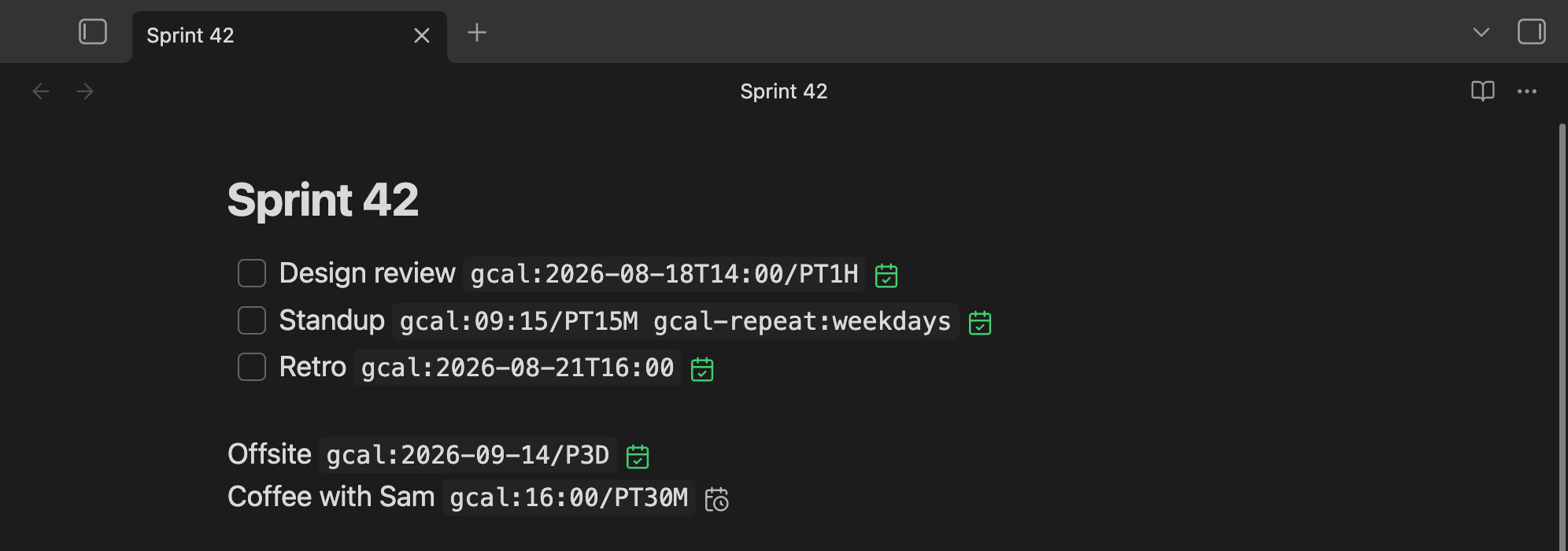
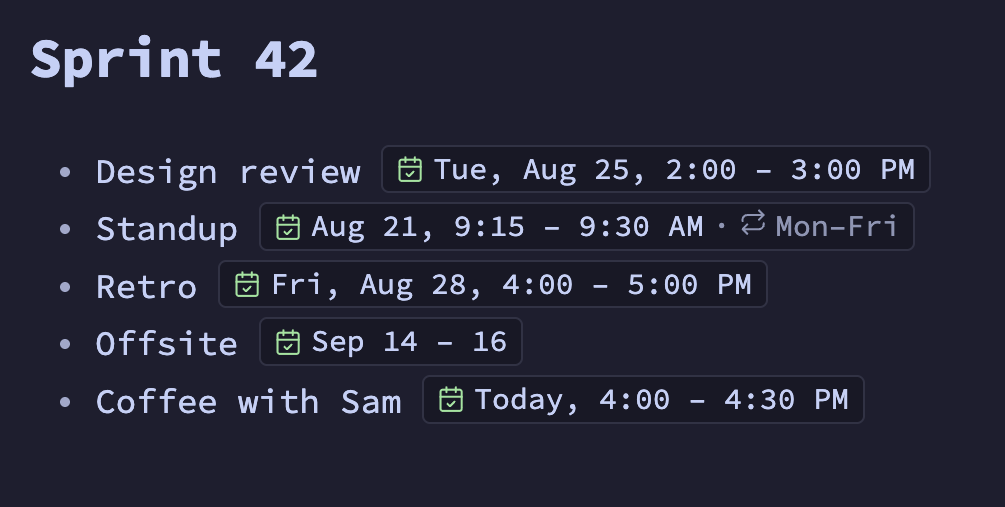 Click a chip to get the text back and edit it, or click its **icon** and pick instead of typing:
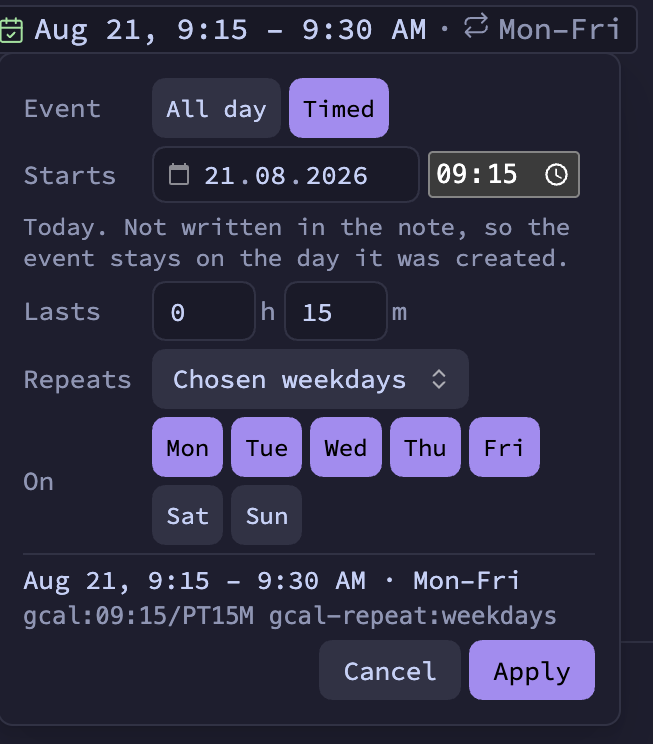 Apply rewrites that one declaration in your note and nothing else. The panel shows what it will
write, in words and as the text, so you can also use it to learn the syntax.
[Picking a date](docs/event-syntax.md#picking-a-date-instead-of-typing-one) has the details, and
[how a declaration is shown](docs/event-syntax.md#how-a-declaration-is-shown) covers the chips.
## Syntax
There are two directives: `gcal:` for the event and `gcal-repeat:` to repeat it. Both go inside
backticks.
**Start and duration**, written as `gcal:
Apply rewrites that one declaration in your note and nothing else. The panel shows what it will
write, in words and as the text, so you can also use it to learn the syntax.
[Picking a date](docs/event-syntax.md#picking-a-date-instead-of-typing-one) has the details, and
[how a declaration is shown](docs/event-syntax.md#how-a-declaration-is-shown) covers the chips.
## Syntax
There are two directives: `gcal:` for the event and `gcal-repeat:` to repeat it. Both go inside
backticks.
**Start and duration**, written as `gcal: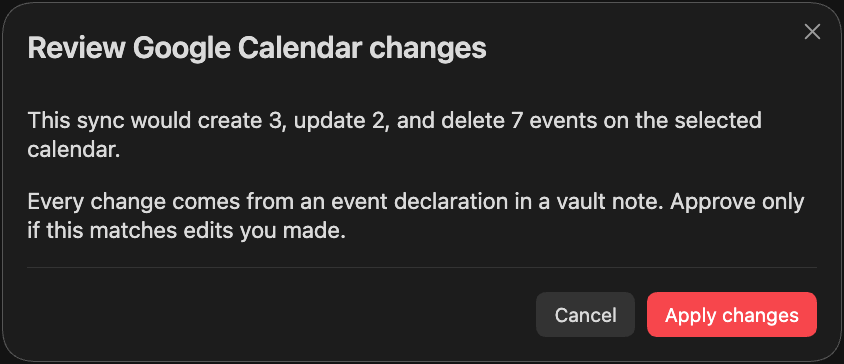 - Deleting 5 or more events, or changing 25 or more, waits for your approval.
- More than 200 changes in one sync is refused.
- If a note has a bad line, the whole note is skipped and its events are kept.
- **Synced folders** limits which folders may declare events.
More in [How sync works](docs/how-sync-works.md) and
[Security and privacy](docs/security-and-privacy.md).
## Network use
The plugin contacts Google and nothing else. There is no telemetry and no third-party server.
| Host | Why |
| --- | --- |
| `accounts.google.com` | Sign-in during authorization. |
| `oauth2.googleapis.com` | Exchange, refresh, and revoke your token. |
| `www.googleapis.com` | Read and write events on the Google Calendar API. |
Titles, times, and repeat rules are sent to Google. Note paths and folder names are hashed first,
and nothing else from your notes leaves your device.
## Documentation
- [Setup](docs/setup.md)
- [Event syntax](docs/event-syntax.md)
- [Settings](docs/settings.md)
- [How sync works](docs/how-sync-works.md)
- [Security and privacy](docs/security-and-privacy.md)
- [Troubleshooting](docs/troubleshooting.md)
- [Development and release](docs/development.md)
- [Changelog](CHANGELOG.md)
## License
[MIT](LICENSE)
- Deleting 5 or more events, or changing 25 or more, waits for your approval.
- More than 200 changes in one sync is refused.
- If a note has a bad line, the whole note is skipped and its events are kept.
- **Synced folders** limits which folders may declare events.
More in [How sync works](docs/how-sync-works.md) and
[Security and privacy](docs/security-and-privacy.md).
## Network use
The plugin contacts Google and nothing else. There is no telemetry and no third-party server.
| Host | Why |
| --- | --- |
| `accounts.google.com` | Sign-in during authorization. |
| `oauth2.googleapis.com` | Exchange, refresh, and revoke your token. |
| `www.googleapis.com` | Read and write events on the Google Calendar API. |
Titles, times, and repeat rules are sent to Google. Note paths and folder names are hashed first,
and nothing else from your notes leaves your device.
## Documentation
- [Setup](docs/setup.md)
- [Event syntax](docs/event-syntax.md)
- [Settings](docs/settings.md)
- [How sync works](docs/how-sync-works.md)
- [Security and privacy](docs/security-and-privacy.md)
- [Troubleshooting](docs/troubleshooting.md)
- [Development and release](docs/development.md)
- [Changelog](CHANGELOG.md)
## License
[MIT](LICENSE)