# Obsidian Command Group
[](https://github.com/masaki39/obsidian-command-group/releases/latest) [](https://github.com/masaki39/obsidian-command-group/releases)
Group commands and select them quickly with custom keyboard shortcuts.
## ✨️Features
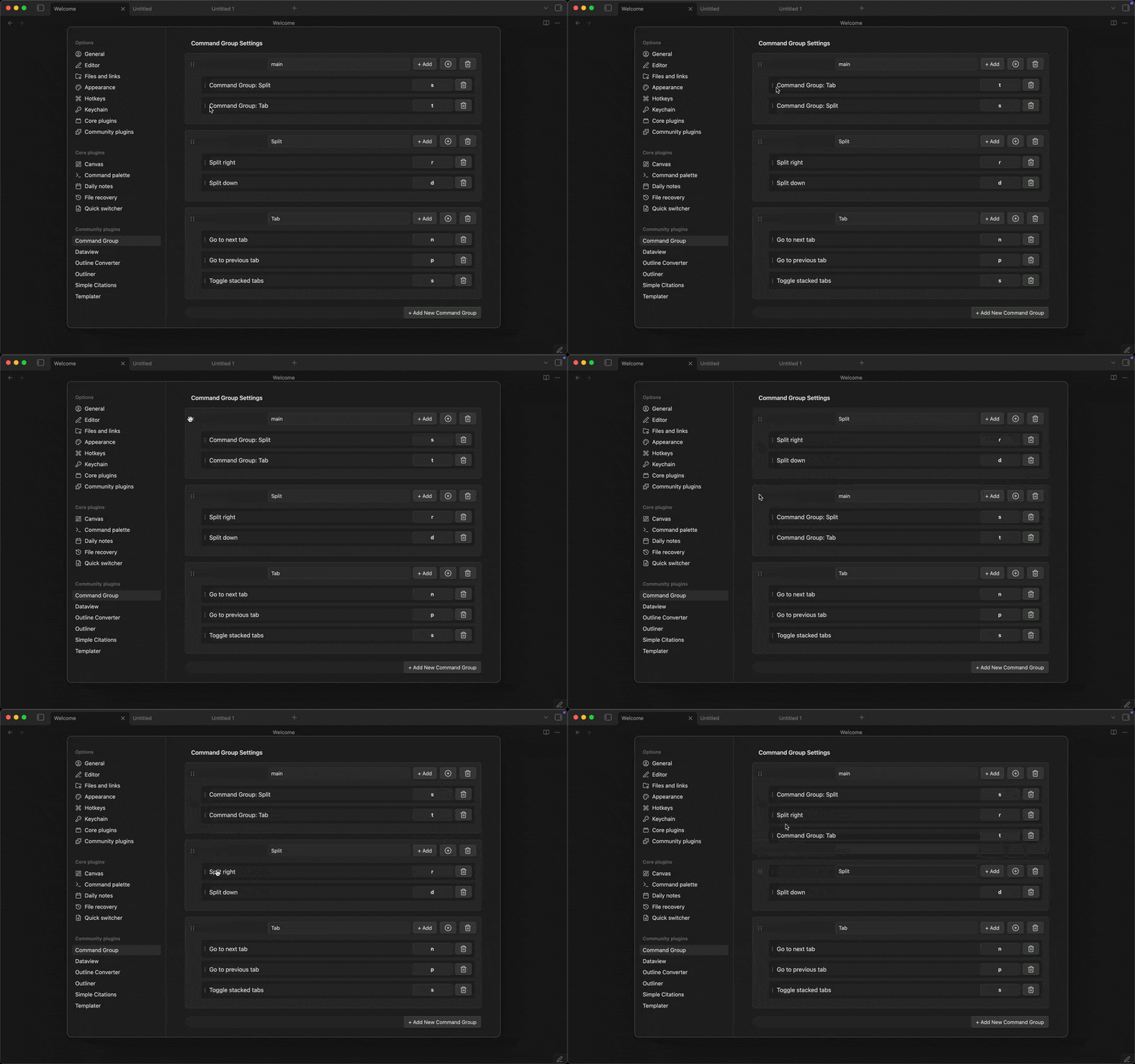 - Create command groups to execute multiple commands.
- Drag and drop commands to reorder them.
- Drag and drop groups to reorder them.
- Create command groups to execute multiple commands.
- Drag and drop commands to reorder them.
- Drag and drop groups to reorder them.
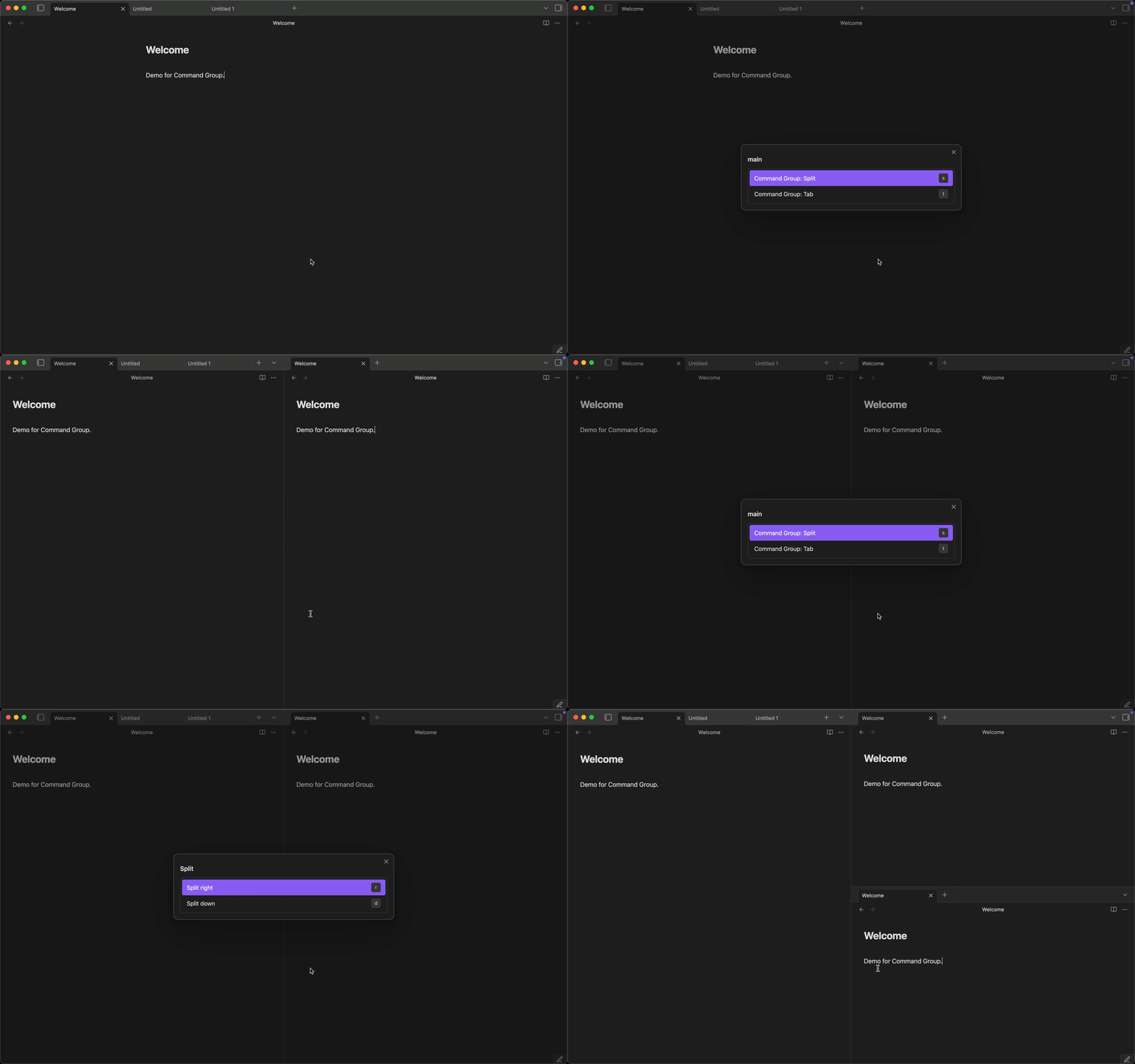 - [Vim-style key notation](#️key-notation-guide) for sequence keys.
- Auto-assigned hotkeys for commands without a sequence key (homerow priority: `a`, `s`, `d`, `f`, ...).
## 🛠️Usage
1. Enable community plugins in settings.
2. Install via [BRAT](https://github.com/TfTHacker/obsidian42-brat) (Recommended).
3. Open Command Group settings tab.
4. Create a new group or edit an existing group.
5. Add commands to the group.
## ⌨️Key Notation Guide
### 📌Basic Notation
Command Group uses Vim-style key notation for sequence keys. You can use:
- **Single characters**: `a-z`, `0-9` (case-insensitive for lowercase)
- **Uppercase letters**: `A` or `` (both formats work for Shift+a)
- **Special keys**: ``, ``, ``, etc.
- **Modifiers**: `C` (Ctrl), `S` (Shift), `A` (Alt), `M` (Meta/Cmd/Win)
### ⚡️Modifier Keys
| Modifier | Meaning | Example |
|----------|---------|---------|
| `C` | Ctrl | `` = Ctrl+n |
| `S` | Shift | `` = Shift+a |
| `A` | Alt | `` = Alt+x |
| `M` | Meta | `` = Cmd/Win+s |
You can combine multiple modifiers: `` = Ctrl+Shift+x
### 💎Special Keys
| Notation | Key | Notation | Key |
|----------|-----|----------|-----|
| `` | Space | `` | Tab |
| `` or `` | Backspace | `
- [Vim-style key notation](#️key-notation-guide) for sequence keys.
- Auto-assigned hotkeys for commands without a sequence key (homerow priority: `a`, `s`, `d`, `f`, ...).
## 🛠️Usage
1. Enable community plugins in settings.
2. Install via [BRAT](https://github.com/TfTHacker/obsidian42-brat) (Recommended).
3. Open Command Group settings tab.
4. Create a new group or edit an existing group.
5. Add commands to the group.
## ⌨️Key Notation Guide
### 📌Basic Notation
Command Group uses Vim-style key notation for sequence keys. You can use:
- **Single characters**: `a-z`, `0-9` (case-insensitive for lowercase)
- **Uppercase letters**: `A` or `` (both formats work for Shift+a)
- **Special keys**: ``, ``, ``, etc.
- **Modifiers**: `C` (Ctrl), `S` (Shift), `A` (Alt), `M` (Meta/Cmd/Win)
### ⚡️Modifier Keys
| Modifier | Meaning | Example |
|----------|---------|---------|
| `C` | Ctrl | `` = Ctrl+n |
| `S` | Shift | `` = Shift+a |
| `A` | Alt | `` = Alt+x |
| `M` | Meta | `` = Cmd/Win+s |
You can combine multiple modifiers: `` = Ctrl+Shift+x
### 💎Special Keys
| Notation | Key | Notation | Key |
|----------|-----|----------|-----|
| `` | Space | `` | Tab |
| `` or `` | Backspace | `` or `` | Delete |
| `` | Home | `` | End |
| `` | Page Up | `` | Page Down |
| `` - `` | Function keys | | |
### 📝Examples
| Input | Meaning | Use Case |
|-------|---------|----------|
| `j` | Just press 'j' | Simple single-key trigger |
| `A` | Shift+a (uppercase A) | Capital letter |
| `` | Shift+a (Vim-style) | Same as above |
| `` | Ctrl+n | Common shortcut style |
| `` | Ctrl+Shift+x | Multi-modifier combination |
| `` | Spacebar | Spacebar trigger |
| `` | F1 key | Function key |
| `` | Meta/Cmd/Win+c | Platform-specific Meta key |
### 🤖Auto-assigned Keys
Commands without a sequence key automatically get a key assigned when the selection modal opens. Keys are assigned in homerow-first priority order:
```
a s d f g h j k l → q w e r t y u i o p → z x c v b n m → 1–9 0
```
Auto-assigned keys appear as **dimmed badges** in the modal. User-defined keys always take priority and are never overridden.
### 🚫Reserved Keys
The following keys are reserved for modal navigation and cannot be used as sequence keys:
- Arrow keys (`ArrowUp`, `ArrowDown`, `ArrowLeft`, `ArrowRight`)
- `Enter` / `Escape`
These keys are needed to navigate and close the command selection modal.
### 💡FAQ
**Q: What's the difference between `A` and ``?**
A: Both work identically and produce Shift+a. Use whichever feels more natural.
**Q: Can I use lowercase in angle brackets like ``?**
A: Yes! Modifier letters are case-insensitive, so `` and `` both work.
**Q: Why doesn't my incomplete key like `