

# LLM Translator




Features •
Quick Start •
Recommended Settings •
Usage Guide •
Other Services •
Windows Notes •
FAQ •
Development
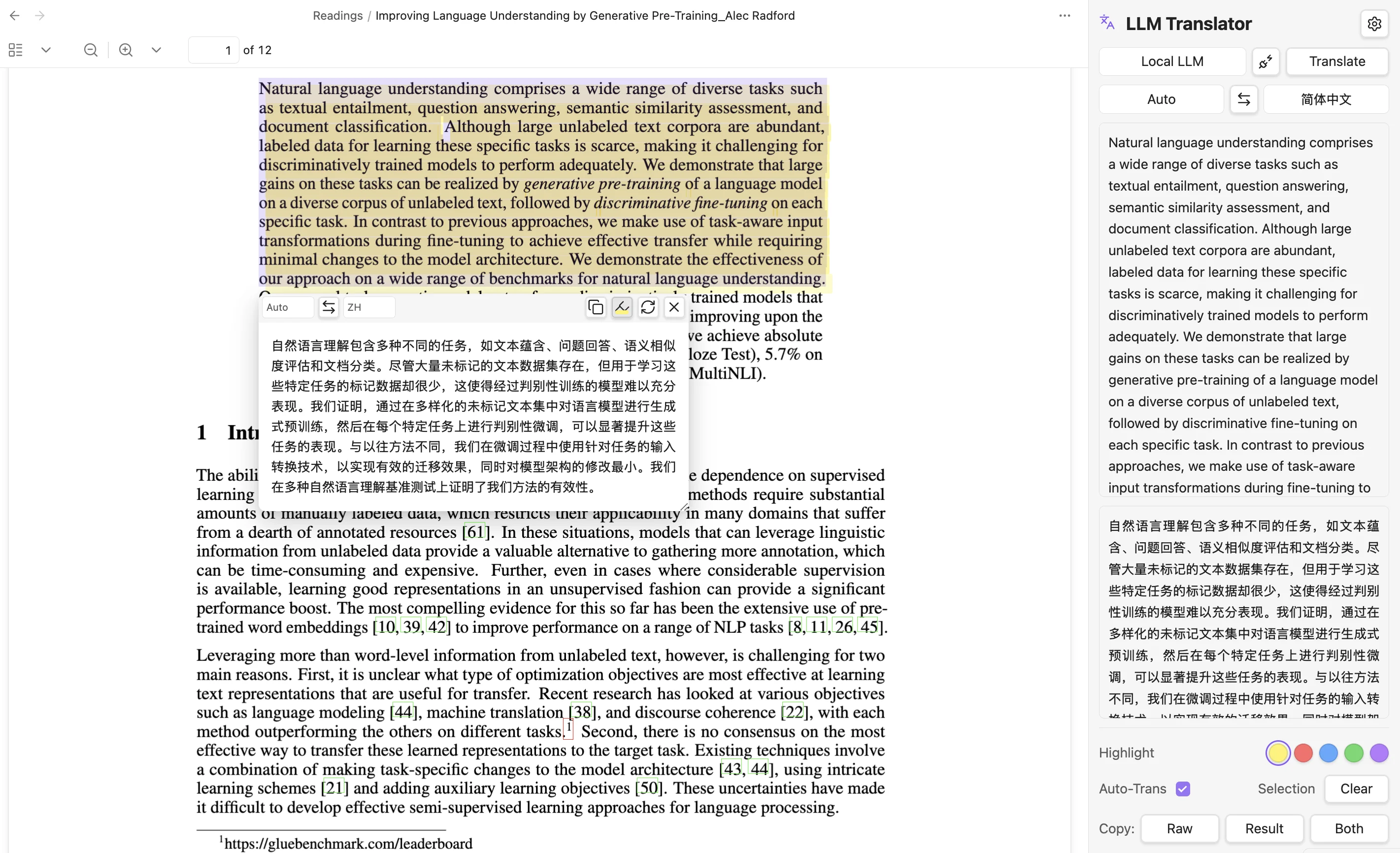
A local LLM-powered translation plugin for Obsidian, supporting real-time text selection translation in PDF and Markdown files.
---
## Features
### 📌 Multiple Translation Sources
- **Local LLM (Ollama)** — Private, offline, unlimited usage
- **Cloud API (OpenAI-Compatible)** — Connect DeepSeek, OpenRouter, and more
- **Google Translate / Bing Translate** — No config needed, one-click switch
### 📄 Multi-format Document Support
- **PDF Documents** — Default support, auto-translate on selection
- **Markdown Documents** — Enable "Global" mode in settings
### 🎯 Smart Interaction
- Auto-popup translation window on text selection
- Sidebar translation panel for manual input
- Copy / Retry / One-click language switch
- Custom translation prompt for professional needs
### 🌐 Multi-language Interface
- Automatically follows Obsidian system language
- Supports Chinese / English interface
### ✏️ Native PDF Highlight Annotations
- **Persistent highlights** — Written as standard PDF annotations, visible across all PDF readers
- **5 colors** — Yellow, Red, Blue, Green, Purple; configurable default
- **Highlight notes** — Click any highlight to attach a note, stored in the PDF
- **Toggle & undo** — Click again to remove, Cmd+Z / Ctrl+Z to undo
---
## Quick Start
```bash
# 1. Install Ollama (macOS / Linux)
curl -fsSL https://ollama.com/install.sh | sh
# 2. Pull translation model (recommended HY-MT2-1.8B)
ollama pull RogerBen/HY-MT2-1.8B:latest
# 3. After installing the plugin, select Local LLM in settings
# Enter endpoint http://localhost:11434 and model name
# Click Test to verify connection
```
> 💡 **Windows Users**: Download the installer from the [Ollama website](https://ollama.com/). Ollama will run automatically in the background after installation.
### Install Plugin
Download and install via Terminal:
```bash
# Create plugin directory
mkdir -p YourVault/.obsidian/plugins/llm-translator
# Download Release files
curl -sL https://github.com/KimFischer99/Obsidian-LLM-Translator/releases/download/0.3.0/main.js \
-o YourVault/.obsidian/plugins/llm-translator/main.js
curl -sL https://github.com/KimFischer99/Obsidian-LLM-Translator/releases/download/0.3.0/manifest.json \
-o YourVault/.obsidian/plugins/llm-translator/manifest.json
curl -sL https://github.com/KimFischer99/Obsidian-LLM-Translator/releases/download/0.3.0/styles.css \
-o YourVault/.obsidian/plugins/llm-translator/styles.css
```
Replace `YourVault` with your Obsidian vault path. Restart Obsidian and enable LLM Translator in **Settings → Community plugins**.
---
## Recommended Settings
After installing the plugin, configure as follows:
### General Settings
| Setting | Recommended Value |
|---------|-------------------|
| Translation scope | Global |
| Auto-translate selected text | Enabled |
| Enable reader selection popup | Enabled |
### Service Settings
| Setting | Recommended Value |
|---------|-------------------|
| Translation service | Local LLM |
| Local model endpoint | `http://localhost:11434` |
| Model name | `hy-mt2-1.8b-q4:latest` |
| Source language | Auto |
| Target language | 简体中文 |
### Advanced Settings
| Setting | Recommended Value |
|---------|-------------------|
| Max selection length | 5000 |
| Selection trigger delay | 350ms |
| Request timeout | 30000ms |
| Top K | 20 |
| Top P | 0.6 |
| Repeat Penalty | 1.05 |
| Num Predict | 4096 |
---
## Usage Guide
### Basic Operations
1. **Auto-translate** — Select text in PDF or Markdown, translation popup appears automatically
2. **Sidebar** — Click the language icon on the left toolbar to open the right-side translation panel
3. **Manual translate** — Enter text in the sidebar and click Translate
### Translation Scope
- **Global** — Both PDF and Markdown support selection translation
- **PDF only** — Only enable in PDF files (default)
### Sidebar Features
- **Translation service switch** — Quickly switch Local LLM / Cloud API / Google / Bing
- **Language selection** — Set source and target languages
- **Auto-Trans** — Toggle auto-translation
- **Copy** — Copy source (Raw), translation (Result), or Both
- **Clear** — Clear current translation history
### Custom Prompt
Modify the translation prompt in **Settings → Advanced → Custom prompt**:
```
Translate the following academic text. Preserve technical terminology,
citations, and formulas. Output only the translation.
```
---
## Other Translation Services
### Cloud API (OpenAI-Compatible)
Supports any OpenAI-compatible API provider:
| Configuration | Description |
|-------------|-------------|
| API URL | Provider's endpoint |
| API Key | Provider's authentication key |
| Model name | Provider's model identifier |
### Google Translate / Bing Translate
No configuration required. Select directly from the translation service dropdown.
> ⚠️ Free translation services have rate limits. For heavy usage, switch to local models or cloud APIs.
---
## Windows Notes
### Ollama Installation
- Download the Windows installer from the [Ollama website](https://ollama.com/)
- Runs automatically in the background after installation
- Port is the same as macOS: `http://localhost:11434`
- If connection fails, check Windows Firewall settings
### URL Format
- Use forward slashes `/`: `http://localhost:11434` (correct)
- Do not use backslashes: `http://localhost:11434\` (wrong)
---
## FAQ
### Connection test failed?
1. Confirm Ollama is running (there should be an Ollama icon in the taskbar)
2. Try accessing `http://localhost:11434` in your browser to verify
3. Check if another program is using port 11434
### Translation popup not showing?
- Confirm "Auto-translate selected text" and "Enable reader selection popup" are enabled
- Try restarting Obsidian
### Markdown files won't translate?
- Set "Translation scope" to "Global"
---
## Development
```bash
# Install dependencies
npm install
# Development mode (watch for file changes)
npm run dev
# Production build
npm run build
```
After building, copy `main.js`, `manifest.json`, and `styles.css` to:
```
YourVault/.obsidian/plugins/llm-translator/
```
---
## License
MIT License © 2026