# Section Goals Badge
English | [日本語](README_ja.md)
[](https://obsidian.md/plugins?id=section-goals-badge)
[](https://github.com/k-quels/section-goals-badge/releases)
[](LICENSE)
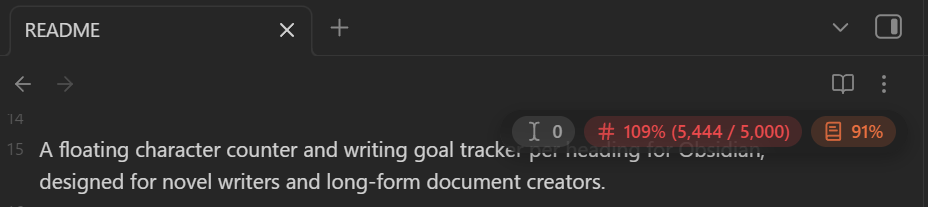
A floating character counter and writing goal tracker per heading for Obsidian, designed for novel writers and long-form document creators.
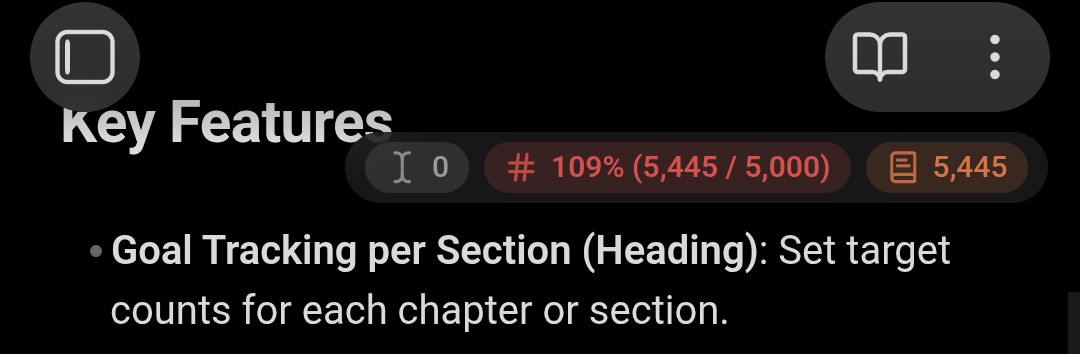
Display floating badges on your editor to keep track of character counts and progress rates for the active heading (section) or entire note in real time.
▼ Desktop
 ▼ Mobile
 ---
## Key Features
- 🎯 **Goal Tracking per Section (Heading)**: Set target counts per folder, per note, or for each chapter and section.
- 📛 **Unobtrusive Floating Badge**: Position at any corner of the editor, with drag-and-drop movement and opacity adjustments.
- 🚥 **3 Configurable Progress Badges**:
- **Progress to Cursor**: Counts characters from note top (or section top) up to cursor position.
- **Active Section Progress**: Counts characters within the current heading block.
- **Note Total Progress**: Counts characters for the entire note.
- 🎨 **Dynamic Badge Colors**: Define custom color styles and visually track progress rates at a glance.
- 📱 **Mobile-Friendly**: Works smoothly on smartphones even with massive documents.
- 🔢 **Character & Word Counting**: Switch between Character count and Word count freely.
- ✂️ **Exclusion Rules**: Exclude whitespace, Japanese novel ruby notation, and custom user-specified symbols.
- ⚡ **Fast & Battery Efficient (1M+ characters)**: Optimized to minimize typing latency and reduce mobile battery drain even in long-form writing.
---
## Usage
### 1. Open Goal Management Window
- Tap or click the badge on the editor to open the goal management window.
---
## Key Features
- 🎯 **Goal Tracking per Section (Heading)**: Set target counts per folder, per note, or for each chapter and section.
- 📛 **Unobtrusive Floating Badge**: Position at any corner of the editor, with drag-and-drop movement and opacity adjustments.
- 🚥 **3 Configurable Progress Badges**:
- **Progress to Cursor**: Counts characters from note top (or section top) up to cursor position.
- **Active Section Progress**: Counts characters within the current heading block.
- **Note Total Progress**: Counts characters for the entire note.
- 🎨 **Dynamic Badge Colors**: Define custom color styles and visually track progress rates at a glance.
- 📱 **Mobile-Friendly**: Works smoothly on smartphones even with massive documents.
- 🔢 **Character & Word Counting**: Switch between Character count and Word count freely.
- ✂️ **Exclusion Rules**: Exclude whitespace, Japanese novel ruby notation, and custom user-specified symbols.
- ⚡ **Fast & Battery Efficient (1M+ characters)**: Optimized to minimize typing latency and reduce mobile battery drain even in long-form writing.
---
## Usage
### 1. Open Goal Management Window
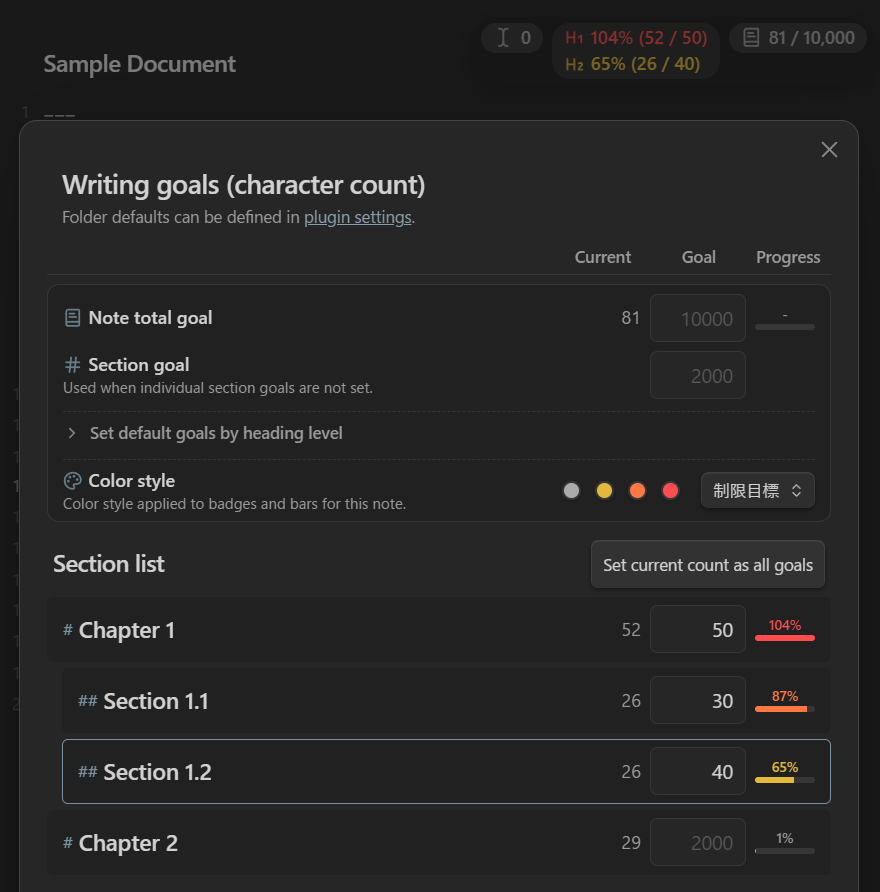
- Tap or click the badge on the editor to open the goal management window.
 - Tips: Change to "Long press to open" in settings to avoid accidental taps.
- Tips: Click a section name to close the modal and jump directly to that heading.
### 2. Set Target Counts
Enter target counts for each item (automatically saved to Frontmatter).
- Tips: Change to "Long press to open" in settings to avoid accidental taps.
- Tips: Click a section name to close the modal and jump directly to that heading.
### 2. Set Target Counts
Enter target counts for each item (automatically saved to Frontmatter).
*Note: To configure goals per folder, add folder definitions in the plugin settings.*
- **Note Total Goal**: Target count for the entire note being edited.
- **Section Goal**: Default target count applied to headings without individual goals.
- **Heading Level Goals**: Set default target counts for each heading level (H1–H6).
- **Individual Section Goals**: Enter specific target counts for each row in the heading list.
### 3. Adjust Badge Position & Appearance
- **Drag and drop** the badge to place it anywhere on your editor.
- You can also specify exact values in the settings tab (synced with drag-and-drop values).
---
## Settings
The following features and options can be customized:
### 1. Badge Display Customization (Cursor / Section / Total)
- **Toggle Visibility**: Enable or disable the 3 progress badges independently.
- ▼ e.g., Hide note total badge:
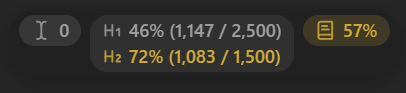
 - **Heading Level Progress (H1–H6)**: Display progress for specific heading levels (H1–H6) in the section progress badge.
- ▼ e.g., When H1 and H2 are enabled, you can monitor H1 progress while editing H2:
- **Heading Level Progress (H1–H6)**: Display progress for specific heading levels (H1–H6) in the section progress badge.
- ▼ e.g., When H1 and H2 are enabled, you can monitor H1 progress while editing H2:
 - **Display Content**: Toggle current count, target goal, and progress percentage.
- ▼ e.g., Show only count for cursor position, full details for section:
- **Display Content**: Toggle current count, target goal, and progress percentage.
- ▼ e.g., Show only count for cursor position, full details for section:
- **Icon / Label**: Toggle prefix icons and text labels.
- ▼ e.g., Hide both for cursor, icon only for section, full for total:
 - **Display as Progress Bar**: Display the progress percentage using the badge background color as a gauge.
- ▼ e.g., Using cursor position and section badges as progress bars:
- **Display as Progress Bar**: Display the progress percentage using the badge background color as a gauge.
- ▼ e.g., Using cursor position and section badges as progress bars:
 ### 2. Counting Rules
- **Counting Method**: Switch between Character count and Word count.
- **Exclusion Settings**: Exclude whitespace, Japanese novel ruby notation, and custom specified characters.
### 3. Appearance & Position
- Configure badge position preset, opacity, and font size.
### 4. Color Styles
- In the plugin settings under **Color styles**, freely define and customize color schemes (up to 20 styles).
- Two color modes available: **Threshold** (step-based) and **Gradient** (smooth transitions).
### 2. Counting Rules
- **Counting Method**: Switch between Character count and Word count.
- **Exclusion Settings**: Exclude whitespace, Japanese novel ruby notation, and custom specified characters.
### 3. Appearance & Position
- Configure badge position preset, opacity, and font size.
### 4. Color Styles
- In the plugin settings under **Color styles**, freely define and customize color schemes (up to 20 styles).
- Two color modes available: **Threshold** (step-based) and **Gradient** (smooth transitions).
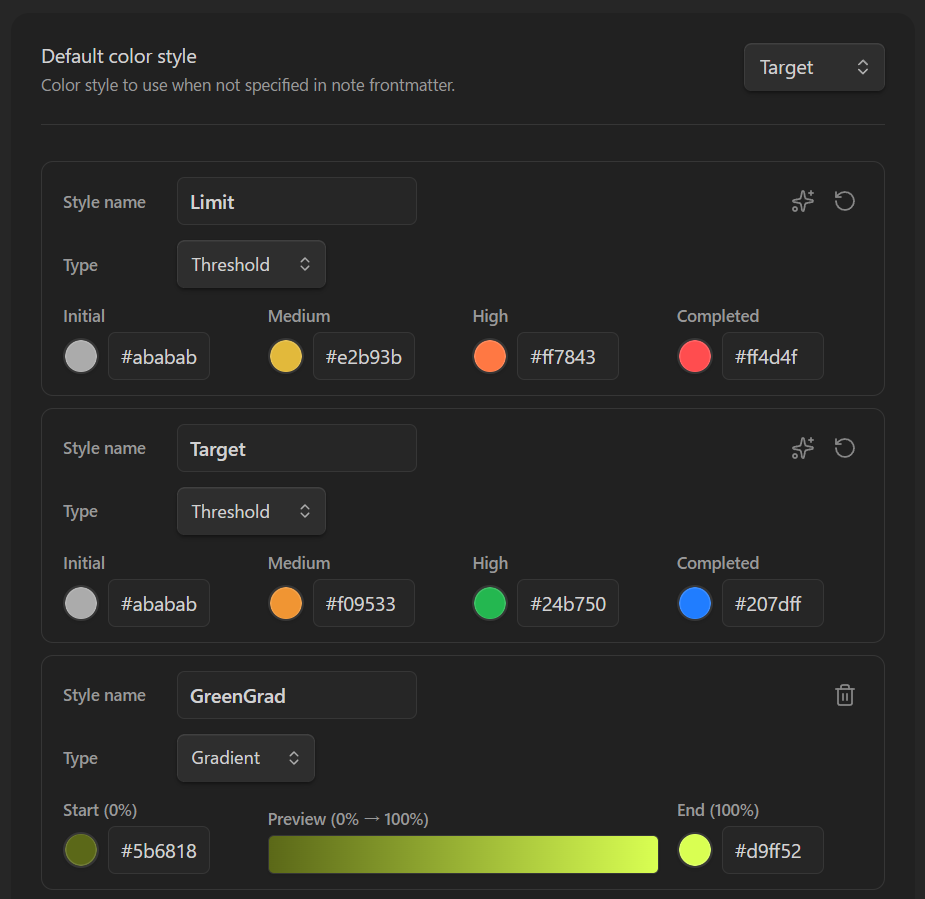 - Progress thresholds for threshold-type styles (default: 50% / 80% / 100%) can be customized in settings.
- Default Presets:
- **① Limit Goal Style**: Best for strict word/character caps (Gray → Yellow → Orange → Red)
- Progress thresholds for threshold-type styles (default: 50% / 80% / 100%) can be customized in settings.
- Default Presets:
- **① Limit Goal Style**: Best for strict word/character caps (Gray → Yellow → Orange → Red)
 - **② Target Achievement Style**: Best for aiming to reach a target count (Gray → Orange → Green → Blue)
 - In the Goal Management modal, **select your preferred style per note** from the "Color style" dropdown.
### 5. Folder-Level Defaults
- Set default target goals and color styles for notes under specified folders.
- *Note: Settings specified within individual notes take precedence.*
---
## Frontmatter Format
- Target goals and color style choices are stored in the note's YAML Frontmatter in the following format.
- You can manage goals via the Goal Management modal or edit them directly.
- Setting goals is completely optional.
```yaml
---
goal-file: 10000 # <- Target count for the entire note
goal-section: 2000 # <- Default target count for sections
goal-section-h1: 3000 # <- Default target count for H1 (H1–H6 supported)
goal-style: 2 # <- Color style ID (omitted for default style)
goals:
- Chapter 1: 2500 # <- Target count for specific section
- Chapter 2: 3000
---
```
- **Tips**: If you want to clear all goals at once, simply delete these lines from the Frontmatter.
---
## Support & Donation
If you enjoy Section Goals Badge, your support is greatly appreciated!
[](https://buymeacoffee.com/quels)
---
## License
This software is released under the [MIT License](LICENSE).
- In the Goal Management modal, **select your preferred style per note** from the "Color style" dropdown.
### 5. Folder-Level Defaults
- Set default target goals and color styles for notes under specified folders.
- *Note: Settings specified within individual notes take precedence.*
---
## Frontmatter Format
- Target goals and color style choices are stored in the note's YAML Frontmatter in the following format.
- You can manage goals via the Goal Management modal or edit them directly.
- Setting goals is completely optional.
```yaml
---
goal-file: 10000 # <- Target count for the entire note
goal-section: 2000 # <- Default target count for sections
goal-section-h1: 3000 # <- Default target count for H1 (H1–H6 supported)
goal-style: 2 # <- Color style ID (omitted for default style)
goals:
- Chapter 1: 2500 # <- Target count for specific section
- Chapter 2: 3000
---
```
- **Tips**: If you want to clear all goals at once, simply delete these lines from the Frontmatter.
---
## Support & Donation
If you enjoy Section Goals Badge, your support is greatly appreciated!
[](https://buymeacoffee.com/quels)
---
## License
This software is released under the [MIT License](LICENSE).