Heading Rail
Your note's structure, always within reach.
Every heading becomes a bar at the edge of the note — a live map you can glide along,
open into a full outline, search and edit.
🌐 Now in 17 languages — the whole interface, the settings and the catalog:
English · Deutsch · Français · Русский · 日本語 · 한국어 · हिन्दी · Italiano · Español · Português · Türkçe · Polski · Українська · Tiếng Việt · Bahasa Indonesia · 简体中文 · 繁體中文
📘 Guide
·
⚙️ Every setting
·
🎨 Catalog
·
🆕 What's new
·
⬇️ Install
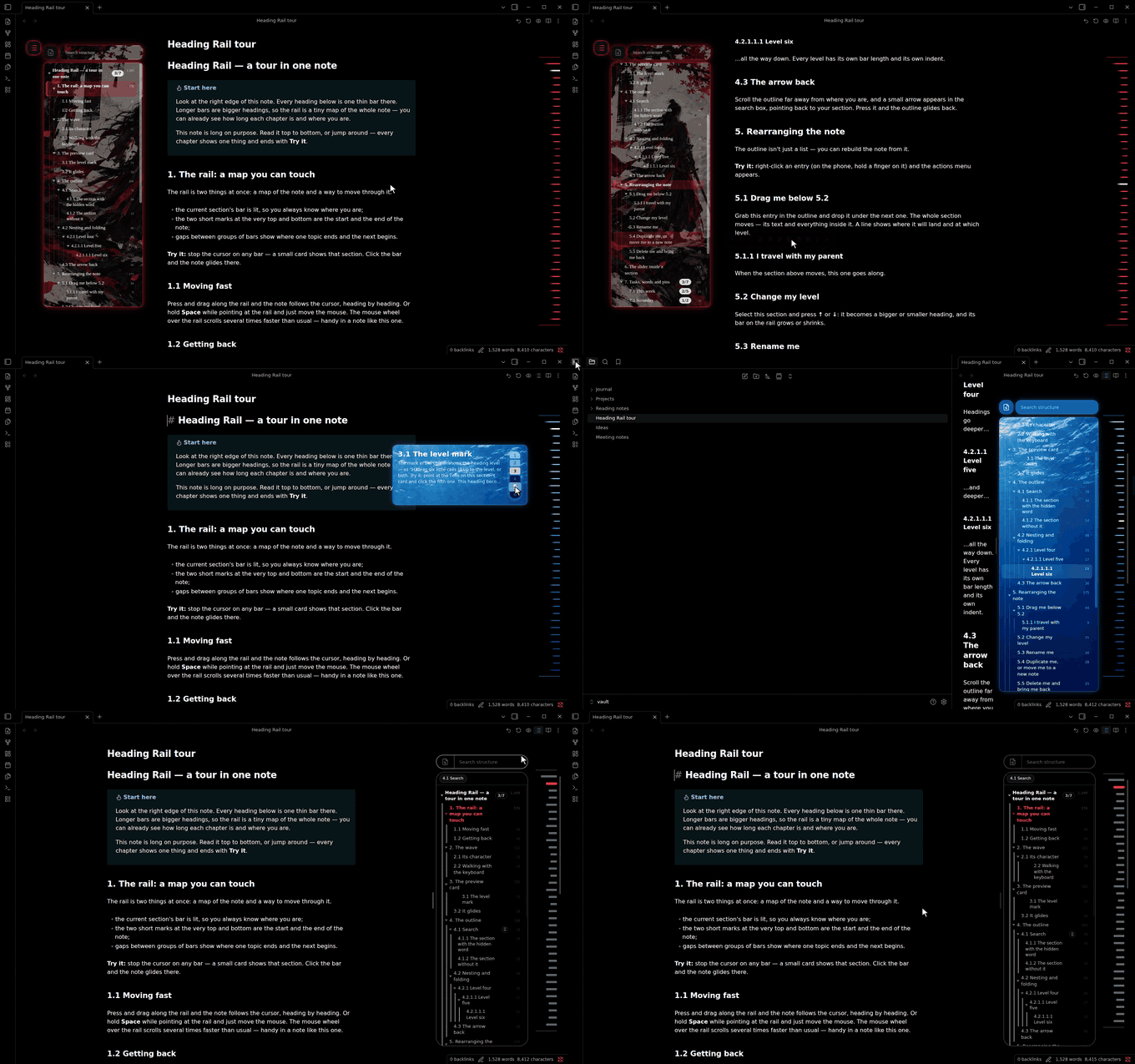
Higanbana → Depth → Racer: previews and duplicating a section · a level changed from the preview, the Ctrl slider, the preview below the outline in a narrow window · search, pin, unpin and undo, a section dragged inside another and lowered to H6.
---
## Looks
Seven looks to start from. **Standard** comes with the plugin; the other six download from the [catalog](#the-catalog) with one click. A look is only a starting point — after applying it, every colour, size and movement is still yours to change, separately for the desktop and the phone.
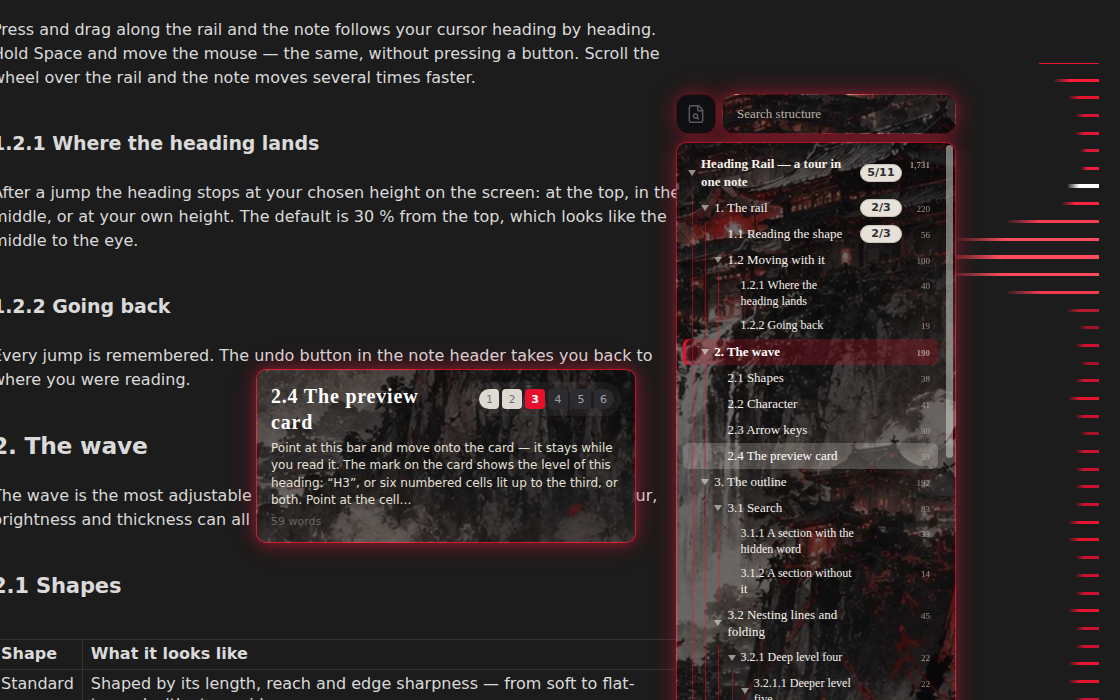
Higanbana — Japanese dark fantasy: glowing scarlet bars, a painting of spider lilies behind the outline and the preview, near-black buttons. |
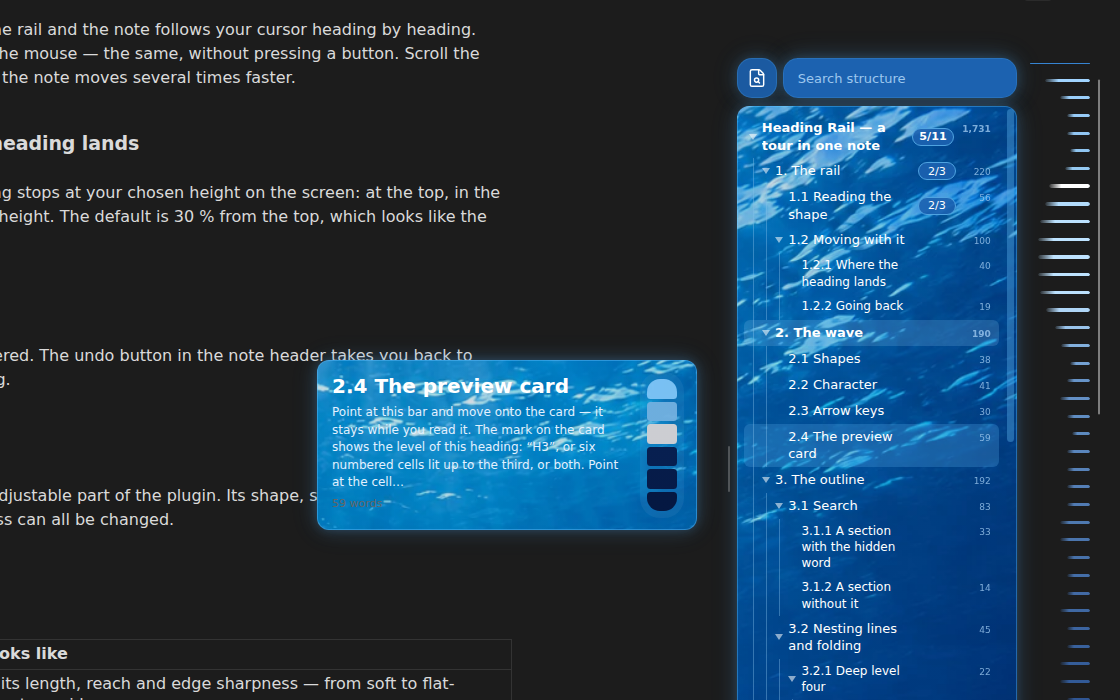
Depth — deep sea: one underwater picture across the outline, the search box and the preview, bars from light to dark blue, a smooth arched wave. |
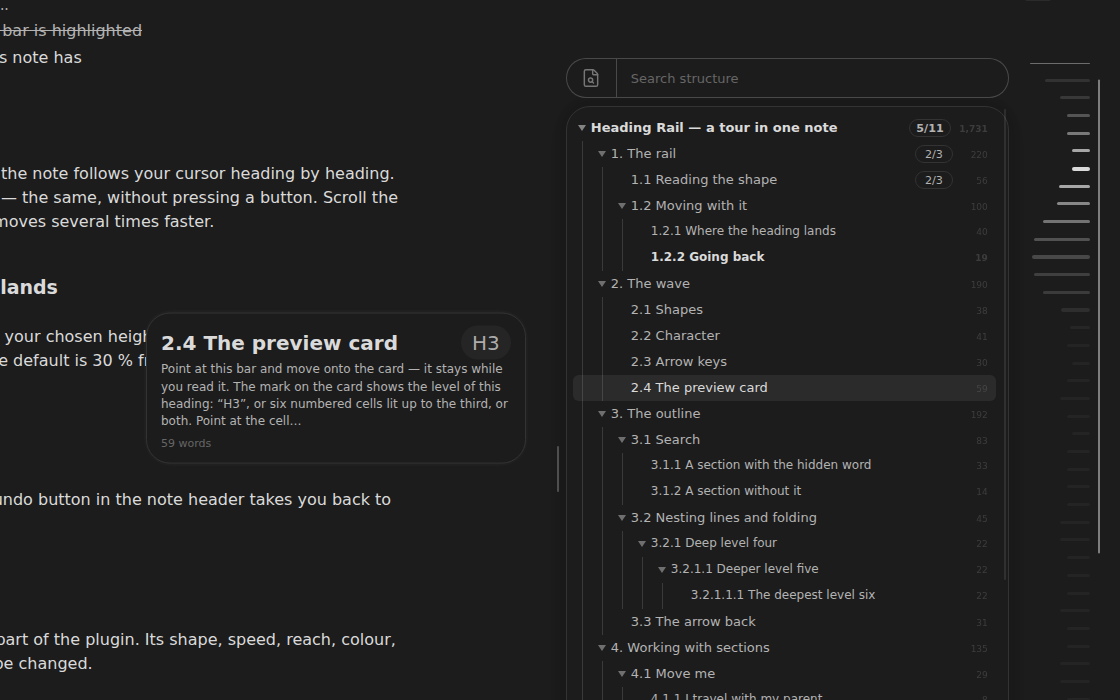
Standard — the default: thin bars on the right in your Obsidian theme's colours and a soft wave. Built in. |
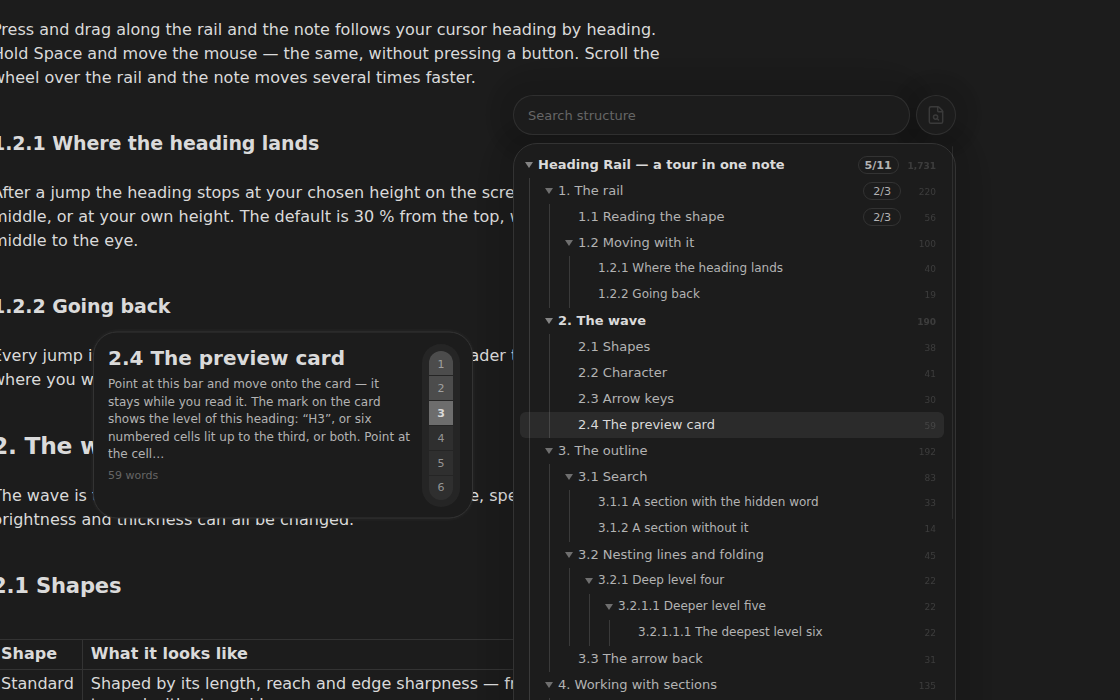
Funkier — bars on the left, thicker and longer, a shorter and sharper wave, the actions menu below. Colours from the theme. |
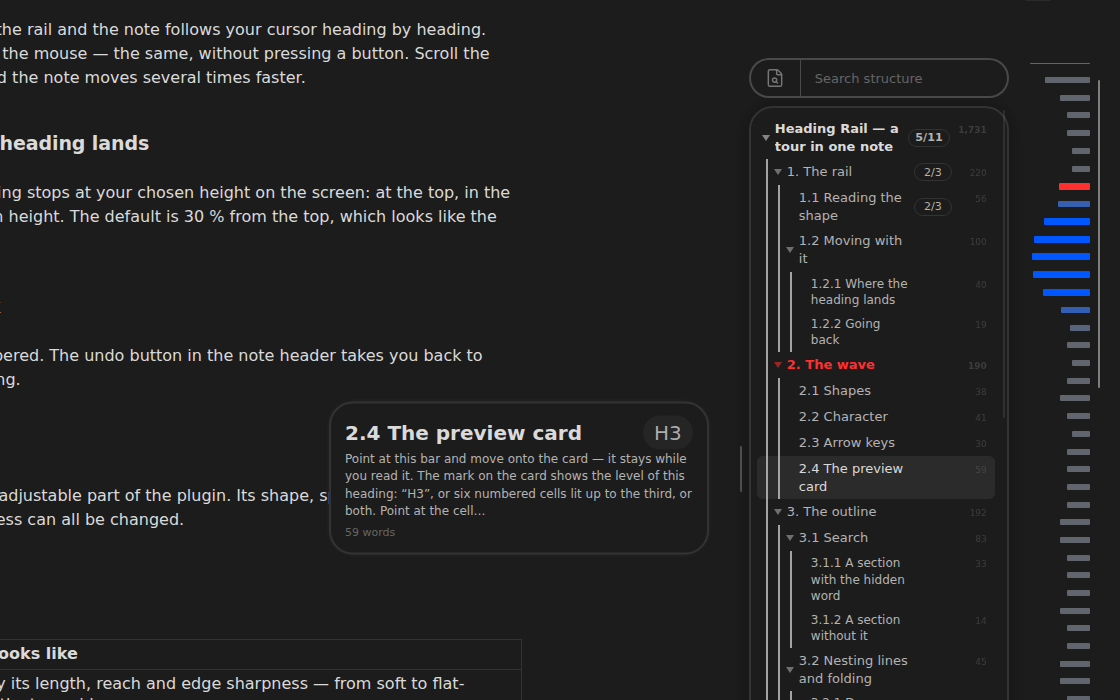
Racer — crisp and high-contrast: thick bars, a blue wave, the current section in red, no animations. |
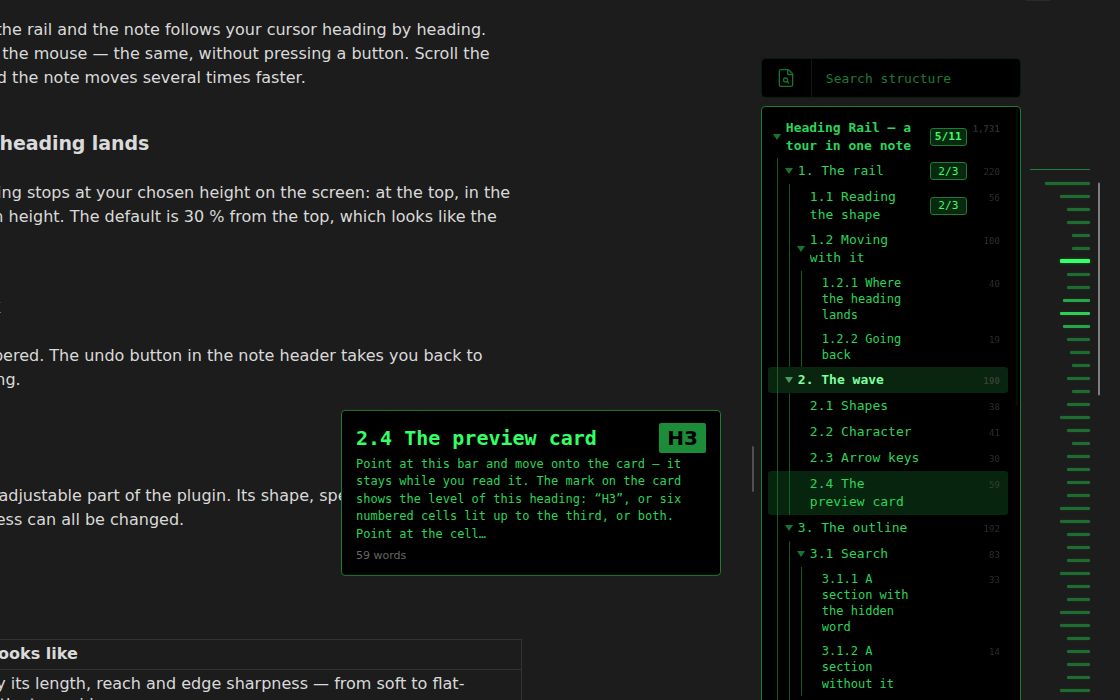
Terminal — like an old terminal: black background, green bars and text, a monospace font. |
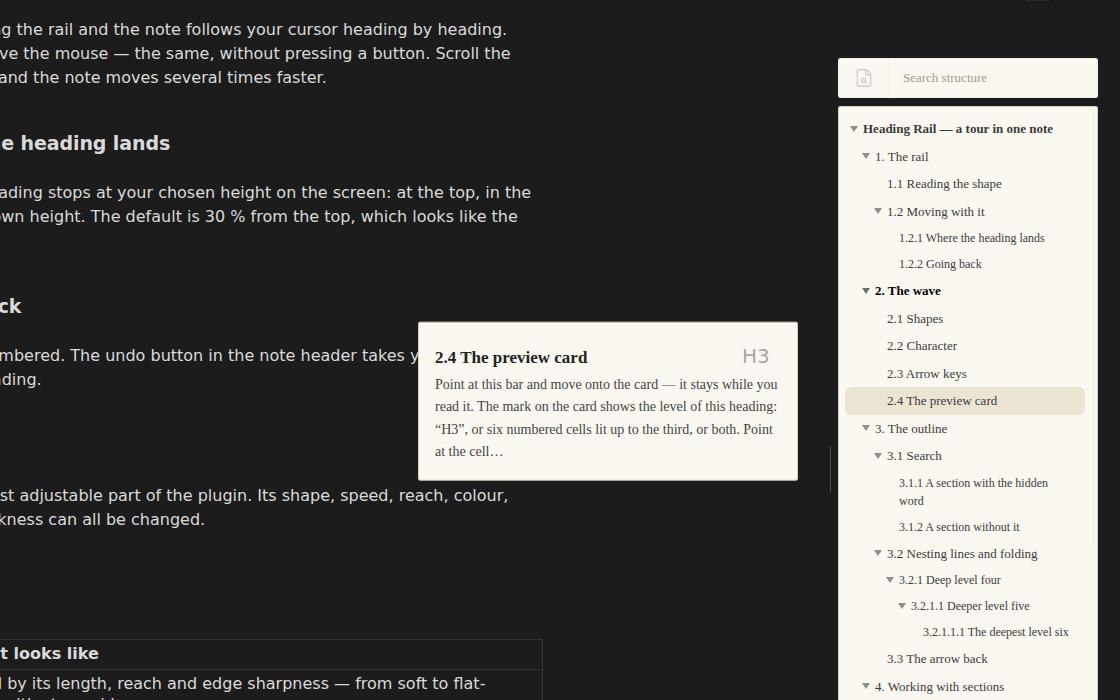
Paper — light, like paper: thin grey lines on the left, a warm background, a book font. |
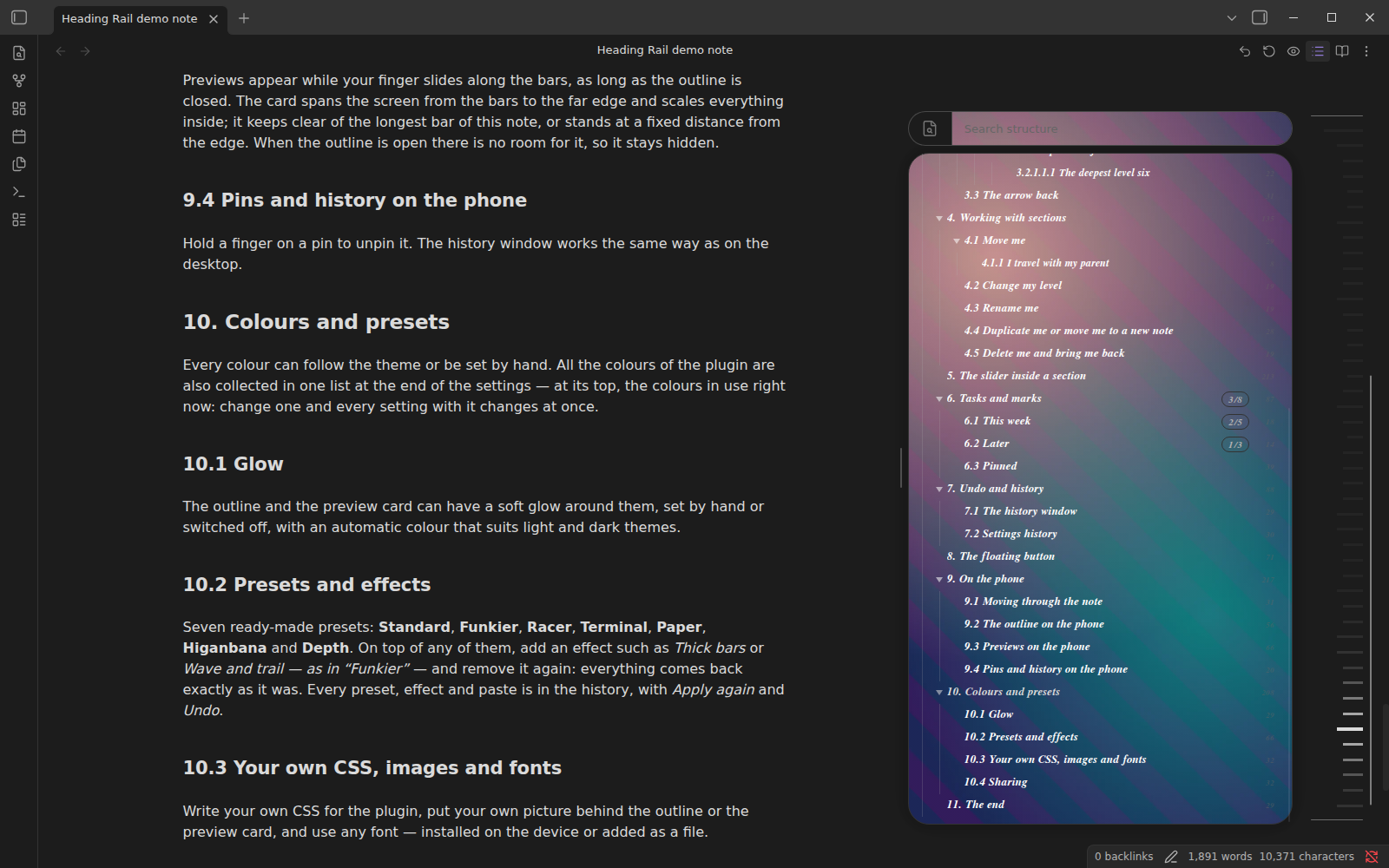
Your own — your CSS, background pictures (GIFs too) and any font. Share the result as a file or a code anyone can paste. |
**On the phone** — the same looks, adapted only where a phone needs it:
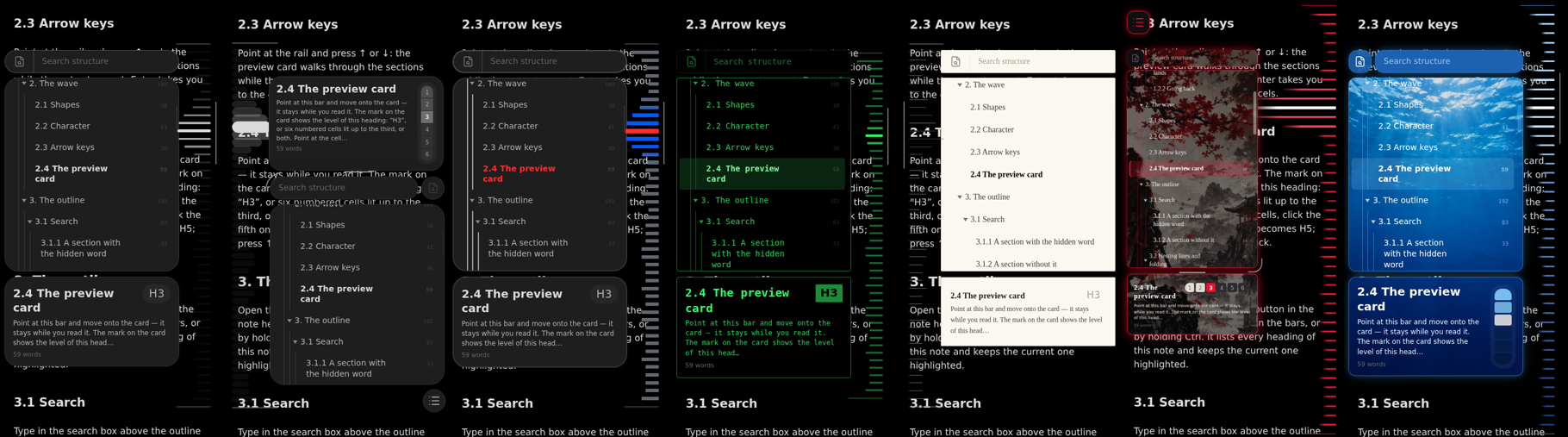
Standard · Funkier · Racer · Terminal · Paper · Higanbana · Depth
---
## The catalog
Presets, effects and CSS add-ons live in a catalog right inside the plugin. Open it with the **Catalog** button at the top of the settings (next to *Desktop / Mobile*) or with the command *Open the catalog of presets and effects*.
- Every card has a screenshot from the desktop and one from the phone, a description in your language and the author's name.
- **Download**, then **Apply** — one button each, on the desktop and on the phone. Nothing to copy by hand.
- Search by name, description and keywords; filter *Presets*, *Effects*, *CSS*, *Downloaded*.
- **New looks appear without updating the plugin** — the catalog is read from this repository.
- Downloaded items are kept as files in the plugin's folder. What you applied on one device downloads by itself on the other.
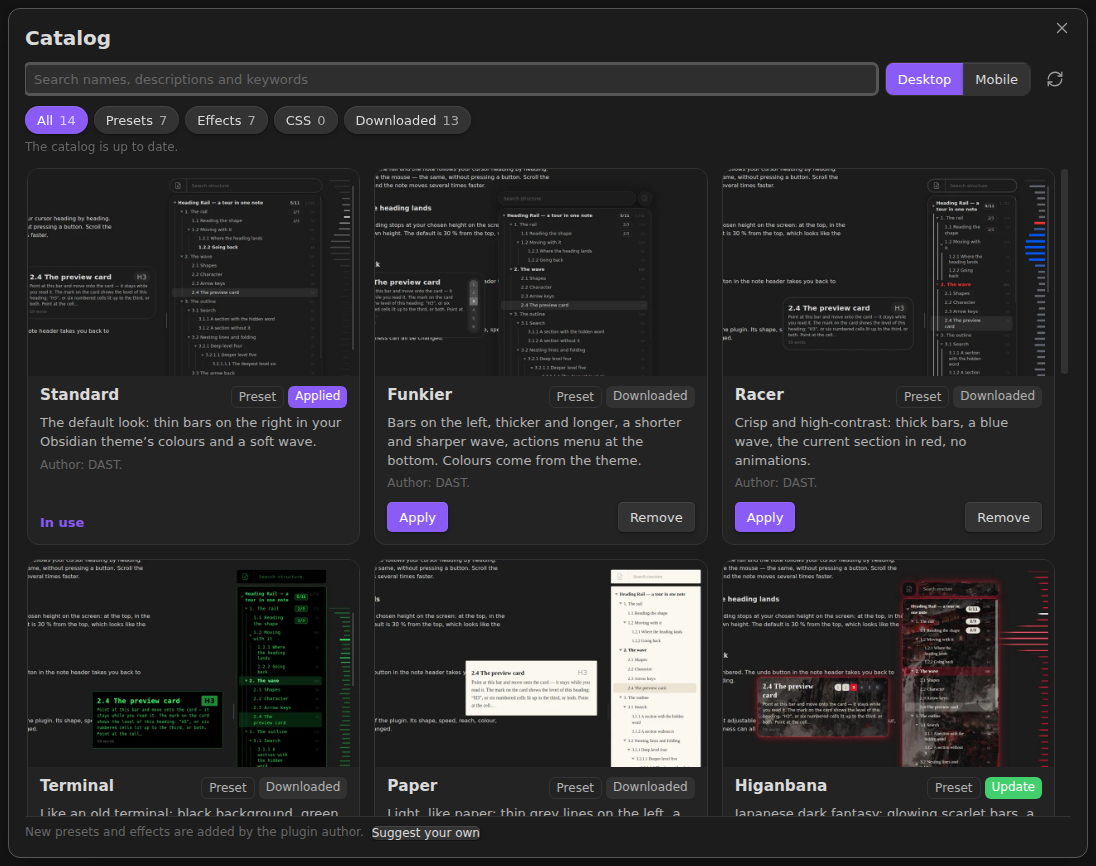
The catalog on the desktop. |
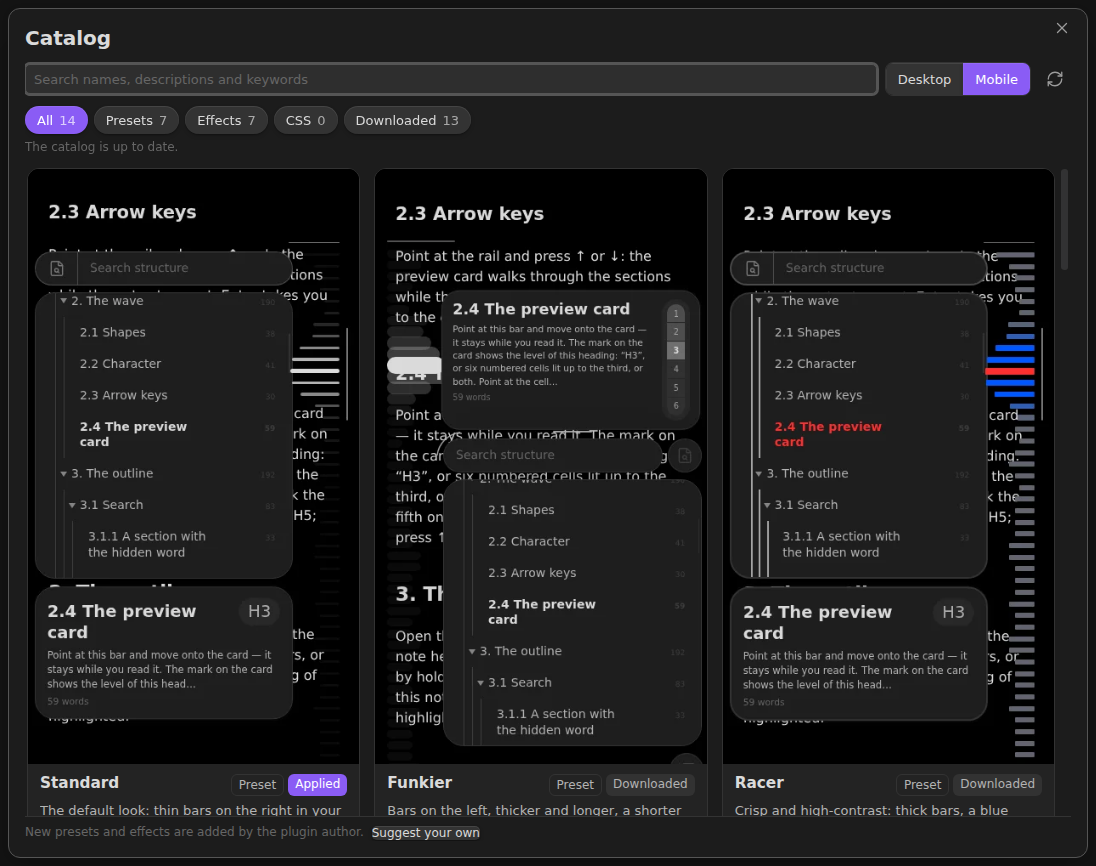
Mobile chosen: the same cards with phone screenshots. |
### Effects
An effect goes on top of any preset and changes only its own few settings. **Remove** puts back exactly what was there before — even if you changed those settings by hand since.
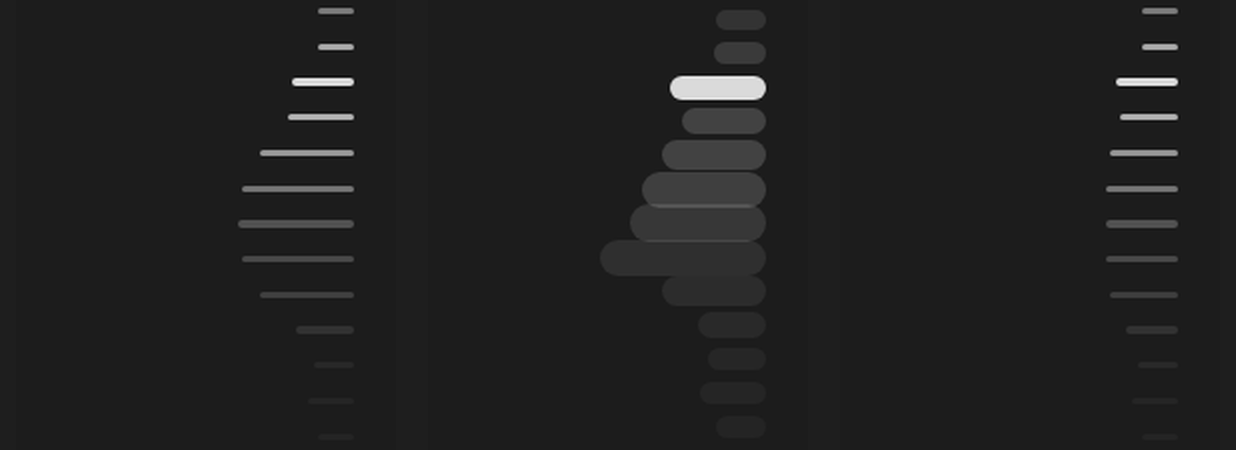
Wave effects, left to right: Wave and trail — as in “Standard”, as in “Funkier”, Calm wave.
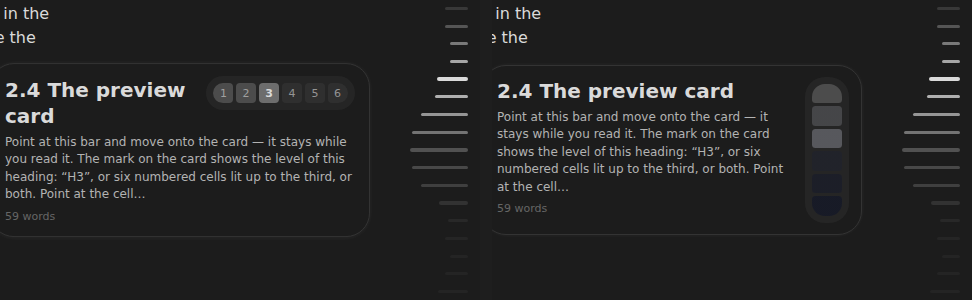
Level as in “Higanbana” and Level as in “Depth” — the level scale of the preview card, everything except colours.
| Effect | What it changes |
|---|---|
| **Wave and trail — as in “Standard”** | Everything about the bars and the wave except colours, as in Standard. |
| **Wave and trail — as in “Funkier”** | Thick bars, a shorter and sharper wave, the halo and the current bar's travel, as in Funkier. |
| **Calm wave** | Softer and slower: a wider, lower wave with no overshoot. |
| **Level as in “Higanbana”** | Six numbered cells in a row on the preview card. Shape and sizes only. |
| **Level as in “Depth”** | A vertical scale of wide cells, each one deeper. Shape, sizes and response only. |
| **Higanbana: dark marks** | For Higanbana without light parts: marks, pinned entries and level cells turn dark grey. |
| **Depth: white marks** | For Depth: marks, pinned entries and the menu buttons turn white with dark blue text. |
Made a look you like? **Share your own preset** in the settings sends it to the author; once checked, it goes into the catalog for everyone.
---
## What it does
### A map of the whole note
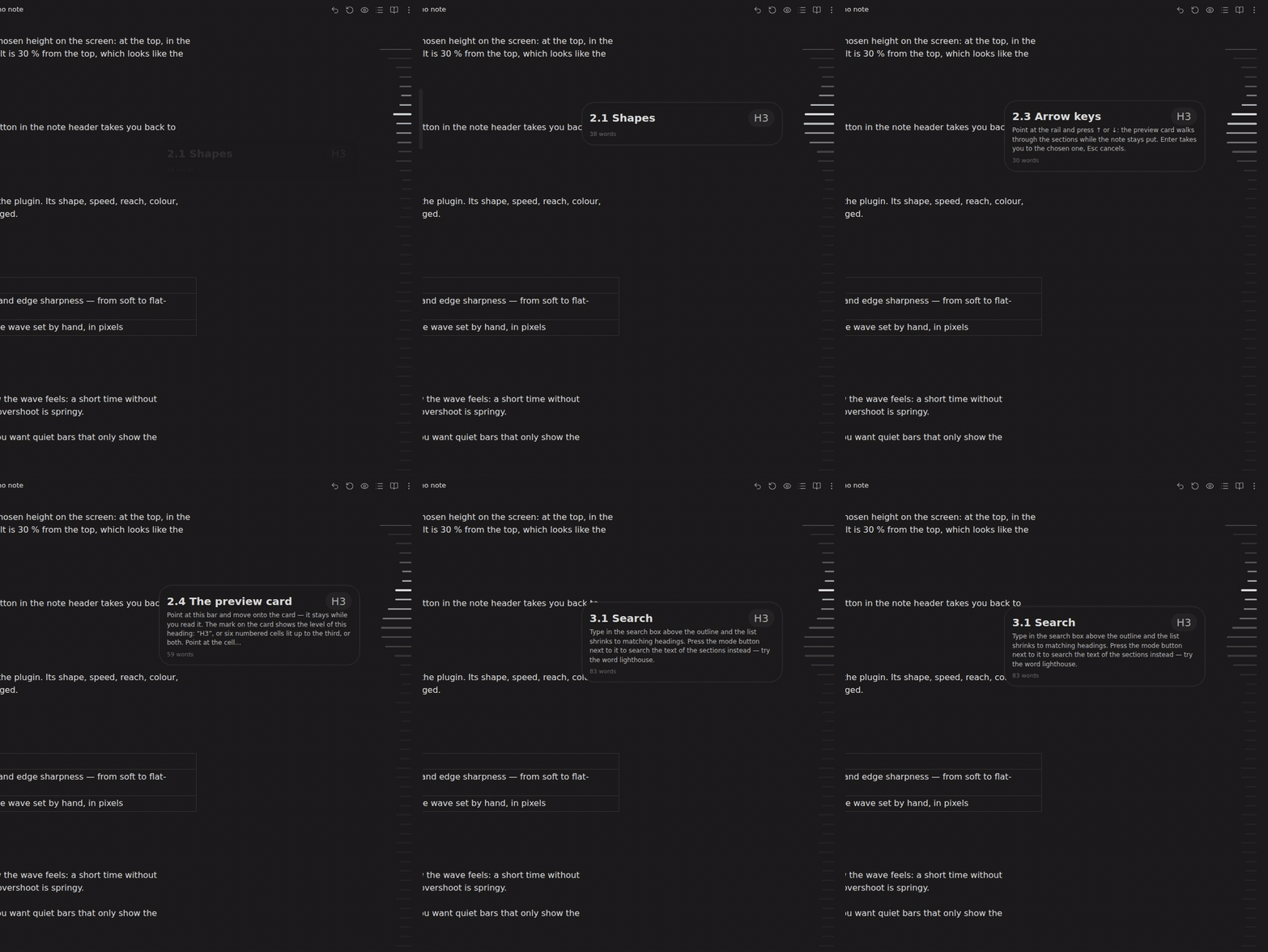
Every heading is a bar; longer bars are bigger headings, the current one is highlighted. Point at the rail and a wave runs under the cursor; stop on a bar and a preview card shows that section; click and the note glides there. The card doesn't blink from one section to the next — it slides.
### An outline that follows you
Open the rail into an outline — with the header button, a right-click on the bars, by holding Ctrl, or from a floating button you can put anywhere. It keeps the current section in view, folds like the note, shows nesting lines, word counts and open tasks.
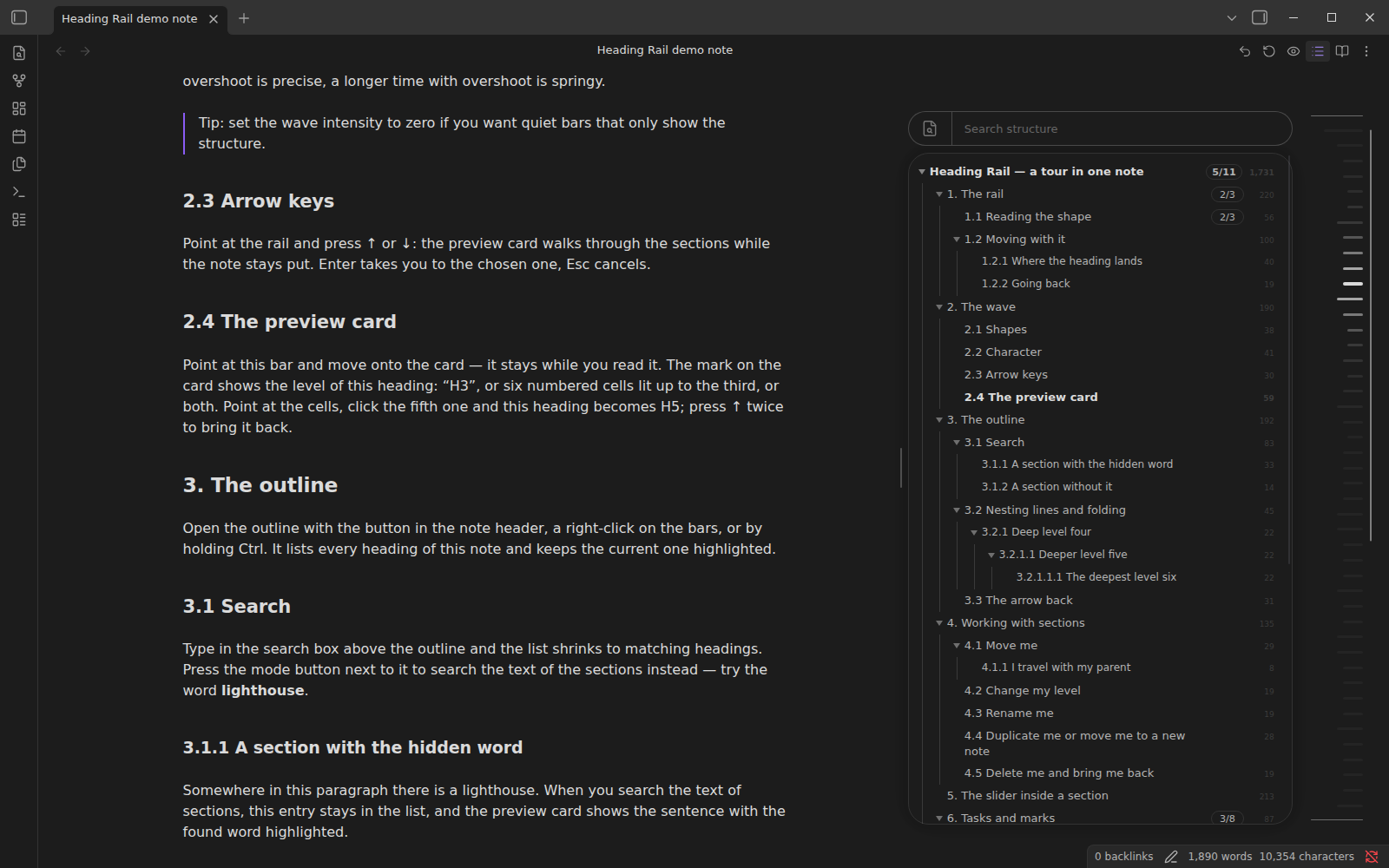
The outline next to the bars. |
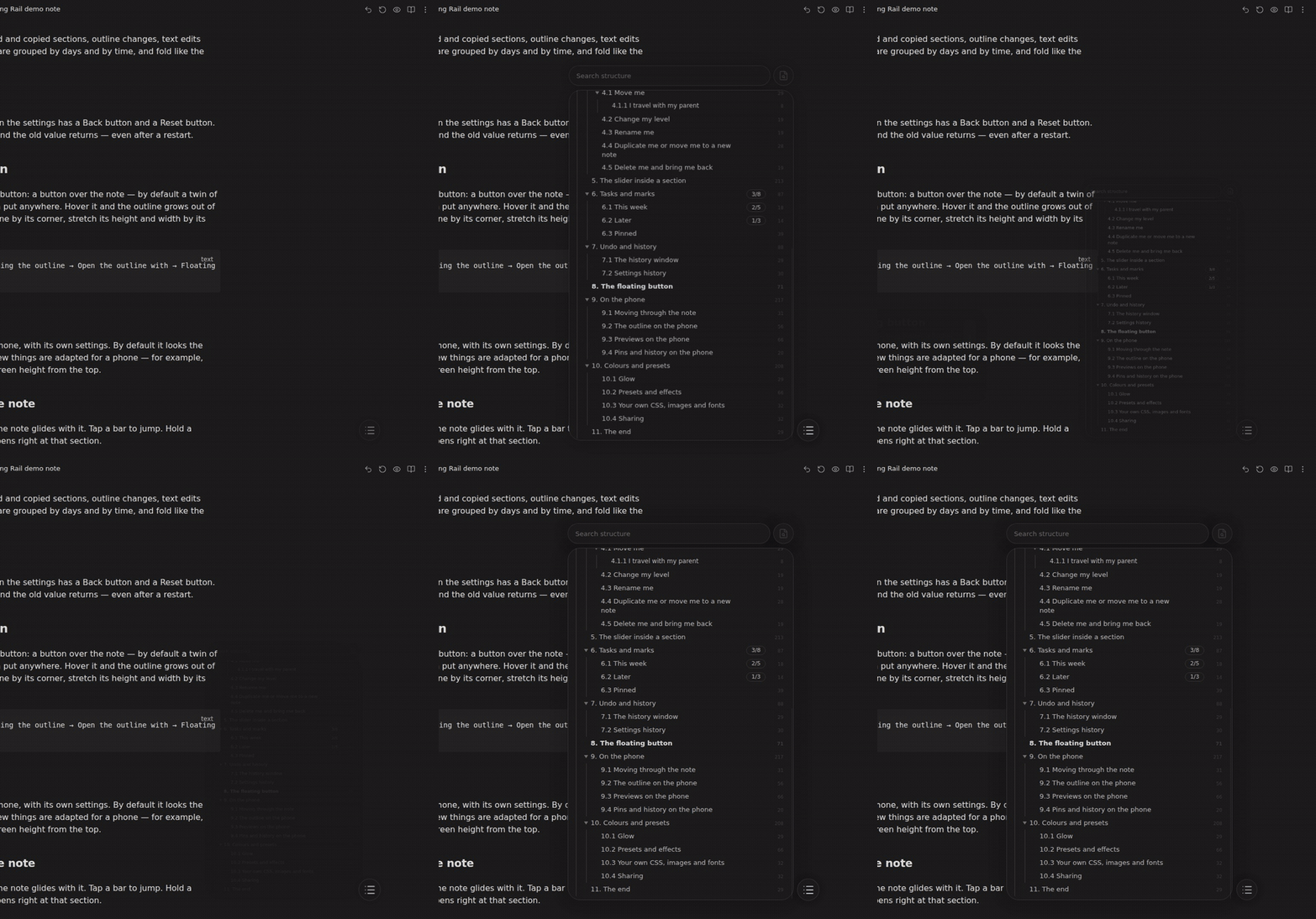
The floating button: hover — the outline grows out of it; click — it stays. |
### Edit the structure right in the outline
Select a section — right-click, or hold a finger on the phone — and an actions menu appears: change the heading level, rename, pin, copy a link, copy, duplicate, move into a new note, delete. Drag a section like a card: its text and subsections go with it, a line shows where it lands and at which level.
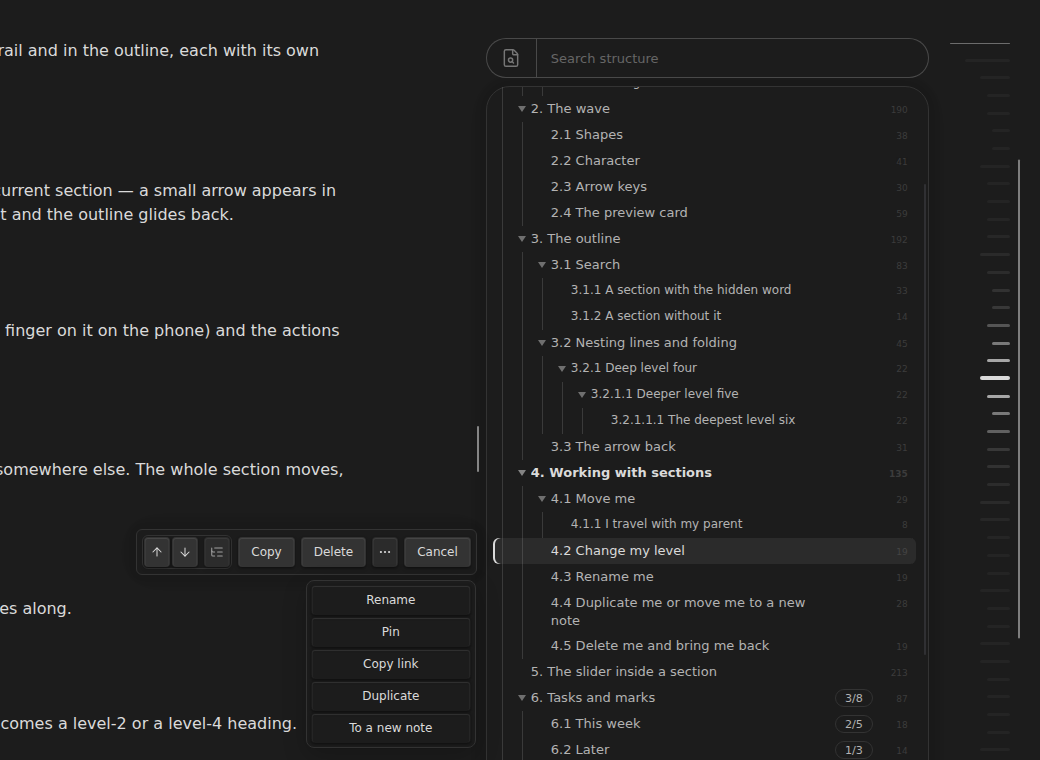
The actions menu of a selected section. |
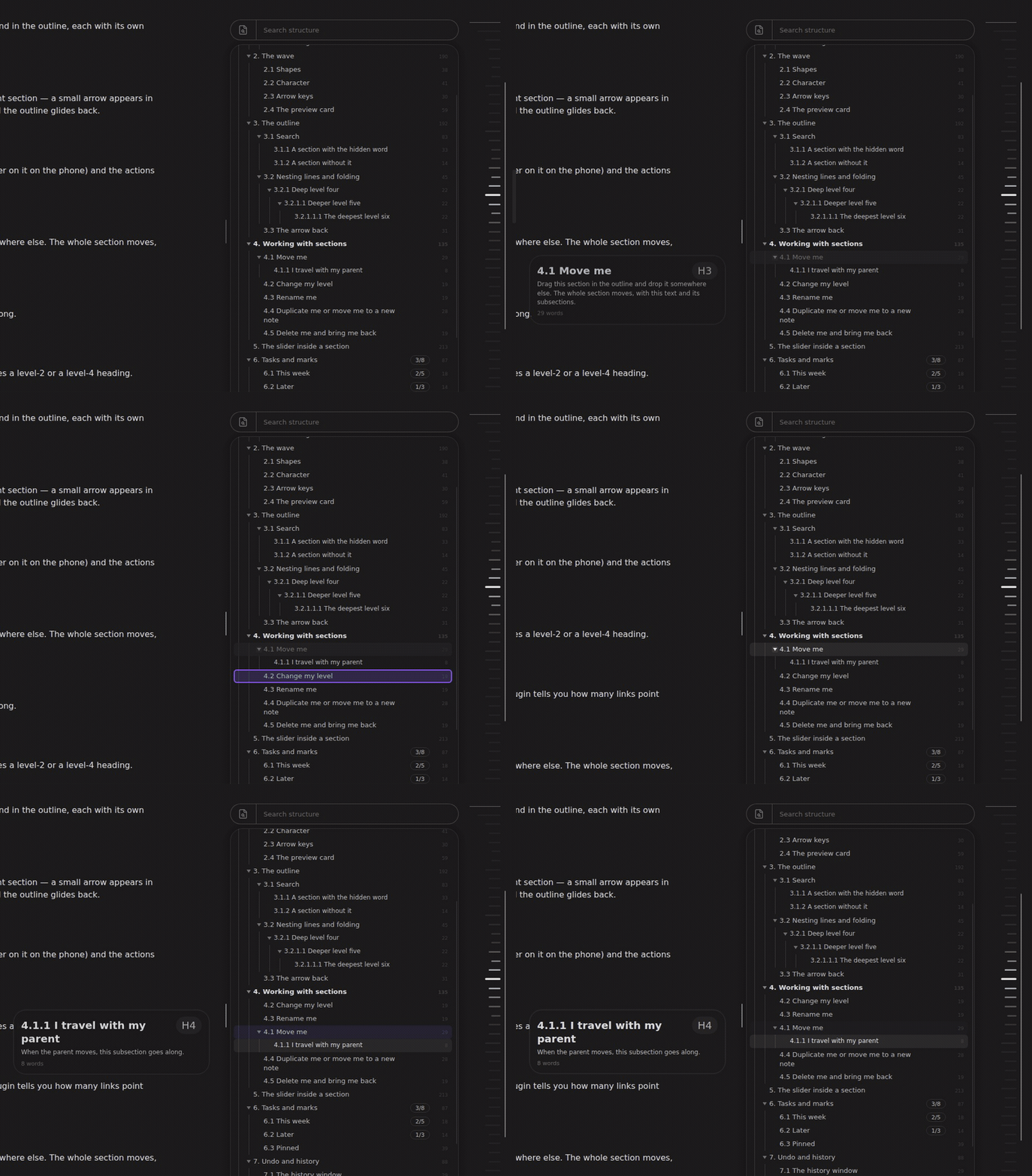
Dragging a section: the line shows the place and the level. |
### Search headings — or the text itself
Type and the outline shrinks to the matches. The button next to the box switches to searching the text of the sections: the found word is highlighted in the note and in the preview card.
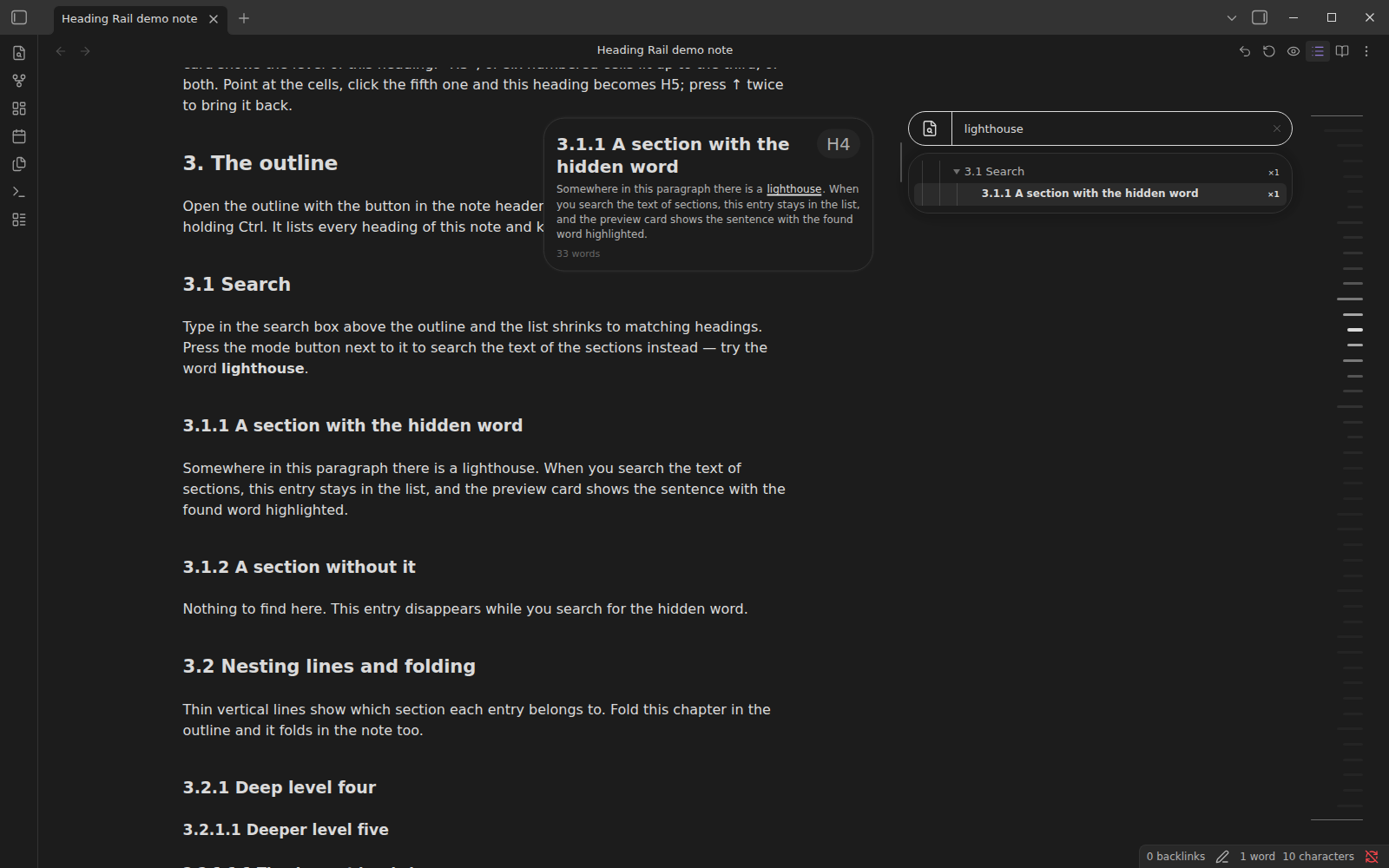
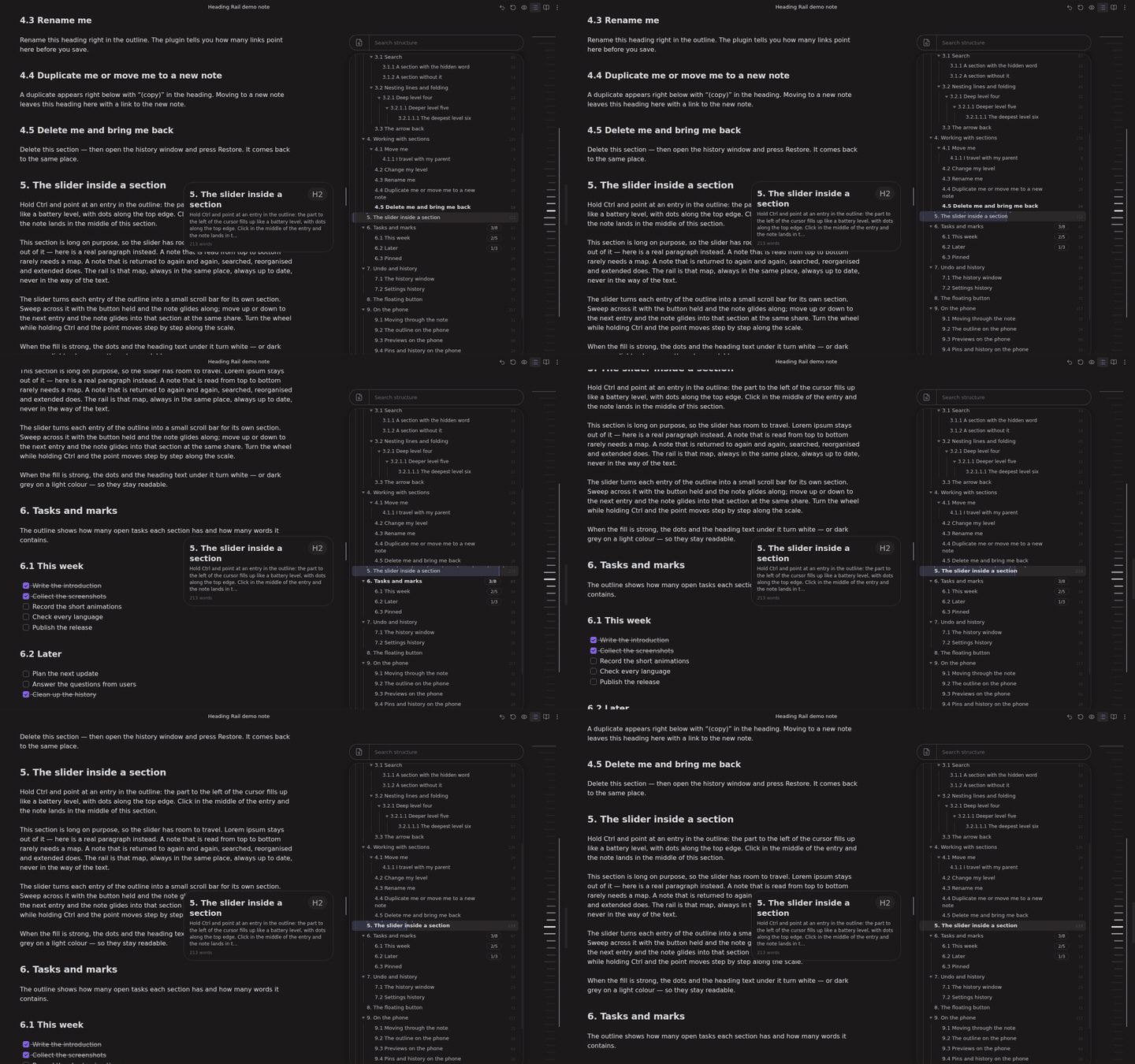
### Ctrl + hover: a slider inside every section
Hold Ctrl (⌘ Cmd on macOS) over an outline entry and it fills up to the cursor. Click to land at that exact point of the section, hold the button and sweep through the note, or step with the wheel.
### Pins, word counts, open tasks
Pin the sections you keep coming back to — they are listed at the top of the outline. Next to each entry: its word count, its open tasks (“7”, “4/11” or “7/11”) and what a folded section hides.
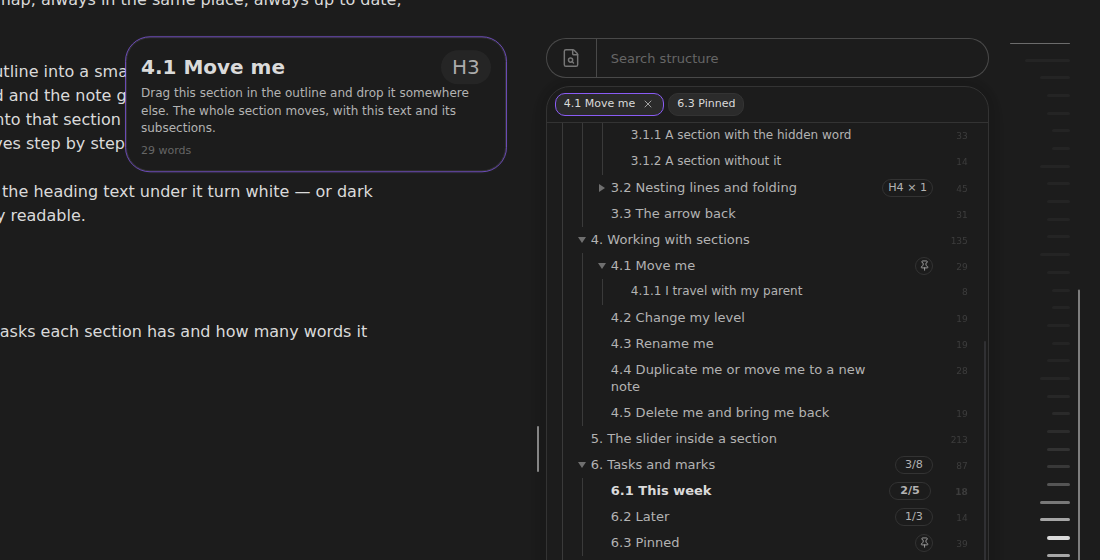
Pinned sections; a pinned entry's preview has a frame. |
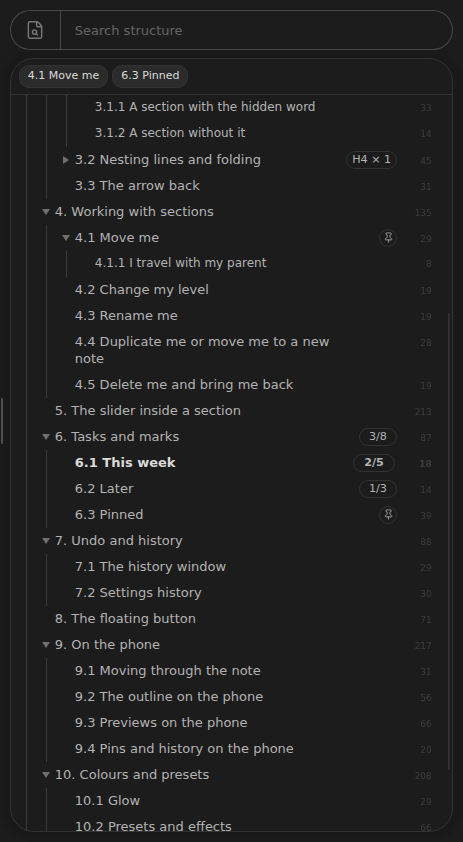
Word counts, tasks, a folded section. |
### Undo anything
The undo button in the note header takes back every action of the plugin — moves, renames, level changes, deletions, pins — and returns you to where you were before a jump. The history keeps deleted and copied sections, outline changes, typing, presets and every settings change, ready to be restored.
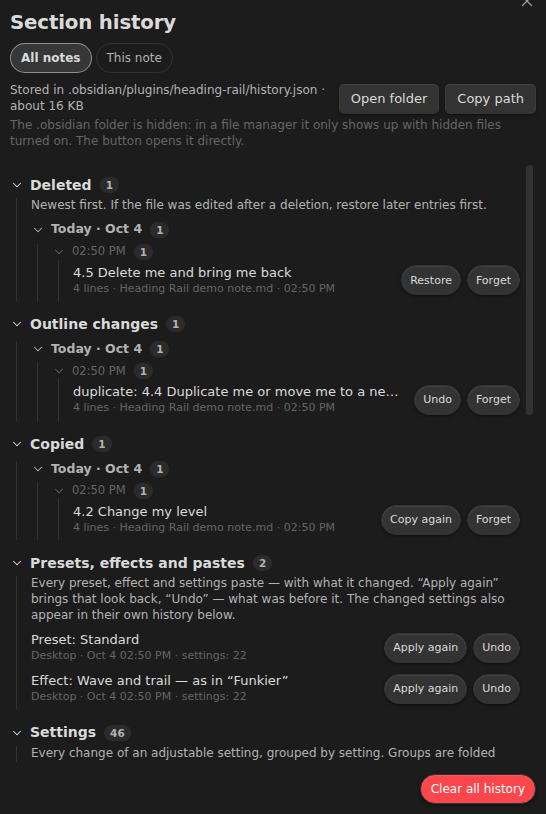
The history window. |
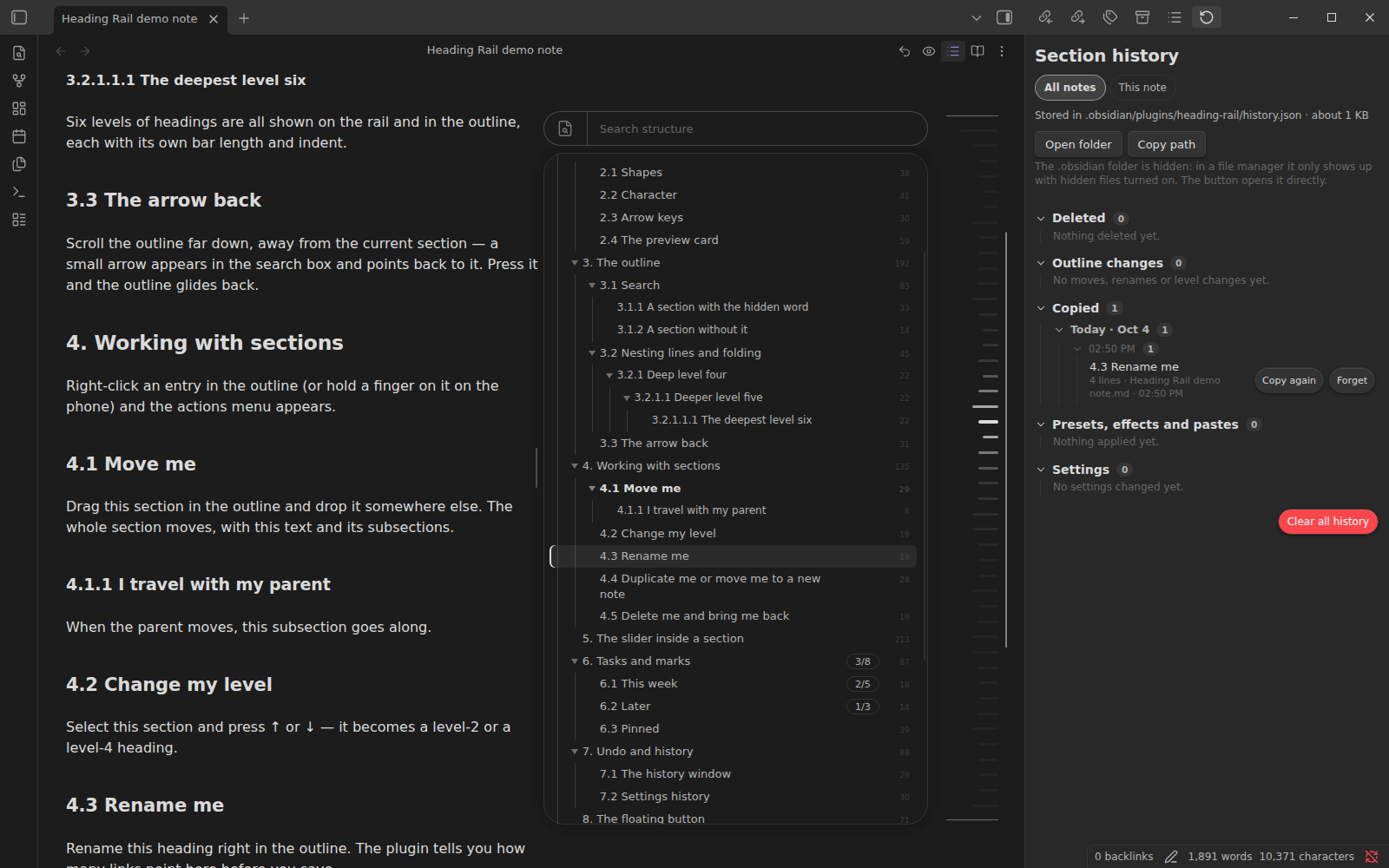
Or in the sidebar, next to the note. |
### A preview card you can work with
The card shows the heading level as “H3”, as numbered cells, or both. Point at a cell and click to change the level, or press ↑ / ↓ anywhere on the card.
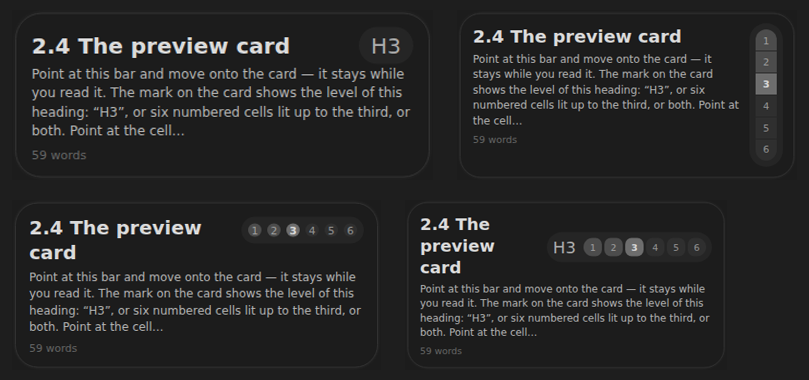
Four looks of the level mark. |
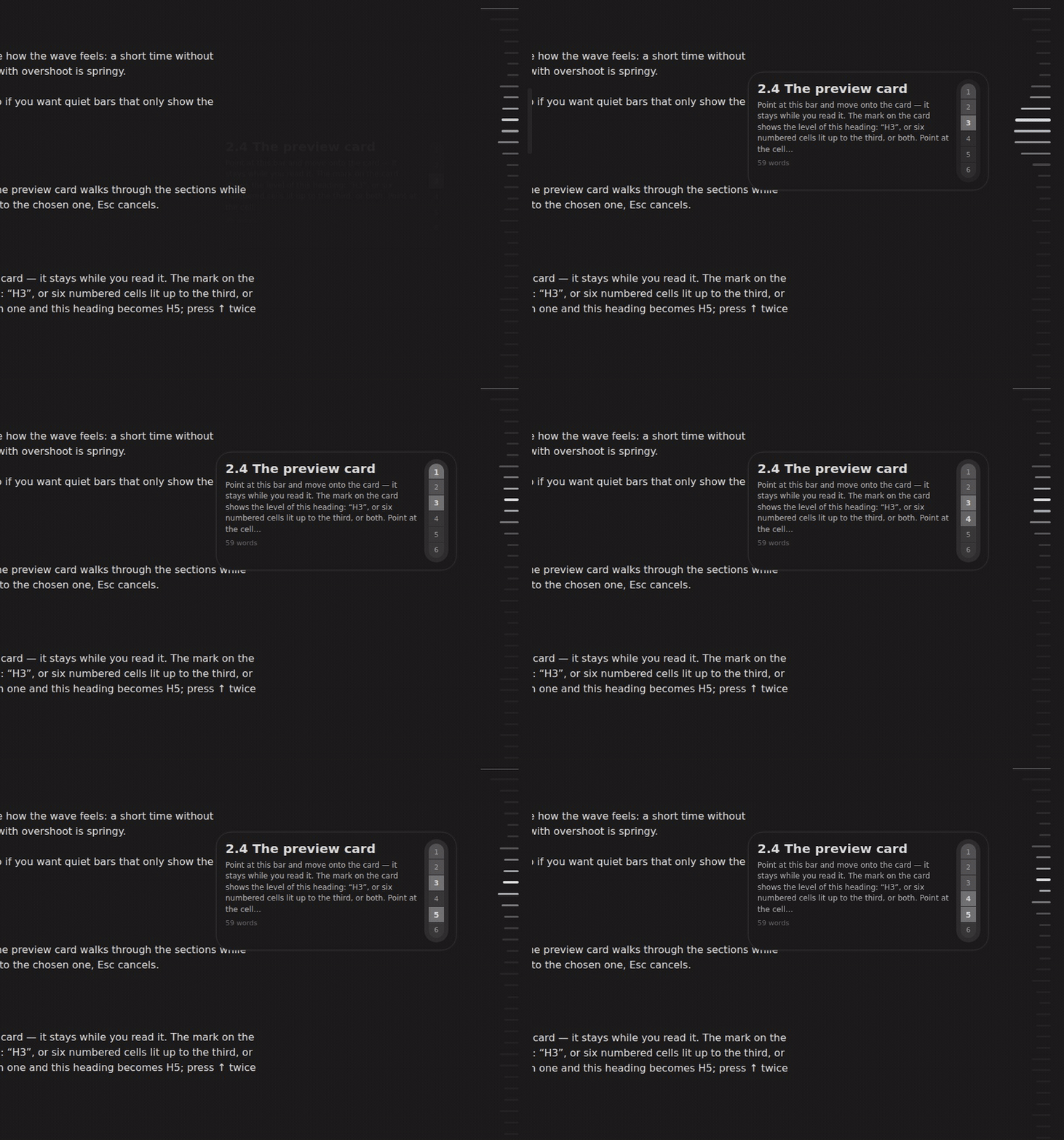
Changing the level from the card. |
### Hundreds of settings, all reversible
Settings are grouped by what they do, with search that understands you in every language. Next to every slider, number and colour: **Back** (undo its last change, remembered across restarts) and **Reset**. They can also open in the sidebar, so you change something and see it at once. Paste a theme, an effect or CSS straight into the settings search and it is applied.
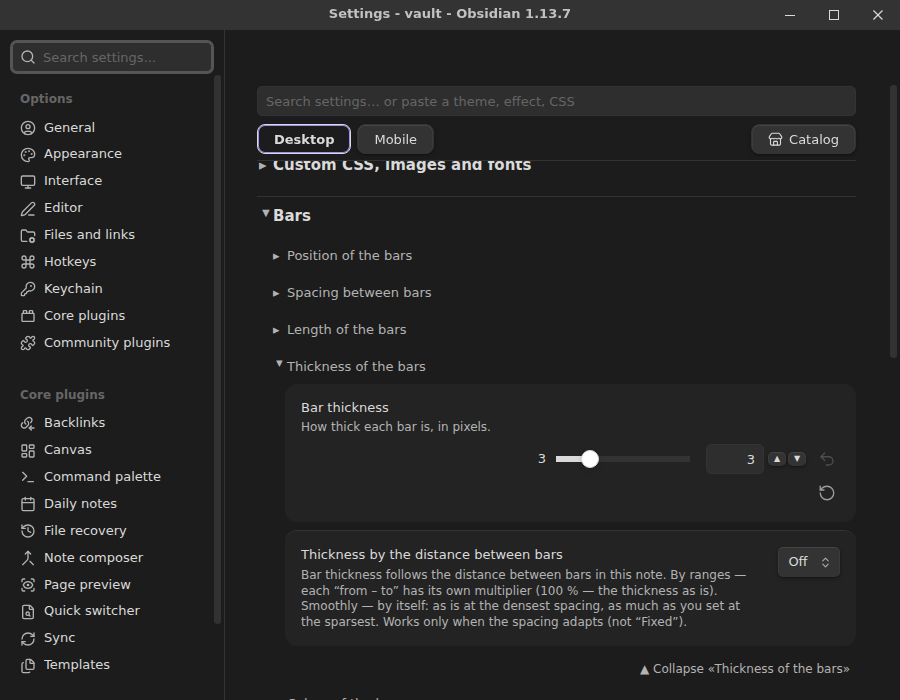
The settings. |
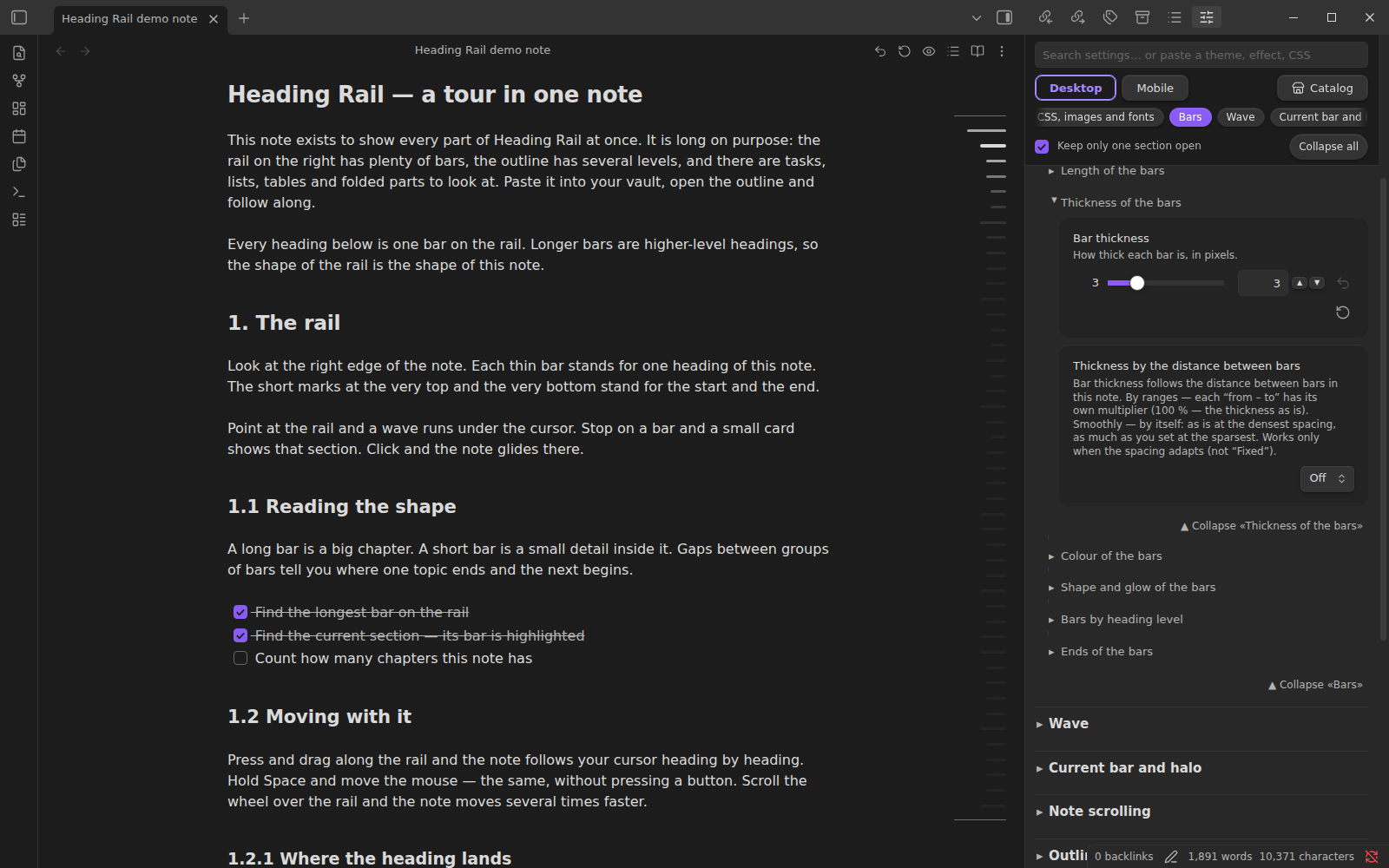
The settings in the sidebar. |
### Works fully on the phone
The rail, the outline, the actions menu, dragging sections, pins and the history all work with touch. Slide a finger along the rail to move through the note; hold a finger on a bar to open the outline right there. The phone has its own profile of settings.
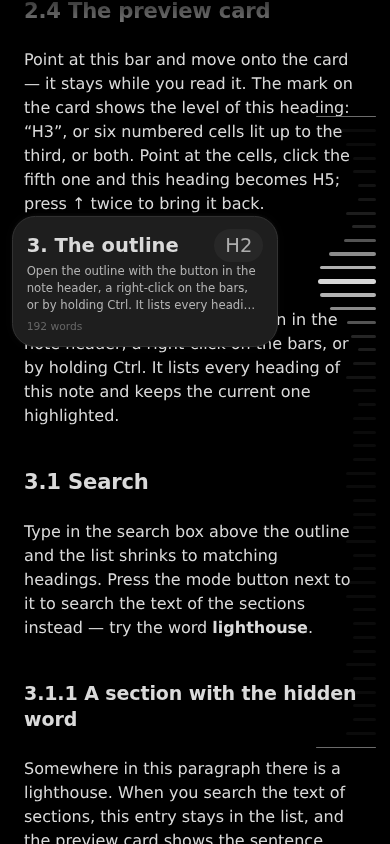
The rail. |
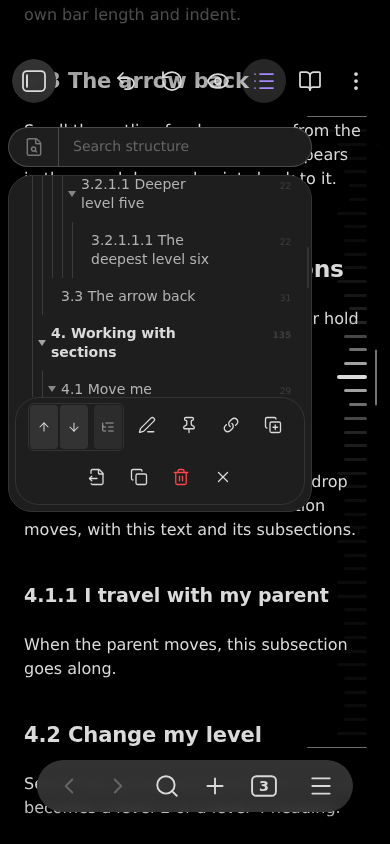
Outline and actions. |
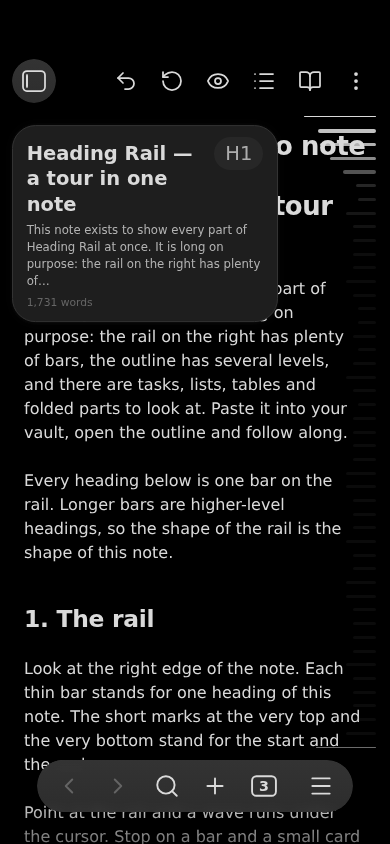
The preview. |
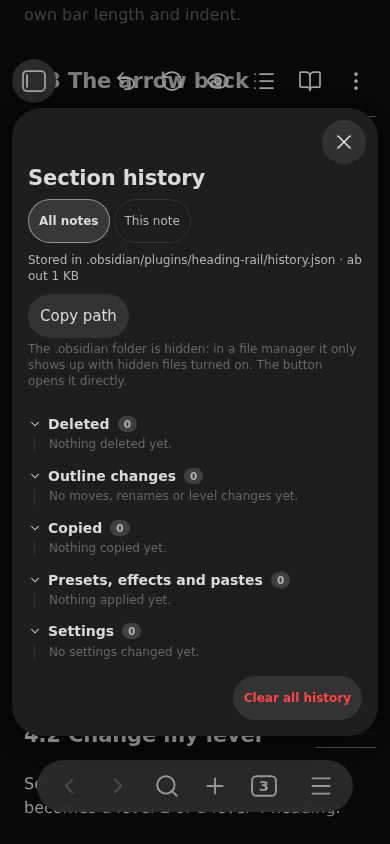
The history. |
➡️ Every feature step by step: **[Guide](https://github.com/JustDast/obsidian-heading-rail/blob/main/GUIDE.md)**. Every setting with its default: **[Every setting](https://github.com/JustDast/obsidian-heading-rail/blob/main/SETTINGS.md)**.
---
## Installation
In Obsidian: **Settings → Community plugins → Browse**, search for **Heading Rail**, install and enable it.
By hand: download `main.js`, `manifest.json` and `styles.css` from the [latest release](https://github.com/JustDast/obsidian-heading-rail/releases/latest) into `/.obsidian/plugins/heading-rail/`, then enable the plugin in **Community plugins**.
## Compatibility
Obsidian 1.6 or newer. Desktop (Windows, macOS, Linux) and mobile (Android, iOS). macOS keys (⌘ Cmd, ⌥ Option) are supported and checked in testing, but the plugin has not yet been tried on real Apple devices — reports are very welcome.
---
## What's new
### 10.5.5
- The shared background picture no longer flashes oversized for a moment while the floating outline grows out of its button.
### 10.5.4
- **The shared background picture follows what is on screen.** Outline and preview side by side — the picture spans both across; the preview below or above the outline — it spans them in height; only the preview — just the preview (it used to wait for the outline and showed half a picture).
- New option **Size of the shared picture**: *Automatic* (default) or *Whole note*, for those who prefer one big picture.
- When a sidebar narrows the note, the preview moves below the outline right away instead of squeezing beside it.
### 10.5.3
- **Background pictures fit their window again.** With *one picture with the outline* (Higanbana, Depth) the picture spanned the whole note and on a wide window grew to the size of the screen. Now it spans just the outline with its search box and the preview beside it, so you can actually see what's on it.
- Clearer names for the picture settings: **How the picture fills the window** (*Cover*, *Whole picture*, *Repeat*) and **Which part of the picture to keep**, each with an explanation, in all 17 languages.
- A new animation at the top of this page.
### 10.5.2
- The plugin now asks for Obsidian 1.6 or newer (it already relied on features of newer versions).
- A [Privacy and network](#privacy-and-network) section in this README: when the plugin goes online and what it never sends.
### 10.5.1 — the big update after 8.3
Everything below is new since 8.3.0.
- **17 interface languages.** Ten new ones: Italiano, Español, Português, Türkçe, Polski, Українська, Tiếng Việt, Bahasa Indonesia, 简体中文, 繁體中文 — next to English, Deutsch, Français, Русский, 日本語, 한국어 and हिन्दी.
- **Seven looks and a catalog.** Standard is built in; Funkier, Racer, Terminal, Paper, Higanbana and Depth download from a catalog inside the plugin, with screenshots for desktop and phone. Effects go on top of any look and come off cleanly. New looks arrive without updating the plugin.
- **The outline became an editor.** Drag whole sections, change heading levels, rename, duplicate, copy a link, move a section into its own note, delete — with the mouse, the keyboard or a finger.
- **Undo anything.** One button takes back every action of the plugin and returns you to where you were before a jump. The history keeps deleted and copied sections, outline changes, typing, presets and every settings change.
- **The floating button** — open the outline from a button you can put anywhere, resize the outline by its corner and edges.
- **Search inside the text** of the sections, not only the headings; the found word is highlighted in the note and the preview.
- **Ctrl + hover slider** inside every outline entry: land at any point of a section, or sweep through the note.
- **Pinned sections, word counts and open tasks** next to every entry.
- **A preview card you can work with:** it stays while you read it, glides from section to section, shows the heading level and changes it with a click.
- **Smooth everywhere** — the note, the outline and the preview glide instead of jumping.
- **Settings you can always take back:** Back and Reset next to every slider, number and colour; search that understands you in every language; settings in the sidebar next to the note; paste a theme, an effect or CSS straight into the settings search.
- **Your own CSS, background pictures (GIFs too) and any font**, shared together with your look.
- **Works fully on the phone:** its own profile, touch gestures, long-press menus, and the search keeps its results while the keyboard is open.
---
## Privacy and network
Heading Rail works offline. It goes online only for the catalog:
- when you open the catalog, or download or update a preset, an effect or a CSS add-on;
- a few seconds after Obsidian starts, but only if a look you applied on another device hasn't been downloaded on this one yet.
It then reads files from this repository — `raw.githubusercontent.com` or its mirror `cdn.jsdelivr.net`. Nothing about you, your notes or your vault is sent anywhere. There is no tracking and no analytics.
**Report a bug or suggest an idea** and **Share your own preset** only open your own mail app with a letter you can read before sending; nothing is sent by itself. The plugin reads the list of your notes only to count links to a heading you rename, and uses the clipboard only for its Copy and Paste buttons.
## Feedback
A word from the author:
> I'm not a programmer at all and never even opened the code of this plugin, it's written fully by AI from my ideas, because of that it's not perfect at all since there's just no normal professional person who could check it, so it can have all kinds of bugs depending on devices, on apple i didn't test at all, so if something doesn't work for you - interface moved somewhere or a setting doesn't work - the problem isn't you, it's the code, please write about every bug as detailed as possible and it will be fixed as fast as possible on your request, don't wait for it to go away by itself, unlikely, and while you don't write i most likely don't even know about it
> **and one more thing, really important:** write to me about literally everything — a feature you're missing, something you'd like to change, something inconvenient, something that doesn't work. i know everyone got used to writing to a developer and it goes nowhere, and that nobody will build anything for just one person — here it's different, i read everything, and if i like the idea or it's objectively useful for the plugin, in most cases it will be made (if it's technically possible at all). so don't be shy, even if it seems only you need it or it's some small thing — write
Found a bug or have an idea? Use **Report a bug or suggest an idea** in the plugin settings — it opens a letter with the plugin, Obsidian and system versions already filled in — or [open an issue](https://github.com/JustDast/obsidian-heading-rail/issues).
Made a fork that is genuinely better? Send me the source and how you did it. If it really is better, it goes into the next version and you are credited as a co-author.
## License
See [LICENSE](LICENSE).