# OCR Extractor - Obsidian Plugin
## About
OCR Extractor is a simple [Obsidian](https://obsidian.md/) plugin that uses [OCR](https://en.wikipedia.org/wiki/Optical_character_recognition) to extract text from documents, images, etc. embedded in your notes. Different [OCR services](#ocr-services) (free or paid, local or cloud-based) are available, depending on your needs.
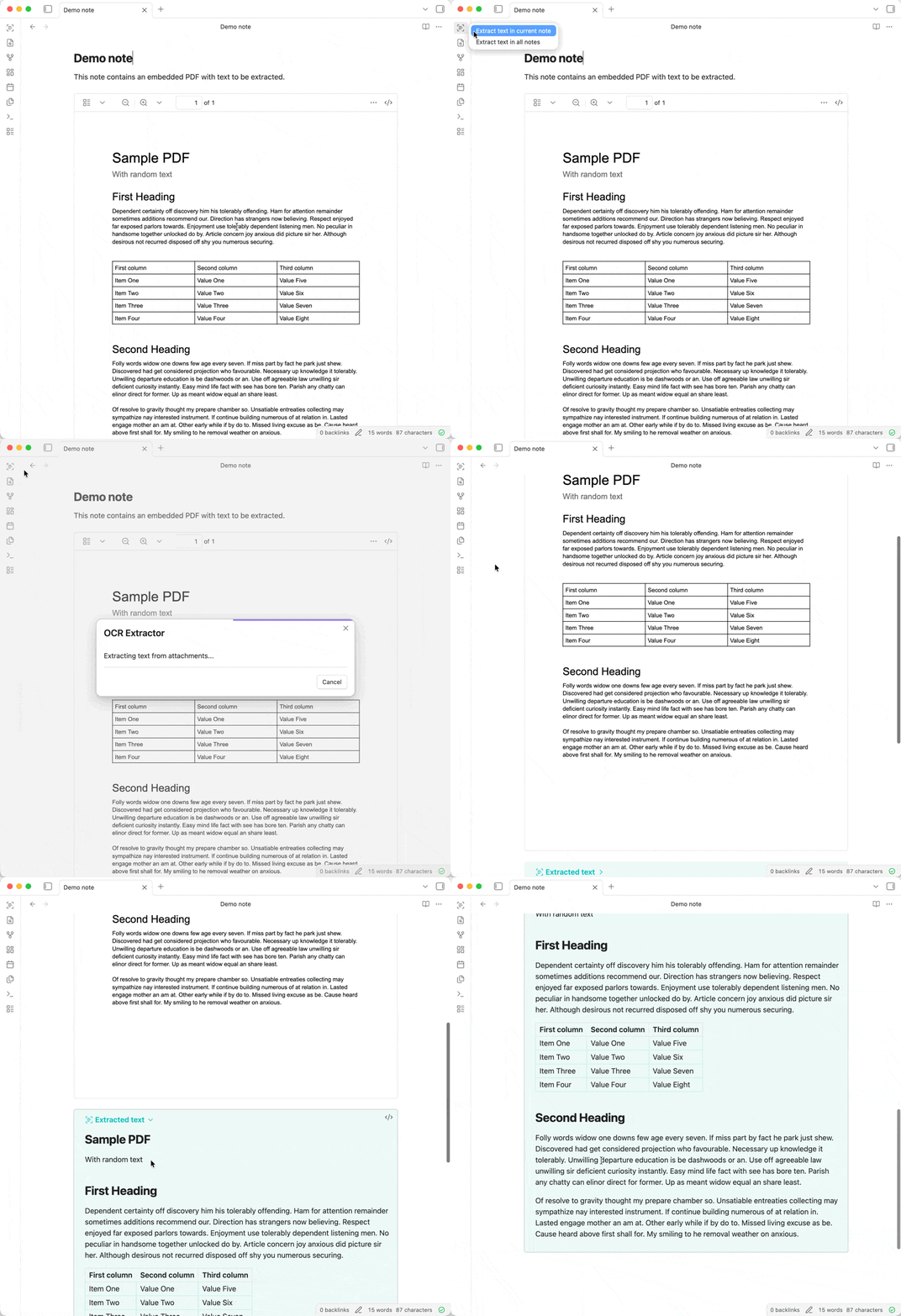
Following Obsidian's philosophy of storing data in an open, future-proof file format, the extracted text is added below the embedded attachment as an expandable [callout](https://help.obsidian.md/callouts). This means that the text will be searchable via Obsidian's [built-in search](https://help.obsidian.md/plugins/search), other search plugins, and even your operating system's native file search.
 ## Usage
Click on the [ribbon](https://help.obsidian.md/ribbon) icon (or use the [command palette](https://help.obsidian.md/plugins/command-palette)) and select one of the two options:
1. Extract text in current note
2. Extract text in all notes (not available on mobile)
## Usage
Click on the [ribbon](https://help.obsidian.md/ribbon) icon (or use the [command palette](https://help.obsidian.md/plugins/command-palette)) and select one of the two options:
1. Extract text in current note
2. Extract text in all notes (not available on mobile)
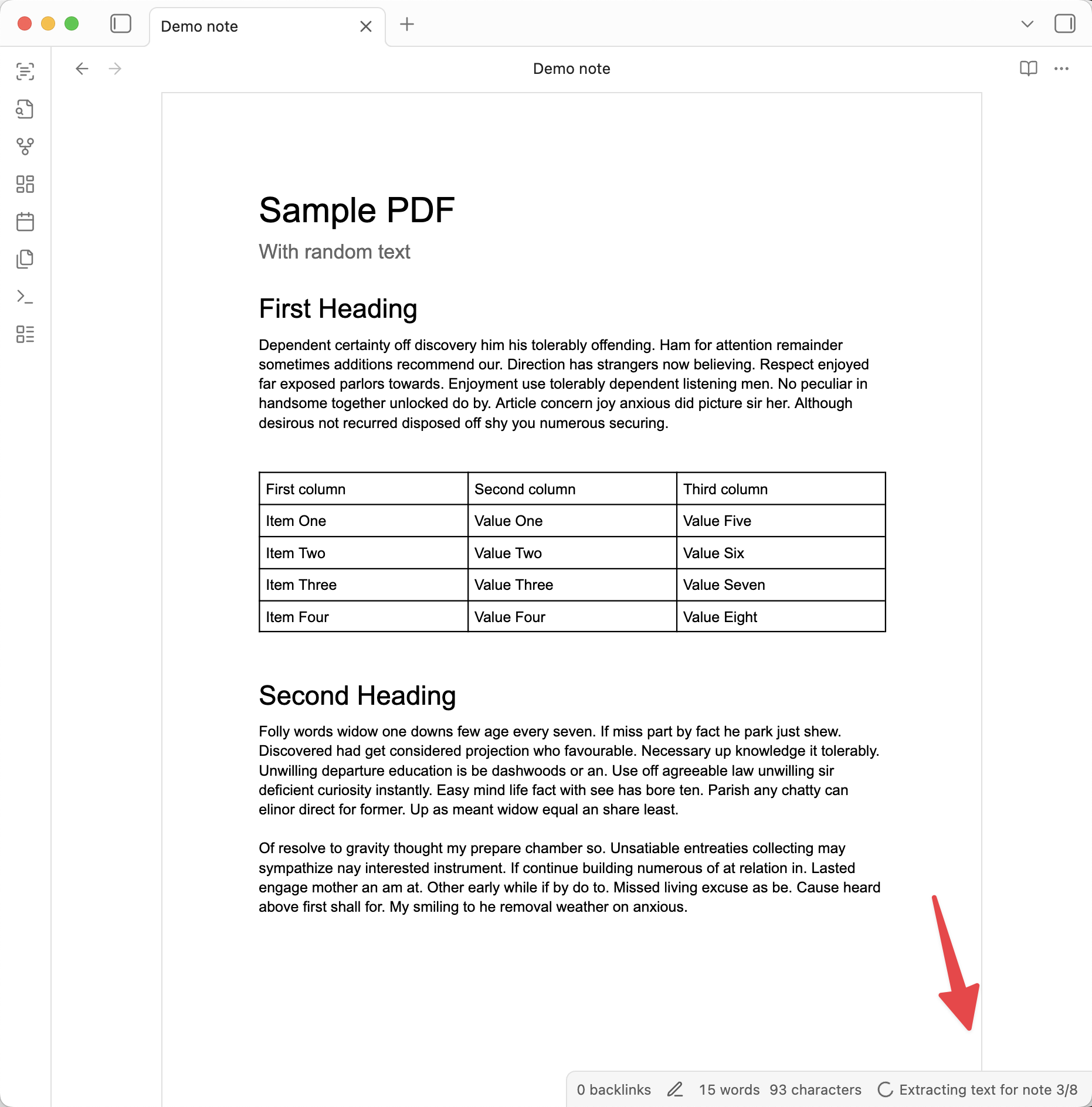
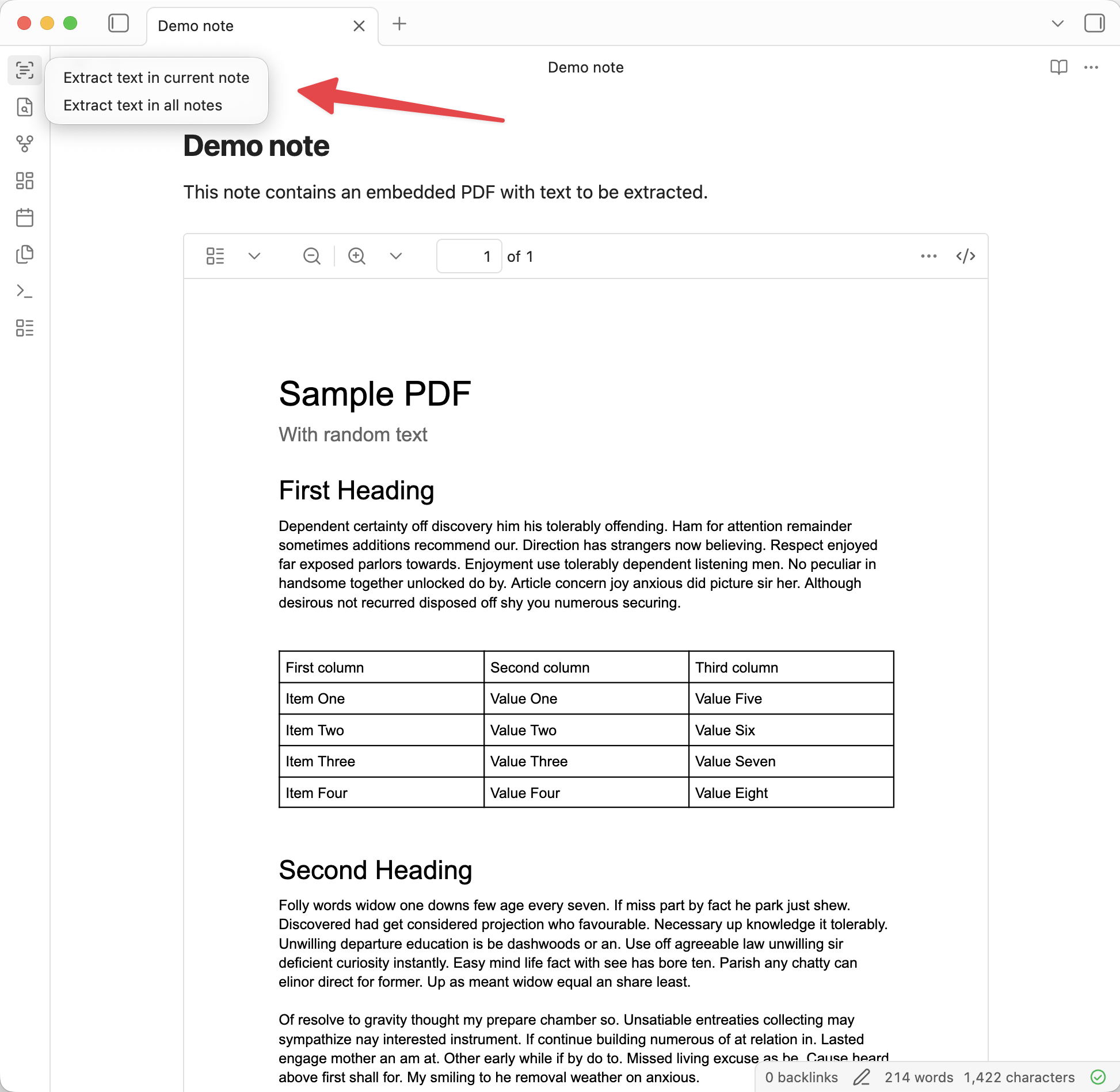 When extracting from all notes, you can see the progress in the [status bar](https://help.obsidian.md/status-bar), or click it and select "Cancel" to cancel the operation.
 ## OCR services
Depending on your needs, you can choose which OCR service to use. Select the service in the plugin settings and follow the setup steps below.
### Tesseract
[Tesseract](https://tesseract.projectnaptha.com/) (the default option) is a popular open source OCR engine. It has some limitations (only supports English text, can only process PDFs and images, can be slower, and can be less accurate), but it's completely free and local (ensuring your data is never sent to a third-party provider). This option requires no additional setup.
### Mistral OCR
[Mistral OCR](https://mistral.ai/news/mistral-ocr-3) is a powerful AI model for extracting text from complex documents and converting it to Markdown. It supports many different languages and file types. This option requires a paid Mistral AI account (at the time of writing, it costs $2 per 1000 pages processed). Attachments are sent to Mistral's OCR service for text extraction (see [their privacy policy](https://legal.mistral.ai/terms/privacy-policy)).
First, you need to create a Mistral AI account. Follow the steps in their [Quickstart guide](https://docs.mistral.ai/getting-started/quickstart/):
1. Create an account
2. Add payment information
3. Recommended: Set a monthly spending limit, to avoid any unexpected charges
4. Create an API key
Then, enter your API key in the plugin settings.
### Custom command
For advanced use cases, you can provide a custom command that will be used to process attachments. This can be used, for example, to extract text with an OCR model running locally, a script that uses a third-party API (that isn't supported natively by the plugin), or Tesseract with a custom configuration.
Enter your custom command in the plugin settings, where `{input}` is the path to the input attachment file and `{output}` is the path to the produced Markdown or text file containing the extracted text. To skip an unsupported attachment, don't create the output file. For example:
```shell
tesseract {input} - -l eng+spa > {output}
```
Click the "Test" button to run the command on a sample image with text and confirm it correctly extracts the text. If the custom command only supports images, enable the setting to convert PDFs to PNGs before processing.
Note that this option is not supported on mobile, so if a custom command is configured, Tesseract will be used instead if attempting to extract text with the mobile app.
## Translations
OCR Extractor is available in several languages. To request a new language (or to suggest an improvement for an existing translation), [start a discussion](https://github.com/jritzi/ocr-extractor/discussions/new?category=ideas).
## License
OCR Extractor is licensed under the [MIT License](./LICENSE).
## OCR services
Depending on your needs, you can choose which OCR service to use. Select the service in the plugin settings and follow the setup steps below.
### Tesseract
[Tesseract](https://tesseract.projectnaptha.com/) (the default option) is a popular open source OCR engine. It has some limitations (only supports English text, can only process PDFs and images, can be slower, and can be less accurate), but it's completely free and local (ensuring your data is never sent to a third-party provider). This option requires no additional setup.
### Mistral OCR
[Mistral OCR](https://mistral.ai/news/mistral-ocr-3) is a powerful AI model for extracting text from complex documents and converting it to Markdown. It supports many different languages and file types. This option requires a paid Mistral AI account (at the time of writing, it costs $2 per 1000 pages processed). Attachments are sent to Mistral's OCR service for text extraction (see [their privacy policy](https://legal.mistral.ai/terms/privacy-policy)).
First, you need to create a Mistral AI account. Follow the steps in their [Quickstart guide](https://docs.mistral.ai/getting-started/quickstart/):
1. Create an account
2. Add payment information
3. Recommended: Set a monthly spending limit, to avoid any unexpected charges
4. Create an API key
Then, enter your API key in the plugin settings.
### Custom command
For advanced use cases, you can provide a custom command that will be used to process attachments. This can be used, for example, to extract text with an OCR model running locally, a script that uses a third-party API (that isn't supported natively by the plugin), or Tesseract with a custom configuration.
Enter your custom command in the plugin settings, where `{input}` is the path to the input attachment file and `{output}` is the path to the produced Markdown or text file containing the extracted text. To skip an unsupported attachment, don't create the output file. For example:
```shell
tesseract {input} - -l eng+spa > {output}
```
Click the "Test" button to run the command on a sample image with text and confirm it correctly extracts the text. If the custom command only supports images, enable the setting to convert PDFs to PNGs before processing.
Note that this option is not supported on mobile, so if a custom command is configured, Tesseract will be used instead if attempting to extract text with the mobile app.
## Translations
OCR Extractor is available in several languages. To request a new language (or to suggest an improvement for an existing translation), [start a discussion](https://github.com/jritzi/ocr-extractor/discussions/new?category=ideas).
## License
OCR Extractor is licensed under the [MIT License](./LICENSE).