# Cascade View
[](https://github.com/jrayas/cascade-view/releases)
[](https://obsidian.md)
[](LICENSE)
A dedicated macOS Finder and Windows File Explorer-style folder browser tab for your Obsidian vault.
Cascade View replaces cluttered sidebar trees with a responsive, keyboard-driven folder browser opened in a dedicated workspace tab. Browse nested folders with Miller columns, inspect live metadata in a rich preview column, expand subdirectories in an interactive list, or scan through media in a filmstrip gallery.
---
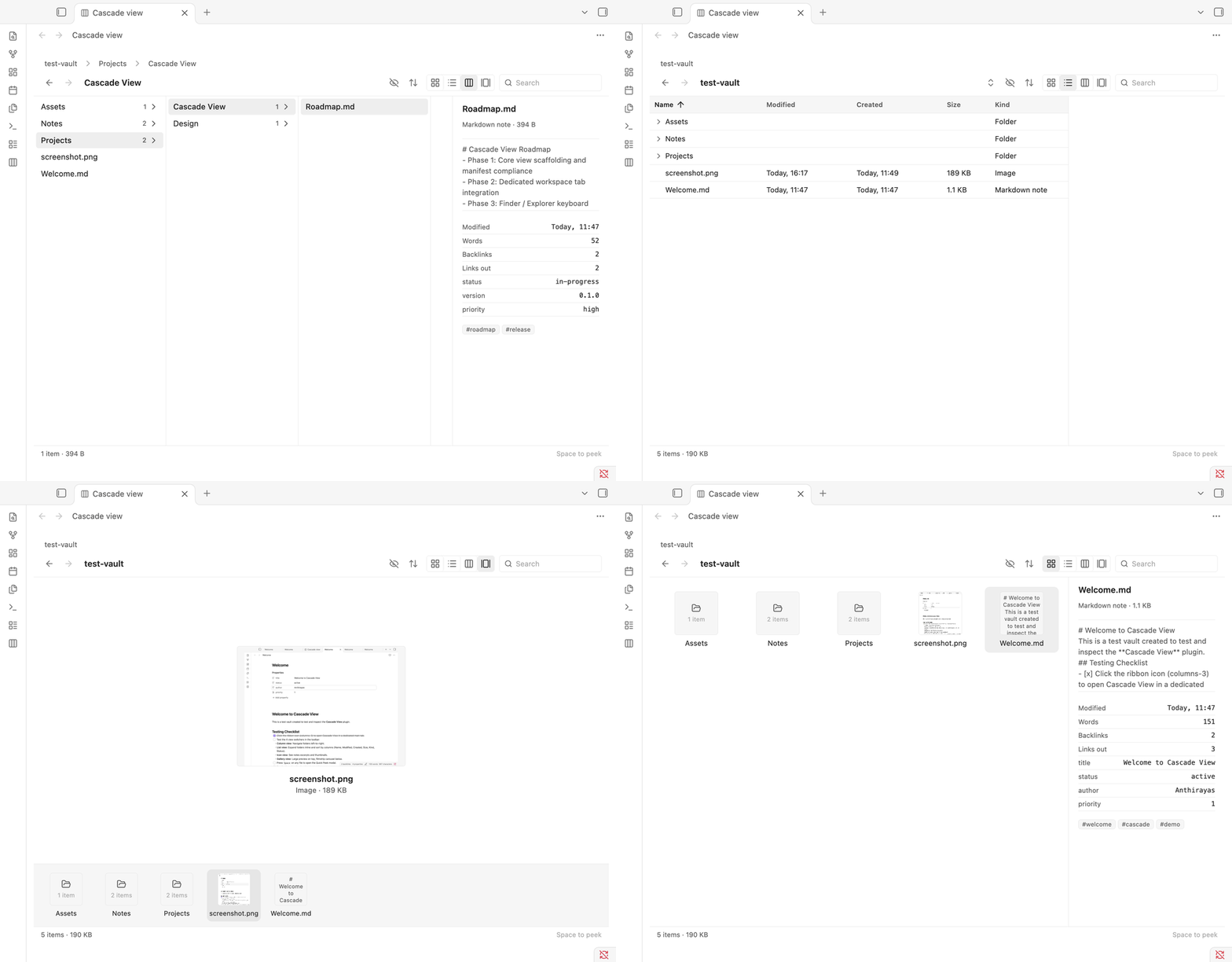
---
## Why Cascade View?
As vaults grow, navigating deep folder hierarchies in the narrow sidebar becomes tedious—requiring constant vertical scrolling, squinting at indented filenames, and twisting tiny triangle disclosure arrows.
**Cascade View** solves this by giving you:
- **Spatial clarity**: Navigate left-to-right through folder levels without losing your path.
- **Rich context without opening**: Instantly preview note contents, frontmatter properties, word counts, backlinks, and image thumbnails before you navigate.
- **Familiar desktop reflexes**: Seamlessly switch between Finder (macOS) and File Explorer (Windows/Linux) keybindings, complete with instant undo, type-to-jump, and inline renaming.
- **Same-tab and new-tab navigation**: Regular click or Enter opens files in the active tab with full back-history; ⌘ / Ctrl + click opens in a new tab.
---
## Four Viewing Modes
Switch between views at any time using the toolbar switcher or shortcuts (⌘1–4 / Ctrl+1–4). View mode and sort order are remembered per folder automatically.
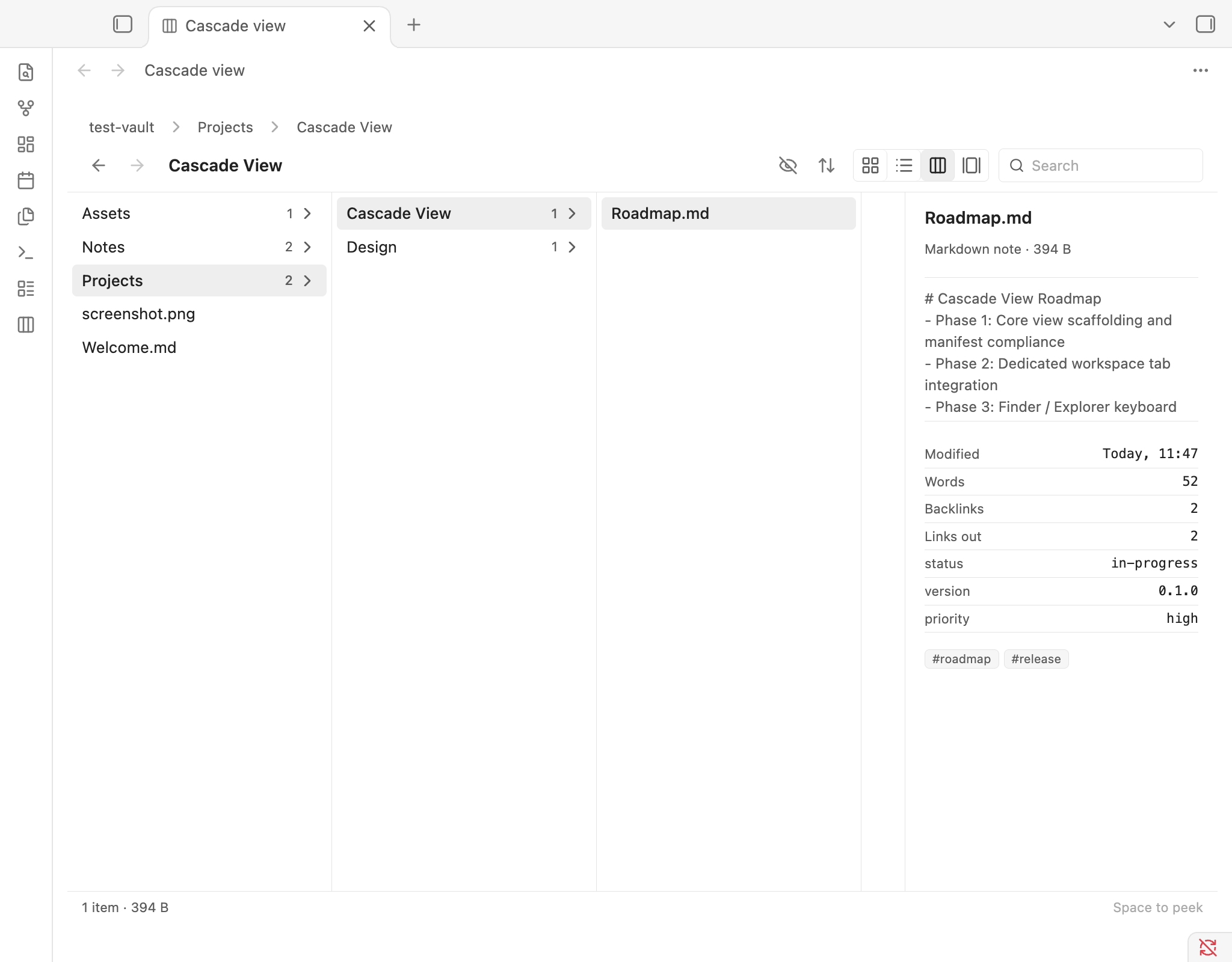
### 1. Column View (Miller Columns)
*The signature macOS Finder experience inside Obsidian.*
Selecting any folder immediately slides open its contents in the next column to the right, keeping your full breadcrumb visible at all times. Selecting a note or image renders the full preview column on the far right.
### 2. List View
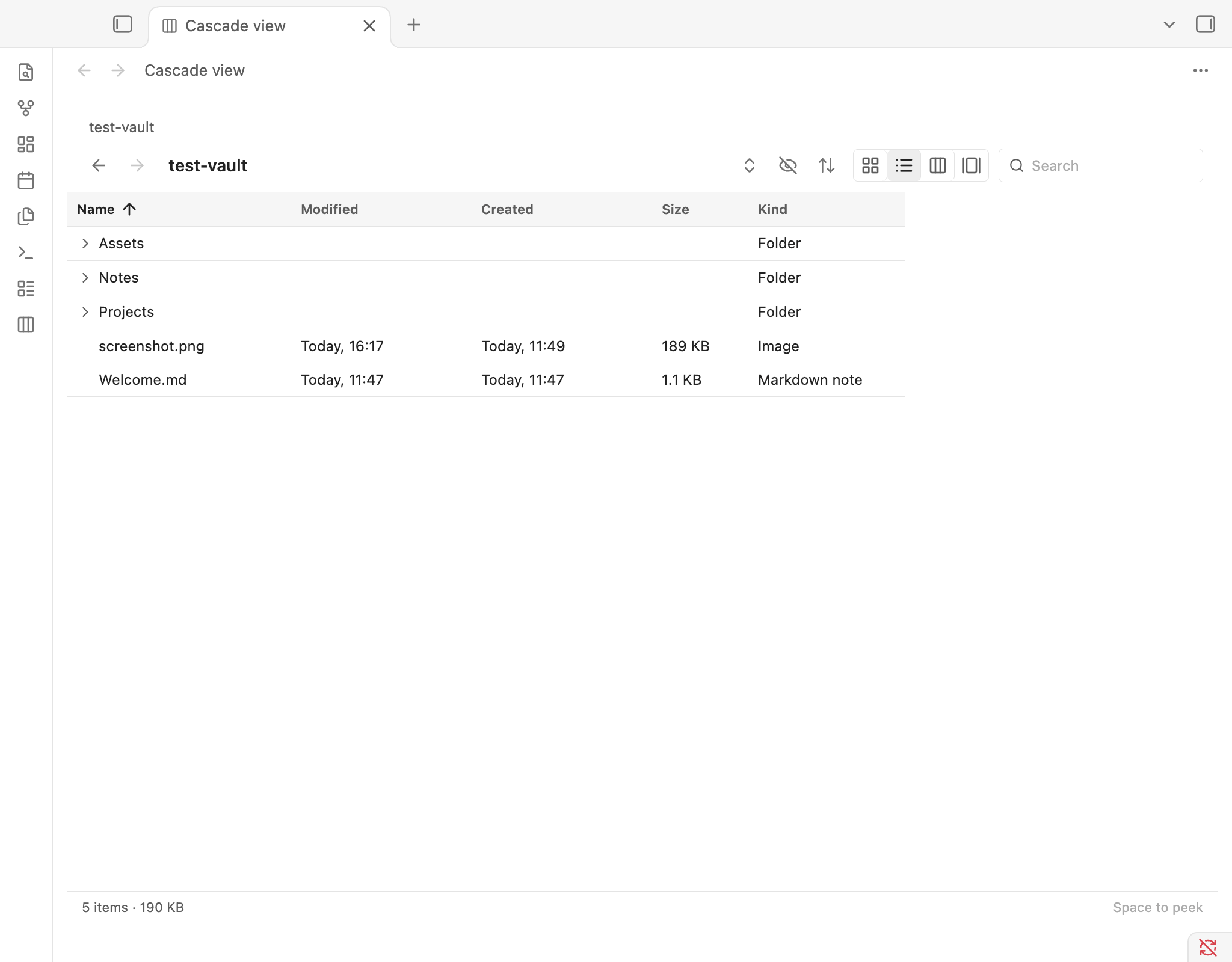
*A multi-column detailed table with inline folder disclosure.*
Displays Name, Modified date, Created date, File size, Kind, and custom frontmatter properties. Expand subfolders directly inline, sort by clicking any table header, or use the **Expand all** / **Collapse all** toolbar button to inspect entire directories at once.
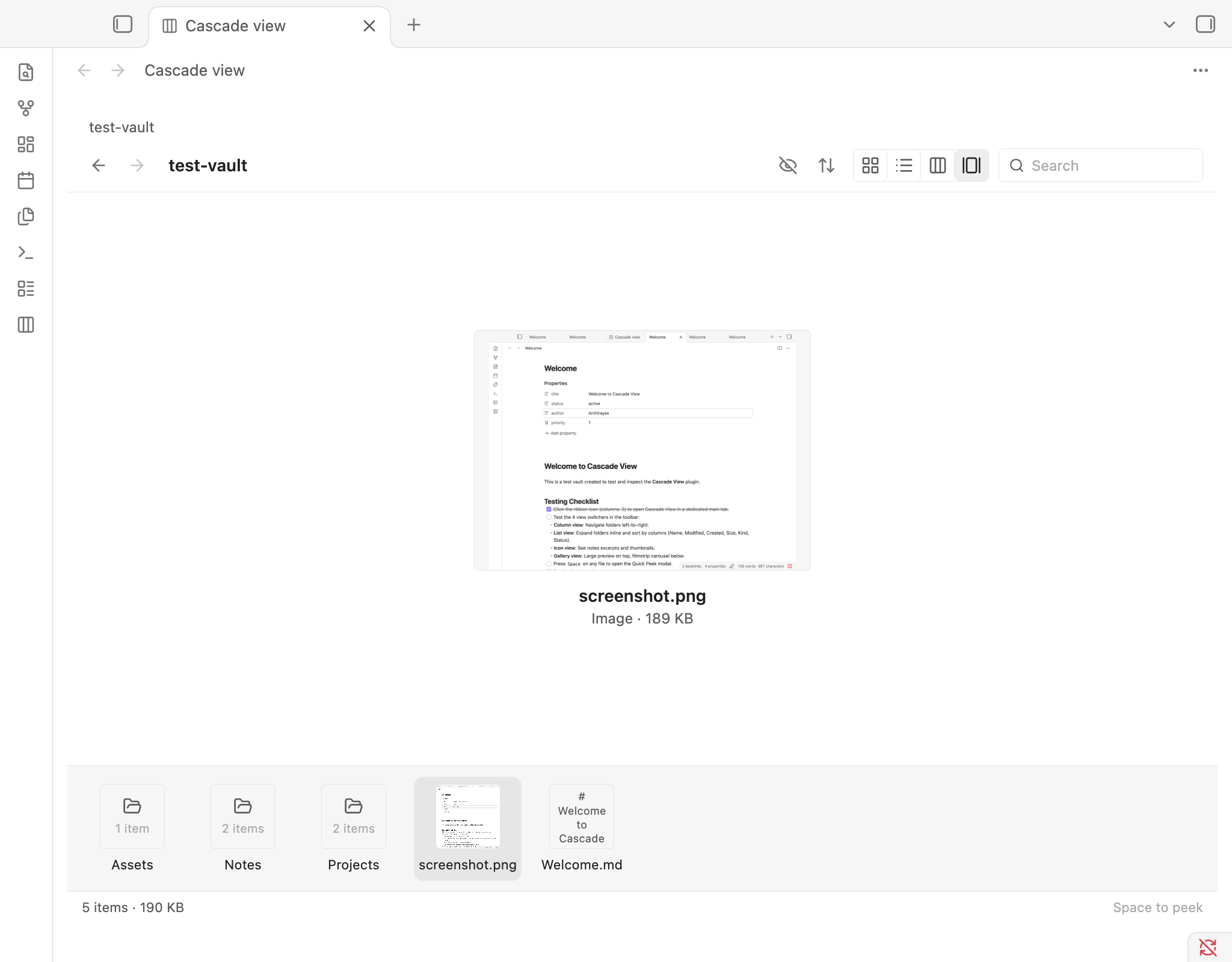
### 3. Gallery View
*An asset and media manager with an interactive stage and filmstrip.*
Features a large focused stage preview on top with a smooth horizontal filmstrip carousel below. Notes render their live markdown excerpt, while images and graphics display full-scale responsive artwork. Click the stage preview to open the file.
### 4. Icon View
*A visual card grid for quick browsing.*
Displays note cards featuring excerpt text, word count tags, and image thumbnails.
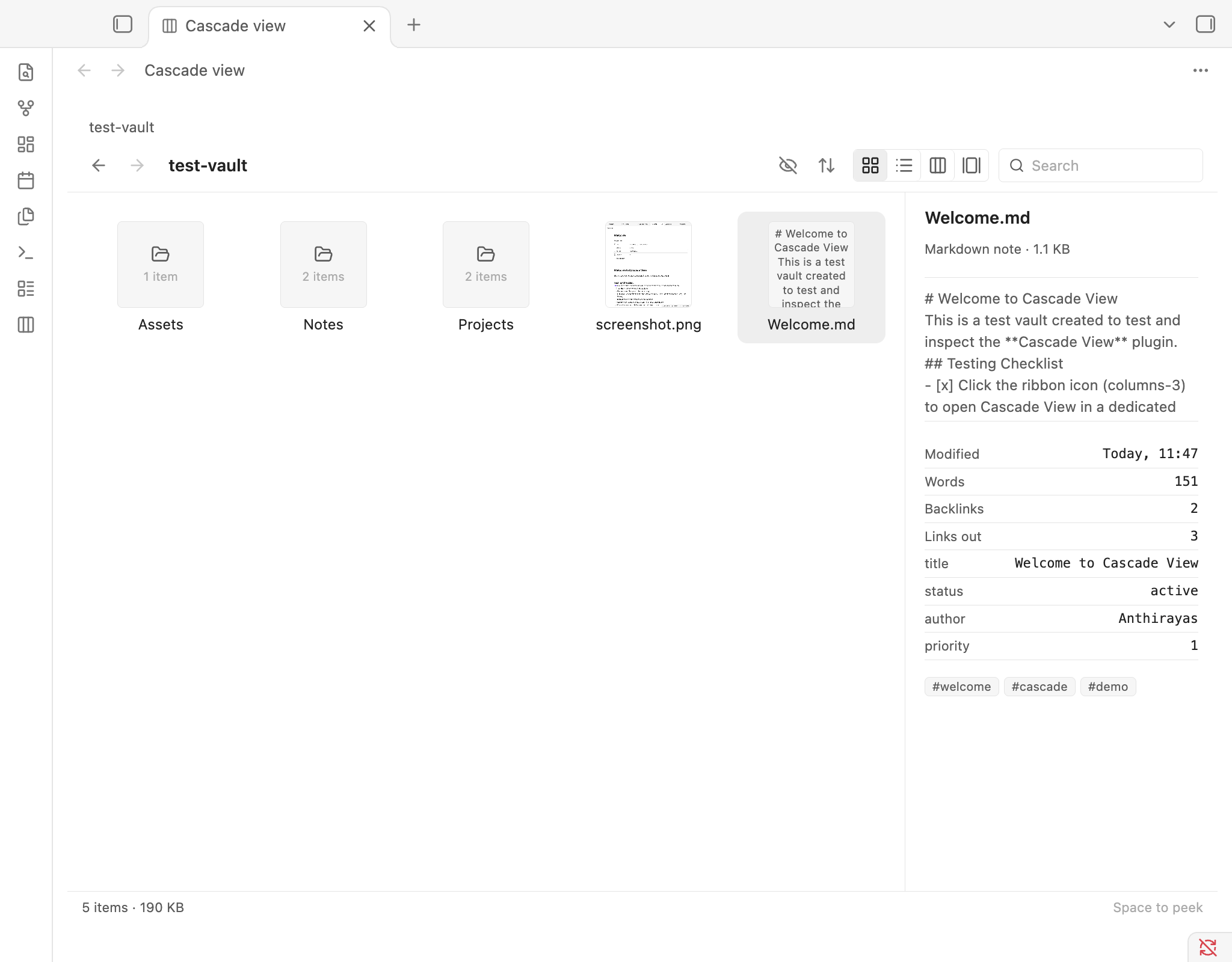
---
## Features
- **Dedicated Main-Tab View**: Opens in the main workspace as a first-class tab—not squeezed into a sidebar. Focuses the existing tab if already open.
- **Integrated Preview Column**:
- File kind, size, and word count.
- Live note body excerpt (excluding frontmatter).
- Clean metadata table showing modification/creation dates, backlinks, outgoing links, and frontmatter properties.
- Pill-style tag cloud and thumbnail preview.
- **Quick Peek Modal**: Press Space on any selected note, image, or folder to pop open an instant preview dialog without leaving your workflow.
- **Native File Operations**:
- **Inline Rename**: Seamlessly rename files with extension protection (Return on macOS, F2 on Windows/Linux).
- **Bin with Instant Undo**: Send items to Obsidian trash with ⌘⌫ / Delete, with a snapshot undo buffer (⌘Z / Ctrl+Z).
- **Drag-and-Drop**: Drag any file or note directly onto folders to organize your vault.
- **In-place Creation**: Create notes (⌘N) and folders (⇧⌘N) directly inside the current folder.
- **Keyboard-Driven & Accessible**:
- Full arrow-key navigation (↑, ↓, →, ←).
- Type-to-jump (type any sequence of characters to jump directly to matching files).
- Platform detection ensures macOS users get Finder keys and Windows/Linux users get Explorer keys.
- Fully rebindable in plugin settings.
- **Pure Obsidian Aesthetics**:
- Strictly built with native Obsidian CSS design variables.
- 0.5px hairline borders, zero shadows, no outer frame clutter, and flawless dark/light theme matching.
---
## Keyboard Shortcuts
### Navigation & Opening
| Action | macOS (Finder) | Windows & Linux (Explorer) |
|---|---|---|
| Move selection | ↑ / ↓ | ↑ / ↓ |
| Enter folder / Next column | → | → |
| Parent column / Back | ← | ← |
| Open in same tab | Enter / ⌘↓ / ⌘O | Enter |
| Open in new tab | ⌘ + Enter or ⌘ + Click | Ctrl + Enter or Ctrl + Click |
| Go up one level | ⌘↑ | Alt+↑ |
| History back / forward | ⌘[ / ⌘] | Alt+← / Alt+→ |
| Go to folder | ⇧⌘G | Ctrl+L or Alt+D |
| Search current folder | ⌘F | Ctrl+F or Ctrl+E |
| Type to jump | Type name | Type name |
### File Actions
| Action | macOS | Windows & Linux |
|---|---|---|
| Rename item | F2 (or click name) | F2 |
| Move to bin | ⌘⌫ | Delete |
| Undo last action | ⌘Z | Ctrl+Z |
| New folder | ⇧⌘N | Ctrl+Shift+N |
| New note | ⌘N | Ctrl+N |
| Copy path | ⌥⌘C | Ctrl+Shift+C |
### View Modes & Toggles
| Action | macOS | Windows & Linux |
|---|---|---|
| Icon / List / Column / Gallery | ⌘1 / ⌘2 / ⌘3 / ⌘4 | Ctrl+1 / Ctrl+2 / Ctrl+3 / Ctrl+4 |
| Quick peek | Space | Space |
| Toggle preview pane | — | Alt+P |
| Show/hide hidden items (`.`) | ⇧⌘. | Ctrl+H |
---
## Installation
### From Obsidian Community Plugins
*(Available once approved in the community directory)*
1. Open Obsidian **Settings** > **Community plugins**.
2. Turn off **Restricted mode**.
3. Click **Browse** and search for `Cascade View`.
4. Click **Install**, then **Enable**.
5. Click the **columns-3** icon in the ribbon to open Cascade View.
### Via BRAT (Beta Testing)
1. Install the **Obsidian42 - BRAT** community plugin.
2. In BRAT settings, choose **Add Beta plugin**.
3. Enter `jrayas/cascade-view`.
4. BRAT will download and enable the latest pre-release build.
### Manual Installation
1. Download `main.js`, `manifest.json`, and `styles.css` from the [Latest Release](https://github.com/jrayas/cascade-view/releases).
2. Inside your vault folder, navigate to `.obsidian/plugins/` (create the directory if it does not exist).
3. Create a new folder named `cascade-view` and place the downloaded files inside.
4. Restart Obsidian (or reload with ⌘R / Ctrl+R) and enable **Cascade View** in **Settings** > **Community plugins**.
---
## Configuration & Settings
Cascade View includes declarative settings (Obsidian 1.13+) accessible under **Settings** > **Cascade View**:
- **Default view**: Choose which view mode (Column, List, Icon, Gallery) new folders open in by default.
- **Show hidden items**: Configure whether dotfiles and dotfolders (`.git`, `.obsidian`) are displayed by default.
- **Row density**: Switch between Compact (24px rows), Comfortable (30px rows), and Spacious (36px rows).
- **Show preview column**: Enable or disable the preview column by default.
- **Frontmatter columns**: Add custom YAML frontmatter keys (e.g. `status, author, priority`) to display as dedicated sortable columns in List view.
- **Key bindings editor**: Fully rebind any navigation or file management action to your preferred shortcut.
- **Read-only mode**: Safety lock that disables inline renaming, trashing, file creation, and drag-and-drop.
---
## Safety & Privacy Disclosures
- **100% Offline & Private**: Cascade View makes **zero network requests**, uses no third-party telemetry, tracking, or analytics, and requires no external accounts. All indexing and rendering occur strictly on your local device.
- **Obsidian Vault Safety**: All deletions respect your configured Obsidian trash setting (System bin or `.trash/` folder). No files outside the vault boundary are ever accessed.
- **No Remote Code**: Built exclusively with TypeScript bundled into standard static assets (`main.js`, `styles.css`, `manifest.json`).
---
## License
[MIT License](LICENSE) © 2026 Anthirayas.