# Paper Trail
**Work through your Zotero library as a reading queue, and keep a record of what you decided.**
Works well with [Due Credit](https://community.obsidian.md/plugins/due-credit),
which exports your citations to Word, PDF or LaTeX, and
[Tag Along](https://community.obsidian.md/plugins/tag-along), which lets you
browse your papers by reading status. See [Works well with](#12-works-well-with).



[](https://github.com/jorritvanderheide/obsidian-paper-trail/actions/workflows/ci.yml)
[](LICENSE)
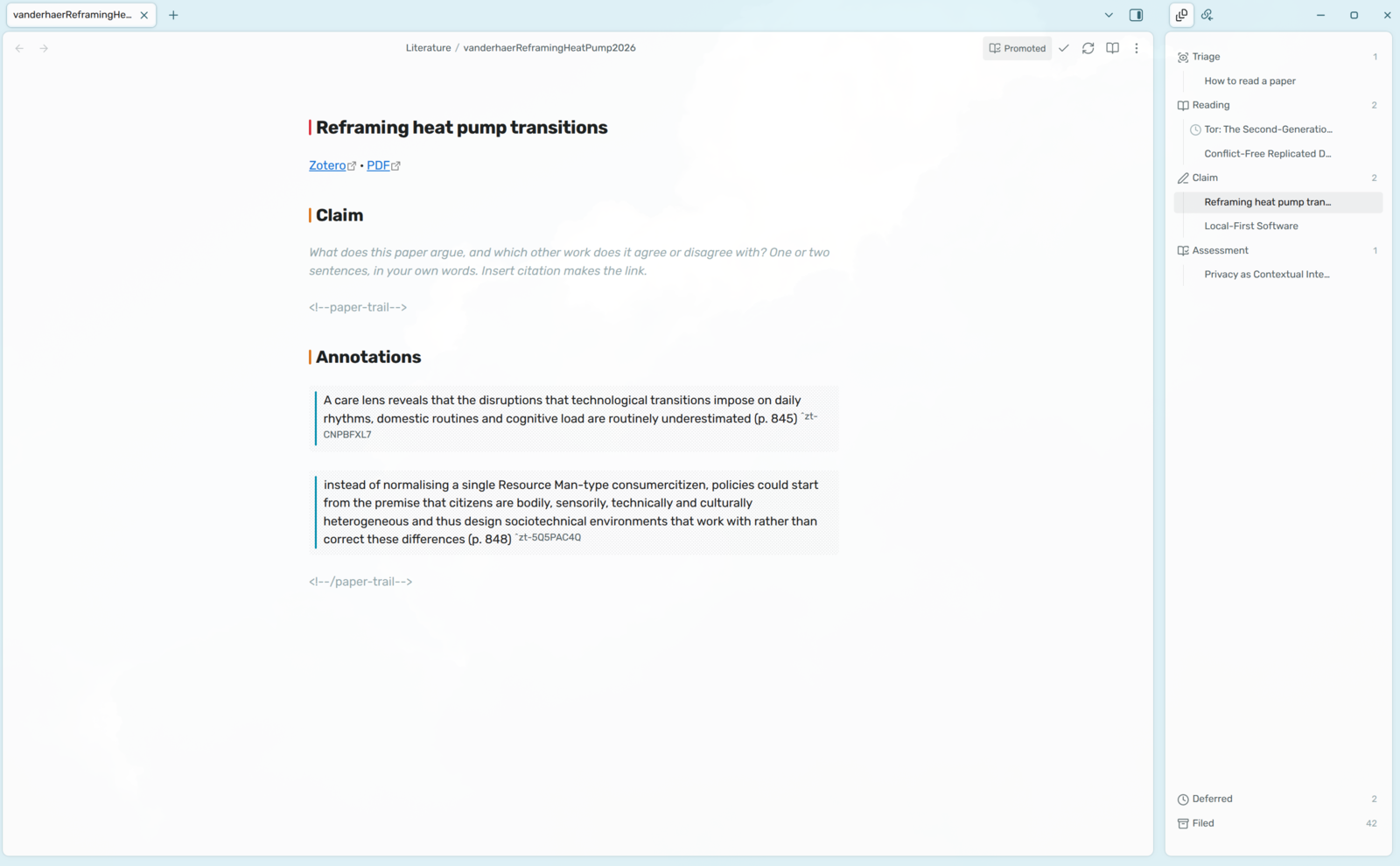
You run a search, skim a page of abstracts, and save thirty papers to Zotero.
You read four of them properly. The other twenty-six you judged in a few seconds
each: too technical, wrong field, maybe later. Those were real decisions, but
they only lived in your head. A year later one of them turns up in another
search, you can't remember whether you already looked at it, and you read the
abstract all over again. And when your supervisor or a reviewer asks how you
chose your literature, you have to piece it together from memory.
Reference managers help you collect papers and annotation tools help you read
them, but neither keeps track of the choosing. Paper Trail does. It keeps one
list of what is left to do for each paper, from the moment you save it to Zotero
until you have written down what it argues. You read in Zotero, where your
annotations live. When you finish a paper, you say what came of it, and Paper
Trail writes its note with your annotations already in it and puts the cursor
where you write the claim. When you drop a paper or park it for later, it keeps
the reason you gave, and those reasons export as a table for your methods
section.
## 1 Installation
1. **Install Zotero 7 or later** from [zotero.org](https://www.zotero.org/).
In Zotero's Settings → Advanced, turn on *Allow other applications on this
computer to communicate with Zotero*. Zotero needs to be running while you
use Paper Trail.
2. **Install Better BibTeX (optional)** from
[retorque.re/zotero-better-bibtex](https://retorque.re/zotero-better-bibtex/).
With it, notes are named after the citation key and **Insert citation** has
a key to insert. Without it, notes are named after author, title and year,
and everything else works the same.
3. **Install Paper Trail** in Obsidian: go to Settings → Community plugins →
Browse, search for "Paper Trail", then install and enable it. You can also
open [its page in the plugin directory](https://community.obsidian.md/plugins/paper-trail).
Paper Trail needs Obsidian 1.13 or later, on desktop.
## 2 Getting started
The first time it loads, Paper Trail opens the queue in the sidebar and checks
whether Zotero is answering. If it isn't, the queue tells you so instead of
showing an empty list. Then:
1. **Save a paper to Zotero.** When you come back to Obsidian, it's in
**Reading**.
2. **Click the row.** The PDF opens in Zotero's reader, where you highlight and
comment as usual. Reading doesn't write anything to your vault.
3. **Tick the paper off when you're done.** Paper Trail asks what came of it.
Choose *Worth summarising*, and the paper's note is created with your
annotations already in it.
4. **Write the claim.** The cursor is waiting under the Claim heading. Write one
or two sentences in your own words about what the paper argues, and tick it
off.
Not sure where to start? **Next** opens the task that will go stale first.
## 3 Safety and quality
Paper Trail writes a fixed set of frontmatter keys, one marked region and two
headings, and nothing else. Every other key and every word you wrote stay
yours, and a refresh from Zotero can't touch them. There are tests to make sure
it stays that way. [Section 13](#13-network-and-file-disclosure) lists
exactly what it reads and writes.
It only talks to Zotero, on your own computer. It doesn't read files outside
your vault and doesn't run any programs.
Every push is tested, and every release is built in the open with a signed
attestation, so you can check that the file you installed is the one that was
built. [Section 13.5](#135-how-releases-are-built) says how.
## Table of contents
- [4 Documentation](#4-documentation)
- [5 Features](#5-features)
- [6 How it works](#6-how-it-works)
- [7 The paper note](#7-the-paper-note)
- [8 Citations](#8-citations)
- [9 The record](#9-the-record)
- [10 Commands](#10-commands)
- [11 Settings](#11-settings)
- [12 Works well with](#12-works-well-with)
- [13 Network and file disclosure](#13-network-and-file-disclosure)
- [14 Questions or issues?](#14-questions-or-issues)
- [15 Support](#15-support)
- [16 License](#16-license)
## 4 Documentation
If you want to work on the plugin, or build something on top of its notes:
- [**Architecture**](docs/architecture.md) - How the code is layered, where
decisions are allowed to live, and how Zotero and the vault come together in
the queue.
- [**Data model**](docs/data-model.md) - Every frontmatter key, the reading
vocabulary, and the managed region.
- [**Zotero**](docs/zotero.md) - Which parts of the local API are used, and the
quirks that give you an empty list without an error.
- [**Citations**](docs/citations.md) - The link forms Paper Trail writes, and
how they line up with Due Credit, which reads them.
- [**Development**](docs/development.md) - Setup, tests, checks and releases.
- [**Compatibility**](docs/compatibility.md) - What a release may and may not
change, so your settings, hotkeys and notes keep working.
## 5 Features
### 5.1 The queue
- **Four stages** - Triage, Reading, Claim and Assessment, based on S. Keshav's
[*How to Read a Paper*](https://doi.org/10.1145/1273445.1273458).
- **Computed, not stored** - Every paper in Zotero without a note shows up as a
row, so importing four hundred search results gives you four hundred rows and
no new files.
- **Next** - Opens whatever will go stale first: a claim before an assessment,
both before a new paper, and triage last.
- **Deferrals that come back** - Park a paper until a date, or until you've
read another paper, and it returns to the stage it left.
- **Search** - Filter the queue by title, citation key, or the reason you gave.
- **Stages you can switch off** - Triage, and either or both of the written
passes.
- **Queue block** - Put what's outstanding on a dashboard note of your own.
### 5.2 Reading in Zotero
- **One click to the PDF** - A row in Reading opens the paper in Zotero's
reader.
- **Nothing is written until you decide** - Reading a paper leaves your vault
alone.
- **In step with Zotero** - When you come back to Obsidian, Paper Trail asks
Zotero what changed, in a single request.
- **One collection or the whole library** - Limit the queue to the collection
for your thesis.
### 5.3 The note
- **Synced annotations** - Highlights, underlines and comments are refreshed
when you open the note. Each one is anchored, so a link to a passage keeps
working.
- **Headings when you need them** - The Claim and Assessment headings are only
added once a paper needs them.
- **Prompts that stay out of your note** - The question under an empty heading
is drawn in the editor and never written to the file.
- **Status pill** - The paper's reading status in the title bar, with the reason
you gave when you hover over it.
- **Your own template** - `Paper.md` is yours to edit.
### 5.4 Citations
- **Insert citation** - Pick a paper from your Zotero library and get
`[[citekey]]`.
- **Page numbers without retyping** - Press Tab in the picker, or use **Add page
to citation** on a link you already wrote.
- **Better BibTeX's dialog** - Prefixes, citations without the author, and
several sources at once, all written as links.
- **Insert annotation** - Quote a passage you highlighted, with a citation to
its page.
- **Backlinks as a citation graph** - Every citation is a link, so the
backlinks pane shows who cites whom.
### 5.5 The record
- **Every decision kept** - What you decided, when, and why, in plain
frontmatter.
- **Excluded papers report** - Every paper you dropped or deferred, with the
reason, as a markdown table for an appendix.
- **Your own views** - The fields work with Bases and Dataview.
## 6 How it works
### 6.1 The stages
The reading model comes from S. Keshav's
[*How to Read a Paper*](https://doi.org/10.1145/1273445.1273458): you read a
paper in passes that each cost more time than the last, and after each pass you
decide whether the next one is worth it.
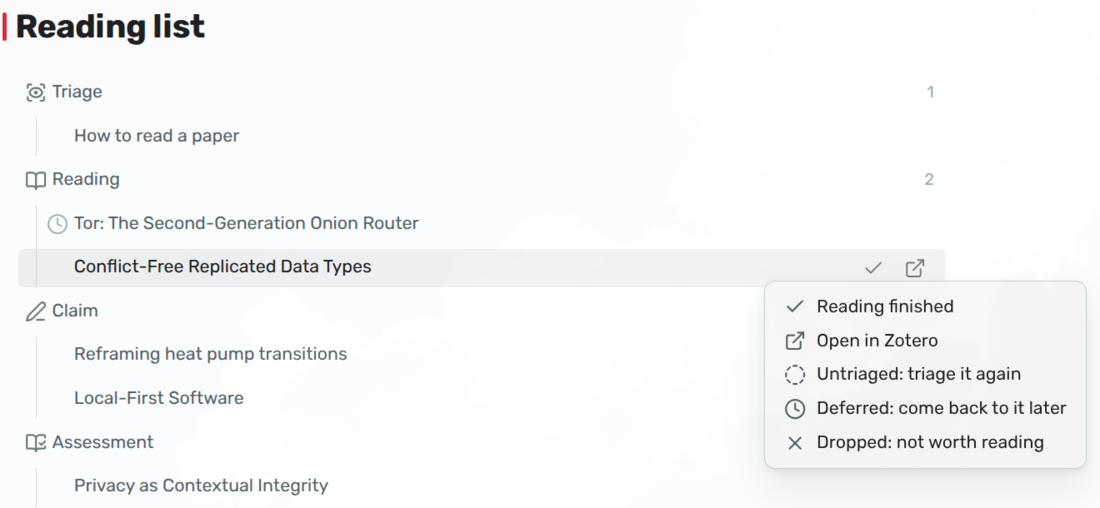
**Reading** holds the papers that are worth an hour and that you haven't read
yet. Every paper under **Papers from** that doesn't have a note in your vault
shows up here, unless you turned on triage for where it came from. The list is
computed, not stored.
Clicking a row opens the PDF in Zotero's reader, and reading doesn't write
anything to your vault. When you're done, the tick asks what came of it:
- *Worth summarising*: a second pass is enough.
- *Worth a third pass*: the paper will also need an assessment.
- *Worth another hour, but not now*: it asks what has to happen first, and when
the paper should come back.
- *Not worth finishing*: it asks why.
The first two take you to the paper's note, which is created at that moment if
it doesn't exist yet. The cursor is under the Claim heading, with your
annotations right below it.
**Claim** is the other half of Keshav's second pass. His test is that *you
should be able to summarize the main thrust of the paper, with supporting
evidence, to someone else*, and this is where you do that: one or two sentences
in your own words about what the paper argues, and which other work it agrees or
disagrees with. Tick it off when you've written it. If the heading is still
empty, the tick offers to take you there first.
**Assessment** is the third pass, for the few papers you promote. Now that you
can summarise the paper, you argue with it. When you tick off the claim of a
promoted paper, Paper Trail takes you straight to its assessment, while the
paper is still fresh in your mind.
### 6.2 Switching stages off
**Triage** is optional, and you switch it on per source under **Papers from**,
with **Triage first**. Leave it off where you read abstracts in the browser and
only save what you want to read: saving is then your decision, and papers
arrive ready to read. Turn it on where papers arrive that you haven't made up
your mind about, like a lab's shared reading list in a group library or a
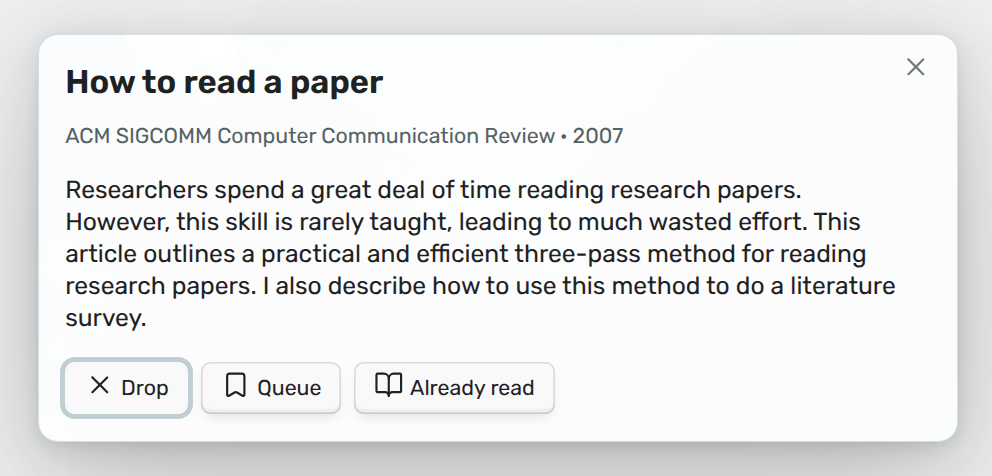
collection you fill from database searches. Each paper
from there first shows up with its title, venue, year and abstract, and you
choose one of three answers: drop it (and say why), queue it, or mark it as
already read.
You can also switch off **Claim** and **Assessment**, under **Written passes**.
With only the claim, there's no third pass to promote a paper to. With neither,
*Worth summarising* becomes *Done with it*, and a paper you've read is filed as
read. That suits you if you write by theme rather than paper by paper, and your
annotations are all the note you need. Switching a pass off changes what Paper
Trail offers you, not what's in your notes, so a paper you promoted before you
turned assessments off still needs one.
The stages and the reading vocabulary aren't settings, because they are what
the plugin is: an opinionated workflow, not a rules engine that asks you to
design one yourself. You can switch a stage off, but you can't add, rename or
reorder them.
### 6.3 Deferred and Filed
Below the stages are two sections for papers that don't need anything from you
right now. **Deferred** holds the papers you parked, with the condition you set
in each row's tooltip, so a promise to come back stays in sight, with a count.
**Filed** holds everything else: dropped, read, summarised or assessed, newest
first. Neither section counts as outstanding.
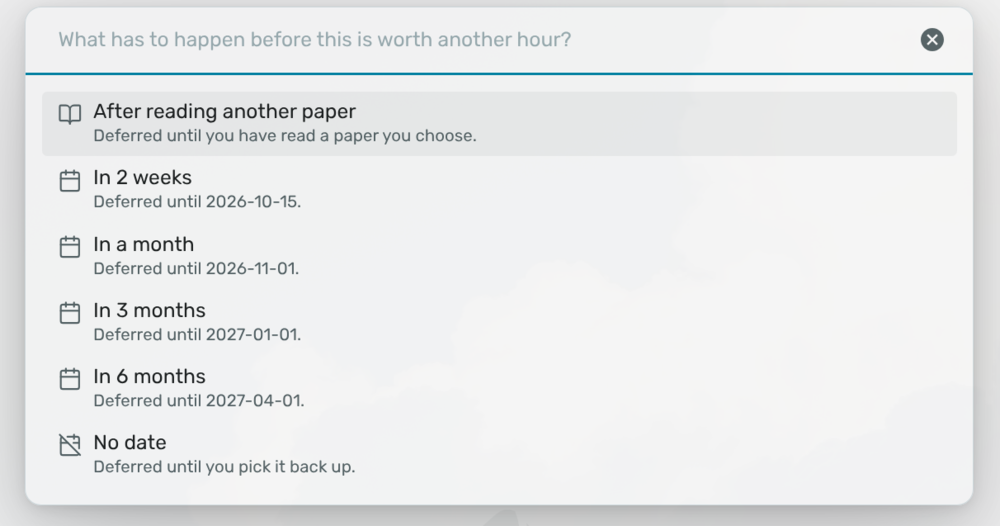
A deferred paper comes back by itself. When you defer a paper, you say what has
to happen first and choose when to look at it again: once you've read another
paper that's still unread, in two weeks, in one, three or six months, or never.
When that moment comes, the paper goes back to the stage it left, Reading or
Claim, with a clock before its title and your condition in its tooltip, and
**Next** can offer it to you. Its note keeps saying it's deferred until you
decide something new: read it, defer it again, or drop it.
### 6.4 Working the list
Clicking a row takes you to the work itself: Zotero for a reading, the heading
for a claim or an assessment, the triage dialog, or the paper's note from
Deferred or Filed. The button at the end of each row, which appears when you
hover over it, does the same and tells you beforehand where it will take you.
The row of the note you're in is highlighted. Clicking it never moves your
cursor away from what you're writing, but its button still takes you back to
the heading.
**Next** opens whatever will go stale first: a claim before an assessment, both
before a new paper, and triage last. A paper you read yesterday fades from
memory quickly, while one you haven't opened yet will triage just as well in
March.
The search button opens a box that filters the pane to papers whose title, file
name (the citation key, with Better BibTeX), or deferral or drop reason contains
every word you type. Every section with a match opens, including Deferred and
Filed, and shows all its matches. **Next** still works from the whole queue.
Press Escape to close the search.
Right-click a row, or a paper's note in the file explorer, and you get the same
menu: first what the row's buttons do, such as **Reading finished** and **Open
in Zotero**, then the reading statuses you can move the paper to. **Set reading
status** offers the same statuses from the command palette and from the pill at
the top of every paper, and tells you where each choice will put it. You can
also send a paper you've already read back to be read again, and everything
you wrote stays.
Paper Trail never blocks you: there's no fixed order, and no stage stays locked
until you've finished an earlier one.
The queue lives in the sidebar: click the ribbon icon or use **Open queue**.
**Insert queue block** puts the stages in a note of your own, such as a
dashboard. The block only shows what's outstanding, without the toolbar and
without Deferred and Filed, so your note doesn't fill up with everything you've
already finished.
## 7 The paper note
### 7.1 What's in it
Each paper gets one note, named after its Better BibTeX citation key, or after
its author, title and year if you don't use Better BibTeX. Below the
frontmatter, which holds what Zotero knows about the paper and what you decided
about it, the note starts with a title, links to the item and the PDF, and your
annotations:
```markdown
# Notes Toward a Method
[Zotero](zotero://select/library/items/ABCD2345) · [PDF](zotero://open-pdf/library/items/EFGH6789)
## Annotations
> [!quote|zotero-yellow]
> a passage you highlighted in Zotero (p. 4) ^zt-JKLM2345
a note you wrote on it
```
The Claim heading is added above the annotations once the paper needs a claim,
and the Assessment heading once you've ticked off the claim. That way a paper
you dropped after reading the abstract stays three lines long, instead of
carrying an outline of work that never happened. Under each empty heading, a
question is shown faintly, and it disappears as soon as you start typing. It's
never written to the file.
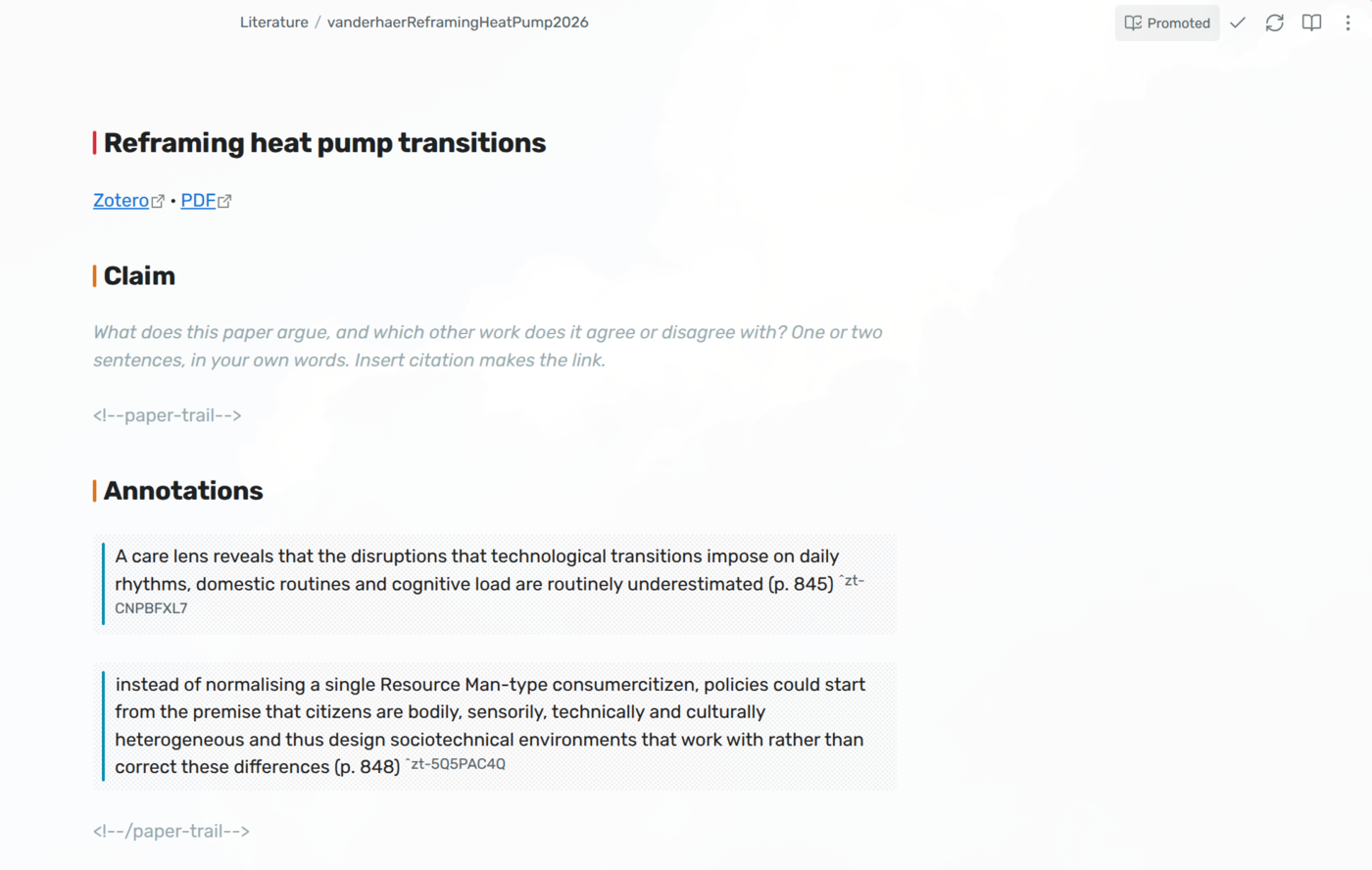
A paper that doesn't need anything from you opens in reading view instead of
the editor. It switches the moment you tick off its last pass, defer it or drop
it, and goes back to the editor when you put it back on the list. Its title bar
has a refresh button, the paper's next step, and its reading status as a pill
that opens the status chooser. On a deferred or dropped paper, hover over the
pill to see the reason you gave.
### 7.2 Annotations
The annotations are every Zotero annotation that has text or a comment:
highlights, underlines, and notes on a page. They're refreshed whenever you open
the note while Zotero is running, and only written when something changed. Each
one is anchored by its Zotero key, so a link to a single passage keeps working
after a refresh. A passage that runs across a column or a page arrives as one
line. If you underline terms and keep highlights for passages, turn off
**Include underlines** and only the underlines you commented on come through.
Each passage keeps the colour you gave it in Zotero. It's written as a quote
callout, `> [!quote|zotero-red]`, so you can search a colour by name, and
without Paper Trail it's still an ordinary quote callout. Annotations that came
inside the PDF, in a colour Zotero's reader doesn't offer, show up as a plain
quote.
Right-click a passage and choose **Show in Zotero** to open the PDF at that
annotation. This works in reading view and in the editor, where it's the line
the cursor is on.
### 7.3 The template
New notes are made from `Paper.md` in the template folder. Paper Trail puts it
there when it makes its first paper note, and after that it's yours to edit.
`{{title}}` becomes the paper's short title in Zotero, or its full title if
there is no short one, and `{{links}}` becomes the links to the item in Zotero
and to its PDF. Case and spaces inside the braces don't matter. A placeholder
Paper Trail doesn't recognise is left as it is, so a typo shows up in the note
instead of silently deleting a line.
### 7.4 What a note is for
A literature note that only says what the paper says has already lost. The
abstract says it better, it's in Zotero, and it's one click away. So the note
has to be what the paper can't be: the smallest thing that can stand in for the
paper in your own argument.
That's a strict test. If you would still need to open the PDF to write your
paragraph, the note has failed. Not to check a quote, because that's what the
page anchors are for, but to remember what the paper was about and what you
thought of it.
Over the years of a PhD, the problem isn't understanding, it's forgetting. Two
years from now your own reading will feel like someone else's, and a note that
only makes sense if you read the paper recently has expired.
That's why there are two separate headings. **Claim** is what the paper argues,
in your own words. If you can't paraphrase it now, you won't be able to when
you're writing either. Keep it to one or two sentences, because a page-long
summary is something you have to reread, which is the same problem one level
up. **Assessment** is where you argue with the paper: what doesn't hold up, what
it takes for granted, what the evidence actually shows. You can't get that part
anywhere else, and a note without any friction in it will only ever be cited as
background, which is the cheapest kind of citation in a thesis.
Keeping the two apart means that when you're writing, you always know whose
idea you're looking at: the paper's, or yours. Mixing them up is more than a
matter of tidiness.
The numbers decide the rest. Four hundred papers at twenty minutes per note is
over a hundred and thirty hours. So the twenty seconds on an abstract, the
two-sentence limit, and asking for an assessment only on papers you promoted
aren't minimalism for its own sake. They're the budget, and anything else a
note might hold has to fit within it.
One thing is worth the price. A literature review isn't a list of papers, it's
a claim about a field: who agrees with whom, what everyone takes for granted,
where the gap is. Those are connections between papers, and that's where a
contribution comes from. So the claim asks for both: what the paper argues, and
what it argues with or against. And it asks at the one moment when the second
question is easy to answer, right after you've put the paper's claim into words
and still remember that it contradicts something you read in March.
**Insert citation** writes the link, and that link does three jobs at once. It's
a wikilink to the citation key, so `against [[okafor2019sampling]]` in a claim
reads as a citation, exports as one through pandoc, and adds this paper to
Okafor's backlinks. Which papers respond to which is exactly what you'll want
to know about your own literature, and the backlinks pane shows you.
## 8 Citations
### 8.1 Inserting a citation
**Insert citation** lets you pick an item from your Zotero library, or from a
group under **Papers from**, and writes `[[citekey]]`. It needs Better BibTeX, which is what gives an item its citation
key. To add a page, press Tab instead of Enter: `4` becomes page 4, and
anything else, like `ch. 3` or `§ 2`, is used as you typed it. If the paper
has a note, the link points to the note by its name, so it keeps working even
if Better BibTeX changed the key after the note was made.
Without Better BibTeX there's no citation key, and you don't need one: notes are
named after author, title and year, so Obsidian's own `[[` finds them by what
you'd naturally type. With Better BibTeX, notes are named after their key, so
`[[` finds papers by key rather than by title, and **Insert citation** fills
that gap.
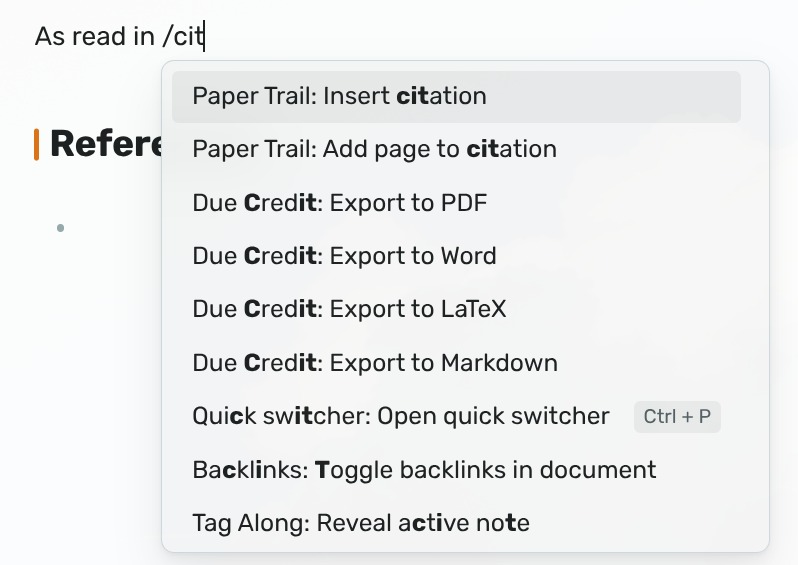
For a link you typed yourself with `[[`, use **Add page to citation**. Put the
cursor on the link or right after it, and it asks for the page and rewrites the
link, so you never have to type the key twice. A label you wrote is kept, with
the page added after a comma: `[[a|Marsh]]` becomes `[[a|Marsh, p. 4]]`.
### 8.2 Better BibTeX's dialog
In the picker, Shift+Enter opens Better BibTeX's own dialog, for a
prefix, a citation without the author, or several sources at once. What you
pick there is written as links too, with everything around the key in the
label, the same way pandoc would write it:
| You pick | Paper Trail writes |
| --- | --- |
| a paper | `[[a]]` |
| page 4 | `[[a\|a, p. 4]]` |
| "see", page 4 | `[[a\|see a, p. 4]]` |
| without the author, page 4 | `[[a\|-a, p. 4]]` |
| two papers | `[[a\|a, p. 4]]; [[b]]` |
The page goes in the label, after the `|`, so the link still points at the
paper: it opens it, shows a preview on hover, and counts in its backlinks.
### 8.3 Quoting an annotation
**Insert annotation** first asks which paper you're quoting, then shows that
paper's annotations to search. Only papers with annotations are listed, the
most recently changed first. It writes the passage you pick as a quote with a
citation to its page:
```markdown
> In offline interactions, heuristics help individuals judge. [[a|a, p. 7]]
```
The page and the block ID from the paper note are left out of the quote, and
the page goes into the citation instead. The quote is a copy, so changes you
make to it stay in your note, and it doesn't change when you edit the
annotation in Zotero. It works without Zotero running, but it only knows the
annotations that were synced the last time you opened each paper's note. It
won't insert into a paper's annotations section, because that's rewritten on
every sync.
### 8.4 Exporting
Paper Trail doesn't run pandoc itself. Exporting is what
[Due Credit](https://community.obsidian.md/plugins/due-credit) does: it runs
pandoc on a note and turns these links into real citations in Word, PDF,
Markdown or LaTeX. See [Works well with](#121-due-credit).
Don't put your own parentheses around a citation. The export adds them, so
`([[a]])` would come out as "((A 2024))".
## 9 The record
### 9.1 What a decision writes
Dropping a paper doesn't delete anything. The note stays, and so does what you
decided about it:
| Property | |
| --- | --- |
| `reading` | what the paper is worth to you: `untriaged`, `queued`, `promoted`, `deferred` or `dropped` |
| `reading-progress` | how far you got: `read`, `summarised`, `assessed`, or empty |
| `reading-date` | when the status last changed |
| `triaged-date` | when you first made a decision about it, written only once |
| `reading-reason` | why, when you dropped or deferred it |
| `reading-until` | for a deferral, the date it comes back |
| `reading-after` | for a deferral, the Zotero key of the paper it's waiting for |
These are two different kinds of fact. What a paper is worth is your judgement
of the paper; how far you got is about you. Keeping them separate is why
dropping a paper you had already summarised doesn't undo the summary, and why
picking it up again brings it back to where you left off instead of to the
start. A refresh from Zotero never changes any of these fields.
### 9.2 Excluded papers
**Export excluded
papers** writes `Excluded papers.md` to the root of your vault: every paper you
dropped or deferred, oldest decision first, with its authors, year, date and
reason, and a link back to each paper. It's plain markdown, ready for an
appendix or a methods section, and it's rewritten every time you run the
command. It only ever replaces a file it made itself, so if you have a note of
your own with that name, it's left alone.
### 9.3 Your own views
The queue is one way to look at these fields, but not the only one. They're
plain frontmatter, so anything that reads properties can show them differently,
like Obsidian's Bases or Dataview. If your reading process has steps the queue
doesn't know about, add your own properties next to these and build the view
you want on top of both.
For example, a base listing every paper you parked, saved as `Parked.base`, with
`Literature` as your papers folder:
```yaml
filters:
and:
- file.inFolder("Literature")
- reading == "deferred"
views:
- type: table
name: Parked
```
Add `reading-reason` and `reading-until` as columns from the view's properties
menu. In a filter, a key with a hyphen is written as `note["reading-progress"]`,
so papers you've read but not yet summarised are
`note["reading-progress"] == "read"`.
You can also change `reading` by hand, or with another plugin, and the queue
follows along, because the note is the record and the queue only reads it. A
value Paper Trail doesn't recognise counts as `untriaged`, which puts the paper
back in front of you. Only a decision made in Paper Trail tidies up the fields
around it: the reason, the dates and the status tag stay as they are until the
next one.
## 10 Commands
None of the commands has a hotkey, so you can choose your own in Settings →
Hotkeys.
**Queue**
- `Paper Trail: Open queue` - Shows the queue in the sidebar. Also available from
the ribbon.
- `Paper Trail: Next` - Opens the task that will go stale first.
- `Paper Trail: Insert queue block` - Puts the stages in the note you're editing.
**Papers**
- `Paper Trail: Set reading status` - Queue, promote, defer or drop the open
paper, or send it back to be read again.
- `Paper Trail: Refresh paper from Zotero` - Refreshes the open paper right away
and lets you know. Opening a paper already does this quietly.
- `Paper Trail: Link existing notes to Zotero` - Turns literature notes from
another plugin into paper notes, matched by citation key. It tells you what
will change before it changes anything.
**Citations**
- `Paper Trail: Insert citation` - Inserts `[[citekey]]` for an item from your
Zotero library. Press Tab to add a page.
- `Paper Trail: Add page to citation` - Adds a page to the `[[citekey]]` at the
cursor.
- `Paper Trail: Insert annotation` - Inserts a passage from one of your paper
notes as a quote, with a citation to its page.
**Record**
- `Paper Trail: Export excluded papers` - Writes `Excluded papers.md`, with every
paper you dropped or deferred and why.
## 11 Settings
**Zotero**
At the top, **Connection** says whether Zotero is answering and whether Better
BibTeX is installed. Click the arrow to check again.
| Setting | Default | |
| --- | --- | --- |
| **Papers from** | My library | Where the queue gets papers: your library, a group library, or collections in them, if your library holds more than the papers for this thesis. Add, remove and drag them into order. A paper in more than one belongs to the first. Papers outside them that already have a note keep working. |
| **Triage first** | Off, on for a group | On each source under **Papers from**: papers from there that you haven't decided about go to Triage before Reading. |
| **Include subcollections** | On | A collection under **Papers from** also brings in the collections under it. |
| **Include underlines** | On | Show underlines in a paper's annotations. Turn it off if you underline terms and highlight passages. An underline you've commented on still shows up. |
**Vault**
| Setting | Default | |
| --- | --- | --- |
| **Template folder** | `Templates/Paper Trail` | Where `Paper.md` lives. See [The template](#73-the-template). |
| **Papers folder** | `Literature` | Where the paper notes go, one per paper. |
| **Status tag** | Empty | Also write each paper's status as a tag, such as `status/queued`. Leave it empty for no tag. |
**Papers**
| Setting | Default | |
| --- | --- | --- |
| **Item key property** | `zotero-key` | The frontmatter property that holds the Zotero item key. If you already have literature notes, set it to the property they use and Paper Trail recognises them as they are. |
| **Show reading status on papers** | On | Show the status pill in the title bar, and at the top of a paper in reading view. |
| **Quieter notifications** | Off | Only show failures and warnings. |
| **Written passes** | Claim and assessment | What comes after reading: both passes, only the claim, or none, which files a paper as soon as you've read it. |
| **Claim heading**, **Assessment heading** | `Claim`, `Assessment` | The headings the two written passes go under. Only shown for the passes you use. |
| **Claim prompt**, **Assessment prompt** | A question | The faint text under each empty heading. Leave it empty to turn it off. |
## 12 Works well with
These plugins are by the same author. Each does one thing, and Paper Trail
doesn't need either of them, but they fit together nicely.
### 12.1 Due Credit
[Due Credit](https://community.obsidian.md/plugins/due-credit) exports a note
to Word, PDF, Markdown or LaTeX with pandoc, and turns your `[[citekey]]` links
into real citations, with a reference list in the citation style you choose. It
understands every form **Insert citation** writes. It cites a link to a paper
note by that note's `citekey`, so a note whose key Better BibTeX has changed
since still cites the right paper. Its README lists what exports as what.
If you install one companion, make it this one: Paper Trail helps you write the
citations in your chapter, and Due Credit gets the chapter out of your vault.
### 12.2 Tag Along
[Tag Along](https://community.obsidian.md/plugins/tag-along) shows your vault
as a folder tree built from your tags. Set **Status tag** to `status`, and your
papers show up in Tag Along under `status/queued`, `status/summarised` and so
on, next to your other tags. That way you can browse your reading by status and
narrow it down by topic.
## 13 Network and file disclosure
Paper Trail runs entirely on your computer. It never connects to the internet
and doesn't send anything anywhere.
### 13.1 Zotero's local API
- **Requests:** `http://127.0.0.1:23119/api/...` for items, collections and
annotations. These are read-only: Paper Trail never changes anything in
Zotero. It reads your own library, and only the group libraries you add under
**Papers from**. It reads a whole library even when **Papers from** names a
collection, and picks out the collection's papers itself.
- **When:** When the queue opens, when Obsidian comes back into focus (a single
request asking what changed since last time), when you open a paper note or
Paper Trail's settings, and when a command needs it.
- **Storage:** What Zotero returns is kept in memory while Obsidian runs, and
never written to disk.
### 13.2 Better BibTeX
- **Requests:** `http://127.0.0.1:23119/better-bibtex/cayw?format=json` opens
Better BibTeX's citation dialog, and `.../cayw?probe=true` only asks whether
Better BibTeX is installed, without opening anything.
- **When:** The dialog only when you open it from **Insert citation**. The
check when you open Paper Trail's settings.
### 13.3 Zotero links
- `zotero://` links open an item or a PDF in Zotero. Paper Trail only follows
them when you click a row or a link, or choose **Show in Zotero** on an
annotation.
### 13.4 Files it writes
- **Paper notes:** One per paper, in the papers folder, created when you make a
decision about a paper. In an existing note, Paper Trail only writes the
fields from [What a decision writes](#91-what-a-decision-writes), the fields
that come from Zotero (`title`, `aliases`, `authors`, `year`, `citekey`,
`zotero` and the item key property), the status tag if you set one, the
region between `` and ``, and the Claim
and Assessment headings once a paper needs them.
- **Notes from other plugins:** Only when you run **Link existing notes to
Zotero** and confirm, and only the item key property, on each note it
matched. From then on they're paper notes, and the item above applies.
- **Template:** `Paper.md` in the template folder, when a paper note is made and
there's no file with that name. If the file is there, edited or not, it's
never overwritten.
- **Report:** `Excluded papers.md` in the root of your vault, only when you run
**Export excluded papers**, and only over a file it made itself.
- **Your notes:** A queue block or a citation, only where you insert one.
- **Settings:** Its own `data.json` in the plugin folder.
### 13.5 How releases are built
Every push is built, linted with [ESLint](https://eslint.org/) and the official
[Obsidian ESLint plugin](https://github.com/obsidianmd/eslint-plugin), tested
with [Vitest](https://vitest.dev/), and built with Nix as well. Releases are
built by GitHub Actions from the tagged source, after the same checks and a
check that the tag is the version in `manifest.json`, with every action pinned
to an exact version, and come with a signed build provenance attestation, so
you can check that the file you installed is the one that was built:
```sh
gh attestation verify main.js --repo jorritvanderheide/obsidian-paper-trail
```
## 14 Questions or issues?
Have a look at the [FAQ](FAQ.md) first: it covers the most common surprises,
like Zotero not answering or annotations that don't show up. If something still
doesn't work, or you have an idea, please
[open an issue](https://github.com/jorritvanderheide/obsidian-paper-trail/issues/new/choose).
Found a security problem? Please report it privately, as described in the
[security policy](SECURITY.md).
The source lives on [Codeberg](https://codeberg.org/BW20/obsidian-paper-trail)
and is mirrored to [GitHub](https://github.com/jorritvanderheide/obsidian-paper-trail).
## 15 Support
Paper Trail is free. If you find it useful, you can support its development on
Liberapay:
[](https://liberapay.com/BW20)
## 16 License
Copyright © 2026 Jorrit van der Heide. Licensed under the [EUPL-1.2](LICENSE).